


How One Marketer Stopped Drowning in Google Drive Files With an n8n Workflow
By Tuesday afternoon, Emma’s inbox already felt like a graveyard of “final_v3” attachments.
As a marketing manager for a fast-growing startup, she lived inside Google Drive. Designers dropped new assets into shared folders, freelancers uploaded drafts, and her team constantly asked, “Did you see the latest version?” Every campaign meant another folder, another round of links, and another spreadsheet trying to track who had which file and when.
One mis-shared link could delay a campaign. One missing file could trigger a frantic search through nested folders. She knew there had to be a better way to sync Google Drive files with Airtable and make sharing automatic, but every manual workaround eventually broke.
That was the week she discovered an n8n workflow template that would quietly watch her Google Drive folder, share every new file with the right person, and log all the metadata into Airtable without her lifting a finger.
The Problem: Files Everywhere, Clarity Nowhere
Emma’s process started simple enough. A designer uploaded a file to Google Drive, shared the link, and Emma pasted that link into an Airtable base that tracked campaigns. Except:
- Sometimes the file was uploaded but never shared.
- Sometimes the link changed after an edit or rename.
- Sometimes the metadata was wrong or incomplete in Airtable.
Over time, her Airtable base – which was supposed to be the single source of truth – became unreliable. She had no consistent record of:
- Which file belonged to which campaign.
- When a file was actually created or last modified.
- Who had received the file by email and who was still waiting.
Every week, she repeated the same manual steps.
- Check the Google Drive folder for new files.
- Right-click, adjust sharing permissions, and send an email.
- Copy the file name and link into Airtable.
- Add notes like file ID, date, or recipient, if she remembered.
It was slow, error-prone, and completely unnecessary in a world where automation tools existed. She did not need another spreadsheet. She needed a workflow that could connect Google Drive and Airtable directly.
The Discovery: An n8n Template That Did Exactly What She Needed
One evening, while searching for “automatically sync Google Drive with Airtable,” Emma landed on an n8n template built for exactly this problem. The description was almost suspiciously specific: automatically sync new Google Drive files with Airtable, share them by email, and log all the metadata in one place.
Instead of writing custom scripts or paying for yet another integration tool, she realized she could use this n8n workflow template as a ready-made automation. The template already had the logic built in. Her job was simply to connect her Google Drive and Airtable accounts, then point the workflow at the right folder and base.
Setting the Stage: What Emma Needed Before She Could Automate
Before she could hit “execute,” Emma checked that she had everything required for the workflow to run smoothly.
- A Google Drive account with API permissions enabled.
- An Airtable account with a base ready to store file metadata.
- Credentials configured for both Google Drive and Airtable in n8n.
Her Airtable base already existed. It had columns for file names, campaign names, and notes, but she decided to add a few more fields to match what the template would log:
- File name
- File ID
- Creation time
- Last modification time
- Recipient email
With the structure in place, she was ready to wire everything together.
Inside the Workflow: How the Automation Actually Works
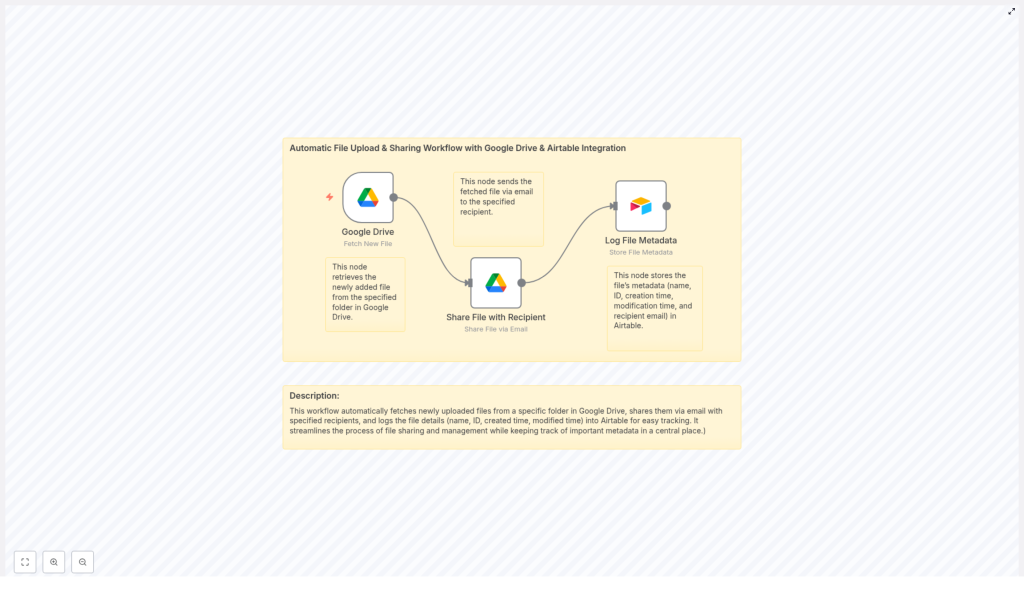
As Emma walked through the template in n8n, she realized how each part of the workflow neatly matched a step she used to do by hand.
1. Google Drive Node – Watching the Right Folder
The first node in the workflow was a Google Drive trigger. Its only job was to watch a specific folder for new files. Instead of Emma checking that folder every morning, n8n would do it for her.
- The Google Drive node monitored a chosen folder.
- Whenever a new file was uploaded, the node detected it automatically.
- The file details were passed along to the rest of the workflow.
This meant no more “Did someone upload it yet?” refreshes. As soon as a file existed in that folder, the workflow woke up.
2. Share File Node – Automatic Sharing With the Right Recipient
Next came the part Emma used to forget: actually sharing the file with the intended recipient.
The Share File node handled this step. As soon as the trigger detected a new file, this node used Google Drive’s sharing permissions to send it to a specified email address.
- The node took the file from the Google Drive trigger.
- It set the appropriate sharing permissions.
- It sent an email to the recipient automatically.
Instead of copy-pasting links into emails, Emma could now define the recipient once and let the workflow do the rest. Every new file meant an immediate email, without delay.
3. Airtable Node – Logging Every Detail for Future Reference
The final step was the one that made Emma feel like she had a real system again. The Airtable node logged all relevant metadata into her chosen base.
Each time a file was shared, the workflow captured:
- File name
- File ID
- Creation time
- Modification time
- Recipient email
The Airtable node then created a new record with this information. No more copying file names, no more guessing when a file had been updated, and no more wondering who had received what.
The Turning Point: From Manual Chaos to Reliable Automation
Emma ran a test. She dropped a new file into the monitored Google Drive folder and watched.
- The Google Drive node detected the new file almost instantly.
- The Share File node sent an email to her test address with access to the file.
- The Airtable node added a new row to her base, complete with all the metadata.
For the first time, her Airtable base updated itself. The file was shared, tracked, and fully documented without a single manual step. The tension she felt around “Did I log everything correctly?” started to fade.
She imagined scaling this beyond a single campaign. Designers, freelancers, and partners could all drop files into the same folder, and the workflow would take care of sharing and logging every time.
Why This n8n Workflow Changed Her Day-To-Day Work
After a week of running the automation, the benefits were obvious.
Efficiency That Actually Felt Real
The workflow eliminated the repetitive busywork that used to eat up her mornings. She no longer had to:
- Check for new uploads in Google Drive.
- Manually share each file by email.
- Copy and paste metadata into Airtable.
All of that happened automatically every time a file appeared in the folder.
Centralized Tracking in Airtable
Her Airtable base finally became what she wanted from the beginning: a reliable dashboard of everything that had been shared.
- Every file had a corresponding record.
- Metadata like creation and modification times were always accurate.
- She could filter by recipient email, date, or campaign and know the data was correct.
Instead of asking “Where is that file?” her team now asked “What is the record ID in Airtable?” and pulled it up instantly.
Timely, Automatic Sharing
Recipients no longer waited for Emma to catch up on notifications. The moment a file was uploaded, the workflow sent it out.
- No lag between upload and delivery.
- No risk of forgetting to share a file.
- No more “Can you resend that link?” messages.
The process felt seamless, both for her team and the people receiving the files.
What You Need To Recreate Emma’s Success
If you see yourself in Emma’s story, you can use the same n8n template to sync Google Drive files automatically with Airtable.
Requirements Checklist
- Google Drive access with API permissions enabled.
- An Airtable account with a base prepared to store file metadata.
- Credentials set up for both Google Drive and Airtable connectors inside n8n.
Workflow Overview
Once your accounts are ready, the process is straightforward.
- Google Drive Node watches a specific folder for new files.
- Share File Node automatically shares each new file with a designated email address using Google Drive permissions.
- Airtable Node logs all relevant metadata in your Airtable base for future tracking and reporting.
You can adapt the template to your own use case, but the core automation remains the same: detect, share, and log.
Resolution: From Stress To a Seamless File Management Workflow
Within a month, Emma had expanded the automation to multiple folders and different recipients. Her campaigns were smoother, her Airtable dashboards were cleaner, and her inbox was quieter.
Instead of spending time chasing files, she could finally focus on strategy, content, and performance. The workflow did not just save her time. It restored trust in her systems.
If you are managing files across teams and tools, you do not have to keep juggling manual steps. Let an n8n workflow handle the repetitive work so you can focus on the work that actually matters.
Ready to automate your file sharing and metadata tracking? Use this n8n template to start syncing your Google Drive files with Airtable and experience a smoother, more reliable file management workflow.
