


Sync Google Sheets with Postgres using n8n: A Workflow Story
By the time Lena opened her laptop on Monday morning, she already knew what her day would look like. Again.
As the operations lead at a fast-growing startup, she was the unofficial “data router.” Sales reps logged leads in a shared Google Sheet, customer success updated another sheet with onboarding progress, and finance had yet another sheet for billing details. All of it was supposed to end up in a Postgres database that powered dashboards and internal tools.
In reality, that meant Lena spent hours every week exporting CSVs, importing them into Postgres, fixing mismatched columns, and answering the same question from her team over and over:
“Is the data up to date?”
Most days, the honest answer was “sort of.”
The Problem: When Your Google Sheets Become a Liability
Google Sheets had been the perfect starting point. It was easy, everyone could collaborate, and no one had to ask engineering for help. But as the company grew, the cracks started to show.
- Someone would change a column name in the sheet, quietly breaking the next import.
- Another person would forget to update the spreadsheet for a few days, so Postgres would show stale data.
- Manual imports meant late-night syncs and the constant risk of missed rows or duplicates.
What used to feel flexible now felt fragile. The spreadsheets were still the canonical source of truth, but the Postgres database was where reporting and internal tools lived. If the two were not in sync, people made bad decisions on bad data.
Lena knew she needed a reliable, repeatable way to keep a Google Sheet and a Postgres table perfectly synchronized, without babysitting CSV files. She wanted:
- Reliable scheduled updates, with no manual exports
- Consistent data mapping and validation
- Automatic inserts and updates, without duplicate records
- Slack notifications when changes occurred, so the team stayed informed
She did not want to write a custom script, maintain a brittle integration, or wait for engineering bandwidth.
The Discovery: A Ready-to-Use n8n Template
One afternoon, while searching for a “no code Google Sheets to Postgres sync,” Lena stumbled across n8n. It promised flexible, workflow-based automation that could connect her tools without heavy engineering work.
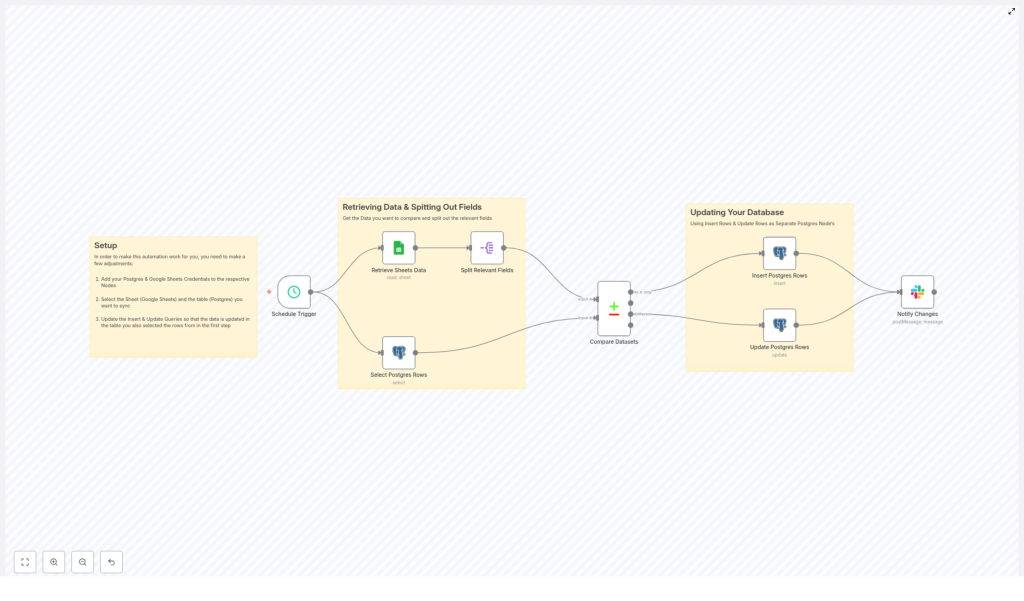
What caught her eye was a template that did exactly what she needed: read data from Google Sheets, compare it to a Postgres table, insert or update rows accordingly, and send a Slack summary. All as a reusable n8n workflow.
She realized she did not have to design the sync from scratch. The template already followed a clear pattern:
- Use a Schedule Trigger to run the sync on a recurring schedule
- Retrieve Sheets Data from Google Sheets
- Select Postgres Rows to see what already existed
- Split Relevant Fields so only important columns were compared
- Compare Datasets to find new and changed records
- Insert Postgres Rows for brand new entries
- Update Postgres Rows where values had changed
- Notify Changes in Slack so no one had to ask “is it done?”
It sounded like exactly the kind of automation she had been wishing for.
Setting the Stage: Prerequisites Before Lena Hit “Run”
Before she could bring the workflow to life, Lena gathered what she needed:
- An n8n instance, which she set up in the cloud
- A Google account with access to the spreadsheet her team used
- Postgres database credentials and the target table where data should live
- A Slack webhook for notifications, so the team would see sync results in their main channel
With everything ready, she imported the template into n8n and began tailoring it to her own setup.
Rising Action: Building the Automated Sync in n8n
1. Giving n8n Access: Adding Credentials
The first step was to teach n8n how to talk to her tools.
Inside n8n, Lena added credentials for Google Sheets and Postgres. For Google Sheets, she used OAuth and made sure the connected account had read access to the shared spreadsheet. For Postgres, she plugged in the host, port, database name, user, and password, then clicked “Test” to confirm the connection worked.
She liked that n8n stored these securely, instead of hardcoding passwords in nodes.
2. Deciding When the Sync Should Run: Schedule Trigger
Next, she opened the Schedule Trigger node. This was where she could finally stop worrying about “Did I remember to sync the data?”
She considered two common options:
- Every hour for near real-time sync, ideal for sales and operations
- Every night for daily batch updates, which would reduce load
For now, she chose an hourly interval, balancing freshness with system load. The trigger would quietly kick off the entire workflow without her lifting a finger.
3. Pulling the Source of Truth: Retrieving Google Sheets Data
With timing in place, Lena turned to the data itself.
In the Google Sheets node, she entered the document ID and selected the correct sheet (gid). She configured it to return the specific range that contained her dataset, making sure the header row was consistent.
She double-checked that column names would not change unexpectedly. Fields like first_name, last_name, town, and age were stable and descriptive enough to map cleanly into Postgres.
4. Seeing What Was Already There: Selecting Postgres Rows
Next, she had to see what already existed in the database.
Using a Postgres node set to the select operation, Lena fetched rows from the target table. She pulled only the columns that mattered for comparison and matching, such as first_name and last_name.
For her current dataset, returning all rows was fine. She made a note that if the table ever grew very large, she might filter or batch the query to avoid performance issues.
5. Reducing Noise: Splitting Relevant Fields
Her spreadsheets had more columns than she needed for syncing. Some were notes, some were experimental fields, and she did not want them to accidentally trigger updates.
That is where the Split Relevant Fields (Split Out) node came in. She used it to normalize and extract only the fields that mattered for comparison and writing to Postgres.
By trimming the dataset at this stage, she reduced noise and avoided unintended updates from unrelated columns.
6. The Heart of the Story: Comparing Datasets
Now came the crucial moment. Lena wanted the workflow to answer one key question: “What changed?”
The Compare Datasets node did exactly that. She configured the matching fields, choosing first_name and last_name as the keys for identifying the same person across both systems. (She made a note that if they ever added unique IDs, she would switch to those as more reliable keys.)
Once configured, the node produced three distinct outputs:
- In A only – rows present only in Google Sheets, representing new records to insert
- In both – rows that existed in both Google Sheets and Postgres, candidates for updates if values differed
- In B only – rows found only in Postgres, which she could optionally use later for deletes or flags
This was the turning point. Instead of staring at two spreadsheets or CSV files, n8n was doing the comparison for her, every hour, reliably.
The Turning Point: Writing Back to Postgres
7. Welcoming New Data: Inserting Postgres Rows
For the rows that existed “In A only,” Lena connected that output to a new Postgres node set to the insert operation.
She used auto-mapping to quickly align columns, then reviewed the mapping to be sure only the intended fields were inserted. The workflow would now automatically create new records in the Postgres table whenever someone added a new row to the Google Sheet.
No more “Did you remember to import the new leads?” Slack messages.
8. Keeping Existing Data Fresh: Updating Postgres Rows
Next, she attached the “In both” output of the Compare Datasets node to another Postgres node, this time configured for update operations.
She defined matchingColumns using first_name and last_name, then mapped the fields that should be updated, such as age and town. Any time those values changed in Google Sheets, the corresponding records in Postgres would be updated automatically.
It meant that the database would quietly stay in sync as people edited the spreadsheet, without forcing them to learn a new tool.
9. Closing the Loop: Notifying Changes via Slack
Lena knew her team liked visibility. If data changed silently, someone would still ping her to ask if everything was working.
So she added a Slack node, connected to the outputs of the insert and update branches. Using a webhook, she posted a concise summary message to a dedicated channel, something like:
“Google Sheets → Postgres sync completed. Rows were inserted or updated.”
She also included counts of inserted and updated rows, so the team could see at a glance how much had changed in each run.
Testing the Workflow: From Nervous Click to Confident Automation
Before trusting the schedule, Lena decided to test everything manually.
- She clicked to run the Schedule Trigger node once, kicking off the entire flow.
- She inspected the output of each node, paying close attention to Compare Datasets, Insert, and Update nodes.
- She opened her Postgres table and confirmed that new rows had been inserted and existing ones updated correctly.
- She checked Slack and saw the summary message appear with the correct counts.
On the first run, she caught a small issue: one column header in Google Sheets did not match the name used in the Postgres mapping. A quick rename in the sheet and a tweak in n8n fixed it.
She also noticed that some names had leading spaces or inconsistent capitalization. To handle this, she considered adding a normalization step, such as trimming whitespace or converting values to lowercase before comparison, so that minor formatting differences would not break matching.
Best Practices Lena Adopted Along the Way
As she refined the workflow, Lena ended up following several best practices that made the sync more robust:
- Use stable matching keys – She avoided free-text fields where possible and planned to introduce unique IDs for long term reliability.
- Validate data types – She made sure numeric and date fields were converted to the correct types before writing to Postgres.
- Limit dataset size – She kept an eye on sheet and table growth, ready to filter or batch the sync if things got too large.
- Implement error handling – She configured error notifications so that if a Postgres operation failed, admins would be alerted.
- Maintain an audit trail – She added a
last_syncedtimestamp column in Postgres to track when each record was last updated.
Security Considerations That Kept Her Team Comfortable
Because the workflow touched production data, Lena also worked with engineering to ensure it was secure:
- They created a dedicated Postgres user with only the permissions needed for this workflow, such as SELECT, INSERT, and UPDATE.
- They used a Google service account limited to the specific spreadsheet, instead of granting broad access.
- They stored all credentials in n8n’s encrypted credential manager, never in plain text within nodes.
This way, the automation was not only convenient but also aligned with their security practices.
Troubleshooting: How She Handled Early Hiccups
Like any real-world automation, the first few days revealed small issues. Thankfully, they were easy to resolve:
- Mismatch on field names – When a header in Sheets did not match the column name used in n8n, the mapping failed. She standardized headers and avoided ad-hoc renames.
- Large dataset timeouts – As the sheet grew, she watched for timeouts and planned to break the sync into smaller jobs if necessary.
- Duplicate rows – When duplicate entries appeared, she strengthened the matching logic and considered adding a unique ID column to the sheet.
Each fix made the workflow more resilient and predictable.
The Resolution: From Manual Chaos to Reliable Automation
A few weeks later, Lena realized something had changed. No one was asking her if the database was up to date.
The Google Sheet and the Postgres table were quietly staying in sync, hour after hour. New rows flowed in automatically. Updated values propagated without anyone touching a CSV. Slack messages summarized each run so the team always knew what had changed.
What used to be a fragile, manual process had become a repeatable data pipeline.
The n8n template had given her a modular starting point. Over time, she added extra steps for data normalization, advanced validation, and more detailed notifications. The core, however, stayed the same: a reliable sync between Google Sheets and Postgres.
Your Turn: Bring This n8n Story Into Your Own Stack
If you recognize yourself in Lena’s story, you do not have to keep living in spreadsheet chaos. You can use the same n8n workflow template to automate your Google Sheets to Postgres sync and reclaim the hours you spend on manual imports.
Here is how to get started:
- Import the n8n workflow template into your n8n instance.
- Add your Google Sheets and Postgres credentials.
- Configure the Schedule Trigger, matching fields, and column mappings.
- Run a manual test, inspect node outputs, and verify the results in Postgres.
- Enable the schedule and let the sync run automatically.
If you want help customizing the workflow for your specific schema, adding data validation steps, or handling edge cases like deletes and duplicates, reach out or subscribe to our newsletter for more n8n automation templates and tutorials.
Get started now: import the template, configure your credentials, and run the sync. Then share your results or questions in the comments. Your next “Lena moment” might just be one workflow away.
