


Sync Jira Issues and Comments to Notion with n8n
Keeping Jira and Notion aligned can dramatically cut down on context switching and manual updates. In this step-by-step guide, you will learn how to use an n8n workflow template to automatically sync Jira issues and their comments into a Notion database.
This tutorial focuses on teaching you how the workflow works, why each node is used, and how to adapt it to your own setup. You will walk through the full lifecycle: from a Jira webhook event, through mapping and filtering in n8n, to creating, updating, and archiving Notion pages.
What you will learn
- Why syncing Jira issues to Notion is useful for teams
- How the provided n8n workflow template is structured
- How to configure the Jira Trigger node and process webhook events
- How to map Jira statuses to Notion select values using a Code node
- How to create, find, update, and archive Notion database pages from Jira events
- Two different patterns for syncing Jira comments to Notion
- Best practices, troubleshooting tips, and next steps to customize the workflow
Why sync Jira to Notion?
Many teams rely on Jira for issue tracking and Notion for documentation, knowledge sharing, and cross-team visibility. Without automation, keeping these two tools in sync usually means manual copying, constant tab switching, and outdated documentation.
By using n8n to sync Jira to Notion you can:
- Give non-technical stakeholders read-only visibility into Jira issues directly in Notion
- Preserve issue context (status, summary, links, comments) in a central knowledge base
- Reduce manual copy and paste and keep Notion updated in near real-time
The workflow you will learn uses:
- A Jira webhook trigger to react to issue events
- Lightweight JavaScript (Code) nodes to map statuses and build filters
- Notion database operations to create, update, or archive pages that mirror Jira issues
How the n8n workflow is structured
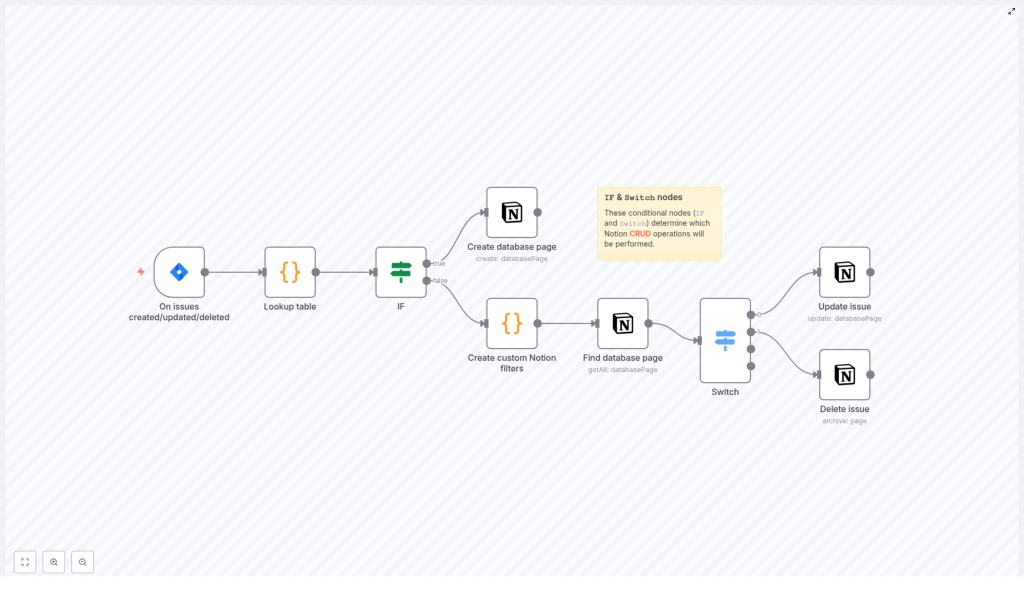
Before diving into the details, it helps to see the overall logic. The template follows this flow:
- Jira Trigger node receives events like issue created, updated, or deleted.
- Code (lookup) node maps the Jira issue status name to a Notion select value.
- IF node checks whether the event is an issue created event or something else.
- If it is a creation:
- Notion – Create database page creates a new page and maps core fields.
- If it is an update or delete:
- Code node builds a custom Notion filter based on Jira Issue ID.
- Notion – Find database page (getAll) locates the matching Notion page.
- Switch node routes to:
- Update path for jira:issue_updated
- Delete path for jira:issue_deleted (archive the page)
You can extend this same pattern to handle comment events and keep Notion updated with ongoing discussion from Jira.
Core concepts to understand first
Jira webhook events
Jira can send webhook payloads to n8n whenever certain events happen, such as:
jira:issue_createdjira:issue_updatedjira:issue_deleted
Each payload includes useful fields like issue.id, issue.key, issue.fields.summary, and the current status. These values are what you will map into Notion.
Using Issue ID as a unique identifier
To reliably match Jira issues with Notion pages, the workflow uses Jira’s internal Issue ID (not just the human-readable key like “PROJ-123”). This ID is stored in a Notion number property and is used later in filters to find the exact page to update or archive.
Mapping Jira status to Notion status
Jira and Notion often use slightly different wording for statuses. A simple lookup table in a Code node converts Jira status names to the select options you use in your Notion database. Keeping this mapping explicit avoids mismatches.
Step-by-step: building and understanding the workflow
Step 1 – Configure the Jira Trigger node
Start with the jiraTrigger node in n8n. Configure it to listen to the events you want to sync:
jira:issue_createdjira:issue_updatedjira:issue_deleted
If you also want to sync comments later, you can either:
- Add a specific comment-created event like
issue_comment_created, or - Parse comments from
issue_updatedpayloads if your webhook includes that data.
Every time one of these events occurs, Jira sends a webhook to n8n and the Jira Trigger node passes the full payload to the next nodes in the workflow.
Step 2 – Map Jira status to Notion using a Code node
Next, use a Code node as a lookup table. Its job is to take the Jira status name from the webhook and return the corresponding Notion select value.
Example mapping:
// Example mapping (simplified)
const lookup = {  "To Do": "To do",  "In Progress": "In progress",  "Done": "Done"
};

// Assume you extracted the Jira status name into `issue_status`
return [  {  json: {  "Status ID": lookup[issue_status]  }  }
];
In your actual workflow, you will extract issue_status from the Jira payload (for example item.json.issue.fields.status.name) and then pass the mapped status to the Notion node.
Tip: Keep this mapping table short and well documented so you can easily update it when Jira or Notion workflows change.
Step 3 – Use an IF node to separate create vs update/delete
Now add an IF node to branch the workflow based on the event type. The IF node checks the webhookEvent field from the Jira payload.
- If
webhookEvent == "jira:issue_created":- Follow the true branch and create a new Notion page.
- For any other event (update or delete):
- Follow the false branch and first find the existing Notion page.
This separation keeps the logic clear: creations go directly to a Notion “Create Page” node, while updates and deletes must first locate the page to act on.
Step 4 – Create a Notion database page for new Jira issues
On the issue created branch, use the Notion node in Create mode to add a new page to your target database. Map at least the following properties:
- Title:
issue.fields.summary - Issue Key (rich_text):
issue.key(for example “PROJ-123”) - Issue ID (number):
issue.id(this is the unique identifier used later) - Link (url): the full Jira issue URL
- Status (select): the mapped status value from your lookup Code node
You can also extend this mapping to include properties like assignee, priority, or labels as needed, but the fields above are the minimum required for reliable syncing.
Step 5 – Build custom Notion filters and find the existing page
On the update/delete branch, you first need to find the specific Notion page that corresponds to the Jira issue.
- Use a Code node to construct a JSON filter that matches your Notion database schema. The filter should target the Issue ID property you created earlier.
- Pass this filter to a Notion – Find database page (getAll) node, which queries the database with that filter and returns any matching page.
Conceptually, the filter will say: “Find all pages where the Issue ID property equals this Jira issue’s issue.id.”
If a matching page is found, its ID will be used by later nodes to update or archive the page. If none is found, you can decide whether to create a new page or simply stop the workflow for that event.
Step 6 – Route between update and delete with a Switch node
Once the Notion page is found, use a Switch node to branch based on the webhookEvent again. This node typically checks the same field as the IF node but now only for non-create events.
- Case:
jira:issue_updated- Send the execution to an Update issue path.
- Use a Notion node in Update mode to modify properties such as:
- Title (if the Jira summary changed)
- Status (using the mapped Notion select value)
- Optionally, append or update a comments section
- Case:
jira:issue_deleted- Send the execution to a Delete issue path.
- Use the Notion node to archive the page instead of fully removing it, so the history remains in Notion.
At this point you have a complete one-way sync for the issue lifecycle: create, update, and delete events from Jira are reflected in Notion.
How to sync Jira comments to Notion
The base template focuses on the issue lifecycle. You can extend it to also sync subsequent comments from Jira into Notion. Below are two common patterns.
Option A – Use Jira comment webhooks and append Notion blocks
This option treats each new comment as a separate event and appends it to the existing Notion page as a new block.
- Enable comment events in Jira
Configure your Jira webhook to sendissue_comment_created(or equivalent) events to n8n. - Add a comment event path in n8n
In your workflow, handle the comment-created event similarly to issue updates:- Use the same “Create custom Notion filters” approach to find the page by Issue ID.
- Append a block to the Notion page
Once you have the Notion page ID, use:- The Notion node in “append children” mode, or
- An HTTP Request node to call the Notion API directly
and add a new paragraph block that contains the comment text, author, and timestamp.
Pseudo-code for building a Notion append-block payload:
{  "parent": { "page_id": "<notion-page-id>" },  "children": [  {  "object": "block",  "type": "paragraph",  "paragraph": {  "text": [  {  "type": "text",  "text": {  "content": "[JiraComment] @author: comment text"  }  }  ]  }  }  ]
}
This pattern is ideal if you want each comment to appear as a separate, clearly visible block under the issue in Notion.
Option B – Store comments in a single Notion property
If you prefer a simpler setup, you can maintain a single Comments property in your Notion database (for example a rich_text or long-text field) and append new comments to that field.
For each comment event:
- Find the page by Issue ID as before.
- Read the existing value of the Comments property.
- Append a new line with something like
[timestamp] author: comment body. - Update the property with the combined text.
This approach is easier to implement but less flexible if you need rich formatting or separate blocks for each comment.
Example high-level comment sync flow
Regardless of whether you choose Option A or B, the logic usually looks like this:
- jiraTrigger receives a comment-created event.
- A Code node extracts:
- Comment author
- Created time
- Comment body
- The workflow uses the Issue ID to find the corresponding Notion page.
- A Notion node or HTTP Request node:
- Either appends a paragraph block with the comment, or
- Updates the Comments property by appending text.
Best practices for a reliable Jira-to-Notion sync
- Use a stable unique identifier
Always storeissue.idfrom Jira in a Notion number property and use it in filters. This is more reliable than only usingissue.key. - Watch rate limits
Both Jira and Notion have API rate limits. If you expect many events in a short time (for example a burst of comments), consider batching or debouncing events in n8n. - Keep status mapping small and clear
Maintain your status lookup table in one Code node. When Jira workflows or Notion select options change, update it there to avoid inconsistent statuses. - Add error handling
Use n8n’s error workflow features or additional branches to:- Send Slack or email notifications when Notion updates fail
- Log errors with enough detail to debug payload and property mismatches
- Secure your credentials
Store your Notion API key and Jira credentials in n8n’s Credentials system. Do not hard-code secrets in Code nodes or plain fields. - Test
