


Sync Mailchimp Members to HubSpot Daily with n8n
Keeping Mailchimp and HubSpot in sync is essential if your marketing and sales teams rely on both tools. In this tutorial, you will learn how to use an n8n workflow template that runs every day, finds Mailchimp members that changed since the last run, and upserts them into HubSpot as contacts.
The workflow uses workflow static data to remember the last time it executed. That way, each new run only processes recently updated Mailchimp members, which keeps the sync fast and efficient.
What you will learn
By the end of this guide, you should be able to:
- Configure a daily Cron trigger in n8n.
- Use workflow static data to store a last execution timestamp.
- Fetch Mailchimp members changed since a given timestamp.
- Upsert contacts into HubSpot using email, first name, and last name.
- Harden the workflow with validation, error handling, and rate limit awareness.
How the workflow works at a glance
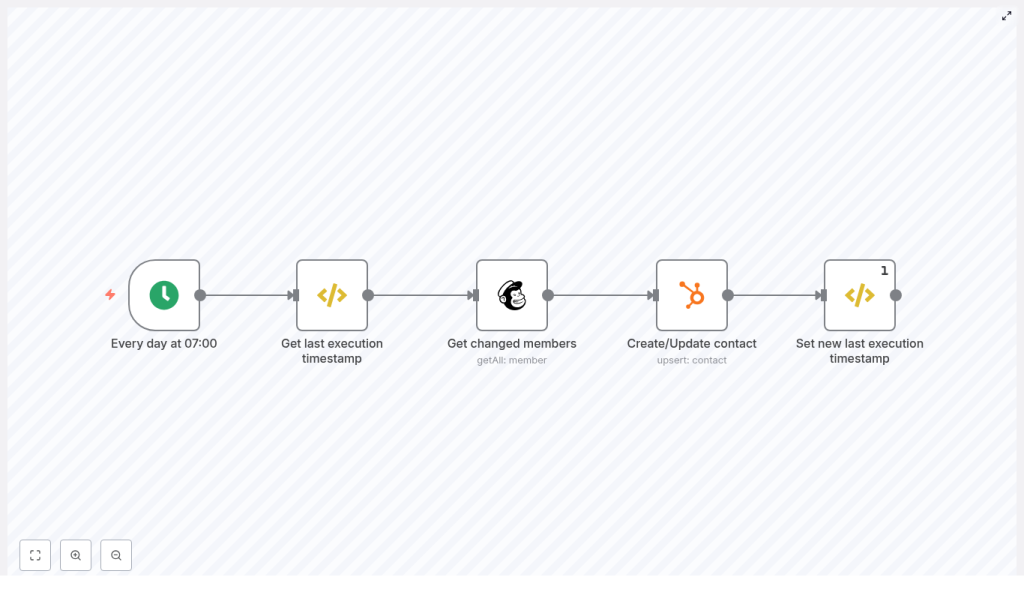
Here is the overall flow of the n8n template:
- Trigger: Cron node – runs every day at 07:00.
- Step 1: FunctionItem node – read or initialize the last execution timestamp from workflow static data.
- Step 2: Mailchimp node – fetch all members changed since that timestamp.
- Step 3: HubSpot node – upsert each member as a HubSpot contact using email and name fields.
- Step 4: FunctionItem node – update the stored timestamp to the current run time.
This pattern minimizes API calls because it only handles records that changed since the previous run. It also avoids the need for an external database by using n8n’s built-in workflow static data.
Key concepts before you build
Workflow static data
n8n provides getWorkflowStaticData('global') so you can store small pieces of data that persist between executions of the same workflow. In this template, static data holds a single value:
lastExecution– the timestamp of the last successful run.
On each run, the workflow:
- Reads
lastExecutionfrom static data, or initializes it if it does not exist. - Uses that timestamp in the Mailchimp query.
- Updates
lastExecutionto the current run’s timestamp after processing.
Incremental sync using timestamps
Mailchimp supports a since_last_changed filter, which you will provide as an ISO timestamp. This lets the workflow fetch only members that were added or updated after a specific moment in time.
Upserting contacts in HubSpot
HubSpot’s upsert behavior lets you create or update a contact in a single operation, typically using the email address as the unique identifier. If the email exists, the contact is updated. If it does not, a new contact is created.
Step-by-step: Build the n8n workflow
Step 1 – Set up the Cron trigger
First, configure when the workflow should run.
- Add a Cron node as the starting node.
- Set it to run every day at 07:00.
- Confirm the timezone in the node or in n8n’s global settings so it matches your region.
This creates a predictable daily sync window where the rest of the workflow will execute.
Step 2 – Get or initialize the last execution timestamp
Next, you need a FunctionItem node to read and manage the timestamp in workflow static data.
- Add a FunctionItem node after the Cron node and name it something like Get last execution timestamp.
- Use code similar to the following:
// run once per input item
const staticData = getWorkflowStaticData('global');

if (!staticData.lastExecution) {  // Initialize on first run  staticData.lastExecution = new Date();
}

item.executionTimeStamp = new Date();
item.lastExecution = staticData.lastExecution;

return item;
What this code does:
staticData.lastExecutionis your persistent value. It is shared and retained across workflow runs.item.lastExecutionis the value that will be passed to the Mailchimp node.item.executionTimeStampcaptures the current run’s time so you can save it back to static data at the end.
Later in the guide, you will see how to serialize this date to ISO format for Mailchimp.
Step 3 – Fetch changed members from Mailchimp
Now you will use the last execution timestamp to retrieve only the changed members.
- Add a Mailchimp node after the FunctionItem node.
- Configure it to:
operation: getAll
list: "your-list-id"
options: {  sinceLastChanged: ={{ $json["lastExecution"] }}
}
Important details:
- Mailchimp expects
since_last_changedto be an ISO timestamp such as2024-03-10T07:00:00.000Z. If needed, ensure your stored date is converted withnew Date().toISOString()when you save it into static data. - The getAll operation automatically handles pagination, which is helpful for large audiences.
- For big lists, keep Mailchimp’s rate limits in mind. You can combine this with n8n’s SplitInBatches node or delays if required.
At this point, the workflow has a collection of Mailchimp members that changed since the last run.
Step 4 – Upsert contacts into HubSpot
With the changed members available, the next step is to map them to HubSpot contacts.
- Add a HubSpot node after the Mailchimp node.
- Set the operation to upsert (create or update contact).
- Map the fields from Mailchimp to HubSpot, for example:
email: ={{ $json["email_address"] }}
additionalFields: {  firstName: ={{ $json["merge_fields"].FNAME }},  lastName: ={{ $json["merge_fields"].LNAME }}
}
Best practices for this step:
- Validate that
email_addressexists before upserting. You can use an IF node or SplitInBatches with checks to skip invalid records. - Ensure HubSpot property names like
firstNameandlastNamematch your HubSpot account configuration. - If you expect a high volume of contacts, consider batching requests with SplitInBatches to avoid hitting HubSpot’s API limits.
Step 5 – Save the new last execution timestamp
After all upserts are done, you need to update the stored timestamp so the next run only picks up later changes.
- Add another FunctionItem node at the end of the workflow and name it something like Set new last execution timestamp.
- Configure this node to execute once per workflow (use the executeOnce option) so it runs only a single time after all items are processed.
- Use code similar to this:
const staticData = getWorkflowStaticData('global');

staticData.lastExecution = $item(0).$node["Get last execution timestamp"].executionTimeStamp;

return item;
Explanation:
- You read
executionTimeStampfrom the first item that passed through the earlier FunctionItem node. - You store that value as
staticData.lastExecution, which will be used in the next workflow run. - Because the node runs only once, you avoid overwriting the timestamp multiple times within the same execution.
Hardening the workflow for production
Once the basic flow is working, you can improve reliability and robustness with a few extra steps.
Timezone handling
- Use ISO timestamps with timezone information such as
new Date().toISOString()so Mailchimp interprets dates correctly. - Keep your Cron node timezone and your timestamp handling consistent.
- If you need advanced control, consider using a library like luxon to format timestamps explicitly.
Error handling
- Configure error workflows in n8n or use the Execute Workflow on Error option.
- Capture failed records and either retry them later or send a notification to an owner.
- Consider logging error details such as Mailchimp member ID or HubSpot contact email.
Rate limiting
- Monitor API usage for both Mailchimp and HubSpot.
- Use SplitInBatches and optional Wait nodes to control throughput.
- Batch HubSpot upserts where possible to reduce the number of API calls.
Data validation
- Filter out records that do not have a valid email address or other required properties before calling HubSpot.
- Use an IF node to branch invalid items into a separate path for review.
External persistence and audit trails
- For mission critical setups, you may want to store
lastExecutionin an external key-value store such as Google Sheets, Redis, or a database if you need cross-workflow access or backup. - Maintain an audit log of processed records, including IDs and timestamps, in a file or database for reconciliation and debugging.
Testing and debugging the n8n template
Before letting the workflow run every day, test it with a small subset of data.
- Run the workflow manually using a test list or use SplitInBatches to limit processing to 1 to 5 items.
- Use Execute Workflow and inspect each node’s output to confirm:
- The
lastExecutiontimestamp is correct. - The
sinceLastChangedvalue sent to Mailchimp is in ISO format. - The HubSpot node receives the expected email and name fields.
- The
- Enable node-level logging where appropriate.
- Add Slack or email notifications on errors so you are alerted quickly if something breaks.
Security and credentials
Handle credentials with care:
- Store all API keys in n8n’s Credentials section, not inside FunctionItem code.
- For HubSpot, the example uses an App Token credential.
- For Mailchimp, configure your API key in the Mailchimp node credentials.
- Never hardcode secrets directly in the workflow code fields.
Example workflow structure
The complete workflow in this tutorial follows this sequence, which matches the provided template:
Cron → FunctionItem (get last execution) → Mailchimp (get changed members) → HubSpot (create/update contact) → FunctionItem (set new last execution timestamp)
You can import the template JSON or recreate it step by step using the instructions above.
Frequently asked questions
What happens on the first run when there is no timestamp?
On the first run, the FunctionItem node checks if staticData.lastExecution exists. If it does not, it initializes it with the current date. From that point on, each run will update the timestamp at the end of the workflow.
Can I change the daily time or frequency?
Yes. Adjust the Cron node settings to run at a different time or on a different schedule, such as hourly or on specific weekdays. The timestamp logic will still work because it always uses the last stored execution time.
Can I sync additional fields?
Absolutely. In the HubSpot node, map any extra Mailchimp merge fields to HubSpot properties, as long as those properties exist in your HubSpot account. Just extend the additionalFields section with more mappings.
What if I need two-way sync?
This template focuses on one-way sync from Mailchimp to HubSpot. For two-way sync, you would usually create an additional workflow or extend this one with logic that reads from HubSpot and writes back to Mailchimp, while carefully handling conflicts and duplicates.
Conclusion and next steps
By combining Cron, workflow static data, Mailchimp, and HubSpot nodes, you can build a reliable daily sync that only processes changed members. This approach reduces API usage, keeps your contact data aligned, and is easy to extend with validation, error handling, and batching as your audience grows.
Next steps:
- Import or recreate this workflow in your n8n instance.
- Update the Mailchimp list ID and HubSpot field mappings to match your accounts.
- Test with a small subset of contacts, then enable the Cron trigger for daily automation.
If you work with very large audiences or need more advanced features such as two-way sync or external logging, consider consulting an automation specialist or asking for help in the n8n community.
Need a ready to import JSON or help adapting the template? Share your Mailchimp list ID and HubSpot field mappings and you can receive a workflow tailored to your setup.
