


UGC Ad Creator – n8n Video Automation
Imagine turning a simple customer photo into a scroll-stopping vertical video ad in just a few minutes, without opening a video editor. That is exactly what this n8n UGC Ad Creator workflow template is built to do.
Using Telegram, a couple of AI models, and a VEO-style video generator, this template takes a user-supplied image and transforms it into a short, natural-looking UGC-style video ad. The result feels like something a real person could have filmed with their phone, not a polished studio production.
What this n8n UGC Ad Creator actually does
At a high level, the workflow:
- Accepts a photo from a user via Telegram
- Uses an image-capable LLM to understand what is in the picture
- Generates a short, filmable UGC script tailored to that image
- Sends the script and image to a VEO-style video rendering API
- Delivers the finished vertical video back to the user on Telegram
So instead of manually writing scripts, briefing editors, and waiting for drafts, you can go from idea to ready-to-share UGC video in a single automated flow.
When you should use this template
This UGC Ad Creator workflow is especially helpful if you:
- Run lots of social ad experiments and need quick variations for A/B tests
- Offer UGC services to clients and want a semi-automated production pipeline
- Manage creator or ambassador programs and want an easy way for them to submit photos and get back videos
- Work on an in-house marketing team and need to turn customer photos into ad concepts fast
Basically, if you are tired of bottlenecks between “cool customer photo” and “live UGC-style ad,” this template will make your life easier.
Why UGC-style video ads matter
UGC-style ads tend to feel more trustworthy and relatable than heavily produced spots. People are used to seeing friends, creators, and everyday users talking to the camera, unboxing products, or casually showing what they use in real life.
This template leans into that. It keeps the process efficient and automated, but still gives you control over:
- The tone and style of the script
- How many segments you want in the video
- Which LLMs and rendering services you plug in
You get speed and scale, without giving up creative direction.
How the workflow is structured in n8n
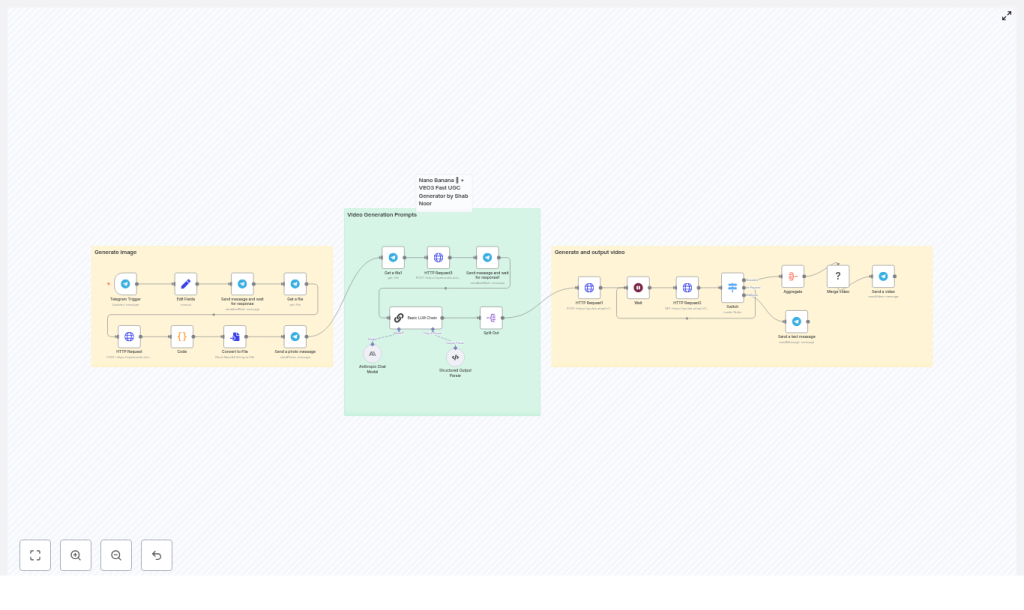
Inside n8n, the workflow is organized into three main zones. You can think of them as stages in a mini production pipeline.
1. Generate Image
- Listens for photos sent to your Telegram bot
- Fetches and prepares the image for processing and preview
- Passes the image to an image-capable LLM for description
2. Video Generation Prompts
- Combines the user’s instructions with the AI-generated image description
- Uses a prompt chain (such as Anthropic or Claude-style model) to create a two-part UGC script
- Outputs a structured JSON object that is ready for the video renderer
3. Generate & Output Video
- Sends the script and original image URL to a VEO-style video generation API
- Polls the service until rendering finishes
- Merges clips if needed and returns the final video to the user on Telegram
Let us walk through each step in more detail so you know exactly what is happening behind the scenes.
Step-by-step walkthrough of the n8n workflow
Step 1: Telegram trigger and image intake
Everything starts in Telegram. The workflow uses a Telegram Trigger node that listens for incoming photos sent to your bot.
When someone sends an image, the workflow:
- Uses a Set node to store your Telegram bot token so the workflow can access files correctly
- Calls the Telegram “Get a file” node to retrieve the file path for the uploaded photo
- Sends a confirmation message back to the user and asks for extra instructions such as:
- Preferred style (casual, energetic, informative, etc.)
- Product or brand to highlight
- Desired tone or target audience
Those user instructions are later combined with the AI-generated image description to shape the final script.
Step 2: Describe the image with an image-capable LLM
Next, the workflow passes the image to an image-capable language model. This could be an endpoint from providers like OpenRouter or Gemini that can “see” the image and describe it in detail.
The model is prompted to identify things such as:
- The setting or background (kitchen, office, outdoors, etc.)
- Visible people or subjects
- Objects and products in the frame
- Colors, lighting, and any clear actions
One important constraint is baked into the prompt: the script must only reference elements that are actually present in the image. No imaginary props, no random locations, nothing that would make the final video feel off or unrealistic.
Step 3: Generate a filmable UGC script
Now comes the fun part. A chained LLM step, typically using an Anthropic or Claude-style model, receives:
- The user’s Telegram instructions
- The structured description of the image
Based on that, it creates a two-segment UGC script designed to be filmable and realistic. Each segment is roughly 7 to 8 seconds long and includes:
- Camera movement directions
- Specific actions that only use visible elements in the original image
- Natural-sounding dialogue written in single quotes
The response is not just free text. A structured output parser node in n8n ensures the LLM output follows a strict JSON schema. That structure is what makes it easy to hand off the script to the video renderer without manual cleanup.
Step 4: Generate and deliver the video
Once the script is ready, the workflow sends it to a VEO-compatible video generation endpoint. In the template, this is configured with a KIE/VEO-style API, but you can swap in other compatible renderers.
The node passes along:
- The structured two-segment script
- The original image URL, so the renderer can align lighting and composition
- Video settings such as aspect ratio (9:16 for vertical videos by default)
From there, the workflow:
- Polls the video generation endpoint until the rendering task completes
- Collects the resulting video URLs
- Merges multiple clips when needed
- Sends the final video back to the user directly in Telegram
From the user’s perspective, they just send a photo, answer a quick prompt, and receive a short UGC-style ad in return.
What you need to run this n8n template
Before you hit “Execute workflow,” make sure you have the following pieces ready.
- n8n instance – either self-hosted or n8n cloud
- Telegram bot token from BotFather to accept image uploads
- API access to an image-capable LLM such as OpenRouter, Gemini, or similar
- An LLM for script generation, for example Anthropic/Claude or another chainable model
- A video rendering API that accepts an image plus script input in a VEO-style format
Configuration tips
- Store your Telegram bot token in the Edit Fields or Set node so file downloads use the correct path.
- Use short wait or poll intervals while testing, then increase them in production to avoid hitting rate limits on the video or LLM providers.
- Set the video aspect ratio to match your main platform. The template defaults to 9:16 for vertical social content.
Ideas to customize the workflow
Out of the box, the template works well, but you are not locked into the defaults. Some easy customizations include:
- Swap LLM models to balance speed, cost, and quality. Use a lower-latency model for quick iterations or a higher-end one for final assets.
- Change the script length by adjusting the prompt to create 3 segments instead of 2 for longer ads, or shorter segments for Reels and Stories.
- Add a moderation step that checks for disallowed content such as nudity, weapons, or policy-violating text before generating videos.
- Localize dialogue by prompting the LLM to output in different languages or adapt to regional expressions.
- Insert a human review stage, for example sending draft scripts to a review channel, before they are passed to the renderer for brand-sensitive work.
Best practices for high quality UGC-style videos
Want your automated UGC ads to feel as real as possible? A few simple habits make a big difference.
- Use clear, well-lit photos. The video renderer relies heavily on what it can see. Better input images mean more believable motion and interactions.
- Keep actions physically plausible. The prompts are designed so subjects only interact with visible elements, which avoids weird or impossible movements.
- Ask users for context. Encourage them to mention the product name, target audience, or desired mood in their Telegram message to improve script relevance.
- Iterate on prompts. Small tweaks to wording can lead to more natural dialogue or better camera directions, so do not be afraid to refine over time.
Troubleshooting common issues
Things do not always work on the first try. Here are some frequent issues and how to fix them.
- No file path from Telegram: Check that:
- Your bot token is correct
- You are using the right photo index (for example
photo[2]orphoto[3]) depending on the size you want
- LLM returns unstructured text instead of JSON: Make sure the structured output parser node is properly connected and that the prompt clearly specifies the required JSON schema and format.
- Video generation fails or times out: Try increasing polling intervals, verify your video provider’s API limits, and confirm that the image URL is publicly accessible to the renderer.
- Rendered actions look strange: Tighten the LLM prompt to avoid impossible actions and optionally request more explicit camera movement instructions.
Real-world use cases
Here are a few ways teams typically use this UGC Ad Creator workflow:
- Rapid prototyping for social ads – Generate multiple UGC variations from a batch of customer photos and quickly test which angles perform best.
- Automated UGC for creator marketplaces – Let creators submit a single image and receive a ready-to-share vertical video they can post or pitch to brands.
- In-house marketing automation – Turn idea-to-execution into a same-day process for TikTok, Instagram, and Shorts campaigns.
Privacy and compliance considerations
Since this workflow processes user images and potentially personal data, it is important to think about privacy from the start.
- Be transparent. Tell users how their images will be used and get consent where required.
- Limit storage. Avoid keeping images or temporary files longer than necessary. Clean up after processing.
- Sanitize personal data. Make sure LLM outputs do not unnecessarily echo sensitive details and confirm that your setup aligns with platform and regional policies.
Bringing it all together
This n8n UGC Ad Creator template removes a huge amount of friction between “someone sent us a photo” and “we have a usable UGC-style video ad.” It combines:
- Conversational input via Telegram
- AI-powered image understanding
- Structured, filmable script generation
- Automated video rendering and delivery
Instead of juggling tools and waiting on manual edits, you get a streamlined, repeatable workflow that still leaves room for creative control and brand safety.
Try the template in your own n8n setup
Ready to see it in action? Here is a simple way to get started:
- Import the UGC Ad Creator template into your n8n instance.
- Connect your Telegram bot token and API credentials for the LLMs and video renderer.
- Send a test image via Telegram, add a short brief, and watch the workflow generate your first UGC video.
If you want help tuning the prompts, picking the right models, or integrating a specific rendering service, feel free to reach out or drop a comment. It is often just a few tweaks to tailor the workflow to your brand, budget, and platform mix.
Call to action: Import the UGC Ad Creator template into n8n, connect your APIs, and generate your first UGC-style video today. Need help with setup or custom integration? Get in touch for a guided walkthrough.
