


Overview
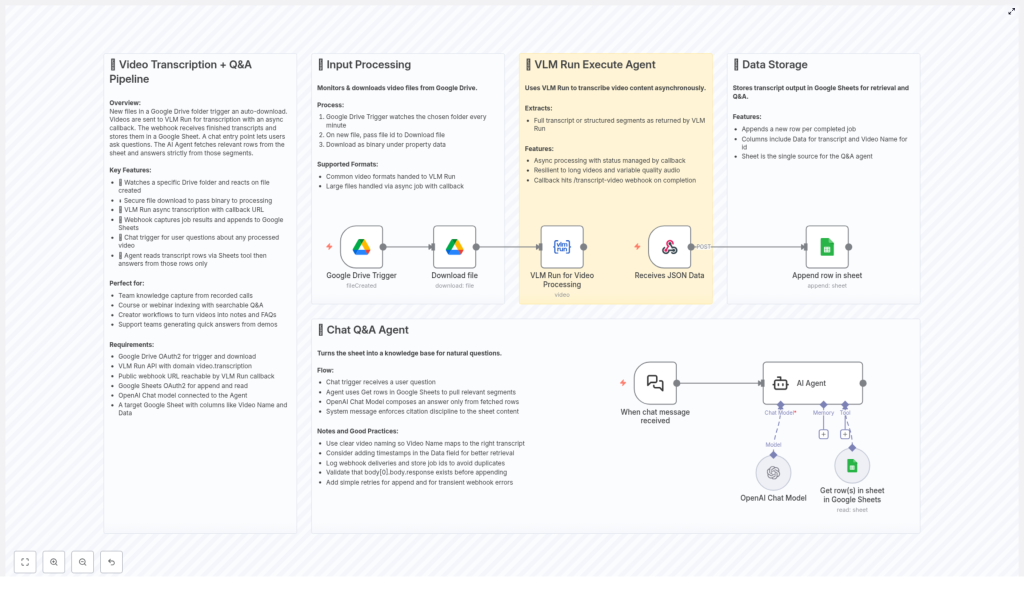
This n8n workflow template delivers an end-to-end pipeline for video transcription and question answering, built on top of Google Drive, VLM Run, Google Sheets, and OpenAI. It automatically ingests video files, transcribes them asynchronously, centralizes the outputs in a structured data store, and exposes the resulting knowledge through a chat-based Q&A interface.
Designed for automation engineers, operations teams, and content-heavy organizations, this workflow turns raw video assets into a searchable, interactive knowledge base that can support training, support, documentation, and content reuse at scale.
Architecture and Core Components
The pipeline is organized into four primary stages, each implemented with dedicated n8n nodes and integrations:
- Ingestion: Automated capture of new video files from Google Drive.
- Transcription: Asynchronous processing via VLM Run with callback handling.
- Storage: Structured persistence of transcripts in Google Sheets for easy querying.
- Q&A: A chat agent that answers natural language questions using OpenAI, grounded strictly in the stored transcripts.
The following sections detail how each stage operates and how the nodes interact to deliver a robust, production-ready automation.
Stage 1 – Automated Video Ingestion from Google Drive
The workflow starts with continuous monitoring of a designated Google Drive folder. This ensures that any new video dropped into the folder automatically enters the transcription pipeline without manual intervention.
Google Drive Trigger Configuration
- Trigger node: Google Drive Trigger.
- Polling interval: Every 1 minute, or another interval suitable for your workload.
- Scope: A specific folder that serves as the input location for new video files.
When a new file is detected, the workflow:
- Identifies the new video in the watched folder.
- Downloads the file as binary data to preserve fidelity and prepare it for API upload.
Supported formats: The pipeline is designed for common video formats that VLM Run can transcribe. Large files are supported through asynchronous processing, with results delivered via a callback mechanism.
Best Practice – Input Management
- Use a dedicated Google Drive folder exclusively for processing-ready videos.
- Adopt consistent naming conventions for videos to improve traceability in later stages.
Stage 2 – Asynchronous Video Transcription with VLM Run
Once the video binary is available, the workflow submits it to VLM Run for transcription. VLM Run is optimized for video understanding and can return either full transcripts or structured segments, depending on configuration.
VLM Run Execute Agent
The VLM Run integration is designed for asynchronous operation, which is essential for handling long recordings and variable audio quality reliably.
- Async submission: The video file is uploaded and a transcription job is created.
- Status management: The job status is tracked via a callback URL rather than through blocking, synchronous calls.
- Scalability: Long videos and heavy workloads are handled without blocking the main workflow, improving resilience and throughput.
Callback Handling via Webhook
When VLM Run completes processing, it sends a callback to a public-facing webhook endpoint managed by n8n. This webhook receives structured JSON that includes the transcription output and relevant metadata.
- The callback webhook node acts as the re-entry point to the workflow.
- The payload contains the transcript text or segmented data, along with identifiers such as job ID and video reference.
Operational Recommendations for Transcription
- Log job IDs and callback events to avoid duplicate processing and to support auditability.
- Implement validation checks to ensure the transcript payload is complete before continuing.
- Add retry logic at the webhook-processing stage for transient errors or temporary API issues.
Stage 3 – Structured Transcript Storage in Google Sheets
After the transcription is received via the webhook, the workflow persists the results in a Google Sheet. This sheet functions as a centralized, queryable knowledge base that subsequent Q&A operations can leverage.
Google Sheets as a Knowledge Store
The workflow uses a Google Sheets node to append new rows for each completed transcription job.
- Columns: At minimum, the sheet should include Video Name and Data (transcript text). Additional fields like timestamps or tags can be added as needed.
- Write operation: Each callback triggers an append operation that writes a new row with the video identifier and its transcript.
- Single source of truth: This sheet becomes the authoritative data source for the Q&A agent, ensuring that all responses are grounded in stored transcripts.
Data Modeling and Retrieval Considerations
- Include unique identifiers (for example, Drive file ID or job ID) to facilitate traceability and debugging.
- Consider storing timestamps or segment-level data to enable more precise retrieval for long videos.
- Validate that transcript content is present before appending to avoid empty or partial rows.
Stage 4 – Chat Q&A Agent on Top of Transcripts
The final stage exposes the stored transcripts through a conversational interface. Users can submit natural language questions, and the workflow responds with accurate, context-aware answers drawn exclusively from the transcript data.
Chat Trigger and Query Flow
- Entry point: A chat trigger or incoming message node initiates the Q&A workflow whenever a user sends a question.
- Data lookup: The workflow queries the Google Sheet to retrieve transcript rows that are relevant to the user query. This might involve filtering by video name, keywords, or other metadata.
- Context construction: Relevant transcript segments are assembled into a context payload for the LLM.
OpenAI Chat Model for Answer Generation
The OpenAI Chat model is then used to generate the final answer, with strict instructions to rely solely on the retrieved sheet content.
- The model receives user question plus the transcript context as input.
- Responses are constrained to information present in the transcript data, which improves reliability and reduces hallucinations.
- The output can include references back to the source video or specific transcript segments, depending on how prompts are configured.
Q&A Best Practices
- Enforce prompting guidelines that instruct the model to only use content from the Google Sheet.
- Structure transcripts with clear separators or markers for sections to improve retrieval quality.
- Consider incorporating timestamps into the responses to help users jump directly to the relevant part of the video.
Key Use Cases and Benefits
This workflow template is suitable for a wide range of professional scenarios where video content contains critical knowledge that must be easily accessible.
- Team knowledge capture: Convert recorded meetings, internal briefings, and customer calls into a searchable knowledge base.
- Course and webinar indexing: Index educational content and enable learners to query specific topics from long-form recordings.
- Content creators: Automatically turn published videos into structured notes, FAQs, and source material for derivative content.
- Support and success teams: Use demo recordings and tutorials as a live reference source for answering customer questions.
Prerequisites and Setup Checklist
To deploy this n8n template successfully, the following components must be in place:
- Google Drive: OAuth2 credentials configured in n8n, with access to the folder that will be monitored for new video uploads.
- VLM Run: API access for the video transcription domain, including an endpoint that supports asynchronous processing.
- Webhook endpoint: A public-facing webhook URL in n8n to receive VLM Run callback notifications.
- Google Sheets: OAuth2 credentials for reading and writing data, plus a prepared sheet with at least Video Name and Data columns.
- OpenAI: An OpenAI Chat model configured and connected to the AI Agent node that powers the Q&A responses.
Implementation Tips for Reliability
- Introduce logging for each critical step: file detection, job submission, callback receipt, and row append operations.
- Use retry and error handling nodes around external API calls to mitigate transient failures.
- Ensure idempotency for callback handling by checking whether a given job ID has already been processed.
- Regularly back up the Google Sheet or mirror it into a database if you expect very high volume.
Conclusion and Next Steps
This n8n workflow template provides a complete, production-ready pattern for transforming video assets into an interactive Q&A knowledge system. By orchestrating Google Drive, VLM Run, Google Sheets, and OpenAI in a single pipeline, it eliminates manual transcription work and makes video content instantly searchable and actionable.
To get started, configure your Google Drive folder trigger, connect VLM Run and OpenAI, and point the workflow at your target Google Sheet. Once in place, every new video becomes a structured, queryable knowledge source available through natural language interaction.
