

Build a YouTube-powered Chatbot with n8n, Apify, Supabase and OpenAI
This guide walks you through a complete, production-ready n8n workflow that turns YouTube videos into a searchable knowledge base for a chatbot. You will learn how to scrape a YouTube channel with Apify, extract transcripts, create OpenAI embeddings, store them in Supabase, and finally connect everything to a conversational chatbot inside n8n.
What You Will Learn
By the end of this tutorial you will be able to:
- Automatically pull videos from a YouTube channel using Apify actors
- Extract and process video transcripts at scale
- Convert transcripts into vector embeddings with OpenAI
- Store and search those embeddings in a Supabase vector table
- Build an n8n chatbot that answers questions based on YouTube content
Why This Architecture Works Well
The goal is to transform long-form YouTube content into structured, searchable knowledge that a chatbot can use in real time. The chosen stack provides a clear division of responsibilities:
- Apify for reliable scraping of channel videos and transcripts
- n8n for orchestration, automation, and scheduling
- Google Sheets for human-friendly review and progress tracking
- OpenAI for embeddings and chat model responses
- Supabase for fast semantic search over transcript embeddings
- AI Agent nodes in n8n for a LangChain-style question-answering chatbot
This combination lets you build a YouTube chatbot that is easy to maintain and extend, while still being robust enough for production use.
Conceptual Overview of the n8n Workflow
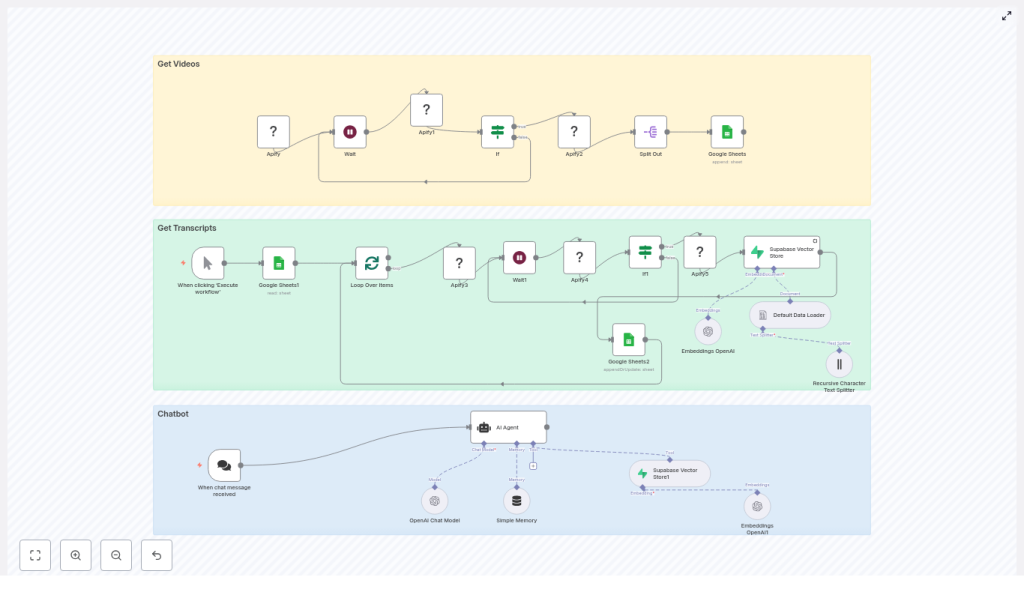
The template is organized into three main sections inside n8n:
- Get Videos
Discover videos from a YouTube channel with Apify, then store basic metadata (title and URL) in Google Sheets as a queue for later processing. - Get Transcripts & Build Vector Store
Loop through the sheet, retrieve transcripts for each video, split text into chunks, create OpenAI embeddings, and store them in a Supabase vector table. - Chatbot
Receive user messages, query Supabase for relevant transcript chunks, and generate helpful answers using an OpenAI chat model.
Before You Start: Required Services & Credentials
Make sure you have access to the following:
- Apify account with:
- API key
- Actor ID for a YouTube channel scraper
- Actor ID for a YouTube transcript scraper
- Google account with:
- Google Sheets OAuth credentials
- A target spreadsheet for storing video metadata and processing status
- OpenAI account with:
- API key
- Access to an embeddings model
- Access to a chat model (the template uses
gpt-4o, but you can choose another)
- Supabase project with:
- Project URL
- Anon or service role key
- A vector-enabled table (for example, a
documentstable) to store embeddings
- n8n instance with:
- Sufficient memory to handle embeddings
- Webhook exposure if you want an external chat trigger
Section 1 – Getting YouTube Videos into Google Sheets
In this first section, you will configure an Apify actor that scrapes videos from a YouTube channel, then pushes any new video information into a Google Sheet. This sheet becomes your central list of videos to process.
Nodes Used in the “Get Videos” Section
- Apify (Actor: YouTube channel scraper)
- Wait
- Apify (Get run)
- If (check
status == SUCCEEDED) - Datasets → Split Out
- Google Sheets (Append rows)
Step-by-Step: Configure Video Scraping
- Set up the Apify YouTube channel scraper node
- In the Apify node, choose the actor for scraping YouTube channels.
- Set the actorId to your YouTube channel scraper actor (the template uses a cached ID).
- Provide the channel URL, for example:
https://www.youtube.com/@channelName.
- Trigger the actor and wait
- After starting the actor, add a Wait node.
- Set the wait duration to around 10-30 seconds, depending on the expected queue time on Apify.
- Poll the run status
- Use the Apify – Get run node to check the run status.
- Add an If node that checks whether
status == SUCCEEDED. - If not succeeded, you can loop back or extend the wait period to allow more time.
- Retrieve dataset and split items
- Once the run is successful, use the dataset output of the actor run.
- Apply a Datasets → Split Out node so that each video becomes a separate item in the workflow.
- Append new videos to Google Sheets
- Configure a Google Sheets – Append node.
- Map the dataset fields to your sheet columns, for example:
- Video Title
- Video URL
- Done (initially empty, used later to mark processed videos)
Section 2 – Getting Transcripts and Building the Vector Store
After you have a list of videos in Google Sheets, the next step is to fetch transcripts, create embeddings, and store them in Supabase. This is the core of your “knowledge base” for the chatbot.
Nodes Used in the “Get Transcripts” Section
- Google Sheets (Read only rows where
Done
is empty) - SplitInBatches or Loop Over Items
- Apify (YouTube transcript scraper actor)
- Wait
- Apify (Get run)
- If (check
status == SUCCEEDED) - Datasets → Get transcript payload
- LangChain-style nodes:
- Default Data Loader
- Recursive Character Text Splitter
- Embeddings (OpenAI)
- Supabase Vector Store
- Google Sheets (Update row: set Done = Yes)
Step-by-Step: From Video URLs to Vector Embeddings
- Read unprocessed rows from Google Sheets
- Use a Google Sheets node in read mode.
- Filter rows so that only entries where the
Done
column is empty are returned. - These rows represent videos whose transcripts have not yet been processed.
- Process videos in batches
- Add a SplitInBatches or Loop Over Items node.
- Choose a batch size that fits your rate limits, for example 1-5 videos per batch.
- Run the Apify transcript scraper actor
- For each video URL from the sheet, call the Apify YouTube transcript scraper actor.
- Pass the video URL as input to the actor.
- Wait for transcript extraction to finish
- Add a Wait node after starting the actor.
- Then use Apify – Get run to check the run status.
- Use an If node to confirm that
status == SUCCEEDEDbefore continuing.
- Extract transcript text from the dataset
- Once the actor run is successful, access the dataset that contains the transcript.
- Use a dataset node or similar step to get the transcript payload.
- Load and split text into chunks
- Feed the transcript text into the Default Data Loader node.
- Connect the output to a Recursive Character Text Splitter node.
- Configure the splitter to break the transcript into overlapping chunks to preserve context.
- Create OpenAI embeddings
- Connect the text splitter to an OpenAI Embeddings node.
- Choose the embeddings model you want to use.
- Each text chunk will be converted into a vector representation.
- Store embeddings in Supabase
- Send the embeddings to the Supabase Vector Store node.
- Configure it to write into your vector table (for example, a
documentstable). - Include metadata such as video title, URL, or timestamps if available.
- Mark the video as processed in Google Sheets
- After a successful insert into Supabase, update the corresponding row in Google Sheets.
- Set the
Done
column toYes
so the video is not reprocessed later.
Practical Tips for Transcript Processing
- Chunk size and overlap
A good starting point is 500-1,000 characters per chunk with about 10-20% overlap. This balances context preservation with token and cost efficiency. - Batching to respect rate limits
Use SplitInBatches so you do not hit Apify or OpenAI rate limits. Smaller batches are safer if you are unsure of your limits. - Idempotency via Google Sheets
TheDone
column is essential. Only process rows whereDone
is empty, and set it toYes
after successful embedding storage. This prevents duplicate processing and simplifies error recovery.
Section 3 – Building the Chatbot in n8n
With your transcripts embedded and stored in Supabase, you can now connect a chatbot that answers questions using this knowledge base. The chatbot is implemented using n8n’s AI Agent and OpenAI Chat nodes, with Supabase as a retrieval tool.
Nodes Used in the “Chatbot” Section
- Chat trigger node (When a chat message is received)
- AI Agent node (with a system message and a Supabase vector store tool)
- OpenAI Chat model node (for LLM responses)
- Simple memory buffer (to keep session context)
Step-by-Step: Configure the Chatbot Flow
- Set up the chat trigger
- Add a chat trigger node or webhook that receives user messages.
- This entry point starts the conversation flow in n8n.
- Configure the AI Agent with a system message
- Use the AI Agent node to orchestrate retrieval and response.
- Write a system message that instructs the agent to:
- Always query the Supabase vector store before answering
- Use retrieved transcript chunks as the primary knowledge source
- Connect Supabase as a retrieval tool
- Set the Supabase vector store node to retrieve-as-tool mode.
- Expose it to the AI Agent as a tool the agent can call.
- The agent will receive transcript chunks plus relevance scores for each query.
- Generate the final answer with OpenAI Chat
- Attach an OpenAI Chat node that the AI Agent uses to craft responses.
- The model combines the user question and retrieved transcript snippets to produce a conversational answer.
- Add memory for multi-turn conversations
- Use a simple memory buffer node to store recent conversation history.
- This helps the model answer follow-up questions more naturally.
Design Considerations for Better Answers
When configuring the chatbot:
- Make the system message explicit about using only YouTube transcript content as the knowledge source.
- Limit the number of retrieved chunks (for example, top 3-5) to keep prompts small and responses fast.
- If you want citations, include transcript metadata (such as video titles or timestamps) in the retrieved context and instruct the model to reference them.
Configuration Checklist
Before running the full workflow, verify that you have:
- Apify:
- API key set up in n8n credentials
- Actor IDs for both the channel scraper and transcript scraper
- Google Sheets:
- OAuth credentials configured in n8n
- Spreadsheet ID and sheet/gid correctly referenced in all nodes
- OpenAI:
- API key stored in n8n credentials
- An

