LinkedIn Profile Discovery with n8n (Google Sheets + AirTop)
This guide documents a reusable n8n workflow template that automates LinkedIn profile discovery using Google Sheets as the data source and AirTop as the web extraction layer. The workflow reads person identifiers from a sheet, performs a Google search for each entry, extracts the corresponding LinkedIn profile URL, and writes the result back to the original row.
1. Workflow Overview
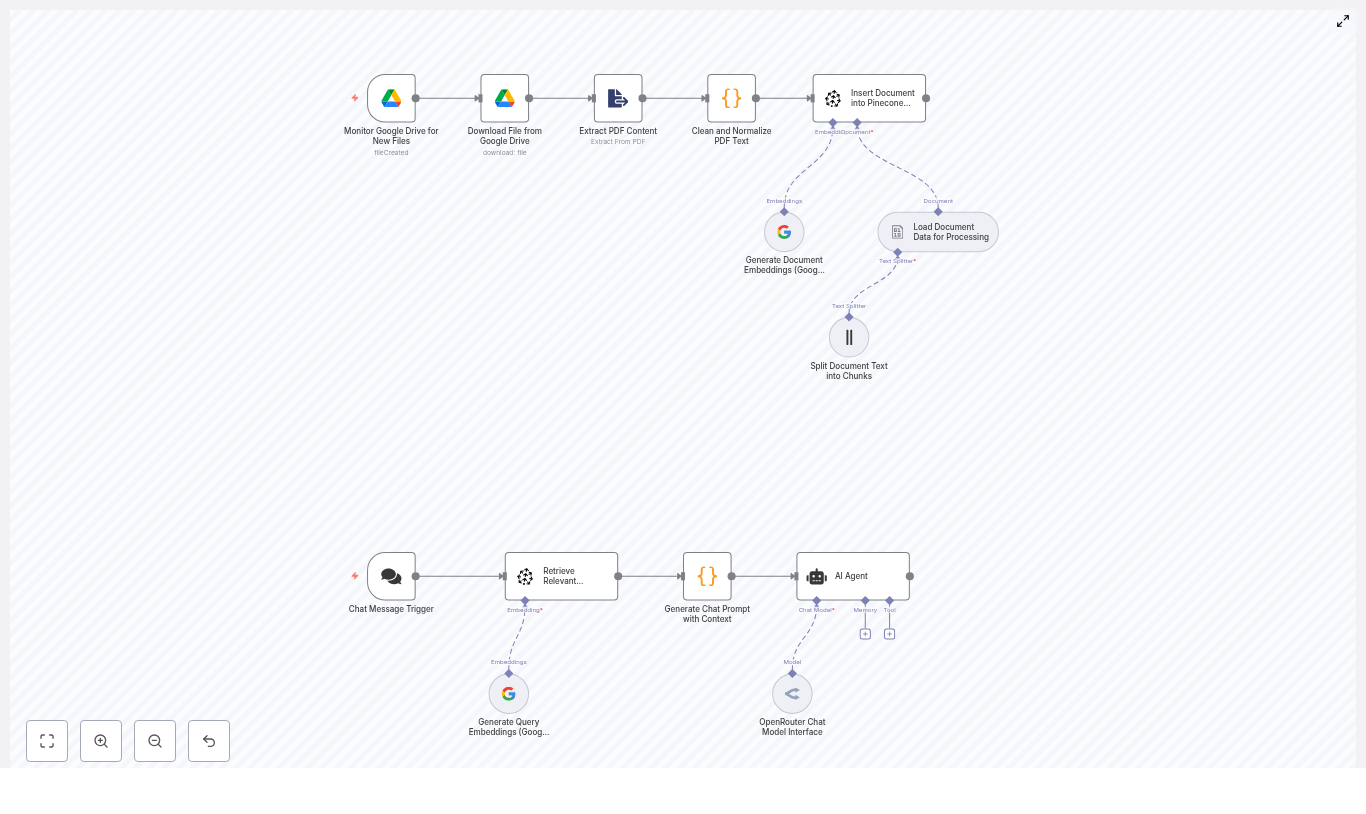
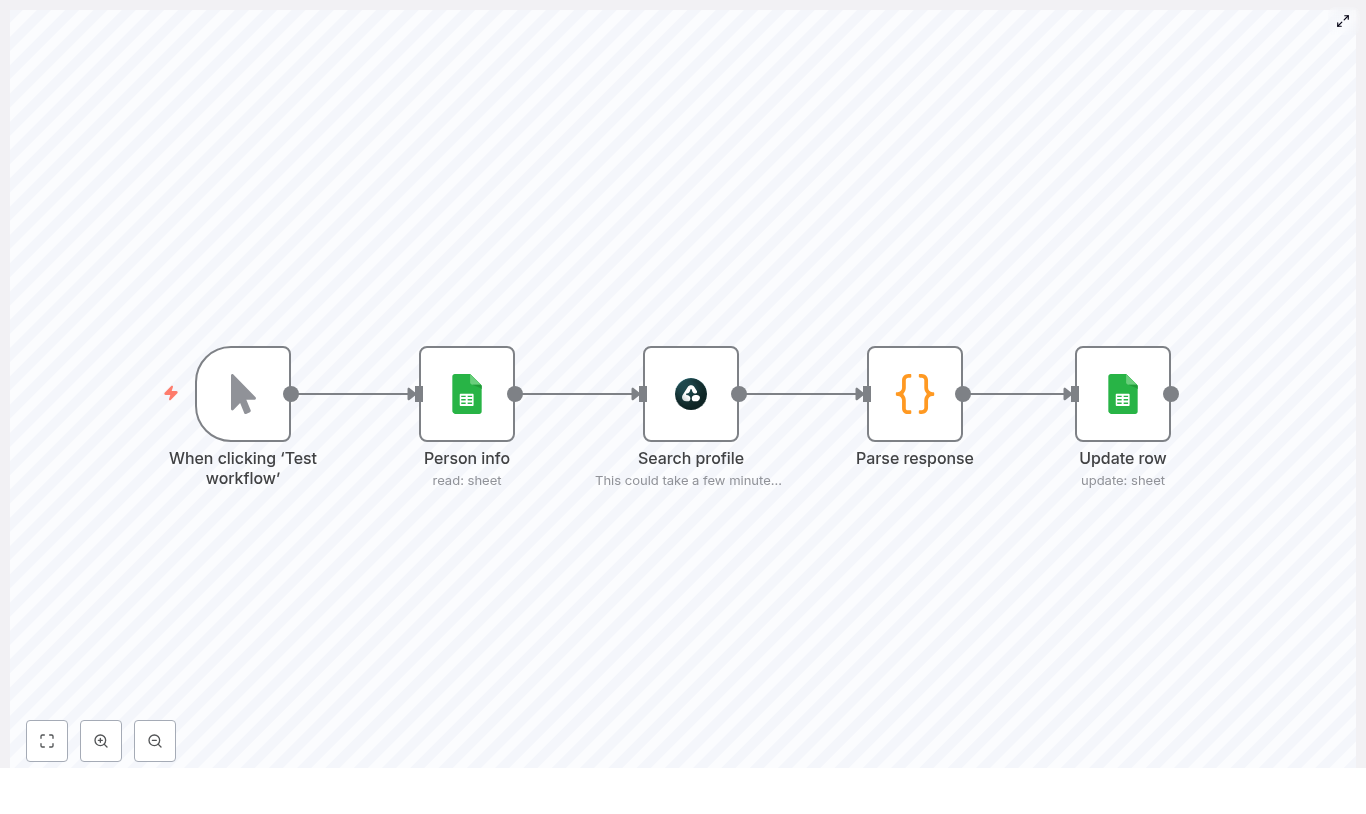
The automation is implemented as a linear n8n workflow composed of five nodes:
- Manual Trigger – Starts the workflow on demand for testing or ad hoc runs.
- Google Sheets (Read) – Fetches rows from a sheet that contains a
Person Infocolumn or equivalent search string. - AirTop (Google Search Extraction) – Executes a Google search query and extracts the LinkedIn profile URL.
- Code (JavaScript) – Normalizes and merges the AirTop output with the original row data.
- Google Sheets (Update) – Writes the discovered LinkedIn URL and any status flags back to the correct row.
The workflow is designed as a low-code enrichment pipeline that can be used for lead generation, recruiting, CRM hygiene, or any process that requires LinkedIn profile URLs tied to existing records.
2. Use Cases & Benefits
2.1 Why automate LinkedIn profile discovery
Manually searching LinkedIn for each contact does not scale. This n8n template helps you:
- Process hundreds or thousands of contacts with minimal supervision.
- Apply a consistent search pattern and extraction logic across all records.
- Store LinkedIn URLs directly in Google Sheets, ready for downstream tools such as CRMs or outreach platforms.
2.2 Typical scenarios
- Enriching marketing or sales lead lists with LinkedIn profile links.
- Building recruiting pipelines from spreadsheets of potential candidates.
- Cleaning and standardizing existing contact databases where LinkedIn URLs are missing or inconsistent.
3. Architecture & Data Flow
3.1 High-level flow
- The Manual Trigger node starts execution.
- The Google Sheets (Read) node retrieves rows containing person information (typically name plus company).
- For each row, the AirTop node:
- Builds a Google Search URL from the
Person Infofield. - Fetches the search results page.
- Extracts the LinkedIn profile URL that matches a specific pattern.
- Builds a Google Search URL from the
- The Code node:
- Reads the AirTop response.
- Combines it with the original row payload.
- Outputs a unified JSON object containing both the original fields and a new
LinkedIn URLfield.
- The Google Sheets (Update) node:
- Identifies the target row using
row_numberor another unique key. - Writes the LinkedIn URL into the appropriate column.
- Optionally sets a
Validatedflag or similar status indicator.
- Identifies the target row using
3.2 Data model
A minimal sheet configuration typically includes:
- Person Info – A free-text field such as
First Last Companyused to construct the Google search query. - LinkedIn URL – A column that will be populated automatically by the workflow.
- Validated – Optional status column (e.g., empty / Yes / No) for manual review tracking.
- row_number – Hidden or technical column used by n8n to update the correct row deterministically.
4. Prerequisites & Setup
4.1 Required accounts and services
- An n8n instance (n8n Cloud or self-hosted).
- A Google account with access to a Google Sheets document that contains the contact list.
- An AirTop account with credentials configured in n8n, or another compatible web extraction tool configured in a similar way.
4.2 n8n configuration prerequisites
- Configured Google Sheets OAuth2 credentials in n8n with read/write permissions to the target sheet.
- Configured AirTop credentials in n8n for the extraction node.
- Basic familiarity with:
- n8n credentials management.
- Node parameters and expression syntax (e.g.,
{{ ... }}expressions). - Handling JSON data across nodes.
5. Node-by-Node Breakdown
5.1 Manual Trigger
Purpose: Run the workflow manually for testing or on-demand processing.
- Node type:
Manual Trigger - Configuration: No special parameters required.
- Behavior: Execution starts when you click
Test workflowin the n8n UI.
In production, you can later replace or complement this with a Cron node for scheduled runs, but the manual trigger is the safest way to validate configuration before automating.
5.2 Google Sheets – Read Rows
Purpose: Retrieve the list of people or search queries to process.
- Node type:
Google Sheets - Operation: Typically
ReadorRead Rows.
Key configuration parameters:
- Credentials: Select your configured Google Sheets OAuth2 credentials.
- Spreadsheet ID: Choose the target spreadsheet from the dropdown or specify the ID explicitly.
- Sheet Name or GID:
- Set Sheet Name to the tab that contains your data.
- Alternatively, use the GID if you prefer a more explicit reference.
- Range / Columns:
- Ensure the column that contains the search string (for example
Person Info) is included. - Include
row_numberor similar technical column if you plan to update rows by index later.
- Ensure the column that contains the search string (for example
Data expectations:
Person Infovalues should ideally be structured asFirstName LastName Companyor similar to improve search accuracy.- Empty rows or rows without
Person Infoshould be removed or filtered out to avoid unnecessary API calls.
5.3 AirTop – Google Search Extraction
Purpose: For each row, perform a Google search and extract a LinkedIn profile URL from the search results.
- Node type:
AirTop(web extraction / model-based extraction).
Search URL expression:
The node constructs a Google search query URL using the Person Info field from the incoming JSON:
=https://www.google.com/search?q={{ encodeURI($json['Person Info']) }}Extraction prompt:
The AirTop configuration instructs the model or extractor to return only the LinkedIn URL that matches the pattern:
https://www.linkedin.com/in/
This ensures the output is a single URL string rather than a full HTML page or a more complex structure.
Important considerations:
- Query quality: Keep queries concise but specific. Including the full name and company usually improves matching. Overly long or noisy queries can reduce accuracy.
- Compliance: Respect
robots.txtand site terms. LinkedIn prohibits direct scraping of its pages. This workflow uses public Google search results, but you are still responsible for complying with legal and terms-of-service restrictions. - Rate limiting:
- Configure reasonable concurrency and delays in n8n to avoid triggering Google rate limits or temporary IP blocks.
- Consider using n8n retry logic with backoff for transient failures.
Output shape (conceptual):
The AirTop node returns a JSON object that includes a field such as data.modelResponse, which contains the extracted LinkedIn URL as a string. The exact property name (data.modelResponse) is used in the following Code node, so it must match your AirTop configuration.
5.4 Code Node – Parse & Normalize Response
Purpose: Merge the original row data from Google Sheets with the LinkedIn URL returned by AirTop, and output a clean object for the update step.
- Node type:
Code - Language: JavaScript.
Example implementation:
const linkedInProfile = $json.data.modelResponse
const rowData = $('Person info').item.json
return { json: { ...rowData, 'LinkedIn URL': linkedInProfile }};
What this code does:
- Reads the AirTop output:
$json.data.modelResponseis expected to contain the extracted LinkedIn profile URL. - Accesses the original row:
$('Person info').item.jsonreferences the JSON payload from the earlier node that holds the raw Google Sheets row, including fields likePerson Infoandrow_number. - Merges data: The spread operator
...rowDatacopies all existing fields, then adds a new field'LinkedIn URL'with the extracted value. - Outputs a single object: The returned object is structured as
{ json: { ... } }, which n8n expects for subsequent nodes.
Edge cases & handling tips:
- If
$json.data.modelResponseisundefinedor empty (no URL found), you may want to:- Set
'LinkedIn URL'tonullor an empty string. - Optionally add a
'Lookup Status'field (for example'not_found') for later review.
- Set
- If the selector
$('Person info')does not match your actual node name, adjust it to reference the correct Google Sheets node in your workflow.
5.5 Google Sheets – Update Row
Purpose: Write the discovered LinkedIn URL back into the original Google Sheets row.
- Node type:
Google Sheets - Operation:
UpdateorUpdate Row.
Key configuration parameters:
- Credentials: Use the same Google Sheets credentials as the read node.
- Spreadsheet ID / Sheet Name: Target the same document and sheet tab used for reading.
- Row identification:
- Use
row_numberor another unique identifier from the merged JSON to ensure the correct row is updated. - Map this field explicitly in the node configuration if required.
- Use
- Column mapping:
- Map
'LinkedIn URL'from the Code node output to theLinkedIn URLcolumn in the sheet. - Optionally map a
Validatedcolumn toYes,No, or leave it blank depending on your verification process.
- Map
Behavior notes:
- Ensure that the column headers in Google Sheets match the field names you are using in the Code node output to avoid mapping issues.
- If the row cannot be found (for example due to a missing or incorrect
row_number), the update operation will fail for that item. Configure error handling or logging as needed.
6. Data Hygiene & Quality Practices
6.1 Input normalization
- Standardize the
Person Infoformat (for exampleFirstName LastName Company) across all rows for more consistent search results. - Normalize capitalization and remove obvious noise or extra punctuation.
- Clear out empty rows or rows missing essential fields before running large batches.
6.2 Validation & manual review
Search-based discovery is probabilistic. Not every result will be correct.
- Use a
Validatedcolumn to track which rows have been manually checked. - For high-value contacts, introduce a manual verification step outside of n8n to confirm that:
- The name matches.
- The company or job title is consistent.
- The location, if visible, aligns with your expectations.
- Optionally perform fuzzy matching on name and company to flag likely mismatches for manual review.
7. Error Handling, Retries & Logging
7.1 Node-level retries
- Use n8n built-in retry settings on nodes that call external services, especially the AirTop and Google Sheets nodes.
- Set a limited number of retries with backoff for transient network issues or temporary rate limits.
7.2 Failure tracking
- Log failed rows to a dedicated Google Sheet or another data store for manual follow-up.
- Include diagnostic fields such as:
- The original
Person Infovalue. - Error messages from AirTop or Google Sheets.
- The original
7.3 Common issues
- No results returned:
- Manually test the generated Google search URL in a browser.
- Confirm that AirTop is receiving and parsing the page content correctly.
- Add logging in the Code node to inspect the raw AirTop response.
- Wrong profile returned:
- Refine the
Person Infoformat by adding company or job title. - Avoid overly generic names without additional qualifiers.
- Refine the
- API errors:
- Verify Google Sheets API quotas and credentials in the Google Cloud console.
- Check AirTop usage limits, authentication configuration, and status dashboards.
8. Rate Limits, Compliance & Privacy
8.1 Rate limiting and scheduling
- Respect Google search rate limits by