
Automate Survey Analysis with n8n, OpenAI & Pinecone
Survey responses are packed with insights, but reading and analyzing them manually does not scale. In this step-by-step guide you will learn how to build a reusable Survey Auto Analyze workflow in n8n that uses OpenAI embeddings, Pinecone vector search, and a RAG (Retrieval-Augmented Generation) agent to process survey data automatically.
By the end, you will have an automation that:
- Receives survey submissions through an n8n webhook
- Splits long answers into chunks and generates embeddings with OpenAI
- Stores vectors and metadata in Pinecone for later retrieval
- Uses a RAG agent to summarize sentiment, themes, and actions
- Logs results to Google Sheets and sends error alerts to Slack
Learning goals
This tutorial is designed as a teaching guide. As you follow along, you will learn how to:
- Understand the overall survey analysis architecture in n8n
- Configure each n8n node required for the workflow
- Use OpenAI embeddings and Pinecone for semantic search
- Set up a RAG agent to generate summaries and insights
- Log outputs to Google Sheets and handle errors with Slack alerts
- Apply best practices for chunking, metadata, cost control, and security
Key concepts and tools
Why this architecture works well for survey analysis
The workflow combines several tools, each responsible for one part of the process:
- n8n – Open-source workflow automation that connects all components, from receiving webhooks to sending alerts.
- OpenAI embeddings – Converts survey text into numerical vectors that capture semantic meaning, which makes similarity search and RAG possible.
- Pinecone – A managed vector database that stores embeddings and lets you quickly retrieve similar responses.
- RAG agent – A Retrieval-Augmented Generation agent that uses retrieved context from Pinecone plus an LLM to generate summaries, sentiment analysis, themes, and recommended actions.
- Google Sheets & Slack – Simple destinations for logging processed results and receiving alerts when something goes wrong.
Instead of manually reading every response, this architecture lets you:
- Index responses for future comparison and trend analysis
- Automatically summarize each new survey submission
- Surface key pain points and actions in near real time
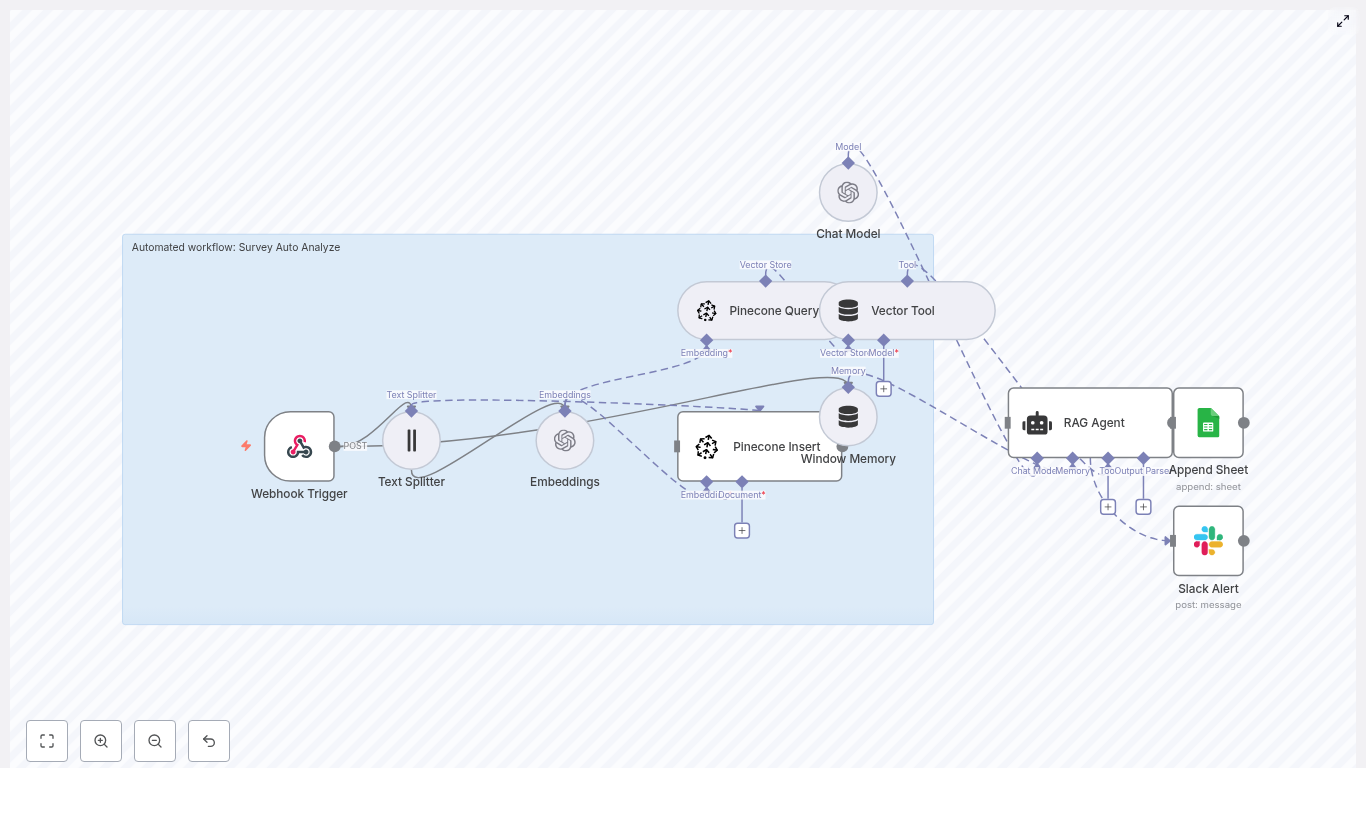
How the n8n workflow is structured
Before building, it helps to picture the flow from left to right. The core nodes in the workflow are:
- Webhook Trigger – Receives incoming survey submissions as POST requests.
- Text Splitter – Breaks long answers into smaller chunks to prepare for embeddings.
- Embeddings (OpenAI) – Generates a vector for each text chunk.
- Pinecone Insert – Stores vectors and metadata in a Pinecone index.
- Pinecone Query + Vector Tool – Retrieves similar chunks when you want context for a new analysis.
- Window Memory – Maintains short-term context for the agent during a single request.
- RAG Agent – Uses the LLM and retrieved context to analyze and summarize the response.
- Append Sheet (Google Sheets) – Logs the agent’s output in a spreadsheet.
- Slack Alert – Sends a message when an error occurs, including details for troubleshooting.
Next, we will build each part of this pipeline in n8n step by step.
Step-by-step: Building the Survey Auto Analyze workflow in n8n
Step 1 – Create the Webhook Trigger
The webhook is the entry point for your survey data.
- In n8n, add a Webhook node.
- Set the HTTP Method to
POST. - Set the Path to something like
survey-auto-analyze. - Copy the generated webhook URL.
- In your survey provider (for example Typeform, a Google Forms webhook integration, or a custom app), configure it to send a POST request to this webhook URL whenever a response is submitted.
The payload you receive should include at least:
respondent_idtimestampanswers(for example a map of question IDs to free-text answers)- Any extra metadata you care about, such as
sourceor survey name
Step 2 – Split long text into chunks
Embedding models work best when text is not too long. Chunking also improves retrieval quality later.
- Add a Text Splitter node after the Webhook.
- Choose a character-based splitter.
- Set:
- chunkSize to a value like
400 - chunkOverlap to a value like
40
- chunkSize to a value like
This means each long answer will be broken into overlapping segments. The overlap helps preserve context between chunks so that semantic search in Pinecone works better.
Step 3 – Generate embeddings with OpenAI
Next, you will convert each text chunk into a vector representation using OpenAI.
- Add an Embeddings node.
- Select the model
text-embedding-3-smallor the latest recommended OpenAI embedding model. - Attach your OpenAI API credentials in n8n.
- Configure the node so that for each chunk from the Text Splitter, the embeddings endpoint is called and a vector is returned.
Each output item from this node will now contain the original text chunk plus its embedding vector.
Step 4 – Insert embeddings into Pinecone
Now you will store the vectors in Pinecone so they can be used for retrieval and RAG later.
- Add a Pinecone Insert node and connect it to the Embeddings node.
- Provide your Pinecone index name, for example
survey_auto_analyze. - Map the embedding vector to the appropriate field expected by Pinecone.
- Add metadata fields such as:
source(for exampletypeform)respondent_idquestion_idtimestamp
Rich metadata makes it much easier to filter and audit items later. For example, you can query only responses from a particular survey, time range, or question.
Step 5 – Configure retrieval for RAG using Pinecone
When a new response comes in, you may want to analyze it in the context of similar past responses. That is where retrieval comes in.
- Add a Pinecone Query node.
- Use the embedding of the current response (or its chunks) as the query vector.
- Set topK to the number of nearest neighbors you want to retrieve, for example
5to10. - Connect a Vector Tool node so that the retrieved documents can be passed as context into the agent.
The Pinecone Query node returns the most semantically similar chunks, which the Vector Tool then exposes to the RAG agent as a source of contextual information.
Step 6 – Set up Window Memory
For many survey analysis cases, you will want the agent to keep track of short-term context during processing of a single request.
- Add a Window Memory node.
- Configure it according to how much conversational or request-specific history you want to preserve.
This memory is typically short-lived and scoped to the current execution, which helps the agent handle multi-step reasoning without exceeding token limits.
Step 7 – Configure the RAG Agent in n8n
Now you will put everything together in a Retrieval-Augmented Generation agent.
- Add an Agent node.
- Set a clear system message, for example:
You are an assistant for Survey Auto Analyze. Process the following data to produce a short summary, sentiment, key themes, and recommended action. - Attach:
- Your chosen Chat Model (LLM)
- The Vector Tool output (retrieved documents from Pinecone)
- The Window Memory node
- Define the expected output format. You can use:
- Plain text, for example a readable summary
- Structured JSON, if you want to parse fields like
sentiment,themes, andactionsdownstream
The agent will read the current survey response, look up similar past chunks in Pinecone, and then generate an analysis that reflects both the new data and the historical context.
Step 8 – Log results to Google Sheets
To keep a simple log of all analyzed responses, you can append each result to a Google Sheet.
- Add a Google Sheets node and choose the Append Sheet operation.
- Connect it to the output of the RAG Agent node.
- Select or create a sheet, for example a tab named
Log. - Map the fields from the agent output, such as:
- Summary
- Sentiment
- Themes
- Recommended actions
- Respondent ID and timestamp
Over time, this sheet becomes a searchable record of all processed survey responses and their AI-generated insights.
Step 9 – Handle errors with Slack alerts
To make the workflow robust, you should know when something fails so that you can fix it quickly.
- On the nodes that are most likely to fail (for example external API calls), configure an onError branch.
- Add a Slack node to this error path.
- Set up the Slack node to send a message to a monitoring channel.
- Include:
- The error message or stack trace
- The original webhook payload (or a safe subset) so you can reproduce the issue
This gives you immediate visibility when OpenAI, Pinecone, or any other part of the workflow encounters a problem.
Example: Webhook payload and RAG output
Here is a sample survey payload that might be sent to the Webhook node:
{  "respondent_id": "abc123",  "timestamp": "2025-09-05T12:34:56Z",  "answers": {  "q1": "I love the mobile app but the login flow is confusing sometimes.",  "q2": "Customer service was helpful but slow to respond."  },  "source": "typeform"
}
After passing through embeddings, Pinecone, and the RAG agent, the output written to Google Sheets could look like this (for example in a single cell or structured across columns):
Summary: Positive feedback on mobile app UX; pain point: login flow.
Sentiment: mixed-positive.
Themes: UX, Authentication, Support response time.
Actions: Simplify login steps; improve SLA for support.
You can adapt the format to your reporting needs, but the idea is always the same: turn raw text into a concise, actionable summary.
Best practices for this n8n survey analysis workflow
Chunking and retrieval quality
- Use chunking with overlap for better semantic retrieval.
- Good starting values:
- chunkSize: 300 to 500 characters
- chunkOverlap: 20 to 60 characters
- Experiment with these values if you notice poor matches from Pinecone.
Metadata in Pinecone
- Store useful metadata for each vector:
question_idrespondent_idtimestampsourceor survey name
- This enables filtered queries, audits, and more targeted analysis later.
Balancing cost and quality
- Use a smaller embedding model like
text-embedding-3-smallto keep indexing costs low. - If you need higher quality analysis, invest in a more capable LLM for the RAG agent while keeping embeddings lightweight.
- Monitor usage of:
- OpenAI embeddings
- Pinecone storage and queries
- LLM tokens
- Batch inserts into Pinecone where possible to reduce overhead.
Reliability and rate limits
- Implement rate limiting and retry logic for calls to OpenAI and Pinecone, either via n8n settings or at your webhook ingress.
- Use the Slack error alerts to quickly identify and resolve transient issues.
Privacy and PII handling
- Handle sensitive personal data in accordance with your privacy policy.
- Consider:
- Hashing identifiers like
respondent_id - Redacting names, emails, or other PII before generating embeddings
- Hashing identifiers like
Testing and troubleshooting your n8n workflow
Once your pipeline is configured, spend time testing it with different types of input:
- Short answers to confirm basic behavior.
- Very long responses to validate chunking and token limits.
- Non-English text to see how embeddings and the LLM handle multilingual input.
Use n8n’s execution log to inspect what each node receives and outputs. This is especially useful for:
- Confirming that chunking is working as expected.
- Checking that embeddings are being created and stored in Pinecone.
- Verifying that Pinecone Query returns relevant neighbors.
- Debugging the RAG agent’s prompt and output format.
If you see poor retrieval or strange answers from the agent:
- Adjust chunkSize and chunkOverlap.
- Tune topK in the Pinecone Query node.
- Receives Twitter mention events through a Webhook Trigger node.
- Splits tweet content into embedding-ready chunks using a Text Splitter node.
- Generates semantic vector embeddings via Cohere.
- Stores and retrieves vectors in Weaviate for context-aware retrieval.
- Uses a Chat Model and RAG Agent to summarize, classify, or interpret each mention.
- Appends structured results to Google Sheets by default, with the option to swap in Notion.
- Sends Slack alerts if any node in the execution fails.
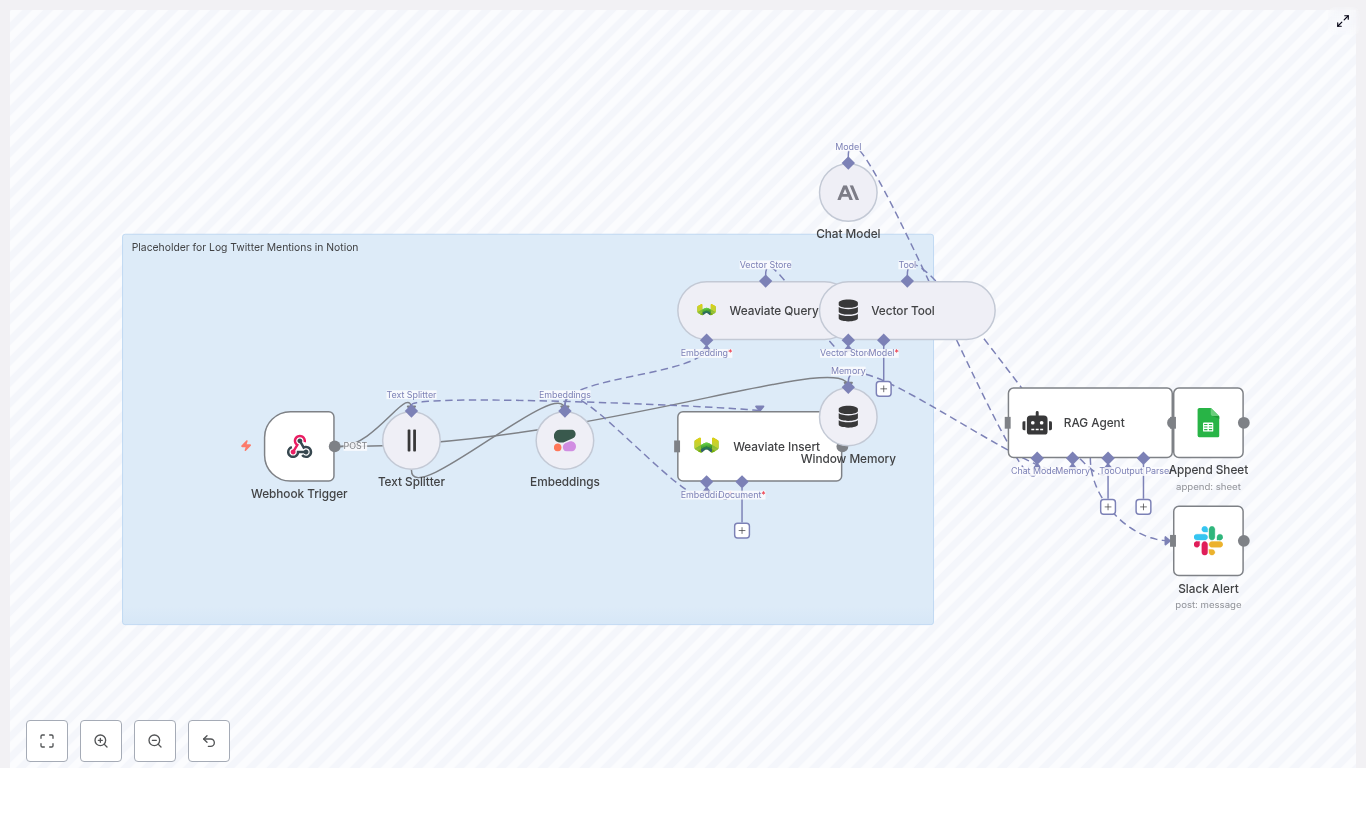
- Webhook Trigger – Entry point that receives POST requests from your Twitter-to-webhook bridge.
- Text Splitter – Preprocessing step that segments long tweets or threads into manageable text chunks for embedding.
- Embeddings (Cohere) – Generates vector representations of text for semantic search and retrieval.
- Weaviate Insert / Query – Vector database operations for storing and retrieving embedding vectors and associated metadata.
- Window Memory – Provides short-term conversational context to the RAG agent.
- Chat Model (Anthropic) + RAG Agent – LLM-based reasoning layer that interprets the mention and produces structured output.
- Append Sheet (Google Sheets) – Default persistence layer that logs processed mentions as rows.
- Slack Alert – Error notification path that posts failures to a Slack channel.
- Twitter sends a JSON payload to the n8n webhook URL.
- The Webhook Trigger passes the payload to the Text Splitter.
- Split segments are sent to the Cohere Embeddings node.
- Generated vectors and metadata are inserted into a Weaviate index.
- A Weaviate Query retrieves relevant context vectors for the current mention.
- The retrieved context is passed into a Vector Tool and then into the RAG Agent, which uses a Chat Model with Window Memory.
- The RAG Agent outputs a structured interpretation (for example, status, type, summary) that is sent to the Append Sheet node or a Notion node.
- If any node fails, the onError path triggers the Slack Alert node to notify a specified Slack channel.
- An n8n instance (self-hosted or n8n.cloud).
- A Twitter mention forwarding mechanism:
- Twitter API v2 filtered stream, or
- A third-party service that can POST mentions to a webhook.
- Cohere API key for embeddings.
- Weaviate instance (cloud or self-hosted) for vector storage.
- Anthropic API key (or another supported chat LLM) for the RAG agent.
- Google account with access to a Google Sheet, or a Notion integration if you prefer Notion as the final store.
- Slack workspace and bot token for error notifications.
- Restrict access to your n8n instance and webhook URLs.
- For public-facing webhooks, configure a shared secret or signature validation and verify the payload before processing.
- Review data retention and PII handling policies for user-generated content (tweets, authors, etc.).
- Attach credentials to each external-service node.
- Adjust index names, sheet IDs, and paths as needed.
- Webhook Trigger
- HTTP Method:
POST - Path: for example
log-twitter-mentions-in-notion
- HTTP Method:
- Embeddings (Cohere)
- Credential: your Cohere API key.
- Model: template uses
embed-english-v3.0(adjust only if you know the implications for vector dimension and compatibility).
- Weaviate Insert / Query
- Credential: your Weaviate instance configuration.
- Index name: template uses
log_twitter_mentions_in_notion.
- Chat Model
- Credential: Anthropic (or alternative LLM provider supported by your n8n installation).
- Append Sheet (Google Sheets)
- Credential: Google account with access to the target spreadsheet.
- Document ID: your Google Sheets document ID.
- Sheet name: target sheet tab name.
- Slack Alert
- Credential: Slack bot token.
- Channel: template uses
#alertsby default.
- Method:
POST - Path:
log-twitter-mentions-in-notion - Prevent hitting token limits for the embedding model.
- Preserve enough context by tuning chunk size and overlap.
- Credential: Cohere API key configured in n8n.
- Model:
embed-english-v3.0(as used in the template). - Do not change the model without verifying vector dimension compatibility with your existing Weaviate schema.
- Check that the text passed to this node is not unintentionally truncated or empty, as this would produce low-quality or useless embeddings.
- Credential: Weaviate instance configuration (URL, API key if required).
- Index name:
log_twitter_mentions_in_notionin the template. - Query by similarity using the current tweet text embedding.
- Retrieve related mentions or historical context that can help the RAG agent interpret the new mention.
- Provide the Chat Model with limited conversational state.
- Support consistent classification or summarization across related mentions.
- The current tweet content.
- Context retrieved from Weaviate via the Vector Tool.
- Window Memory context.
Status: Follow-Up RequiredMention Type: QuestionSummary: ...- Document ID: ID of the target spreadsheet.
- Sheet name: Name of the worksheet tab where rows should be appended.
- Tweet ID
- Author
- Full Text
- Status
- Mention Type
- Summary
- Timestamp
- Channel: template uses
#alerts. tweet_idauthor- Error message or node name
tweet_idauthortexttimestamp- Weaviate’s vector dimension matches the new model.
- Existing data in Weaviate is compatible with the new embeddings.
- Set the
indexNametolog_twitter_mentions_in_notionor your preferred index name. - Ensure your Weaviate instance is reachable from n8n (network, credentials, TLS, etc.).
- Use Weaviate Cloud for a managed deployment, or
- Run Weaviate locally via Docker for testing.
- Status (for example, Follow-Up Required, Done, Ignore).
- Mention Type (for example, Question, Feedback, Bug Report, Praise).
- Short summary of the mention.
- Current tweet text.
- Context from Weaviate Query (similar past mentions or related content).
- Window Memory state.
- Strengthening the system prompt.
- Providing explicit examples of input and desired output in the prompt.
- Adjusting Weaviate Query parameters
- Receives real-time supply chain events via a Webhook node.
- Splits unstructured messages into embedding-ready chunks.
- Generates vector embeddings using an embeddings provider such as Cohere.
- Persists embeddings and metadata in a vector store backed by Supabase.
- Queries historical incidents for semantic similarity and context.
- Uses an AI Agent powered by OpenAI (or another LLM) to analyze and classify the event.
- Writes a structured log entry to Google Sheets for tracking and follow-up.
- Automated detection and prioritization of shipment delays and exceptions.
- Pattern analysis across historical incidents using semantic search.
- Generating recommended remediation actions for operations teams.
- Creating a searchable audit trail in a spreadsheet-based log.
- n8n – Orchestration, node execution, and workflow logic.
- Cohere (or equivalent) – Embeddings provider for converting text into vectors.
- Supabase – Vector database and storage layer for embeddings and metadata.
- OpenAI (or another LLM) – Language model behind the AI Agent for reasoning and classification.
- Google Sheets – Operational log and simple reporting surface.
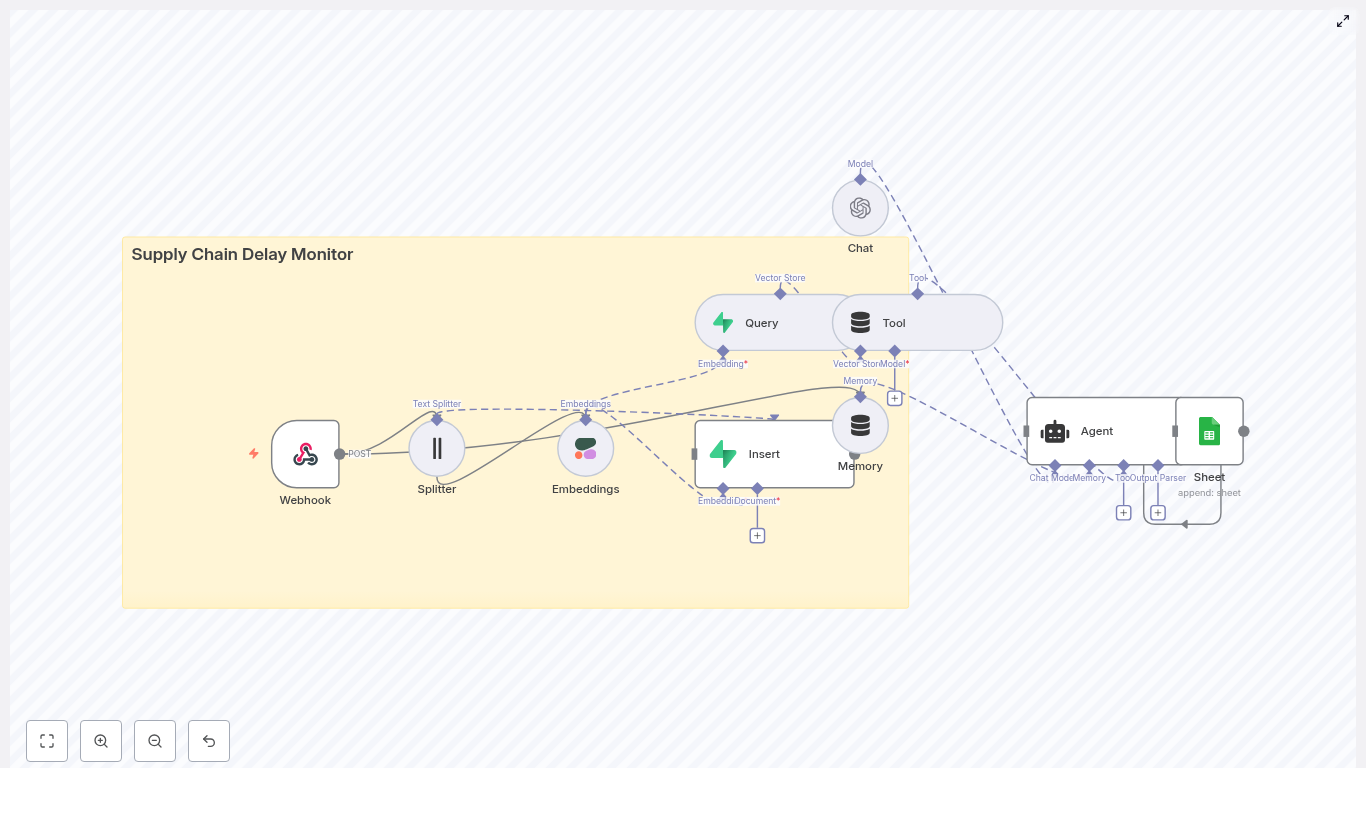
- Webhook receives POST events from TMS/EDI or tracking APIs.
- Splitter divides long carrier messages or reports into chunks.
- Embeddings node generates a vector for each text chunk.
- Insert + Vector Store (Supabase) persists vectors with shipment metadata.
- Query searches the vector index for similar historical events.
- Tool + Memory prepare contextual data and maintain short-term state for the Agent.
- Chat/Agent uses an LLM to classify severity, suggest actions, and summarize.
- Google Sheets appends a structured record of the analysis.
- HTTP Method:
POST - Authentication: Depending on your environment, use a token, header-based auth, or IP restrictions.
- Expected payload fields:
shipment_idtimestamplocationorcheckpointstatus(e.g., delayed, in transit, delivered)notesor other unstructured text (carrier messages, exception descriptions)
- Use authentication tokens or signed payloads to prevent spoofed events.
- Optionally validate a known header or secret before processing.
- Restrict the Webhook URL using IP allowlists where possible.
- Chunk size: ~400 characters.
- Overlap: ~40 characters between adjacent chunks.
- Preserves local context across chunks through overlap.
- Keeps each unit within common embedding model limits.
- Improves recall when querying for similar incidents, since each chunk can be matched independently.
- Very short messages may pass through unchanged with a single chunk.
- If the payload is missing or empty, consider adding a basic check or guard node before embedding to avoid unnecessary API calls.
- Set the embeddings model according to your provider’s recommended model for semantic search.
- Map the chunked text field from the Splitter node as the input text.
- Ensure the Cohere (or other provider) API key is stored as an n8n credential and not hardcoded.
- Monitor for rate limit or transient network errors and configure retries where appropriate.
- For failed embedding calls, you may choose to skip the record, log the failure, or route it to a separate error-handling branch.
- Index name: Use a dedicated index such as
supply_chain_delay_monitorto keep this use case isolated. - Vector field: Map the embeddings output vector to the appropriate column or field expected by your Supabase vector extension.
- Metadata: Persist fields like:
shipment_idcarrier(if available)locationtimestampstatus- Original text chunk or a reference to it
- Fast nearest-neighbor queries for similar incidents.
- Rich filtering using structured metadata (for example filter by carrier, lane, or time window).
- Use meaningful index names so you can manage multiple workflows or use cases in the same Supabase project.
- Periodically prune outdated or low-value embeddings to control storage and query cost.
- Use the newly generated embedding as the query vector.
- Target the same index used for insertion, for example
supply_chain_delay_monitor. - Optionally apply filters based on metadata (for example same carrier or similar route) if your Supabase setup supports it.
- Limit the number of neighbors returned to a manageable number for the LLM (for example top N matches).
- Wraps the query results in a format that the Agent node can consume as an external “tool” or data source.
- Provides the LLM with summarized context about similar historical incidents, including prior classifications or remediation steps if you store them.
- Stores recent interactions and Agent outputs so subsequent events can reference them.
- Helps avoid repetitive or redundant actions when multiple similar alerts arrive in a short timeframe.
- Use a buffer or similar memory strategy compatible with the Agent node.
- Limit memory size to avoid unnecessary token usage when interacting with the LLM.
- Classify delay severity, for example:
- Minor delay
- Moderate issue
- Critical disruption
- Identify likely root causes based on historical similarity.
- Recommend next steps, such as:
- Contact carrier
- Expedite alternate routing
- Escalate to supplier management
- Generate a concise, structured summary suitable for logging.
- Define explicit classification labels and severity thresholds.
- Specify what the Agent should output (for example JSON with fields like
severity,recommended_action,summary). - Clarify how to use tool results from the vector store and how to interpret memory content.
- Respect the LLM provider’s rate limits, especially for high-volume event streams.
- Consider a fallback strategy, such as default classifications or delayed retries, when the LLM is unavailable.
- Shipment ID
- Timestamp
- Location
- Status
- Severity classification
- Recommended action
- Short rationale or summary
- Use an n8n Google Sheets credential to securely connect to your spreadsheet.
- Configure the node to append a new row for each processed event.
- Ensure column ordering in Sheets matches the mapping in the node configuration.
- Use tokens, signed payloads, or custom headers to validate request origin.
- Combine network-level controls (IP whitelisting) with application-level checks where possible.
- Log incoming requests with minimal identifying information, such as a payload hash, to support debugging without exposing full PII.
- Start with 300 to 500 characters per chunk with a small overlap (for example 40 characters) to balance context and cost.
- Adjust chunk size based on the typical length and complexity of carrier messages in your environment.
- Batch embedding calls where possible to reduce API overhead and respect provider rate limits.
- Always store shipment-level identifiers and timestamps alongside vectors to enable precise filtering.
- Include carrier, route, or lane information if available to support more targeted similarity queries.
- Use consistent naming conventions for metadata fields to simplify future queries and analytics.
- Use descriptive index names such as
supply_chain_delay_monitorfor clarity. - Periodically remove stale or low-value records to keep query performance predictable and costs controlled.
- Consider segmenting indexes by business unit or region if you anticipate very large volumes.
- Define a clear schema for outputs, including severity levels and action templates.
- Document how severity maps to operational processes (for example critical events trigger paging, minor events are logged only).
- Iteratively refine the prompt based on real-world outputs and feedback from operations teams.
- Monitor usage against Cohere and OpenAI quotas to avoid service interruptions.
- Implement batching where compatible with your event latency requirements to reduce per-event overhead.
- For extremely high volumes, consider sampling or prioritization strategies so the most critical events are analyzed first.
- Automated exception classification: Ingest carrier EDI exceptions and categorize them by severity, enabling teams to focus on critical incidents first.
- Recurring delay detection: Identify patterns such as specific suppliers, routes, or ports that repeatedly cause delays by querying similar historical incidents.
- Remediation guidance: Generate recommended next steps and optionally feed them into downstream ticketing or case management systems.
- Reporting and audits: Use the Google Sheets log as a lightweight source of truth for weekly dashboards and leadership reviews.
- Ensure data is encrypted in transit and at rest. Supabase provides encryption capabilities; configure TLS for all external calls.
- Mask or hash customer-identifying fields before storing them in embeddings or logs if PII constraints apply.
- Carefully review what fields are included in text passed to the LLM, especially if you handle sensitive customer or shipment data.
- Store all provider keys (Cohere, OpenAI, Supabase, Google Sheets) as environment-level secrets in n8n.
- Limit who can access n8n credentials and audit changes to workflow configuration.
- Track embedding and LLM usage over time to understand cost drivers.
- Use caching strategies for repeated, similar queries where appropriate.
- Optimize chunk sizes and reduce unnecessary calls for low-value events.
- Ingests attraction data (like parks, cafes, museums)
- Turns that text into embeddings with Cohere
- Stores and searches vectors in Pinecone
- Uses an Anthropic-powered agent to respond to users
- Logs everything neatly into Google Sheets
- Attraction data to index, or
- A user query asking for recommendations
- A city guide for tourists
- A “things to do nearby” feature for your app
- A concierge-style chatbot for hotels or coworking spaces
- Semantic vector search finds attractions that are meaningfully similar to what the user describes, not just keyword matches.
- Managed services like Cohere, Pinecone, and Anthropic handle the hard ML problems so you can focus on your data and experience.
- n8n as the glue keeps everything transparent and easy to tweak, with each step visible as a node.
- Google Sheets logging gives you a simple, accessible audit trail for analytics and improvements.
- Webhook – receives incoming POST requests with either data to index or user queries.
- Splitter – breaks long attraction descriptions into smaller chunks.
- Embeddings (Cohere) – converts text chunks into vectors.
- Insert (Pinecone) – stores those vectors in a Pinecone index.
- Query (Pinecone) + Tool – retrieves similar attractions for a user query.
- Memory – keeps short-term conversation state for multi-turn chats.
- Chat (Anthropic) + Agent – turns raw results into a friendly, structured answer.
- Sheet (Google Sheets) – logs each interaction for monitoring and analysis.
type: "index"– add or update attraction data in the vector store.type: "query"– ask for recommendations.- Attraction name
- Description
- Address or neighborhood
- Tags (for filtering and metadata)
- Chunk size: about 400 characters
- Overlap: around 40 characters
- Configure the chosen Cohere embedding model in the node settings.
- Store your Cohere API key in n8n credentials and link it to the node.
- The embedding vector itself
- A unique ID
- Metadata such as:
- Attraction name
- Neighborhood or city
- Tags (e.g. “family-friendly”, “outdoor”, “museum”)
- A text snippet or full description for context
- Uses the same Cohere embedding model to embed the query text.
- Sends that query vector to Pinecone.
- Retrieves the top K nearest neighbors from the index.
- Recent messages and responses
- The user ID
- A short interaction history
- The Anthropic chat model
- The vector store tool (Pinecone results)
- The buffer memory
- Why each place fits the user’s request
- Helpful details like distance or neighborhood
- Opening hours or other practical notes, if present in your data
user_id- Original query text
- Top retrieved results
- Timestamp
- Agent output
- Review relevance over time
- Spot patterns in user behavior
- Iterate on prompts, ranking, or index content
- Spin up n8n
Use either n8n Cloud or a self-hosted instance, depending on your infrastructure preferences. - Add your credentials
In n8n, configure credentials for:- Cohere API key
- Pinecone API key and environment
- Anthropic API key
- Google Sheets OAuth credentials
- Import the workflow template
Bring the template into your n8n instance and connect each node to the appropriate credential you just created. - Configure and test the Webhook
Set the Webhook path to/local_attraction_recommender(or your preferred path) and test it with a tool like curl or Postman. - Index a sample dataset
Start small with a CSV or JSON list of attractions. Send POST requests withtype: "index"and include fields like:namedescriptiontags
This will populate your Pinecone index.
- Send some queries
Once you have data indexed, issue POST requests withtype: "query"and confirm that the agent returns relevant, well-explained suggestions. - User preferences and constraints
For example: budget, accessibility needs, indoor vs outdoor, family-friendly, etc.
Recent choices, likes or dislikes, and previous feedback.- A structured output format
This makes it easier to display results in your app or website. - Neighborhoods or cities
- Activity types (outdoor, nightlife, family, culture)
- User personas (tourist, local, family, solo traveler)
- Click-through or follow-up rate
Are users actually visiting the suggested places or asking for more details? - Relevance scores
Manually review and label some suggestions as “good” or “off” to see where to improve. - Latency
Measure end-to-end response time so you know if the experience feels snappy enough. - Pinecone
Storage and query costs grow with:- Number of indexed attractions
- Query volume (QPS)
Plan your index size and query patterns accordingly.
- Cohere embeddings
You are billed per embedding call, so:- Batch embeddings when indexing large datasets.
- Avoid re-embedding unchanged text.
- Anthropic chat
Chat calls can be your biggest variable cost if you have many conversational sessions. You can:- Cache responses for common queries.
- Use simpler heuristic responses for very basic questions.
- Security
- Store all API keys in n8n credentials, never hard-code them.
- Protect the Webhook with an auth token or signed headers.
- Irrelevant results?
Confirm that the same Cohere embedding model is used for both:- Indexing attractions
- Embedding user queries
- Weak filtering or odd matches?
Inspect your metadata. Missing or inconsistent tags, neighborhoods, or location fields make it harder to filter and rank results properly. - Slow responses?
Monitor Pinecone index health and query latency in your deployment region, and check whether you are adding unnecessary steps in the workflow. - Add personalized ranking based on user history or explicit thumbs-up / thumbs-down feedback.
- Enrich attractions with photos, ratings, or external data using APIs like Google Maps or Yelp.
- Build a lightweight frontend (a static site, chatbot widget, or mobile app) that simply calls the Webhook endpoint.
- OpenAI embeddings
- Qdrant as a vector database
- K-means clustering to group similar answers
- An LLM summarizer to generate insights and sentiment
- Prepare survey responses in n8n as question-answer pairs with metadata
- Generate OpenAI embeddings and store them in Qdrant for fast, flexible querying
- Run K-means clustering on similar answers to each question
- Use an LLM to summarize clusters into clear insights with sentiment labels
- Export all results back into Google Sheets for review and reporting
- Tune and troubleshoot the workflow for large surveys and better quality outputs
- Nuance between different types of answers
- Visibility into how many people share each opinion
- Traceability back to specific participants and their responses
- Vectorizing each individual answer with OpenAI embeddings so semantic similarity is measured accurately.
- Storing embeddings in Qdrant along with metadata such as question text, participant ID, and survey name.
- Clustering similar answers with K-means, then summarizing each cluster separately using an LLM.
- Exporting structured insights to Google Sheets (or another datastore) with counts, IDs, and raw answers for auditability.
- Each survey answer is converted into an embedding using an OpenAI model, such as
text-embedding-3-small. - These vectors are stored in Qdrant so that similar answers can be compared and grouped.
- The embedding vector for each answer
- Metadata such as the question text, participant ID, and survey name
- A Python-based node runs K-means on the embeddings for one question.
- You set a maximum number of clusters (for example, up to 10).
- Each cluster represents a common theme or viewpoint among the answers.
- Summarize the responses in a short paragraph
- Explain the key insight or takeaway from that cluster
- Assign a sentiment label such as negative, mildly negative, neutral, mildly positive, or positive
- Each row in the sheet represents one participant.
- Each column represents either a question or an identifier (for example, participant ID).
- Each answer becomes an independent item to be embedded.
- Metadata like
participantandsurveycan be attached consistently. - Downstream nodes can process all answers in the same way, regardless of the original column layout.
- The answer text is sent to the OpenAI embedding model, for example
text-embedding-3-small. - The resulting vector is stored in Qdrant with metadata fields such as:
question– the exact question textparticipant– participant ID or identifiersurvey– survey name or ID
- Ingestion workflow – reads from Google Sheets, creates embeddings, and writes to Qdrant.
- Insights subworkflow – performs clustering and summarization on top of the stored data.
- The sheet name includes a timestamp so you can track when the analysis was run.
- All generated insights are appended to this sheet.
- Look for header text that contains a question mark.
- Ignore ID or metadata columns that are not survey questions.
- Fetch embeddings for that question from Qdrant.
- Cluster those embeddings.
- Filter and summarize clusters.
- Write the resulting insights to the Insights sheet.
- The workflow queries Qdrant for all vectors where
metadata.questionequals the current question text. - The resulting vectors are passed to a K-means implementation in a Python node (or similar custom code node).
- You configure:
- Max number of clusters, for example up to 10.
- Other K-means parameters as needed.
- The workflow filters out clusters that have fewer than a minimum number of points. The template uses a default minimum cluster size of 3.
- The workflow fetches all associated payloads, including:
- Answer text
- Participant IDs
- These are sent to an information extractor node that uses an LLM to:
- Summarize the grouped responses in a short paragraph.
- Generate a clear insight that explains what these answers tell you.
- Assign a sentiment label such as:
- negative
- mildly negative
- neutral
- mildly positive
- positive
- Question – the original survey question text
- Insight summary – the LLM generated explanation
- Sentiment – one of the predefined labels
- Number of responses in the cluster
- Participant IDs – usually stored as a comma-separated list
- Raw responses – the original text answers used to generate the insight
- What people are saying
- How they feel about it
- How many participants share that view
- Which specific participants are included, if you need to investigate further
text-embedding-3-smallis a good default. It balances cost and quality for most survey analysis use cases.- If you need higher semantic accuracy and can accept higher cost, consider
text-embedding-3-large. - If you set the number too high, similar answers may be split into many small clusters.
- If you set it too low, distinct themes may be merged together.
- Adjust based on how many responses you have per question.
- Use n8n Split in Batches or similar nodes for ingestion.
- Batch requests to OpenAI to avoid rate limits and memory issues.
- Monitor throughput between n8n, Qdrant, and OpenAI APIs.
- Mask or hash participant identifiers before sharing the sheet externally.
- Review which metadata fields are included in the exported results.
- OpenAI embeddings for every answer
- LLM calls for summarizing each valid cluster
- Cache embeddings and summaries where possible so you do not recompute them unnecessarily.
- Batch requests to improve efficiency.
- Start with a small dataset to estimate cost per survey before scaling up.
- Split a very large spreadsheet into smaller sheets.
- Use incremental updates that only ingest new or changed rows.
- Check that your n8n credentials have sufficient API quotas for Google Sheets, Qdrant, and OpenAI.
- Reduce the maximum number of clusters in the K-means node.
- Increase the minimum cluster size threshold.
- Pre-filter very short or low-signal answers (for example, single-word responses) before generating embeddings.
- Improve the system prompt used in the Information Extractor or LLM node.
- Add a few-shot example to show the LLM what a good output looks like.
- Keep the prompt focused on the fields you need:
- Concise summary
- Actionable insight
- Clear sentiment label from the defined set
- Auditability – You can always trace an insight back to the exact responses that created it.
- Transparency – Stakeholders can see representative quotes and counts, which builds trust in the automated analysis.
- Flexibility – You can re-check or re-cluster specific subsets of participants if needed.
- Which participants were included
- How many responses contributed
- What those participants actually wrote
- Import the n8n workflow template into your n8n instance.
- Configure credentials for:
- Google Sheets
- OpenAI
- Qdrant
- Tune the settings:
- Embedding model choice
- Maximum number of clusters
- Minimum cluster size
- LLM prompt and output format
- n8n – central orchestration layer with webhook triggers, error handling, and node-based logic.
- Text splitting – prepares long emails for embedding and retrieval by chunking them into manageable segments.
- Cohere embeddings – converts text chunks into high-quality vector representations.
- Weaviate – vector database used for semantic storage and retrieval of email content.
- Anthropic / Chat model – RAG agent that uses retrieved context and short-term memory to produce summaries.
- Google Sheets & Slack – lightweight observability stack for logging, review, and alerting.
- Webhook Trigger – receives inbound customer emails via HTTP POST.
- Text Splitter – segments the email body into overlapping chunks.
- Embeddings (Cohere) – generates vector embeddings for each chunk.
- Weaviate Insert – writes embedded chunks and metadata into a Weaviate index (
summarize_customer_emails). - Weaviate Query + Vector Tool – retrieves relevant chunks for the current summarization task.
- Window Memory – maintains short-term context across related messages.
- Chat Model + RAG Agent – composes the final summary and suggested response.
- Append Sheet (Google Sheets) – records summary results and status.
- Slack Alert (onError) – notifies a Slack channel when any downstream step fails.
- Configure your email system to forward incoming messages to the n8n webhook URL.
- Validate requests using HMAC signatures, API keys, or IP allowlists to protect the endpoint from abuse.
- Normalize the email payload so that the workflow can reliably access fields such as subject, body, sender, and message ID.
chunkSize: 400 characterschunkOverlap: 40 characters- Attach your Cohere API credentials in n8n and store them securely in the credentials vault.
- Monitor embedding usage because this step often becomes the main cost driver at scale.
- Consider batching chunks where possible to reduce network overhead and improve throughput.
- Original email ID or message ID
- Customer identifier or email (hashed if sensitive)
- Timestamp of receipt
- Optional labels, sentiment, or priority tags
- Use the same embedding model for both indexing and querying to maintain vector space consistency.
- Tune the number of retrieved results (for example, top 5 hits) to control prompt size and cost.
- Leverage metadata filters to restrict retrieval to the relevant customer or conversation.
- Coherence across multi-message summaries.
- Continuity of action items and decisions over time.
- Latency, since not all prior messages need to be reprocessed.
- System instructions that define the assistant behavior.
- Retrieved context from Weaviate via the Vector Tool.
- Short-term context from the Window Memory node.
- Use a concise system message, for example: You are an assistant for Summarize Customer Emails.
- Set temperature and safety parameters to favor stable, factual output over creativity.
- Ensure the prompt explicitly instructs the model to rely only on retrieved context to minimize hallucinations.
- Subject summary – a short description of the customer issue or request.
- Action items – a numbered list of tasks or follow-ups required.
- Suggested response – draft reply text that an agent can quickly review and send.
- Constrain the subject summary length, for example 50 to 150 words, to keep outputs scannable.
- Ask the model to enumerate action items explicitly with bullet points or numbering.
- Include retrieved context as an append-only section in the prompt so the model grounds its output in actual email content.
- Email ID or conversation ID
- Generated summary text
- Status (success, failure, needs review)
- Timestamp of processing
- Optional notes or reviewer comments
- Error message and stack or diagnostic details.
- The affected email ID or key metadata for quick lookup.
- A link to the relevant Google Sheet row if available.
- Hash or redact personally identifiable information (PII) before storing content in Weaviate, especially for long-term retention.
- Use role-based access control (RBAC) and network restrictions for both n8n and Weaviate instances.
- Store all API keys and credentials in the n8n credentials vault and rotate them regularly.
- Limit access to Google Sheets logs or anonymize fields where appropriate to reduce exposure.
- Batch embeddings – group multiple chunks into a single Cohere request to improve throughput and reduce per-request overhead.
- Incremental ingestion – only embed and store new or changed segments instead of reprocessing entire threads.
- Vector store maintenance – periodically prune stale vectors from Weaviate and rebalance indices to keep retrieval fast.
- Context window tuning – adjust the number of retrieved hits and chunk sizes to manage token consumption in the chat model.
- Sampling and human review – regularly review a percentage of auto-generated summaries to validate clarity and correctness.
- Error tracking – use the Google Sheets status column and Slack onError alerts to monitor failure patterns.
- Latency metrics – track response times for embedding creation and Weaviate queries to detect performance regressions.
- Increase
chunkOverlapfor emails where critical context spans multiple chunks. - Enrich Weaviate metadata with structured fields such as labels, sentiment, or priority to improve retrieval precision.
- Experiment with alternative or domain-specific embedding models if your content is highly specialized.
- Import the n8n template into your environment.
- Configure credentials for Cohere, Weaviate, Anthropic, Google Sheets, and Slack.
- Set up email forwarding to the n8n webhook.
- Manually review the first 100 summaries, adjust chunking, retrieval parameters, and prompts, then roll out more broadly.
- React quickly to every message
- Understand context and user history
- Remember past incidents and patterns
- Provide an audit trail of decisions
- Delegate repetitive, high-volume decisions to a workflow
- Reserve human attention for edge cases and community care
- Turn your moderation process into something you can measure, refine, and scale
- n8n: visual workflow engine that accepts webhooks, routes data, and coordinates all steps
- Text Splitter & Embeddings: convert chat messages into vectors for semantic search and similarity matching
- Supabase Vector Store: fast, durable storage for embeddings and metadata using a vector database
- Anthropic (or other LLMs): conversational intelligence for classification, reasoning, and moderation decisions
- Google Sheets: simple, accessible audit log for transparency and human review
- Webhook – receives chat events (POST) from your streaming platform or bot
- Splitter – breaks long messages into smaller chunks for embedding and search
- Embeddings – calls OpenAI or another provider to create vector representations
- Insert – stores chunks and embeddings in a Supabase vector store
- Query – looks up similar past messages, rules, or patterns in the vector store
- Tool – exposes the vector store as a tool for the agent to call
- Memory – keeps short-term conversational context for recent chat events
- Chat – Anthropic LLM that analyzes the situation and suggests actions
- Agent – orchestrates tools, memory, and the LLM to produce the final moderation decision
- Sheet – appends the decision and context to a Google Sheet for logging and review
- message_id
- user_id and username
- channel
- timestamp
- moderation_label (if available)
- a short excerpt of the message
- The current message
- The Tool node, which gives access to the vector store
- The Memory node, which holds recent chat events
- The Chat node, powered by Anthropic or another LLM
- Ignore (no action)
- Warn (send a warning message)
- Delete message
- Timeout or ban (for more severe or repeated behavior)
- Flag for human review (and record everything for later inspection)
- The original message
- User and channel information
- The chosen moderation action
- A rationale or explanation from the LLM
- Nearest neighbor references from the vector store
- OpenAI or another embeddings provider key for the Embeddings node
- Supabase URL and service key for the vector store connection
- Anthropic API key for the Chat node, or credentials for your preferred LLM
- Google Sheets OAuth credentials for appending logs
- A secure webhook endpoint, ideally protected with a secret token or HMAC signature on incoming POST requests
- message_id
- user_id and username
- channel
- timestamp
- moderation_label
- a short text excerpt
- Filter by user or channel
- Search for similar incidents over time
- Build higher-level features like reputation scores or dashboards later
- Chunk size: 400 characters
- Chunk overlap: 40 characters
- Using conservative default actions like warnings or flags for review
- Escalating only the clearest or highest-risk cases to timeouts or bans
- Maintaining a clear, documented appeals process
- Reviewing the Google Sheets log regularly to catch misclassifications
- Batch embedding calls when you expect bursts of messages to reduce API overhead
- Use Supabase or another managed vector database with horizontal scaling, such as pgvector on Supabase clusters
- Cache recent queries in memory for ultra-low-latency checks, especially for repeated spam
- Monitor LLM latency and define fallback strategies, such as rules-based moderation when the model is slow or unavailable
- Automated user reputation scoring based on historical behavior in the vector store
- Deeper integration with your bot to post warnings, timeouts, or follow-up messages automatically
- A human moderation dashboard that reads from Google Sheets or Supabase for real-time oversight
- Language detection and language-specific moderation policies or assets
- Import the template into your n8n instance
- Configure your API keys and Supabase project
- Connect your streaming platform or bot to the webhook URL
- Monitor your Google Sheets log and refine your prompts and policies
- Watches your Gmail for new emails with attachments
- Checks if the attachment can be parsed by LlamaParse
- Uploads supported files to LlamaParse for AI document parsing
- Receives parsed markdown or JSON back via an n8n webhook
- Decides whether the document is an invoice or something else
- Either extracts structured invoice data as JSON or creates a smart summary
- Saves everything in Google Drive, updates Google Sheets, and notifies you on Telegram
- Detect new emails with attachments as they arrive
- Upload only supported file types to LlamaParse
- Parse AI-generated markdown or JSON responses
- Trigger multiple downstream actions in parallel
- Handle many file formats automatically, without guessing what each attachment is
- Extract structured invoice and transactional data using tailored LLM prompts
- Keep full audit trails by storing raw files and summaries in Google Drive
- Feed Google Sheets with clean, consistent rows for reporting and accounting
- Alert your team in real time via Telegram when new documents are processed
- Receive invoices, receipts, or contracts by email
- Need structured data for accounting, analytics, or internal systems
- Want summaries instead of reading every long document yourself
- Prefer to keep everything organized in Google Drive and Google Sheets
- Like getting quick Telegram notifications instead of digging through your inbox
- Gmail Trigger listens for new messages and fetches attachments.
- The workflow checks the file extension against LlamaParse’s supported types.
- If supported, it uploads the file to LlamaParse using an HTTP multipart request and includes an n8n webhook URL.
- LlamaParse parses the document asynchronously and posts the result back to the webhook.
- n8n then classifies the parsed markdown as invoice or non-invoice.
- Invoices go through a strict JSON extraction flow, while other docs go through a summarization flow.
- Finally, the workflow saves artifacts in Google Drive, updates Google Sheets, and sends Telegram notifications.
has:attachment- A specific sender email address or domain
- file is the binary content of the attachment, often referenced as
file0in n8n - webhook_url is the URL of your n8n Webhook node that will receive the parsed result
- accurate_mode can be enabled when you care more about precision than speed
- Parsed markdown that represents the document content
- Any structured JSON returned by LlamaParse
- A specialized invoice extraction flow with strict JSON output
- A general summarization flow for non-invoice content
invoice_detailstransactionspayment_detailsinvoice_summary- And other invoice-specific sections you define
- Key insights or highlights
- Recommended actions or next steps
- Sent to a Telegram channel so your team sees new documents as they are processed
- Saved to Google Drive as text files for future reference
- The original email attachment
- The parsed markdown
- Summaries or extracted JSON content
- Job ID
- Statement date
- Organization name
- Subtotal
- GST or other tax values
- Payment references and totals
- Validate file types first. Always check against LlamaParse’s supported file extensions before uploading. This saves API usage and avoids avoidable errors.
- Use asynchronous webhooks for large files. Let LlamaParse process in the background and call your n8n webhook when done, instead of blocking a single request.
- Keep prompts strict for structured JSON. When extracting invoices or transactional data, define a schema, specify field types, and ask for consistent number formatting.
- Always keep the original file in Drive. This helps with compliance, audits, and investigating any parsing discrepancies.
- Add retry logic around external calls. For critical steps like LlamaParse uploads or Google Sheets updates, include retries to handle temporary network issues.
- Log and alert on errors. If parsing fails or an API call returns an error, send a message to a Telegram or Slack channel so a human can review it quickly.
- LlamaParse API keys
- Gmail OAuth credentials
- Google Drive and Google Sheets credentials
- Telegram bot tokens
- Invoice processing and AP automation – Extract line items, taxes, payment references and send them into your accounting system or finance dashboards.
- Expense receipt parsing – Handle employee reimbursement documents and feed structured data into your expense management process.
- Contract summarization and clause extraction – Give legal or operations teams quick overviews of long agreements.
- Customer-submitted forms and PDFs – Turn unstructured attachments into clean, structured records for CRMs or internal tools.
- Validate financial values. Check for suspicious numbers like negative totals or wildly out-of-range amounts.
- Reconcile totals. Compare computed totals from line items with the extracted
final_amount_dueor similar fields and flag mismatches. - Monitor workflow health. Keep an eye out for unauthorized errors, quota issues, or changes in LlamaParse’s supported formats.
- Adjust prompts to match your local tax rules, such as GST or PST distinctions
- Extend the invoice JSON schema with fields like booking numbers, event details, or container deposits
- Add downstream integrations such as ERP systems, QuickBooks, or custom databases
- Import the n8n template into your n8n instance.
- Set up credentials for LlamaParse, Gmail, Google Drive, Google Sheets, and Telegram.
- Run a few test emails with sample attachments to validate parsing and data mapping.
- Start small, limit the input sources and file types at first, then expand once you are happy with the extraction quality.
- Queries Edamam for recipes based on your preferences
- Picks a random set of matching recipes (or based on your criteria)
- Builds a simple HTML email with links
- Sends it on a schedule so recipes just show up in your inbox
- Save time – no more 20-minute “quick search” that somehow eats half your evening.
- Plan meals more easily – get a daily or weekly digest that fits your dietary rules.
- Keep variety – randomization keeps you from eating the same pasta 4 nights in a row.
- Use your tools smartly – combine cron scheduling, API calls, and HTML templating in n8n.
- Runs on a schedule using a Cron node (daily, weekly, whenever-you-like).
- Reads your search criteria like ingredients, diet, health filters, calories, and time.
- Prepares query parameters, including optional random Diet / Health selection.
- Asks Edamam how many recipes match your criteria.
- Picks a random window of results, then fetches that specific set of recipes.
- Builds an HTML email listing each recipe with a clickable link.
- Sends the email using your SMTP provider (Gmail, SendGrid, etc.).
- n8n instance – cloud or self-hosted, whichever you prefer.
- Edamam Recipe Search API credentials –
app_idandapp_key. - SMTP credentials – Gmail, SendGrid SMTP, or another email provider.
- Basic n8n familiarity – especially with nodes like Set, Function, HTTP Request, Cron, and Email.
- Cron node fires on your schedule.
- Set node stores your recipe preferences and API keys.
- Function node builds query values and handles random diet/health logic.
- HTTP Request asks Edamam how many recipes match.
- Set + Function decide which slice of results to fetch.
- HTTP Request fetches the actual recipes.
- Function builds an HTML email body with recipe links.
- Email node sends everything to your inbox.
- Daily at 10:00 for a “what’s for dinner tonight” email.
- Every Monday for weekly meal planning.
- RecipeCount – how many recipes you want per email.
- IngredientCount – maximum number of ingredients per recipe.
- CaloriesMin / CaloriesMax – calorie range.
- TimeMin / TimeMax – prep/cook time limits.
- Diet – for example,
balanced,low-carb, orrandomif you want n8n to surprise you. - Health – for example,
vegan,gluten-free, orrandom. - SearchItem – main search term like “chicken”, “tofu”, “pasta”, etc.
- AppID / AppKey – your Edamam credentials (ideally stored securely in n8n credentials).
- It converts your min/max values into Edamam-friendly ranges like
300-700for calories or time. - If you typed
randomfor Diet or Health, it picks one from a predefined list. q– your SearchItem.app_idandapp_key– your Edamam credentials.ingr– max ingredient count.diet– diet filter.calories– calorie range from the Function node.time– time range from the Function node.fromandto– a small window, for examplefrom=1,to=2.- RecipeCount – the total count from Edamam’s response.
- ReturnCount – how many recipes you want to fetch for this run (your per-email count).
- Picks a random
fromvalue somewhere inside the totalRecipeCount. - Sets
toasfrom + ReturnCountso you get a block of recipes starting at that offset. - Recipe labels (titles).
- shareAs links for sharing or opening the recipe.
- images.
- Nutritional info and more.
- Images
- Calories per serving
- Short ingredient lists
- Use your SMTP credentials (Gmail, SendGrid SMTP, or another provider).
- Set a dynamic subject line, for example including diet, health, calories, or time ranges.
- Insert the HTML body from the previous Function node using an expression (pointing to
emailBody). - Do not hard-code API keys in Function nodes. Store Edamam credentials in n8n credentials or environment variables and reference them securely.
- Respect Edamam rate limits. If you run the workflow frequently, consider adding delays or caching results.
- Validate responses before using fields like
countandhits. This avoids runtime errors if the API returns something unexpected. - Check your random ranges. Ensure
fromandtodo not exceed Edamam’s allowed limits or the totalRecipeCount. - Empty results
- Try a broader SearchItem.
- Relax filters like time or calories.
- Use a different Diet or Health setting if you are being very strict.
- Authentication errors
- Double check your
app_idandapp_key. - Confirm the credentials are active in your Edamam dashboard.
- Double check your
- SMTP send failures
- Test your email credentials in another SMTP client.
- Review n8n logs for the full error payload.
- Node errors parsing responses
- Add basic guard checks like
if (!items[0].json.hits)
- Add basic guard checks like
- Copying and pasting transaction details into QuickBooks
- Trying to remember how you classified a similar payment last month
- Digging through spreadsheets or email threads to confirm a customer or order ID
- Double checking everything because one typo can throw off your books
- Let software handle the repetitive work so you can focus on strategy, customers, and growth
- Capture your best decisions once, then reuse them automatically for similar cases
- Build workflows that get smarter over time using context and history
- Contextual memory using Supabase as a vector store, so your workflow can store and search transaction-related context
- Smart enrichment and classification that uses historical data to interpret new Stripe events more accurately
- LLM-driven decision making with OpenAI, plus logging to Google Sheets so you can review and refine your process
- Webhook Trigger receives the Stripe event
- Text Splitter prepares long text for embeddings
- Embeddings convert text into vectors
- Supabase Insert / Query stores and retrieves contextual vectors
- Window Memory + Vector Tool give the agent short-term and long-term context
- Chat Model + RAG Agent interpret the event and decide on QuickBooks mappings
- Append Sheet (Google Sheets) logs the outcome for traceability
- Slack Alert notifies you if something goes wrong
chunkSize = 400chunkOverlap = 40- Supabase Insert writes new vectors into your vector store so future events can reference them
- Supabase Query performs similarity searches to retrieve the most relevant past entries
- Mapping Stripe payments to the right QuickBooks accounts
- Identifying recurring customers or subscription patterns
- Reusing previous classification and mapping decisions
- Window Memory keeps track of the immediate conversational state and recent messages
- Vector Tool connects the agent to your Supabase vector store, so it can pull in relevant documents or historical entries
- Classify events as income, refunds, fees, or other categories
- Recommend QuickBooks mappings such as customer, account, or tax code
- Generate structured outputs ready for downstream processing
- Timestamp
- Stripe event ID
- Classification (income, refund, fee, etc.)
- Recommended QuickBooks mapping
- Status or notes
- An n8n instance, either self-hosted or cloud
- An OpenAI API key for embeddings and the chat model
- A Supabase project with vector store enabled and an API key
- Google Sheets OAuth2 credentials with access to your target sheet
- A Slack API token to post alerts to your chosen channel
- A Stripe webhook configured to send events to your n8n webhook endpoint with signature verification enabled
- Serve your n8n webhooks over HTTPS and verify Stripe signatures to block unauthorized requests
- Minimize stored PII in your vector store, and use anonymized or hashed IDs where possible
- Apply role-based access control for Supabase, Google Sheets, and Slack credentials
- Maintain an audit trail through logging, which the Google Sheets Append node already supports
- Send synthetic Stripe events to your webhook and verify text chunking, embeddings, and Supabase inserts
- Check that the RAG agent returns consistent QuickBooks mapping recommendations for different scenarios such as new customers, refunds, or fees
- Confirm that successful runs append correct rows to Google Sheets and that failures trigger Slack alerts as expected
- Batch or debounce events to avoid redundant embeddings and reduce unnecessary processing
- Use smaller or lower-cost embedding models for routine data, and reserve higher-cost models for complex reasoning or edge cases
- Prune or compress old vectors in Supabase once they fall outside your retention window, especially if historical context is no longer necessary
- Direct QuickBooks API integration: After the RAG agent recommends mappings, call the QuickBooks Online API to automatically create invoices, payments, or refunds.
- Human-in-the-loop review: For ambiguous or high-value transactions, add an approval step that notifies accounting via email or Slack, and only proceeds after a human signs off.
- Enriched customer profiles: Merge Stripe metadata with CRM data to improve customer matching and classification accuracy.
- Import the Stripe to QuickBooks n8n template into your workspace
- Connect your credentials for OpenAI, Supabase, Google Sheets, Slack, and Stripe
- Adjust chunk sizes or the embedding model if you want to fine tune cost and performance
- Send a few test webhooks, then inspect your Supabase entries and Google Sheets logs to confirm everything is working
- Reduces manual data entry and errors
- Creates consistent, reviewable recommendations for QuickBooks
- Captures an auditable trail of every decision
- Can be extended as your needs grow
Log Twitter Mentions in Notion with n8n
Log Twitter Mentions in Notion with n8n
This guide documents a production-ready n8n workflow template that captures Twitter mentions via webhook, enriches them with semantic embeddings, indexes them in Weaviate, applies a RAG (retrieval-augmented generation) agent for interpretation, and finally persists the processed data to Google Sheets or Notion. It also includes error reporting to Slack.
The focus here is on a detailed, technical walkthrough for users already familiar with n8n concepts such as nodes, credentials, and execution flows.
1. Workflow overview
The template implements an automated pipeline that:
This makes it suitable for teams that need a reliable way to log Twitter mentions, augment them with vector search, and apply LLM-based reasoning before storing them in a knowledge or tracking system.
2. System architecture
2.1 Core components
2.2 Data flow
3. Prerequisites and external services
3.1 Required services
3.2 Security considerations
4. Template import and global configuration
4.1 Importing the JSON template
Import the provided JSON template into your n8n instance. The workflow graph, node connections, and default parameters are already configured. You mainly need to:
4.2 Key node parameters to review
5. Node-by-node breakdown
5.1 Webhook Trigger
The Webhook Trigger node exposes an HTTP endpoint to receive Twitter mention events.
The resulting webhook URL is typically:
https://your-n8n-domain/webhook/log-twitter-mentions-in-notionConfigure your Twitter listener (Twitter API v2 filtered stream or third-party bridge) to send JSON payloads to this URL.
Example test payload:
{  "tweet_id": "123456",  "author": "@example",  "text": "Thanks for the tip!",  "timestamp": "2025-01-01T12:00:00Z"
}
Use this payload to validate the webhook and downstream nodes before connecting real Twitter data.
5.2 Text Splitter
The Text Splitter node segments the tweet content into smaller chunks so that embedding models and the RAG agent can process long texts or threads effectively.
Typical configuration goals:
For threaded tweets or long replies, you may increase overlap so that important context is not lost across chunks. Ensure that the input field is mapped to the tweet text (for example, text from the webhook payload).
5.3 Embeddings (Cohere)
The Embeddings node calls Cohere to generate semantic vectors for each text chunk.
Important notes:
5.4 Weaviate Insert
The Weaviate Insert node writes the embedding vectors and accompanying metadata into a Weaviate index.
Typical metadata fields might include tweet ID, author, timestamp, and original text. Ensure that these fields are mapped correctly in the node parameters so you can later query by tweet ID or other attributes.
If your Weaviate instance does not yet have the schema for this index, make sure to create it with a vector dimension that matches the Cohere embedding model you are using.
5.5 Weaviate Query
The Weaviate Query node retrieves relevant context vectors from the index for the current mention.
Common use in this workflow:
If you add deduplication logic later, you can also query by tweet_id before inserting new records.
5.6 Window Memory
The Window Memory node maintains a short history of interactions or context for the RAG agent. It is used to:
The memory window size should be chosen so that you do not exceed token limits when combined with retrieved Weaviate context and the current tweet text.
5.7 Chat Model and RAG Agent
The RAG Agent node is backed by a Chat Model (Anthropic in the template) and receives:
The RAG Agent uses a system message to guide its behavior. The template includes:
"systemMessage": "You are an assistant for Log Twitter Mentions in Notion"You are expected to refine this prompt so the agent outputs structured data that is easy to parse, for example:
That structure is critical for clean mapping into Google Sheets or Notion properties.
5.8 Append Sheet (Google Sheets)
The Append Sheet node is the default persistence layer. It appends a new row to a specified Google Sheet for each processed mention.
Map the RAG Agent output and original tweet fields into columns such as:
If you later switch to Notion, this node will typically be replaced, but the mapping logic remains conceptually similar.
5.9 Slack Alert
The Slack Alert node is connected via the workflow’s onError path. Whenever a node fails (for example, due to API errors, rate limits, or invalid input), this node posts a message to the configured Slack channel.
For better debugging, customize the Slack message to include fields such as:
This makes it easier to correlate Slack alerts with specific executions in n8n.
6. Twitter integration and webhook setup
6.1 Connecting Twitter to n8n
Use either the Twitter API v2 filtered stream or a third-party automation tool to monitor mentions of your account. Configure that service to send a POST request to:
https://your-n8n-domain/webhook/log-twitter-mentions-in-notionThe payload structure should at minimum include:
Run a test with the sample payload provided earlier to ensure the workflow triggers correctly and downstream nodes receive the expected fields.
7. Vector store configuration (Cohere + Weaviate)
7.1 Embeddings configuration
In n8n, configure your Cohere credentials and set the Embeddings node to use embed-english-v3.0, as in the template. If you choose a different model, verify that:
7.2 Weaviate configuration
For the Weaviate Insert and Query nodes:
If you do not yet have a Weaviate instance, you can:
Weaviate schema errors typically indicate mismatches in class names, index names, or vector dimensions. Check these carefully if you encounter issues.
8. RAG agent behavior and prompt design
8.1 System prompt configuration
The system message defines how the RAG Agent interprets mentions. The template uses a simple system message:
"You are an assistant for Log Twitter Mentions in Notion"For better structure and reliability, refine the prompt so the model consistently outputs fields that you can parse, such as:
Structured outputs reduce the need for complex parsing nodes downstream and improve the quality of your Notion or Sheets records.
8.2 Using retrieved context
The RAG Agent uses:
This enables more informed decisions about whether a mention needs follow-up or how it should be categorized. If you find the agent output irrelevant, consider:
Supply Chain Delay Monitor (n8n Workflow)
Supply Chain Delay Monitor: n8n Workflow Reference
Complex supply chains generate a constant stream of shipment updates, carrier exception messages, and supplier notifications. Manually reviewing these signals to detect delays is inefficient and often too slow to prevent downstream impact. This reference-style guide describes an n8n workflow template, Supply Chain Delay Monitor, that automates delay detection and classification using embeddings, a vector database, and an LLM-based agent, with results logged into Google Sheets for operational use.
The documentation below is organized for technical and operations engineers who want a clear view of the workflow architecture, node configuration, and customization options.
1. Workflow Overview
The Supply Chain Delay Monitor is an end-to-end n8n workflow that:
This pipeline is designed for:
2. High-Level Architecture
The workflow combines n8n nodes with several external services:
End-to-end flow:
3. Node-by-Node Breakdown
3.1 Webhook Node (Event Ingestion)
Role: Entry point for all supply chain events.
Typical configuration:
Data flow: The raw JSON body from the POST request is passed to downstream nodes. The unstructured text field is the primary input for embeddings, while structured fields become metadata in the vector store and in the final log.
Security considerations:
3.2 Splitter Node (Text Chunking)
Role: Converts long or composite carrier messages into smaller text segments suitable for embedding.
Typical parameters:
This approach:
Edge cases:
3.3 Embeddings Node (Cohere or Equivalent)
Role: Generates numeric vector representations for each text chunk.
Provider: Cohere is used in the template, but any compatible embeddings provider can be substituted with equivalent configuration.
Configuration highlights:
Output: Each input chunk produces a vector (array of floats) plus any additional metadata the node returns. These vectors are then associated with shipment-level metadata in the next step.
Error handling:
3.4 Insert + Vector Store Node (Supabase)
Role: Persists embeddings and associated metadata in a vector database backed by Supabase.
Key configuration elements:
Benefits:
Index management notes:
3.5 Query + Tool Nodes (Context Retrieval)
Role: Retrieve semantically similar historical events and expose them as a “tool” to the AI Agent.
Query node configuration:
Tool node role:
This pattern allows the Agent to reason over both the current event and a curated set of past events retrieved via vector search.
3.6 Memory Node (Conversation State)
Role: Maintain short-term conversational or workflow context across multiple related events.
Usage:
Typical configuration:
3.7 Chat / Agent Node (LLM Analysis)
Role: Central reasoning component that combines the current event, retrieved historical context, and memory to classify and recommend actions.
Provider: OpenAI is used in the template, but any LLM supported by n8n can be configured as long as it integrates with the Agent node.
Typical responsibilities of the Agent:
Prompt design considerations:
Error and rate-limit handling:
3.8 Google Sheets Node (Operational Logging)
Role: Persist the Agent’s output and key event attributes as a structured record in a Google Sheet.
Typical output columns:
Configuration details:
This log becomes a simple but effective audit trail and a data source for downstream reporting or dashboards.
4. Configuration Notes & Best Practices
4.1 Webhook Security
4.2 Chunk Sizing and Embedding Strategy
4.3 Metadata Design
4.4 Index Management in Supabase
4.5 Prompt Engineering for the Agent
4.6 Rate Limits and Batching
5. Use Cases & Practical Scenarios
The Supply Chain Delay Monitor workflow supports a range of operational scenarios:
6. Security, Compliance & Cost Considerations
6.1 Data Protection
6.2 Access Control & Secrets Management
6.3 Cost Monitoring
7. Monitoring & Observ
Build a Local Attraction Recommender with n8n
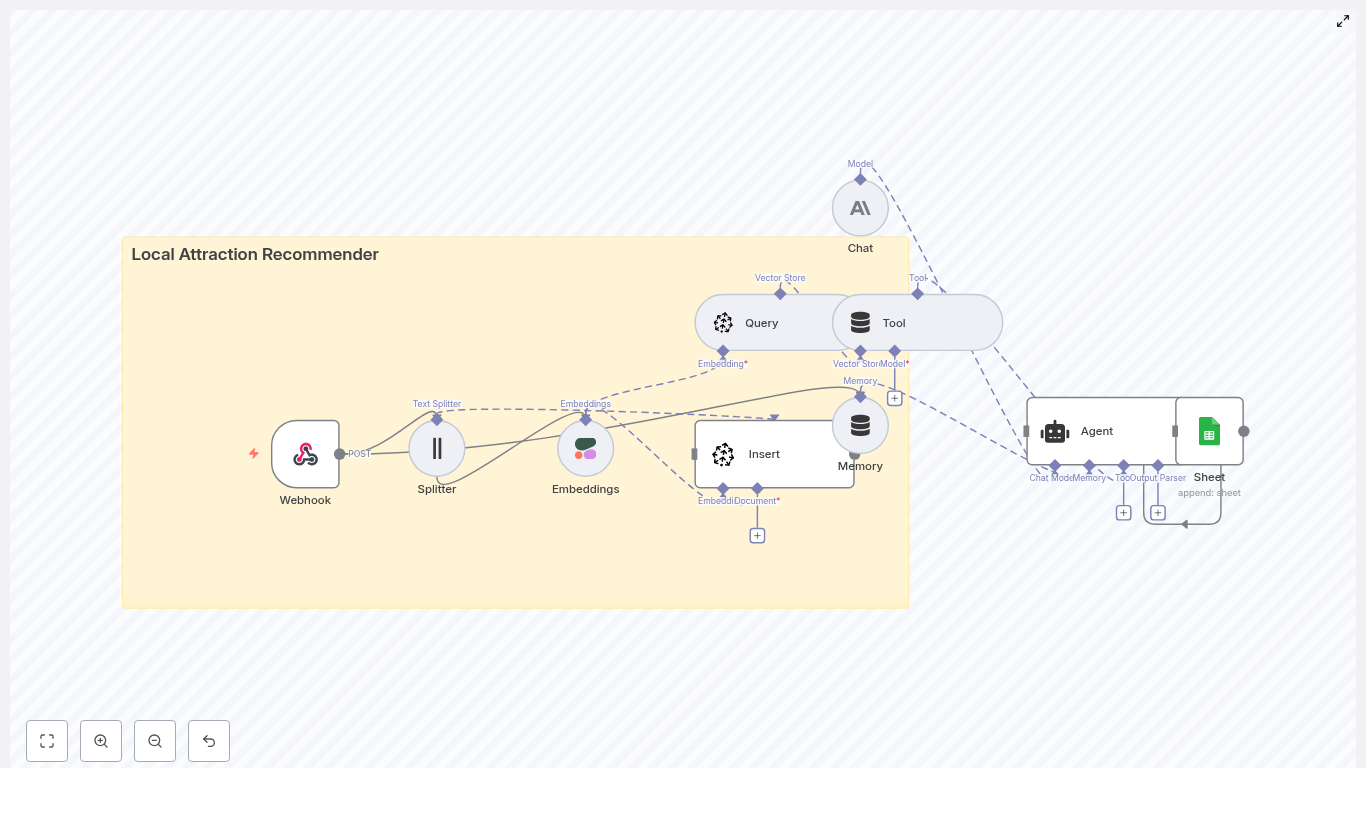
Build a Local Attraction Recommender with n8n
Imagine having your own smart local guide that knows what people like, understands their preferences, and instantly suggests great places nearby – all without writing a full backend from scratch. That is exactly what this n8n workflow template helps you do.
In this guide, we will walk through a ready-to-use n8n automation that:
It is lightweight, production-ready, and surprisingly easy to customize once you see how the pieces fit together.
What this n8n template actually does
At a high level, this workflow acts as a local attraction recommender system. You send it either:
Behind the scenes, it uses vector search to find relevant places, then passes that context to an AI agent that explains the suggestions in a friendly, human way. Finally, it logs each interaction so you can analyze performance later.
So what can you build with it?
If you are looking for a no-code friendly way to mix semantic search, LLMs, and logging, this template gives you a solid, practical starting point.
Why this architecture works so well
Traditional recommendation systems often lean on collaborative filtering and heavy infrastructure. That is great if you have tons of user behavior data and a big ML team, but not so great if you just want a smart, flexible local recommender quickly.
This architecture takes a different approach:
The result is a context-aware recommender that is easier to maintain, cheaper to run, and much more flexible than a monolithic “black box” solution.
How the workflow is structured
Let us break down the main stages of the n8n template. You will see how data flows from a simple HTTP request to a polished recommendation response.
Now let us walk through each component in a bit more detail, starting from how data enters the system.
Input: how you talk to the workflow
Webhook – your single entry point
The Webhook node exposes a POST endpoint at:
/local_attraction_recommender
You send JSON to this endpoint with a type field that tells the workflow what you want to do:
For indexing, you will typically send fields like:
For a user query, it looks something like this:
{  "type": "query",  "user_id": "user_123",  "location": "San Francisco, CA",  "preferences": "family-friendly parks, outdoor markets",  "limit": 5
}
The workflow then decides whether to route the request through the indexing path or the recommendation path.
Indexing attractions: from text to searchable vectors
Before you can recommend anything, you need a set of attractions indexed in Pinecone. The template handles this for you using a few key steps.
Splitter – chunking long descriptions
Some attraction descriptions can be long, or you might upload a bulk dataset. To keep things efficient and context-aware, the Splitter node breaks text into smaller pieces, for example:
This overlap helps preserve context between chunks, so the embeddings still understand the full meaning of the description without creating huge vectors.
Cohere embeddings – turning text into vectors
Next, the Cohere node takes each chunk and converts it into a dense vector representation. You will want to pick a Cohere model that is tuned for semantic search.
Make sure you:
These embeddings are what Pinecone uses to perform fast semantic similarity search later on.
Pinecone insert – building your attraction index
Once you have embeddings, the workflow inserts them into a Pinecone index, for example named:
local_attraction_recommender
Each record in Pinecone typically includes:
Good metadata makes it much easier to filter, re-rank, and debug results later, so it is worth setting this up carefully.
Serving recommendations: from query to friendly answers
Once your index is populated, the fun part starts: answering user questions with relevant suggestions.
Pinecone query + Tool – finding similar attractions
When a user sends a query, the workflow:
This ensures that the query and the stored items live in the same vector space, which is critical for good results. If you ever see irrelevant recommendations, this is one of the first things to double-check.
The Tool node then wraps the Pinecone response in a format that the downstream agent can easily consume. Think of it as turning “raw search results” into a structured tool the agent can call.
Memory – keeping the conversation going
If you want your recommender to feel more like a conversation than a one-off lookup, the Memory node helps with that.
It stores:
This allows the agent to do things like remember that the user prefers outdoor activities or that they did not like a previous suggestion, at least within the same session.
Anthropic chat + Agent – generating the final response
This is where everything comes together. The Agent node coordinates three ingredients:
The agent takes the retrieved attraction data, the user’s preferences, and any recent context from memory, then crafts a human-friendly answer. It can include:
Because this is all inside n8n, you can refine the prompt, adjust tools, or add extra logic without touching any backend code.
Google Sheets logging – simple analytics and audits
Finally, every interaction is written to a Google Sheet so you have a record of what happened. Typical fields include:
This gives you an easy way to:
Step-by-step: getting the template running
Ready to try it out? Here is a clear setup path you can follow.
Prompting tips for better recommendations
The agent prompt is where you “teach” the system how to talk to users. A concise, clear prompt usually works best. You will want to include:
Here is a simple output schema you can ask the agent to follow:
1) Name
2) Short description (20-30 words)
3) Why it matches the user's preference
4) Practical details (address, hours, approximate distance)
You can tweak this format to match your UI, but giving the model a structure usually leads to more consistent results.
Testing and evaluating your recommender
Once everything is wired up, it is time to see how well the system performs in real scenarios. Try queries across different:
Useful metrics to track include:
Your Google Sheets logs are a goldmine here. You can filter by query type, location, or user segment, then adjust prompts, metadata, or index content based on what you see.
Costs, scaling, and security considerations
Even though this setup avoids heavy infrastructure, it is still worth thinking about how it behaves as you scale.
Troubleshooting common issues
If something feels “off” with the recommendations, here are a few things to check first:
Ideas for next-level customizations
Once you have the basic recommender working, you can start layering on more intelligence and nicer user experiences. For example, you could:
Because the workflow is modular, you can swap
Generate Survey Insights with n8n, Qdrant & OpenAI
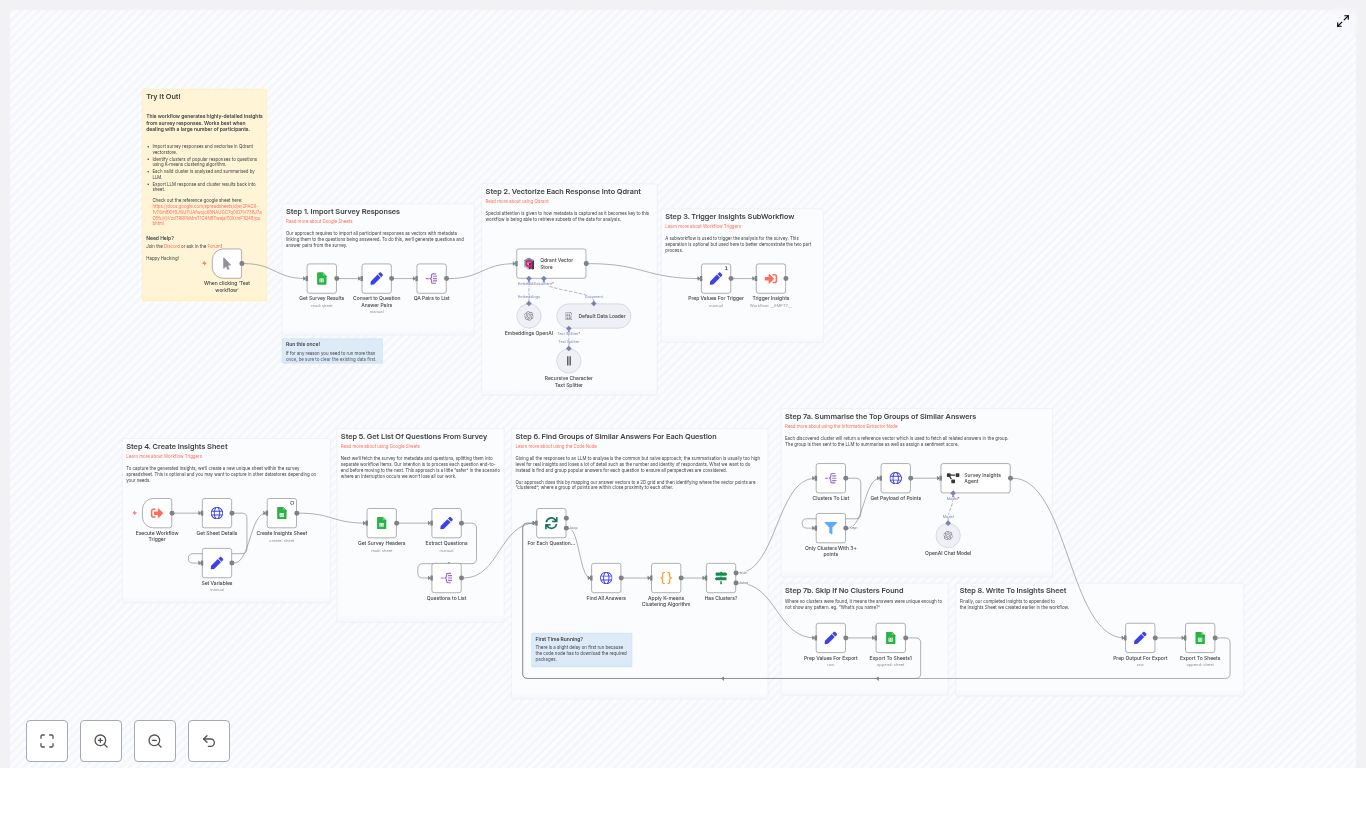
Generate Actionable Survey Insights with n8n, Qdrant & OpenAI
Survey data is valuable, but manually reading hundreds or thousands of responses can be slow and inconsistent. This n8n workflow template shows you how to turn raw survey answers into clear, auditable insights using:
You keep full traceability, including participant IDs, answer counts, and raw responses, so you can always see how each insight was produced.
What you will learn
By the end of this guide, you will understand how to:
Core idea: why this n8n survey workflow works
Simply pasting all responses into a single LLM prompt can give you a quick summary, but you lose:
This workflow solves those problems by:
The result is an automated pipeline that is repeatable, transparent, and easy to adapt for new surveys.
Key concepts before you start
Embeddings and vectorization
An embedding is a numeric representation of text. Similar texts have similar vectors. In this workflow:
Qdrant as a vector store
Qdrant is a vector database. It stores:
By filtering on metadata (for example, metadata.question == currentQuestion), you can retrieve only the answers relevant to one specific question.
K-means clustering
K-means is a clustering algorithm that groups similar points (here, answer vectors) into a fixed number of clusters. In this template:
LLM summarization and insight generation
Once you have clusters of similar answers, an LLM is used to:
This is handled inside an Information Extractor style node (or equivalent LLM node) in n8n.
Step-by-step: how the n8n survey analysis workflow works
Step 1 – Import survey responses from Google Sheets
The workflow begins by reading your survey data from Google Sheets:
n8n converts each row into a structure that includes the participant ID and all their answers. This sets the stage for turning each answer into a standalone item later.
Step 2 – Convert rows into question-answer pairs
A transform node (for example, a Function or Item Lists node) maps the sheet columns into a standard format such as:
{ question, answer, participant }
This step is important because:
Step 3 – Generate embeddings and insert into Qdrant
For every question-answer pair:
This design makes it easy to later query Qdrant for all answers to one specific question, or to filter by survey or participant if needed.
Step 4 – Separate ingestion from analysis with a subworkflow
To keep the system robust, the template splits the process into two parts:
The main workflow triggers the insights subworkflow once ingestion is complete. If the analysis fails or needs to be re-run, you do not lose the ingested data in Qdrant.
Step 5 – Create a dedicated Insights sheet
Before processing questions, the analysis workflow creates a new sheet inside the same Google spreadsheet. Typical behavior:
This gives you a clean, separate output space for reporting and sharing.
Step 6 – Detect question columns and loop through questions
The workflow examines the headers of your original Google Sheet to identify which columns are questions. A common pattern is:
For each detected question, n8n runs the full analysis pipeline:
Step 7 – Retrieve embeddings and run K-means clustering
For a single question:
Each cluster groups answers that are semantically similar, such as people who all mention “flexibility” or “work-life balance” in a remote work survey.
Step 8 – Filter clusters and summarize with an LLM
Not all clusters are useful. Some may contain only one or two answers. To avoid noisy insights:
For each remaining cluster:
Step 9 – Export insights back to Google Sheets
Before writing to the Insights sheet, each cluster-level insight is enriched with extra fields so you can audit and analyze it later. Typical fields include:
Each insight is appended as a new row in the Insights sheet created earlier.
Example of a generated insight
Here is a sample output for a question about remote work:
<Question>: What do you enjoy most about working remotely?
<Insight>: Most participants value flexibility and fewer commute hours. Several respondents mentioned improved work-life balance and the ability to structure the day around personal commitments.
<Sentiment>: Positive
<Number of Responses>: 42
<Participant IDs>: 2,7,9,14,31,...
From a single cluster, you can immediately see:
Configuration tips and best practices
Choosing an embedding model
Setting the number of clusters
The K-means node uses a maximum cluster count, with the template defaulting to around 10. When tuning:
Minimum cluster size
A minimum cluster size of 3 helps avoid “false” insights based on only one or two answers. This also reduces noise from ad hoc responses, such as names or very short comments.
Batching large surveys
For large datasets, you should:
Handling PII and privacy
Participant names and IDs are stored as metadata and may be exported to the Insights sheet. For privacy:
Managing costs
API costs come from two main sources:
To optimize costs:
Troubleshooting and scaling your workflow
Issue: ingestion from Google Sheets is slow
Try the following:
Issue: clusters are noisy or there are too many
To improve cluster quality:
Issue: LLM summaries are inconsistent
If the insights feel vague or inconsistent:
Why keep participant IDs and raw responses?
Including participant IDs and raw answers in your outputs gives you:
If someone questions a particular insight, you can quickly show:
How to get started with the n8n survey analysis template
This workflow is ideal for teams that run frequent surveys and want a repeatable, transparent way to generate insights. To try it out:
Summarize Customer Emails with n8n & Weaviate
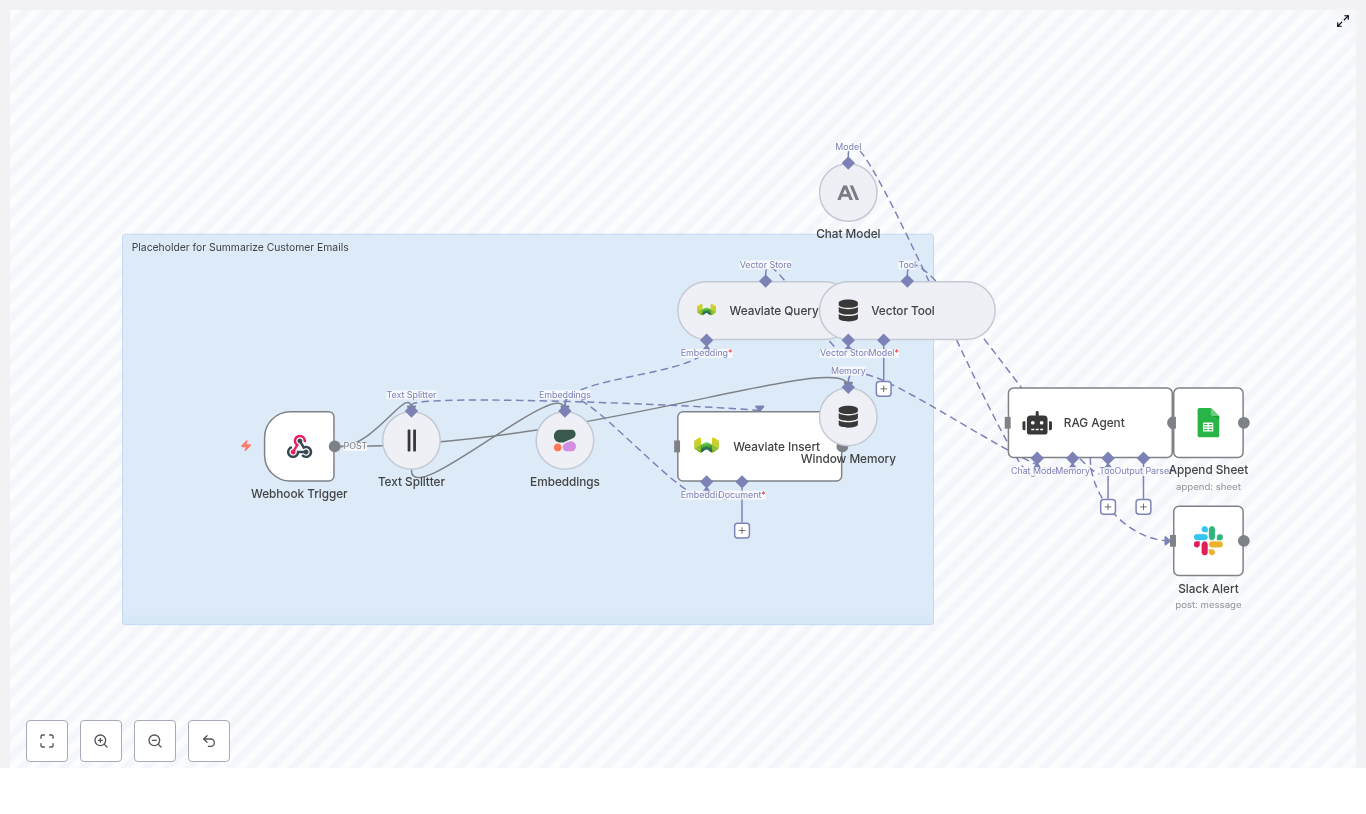
Summarize Customer Emails with n8n & Weaviate
Efficient handling of customer communication is critical for modern support and operations teams. Manual review of long email threads does not scale, and it is easy to lose context across interactions. This guide explains how to implement a production-ready n8n workflow template that automatically summarizes customer emails using a retrieval-augmented generation (RAG) pattern with Weaviate, Cohere embeddings, and an Anthropic chat model, while logging outcomes to Google Sheets and surfacing failures in Slack.
The result is an end-to-end automation that ingests inbound emails, transforms them into vector embeddings, stores and retrieves context from Weaviate, and generates concise, actionable summaries that your team can trust.
Solution architecture and design rationale
This workflow is built around a modular architecture that separates ingestion, vectorization, retrieval, generation, and monitoring. Each component is chosen to support scalability, observability, and maintainability:
This combination enables a robust RAG workflow: incoming emails are embedded and stored once, then efficiently retrieved and summarized on demand with consistent context and clear operational visibility.
End-to-end workflow overview in n8n
On the n8n canvas, the template is organized into distinct stages that form a complete pipeline:
The following sections walk through each stage in more depth, including configuration guidance and operational best practices.
Ingestion and preprocessing
Webhook Trigger configuration
The workflow starts with an n8n Webhook Trigger node configured to accept HTTP POST requests. This endpoint is intended to receive raw email payloads from your email provider or an intermediate mail-to-webhook service.
Key considerations:
Text splitting for long emails
Customer emails, especially threads, can easily exceed typical model context limits. The Text Splitter node breaks the email body into overlapping chunks so that each piece can be embedded and retrieved efficiently.
Recommended template settings:
This configuration provides a balance between coherence within each chunk and retrieval precision. For models with larger context windows, you can increase chunkSize. For domains where crucial information often crosses chunk boundaries, consider increasing chunkOverlap to preserve continuity.
Vectorization and storage with Cohere and Weaviate
Embedding generation with Cohere
After splitting, each text chunk is passed to an Embeddings node configured with Cohere. The template uses embed-english-v3.0 or the latest recommended Cohere embedding model.
Implementation notes:
Persisting context in Weaviate
The Weaviate Insert node writes embedding vectors and associated metadata into a Weaviate index. In this template the index name is set to summarize_customer_emails to isolate this use case.
Alongside the vector, store metadata fields that will later enable targeted retrieval and filtering, such as:
Well-designed metadata is critical for advanced retrieval strategies, for example filtering by customer, date range, or ticket priority.
Retrieval and RAG orchestration
Querying Weaviate and exposing a vector tool
When a summary is requested, the workflow uses a Weaviate Query node to retrieve the most relevant chunks for the current email or thread. The Vector Tool node then exposes this vector store to the RAG agent so that the agent can call back into Weaviate as needed during generation.
Best practices:
Window Memory for conversational continuity
The Window Memory node helps preserve short-term context across multiple related emails, such as follow-ups in the same thread. Instead of re-fetching and re-summarizing the entire history on each request, window memory maintains a compact representation of recent context.
This improves:
Summary generation with Anthropic and RAG
Configuring the Chat Model and RAG agent
The core of the workflow is the Chat Model + RAG Agent stage, which uses an Anthropic chat model. The agent combines three elements:
Guidelines for configuration:
Prompt structure and output format
To make summaries operationally useful, structure the output into clear sections. A typical pattern is:
Example system and user prompt for the RAG agent:
<system>You are an assistant for Summarize Customer Emails. Produce a brief summary, list action items, and draft a suggested reply. Use the retrieved context only. Keep the summary under 120 words.</system>

<user>Email body: {original_email}
Retrieved context: {weaviate_hits}
</user>
Additional recommendations:
Logging, monitoring, and alerting
Google Sheets logging for auditability
The Append Sheet node writes each summarization result to Google Sheets. This provides a simple but effective audit trail that non-technical stakeholders can inspect.
Typical columns include:
This log supports manual quality checks, helps identify problematic cases, and can be used to iterate on prompt design and retrieval parameters.
Slack alerts using the onError path
Reliability is handled via n8n’s onError path. If any node in the workflow fails, an error branch sends a Slack Alert message to a designated channel.
Include in the alert:
This pattern ensures that failures are visible in real time and can be triaged before they impact downstream workflows or customer SLAs.
Security and privacy controls
Since this workflow processes customer email content, robust security and privacy practices are essential:
These measures help maintain compliance with internal policies and external regulations while still enabling advanced automation.
Scaling, performance, and cost optimization
As email volume increases, you will want to optimize the workflow for both performance and cost:
Monitoring embedding counts, vector store growth, and LLM token usage will help you keep the solution cost effective without sacrificing quality.
Quality control and continuous improvement
To ensure the summaries remain accurate and actionable over time, implement systematic quality checks:
Techniques to improve summarization accuracy
Iterating on these parameters will typically yield significant gains in summary quality without major architectural changes.
Putting it into practice
This n8n template provides a strong foundation for automated customer email summarization using a RAG-based architecture. It strikes a practical balance between accuracy, cost, and operational simplicity, while remaining flexible enough to extend.
Once the core workflow is stable, you can layer on additional capabilities such as sentiment analysis, automated ticket creation, priority-based routing, or integration with CRM and help desk platforms.
Next steps:
If you require a tailored implementation or deeper integration with your existing tooling, consider engaging your internal platform team or contacting specialists for a guided deployment.
Live Stream Chat Moderator with n8n & LangChain
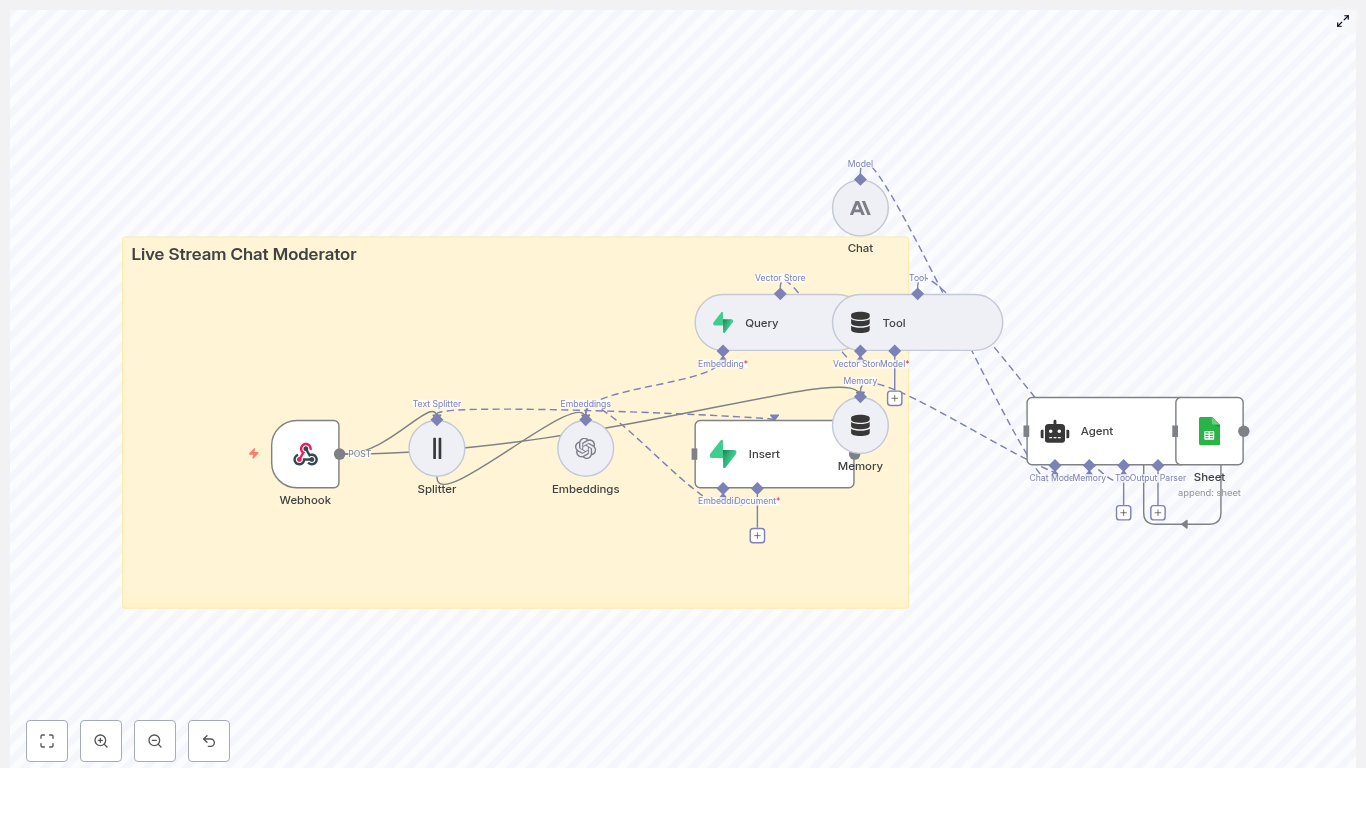
Live Stream Chat Moderator with n8n & LangChain
Imagine running a live stream where you can stay fully present with your audience, instead of scrambling to delete spam, filter abuse, or track repeat offenders. Moderation does not have to drain your energy or your team’s focus. With the right automation, your chat can practically take care of itself while you concentrate on what matters most: creating, connecting, and growing.
In this guide, you will walk through a complete n8n workflow template that turns scattered tools into a coordinated live stream chat moderator. Using n8n as the orchestrator, LangChain components for text processing, Supabase as a vector store, and Anthropic for conversational intelligence, you will create a system that learns from context, remembers past incidents, and logs every decision to Google Sheets for transparent review.
By the end, you will not just have a production-ready template. You will have a reusable pattern for automation that can free up your time, scale with your community, and become a foundation for even more powerful workflows.
From chaos in chat to calm, focused streaming
Live stream chat can flip from fun to frantic in seconds. Messages flood in, trolls appear, and important questions get buried. Manual moderation struggles to keep up, and even basic scripts fall short when they lack context or memory.
What you really need is a moderator that can:
That is exactly what this n8n template is designed to support. Instead of building a custom backend or stitching together ad-hoc scripts, you can lean on a clear, modular architecture that is easy to extend and maintain.
Adopting an automation mindset
Before we dive into nodes and APIs, it helps to approach this as more than just “setting up a bot.” Think of it as a mindset shift.
With automation-first thinking, you:
n8n, LangChain, Supabase, and Anthropic together give you a toolkit that can grow with your needs. Start with this template, then keep iterating. Each improvement you make compounds, saving more time and creating a safer, more welcoming space for your audience.
Why this n8n architecture works so well
The template uses small, composable services that each do one job well. n8n sits in the middle as the visual workflow orchestrator, connecting every piece into a single, reliable moderation pipeline.
This architecture keeps each piece replaceable. You can swap providers, adjust parameters, or add new tools without rebuilding from scratch. That flexibility is what makes this template such a strong foundation for long-term growth.
Meet the live stream chat moderator template
At the heart of this guide is an n8n workflow template that connects your streaming platform to a smart, context-aware moderation agent. Here is how the key nodes fit together:
Each node represents a step in your moderation journey, from raw message to thoughtful, explainable action.
How the n8n workflow flows, step by step
1. Receiving chat events at the webhook
Your streaming bot or platform sends chat events into the workflow through the n8n Webhook node. Configure this webhook to accept POST requests, then point your platform or bot to that URL.
The payload should include at least the message text and basic user information. For example:
{  "user_id": "12345",  "username": "chat_user",  "message": "This is a test message",  "channel": "stream-1",  "timestamp": "2025-09-04T12:34:56Z"
}
Once this is in place, every new message becomes an opportunity for your automated moderator to learn, respond, and log decisions without manual intervention.
2. Splitting long messages and creating embeddings
Some chat messages are short and simple. Others are long, nuanced, or even multi-line. To handle these effectively, the workflow sends incoming text to the Splitter node.
The Splitter breaks long messages into manageable chunks. This matters because embedding models work best when they receive text within a certain size. Chunking prevents truncation and helps preserve context.
Each chunk then flows into the Embeddings node, which calls OpenAI or your chosen embeddings provider. The result is a vector representation of the text. These vectors are what enable semantic search, pattern detection, and context-aware decisions later in the flow.
3. Storing and querying vectors in Supabase
Next, the workflow uses the Insert node to store both the embeddings and useful metadata in a Supabase vector store. Typical metadata includes:
This structure makes it easy to filter and retrieve relevant context later.
When a new message arrives, the Query node searches the vector store for similar messages, known abuse patterns, or policy-related content. This semantic lookup lets the agent recognize repetition, escalation, or subtle variations of harmful behavior that simple keyword filters might miss.
4. Agent reasoning with tools and memory
The real power of this template appears when the Agent node takes over. It acts as a conductor, bringing together:
Using LangChain-style orchestration, the agent can reason about what is happening in the chat right now, in light of what has happened before. With that context, it can recommend or generate moderation actions such as:
This is where your automation stops being a simple filter and starts acting like a thoughtful, policy-aware assistant.
5. Logging decisions for human review in Google Sheets
Every decision the agent makes flows into a Sheet node that appends a new row to a Google Sheet. You can include:
This simple spreadsheet becomes a powerful audit trail. It supports transparency, appeals, and continuous improvement. As you scan the sheet, you can spot patterns, adjust prompts, refine policies, and gradually shape a safer chat environment with less manual effort.
Getting ready: environment and credentials
To bring this n8n template to life, you will need a few keys and credentials in place. Setting these up once unlocks a reusable automation layer you can apply across many workflows.
Once these are configured in n8n, you can reuse them across multiple workflows and templates, not just this live stream moderator.
Designing your vector store for clarity
A well-structured vector store makes your moderation workflow easier to maintain and extend. When setting up your Supabase schema, store both the embedding vector and relevant metadata fields, such as:
This setup allows you to:
Choosing a chunking strategy that fits your needs
Chunking is a small configuration choice that has a big impact on both quality and cost. The template uses a sensible starting point of:
This balance keeps enough context in each chunk while avoiding unnecessary API calls. If your messages are usually longer or more nuanced, you can increase overlap for richer context. Just remember that larger chunks and more overlap will increase the number of embeddings and storage required.
Moderation policy, safety, and responsibility
Even with a powerful automation stack, your moderation should always align with your platform’s policies and local laws. Technology amplifies your intentions, so it is worth being intentional.
As you roll out this n8n template, consider:
Automation is not about removing humans from the loop. It is about freeing humans to focus on empathy, community building, and the cases that truly need judgment and care.
Scaling your automated moderator as your stream grows
As your audience expands, this template can grow with you. You can optimize for performance, cost, and reliability without giving up the core architecture.
With these strategies, your n8n workflow can keep pace with a growing community without forcing you to rebuild from scratch.
Extending the template into a full moderation system
Once the core workflow is running, you can start layering on new capabilities. This is where the template becomes a stepping stone to a richer automation ecosystem.
Popular extensions include:
Each extension builds on the same foundation: n8n as the orchestrator, vector search for memory, and LLMs for reasoning. As you experiment and iterate, your workflow becomes a unique asset tailored to your community.
Securing your webhook: example signature header
Security is a key part of any production workflow. A common pattern is to sign webhook requests with an HMAC signature and validate it in n8n before processing.
POST /webhook/live_stream_chat_moderator
Headers:  X-Hub-Signature: sha256=...  # HMAC using your secret
Body: { ... }

# Validate the signature in the first webhook node before processing
By validating this signature in your initial webhook node, you ensure that only trusted sources can trigger your moderation pipeline.
Your next step: turn this template into your automation launchpad
This n8n workflow template is more than a one-off solution. It is a practical, extensible starting point for automated, context-aware live stream moderation that you can keep improving over time.
By combining semantic search via embeddings, a Supabase vector store for memory, and a conversational agent powered by Anthropic or another LLM, you gain a moderator that understands context, learns from history, and escalates intelligently.
From here, you can:
As you tune and extend this workflow, you will see your manual workload shrink and your capacity to focus on content, strategy, and community growth expand.
Call to action: Try the template today. Deploy it in n8n, run it against a staging or test stream, and use what you learn to refine your automation. Experiment, improve, and make it your own. If you need a deeper walkthrough or want help tailoring it to your platform, export the workflow or reach out for a guided customization.
AI Document Parsing with LlamaParse + n8n
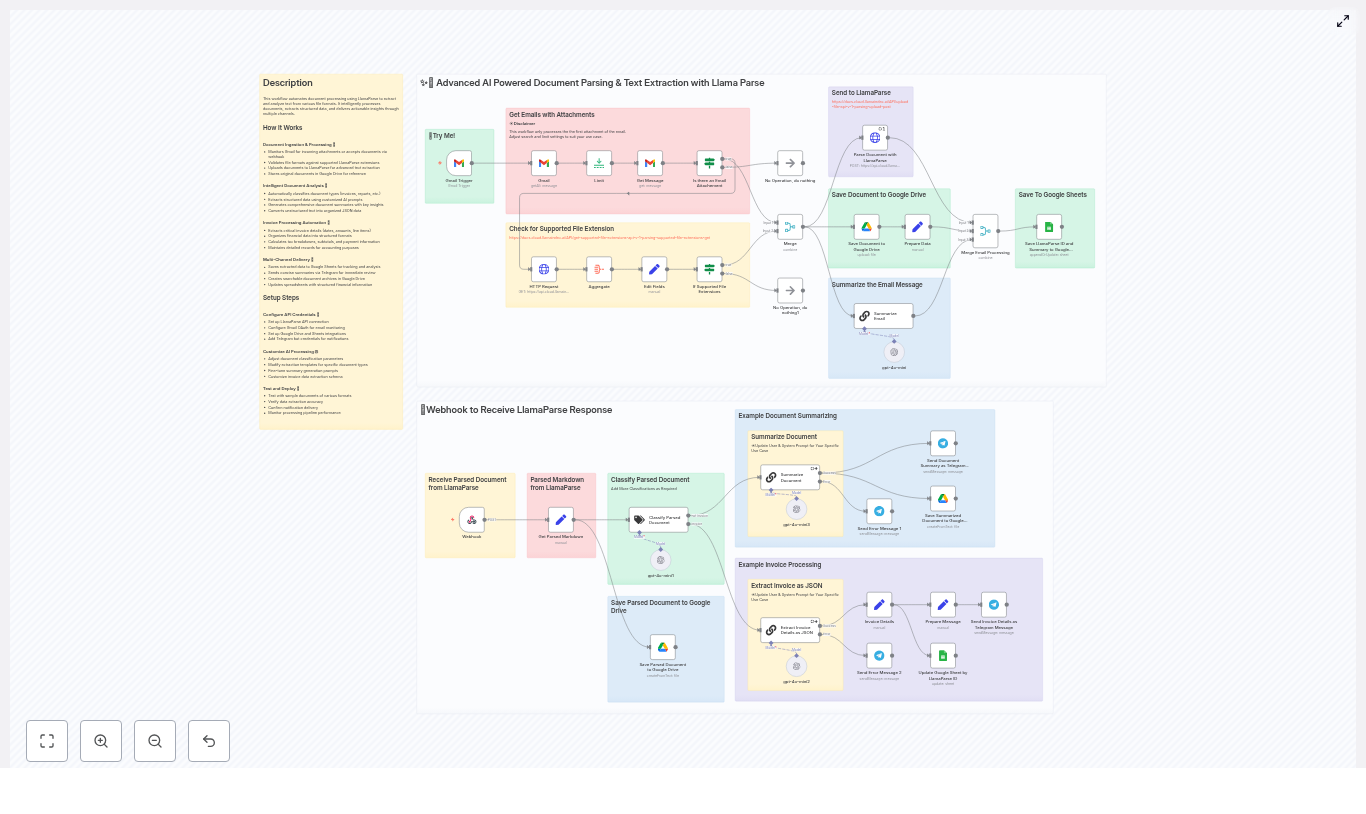
AI Document Parsing with LlamaParse + n8n
If you spend too much time opening attachments, copying numbers into spreadsheets, and forwarding documents to teammates, this guide is for you. Let’s walk through a practical n8n workflow template that uses LlamaParse to read your documents, pull out structured data, create summaries, and then push everything into Google Drive, Google Sheets, and Telegram for you.
Think of it as a smart assistant that watches your inbox, understands your files, and keeps your records tidy in the background.
What this n8n + LlamaParse workflow actually does
At a high level, this workflow:
So instead of manually opening PDFs and spreadsheets, you get a clean, automated document processing pipeline powered by LlamaParse and n8n.
Why pair LlamaParse with n8n?
LlamaParse brings the heavy lifting for file parsing. n8n brings the visual automation and integrations. Put them together and you get a flexible, low-maintenance workflow that can:
Key benefits of this setup
In short, you get a robust, scalable automation that is still easy to understand and tweak in n8n’s visual editor.
When should you use this template?
This workflow is a great fit if you:
It is especially helpful if you are building an AP automation pipeline, processing expense receipts, or managing customer-submitted forms and PDFs.
How the n8n workflow flows from email to insights
Let’s break down the core logic before diving into each node. The template essentially follows this sequence:
Now let’s walk through the important pieces, node by node, so you can understand and customize it.
Step-by-step: Node-by-node walkthrough
1. Gmail Trigger and message retrieval
You start with a Gmail Trigger node. This node watches your inbox for new emails and pulls in messages that match your filters. To keep things focused, you can use Gmail search queries such as:
The example workflow processes the first attachment per email to keep things simple, but you can extend it if you need multiple attachments handled.
2. Check file extension and supported types
Before sending anything to LlamaParse, the workflow calls LlamaParse’s supported file extensions endpoint. The goal here is to avoid wasting API calls on unsupported formats.
The workflow compares the attachment’s file extension to the list returned from LlamaParse. If the file type is not supported, you can choose to skip it, log it, or notify someone.
3. Upload the file to LlamaParse
For supported files, the next step is an HTTP multipart/form-data POST request to the LlamaParse upload endpoint:
POST https://api.cloud.llamaindex.ai/api/parsing/upload
Form data:
- file (binary) = file0
- webhook_url = https://your-n8n.example.com/webhook/parse
- accurate_mode = true
- premium_mode = false
Key things to note:
This asynchronous pattern is ideal for larger documents, since you do not have to wait for parsing to finish in the same request.
4. Receive the parsed document via webhook
Once LlamaParse finishes processing, it sends the output to the n8n Webhook node you provided. The webhook receives:
At this point, the workflow also saves the original file to Google Drive. Keeping the raw attachment in Drive is helpful for traceability, audits, and debugging any parsing issues later.
5. Classify the parsed content
Next, the workflow uses a small classification LLM prompt to decide what kind of document it is. Typically, it checks whether the document is an invoice or something else.
This classification step is important because it lets you branch into:
6. Invoice extraction and JSON mapping
If the document is identified as an invoice, the workflow runs a more detailed chain-LLM prompt that enforces a clear JSON schema. This schema typically includes fields like:
By forcing the model to stick to a schema, you get consistent JSON that is easy to map into Google Sheets or downstream accounting tools. You can also specify how numbers should be formatted, for example as floats with two decimal places, which helps if you plan to run calculations on them later.
7. Summarize non-invoice documents and notify
If the file is not an invoice, the workflow takes a different path. Here, it uses an LLM prompt to create an executive summary of the document, along with:
Both invoice summaries and non-invoice summaries are then:
Google Drive and Google Sheets integration
The template includes two important persistence layers that keep your data organized and useful over time.
1. Save everything in Google Drive
The workflow stores:
This gives you a complete record of what came in and what the AI extracted, which is great for audits, compliance, and debugging.
2. Update Google Sheets with structured data
For invoices and other structured documents, the workflow appends or updates rows in Google Sheets. Typical fields might include:
The example uses a specific document ID and sheet with gid=0, and maps the LLM-extracted JSON fields into predefined columns. That way, your reporting, dashboards, or accounting workflows can reliably ingest the same structure every time.
Best practices for a stable, reliable workflow
To keep your n8n + LlamaParse automation running smoothly, a few patterns really help.
Security and credential handling
Security is just as important as convenience. In n8n, you should always store sensitive data as credentials or environment variables, not directly in node parameters.
This includes:
By using n8n’s built-in credentials management, you keep secrets out of your workflow definitions and version control.
Common use cases for this template
Wondering where this really shines in day-to-day work? Here are some popular scenarios:
Limitations, checks, and monitoring
Even with strong LLM-based parsing, you still want guardrails. Some good habits:
When something looks off, route it to manual review instead of silently accepting it.
Ideas for customization and next steps
Once you have the base template running, you can tailor it to your specific domain. For example, you can:
The core pattern stays the same, but you can evolve the prompts, fields, and destinations as your needs grow.
Get started with the n8n template
Ready to cut down on manual data entry and let AI handle the boring parts of document processing?
Call to action: Try the template in a sandbox environment, review the parsed artifacts in Google Drive, and share example JSON outputs with your accounting or operations team. If you need help tailoring prompts to your unique invoice layouts or document types, reach out for consultation and prompt engineering support.
Automate Recipe Emails with n8n + Edamam
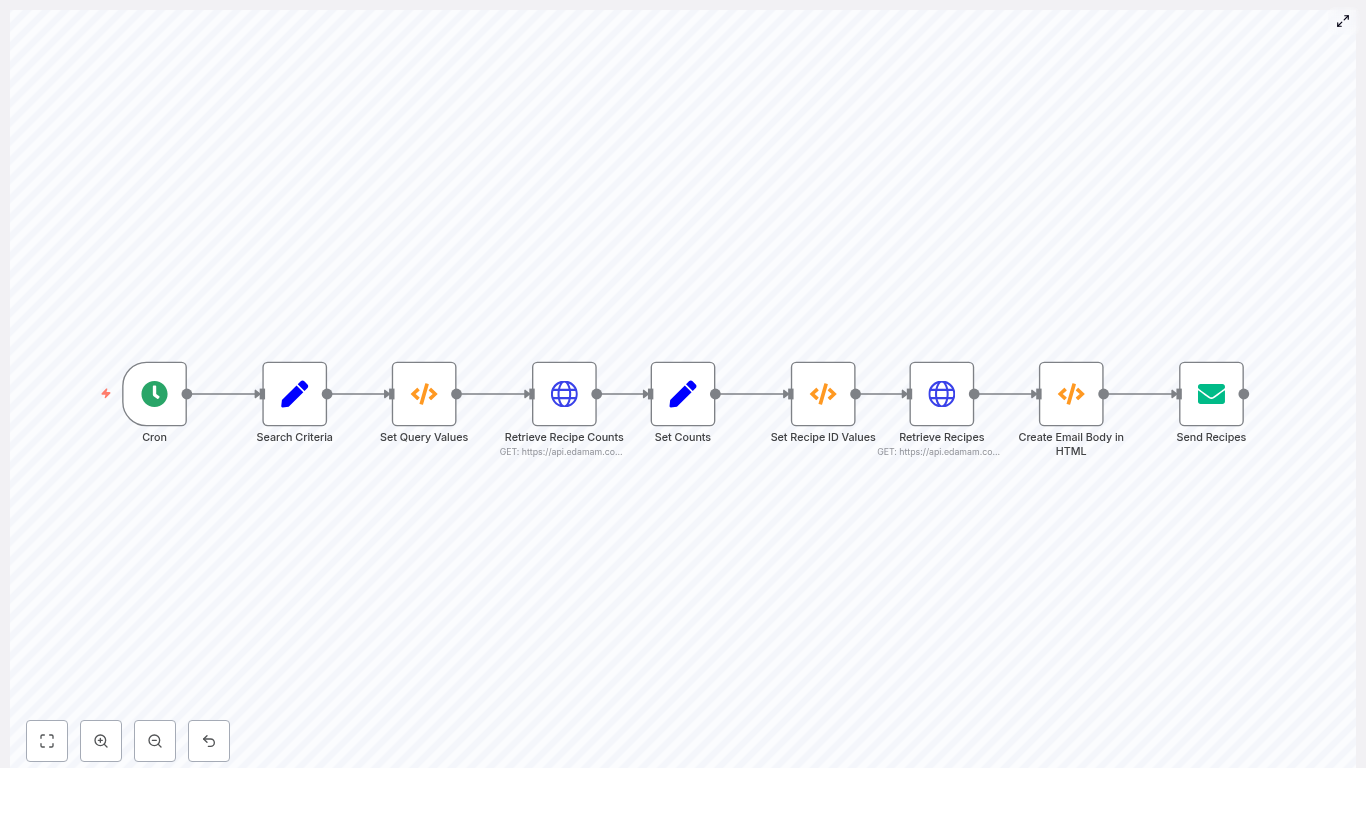
Automate Recipe Emails with n8n and the Edamam API
Every evening the same question shows up like an unwanted pop-up: “What are we eating tonight?” You open a recipe site, type “easy dinner”, get 4,000 options, and somehow still end up with toast.
If that sounds familiar, this workflow is your new best friend. Using n8n and the Edamam Recipe Search API, you can set up an automation that quietly hunts for recipes that match your diet, calories, and cook time, then emails them to you every day. No more doom-scrolling through food blogs when you’re already hungry.
This guide walks you through an n8n workflow template that:
Let’s turn your inbox into a personal recipe assistant, instead of a graveyard of unread newsletters.
Why bother automating recipe discovery?
Because manually searching for recipes every day is the culinary equivalent of copy-pasting data into spreadsheets: technically possible, spiritually exhausting.
With an automated n8n recipe email workflow you can:
Once this is set up, n8n and Edamam quietly do the boring work in the background, while you take the credit for “planning ahead.”
What this n8n + Edamam workflow actually does
At a high level, the workflow behaves like a polite robot sous-chef:
The result is a clean, automated recipe email that feels curated, without you manually curating anything.
What you need before you start
Before you hit “Execute workflow” like a pro, make sure you have:
If that checklist looks good, you are ready to automate your way out of dinner indecision.
Quick setup overview: from “ugh, what’s for dinner” to inbox recipes
Here is the simplified flow before we dive into the node-by-node details:
Now let’s dig into each part so you can confidently tweak it for your own diet, preferences, and level of laziness.
Step-by-step: building the n8n recipe email workflow
1. Schedule your recipe delivery with the Cron node
Start with a Cron node. This is what decides when your recipe email goes out.
Examples:
Configure the Cron node to trigger at your preferred time. This is the entry point for the whole workflow.
2. Define your search criteria (Set node)
Next, use a Set node to store all your configurable inputs. Think of this as your “recipe preferences control panel.”
Fields you will typically include:
Later on, these values become query parameters for the Edamam API requests.
3. Prepare query values and random filters (Function node)
Now comes the fun part: a Function node that turns your raw inputs into ready-to-use query values and handles the optional randomness for diet and health labels.
The template uses this example code:
items[0].json.calories = items[0].json.CaloriesMin + "-" + items[0].json.CaloriesMax;
items[0].json.time = items[0].json.TimeMin + "-" + items[0].json.TimeMax;

if (items[0].json.Diet.toUpperCase() == "RANDOM") {  arrDiet = ["balanced","high-fiber","high-protein","low-carb","low-fat","low-sodium"];  intRandomNumber = Math.floor(Math.random() * 6);  items[0].json.Diet = arrDiet[intRandomNumber];
}

if (items[0].json.Health.toUpperCase() == "RANDOM") {  arrHealth = ["alcohol-free","immuno-supportive","celery-free","crustacean-free","dairy-free","egg-free","fish-free","fodmap-free","gluten-free","keto-friendly","kidney-friendly","kosher","low-potassium","lupine-free","mustard-free","low-fat-abs","no-oil-added","low-sugar","paleo","peanut-free","pecatarian","pork-free","red-meat-free","sesame-free","shellfish-free","soy-free","sugar-conscious","tree-nut-free","vegan","vegetarian","wheat-free"];  intRandomNumber = Math.floor(Math.random() * 31);  items[0].json.Health = arrHealth[intRandomNumber];
}

return items;
Key behavior:
So you can say “I don’t care, just something healthy-ish”, and the workflow will pick a diet or health label for you.
4. Ask Edamam how many recipes match (HTTP Request)
Before you grab specific recipes, you need to know how many exist for your criteria. That is where the first HTTP Request node comes in.
Configure it to call the Edamam search endpoint with parameters like:
The important part of the response is the count field. It tells you the total number of matching recipes, which you will use to pick a random slice of results later.
5. Store counts and how many recipes to return (Set node)
Next, use another Set node to capture:
This keeps things tidy and makes it easy to adjust how many recipes show up in each email without touching the function logic.
6. Choose a random result window (Function node)
Now you decide which recipes to fetch. Instead of always pulling the first few results, you can randomize the offset so you get variety over time.
Use another Function node with logic like this:
items[0].json.from = Math.floor(Math.random() * items[0].json.RecipeCount) + 1;
items[0].json.to = items[0].json.from + items[0].json.ReturnCount;

return items;
What this does:
Result: your recipe emails feel fresh, not like the same top 5 search results every time.
7. Retrieve the actual recipes (HTTP Request)
Now you are ready for the second HTTP Request node. This one uses the computed from and to values to fetch the specific recipe objects.
The response includes:
These results will be used to build your HTML email content.
8. Turn recipes into an HTML email body (Function node)
Next, use a Function node to convert the recipe data into a simple HTML list. The template uses code like this:
arrRecipes = items[0].json.hits;
items[0].json = {};

strEmailBody = "Here are your recipes for today:<br><ul>";

arrRecipes.forEach(createHTML);

function createHTML(value, index, array) {  strEmailBody = strEmailBody + "<li><a href=\"" + value.recipe.shareAs + "\">" + value.recipe.label + "</a></li>";
}

strEmailBody = strEmailBody + "</ul>";

items[0].json.emailBody = strEmailBody

return items;
End result: a neat HTML snippet like:
You can easily extend this to include:
That way your email looks more like a curated newsletter and less like a plain text reminder.
9. Send the recipes by email (Email node)
Finally, use the Email node to send your masterpiece.
Configure it to:
Once this is wired up, your recipes start landing in your inbox on autopilot. No extra clicks, no extra effort, just food ideas appearing like clockwork.
Security and best practices for your workflow
Automation is fun, leaking API keys is not. Keep things safe and stable by following these tips:
Troubleshooting: when the robot chef gets confused
If something breaks, it is usually fixable without sacrificing any snacks. Here are common issues and quick checks:
Automate Stripe to QuickBooks with n8n & RAG
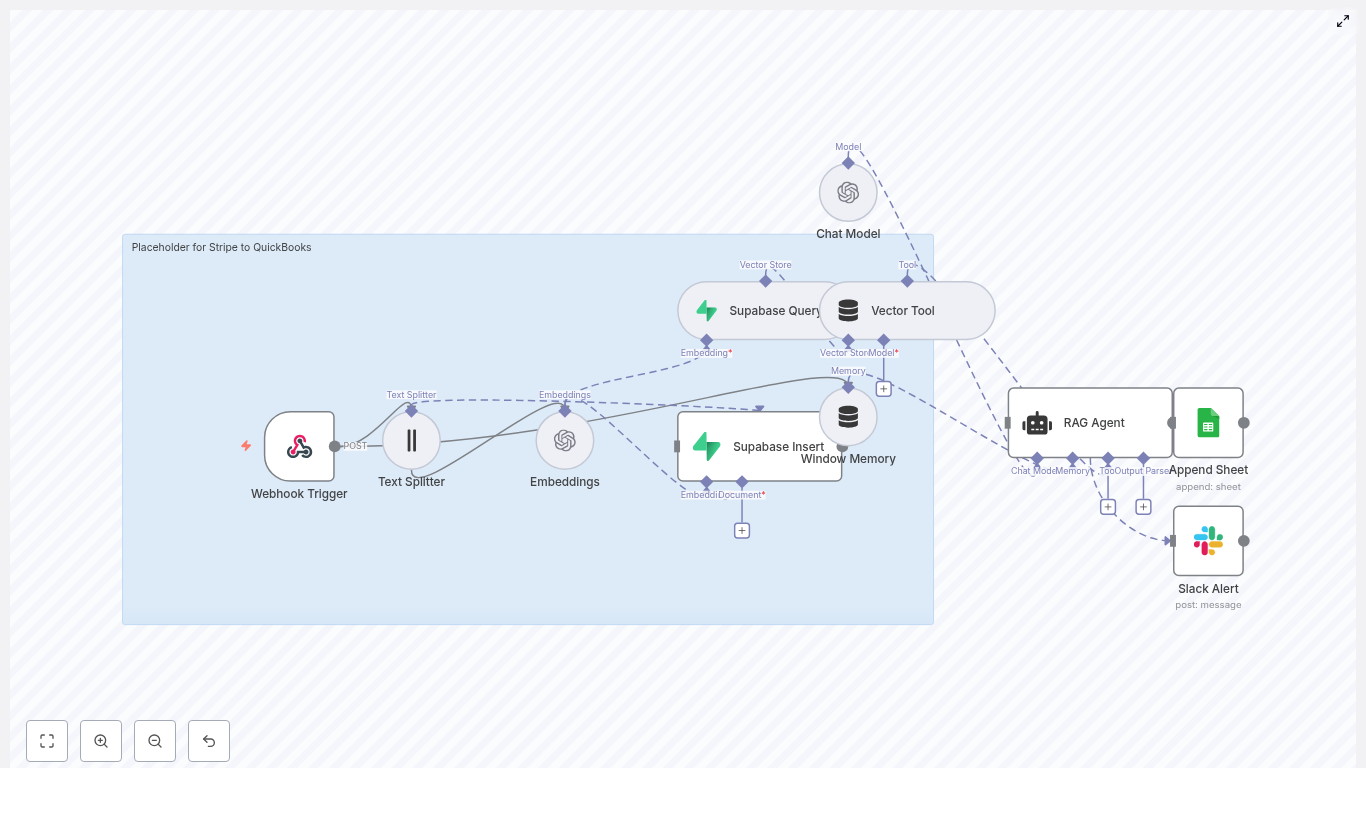
Automate Stripe to QuickBooks with n8n and a RAG-Powered Workflow
Every payment your business receives tells a story. Yet when you are stuck copying Stripe data into QuickBooks by hand, those stories turn into late nights, repetitive clicks, and a constant fear of making a tiny mistake that becomes a big accounting headache.
It does not have to stay that way.
This guide walks you through a powerful n8n workflow template that turns Stripe events into organized, enriched QuickBooks-ready data using automation, embeddings, Supabase, and a RAG (Retrieval-Augmented Generation) agent. Along the way, you will see how one automated flow can free your time, reduce errors, and open the door to a more focused, scalable way of working.
From manual chaos to confident automation
Manually syncing Stripe and QuickBooks often looks like this:
It is slow, draining, and limits how much you can grow. Every new customer or product line adds more work to your plate.
Automation flips that story. Instead of you chasing data, your systems work together. Instead of decisions living in your head, they are captured as logic, context, and history that your workflow can reuse. The n8n template you are about to explore is not just a shortcut. It is a starting point for building a finance stack that scales with you.
Adopting an automation mindset
The most powerful part of this Stripe to QuickBooks integration is not only the tools. It is the mindset behind it:
n8n makes this possible with its low-code interface, and embeddings plus a RAG agent add something even more exciting: memory and intelligent retrieval. Your workflow can learn from past events, look up similar cases, and make consistent recommendations, all while keeping you in control.
Why n8n, embeddings, and a RAG agent are a powerful combo
At the heart of this template is n8n, a flexible automation tool that lets you connect triggers, APIs, and logic without heavy coding. By pairing n8n with embeddings and a RAG agent, you give your workflow three key superpowers:
Instead of hard-coding every rule, you create a system that can look up relevant history, interpret complex payloads, and suggest how to map Stripe events into QuickBooks.
The journey of a Stripe event through your automated pipeline
To understand how this template can transform your workflow, imagine a single Stripe payment event entering the system and being guided all the way to QuickBooks-ready output. Here is the high-level path it follows:
Each step is designed to be understandable, adjustable, and extendable. As you grow more comfortable with n8n, you can tweak, expand, or plug in direct QuickBooks API calls to complete the loop.
Step-by-step: How the n8n nodes work together
1. Webhook Trigger – inviting Stripe into your workflow
The journey starts with the Webhook Trigger node. Stripe sends POST events such as payment_intent.succeeded or charge.refunded to your n8n endpoint. In this template, that path is:
/stripe-to-quickbooksConfigure your Stripe dashboard to send webhooks to this secure HTTPS endpoint. Enable signature verification so you can be confident that only legitimate Stripe events enter your system. Once this is in place, every new payment can automatically flow into your workflow without manual intervention.
2. Text Splitter – preparing your data for intelligent search
Stripe payloads can be verbose, especially when metadata, descriptions, or receipts are involved. To handle this gracefully, the template uses a Text Splitter node.
It uses a character-based splitter with:
These values help break large text into manageable pieces that fit within embedding model limits while keeping enough overlap so context is not lost. You can adjust these settings later to balance cost and context depth.
3. Embeddings – turning text into searchable vectors
Next, each text chunk is converted into a vector representation using OpenAI embeddings with the model:
text-embedding-3-smallThis Embeddings node is what makes semantic search possible. Instead of matching exact words, your workflow can find conceptually similar events, notes, or metadata. When your RAG agent needs to understand a new Stripe event, these vectors help it locate relevant historical context.
4. Supabase Insert & Query – building your long-term memory
Once you have embeddings, the template stores them in a Supabase vector table. This is your workflow’s long-term memory.
This is especially powerful for:
Over time, your vector store becomes a rich knowledge base that your RAG agent can draw from.
5. Window Memory & Vector Tool – giving your agent context
For the RAG agent to make smart decisions, it needs both short-term and long-term context.
Together, these nodes let the agent understand not just the current Stripe event, but also how it relates to past events and previous classifications.
6. Chat Model & RAG Agent – turning data into QuickBooks-ready insight
The core intelligence of this template lives in the Chat Model and RAG Agent nodes.
The Chat Model node calls an OpenAI chat model and is guided by a system message like:
You are an assistant for Stripe to QuickBooksUsing the retrieved context from Supabase, plus window memory, the RAG agent can:
For example, the agent might output a clean JSON structure that your workflow can append to Google Sheets or send directly to the QuickBooks API in a future extension.
7. Append Sheet (Google Sheets) – creating an auditable trail
To keep everything transparent and reviewable, the template uses an Append Sheet node to log each processed item in Google Sheets.
A typical row might include:
This log becomes your quick reference, your audit trail, and your feedback loop. As you review it, you can refine prompts, adjust mappings, or decide where to add human approval steps.
8. Slack Alert – staying in control when things go wrong
No automation is perfect from day one, and that is okay. The key is to know when something needs your attention.
The template includes a Slack Alert node that triggers whenever the RAG agent encounters errors or ambiguous cases. You get immediate visibility into potential issues so you can step in, correct, and improve your workflow without losing trust in your system.
What you need to get started
Before you activate the template, prepare the following pieces. Think of this as assembling your toolkit for automation:
Once these are in place, you are ready to turn a static template into a living, breathing automation.
Keeping financial data safe and compliant
Automation should not come at the cost of security. With financial data, it is especially important to be intentional and careful. As you set up this workflow, keep these practices in mind:
Security is not a one-time configuration. Revisit these settings as you grow and as more people interact with your system.
Testing your workflow with confidence
Before you let your automation run in production, give it a safe space to learn. A sandbox or test mode lets you experiment, observe, and iterate without risk.
This testing phase is where you build trust in your automation. The more intentional you are here, the more confidently you can rely on the workflow later.
Planning for growth: scaling and cost optimization
As your transaction volume increases, your automation should grow with you without exploding costs. This template gives you several levers you can adjust over time:
By tuning these pieces, you can keep your automation both powerful and sustainable.
Ideas to extend and customize your Stripe to QuickBooks automation
Once the core template is running smoothly, you can start to shape it around your specific workflow and business model. Here are some common next steps:
Think of the template as your foundation. As you experiment, you will discover new ways to automate not just bookkeeping, but your wider finance operations.
Example Stripe webhook payload
To help you visualize what the workflow processes, here is a trimmed example of a Stripe webhook payload:
{  "id": "evt_1Kxyz...",  "type": "payment_intent.succeeded",  "data": {  "object": {  "id": "pi_1Kxyz...",  "amount": 5000,  "currency": "usd",  "metadata": {"order_id": "1001"},  "charges": {  "data": [  {  "id": "ch_1Kxyz...",  "balance_transaction": "txn_..."  }  ]  }  }  }
}
This is the kind of data your Webhook Trigger receives, your Text Splitter and Embeddings prepare, and your RAG agent interprets into meaningful QuickBooks-style recommendations.
Quick start: your first automated run
You do not need to redesign your entire accounting process on day one. Start small, see the value, then build from there. Here is a simple path to your first working automation:
Once you see your first Stripe event automatically classified, logged, and enriched, you will start to feel what is possible when your tools work for you.
Turning this template into your automation launchpad
This n8n template is more than a one-off integration. It is a stepping stone toward a more automated, focused way of running your business. By combining Stripe, QuickBooks, n8n, Supabase, OpenAI, Google Sheets, and Slack, you create a resilient pipeline that:
You do not have to automate everything at once. Start with this template, get comfortable, then keep iterating. Each improvement frees a little more time and mental space for the work that truly moves your business forward.
Call to action: Import the Stripe to QuickBooks template into n8n, connect your credentials, and run a test webhook today. Use the results as a baseline, then refine your RAG prompts, mappings, and extensions step by step. If you would like help tailoring the integration or designing more advanced workflows, reach out or