


Boost Chat Responses with Bright Data & Gemini AI
What this n8n template actually does (in plain language)
Imagine your chatbot could talk like a human and also quickly look things up on Google, Bing, or Yandex whenever it needs fresh info. That is exactly what this n8n workflow template is built for.
It connects Google Gemini (PaLM) with Bright Data’s MCP Search Engine tools inside an n8n self-hosted setup. The result is a chat experience that:
- Understands what the user is asking
- Decides when it needs real-time web data
- Runs a live search through Bright Data (Google, Bing, or Yandex)
- Summarizes the results with links and snippets
- Sends the final answer back to the chat and to a webhook for further processing
So instead of a “frozen in time” AI model, you get a conversational assistant that can pull in current information and still keep the flow of the conversation.
When should you use this template?
This workflow is a good fit whenever you want a chatbot or AI assistant that needs to be:
- Up to date – for news, pricing, product changes, or anything that changes often
- Verifiable – you want to show users where your answers came from
- Automated – you need to trigger other systems when a reply is generated
Some practical examples:
- A customer support bot that checks live product pages or knowledge base articles
- A research assistant that summarizes recent articles and gives source links
- A competitive intelligence helper that fetches current competitor pages or pricing
If any of those sound familiar, this template can save you a lot of manual wiring.
Why pair Google Gemini with Bright Data?
Gemini is great at reasoning, explaining, and chatting. The catch is that it only “knows” what it was trained on. It does not automatically know what happened yesterday or what changed on a website this morning.
Bright Data’s MCP Search tools fill that gap by giving Gemini live signals from search engines. When you combine them in n8n, you get:
- Real-time search results from Google, Bing, or Yandex
- Traceable sources like SERP URLs, titles, and short descriptions
- Webhook notifications so every response can trigger logging, analytics, or other automations
- Regional flexibility by picking the search engine that works best for your audience
In short, Gemini handles the “thinking” and conversation, while Bright Data handles the “looking things up.” n8n ties it all together.
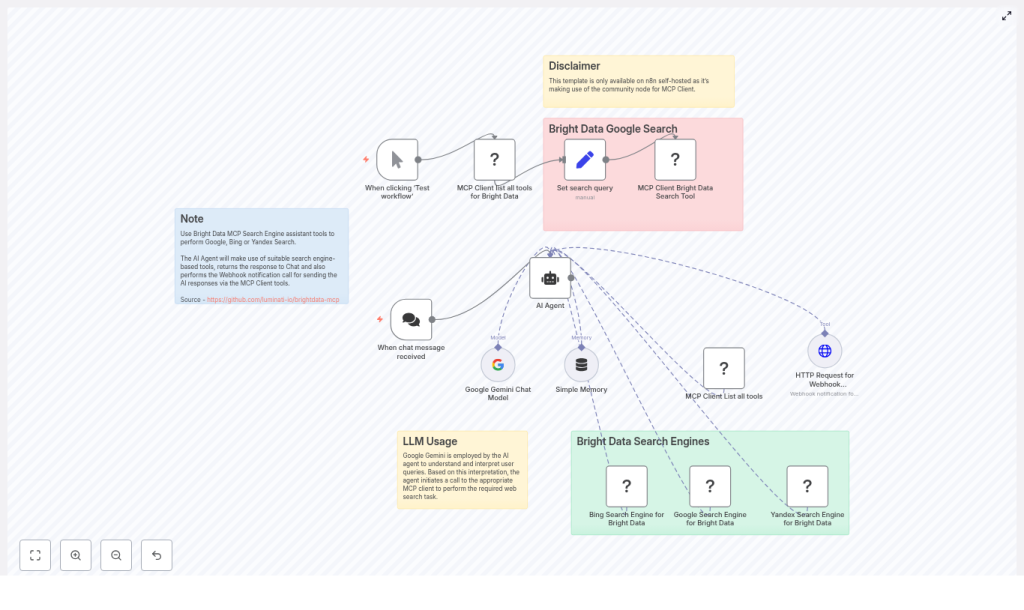
How the workflow is structured in n8n
Let’s walk through the main building blocks first, then we will see how they all work together.
- Chat Trigger – starts the workflow whenever a new chat message arrives
- AI Agent (n8n agent) – coordinates Gemini, memory, and tools like the search engine
- Google Gemini chat model – interprets user intent and drafts the response
- MCP Client tools – call Bright Data’s
search_enginetool for Google, Bing, or Yandex - Memory – keeps a short buffer of the conversation so replies stay in context
- Webhook / HTTP Request – sends the final answer to an external endpoint for logging or integrations
Step-by-step: what happens when a user sends a message
1. Chat message triggers the flow
The whole thing starts with a chat trigger node in n8n. Whenever a user sends a message, this node fires and passes the message payload to the AI Agent node.
2. The AI Agent decides what to do
The AI Agent node is configured to use Google Gemini as its language model. It gets a system prompt that tells it how to behave and when to use Bright Data’s MCP Search Engine tools.
The logic usually looks like this:
- If the question needs current or factual data, the agent should call a search tool.
- It should then read and summarize the top search results.
- It must answer concisely, include source links, and also trigger a webhook notification.
If the question is more general or does not need live data, the agent can just respond directly using Gemini.
3. Bright Data search via MCP Client
When a search is needed, the agent uses the MCP Client node to call Bright Data’s search_engine tool. You can pick which engine to hit, for example:
googlebingyandex
The search results typically come back in a markdown-style list that includes:
- URL
- Title
- Short description or snippet
The agent then parses these SERPs, uses them as evidence, and weaves them into a natural language answer.
4. Reply to the user and notify via webhook
Once the agent has its final response, two things happen:
- The answer is returned to the chat, so the user sees the reply with references.
- An HTTP Request node sends the same response (plus any extra metadata you want) to a webhook endpoint.
That webhook can feed your analytics, update a CRM, trigger a Slack notification, or kick off any other downstream automation you like.
Getting set up in n8n
Self-hosted n8n and community node
This template is designed for self-hosted n8n and uses the community MCP Client node for Bright Data. Before importing the workflow, you will need to:
- Install the MCP Client community node in your n8n instance
- Configure MCP client credentials (STDIO) for your Bright Data MCP account
API keys, credentials, and rate limits
There are two main sets of credentials to secure:
- Google Gemini (PaLM) API key
- Bright Data credentials for the MCP Search Engine tools
Bright Data enforces scraping and query rate limits, so it is worth planning for:
- Batching or throttling search requests
- Caching frequent queries
- Guarding against unnecessary or repeated searches
This helps you avoid hitting service caps or accidentally running up costs.
Designing the AI Agent prompt
The system prompt you give the agent is what keeps it on track. A simple example used in this template is:
"You are a helpful assistant. Use MCP Search Engine assistant tools for Bright Data for Google, Bing or Yandex Search. Important: Return the response to Chat and also perform the webhook notification of responses."
On top of that, it is a good idea to add a few guardrails, such as:
- Only call search tools when the question clearly needs live or factual data
- Include source URLs and short snippets in the final answer
- Keep replies concise but informative
Staying safe: security and compliance
Because this workflow reaches out to external websites and handles user input, it is worth keeping a few basics in mind:
- Avoid sending sensitive personal data to third-party search tools.
- Monitor and log queries to catch abuse or unexpected usage.
- Respect website Terms of Service and scraping rules. Bright Data’s MCP helps with technical compliance, but legal responsibility is still on you.
Tips for testing and debugging
Before you roll this out to real users, it is smart to play with it in a safe environment.
- Use a test or sandbox self-hosted n8n instance.
- Point the HTTP Request node to tools like webhook.site or requestbin so you can inspect outgoing webhook payloads.
- Log the raw SERP results from Bright Data. Seeing the exact URLs, titles, and snippets makes it easier to fine-tune your prompts.
- Use the n8n Manual Trigger node to run the workflow with sample queries as you tweak things.
Performance and cost optimization
Once everything works, you will probably want to make it faster and cheaper to run. A few ideas:
- Cache frequent queries for a short time window (for example, 5 to 30 minutes) so you do not re-run the same search over and over.
- Use targeted searches with filters like
site:when you know where the answer is likely to live. That cuts noise and processing time. - Limit the number of search results that the agent processes, such as the top 3 to 5 results. This reduces token usage and speeds up responses.
Common issues and how to fix them
Problem: MCP Client returns an empty SERP
If you are getting no search results back, check:
- That the query is encoded correctly
- Which search engine you selected (
google,bing, oryandex) - Your Bright Data configuration and credentials
It also helps to run the same query directly in a browser to confirm that it should return results.
Problem: The AI Agent seems to ignore search tools
If the agent never calls the Bright Data tools, verify:
- That the system prompt clearly instructs it to use the MCP Search Engine tools when needed
- That the tool outputs are properly wired into the agent node in n8n
- That tool names and mappings in the MCP Client List node match what the agent expects
Making the most of this template
Using Google Gemini with Bright Data through n8n is a very practical way to give your chatbot real-time, verifiable knowledge without hand-coding a whole integration from scratch.
A good rollout path might look like this:
- Start with a single search engine (for example, Google).
- Refine your system prompt and tool usage rules.
- Add caching and basic rate limiting.
- Then expand to multiple search engines and more webhook consumers as your needs grow.
Ready to try it?
If you are excited to give your chatbot real-time search superpowers, here is a simple way to get started:
- Spin up or use your existing self-hosted n8n instance.
- Install the MCP Client community node for Bright Data.
- Import this template and plug in your Google Gemini and Bright Data credentials.
- Test with a few sample queries and watch the SERPs and webhooks in action.
You can also download the template and follow the README in the Bright Data MCP repository for step-by-step setup details.
If you would like help tailoring this workflow to your stack or use case, feel free to reach out to your automation team or drop a comment with what you are trying to build.
Disclaimer: This workflow uses community nodes and Bright Data MCP tools and is intended for self-hosted n8n deployments. Make sure you follow all relevant terms of service for any content that is scraped or processed.
