


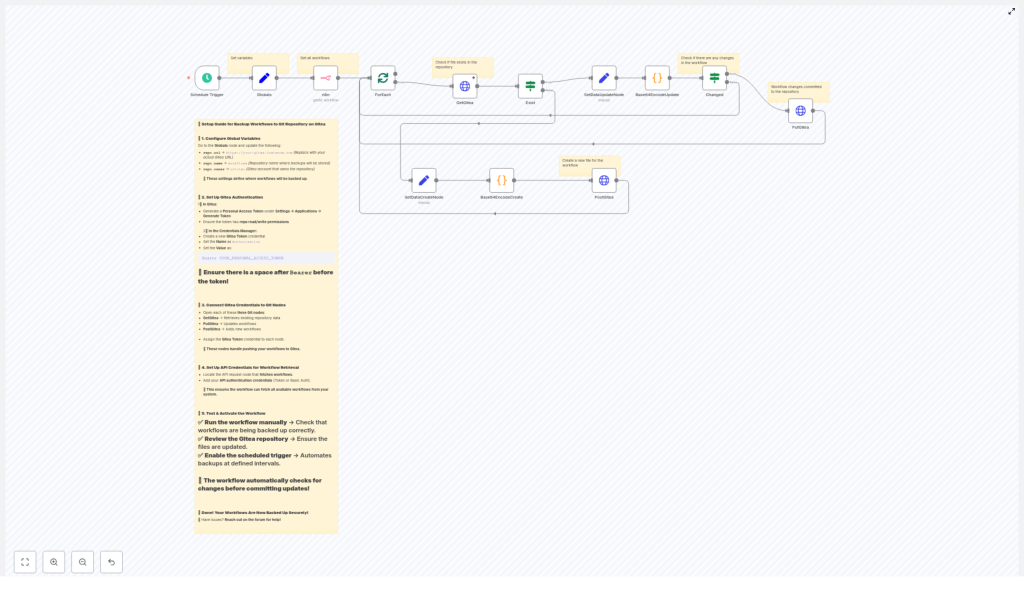
Backup n8n Workflows to Gitea (Automated Guide)
Backing up your n8n workflows to a Gitea repository gives you version control, history, and a safe recovery path for your automations. This guide explains, step by step, how an n8n workflow template can automatically export all workflows, compare them with what is stored in Gitea, and then create or update JSON files using the Gitea API.
What you will learn
By the end of this guide, you will understand how to:
- Explain why backing up n8n workflows to Gitea is useful for automation and DevOps
- Configure n8n and Gitea so they can communicate securely
- Walk through each node in the workflow and understand its role
- Implement base64 encoding and SHA handling required by the Gitea API
- Test, troubleshoot, and safely activate the scheduled backup workflow
Why back up n8n workflows to Gitea?
Using Gitea as a remote backup location for your n8n workflows provides several concrete benefits:
- Versioned backups – Every change to a workflow is stored as a commit, so you can review history, compare versions, and roll back when needed.
- Centralized collaboration – Teams can access workflow JSON files in a shared repository, review changes, and manage pull requests if you enforce them.
- Fully automated backups – A scheduled workflow in n8n takes care of exporting and syncing to Gitea without manual steps.
How the n8n – Gitea backup workflow works
At a high level, the automation follows this pattern:
- Run on a schedule (for example every 45 minutes).
- Fetch all workflows from the n8n instance using the n8n API.
- For each workflow, look for a matching JSON file in the Gitea repository.
- If the file exists, compare content and update only if there are changes.
- If the file does not exist, create a new JSON file in the repository.
The rest of this guide breaks this process into clear configuration steps inside n8n.
Prerequisites
Before building or using the workflow template, make sure you have:
- An n8n instance with API access enabled so workflows can be listed and exported.
- A Gitea server and repository, for example a repo named
workflows. - A Gitea Personal Access Token with read and write permissions on the repository.
- Credentials configured in n8n:
- Authentication for the n8n API (API key or Basic Auth).
- A credential that injects the Gitea token into HTTP requests.
Step-by-step: Building the backup workflow in n8n
This section walks through each node used in the template, in the order that data flows through the workflow. You can follow along in your own n8n instance or simply use it to understand how the template works internally.
1. Schedule Trigger – when backups should run
The Schedule Trigger node starts the backup process automatically.
- Set the trigger to run at a fixed interval, for example every 45 minutes.
- Adjust the timing to balance how up to date your backups are versus API usage.
Once active, this node periodically kicks off the entire workflow without manual input.
2. Globals (Set node) – central configuration
The Globals node is a Set node that stores reusable settings as fields. Keeping these values in one place makes the workflow easier to maintain.
Typical fields include:
repo.url– your Gitea base URL, for examplehttps://git.example.comrepo.owner– the Gitea repository owner (user or organization)repo.name– the repository name, for exampleworkflows
Later HTTP Request nodes reference these fields to build the correct API URLs.
3. n8n API node – fetch all workflows
Next, an n8n API node retrieves the workflows you want to back up.
- Configure this node to call the n8n endpoint that lists or exports workflows.
- Use the appropriate authentication method (API key or Basic Auth) and test it.
- Make sure the node returns the full JSON definition for each workflow.
The output of this node is an array of workflow objects that will be processed one by one.
4. ForEach (splitInBatches) – process workflows individually
The ForEach step is typically implemented using the splitInBatches option or a similar pattern in n8n.
Purpose:
- Take the list of workflows from the n8n API node.
- Process each workflow as a separate item so that file paths, comparisons, and updates do not mix data from different workflows.
Inside this loop, the workflow performs all Gitea checks and updates for a single workflow at a time.
5. GetGitea (HTTP Request) – check if the file exists
The GetGitea node is an HTTP Request node that queries the Gitea API to see whether a JSON file already exists for the current workflow.
It calls an endpoint of the form:
/api/v1/repos/:owner/:repo/contents/:path
Using the values from the Globals node, a typical URL looks like:
https://git.example.com/api/v1/repos/<owner>/workflows/<WorkflowName>.json
Key configuration details:
- Use GET as the HTTP method.
- Set the
Authorizationheader to:Authorization: Bearer YOUR_PERSONAL_ACCESS_TOKEN
- Make sure there is a space between
Bearerand the token value.
If the file exists, Gitea returns metadata, including a sha field and the current base64-encoded content. If it does not exist, you will typically get a 404 response or an error payload.
6. Exist (IF node) – decide create vs update
The Exist node is an IF node that checks the result from GetGitea.
Its job is to route the workflow into one of two paths:
- Create path – when the file does not exist (for example, response is 404).
- Update path – when the file exists and you want to compare and possibly update it.
Configuration tips:
- Inspect the response code or the error field to detect a missing file.
- Use n8n’s onError: continueRegularOutput behavior for GET calls that may 404 so the workflow can continue and handle the create branch cleanly.
7. SetDataCreateNode / SetDataUpdateNode (Set nodes) – prepare workflow data
Before encoding and sending data to Gitea, the workflow uses two Set nodes:
- SetDataCreateNode – used when the file will be created for the first time.
- SetDataUpdateNode – used when an existing file may need to be updated.
Both nodes:
- Select the relevant workflow JSON from the n8n API response.
- Prepare a clean object that will later be turned into a JSON string and base64-encoded.
The update path will also keep track of the current file sha from Gitea, which is required for safe updates.
8. Base64EncodeCreate / Base64EncodeUpdate (Code nodes) – encode content
Gitea expects file contents to be provided as base64-encoded strings when creating or updating files. Two Code nodes handle this:
- Base64EncodeCreate – used in the create path.
- Base64EncodeUpdate – used in the update path.
Typical logic inside these nodes:
- Take the workflow data object prepared by the previous Set node.
- Pretty-print it as JSON so the file in Git is readable.
- Encode the JSON string as UTF-8 bytes.
- Convert those bytes into a base64 string.
- Return the base64 string in a field such as
content.
On the update path, the code or surrounding nodes will also carry forward the existing file sha from the GetGitea response. This sha must be included in the update request to avoid conflicts if the file changed remotely.
9. Changed (IF node) – avoid unnecessary commits
The Changed node is another IF node that compares the new base64-encoded content with what is currently stored in Gitea.
Its purpose is to prevent redundant commits:
- If the new base64
contentis identical to the existing content, skip the update. - If the content differs, proceed to the update API call.
This keeps your commit history cleaner and avoids unnecessary repository activity when nothing has changed in the workflow.
10. PostGitea (HTTP Request) – create a new file
When the file does not yet exist, the PostGitea node creates it using a POST request.
Endpoint:
POST /api/v1/repos/:owner/:repo/contents/:path
Request body should include:
content– the base64-encoded workflow JSON from Base64EncodeCreate.message(optional) – a commit message describing the creation.branch(optional) – the target branch if you do not want to use the default branch.
As with the GET request, use the Gitea token in the Authorization header.
11. PutGitea (HTTP Request) – update an existing file
When the file already exists and the Changed node determines that content is different, the PutGitea node updates the file using a PUT request.
Endpoint:
PUT /api/v1/repos/:owner/:repo/contents/:path
Request body should include:
content– the new base64-encoded workflow JSON from Base64EncodeUpdate.sha– the current file SHA returned by GetGitea.- Optional fields such as
messageandbranchif you want custom commit messages or branches.
The sha value ensures you are updating exactly the version you fetched. If the SHA no longer matches, Gitea will reject the update to prevent overwriting someone else’s changes.
Configuring Gitea authentication for n8n
Generate a Personal Access Token in Gitea
- In Gitea, go to Settings > Applications.
- Click Generate Token.
- Give the token a descriptive name and grant it repository read/write permissions.
- Copy the generated token and store it securely. You will not be able to see it again.
Set up Gitea credentials in n8n
In n8n, create a credential that injects the token into the HTTP headers:
Authorization: Bearer YOUR_PERSONAL_ACCESS_TOKEN
Important details:
- There must be exactly one space between
Bearerand the token. - Use this credential in all HTTP Request nodes that call the Gitea API.
Tips and best practices for n8n – Gitea backups
- Use a service account – Create a dedicated Gitea user or service account whose token is used for automation. This keeps audit logs clear and tokens scoped.
- Protect branches – Apply branch protection rules if you want manual review or pull requests for changes made by the backup workflow.
- Test before scheduling – Run the workflow manually in n8n to confirm that a single workflow is exported and committed successfully.
- Consider a dedicated branch – Store automated backups in a separate branch to keep your main branch history cleaner.
- Balance frequency and limits – Choose a schedule interval that keeps backups reasonably fresh without hitting API rate limits or overloading your Gitea server.
Troubleshooting common issues
- Unexpected errors from GetGitea
Verify that:- The repository owner and name in the Globals node are correct.
- The file path is encoded correctly, especially if workflow names contain spaces or special characters.
- The token has sufficient permissions on the target repository.
- Authentication failures
- Double-check the
Authorizationheader format and spelling. - Test the same API call using
curlor a tool like Postman to confirm that the issue is in n8n configuration rather than Gitea itself.
- Double-check the
- SHA mismatch on update
This usually means the file changed in Gitea after you fetched it.- Fetch the file again to get the latest
sha. - Rerun the update path with the new
sha.
- Fetch the file again to get the latest
- Handling 404 responses
For GET calls that may legitimately return 404 when a file does not exist:- Use n8n’s onError: continueRegularOutput so the workflow does not stop.
- Use the Exist IF node to branch into the file creation path when no file is found.
Security considerations
Because this workflow uses API tokens and can modify repositories, treat it as part of your security-sensitive infrastructure.
- Store Gitea tokens in n8n credentials rather than as plain text fields.
- Avoid logging secrets. Do not print tokens or sensitive headers in logs.
- Rotate the Gitea token periodically and remove tokens that are no longer needed.
- Limit the token’s scope to only the repositories and operations required for backups.
Testing and activating the workflow
- Configure Globals and credentials
Set yourrepo.url,repo.owner, andrepo.name
