


Automate JSON to Google Sheets with n8n & Pinecone
On a rainy Thursday afternoon, Maya stared at yet another raw JSON payload on her screen. She was a product operations lead at a fast-growing SaaS startup, and her life had quietly turned into a parade of curly braces and nested fields.
Every system in the company – marketing tools, billing platform, monitoring services, internal APIs – kept firing JSON events at her team. The data was valuable, but nobody outside engineering could read it comfortably. Leadership wanted clean, human-friendly logs in Google Sheets. Maya wanted her evenings back.
This is the story of how Maya solved that problem with an n8n workflow template that transforms incoming JSON into structured Google Sheets rows, enriches each event with OpenAI embeddings, stores context in Pinecone, and uses a RAG agent to generate readable summaries automatically.
The problem: JSON everywhere, insight nowhere
At first, Maya tried the obvious solution. She asked a developer to export logs periodically and paste them into a spreadsheet. That lasted about a week. Then the volume grew, new event types appeared, and people started asking for smarter summaries like:
- “Which signups came from referrals and what did they ask for?”
- “Can we see a one-line status for each important event?”
- “Can we quickly search past events by meaning, not just exact text?”
Dumping raw JSON into Sheets was not enough. Building a custom backend felt like overkill. She needed something flexible, production-ready, and fast to deploy.
That was when a colleague mentioned an n8n template that could take JSON from a webhook, process it with OpenAI, store semantic context in Pinecone, then append a clean, summarized line into Google Sheets. No custom backend required.
Discovering the n8n JSON to Sheet workflow
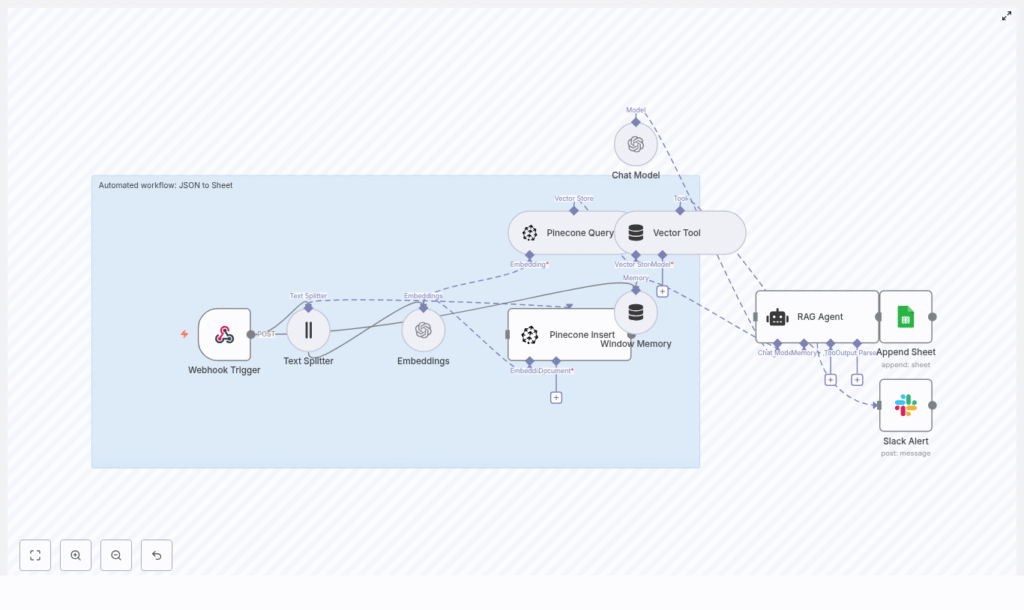
Maya opened the template and saw an architecture that finally made sense of her chaos. The workflow used:
- An n8n Webhook Trigger to receive JSON via HTTP POST
- A Text Splitter to handle long text fields
- OpenAI embeddings with
text-embedding-3-small - Pinecone for vector insert and query in a
json_to_sheetindex - A Vector Tool and Window Memory for the RAG agent
- An OpenAI Chat Model powered RAG agent to interpret the JSON
- A Google Sheets Append node targeting a
Logsheet - A Slack node to alert the team if anything failed
Instead of manually wrangling raw data, Maya could build an intelligent “JSON to Sheet” pipeline that enriched, summarized, and logged events in a format anyone could read.
Setting the stage: prerequisites for Maya’s setup
Before she could hit Run, Maya gathered what she needed:
- An n8n instance, either self-hosted or via n8n cloud
- An OpenAI API key for both embeddings and the chat model
- A Pinecone account with a vector index named
json_to_sheet - A Google account with Sheets API enabled and a
SHEET_IDfor the log spreadsheet - A Slack API token for optional error alerts
With credentials in place, she started walking through the workflow, node by node, watching how each piece would transform her incoming JSON into something the team could actually use.
Rising action: how the workflow processes each JSON event
Webhook Trigger – the front door to the system
Maya began with the entrypoint. She configured an HTTP POST webhook in n8n at a path similar to /json-to-sheet. This would be the URL all her systems could call when they wanted to log an event.
To keep things safe, she planned to protect the webhook with a secret and an IP allowlist. This trigger would receive every JSON payload, from user signups to error logs, and pass them into the rest of the automation.
Text Splitter – preparing long content for embeddings
Some events had long notes or descriptions. Maya knew that language models and embeddings work best with well sized chunks, so the template included a Text Splitter node.
In the workflow, this splitter used:
- Chunk size: 400 characters
- Overlap: 40 characters
This configuration let her break long text into manageable sections while preserving enough overlap so the semantic meaning stayed intact. It also helped avoid hitting token limits for downstream processing.
OpenAI embeddings – turning text into vectors
Next, each chunk flowed into an Embeddings node using OpenAI’s text-embedding-3-small model. The node converted the text into numerical vectors that captured its semantic meaning.
Maya made a note to watch rate limits and to batch requests when dealing with many chunks at once. These embeddings would become the backbone of semantic search and contextual retrieval later in the pipeline.
Pinecone Insert and Query – building a semantic memory
Once the embeddings were generated, the workflow inserted them into Pinecone, into an index named json_to_sheet. Each vector stored metadata such as:
- Source event ID
- Timestamp
- Original JSON path or field
That way, if she ever needed to reconstruct or audit past events, the context would still be there. Alongside insertions, the template also included a Pinecone Query node. When the RAG agent needed context, it could search for semantically similar vectors and pull relevant snippets back into the conversation.
Vector Tool and Window Memory – giving the agent tools and short-term recall
To make the RAG agent truly useful, the workflow wired Pinecone Query into a Vector Tool. This tool was exposed to the agent so it could perform retrieval on demand instead of being limited to whatever data was directly in the prompt.
On top of that, a Window Memory buffer in n8n gave the agent a short-term memory window. That allowed it to keep track of recent events or previous steps, which improved consistency for follow-up requests and multi-step processing.
Chat Model and RAG Agent – where raw JSON becomes human language
Now came the heart of the transformation. The workflow used an OpenAI chat model configured as a RAG agent. Its job was to take:
- The raw JSON payload
- Any relevant context retrieved from Pinecone
- The short-term memory window
and turn that into a concise, human-readable status line.
The system message in the template told the model exactly what it was doing:
"You are an assistant for JSON to Sheet"
Each time a new event arrived, the agent received the entire JSON payload. It could then use the Vector Tool to retrieve related context from Pinecone, and finally produce a clear summary tailored for a Google Sheet log.
Append Sheet – writing the story into Google Sheets
Once the RAG agent produced its output, Maya mapped that result into the Google Sheets Append node.
In the sample workflow, the node targeted a sheet named Log. One of the key mappings looked like this:
Status = {{$json["RAG Agent"].text}}
She could easily extend this mapping to include columns for:
- Timestamp
- Original payload ID
- User email or ID
- Event type
- Short summary or notes
With every new webhook call, a fresh, readable row would appear in the sheet, ready for dashboards, audits, or quick reviews by non-technical teammates.
Slack Error Alerts – handling failures gracefully
Maya knew that no production workflow is complete without error handling. The template wired the RAG agent’s onError path to a Slack node. If the agent failed or an exception occurred, the team would receive an immediate message.
Those Slack alerts included the original webhook payload so they could quickly diagnose what went wrong, whether it was a malformed JSON, a temporary API issue, or a configuration problem.
A concrete example: from raw JSON to a clean status line
To test the workflow, Maya sent a sample JSON payload to the webhook:
{  "id": "evt_12345",  "timestamp": "2025-08-31T12:34:56Z",  "type": "user.signup",  "payload": {  "email": "user@example.com",  "name": "Jane Doe",  "notes": "User signed up via referral. Wants weekly updates."  }
}
The RAG agent processed it, used any relevant context if needed, and returned a compact status like:
user.signup - user@example.com - Referred - Wants weekly updates
That line landed neatly in the Status column of the Log sheet. No one had to open a JSON viewer to understand what happened. For Maya, this was the turning point. She could finally see a future where her team managed events at scale without drowning in raw data.
Best practices Maya adopted as she went to production
As the workflow moved from experiment to daily use, Maya refined it with a few important best practices.
Security and data hygiene
- Protected the webhook with authentication and an IP allowlist
- Validated incoming JSON and sanitized content before writing to Sheets
- Avoided storing unnecessary personally identifiable information in embeddings or vector metadata
Idempotency and metadata
- Used a unique event ID for each payload
- Checked the sheet or vector store when needed to avoid duplicate inserts
- Stored metadata in Pinecone, such as event ID, timestamp, and original JSON path, so any result could be traced back
Performance, cost, and token management
- Tuned Text Splitter chunk size and overlap based on real payload sizes
- Bathed embedding requests to reduce overhead
- Chose
text-embedding-3-smallas a cost effective model that still offered solid semantic accuracy
Error handling and resilience
- Used Slack alerts on the RAG agent’s
onErrorpath - Added retry and backoff logic in n8n for transient failures in external APIs
Monitoring and scaling as event volume grew
Within weeks, more teams started sending events to Maya’s webhook. To keep things smooth, she monitored:
- Webhook request rate
- Embedding API usage and latency
- Pinecone index size and query latency
- Google Sheets append rate
When traffic spiked, she considered adding a queue such as Redis or RabbitMQ between the webhook and the embedding steps, so bursts could be buffered without overloading OpenAI or Pinecone.
Since retrieval became more important over time, she also looked at pruning strategies in Pinecone, using TTL based cleanup or namespaces to keep the index manageable and queries fast.
Troubleshooting: how Maya handled common issues
Not everything worked perfectly on the first try. Here are the checks that saved her time:
- Missing rows in Sheets: She verified the
SHEET_ID, confirmed the sheet name (such asLog), and checked that the OAuth scopes for the Sheets API were correct. - Embeddings failing: She double checked her OpenAI API key, confirmed she was using a valid model name like
text-embedding-3-small, and watched for rate limit errors. - Pinecone errors: She ensured the
json_to_sheetindex existed and that the vector dimensions matched the embedding model. - Agent errors: She reviewed the system prompt, memory configuration, and tool outputs, then added debug logging around the RAG agent’s inputs and outputs inside n8n.
Resolution: from manual chaos to reliable automation
By the end of the quarter, Maya’s “JSON to Sheet” workflow had become an invisible backbone for operational visibility. Every important event flowed through a secure webhook, was semantically indexed with OpenAI embeddings and Pinecone, interpreted by a RAG agent, and logged as a clear, concise row in Google Sheets.
Audit logs, operational tracking, lightweight dashboards, and ad hoc investigations all became easier. Her non-technical colleagues could filter and search the sheet instead of pinging engineering for help. The company gained better insight, and Maya reclaimed her time.
Ready to follow Maya’s path?
If you are facing the same flood of JSON events and need a human friendly, automation first way to manage them, this n8n template gives you a strong starting point.
To get started:
- Import the template into your n8n instance.
- Configure your OpenAI and Pinecone credentials.
- Set your Google Sheets
SHEET_IDand confirm the target sheet name (for example,Log). - Optionally connect Slack for error alerts.
- Send a sample webhook payload to the endpoint and watch your first JSON event appear as a clean row in Google Sheets.
You can clone the workflow, adjust chunk sizes, switch embedding models, or refine your Pinecone index configuration to match your data characteristics and budget. If you need deeper customization, such as advanced schema mapping or hardened security, you can also work with a consultant to tailor the setup to your environment.
Start now: import the template, plug in your SHEET_ID, connect OpenAI and Pinecone, and hit the webhook endpoint. Your JSON events will begin telling their story in Google Sheets instead of hiding in logs.
Author’s note: This narrative highlights a practical, production ready approach to turning raw JSON into structured, enriched logs. Feel free to adapt the chunk sizes, embedding models, and Pinecone index strategy so the workflow fits both your data and your cost constraints.
