


AI Document Parsing with LlamaParse + n8n
If you spend too much time opening attachments, copying numbers into spreadsheets, and forwarding documents to teammates, this guide is for you. Let’s walk through a practical n8n workflow template that uses LlamaParse to read your documents, pull out structured data, create summaries, and then push everything into Google Drive, Google Sheets, and Telegram for you.
Think of it as a smart assistant that watches your inbox, understands your files, and keeps your records tidy in the background.
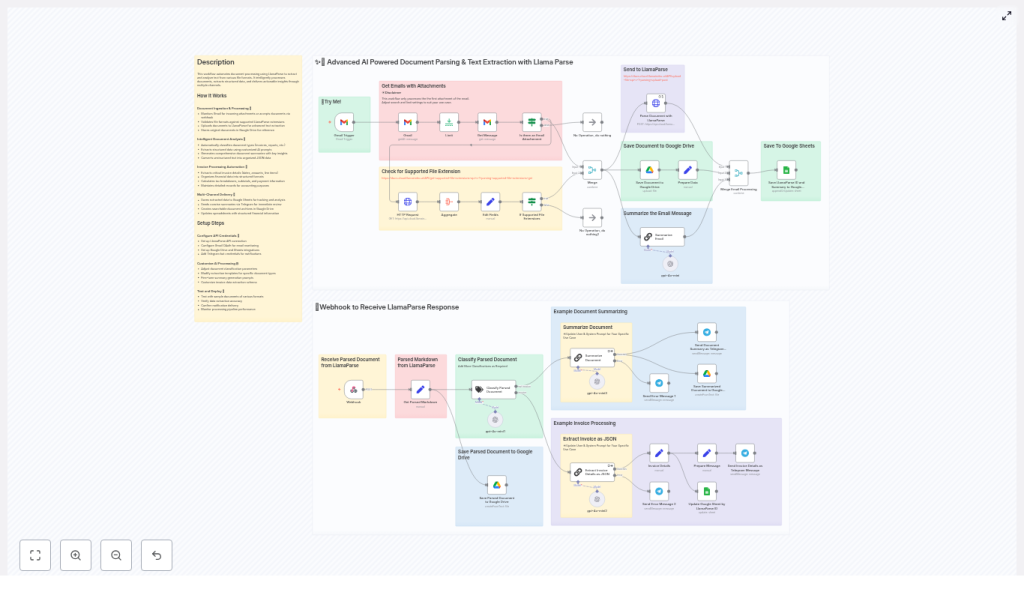
What this n8n + LlamaParse workflow actually does
At a high level, this workflow:
- Watches your Gmail for new emails with attachments
- Checks if the attachment can be parsed by LlamaParse
- Uploads supported files to LlamaParse for AI document parsing
- Receives parsed markdown or JSON back via an n8n webhook
- Decides whether the document is an invoice or something else
- Either extracts structured invoice data as JSON or creates a smart summary
- Saves everything in Google Drive, updates Google Sheets, and notifies you on Telegram
So instead of manually opening PDFs and spreadsheets, you get a clean, automated document processing pipeline powered by LlamaParse and n8n.
Why pair LlamaParse with n8n?
LlamaParse brings the heavy lifting for file parsing. n8n brings the visual automation and integrations. Put them together and you get a flexible, low-maintenance workflow that can:
- Detect new emails with attachments as they arrive
- Upload only supported file types to LlamaParse
- Parse AI-generated markdown or JSON responses
- Trigger multiple downstream actions in parallel
Key benefits of this setup
- Handle many file formats automatically, without guessing what each attachment is
- Extract structured invoice and transactional data using tailored LLM prompts
- Keep full audit trails by storing raw files and summaries in Google Drive
- Feed Google Sheets with clean, consistent rows for reporting and accounting
- Alert your team in real time via Telegram when new documents are processed
In short, you get a robust, scalable automation that is still easy to understand and tweak in n8n’s visual editor.
When should you use this template?
This workflow is a great fit if you:
- Receive invoices, receipts, or contracts by email
- Need structured data for accounting, analytics, or internal systems
- Want summaries instead of reading every long document yourself
- Prefer to keep everything organized in Google Drive and Google Sheets
- Like getting quick Telegram notifications instead of digging through your inbox
It is especially helpful if you are building an AP automation pipeline, processing expense receipts, or managing customer-submitted forms and PDFs.
How the n8n workflow flows from email to insights
Let’s break down the core logic before diving into each node. The template essentially follows this sequence:
- Gmail Trigger listens for new messages and fetches attachments.
- The workflow checks the file extension against LlamaParse’s supported types.
- If supported, it uploads the file to LlamaParse using an HTTP multipart request and includes an n8n webhook URL.
- LlamaParse parses the document asynchronously and posts the result back to the webhook.
- n8n then classifies the parsed markdown as invoice or non-invoice.
- Invoices go through a strict JSON extraction flow, while other docs go through a summarization flow.
- Finally, the workflow saves artifacts in Google Drive, updates Google Sheets, and sends Telegram notifications.
Now let’s walk through the important pieces, node by node, so you can understand and customize it.
Step-by-step: Node-by-node walkthrough
1. Gmail Trigger and message retrieval
You start with a Gmail Trigger node. This node watches your inbox for new emails and pulls in messages that match your filters. To keep things focused, you can use Gmail search queries such as:
has:attachment- A specific sender email address or domain
The example workflow processes the first attachment per email to keep things simple, but you can extend it if you need multiple attachments handled.
2. Check file extension and supported types
Before sending anything to LlamaParse, the workflow calls LlamaParse’s supported file extensions endpoint. The goal here is to avoid wasting API calls on unsupported formats.
The workflow compares the attachment’s file extension to the list returned from LlamaParse. If the file type is not supported, you can choose to skip it, log it, or notify someone.
3. Upload the file to LlamaParse
For supported files, the next step is an HTTP multipart/form-data POST request to the LlamaParse upload endpoint:
POST https://api.cloud.llamaindex.ai/api/parsing/upload
Form data:
- file (binary) = file0
- webhook_url = https://your-n8n.example.com/webhook/parse
- accurate_mode = true
- premium_mode = false
Key things to note:
- file is the binary content of the attachment, often referenced as
file0in n8n - webhook_url is the URL of your n8n Webhook node that will receive the parsed result
- accurate_mode can be enabled when you care more about precision than speed
This asynchronous pattern is ideal for larger documents, since you do not have to wait for parsing to finish in the same request.
4. Receive the parsed document via webhook
Once LlamaParse finishes processing, it sends the output to the n8n Webhook node you provided. The webhook receives:
- Parsed markdown that represents the document content
- Any structured JSON returned by LlamaParse
At this point, the workflow also saves the original file to Google Drive. Keeping the raw attachment in Drive is helpful for traceability, audits, and debugging any parsing issues later.
5. Classify the parsed content
Next, the workflow uses a small classification LLM prompt to decide what kind of document it is. Typically, it checks whether the document is an invoice or something else.
This classification step is important because it lets you branch into:
- A specialized invoice extraction flow with strict JSON output
- A general summarization flow for non-invoice content
6. Invoice extraction and JSON mapping
If the document is identified as an invoice, the workflow runs a more detailed chain-LLM prompt that enforces a clear JSON schema. This schema typically includes fields like:
invoice_detailstransactionspayment_detailsinvoice_summary- And other invoice-specific sections you define
By forcing the model to stick to a schema, you get consistent JSON that is easy to map into Google Sheets or downstream accounting tools. You can also specify how numbers should be formatted, for example as floats with two decimal places, which helps if you plan to run calculations on them later.
7. Summarize non-invoice documents and notify
If the file is not an invoice, the workflow takes a different path. Here, it uses an LLM prompt to create an executive summary of the document, along with:
- Key insights or highlights
- Recommended actions or next steps
Both invoice summaries and non-invoice summaries are then:
- Sent to a Telegram channel so your team sees new documents as they are processed
- Saved to Google Drive as text files for future reference
Google Drive and Google Sheets integration
The template includes two important persistence layers that keep your data organized and useful over time.
1. Save everything in Google Drive
The workflow stores:
- The original email attachment
- The parsed markdown
- Summaries or extracted JSON content
This gives you a complete record of what came in and what the AI extracted, which is great for audits, compliance, and debugging.
2. Update Google Sheets with structured data
For invoices and other structured documents, the workflow appends or updates rows in Google Sheets. Typical fields might include:
- Job ID
- Statement date
- Organization name
- Subtotal
- GST or other tax values
- Payment references and totals
The example uses a specific document ID and sheet with gid=0, and maps the LLM-extracted JSON fields into predefined columns. That way, your reporting, dashboards, or accounting workflows can reliably ingest the same structure every time.
Best practices for a stable, reliable workflow
To keep your n8n + LlamaParse automation running smoothly, a few patterns really help.
- Validate file types first. Always check against LlamaParse’s supported file extensions before uploading. This saves API usage and avoids avoidable errors.
- Use asynchronous webhooks for large files. Let LlamaParse process in the background and call your n8n webhook when done, instead of blocking a single request.
- Keep prompts strict for structured JSON. When extracting invoices or transactional data, define a schema, specify field types, and ask for consistent number formatting.
- Always keep the original file in Drive. This helps with compliance, audits, and investigating any parsing discrepancies.
- Add retry logic around external calls. For critical steps like LlamaParse uploads or Google Sheets updates, include retries to handle temporary network issues.
- Log and alert on errors. If parsing fails or an API call returns an error, send a message to a Telegram or Slack channel so a human can review it quickly.
Security and credential handling
Security is just as important as convenience. In n8n, you should always store sensitive data as credentials or environment variables, not directly in node parameters.
This includes:
- LlamaParse API keys
- Gmail OAuth credentials
- Google Drive and Google Sheets credentials
- Telegram bot tokens
By using n8n’s built-in credentials management, you keep secrets out of your workflow definitions and version control.
Common use cases for this template
Wondering where this really shines in day-to-day work? Here are some popular scenarios:
- Invoice processing and AP automation – Extract line items, taxes, payment references and send them into your accounting system or finance dashboards.
- Expense receipt parsing – Handle employee reimbursement documents and feed structured data into your expense management process.
- Contract summarization and clause extraction – Give legal or operations teams quick overviews of long agreements.
- Customer-submitted forms and PDFs – Turn unstructured attachments into clean, structured records for CRMs or internal tools.
Limitations, checks, and monitoring
Even with strong LLM-based parsing, you still want guardrails. Some good habits:
- Validate financial values. Check for suspicious numbers like negative totals or wildly out-of-range amounts.
- Reconcile totals. Compare computed totals from line items with the extracted
final_amount_dueor similar fields and flag mismatches. - Monitor workflow health. Keep an eye out for unauthorized errors, quota issues, or changes in LlamaParse’s supported formats.
When something looks off, route it to manual review instead of silently accepting it.
Ideas for customization and next steps
Once you have the base template running, you can tailor it to your specific domain. For example, you can:
- Adjust prompts to match your local tax rules, such as GST or PST distinctions
- Extend the invoice JSON schema with fields like booking numbers, event details, or container deposits
- Add downstream integrations such as ERP systems, QuickBooks, or custom databases
The core pattern stays the same, but you can evolve the prompts, fields, and destinations as your needs grow.
Get started with the n8n template
Ready to cut down on manual data entry and let AI handle the boring parts of document processing?
- Import the n8n template into your n8n instance.
- Set up credentials for LlamaParse, Gmail, Google Drive, Google Sheets, and Telegram.
- Run a few test emails with sample attachments to validate parsing and data mapping.
- Start small, limit the input sources and file types at first, then expand once you are happy with the extraction quality.
Call to action: Try the template in a sandbox environment, review the parsed artifacts in Google Drive, and share example JSON outputs with your accounting or operations team. If you need help tailoring prompts to your unique invoice layouts or document types, reach out for consultation and prompt engineering support.
