


AI Social Media Publisher for WordPress: n8n Workflow Template Overview
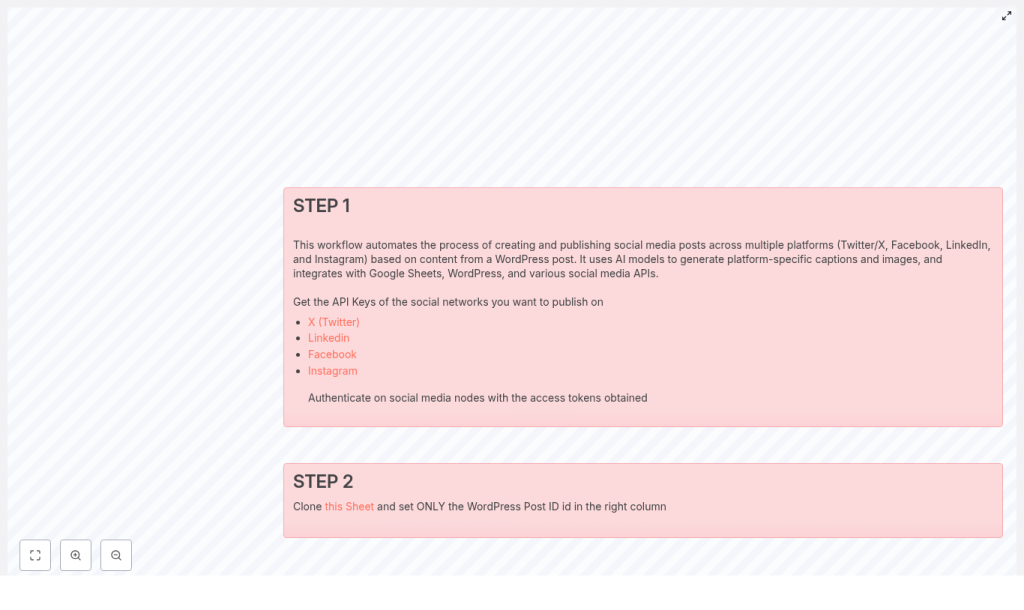
This article explains how to deploy an end-to-end n8n workflow that turns WordPress articles into AI-generated, channel-optimized social posts and images, then publishes them automatically to X (Twitter), LinkedIn, Facebook, and Instagram. The automation combines WordPress, Google Sheets, OpenRouter or OpenAI, and native social APIs to deliver consistent, scalable social media publishing with minimal manual intervention.
Use Case: Why Automate Social Publishing From WordPress?
Marketing teams, agencies, and individual creators often struggle with two repetitive tasks:
- Drafting unique, channel-specific copy for each platform.
- Producing on-brand images that match the content and format constraints of each network.
The AI Social Media Publisher for WordPress template in n8n addresses these challenges by:
- Reading WordPress content and generating tailored captions for each platform automatically.
- Creating AI image prompts and images optimized for different social formats.
- Using Google Sheets as a central control and audit interface for campaigns.
- Publishing directly through social APIs for X (Twitter), LinkedIn, Facebook, and Instagram.
The result is a repeatable workflow that preserves brand voice, shortens turnaround time, and allows non-technical stakeholders to participate through a simple spreadsheet interface.
Architecture and Core Components
The workflow is built around n8n as the orchestration layer and connects several key services:
n8n as the Orchestration Engine
- Coordinates triggers and scheduling.
- Fetches WordPress posts based on IDs stored in Google Sheets.
- Invokes language and image generation models.
- Handles posting to each social network and writes back status information.
Content Source: WordPress
WordPress acts as the single source of truth for long-form content. The workflow uses the WordPress node in n8n to retrieve the post title and body based on a Post ID that is configured in Google Sheets.
Control Plane: Google Sheets
Google Sheets functions as a lightweight operations dashboard:
- You add the WordPress Post ID in a predefined column.
- The workflow reads rows to determine which posts to process.
- Publishing results and API response identifiers are written back to the same row for tracking and auditing.
Language Models: OpenRouter (Gemini) or OpenAI
The workflow uses a chat model via OpenRouter or OpenAI to generate:
- Platform-specific captions that follow tone and length guidelines.
- Image prompts that reflect the article topic and brand style.
Prompts are structured so that LinkedIn receives a professional tone, Instagram emphasizes visual storytelling, X (Twitter) focuses on concise messaging, and Facebook uses a more community-oriented voice.
Image Generation: OpenAI
OpenAI image APIs are used to create visuals from AI-generated prompts. The workflow selects sizes and aspect ratios appropriate for each channel, for example:
- Square or 1024×1024 images for Instagram.
- Wider formats for LinkedIn and Facebook feeds.
Publishing Layer: Social APIs
Dedicated nodes for each platform handle the final distribution:
- X (Twitter) API for text and media posts.
- LinkedIn API for organization or personal posts.
- Facebook Graph API for Facebook pages.
- Instagram publishing via Facebook Graph endpoints using publicly accessible image URLs.
Workflow Lifecycle: From Post ID to Published Content
The following sections walk through the workflow execution path as implemented in the n8n template.
1. Triggering the Workflow and Selecting a Post
The workflow starts in one of two ways:
- Manual trigger for testing and validation within n8n.
- Scheduled execution (for example, every hour) to process new rows in Google Sheets automatically.
The Google Sheets node reads the relevant row, extracts the WordPress Post ID, and passes it to downstream nodes.
2. Retrieving Content From WordPress
The WordPress node uses the Post ID to fetch the article title and full content. This data forms the basis for both caption generation and image prompt creation. The workflow then forwards this structured content to the AI nodes.
3. Generating Channel-Specific Captions With AI
An OpenRouter or OpenAI chat model is invoked with a carefully designed system prompt that:
- Defines tone and style guidelines for each platform.
- Specifies character or length constraints where relevant.
- Outlines formatting rules so captions are ready for direct publishing.
The model returns a multi-part response that includes distinct captions for LinkedIn, Instagram, Facebook, and X, each optimized for engagement on that specific channel.
4. Enforcing Structure With a JSON Output Parser
To ensure reliability downstream, the AI output is parsed into a fixed JSON schema. The structured output parser validates that the response includes keys such as:
twitterfacebooklinkedininstagram
This predictable structure simplifies mapping captions to the appropriate social nodes and reduces failure rates caused by inconsistent AI responses.
5. Creating Platform-Optimized Images
Next, image-related nodes construct prompts by combining:
- WordPress post metadata, such as the title or key themes.
- AI-generated image prompt suggestions.
- Standardized style directives, for example, “flat-style illustration, bright brand colors, clean typography”.
These prompts are sent to OpenAI image generation APIs. The workflow configures image dimensions to align with best practices for Instagram and other platforms, and stores the resulting media URLs or binary data for use in the publishing step.
6. Publishing to Social Platforms and Writing Back to Google Sheets
Once captions and images are prepared, the workflow:
- Calls the X, LinkedIn, Facebook, and Instagram nodes with the appropriate caption and media payload.
- Handles each platform independently so that a failure on one channel does not block others.
- Captures response data such as post IDs or URLs.
After each successful publish, the workflow updates the corresponding row in Google Sheets, marking which platforms were posted and storing any identifiers needed for analytics or later reference.
Configuration Checklist for Deployment
Before running the template in production, ensure that the following configuration steps are complete:
- Google Sheets
- Clone the provided Google Sheet template.
- Insert WordPress Post IDs in the designated column.
- Confirm that n8n has access to the correct spreadsheet and worksheet.
- Social API Credentials
- Create app credentials for X (Twitter), LinkedIn, and Facebook/Instagram.
- Add each set of credentials to n8n using the built-in credentials manager.
- Configure organization IDs for LinkedIn and page IDs for Facebook as required by the template.
- AI Provider Credentials
- Set up OpenRouter or OpenAI API keys for language generation.
- Configure OpenAI image generation credentials separately if needed.
- WordPress Integration
- Provide WordPress site URL and authentication details in n8n credentials.
- Verify that the WordPress node can access posts by ID.
Best Practices for High-Quality Automation
Prompt Design for Social Captions
Prompt engineering is central to consistent results. When configuring the language model:
- Specify tone, audience, and objective for each platform.
- Include examples of preferred brand voice if available.
- Keep the system prompt concise but explicit about constraints such as hashtags, mentions, or links.
The template ships with a “social media manager” style prompt that already embeds platform guidance. Update this content periodically as your messaging strategy evolves.
Image Prompt Strategy
For visual consistency across campaigns:
- Incorporate the article title or main topic into the prompt.
- Add a short visual concept, such as “data-driven marketing dashboard” or “team collaborating in modern office”.
- Include style instructions to match your brand, for example “minimalist, bright brand colors, clean typography”.
Standardizing these elements helps maintain a coherent visual identity even as content scales.
Handling Rate Limits and Errors
Social APIs enforce rate limits and may return transient errors. In n8n you should:
- Configure retries with exponential backoff where appropriate.
- Log API responses to Google Sheets or a dedicated logging service for post-mortem analysis.
- Include conditional logic to skip or reschedule posts when limits are reached.
Security and Access Control
Security is critical in production workflows:
- Store all API keys and tokens in n8n credentials, which are encrypted at rest.
- Restrict access to the n8n instance and its credentials to authorized team members only.
- Rotate tokens regularly and prefer app-level or organization-level permissions, for example for LinkedIn company pages.
Testing, Validation, and Observability
Before broad rollout, validate each integration path individually:
- Use the manual trigger with a dedicated test row in Google Sheets.
- Verify that the WordPress node retrieves the correct post data.
- Inspect AI outputs to ensure captions and prompts align with brand guidelines.
- Confirm that each social platform successfully receives and displays posts as expected.
The template includes confirmation nodes that write back status markers such as “X OK”, “Facebook OK”, “LinkedIn OK”, and “Instagram OK” into the sheet. These markers make it straightforward to see which channels succeeded and where remediation may be required.
Troubleshooting Common Issues
- No image created
- Check that OpenAI image generation credentials are valid and active.
- Verify that the image prompt field is not empty and is mapped correctly.
- Confirm that the configured image size matches supported dimensions.
- Publishing failures on social platforms
- Inspect API error responses for details.
- Validate that tokens are not expired and that the app has sufficient permissions.
- For Instagram via Facebook Graph, ensure that the media URL is publicly accessible and follows platform requirements.
- Malformed or missing captions
- Review and refine the system prompt to enforce structure and content rules.
- Confirm that the structured output parser schema exactly matches the expected keys (
twitter,facebook,linkedin,instagram). - Log the raw AI response to diagnose formatting issues.
Operational Benefits for Teams
Implementing this n8n-based AI social media publisher provides several advantages for teams managing multi-channel distribution:
- Reduced manual workload by automating repetitive captioning and image creation tasks.
- Consistent brand voice enforced through centralized prompts and templates.
- Scalable operations that support higher publishing frequency without linear increases in headcount.
- Centralized approvals using Google Sheets as a staging interface, or through additional approval steps in n8n before final publishing.
Teams can extend the template with additional logic such as content review gates, custom scheduling rules, or integration with analytics platforms for closed-loop performance tracking.
Next Steps and Implementation Guidance
The AI Social Media Publisher for WordPress template offers a robust starting point for automated content distribution. It integrates n8n orchestration, WordPress content, Google Sheets control, and AI-driven text and image generation into a single, maintainable workflow.
To get started:
- Clone the provided Google Sheet and add your WordPress Post IDs.
- Configure your WordPress, AI, and social platform credentials in n8n.
- Run the workflow manually for a test post, validate outputs, then enable scheduling.
If you require assistance with refining prompts, aligning image styles with your design system, or adding custom approval and governance steps, consider engaging with a specialist team for a tailored implementation or a guided walkthrough.
Keywords: AI social media publisher, WordPress automation, n8n workflow, OpenAI, OpenRouter, Google Sheets, social media automation.
