Benefits of Multi Agent System Explained

Benefits of Multi Agent System

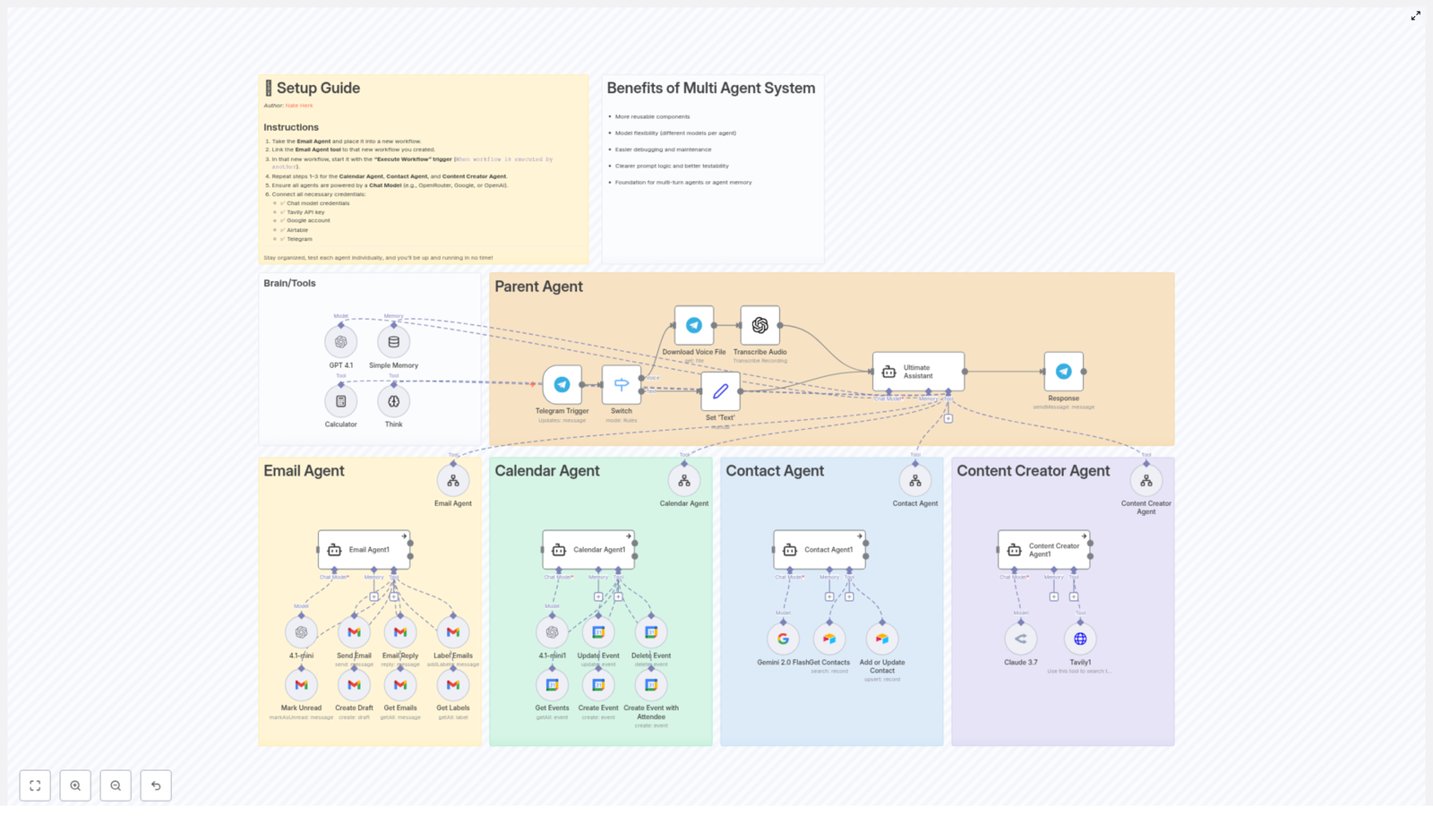
Multi agent systems (MAS) are a software architecture pattern in which multiple autonomous, intelligent agents cooperate or coordinate to achieve shared system objectives. Instead of relying on a single monolithic component, responsibility is distributed across specialized agents that communicate and collaborate. This pattern is increasingly used in AI automation, complex workflows, and large-scale intelligent applications because it improves modularity, scalability, and maintainability.

Overview of Multi Agent System Architecture

In a multi agent system, each agent is designed as an independent unit with a clearly defined role. Agents can process inputs, apply domain-specific logic or models, and produce outputs that other agents or external services consume. Collectively, they form a coordinated workflow that can handle complex tasks more flexibly than a single, tightly coupled system.

Key characteristics of a MAS include:

  • Autonomy – Each agent can operate independently within its own scope.
  • Specialization – Agents are optimized for specific sub-tasks or domains.
  • Interoperability – Agents communicate via well-defined interfaces or message structures.
  • Composability – Agents can be combined, reordered, or reused across different workflows.

This structure is particularly useful when building AI-driven systems that integrate multiple capabilities, such as email handling, scheduling, content generation, and contact management, in a single coordinated environment.

System Architecture and Core Advantages

1. Component Reusability and Modular Design

In a MAS, each agent is implemented as a self-contained component responsible for a specific task or role. Because the agent encapsulates its logic, data handling, and interaction patterns, it can be reused in multiple solutions with minimal changes.

Practical benefits include:

  • Reduced duplication – Common capabilities (for example, a calendar scheduling agent) can be shared across projects instead of being reimplemented.
  • Faster development cycles – Existing agents can be composed into new workflows, which shortens the time required to design and deploy new features.
  • Consistent behavior – Reusing the same agent logic across different contexts ensures uniform handling of similar tasks.

This modularity is especially valuable when scaling automation or when maintaining a library of agents that address recurring business needs.

2. Flexible Integration of Different Models per Agent

Multi agent systems support heterogeneous AI models, which means each agent can be backed by a different underlying model or algorithm tuned for its specific function. This avoids forcing a single model to handle all use cases, which can degrade performance or accuracy.

Typical patterns include:

  • Task-specific models – A natural language processing agent might use a language model optimized for text understanding, while a scheduling agent uses a model or rule set tailored to calendar logic.
  • Domain-specific optimization – Agents that work with structured data, such as contacts or events, can rely on specialized parsers or validation routines, while creative agents can use generative models.
  • Independent upgrades – You can update or swap the model behind one agent without affecting the rest of the system, as long as the agent maintains its external interface.

This per-agent model selection improves overall system effectiveness, because each capability uses tools that are well aligned with its task requirements.

3. Isolated Debugging and Maintainability

Because agents operate semi-independently, troubleshooting can focus on a single agent at a time rather than the entire system. Each agent has its own input, processing logic, and output, which makes it easier to pinpoint where an error originates.

Maintenance advantages include:

  • Targeted debugging – If output from a specific agent is incorrect, developers can inspect that agent’s logic, prompts, or configuration without disturbing other agents.
  • Lower risk during updates – Changes to one agent typically do not require refactoring the whole system, as long as the agent’s contract (inputs and outputs) remains stable.
  • Simplified regression testing – You can run focused tests on a single agent to verify fixes or optimizations before reintegrating it into the wider workflow.

This compartmentalization is important for complex AI applications, where a monolithic architecture can make debugging and maintenance costly and error-prone.

4. Clear Prompt Logic and Improved Testability

Assigning well-defined sub-tasks to distinct agents leads to clearer prompt logic and more structured reasoning flows. Instead of constructing a single, very complex prompt for all tasks, you can define smaller, focused prompts per agent that are easier to design, audit, and refine.

From a testing perspective:

  • Per-agent test scenarios – Each agent can be tested with specific input-output cases that reflect its role, which improves coverage and reliability.
  • Prompt-level validation – Developers can iterate on an individual agent’s prompt or configuration and immediately measure the impact, without interference from other parts of the system.
  • Incremental rollout – New or modified agents can be validated in isolation, then reintroduced into the full multi agent workflow after they pass their tests.

This structure yields more predictable and robust behavior, especially in AI workflows where prompt design and evaluation are critical.

5. Foundation for Multi-turn Agents and Agent Memory

A well-architected multi agent system provides a strong base for advanced capabilities, such as multi-turn interactions and persistent agent memory. By design, agents can maintain or access context related to past interactions, which is essential for building more intelligent and user-aware systems.

Typical use cases include:

  • Multi-turn conversations – Conversation-oriented agents can track previous user messages, decisions, or system states and use that history to inform subsequent responses.
  • Contextual memory – Agents responsible for tasks like email handling, calendar management, or contact updates can store and recall relevant details, so they do not need to recompute or re-ask for information each time.
  • Coordinated context sharing – Multiple agents can share or pass context where appropriate, enabling a coherent overall experience even when different agents handle different segments of a workflow.

This capability significantly enhances user experience, because the system behaves more like a cohesive assistant that remembers previous interactions, rather than a set of disconnected tools.

Practical Application Scenarios

Multi agent systems are particularly suited to AI applications that involve several specialized operations working in tandem. Common patterns include:

  • Email processing agents that classify, summarize, or respond to messages.
  • Calendar scheduling agents that interpret availability, manage events, and resolve conflicts.
  • Contact management agents that maintain and update user or customer records.
  • Content creation agents that draft, refine, or localize written material.

By designing each of these as separate agents and orchestrating them as a coordinated MAS, teams can build systems that are both powerful and easier to evolve over time.

Configuration Notes and Implementation Considerations

When implementing a multi agent system, consider the following technical aspects to fully leverage its benefits:

  • Agent boundaries – Define clear responsibilities and interfaces for each agent so that data flow and ownership are unambiguous.
  • Error isolation – Design agents to handle errors locally where possible, for example by validating inputs or handling model failures, then returning informative outputs or status codes to the rest of the system.
  • Communication patterns – Use structured messages or well-defined data formats for inter-agent communication to avoid ambiguity and to simplify debugging.
  • Versioning – When updating agents or underlying models, maintain version control to allow rollback if a change introduces unexpected behavior.

By paying attention to these details, you preserve the core advantages of MAS architecture, such as modularity and maintainability, while reducing integration issues.

Advanced Customization and Extension

After establishing a basic multi agent system, you can extend it in several advanced directions without disrupting the existing architecture:

  • Adding new agents – Introduce additional specialized agents, for example a reporting agent or a monitoring agent, and integrate them into the existing orchestration.
  • Optimizing models per agent – Swap or fine-tune models used by individual agents to improve accuracy, latency, or cost, while keeping the rest of the system unchanged.
  • Enhancing memory and context – Implement more sophisticated memory strategies, such as long-term storage of key events or user preferences, that agents can query when needed.
  • Scaling horizontally – Run multiple instances of high-load agents to handle increased traffic or more complex workloads.

Because each agent is modular, these enhancements can be implemented incrementally and tested independently before full deployment.

Conclusion

Adopting a multi agent system architecture delivers tangible benefits for AI and automation projects. By decomposing functionality into specialized agents, you gain reusable components, flexible model integration, simpler debugging, clearer prompt logic, and a robust basis for multi-turn interactions and agent memory.

This approach is particularly effective for complex applications that require collaboration among diverse capabilities, such as email handling, scheduling, contact management, and content generation. A well-designed MAS offers a structured yet adaptable framework that can evolve alongside your requirements.

Call to Action

If you are planning to build scalable, intelligent, AI-powered systems, consider structuring your solution as a multi agent system. Start by identifying discrete tasks, design modular agents around those tasks, and select specialized models for each agent. Over time, you can expand the system by adding new agents or refining existing ones, while keeping the overall architecture clean and maintainable.
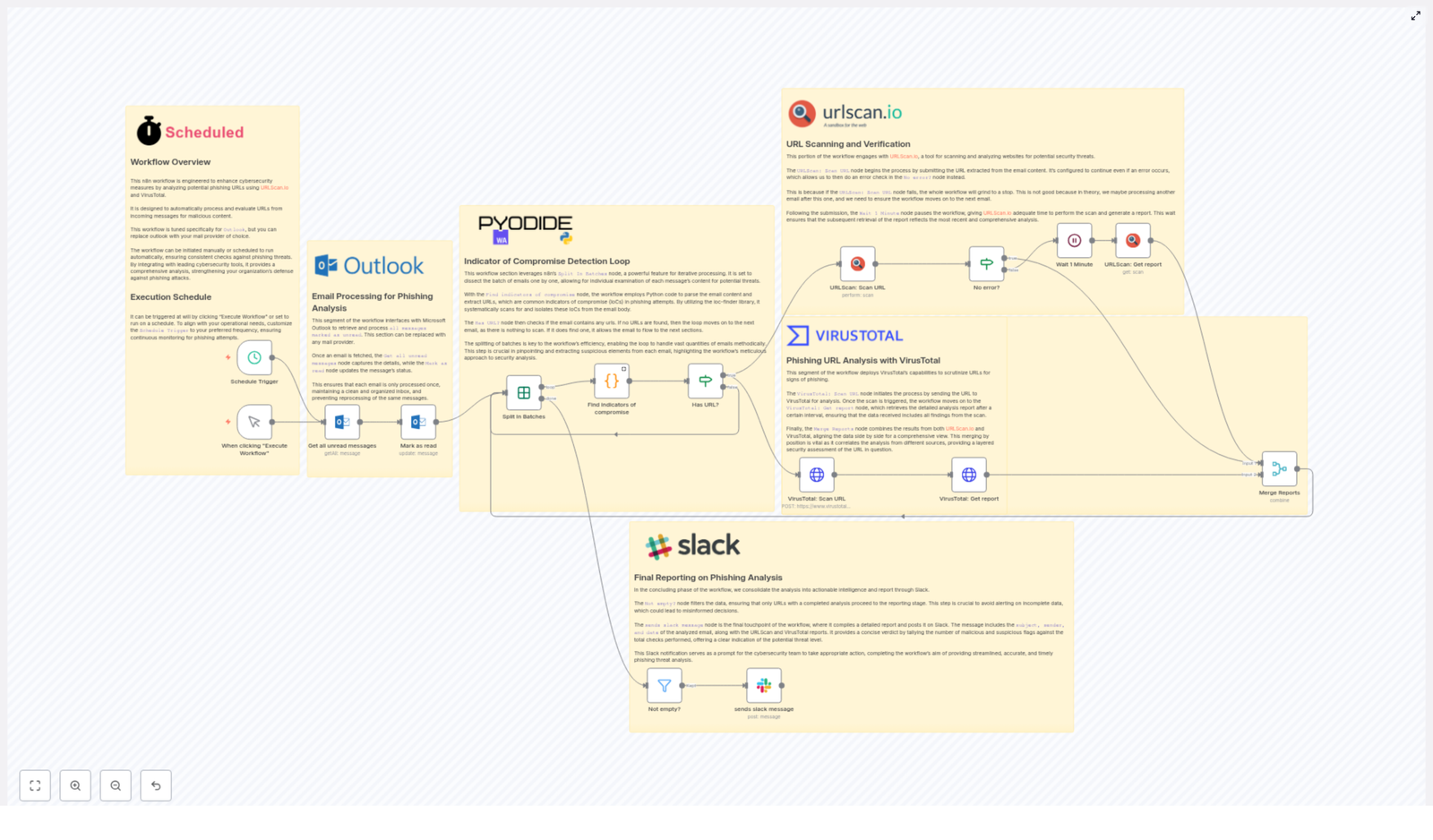
Automated Phishing URL Analysis with URLScan.io & VirusTotal

Automated Phishing URL Analysis with URLScan.io & VirusTotal

Imagine never copy-pasting sketchy links again…

You open your inbox on a Monday morning and there it is:

  • An email from “Micros0ft Support” asking you to “reset your pasword now.”
  • A link that looks like it was generated by a keyboard smash.
  • Your internal voice saying, “I should probably check this… but also, I do not want to.”

Manually pulling out URLs, scanning them in different tools, waiting for results, and then writing up a report is the sort of repetitive task that slowly eats your soul. That is exactly what this n8n workflow template is here to fix.

This automated phishing URL analysis workflow takes incoming emails from Microsoft Outlook, extracts suspicious URLs, sends them to URLScan.io and VirusTotal, waits for the results, and then posts a clean, readable summary straight into Slack. You get the insights without the drudgery.

What this n8n workflow actually does

At a high level, this workflow automates phishing URL detection so your security team can focus on decisions, not copy-paste work. It connects Outlook, URLScan.io, VirusTotal, Python-based IoC detection, and Slack into a single, repeatable process.

Key capabilities

  • Email source: Pulls in unread emails from Microsoft Outlook that are candidates for phishing analysis.
  • Flexible automation: Can be triggered manually or scheduled to run at regular intervals for continuous monitoring.
  • IoC detection with Python: Uses a Python script with the ioc-finder library to extract URLs from email content as indicators of compromise.
  • Dual scanning: Sends every extracted URL to both URLScan.io and VirusTotal for deeper analysis.
  • Consolidated reporting: Merges results and posts a detailed alert in a Slack channel so your security team sees everything in one place.

In short, it acts like a very patient, very fast junior analyst who never forgets to check both tools and never complains about repetitive work.

How the workflow runs behind the scenes

1. Grab unread emails from Outlook

The workflow kicks off by using the Get all unread messages node to collect incoming emails from Microsoft Outlook. These are the messages that might contain suspicious URLs.

As each email is pulled in, it is immediately marked as read. That way, the workflow does not loop back and analyze the same message twice, which would be annoying for you and very confusing for your Slack channel.

2. Process emails one by one with IoC extraction

Next, the workflow uses the Split In Batches node to handle emails individually. This keeps things orderly and avoids mixing URLs from different messages.

For each email, a Python script powered by the ioc-finder library scans the content and extracts URLs. These URLs are treated as potential indicators of compromise (IoCs).

If an email does not contain any URLs, the workflow politely moves on to the next one. No URLs, no scans, no wasted API calls.

3. Scan URLs with URLScan.io

Every extracted URL is then sent to URLScan.io. This service performs a deep analysis of the website, looking at how it behaves and what it loads.

The workflow is smart enough to wait for URLScan.io to finish its work. It uses a two-step approach:

  • Submit the URL for scanning.
  • Wait for a defined period, then fetch the completed report.

This waiting period ensures that when you retrieve the report, you are not looking at a half-finished scan or stale data.

4. Run parallel analysis with VirusTotal

At the same time, the same URLs are sent to VirusTotal. VirusTotal aggregates results from multiple security vendors, which gives you a broad view of how different engines classify the URL.

Once VirusTotal finishes processing, the workflow retrieves the detailed report. That report is then paired with the URLScan.io findings so you can compare both perspectives side by side.

5. Merge the reports into a single view

To save you from flipping between browser tabs like it is 2009, the workflow merges the URLScan.io and VirusTotal results.

This combined view correlates findings from both tools, making it easier to understand whether a URL is harmless, suspicious, or outright malicious.

6. Send the final verdict to Slack

The last step is where the magic becomes visible to your team. Only URLs with completed analyses are forwarded to Slack using the sends slack message node.

Each Slack notification includes:

  • Email metadata such as subject, sender, and date.
  • Links to the URLScan.io report.
  • Links to the VirusTotal report.
  • A concise verdict that highlights suspicious or malicious detections.

Your security team gets a clean, actionable summary instead of a pile of raw data. No more digging through multiple tools just to confirm that, yes, that “invoice” link is bad news.

Why this automated phishing URL workflow is worth using

Less manual work, more actual security

  • Automation: The workflow automatically scans suspicious URLs in emails, so you are not stuck copying links into tools all day.
  • Comprehensive analysis: By combining URLScan.io and VirusTotal, you get a much clearer view of the threat landscape around each URL.
  • Actionable alerts: Slack notifications give your security team immediate insight into potential threats, right where they already communicate.
  • Scalability: The logic can be adapted to other mail providers or extended with additional threat intelligence tools as your needs grow.

The result is a more efficient, more consistent phishing detection process that does not rely on someone remembering to “check it later.”

Quick setup guide for the n8n workflow

You do not need to reinvent the wheel to get started. This template already wires everything together, you just plug in your own services and preferences.

Step 1 – Configure your email source

  • Set up the Get all unread messages node with your Microsoft Outlook credentials.
  • Define any filters you want, for example specific folders or conditions for emails that should be processed.
  • Confirm that emails are marked as read after processing to avoid duplicates.

Step 2 – Enable IoC extraction with Python

  • Ensure the Python node is configured and has access to the ioc-finder library.
  • Verify that the script is extracting URLs from the email body as indicators of compromise.
  • Check that emails without URLs are skipped cleanly so the workflow can move on to the next message.

Step 3 – Connect URLScan.io

  • Provide your URLScan.io API key in the relevant node or credentials section.
  • Confirm that each URL is being submitted for scanning.
  • Set an appropriate waiting period before the workflow fetches the scan report, so results are complete.

Step 4 – Connect VirusTotal

  • Configure the VirusTotal node with your API key.
  • Make sure URLs are sent correctly and that the workflow retrieves the detailed report afterward.
  • Validate that VirusTotal results are correctly aligned with their corresponding URLs.

Step 5 – Merge results and format output

  • Review the node that combines URLScan.io and VirusTotal reports.
  • Ensure the merged data includes all relevant fields you care about for threat assessment.
  • Adjust any formatting or mapping if you want specific data to be emphasized in the final output.

Step 6 – Set up Slack notifications

  • Connect the sends slack message node with your Slack workspace and target channel.
  • Customize the message layout to include email metadata, report links, and the verdict.
  • Test with a sample email to confirm that only completed analyses are posted and that the message is readable and useful.

Step 7 – Choose how and when it runs

  • Run the workflow manually at first to verify everything works as expected.
  • Once you are comfortable, set up a schedule so it checks for new emails at regular intervals.
  • Align the schedule and Slack notifications with your incident response process, so alerts arrive at the right time and place.

Tips, customization ideas, and next steps

This template gives you a strong baseline for automated phishing URL analysis, but you can easily adapt it to your environment.

Ideas to tailor the workflow

  • Different mail providers: Swap out the Outlook node for another email integration while keeping the IoC detection and scanning logic intact.
  • Additional tools: Extend the workflow with more threat intelligence services if you want more data points.
  • Custom Slack formatting: Highlight certain verdicts, tag specific users, or route alerts to different channels based on severity.
  • Scheduling tweaks: Run more frequently during business hours and less often overnight, depending on your response expectations.

By integrating email processing with automated URL scanning and streamlined reporting, this n8n workflow helps your organization strengthen its security posture and reduce the risk from phishing attacks, without burying your team in repetitive tasks.

Next move: Configure the nodes for your mail provider, plug in your URLScan.io and VirusTotal credentials, connect Slack, and deploy the workflow. Your future self, who is not manually pasting URLs into scanners, will be very grateful.

Translate Cocktail Instructions with DeepL & API

Translate Cocktail Instructions with DeepL & API (n8n Workflow Template)

Overview

This n8n workflow template demonstrates how to combine a public REST API with a translation service in a concise, production-ready flow. It performs two core tasks:

  • Fetch a random cocktail recipe from TheCocktailDB API.
  • Translate the cocktail preparation instructions into French using the DeepL node.

The result is an automated pipeline that retrieves recipe data in English and outputs French instructions, ready to be consumed by your application, frontend, or another workflow.

Workflow Architecture

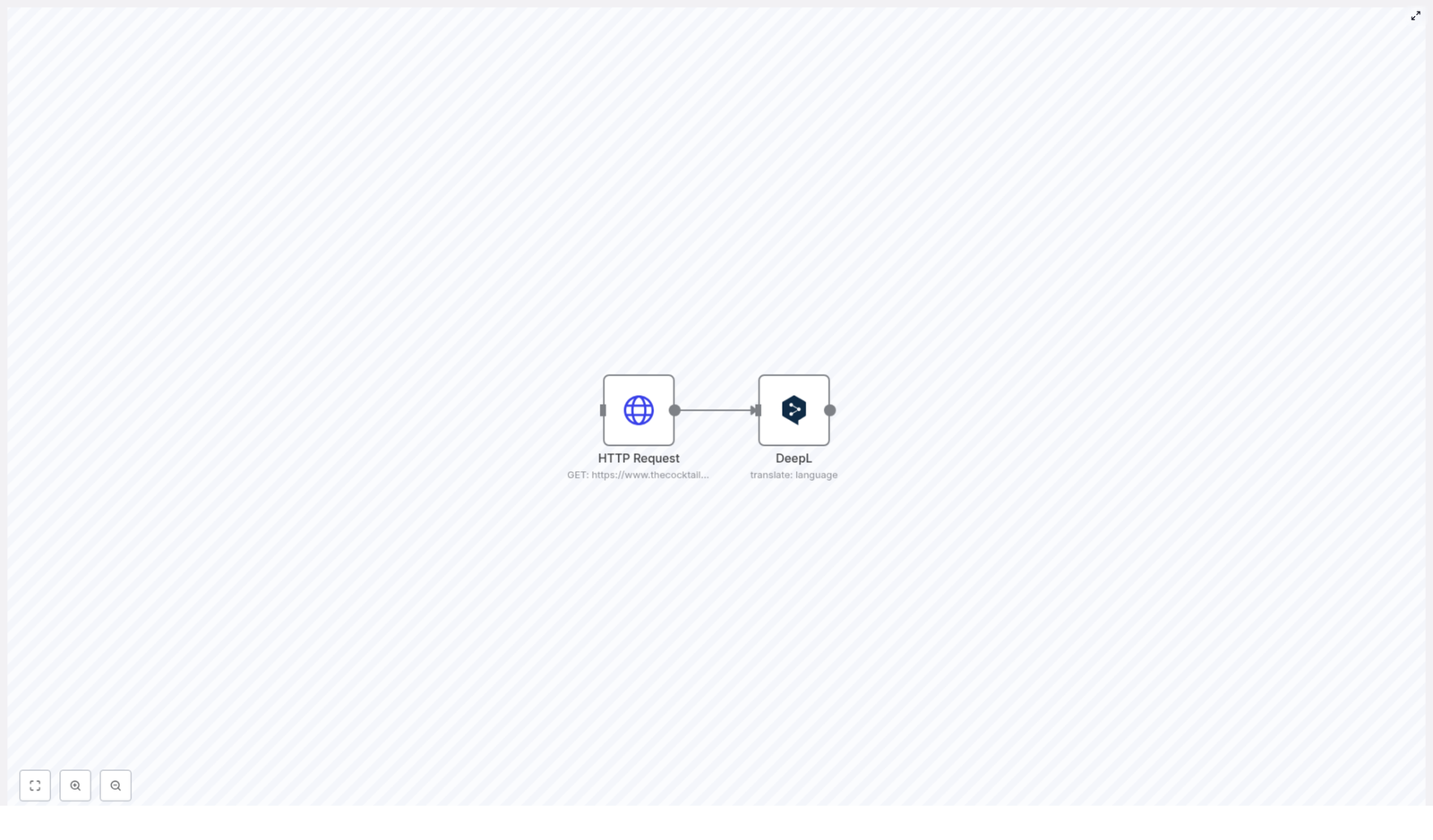
The workflow is intentionally linear and minimal, which makes it easy to understand and extend. It consists of:

  • HTTP Request node – Calls TheCocktailDB random cocktail endpoint and returns the full cocktail object.
  • DeepL node – Receives the extracted instructions text and translates it into French.

Data flows from the HTTP Request node into the DeepL node as a single item containing the cocktail instructions. The workflow can be triggered manually or from any trigger node you choose to add, for example a Webhook or Cron trigger.

Prerequisites

  • n8n instance – Self-hosted or cloud, with permission to create and execute workflows.
  • DeepL API key – Required to configure the DeepL node and authenticate translation requests.

Node-by-Node Breakdown

1. HTTP Request Node – Fetch Random Cocktail

The first node queries TheCocktailDB to retrieve a random cocktail recipe. Configuration is straightforward:

  • HTTP Method: GET
  • URL: https://www.thecocktaildb.com/api/json/v1/1/random.php

This endpoint returns a JSON payload with a single cocktail object inside the drinks array. The response includes fields such as:

  • idDrink – Unique identifier of the cocktail.
  • strDrink – Cocktail name.
  • strInstructions – Preparation instructions in English.
  • Additional fields like ingredients, measures, and glass type.

Example JSON snippet returned by the endpoint:

{  "drinks": [  {  "idDrink": "11007",  "strDrink": "Margarita",  "strInstructions": "Rub the rim of the glass with the lime slice to make the salt stick to it. Take care to moisten only the outer edge of the glass. Dust the rim of the glass with salt. Shake the other ingredients with ice, then carefully pour into the glass."  }  ]
}

n8n will typically parse this JSON automatically and make the data available on the node output under items[0].json. The key field for the next step is strInstructions from the first element of the drinks array.

Key Output for Downstream Nodes

The DeepL node will need access to:

  • json.drinks[0].strInstructions – The English instructions to translate.

If you want to pass additional metadata such as strDrink (cocktail name) to later nodes, you can keep the entire object intact and only reference the specific field for translation in the DeepL node.

2. DeepL Node – Translate Instructions to French

The second node in the workflow is the DeepL translation node. It receives the instructions text from the HTTP Request node and sends it to the DeepL API for translation.

Core Configuration

  • Credentials: Configure and select your DeepL API credentials (API key).
  • Text to translate: Reference the instructions field from the previous node, for example:
    {{ $json["drinks"][0]["strInstructions"] }}
  • Target language: Set to FR to produce French output.

Once configured, the DeepL node will automatically:

  1. Send the English instructions to the DeepL API.
  2. Receive the translated French text.
  3. Expose the translated content on its output as part of the node result.

The translated text can then be used in subsequent nodes for storage, display, or further processing.

Data Flow and Execution Logic

The workflow operates as a simple, linear pipeline:

  1. HTTP Request node executes a GET request to TheCocktailDB random endpoint and returns a cocktail object.
  2. The node output contains a drinks array. The first item, drinks[0], is used as the source of the instructions field.
  3. DeepL node reads strInstructions from the first drink and sends it to DeepL for translation into French (FR).
  4. The workflow finishes with a translated version of the cocktail instructions available in the DeepL node output.

This architecture makes it easy to plug in additional nodes before or after the translation step, such as database storage, messaging integration, or rendering in a front-end application.

Configuration Notes & Edge Cases

DeepL Credentials

  • Ensure the DeepL API key is valid and has sufficient quota.
  • If authentication fails, the DeepL node will not return translated text and the workflow execution will stop at that node.

Handling Missing or Unexpected API Data

TheCocktailDB endpoint is expected to return a structure with a drinks array and at least one element. In rare cases or error scenarios, you might encounter:

  • drinks is null or missing.
  • drinks[0].strInstructions is empty or not present.

In such situations, the DeepL node will receive invalid or empty text, which may result in an error or an empty translation. For a production-grade setup, consider adding:

  • A check to validate that drinks exists and contains at least one item.
  • A conditional node that skips translation if instructions are missing.

Language and Encoding Considerations

  • The source text from TheCocktailDB is in English. The DeepL node is configured to translate to French (FR).
  • Special characters in instructions are handled by DeepL and should be preserved in the translated output.

Advanced Customization

Extend Language Support

To support more languages, you can:

  • Duplicate the DeepL node and set different target languages (for example DE, ES, IT).
  • Use workflow parameters or input fields to dynamically select the target language and pass it to the DeepL node.

Store or Display Translated Recipes

Once the translation is complete, common next steps include:

  • Persisting the translated instructions, along with the cocktail name and ID, in a database.
  • Sending the translated recipe to a front-end application or internal tool via Webhook or HTTP Request.
  • Integrating with messaging platforms or email services to share translated recipes with users.

Error Handling Strategies

To increase reliability, you can add:

  • Additional nodes that handle HTTP errors from TheCocktailDB (for example retry or fallback logic).
  • Error branches or conditional checks after the DeepL node to catch translation failures or empty responses.
  • Logging or notification nodes to alert you when an API call or translation step fails.

Summary

This n8n workflow template provides a concise, technical example of how to:

  • Fetch structured data from a public REST API (TheCocktailDB).
  • Extract a specific field, in this case strInstructions, from the API response.
  • Translate that field into French using the DeepL node and your DeepL API key.

It is a practical foundation for building multilingual recipe experiences, integrating translation into your applications, or exploring how n8n connects external APIs and language services in a single automated pipeline.

Try the Template

Deploy this workflow in your n8n instance, connect your DeepL credentials, and start generating French cocktail instructions automatically. From there you can expand the flow with storage, notifications, or multi-language support as needed.

Building a RAG Pipeline & Chatbot with n8n

Building a RAG Pipeline & Chatbot with n8n

What This n8n RAG Template Actually Does (In Plain English)

Imagine having a chatbot that actually knows your documents, policies, and FAQs, and can answer questions based on the latest files in your Google Drive. No more manually updating responses, no more copy-pasting information into prompts.

That is exactly what this n8n workflow template helps you build.

It uses a technique called Retrieval-Augmented Generation (RAG), which combines large language models with an external knowledge base. In this case:

  • Google Drive holds your documents
  • OpenAI turns those documents into vector embeddings
  • Pinecone stores and searches those vectors
  • OpenRouter (with Anthropic Claude 3.5 Sonnet) powers the chatbot responses
  • n8n ties everything together into a clean, automated workflow

The result is a chatbot that can retrieve the right pieces of information from your docs and use them to answer user questions in a smart, context-aware way.

When Should You Use This RAG & Chatbot Setup?

This template is perfect if you:

  • Have lots of internal documents, FAQs, or policies in Google Drive
  • Want a chatbot that can answer questions based on those specific documents
  • Need your knowledge base to update automatically when files change or new ones are added
  • Prefer a no-code / low-code approach with clear, modular steps in n8n

If you are tired of static FAQs or chatbots that “hallucinate” answers, a RAG pipeline like this is a big step up.

How the Overall RAG Pipeline Is Structured

The workflow is built around two main flows that work together:

  1. Document ingestion flow – gets your documents from Google Drive, prepares them, and stores them in Pinecone as vectors.
  2. Chatbot interaction flow – listens for user messages, pulls relevant info from Pinecone, and generates a response with the AI model.

High-Level Architecture

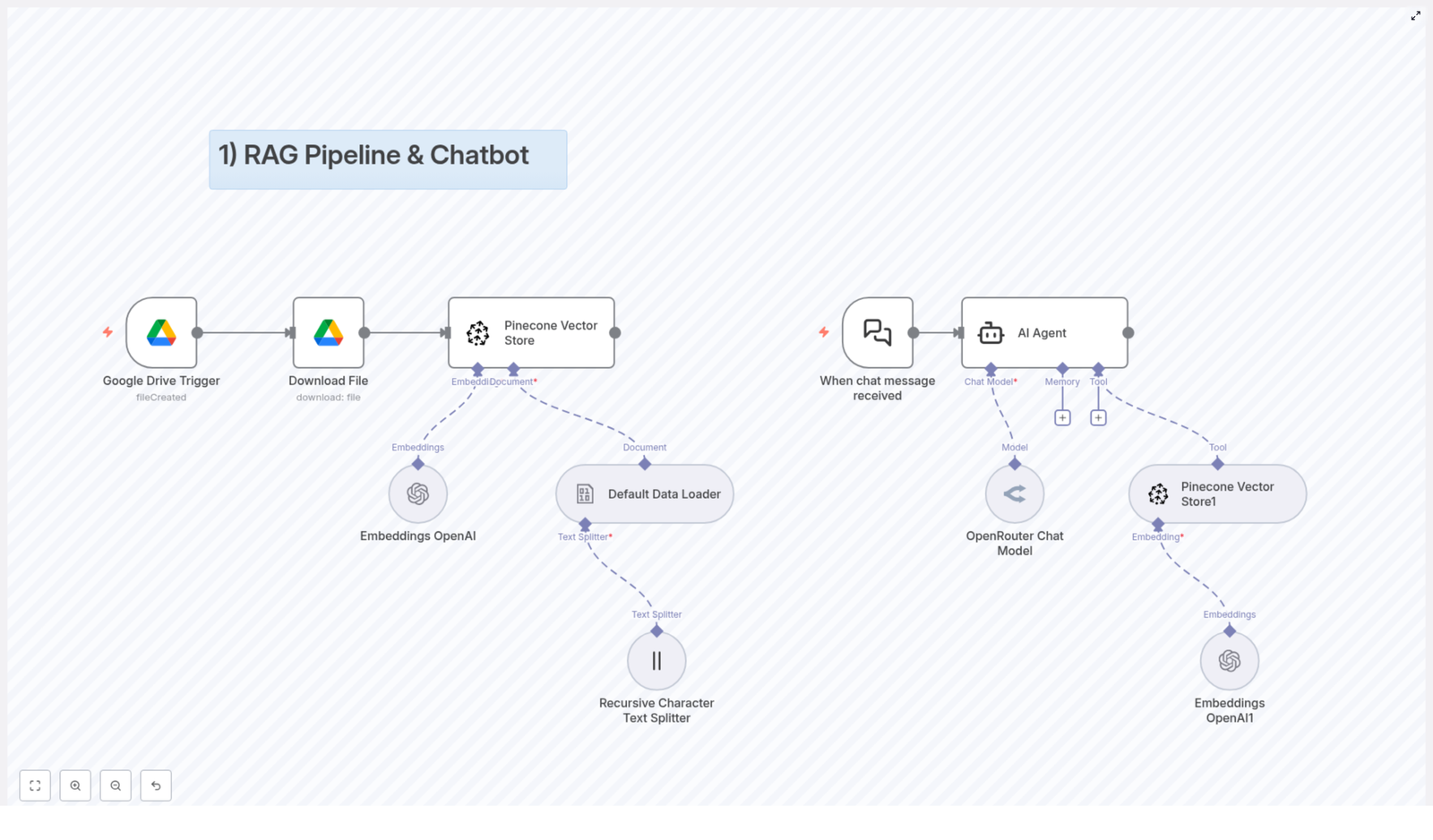
  • Document Ingestion: Google Drive Trigger → Download File → Text Splitting → Embeddings → Pinecone Vector Store
  • Chatbot Interaction: Chat Message Trigger → AI Agent with Language Model → Tool that queries the Vector Store

Let us walk through each part in a more conversational way.

Stage 1 – Document Ingestion Flow

This is the “feed the brain” part of the system. Whenever you drop a new document into a specific Google Drive folder, the workflow picks it up, processes it, and updates your knowledge base automatically.

Google Drive Trigger – Watching for New Files

First up, there is a Google Drive Trigger node. You point it at a particular folder in your Drive, and it keeps an eye on it for new files.

Whenever a new document is created in that folder, the trigger fires and kicks off the rest of the ingestion flow. No manual syncing, no button clicks. Just drop a file in and you are done.

Download File – Getting the Content Ready

Once the trigger detects a new file, the workflow uses a Download File node to actually fetch that document from Google Drive.

This is the raw material that will be transformed into searchable knowledge for your chatbot.

Splitting the Text into Chunks

Large documents are not very friendly for embeddings or vector search if you treat them as one giant block of text. That is why the next step uses a:

  • Recursive Character Text Splitter
  • Default Data Loader

The Recursive Character Text Splitter breaks the document into smaller chunks. These chunks are sized to be manageable for the embedding model while still keeping enough context to be useful.

The Default Data Loader then structures these chunks so they are ready for downstream processing. You can think of it as organizing the content into a format the rest of the pipeline can easily understand.

Embeddings with OpenAI

Now that your document is split into chunks, the Embeddings OpenAI node steps in.

This node uses an OpenAI embedding model to convert each text chunk into a vector representation. These vectors capture semantic meaning, so similar ideas end up close together in vector space, even if the exact words are different.

This is what makes “semantic search” possible, which is much smarter than simple keyword matching.

Storing Vectors in Pinecone

Once the embeddings are generated, they need to be stored somewhere that supports fast, scalable vector search. That is where the Pinecone Vector Store node comes in.

The workflow sends the vectors to a Pinecone index, typically organized under a specific namespace like FAQ. This namespace helps you separate different types of knowledge, for example FAQs vs policy documents.

Later, when a user asks a question, the chatbot will query this Pinecone index to find the most relevant chunks of text to use as context for its answer.

Stage 2 – Chatbot Interaction Flow

Once your documents are in Pinecone, the second part of the workflow handles real-time conversations. This is where the magic feels most visible to your users.

Chat Message Trigger – Listening for User Questions

The chatbot flow starts with a When chat message received trigger. Whenever a user sends a message, this trigger activates and passes the query into the workflow.

This is the entry point for every conversation. From here, the workflow hands the message to the AI agent.

AI Agent – The Conversational Core

The AI Agent node is the heart of the chatbot. It is configured with:

  • A language model via OpenRouter Chat Model, using Anthropic Claude 3.5 Sonnet in this setup
  • Optional memory management so the chatbot can remember previous turns in the conversation
  • Access to tools, including the vector store, so it can pull in relevant information from your documents

Instead of just answering from scratch, the agent is able to call a tool that queries Pinecone, get back the most relevant document chunks, and then generate a response that is grounded in your data.

Retrieving Knowledge from Pinecone

To make this work, the AI agent uses a tool that connects to your Pinecone Vector Store. Here is what happens under the hood:

  1. The user’s question is converted into a vector using the same embedding model.
  2. Pinecone performs a semantic similarity search against your FAQ or policy namespace.
  3. The most relevant chunks of text are returned as context.
  4. The AI agent uses that context to generate an informed, accurate answer.

This approach dramatically reduces hallucinations and ensures responses stay aligned with your actual documents.

Why This n8n RAG Architecture Makes Your Life Easier

You might be wondering, why go through all this trouble instead of just plugging a model into a chat interface? Here is why this architecture is worth it:

  • Automation you can trust: The Google Drive trigger keeps your knowledge base in sync. Add or update a document, and the pipeline handles the rest.
  • Smarter search: Vector-based search in Pinecone understands meaning, not just keywords. Users can ask natural questions and still get relevant answers.
  • Modular and flexible: Each step is an n8n node. You can tweak, extend, or replace parts without breaking the whole system.
  • Modern AI stack: OpenAI embeddings plus Anthropic Claude 3.5 Sonnet via OpenRouter give you a powerful combination of understanding and generation.

In short, you get a scalable, maintainable, and intelligent chatbot that actually knows your content.

How to Get Started with This Template in n8n

Ready to try it out yourself? Here is a simple setup checklist to get the pipeline running:

1. Prepare Your Google Drive Folder

Create or choose a folder in Google Drive where you will store all the documents you want the chatbot to use. This could include:

  • FAQ documents
  • Internal policies
  • Product guides or manuals

Point the Google Drive Trigger in n8n to this folder.

2. Set Up Your Pinecone Index

In Pinecone:

  • Create a new index suitable for your expected data size and embedding dimensions.
  • Configure a namespace, for example FAQ, to keep this knowledge set organized.

This is where all your document embeddings will be stored and searched.

3. Configure Your API Credentials in n8n

In your n8n instance, securely add credentials for:

  • Google Drive (for file access)
  • Pinecone (for vector storage and search)
  • OpenAI (for embeddings)
  • OpenRouter (for the Anthropic Claude 3.5 Sonnet chat model)

Make sure each node in the workflow is linked to the correct credential set.

4. Test the Full RAG & Chatbot Flow

Once everything is wired up, it is time to test:

  1. Upload a sample FAQ or policy document into your configured Google Drive folder.
  2. Wait for the Document Ingestion Flow to run and push embeddings to Pinecone.
  3. Send a question to the chatbot that should be answerable from that document.
  4. Check that the response is accurate and clearly grounded in your content.

If something looks off, you can inspect each n8n node to see where the data might need adjustment, for example chunk sizes, namespaces, or model settings.

Wrapping Up

By combining a RAG pipeline with a chatbot in n8n, you get a powerful, practical way to build a context-aware assistant that stays in sync with your internal documents.

With:

  • Automated document ingestion from Google Drive
  • Vector storage and semantic search in Pinecone
  • OpenAI embeddings
  • Anthropic Claude 3.5 Sonnet through OpenRouter
  • And n8n orchestrating the whole thing

you can create a scalable support or knowledge assistant without writing a full backend from scratch.

Try the Template and Build Your Own Chatbot

If you are ready to upgrade how your users access information, this template is a great starting point. You can customize it, expand it, or plug it into your existing systems, all within n8n.

Start building now and give your chatbot real, up-to-date knowledge.

Two Way Sync Between Pipedrive and MySQL

Two Way Sync Between Pipedrive and MySQL Using n8n

Every growing business eventually hits the same wall: customer data is scattered across tools, never quite matching, and always a little out of date. Your CRM says one thing, your internal database says another, and you end up spending precious time chasing down the truth instead of serving customers or building your product.

That tension is often a signal that you are ready for a new level of automation. Instead of treating data updates as manual chores, you can turn them into a reliable, always-on process that quietly works in the background while you focus on higher-value work.

This is where a two-way sync between Pipedrive and MySQL using n8n becomes a powerful stepping stone. With a single workflow, you can keep your CRM and database in harmony, reduce errors, and create a foundation for more advanced automation across your business.

From Manual Updates To An Automated Mindset

Before we get into nodes and queries, it helps to look at the bigger picture. Every time you copy and paste contact details between Pipedrive and MySQL, you are doing work that a workflow can do for you. The cost is not just the minutes spent updating records, it is the mental load of remembering to do it and the risk of missing something important.

Adopting automation is less about tools and more about mindset. You are choosing to:

  • Protect your time by removing repetitive tasks
  • Trust systems to handle routine updates
  • Build a clean, consistent source of truth for your customer data

The n8n template for a two-way sync between Pipedrive and MySQL is designed exactly for this shift. It runs on a schedule, compares records, and keeps both sides aligned without constant supervision. Once you set it up, you can refine it, extend it, and use it as a model for future automations.

What This n8n Workflow Template Actually Does

At its core, the workflow connects your Pipedrive CRM and your MySQL database, then regularly checks for differences. Whenever it finds new, missing, or updated contacts, it syncs those changes in the right direction so both systems stay in step.

  • Sources: Pipedrive (as your CRM) and MySQL (as your internal database).
  • Trigger: A scheduled trigger that runs at set intervals, such as hourly or daily.
  • Matching key: Contacts are matched by the email field.
  • Actions: Create or update contacts in either Pipedrive or MySQL, depending on where the newest data lives.

This is not just a one-time import. It is a true two-way sync that keeps evolving with your data. As your team adds or edits contacts in either system, the workflow ensures that both sides are updated accordingly.

The Journey Of A Sync: How The Workflow Flows

To understand the power of this template, it helps to walk through the journey your data takes. Each n8n node plays a specific role, and together they create a robust, automated feedback loop between Pipedrive and MySQL.

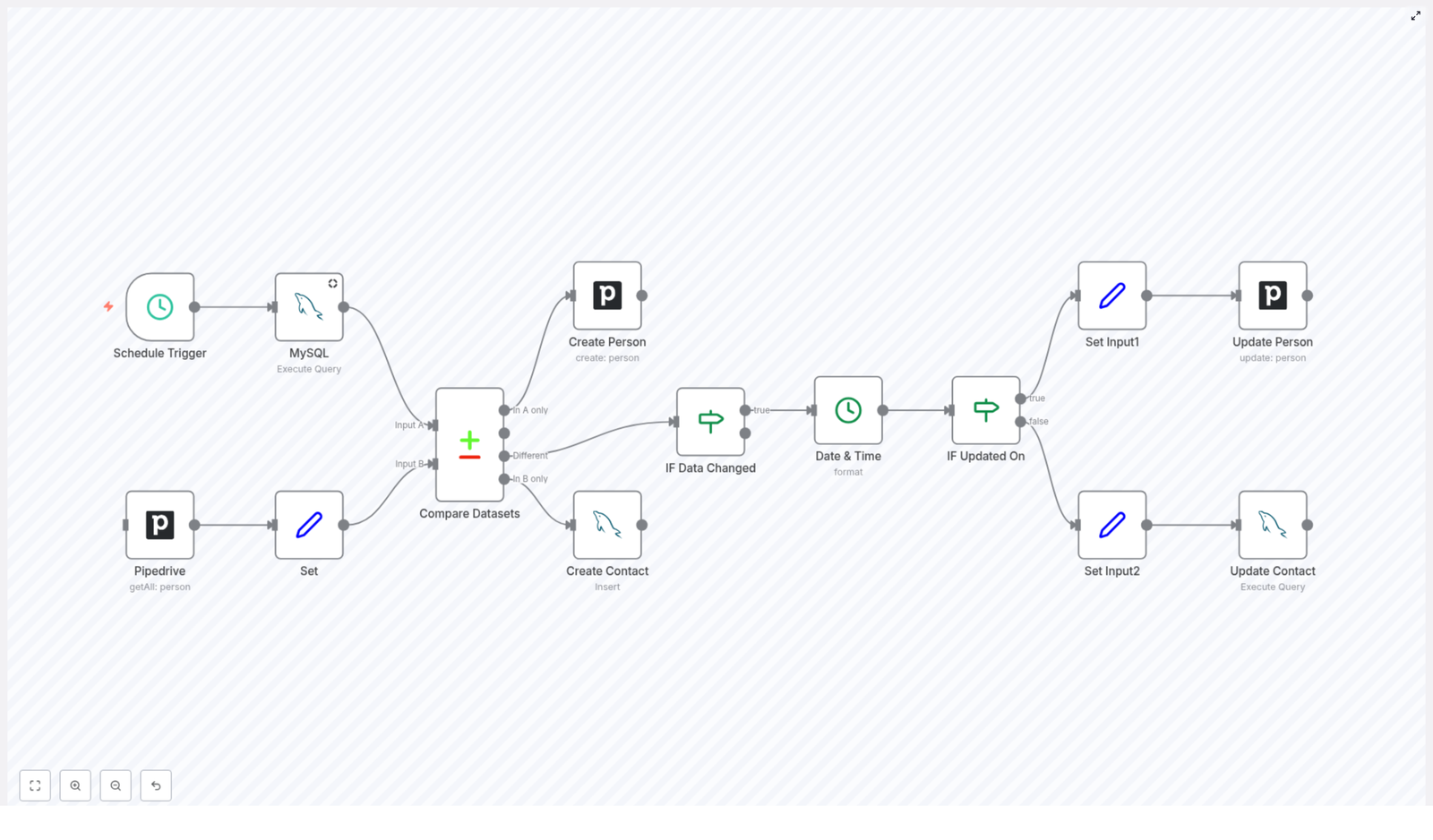
1. Schedule Trigger Node – Let The Workflow Run For You

Everything begins with a Schedule Trigger node. Instead of relying on someone to remember to sync data, you define when the workflow should run.

For example, you can set it to run:

  • Every hour for near real-time updates
  • Once or twice a day for a lighter load

From that point on, the sync becomes an automatic routine. You no longer need to think about it, which is exactly the point.

2. MySQL Read Query – Pulling Contacts From Your Database

Next, the workflow reaches into your MySQL database to fetch the current list of contacts. The query targets your contact table and retrieves essential fields such as:

  • id
  • name
  • email
  • phone
  • updated_on timestamp

This snapshot represents how your internal systems currently see each contact. It becomes one side of the comparison that drives the sync.

3. Pipedrive Fetch Contacts – Getting The CRM View

At the same time, the workflow uses the Pipedrive API to fetch all person records. This gives you a live view of your CRM contacts, including the fields you want to keep consistent with MySQL.

Now you have two datasets: one from MySQL and one from Pipedrive. The next step is to bring them into a comparable format.

4. Set Node – Preparing Pipedrive Data For Comparison

Raw data from APIs is not always structured in the exact way you need. The Set node is where you shape and format the Pipedrive data so that it lines up cleanly with your MySQL dataset.

In this step, you map fields and ensure that the data structure is compatible with the comparison node that follows. It is a small but important transformation that makes the rest of the workflow more reliable.

5. Compare Datasets – Finding New, Missing, And Changed Contacts

Now comes the heart of the sync: the Compare Datasets node. Using the email field as the unique key, n8n compares the contacts from MySQL and Pipedrive, then separates them into four clear outcomes:

  • In A only: Contacts that exist in MySQL but not in Pipedrive. These trigger the creation of new persons in Pipedrive.
  • In B only: Contacts that exist in Pipedrive but not in MySQL. These trigger the creation of new contacts in MySQL.
  • Different: Contacts that exist in both systems but have mismatched data. These go through an update decision process.
  • Same: Contacts that are identical in both systems. No action is needed, which keeps the workflow efficient.

This single node turns a messy comparison task into a structured decision tree that the rest of the workflow can act on.

Deciding What To Update And Where

Not every difference should be synced blindly. To keep your data accurate, the workflow needs to understand what changed and which system has the most recent version. This is where the conditional logic and timestamp handling come in.

6. Conditional Node – IF Data Changed

Within the Different path from the comparison, the workflow uses an IF node to check whether key fields have actually changed. Typically, this includes fields such as:

  • name
  • phone

If those values differ between Pipedrive and MySQL, it signals that an update is needed. This protects you from unnecessary writes and keeps the workflow focused only on meaningful changes.

7. Date & Time Formatting – Aligning Timestamps

To decide which system has the most up to date information, the workflow needs consistent timestamps. The Date & Time node formats the updated_on field so that both sides can be compared reliably.

By standardizing these timestamps, you give the workflow a clear way to judge which record is newer.

8. Conditional Node – IF Updated On

Once timestamps are aligned, another IF node compares the updated_on values. This step determines the direction of the sync for each contact that has changed:

  • If Pipedrive has the more recent update, the workflow pushes those changes into MySQL.
  • If MySQL has the newer data, the workflow updates the corresponding person in Pipedrive.

This is what makes the integration truly two way. Neither system is always the source of truth. Instead, the most recent edit wins, regardless of where it happened.

Applying The Updates To Pipedrive And MySQL

After the workflow decides which side should be updated, it moves into the final step: actually writing the changes back into each system.

9. Set Input1 And Update Person (Pipedrive)

When Pipedrive is the system with the latest information, the workflow prepares that data for an update using a Set node. This node structures the fields so they are ready for the Pipedrive update operation.

Then the Update Person node sends the changes back into Pipedrive, keeping the CRM record aligned with the most current version of the data. Your sales and customer facing teams can trust that they are always seeing the latest details.

10. Set Input2 And Update Contact (MySQL)

If MySQL holds the most recent changes, a separate Set node prepares the data for an SQL update. The workflow then runs an Update Contact operation against the MySQL database.

This step ensures that your internal systems, dashboards, or reporting tools that rely on MySQL always reflect the latest contact information from Pipedrive when appropriate.

Why This Integration Matters For Your Growth

Automating a two-way sync between Pipedrive and MySQL is not just a technical improvement. It can reshape how your team works and how confidently you make decisions based on your data.

  • Data consistency: Eliminate conflicting records and outdated contact details between your CRM and database.
  • Efficiency: Remove repetitive manual data entry and updates, so your team can focus on selling, supporting, and building.
  • Centralized view: Give every department access to synchronized customer information, no matter which tool they use.
  • Scalability: Start with core contact fields, then extend the workflow to include more fields or additional systems as your needs grow.

Most importantly, this template can be the first of many automations. Once you experience the relief of having one piece of your data flow fully automated, it becomes easier to spot other areas you can streamline with n8n.

Using This Template As Your Launchpad

The beauty of n8n is its visual workflow editor. You are not locked into a rigid integration. Instead, you get a clear, editable map of how your data moves and transforms.

With this two-way sync template you can:

  • Start quickly with a working Pipedrive-MySQL integration
  • Customize fields, conditions, and timing to match your processes
  • Experiment safely, improve over time, and build more complex automations as you grow

Think of this template as a foundation. Today it keeps your contacts in sync. Tomorrow it might trigger follow up workflows, analytics updates, or notifications based on those same contacts, all within the same n8n environment.

Take The Next Step Toward Smarter Automation

This two-way sync between Pipedrive and MySQL is a practical, high impact starting point for anyone serious about automation. It protects your data quality, frees your team from tedious updates, and opens the door to a more focused, automated way of working.

If you are ready to streamline your data workflows, explore this n8n template, connect your Pipedrive and MySQL instances, and let the workflow handle the sync for you. As you see the time and errors it saves, you will be inspired to keep building and refining your automation stack.

SEO Keyword Rank Tracker with Google Sheets & BigQuery

SEO Keyword Rank Tracker With Google Sheets, BigQuery, And n8n: A Story Of One Overwhelmed Marketer

Introduction: When SEO Reports Start To Hurt

On a rainy Tuesday morning, Lina, a growth marketer at a small SaaS startup, stared at her screen in quiet frustration. Her CEO had just asked a simple question:

“Are we actually improving for our main keywords across all our domains?”

Lina opened five browser tabs. One for a pricey SEO rank tracker, another for Google Search Console, a third for Google Sheets, and two more for various reports she barely trusted anymore. Each tool told a slightly different story. None of them gave her a clean, unified view of how their target keywords were performing over time across every domain they managed.

The rank tracking tool alone was eating a painful chunk of their monthly budget. Worse, it could not fully adapt to their custom keyword lists, device breakdowns, or the way they wanted to report data to the team.

That morning, Lina decided two things:

  • She would stop relying on expensive rank trackers that felt like black boxes.
  • She would finally put their Google Search Console data, Google Sheets, and BigQuery to work in a way that actually fit their needs.

That decision led her to an n8n workflow template that changed how she tracked SEO performance, permanently.

Discovering The n8n Rank Tracking Template

Lina had heard of n8n before. Some colleagues used it to automate marketing ops and reporting, but she had never tried setting up a workflow herself. While searching for a “Google Search Console BigQuery rank tracker,” she stumbled on an n8n template titled:

“SEO Keyword Rank Tracker with Google Sheets & BigQuery”

The promise sounded almost too good:

  • Replace expensive SEO rank trackers.
  • Use data she already had in Google Search Console.
  • Store and analyze everything in Google Sheets and BigQuery.
  • Scale to any number of domains and keywords.

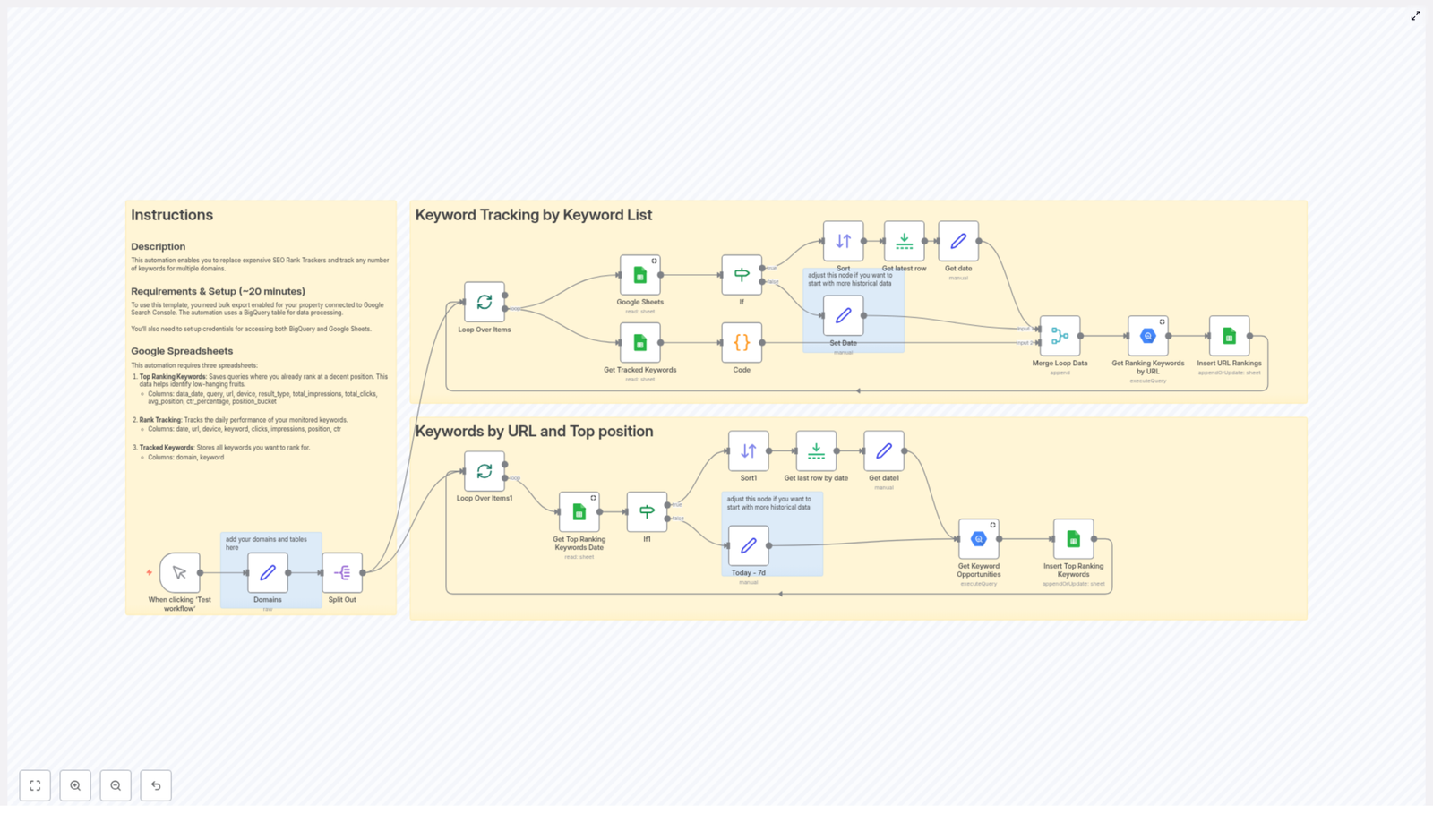
Curious and slightly skeptical, Lina opened the template. Instead of a generic black box, she found a clear structure split into two core flows:

  • Keyword tracking by keyword list
  • Keywords by URL and top position

It was exactly what she had been trying to cobble together manually in spreadsheets.

Rising Action: Setting The Stage For Automation

Before Lina could run the workflow, she had to prepare the foundations. That was the first test. If setup was too painful, she knew she would abandon the idea and go back to screenshots and copy-pasted CSVs.

Getting The Data Sources Ready

Lina started with the basics the template required:

  • Google Search Console bulk export
    She enabled bulk export for her properties so that Google Search Console would continuously send performance data into BigQuery. This gave her raw tables with queries, URLs, positions, impressions, and clicks – all the ingredients a real rank tracker needs.
  • Google BigQuery
    She verified that her BigQuery project contained the Search Console export tables. These tables would power all the ranking queries in the workflow, letting her slice performance by keyword, URL, and date without hitting interface limits.
  • Google Sheets
    The template required three specific spreadsheets, so Lina created them and noted their IDs:
    • Top Ranking Keywords – for queries that already rank well and for spotting low hanging fruits.
    • Rank Tracking – for daily keyword performance by URL and device over time.
    • Tracked Keywords – a master list of targeted keywords per domain.
  • Credentials for n8n
    She set up secure credentials in n8n so the workflow could talk to both Google Sheets and BigQuery without manual exports. Once done, she never had to log in to download CSVs again.

To her surprise, this part went faster than expected. The real magic, she suspected, would be in how the workflow handled the daily rank tracking logic.

The Turning Point: Running The Workflow For The First Time

With everything connected, Lina took a breath and triggered the n8n workflow manually. The template came alive in two intertwined stories of data: one focused on her keyword lists, the other on uncovering top ranking and opportunity keywords.

Storyline One: Tracking Keywords From Her Own Lists

Lina had always maintained messy spreadsheets of target keywords per domain. The first section of the workflow, “Keyword Tracking by Keyword List”, finally gave that chaos a structure.

This is how it unfolded inside n8n, step by step, while she watched the nodes light up:

  1. Trigger
    The workflow began with her manual test. Later, she planned to schedule it to run automatically, but for now she wanted to see it in action.
  2. Domains setup
    She defined each domain they were tracking, along with the associated BigQuery tables and Google Sheets. The workflow was designed to handle multiple domains, so she no longer had to duplicate anything.
  3. Loop and split per domain
    n8n split the process for each domain, handling them in parallel. For someone managing several brands, this parallelism felt like a superpower.
  4. Google Sheets keyword retrieval
    For each domain, the workflow pulled the list of tracked keywords from her dedicated Google Sheet. These were the exact phrases she cared about, not a generic set defined by a tool.
  5. If node to check history
    The workflow checked whether there was any existing historical data in the Rank Tracking sheet. If there was a last tracked date, it used that as the starting point.
  6. Defaulting to the last 7 days
    For domains or keywords that had never been tracked before, the workflow automatically set the start date to 7 days ago. Lina did not have to guess where to begin.
  7. BigQuery query for rankings
    Using those dates and keyword lists, the workflow queried BigQuery for ranking data by URL. It pulled positions, clicks, impressions, and other metrics for each tracked keyword since the last run.
  8. Merge and insert into Google Sheets
    Finally, the workflow merged the new daily ranking data with what was already in the Rank Tracking sheet and appended the fresh rows. Lina watched as her once static spreadsheet turned into a living, time series dataset.

Instead of manually exporting Search Console data and filtering for each keyword, she now had an automated rank tracker built on top of her own keywords, her own sheets, and her own BigQuery data.

Storyline Two: Finding Top Ranking And Opportunity Keywords

That alone would have been enough to impress her CEO, but the second section of the workflow was where Lina really started to smile. The template also included a flow called “Keywords by URL and Top Position”, designed to surface both top performers and opportunity keywords.

Inside n8n, this second storyline played out like this:

  1. Loop through domains
    Again, the workflow iterated through each domain separately, so Lina could compare performance across all their properties.
  2. Retrieve latest top keyword date
    For each domain, the workflow checked the Top Ranking Keywords sheet to find the most recent date for which data had already been saved. This ensured that only new data would be fetched.
  3. Set date with 7 day default
    If no previous entries existed, the workflow once more defaulted to a start date 7 days in the past. Lina did not have to manually adjust anything when adding a new domain.
  4. BigQuery query for opportunities
    Using BigQuery, the workflow searched for keyword opportunities and top ranking keywords for each URL. It applied criteria like impressions and click through rate to identify which queries were already performing well and which had the potential to grow.
  5. Insert results into Google Sheets
    Finally, it appended these opportunity keywords and their metrics into the Top Ranking Keywords sheet, giving Lina a clear list of what to prioritize in her next content sprint.

Within a single run, she had two powerful outputs:

  • A detailed rank tracking log for her chosen keywords by URL and device.
  • A curated list of high potential and high performing keywords by URL.

Resolution: From Chaos To A Scalable SEO Tracking System

By the end of that first test run, Lina’s relationship with SEO reporting had changed. The tension she felt each time a stakeholder asked for “just a quick update” on rankings started to fade.

What Lina Gained From The n8n Workflow

As she explored the new sheets and dashboards, the benefits became obvious:

  • Cost savings
    She could now rely on Google Search Console, BigQuery, and Google Sheets combined with n8n instead of paying for multiple rank tracking tools. The workflow became a cost effective alternative that still delivered all the insights she needed.
  • Full customization
    Every keyword list, every domain, every filter was under her control. She could add new tracked keywords per domain simply by updating the Tracked Keywords sheet.
  • Long term historical tracking
    Each daily run appended fresh data. Over time, this built a rich history that allowed her to compare performance across weeks and months without worrying about data retention limits in external tools.
  • Deeper keyword insights
    The Top Ranking Keywords sheet highlighted both strong performers and low hanging fruits. Instead of guessing which queries to optimize next, she could point to real impressions, CTR, and position data.
  • Scalability across domains
    Whether her team added one new site or ten, the workflow could scale to any number of domains and keywords. She simply updated the configuration and sheets, and the automation handled the rest.

How Her Day To Day Workflow Changed

A few weeks later, the pattern was clear:

  • The workflow ran on a schedule inside n8n, pulling fresh data from BigQuery and updating her Google Sheets daily.
  • Weekly SEO reviews no longer meant frantic last minute exports. She opened the sheets and filtered by date to see trends instantly.
  • Her content team used the Top Ranking Keywords sheet to choose which pages to improve or which topics deserved new content.
  • The CEO stopped asking if rankings were “really improving” because the answer was now visible in a simple, shareable spreadsheet.

Bring This n8n SEO Rank Tracker Into Your Own Story

If you recognize yourself in Lina’s struggle, juggling tools and spreadsheets just to answer basic ranking questions, you do not have to keep doing it the hard way.

This n8n workflow template lets you:

  • Leverage your existing Google Search Console data with BigQuery.
  • Centralize keyword rank tracking in Google Sheets.
  • Automate daily updates for any number of domains and keywords.
  • Uncover top ranking and opportunity keywords without manual digging.

Once your bulk export, BigQuery, and Google Sheets are set up, the workflow becomes a quiet background process that powers your SEO decisions with reliable data.

Start Your Own Automation Chapter

Ready to turn your scattered SEO reports into a coherent, automated rank tracking system with n8n, Google Sheets, and BigQuery?

Use this template as the foundation of your workflow, then adapt it to your own domains and keyword strategy.

If you need help implementing or customizing this automation for your specific setup, you can always reach out for expert guidance. Your next SEO report could be the easiest one you have ever prepared.

Automated Keyword Rank Tracker with Google Sheets & BigQuery

Automated Keyword Rank Tracker with Google Sheets & BigQuery

From Manual Tracking To Scalable SEO Insight

If you have ever copied rankings into spreadsheets, juggled multiple SEO tools, or tried to keep several domains up to date by hand, you know how quickly keyword tracking can eat your time and energy. It is essential for any SEO strategy, yet it often becomes a repetitive task that steals focus from higher value work.

This is where automation can change everything. With a simple but powerful n8n workflow, you can turn a manual chore into a repeatable system that quietly runs in the background. By connecting Google Sheets and Google BigQuery through n8n, you can build your own automated keyword rank tracker that is transparent, flexible, and cost effective.

Instead of relying on expensive rank tracking tools, you gain a workflow that you fully control and can improve over time. This template is not just a one off script, it is a foundation you can build on as your SEO efforts and domains grow.

Shifting Your Mindset: Automation As A Growth Lever

Before diving into the technical steps, it helps to approach this workflow with the right mindset. Automation in n8n is not only about saving a few minutes each day. It is about:

  • Freeing your attention from repetitive tasks so you can focus on strategy and creativity
  • Building repeatable systems that scale as you add more domains and keywords
  • Owning your SEO data instead of locking it into proprietary tools
  • Experimenting, iterating, and continuously improving your processes

This automated keyword rank tracker is a practical example of that mindset in action. Once it is running, you will have reliable daily data, organized in Google Sheets, powered by Google BigQuery, and orchestrated by n8n. From there, you can extend it, connect it to reporting dashboards, or trigger follow up workflows based on ranking changes.

What This n8n Workflow Actually Does

At its core, this automation template handles two powerful SEO processes for you, across one or many domains:

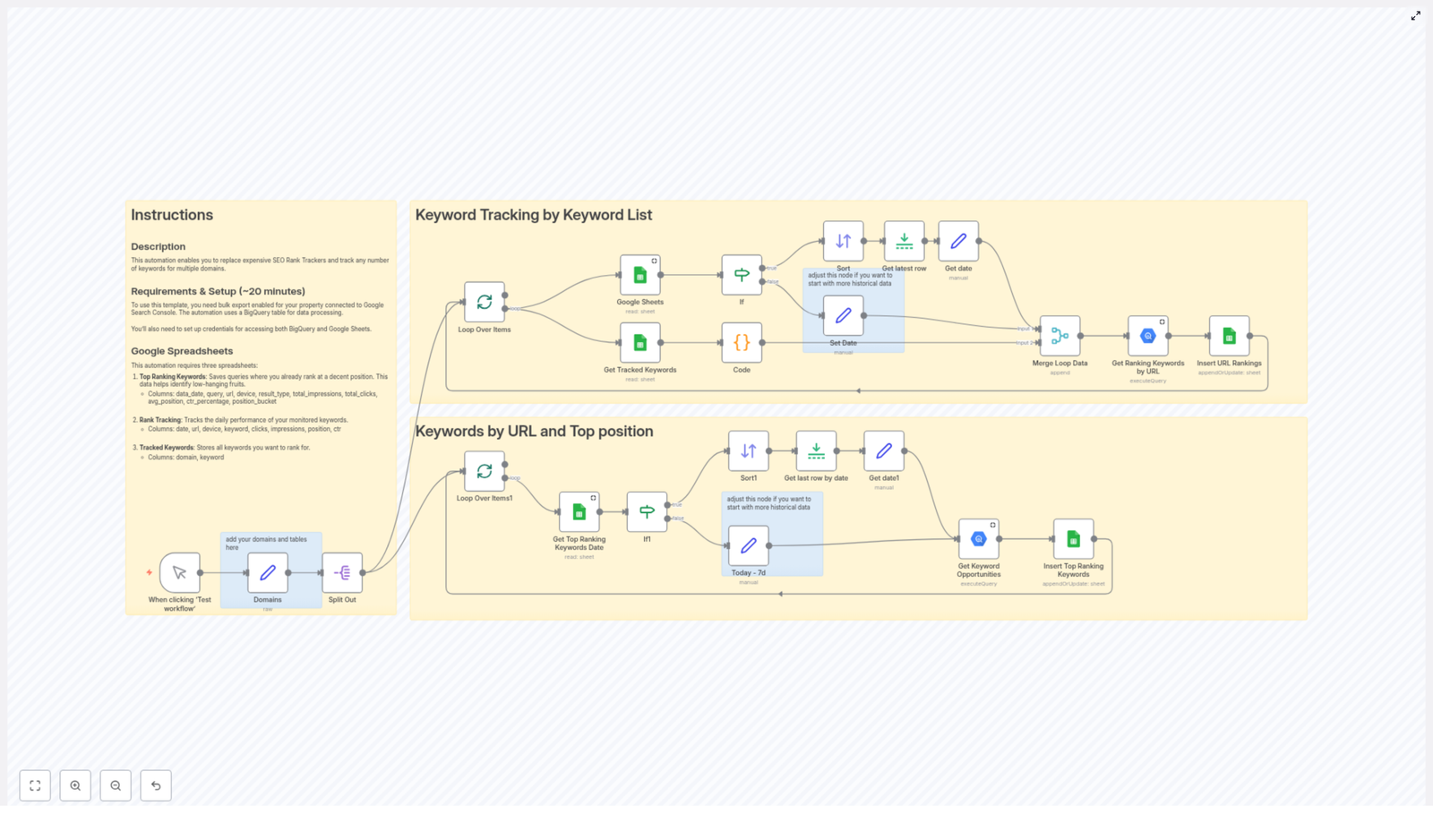
  • Keyword tracking by keyword list – Pulls a list of keywords from Google Sheets for each domain, queries Google BigQuery for performance metrics, and writes fresh ranking data back to your sheets.
  • Keywords by URL and top position – Analyzes your Google Search Console bulk export in BigQuery, finds top ranking keywords by URL, and highlights new keyword opportunities with detailed metrics.

Both processes are bundled into one n8n workflow template. You can start small with a single domain, then scale up to multiple domains and large keyword sets without changing your core setup.

The Journey Through The Workflow

1. Starting The Workflow And Defining Your Domains

The workflow begins with a simple manual trigger. In n8n, you click “Test workflow” to start the run. This gives you full control while you are experimenting, testing, or refining your setup.

Once triggered, a configured node reads your preset domains and their associated Google BigQuery tables. The workflow then splits this domain list so each domain is processed independently. This separation is what makes the template naturally scalable. As you add more domains, the workflow simply loops over them instead of needing a separate workflow for each one.

2. Tracking Keywords From Your Own Lists

The first major process in the template focuses on keywords you explicitly choose to monitor. This is ideal for target terms, priority pages, or campaigns you care deeply about.

  • Loop Over Items – The workflow runs a loop that processes each domain in turn. Every domain is treated as its own item so you can maintain clean, domain specific data.
  • Google Sheets Node – For each domain, n8n connects to a Google Sheet that is named after that domain. This sheet contains the list of tracked keywords you want to follow. The node reads that list and passes it along the workflow.
  • Code Node – The raw keyword list is then converted into a string format that is ready for use inside SQL queries. This step prepares your keywords so they can be safely and efficiently used in BigQuery.
  • Merge Loop Data – The workflow merges the domain information with the formatted keyword string. This combined data set is what the query node uses to request metrics for the right keywords under the right domain.
  • Google BigQuery Node – Here is where the heavy lifting happens. The node sends a query to BigQuery to retrieve daily metrics for your tracked keywords. Typical metrics include clicks, impressions, average ranking position, and click through rate (CTR), filtered by the dates and specific keywords you track.
  • Google Sheets Insert Node – Finally, the workflow writes the fresh metrics into your rank tracking sheet. You can append new rows or update existing ones, depending on how you structure your data. Over time, this sheet becomes a living history of your keyword performance.

This part of the workflow turns your Google Sheets into a dynamic keyword rank tracker that updates itself. No more copying data by hand or logging into multiple tools every morning.

3. Discovering Keyword Opportunities By URL And Position

The second major process in the template looks at your performance from a different angle. Instead of starting from a list of target keywords, it starts from your URLs and identifies which queries are already performing well or have the potential to grow.

  • Loop Over Items1 – Similar to the first process, this loop walks through each domain individually so you can keep your insights clearly separated.
  • Google Sheets Node – For each domain, the workflow reads the latest top ranking keywords from a dedicated Google Sheet. This sheet acts as your reference for what is currently performing well.
  • If Node – To make the workflow more resilient, an If node checks whether previous data exists. If there is no historical data yet, the workflow sets a default starting date, typically 7 days ago, so you can still gather a meaningful initial dataset.
  • Google BigQuery Node – Using your Google Search Console bulk export stored in BigQuery, this node extracts keyword opportunities. It pulls metrics such as impressions, clicks, and average position, then categorizes rankings into groups like Top 3 or Top 10. This makes it easier to spot quick win opportunities or pages that are close to breaking into better positions.
  • Google Sheets Insert Node – The resulting keyword opportunities are written into a dedicated Google Sheet. This sheet becomes your action list, where you can prioritize optimizations, content updates, and internal linking based on real data.

By combining both processes, you get a full picture. You track the keywords you care about and also uncover queries you might not have considered yet but are already driving visibility.

What You Need To Set Everything Up

To unlock the full power of this n8n template, you will need a few components in place. Once they are configured, you will be able to run the workflow repeatedly with minimal effort.

  • Google Search Console bulk export
    Enable bulk export for your Google Search Console property. This sends your performance data to BigQuery on a regular basis and is the foundation for your analysis.
  • Google BigQuery configuration
    Set up Google BigQuery to store and query your Search Console data. Make sure you know which tables correspond to which domains so you can map them correctly in n8n.
  • Three structured Google Sheets
    Create three Google Sheets documents with a clear structure:
    • Top Ranking Keywords – Used to store existing ranking queries and their metrics.
    • Rank Tracking – Used to collect daily performance data for the keywords you monitor over time.
    • Tracked Keywords – Contains the list of keywords to track for each domain. Each domain has its own sheet named after it.
  • Google credentials in n8n
    Configure Google credentials in your n8n instance so the workflow can securely access both BigQuery and Google Sheets.

Once these pieces are in place, you can plug in the template, connect your credentials, and start running test workflows. From there, you can refine your sheets, queries, and schedules until the system perfectly matches your SEO needs.

Why This Automation Template Is Worth Implementing

Building this workflow in n8n is not just a technical exercise. It is a strategic move that supports long term growth for your SEO efforts and your business.

  • Save costs – Replace or reduce reliance on expensive rank tracking tools with a solution built on services you already use, like Google Sheets and BigQuery.
  • Customize everything – Adjust keyword lists, domains, filters, and time ranges to match your exact strategy, instead of adapting to rigid tool limitations.
  • Centralize your data – Keep all key metrics in Google Sheets, where you can easily share, filter, visualize, or connect them to dashboards.
  • Leverage BigQuery power – Use Google BigQuery to process large volumes of Search Console data quickly and reliably, even for multiple domains and big keyword sets.
  • Scale without friction – As you add more domains or expand your keyword lists, the same workflow continues to handle the workload with minimal changes.

Most importantly, this automation frees you from manual updates and gives you consistent, trustworthy data. That consistency is what enables better decisions, faster experiments, and more focused SEO execution.

Next Steps: Experiment, Iterate, And Make It Your Own

Think of this n8n workflow template as your starting point, not your final destination. Once you have it running, you can:

  • Adjust the schedule to run daily, weekly, or at custom intervals
  • Add notifications when rankings change significantly
  • Connect your sheets to BI tools or dashboards for visual reporting
  • Extend the workflow with additional checks or automated follow up tasks

Every small improvement you make will compound over time, giving you a more automated, insight driven SEO process.

Take Action: Start Automating Your Keyword Tracking

You do not need to rebuild everything from scratch. You can start right now by loading this template into your n8n instance and connecting it to your own data. As you see the first automated reports appear in your Google Sheets, you will feel the shift from manual tracking to system driven insight.

If you need guidance while setting things up, you are not alone. Reach out to SEO automation specialists, or explore the n8n community where many users share tips, best practices, and customization ideas for workflows just like this.

Automate Daily AI News Summaries in Traditional Chinese

Automate Daily AI News Summaries in Traditional Chinese with n8n

1. Overview

This guide documents an n8n workflow template that automatically collects daily AI-related news, summarizes it with GPT-4, translates the content into Traditional Chinese, and sends the result to a specified Telegram chat.

The automation is designed for users who already understand basic concepts of APIs, webhooks, and n8n nodes. It focuses on reliability, clear data flow, and easy customization of topics, language, and schedule.

2. Workflow Architecture

The workflow is built in n8n and integrates several external services:

  • News sources: NewsAPI and GNews for English-language AI news.
  • LLM processing: OpenAI GPT-4 for summarization, article selection, and translation into Traditional Chinese.
  • Messaging: Telegram Bot API for delivering the final daily summary.

The core flow can be summarized as:

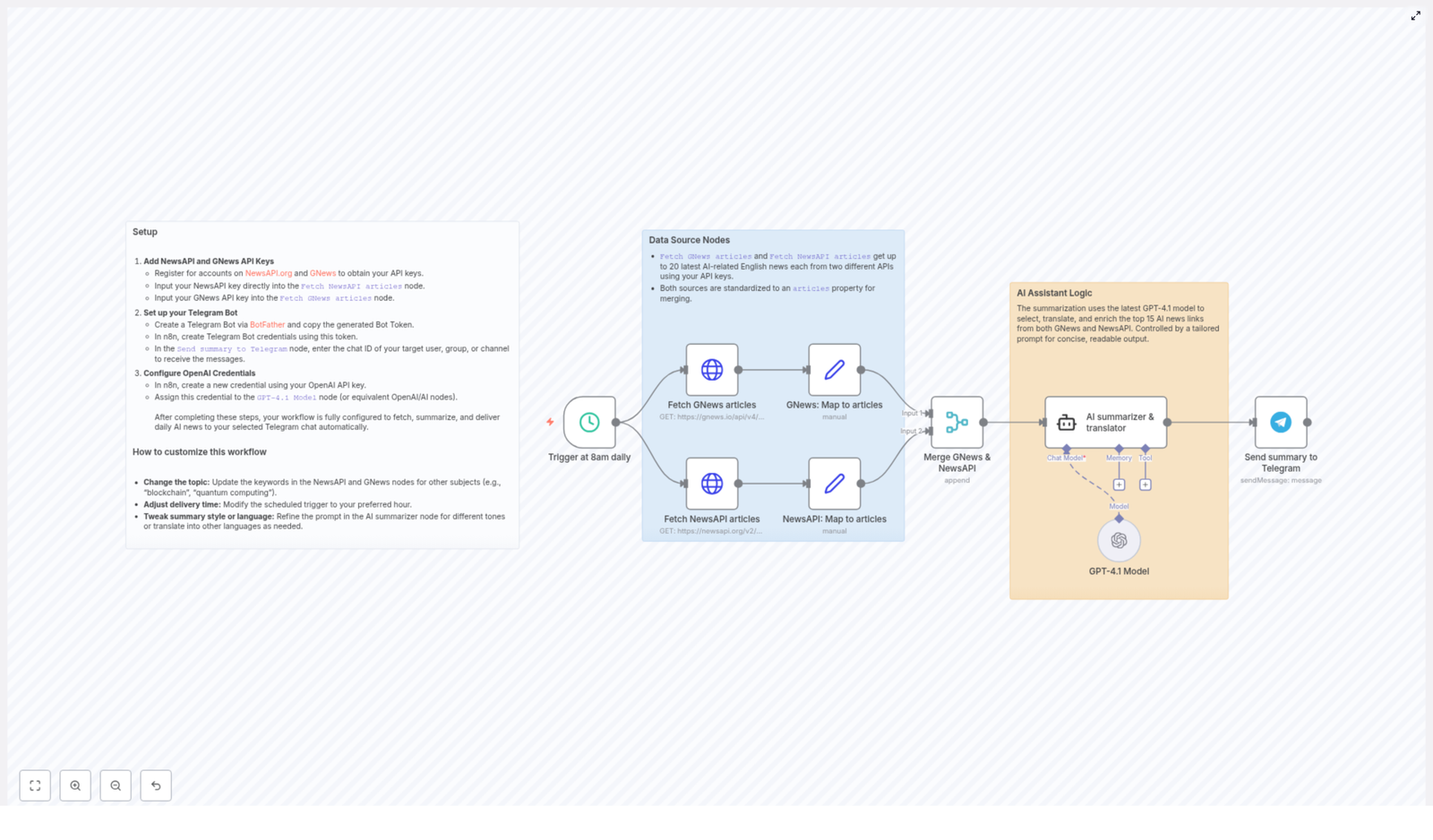
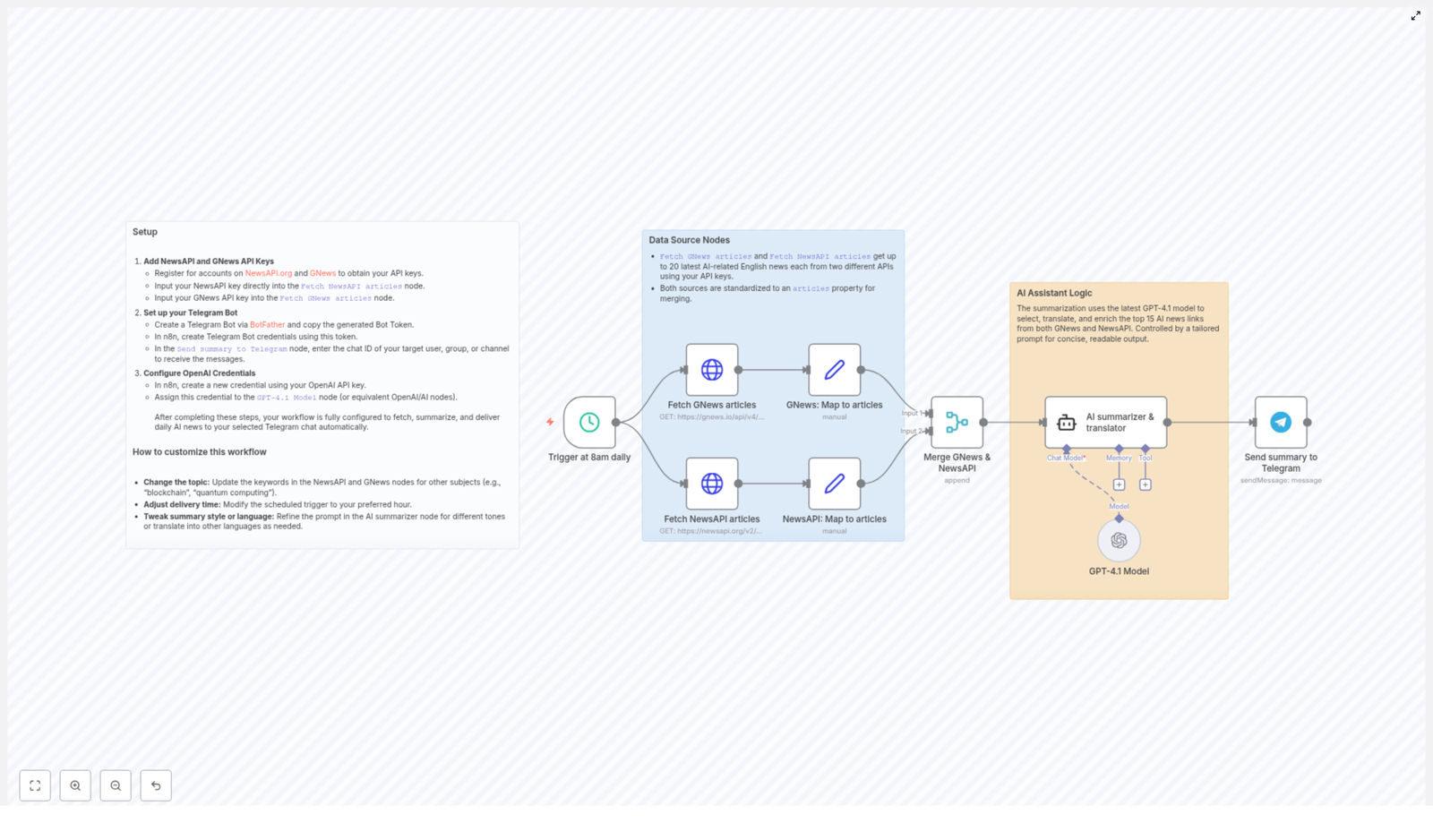
  1. Trigger the workflow on a daily schedule (default: 8:00 AM).
  2. Fetch AI-related news from NewsAPI and GNews.
  3. Normalize both responses to a shared articles structure.
  4. Merge and deduplicate the article list.
  5. Use GPT-4 to select the top 15 relevant articles, summarize them, and translate the content into Traditional Chinese while preserving key technical English terms.
  6. Post the final formatted summary to a specified Telegram chat.

3. Prerequisites and Credentials

3.1 Required API Keys and Tokens

Before importing or running the template, you need the following credentials:

  • NewsAPI API key for global news data.
  • GNews API key for an additional news source.
  • OpenAI API key for GPT-4 access.
  • Telegram Bot Token and the Telegram chat ID where summaries will be delivered.

3.2 Obtaining API Keys

  • NewsAPI: Sign up at newsapi.org and generate an API key from your account dashboard.
  • GNews: Register at gnews.io and obtain your API key.
  • OpenAI: Create or log in to your OpenAI account, generate an API key, and ensure your plan supports GPT-4 access.
  • Telegram Bot:
    • Open Telegram and start a conversation with BotFather.
    • Use the /newbot command to create a bot and obtain the Bot Token.
    • Invite the bot to your target chat (private or group) and obtain the chat ID using any Telegram chat ID lookup method or a simple helper bot.

3.3 Configuring Credentials in n8n

In the n8n UI, configure the following credentials and assign them to the appropriate nodes:

  • NewsAPI credentials: Store your NewsAPI key and link it to the NewsAPI node.
  • GNews credentials: Store your GNews key and link it to the GNews node.
  • OpenAI credentials: Add your OpenAI API key and assign it to the GPT-4 node.
  • Telegram credentials: Create a Telegram Bot credential using your Bot Token and assign it to the Telegram node.

Make sure you select the correct credential in each node, otherwise the workflow will fail at runtime with authentication errors.

4. Node-by-Node Breakdown

4.1 Schedule Trigger Node

  • Node type: Schedule / Cron (Trigger)
  • Purpose: Automatically start the workflow once per day.
  • Default configuration:
    • Frequency: Daily
    • Time: 08:00 (server time or configured timezone)

This node is responsible for initiating the entire pipeline at 8 AM daily. You can adjust the time or frequency to align with your preferred schedule.

4.2 NewsAPI Node

  • Node type: HTTP-based NewsAPI integration (REST API)
  • Purpose: Fetch up to 20 recent global AI-related articles in English.
  • Key parameters:
    • Query / Keywords: AI-related terms (for example, “artificial intelligence”, “AI”, “machine learning”).
    • Language: en (English).
    • Page size / Limit: Up to 20 articles.

The response from NewsAPI typically includes fields such as title, description, url, publishedAt, and source. In the workflow, these fields are later normalized into a shared articles structure.

4.3 GNews Node

  • Node type: HTTP-based GNews integration (REST API)
  • Purpose: Retrieve an additional set of up to 20 AI-related news articles in English from another provider.
  • Key parameters:
    • Query / Keywords: Same or similar AI-related terms as used in NewsAPI.
    • Language: en.
    • Max results: Up to 20 articles.

GNews returns its own schema (for example, title, description, url, publishedAt, source). These fields are also normalized to the common articles property in a later step.

4.4 Data Mapping Nodes (Standardizing Article Data)

  • Node type: Typically a Function, Set, or similar data transformation node.
  • Purpose: Map both NewsAPI and GNews responses to a common schema under a unified articles property.

Both upstream API responses have slightly different structures. To simplify merging and downstream processing, each source is transformed so that the items are stored under a shared articles field with consistent keys, for example:

  • articles[i].title
  • articles[i].description
  • articles[i].url
  • articles[i].publishedAt
  • articles[i].sourceName

This normalization step is critical because the merge node expects a uniform structure. If any field is missing from a source, the mapping node should handle it gracefully, typically by leaving it null or providing a fallback value.

4.5 Merge Node (Combining News Sources)

  • Node type: Merge
  • Purpose: Combine the standardized articles arrays from NewsAPI and GNews into a single comprehensive list.

The merge operation consolidates the two article lists into one unified dataset that will be passed to GPT-4. Depending on the template implementation, the merge may:

  • Concatenate both lists into a single articles array.
  • Preserve basic metadata from both sources.

At this point, the workflow has a combined set of AI-related news items, typically up to 40 articles in total (20 from each API), ready for analysis and summarization.

4.6 GPT-4 Node (Summarization and Translation)

  • Node type: OpenAI (Chat / Completion) using GPT-4
  • Purpose:
    • Select the 15 most relevant AI news articles from the merged list.
    • Summarize the selected articles with a focus on AI technology progress and applications.
    • Translate the resulting summaries into Traditional Chinese.
    • Preserve common technical terms in English for clarity.
    • Format the output with article URLs and a short header containing the current date and a greeting.

The node uses the OpenAI credentials configured earlier and sends the normalized article data as context. The prompt is designed so GPT-4:

  • Filters the articles down to the top 15 based on relevance to AI advancements and real-world applications.
  • Produces concise, high-quality summaries.
  • Outputs the text in Traditional Chinese, with technical English terms left untranslated where appropriate.
  • Includes each article’s URL so readers can access the full original content.
  • Begins the message with the current date and a friendly greeting for daily readability.

If the merged list contains fewer than 15 articles, GPT-4 will work with the available items. The prompt design should handle this scenario implicitly, so the model does not fail when fewer articles are provided.

4.7 Telegram Node (Summary Delivery)

  • Node type: Telegram (Send Message)
  • Purpose: Deliver the formatted AI news summary to the specified Telegram chat.
  • Key parameters:
    • Bot Token: Provided via the configured Telegram credentials.
    • Chat ID: The target user, channel, or group chat where the summaries should be delivered.
    • Message: The final GPT-4 output containing the Traditional Chinese summary and article URLs.

Once the GPT-4 node completes successfully, its text output is passed directly to the Telegram node. The node sends a single consolidated message to your Telegram chat each morning, making it easy to scan the latest AI news at a glance.

5. Detailed Execution Flow

5.1 Daily Trigger at 8 AM

The Schedule node activates the workflow every day at 8 AM. This is the only trigger in the template, which ensures a consistent daily cadence for news retrieval and summary delivery.

5.2 Fetching AI News Articles

Immediately after the trigger fires, the workflow calls both NewsAPI and GNews with your configured API keys. Each request is scoped to AI-related keywords and restricted to English-language results. Both APIs return up to 20 of the most recent relevant articles.

5.3 Normalization to a Common Schema

Since NewsAPI and GNews use slightly different response formats, the workflow uses mapping or transformation nodes to standardize all article items into a uniform articles property. This step ensures that downstream nodes can treat all items identically, regardless of source.

5.4 Merging Articles from Multiple Sources

The standardized article arrays from both APIs are merged into a single list. This gives GPT-4 a broader and more diverse set of news sources, improving coverage and reducing the risk of missing important AI developments.

5.5 AI-Driven Summarization and Translation

The merged article list is passed into the GPT-4 node, along with a carefully structured prompt. GPT-4 then:

  • Evaluates the relevance of each article to AI technology progress and applications.
  • Selects the top 15 articles when available.
  • Generates a concise but informative summary for each selected item.
  • Translates the summaries into Traditional Chinese, keeping technical English terminology intact where it aids understanding.
  • Appends the original URLs so you can open full articles directly from the summary.
  • Prefixes the output with the current date and a short greeting, making each daily message self-contained.

5.6 Telegram Delivery of the Final Summary

The Telegram node receives the GPT-4 output as the message body and sends it to your configured chat ID. The result is a single, well-structured message that arrives at roughly 8 AM daily, containing your curated AI news digest in Traditional Chinese.

6. Configuration and Customization

6.1 Changing the Topic or Domain

You can repurpose this workflow for other domains simply by modifying the query keywords in the NewsAPI and GNews nodes. For example:

  • Replace AI-related keywords with blockchain to track blockchain news.
  • Use quantum computing or similar terms to monitor developments in quantum technologies.

Ensure that both source nodes use consistent or complementary queries so the merged list remains coherent.

6.2 Adjusting Delivery Time and Frequency

To change when the summary is sent:

  • Open the Schedule / Cron node.
  • Update the time (for example, from 08:00 to 07:30 or 21:00).
  • Optionally modify the frequency (for example, multiple times per day or specific weekdays only) according to your needs.

6.3 Customizing Summary Style and Language

The GPT-4 node prompt controls how the summary is generated. You can edit it to:

  • Change the tone (more formal, more casual, or more technical).
  • Adjust the length (short bullet points vs. detailed paragraphs).
  • Translate into a different language instead of Traditional Chinese (for example, Simplified Chinese, English, Japanese).
  • Modify how URLs are displayed or how articles are formatted (numbered list, headings, etc.).

When changing the language, keep the instruction about preserving technical English terms if you still want them left untranslated for clarity.

6.4 Target Chat Configuration

In the Telegram node:

  • Set the Chat ID to your own user ID, a group ID, or a channel ID.
  • Ensure your bot is a member of the target group or channel if it is not a direct chat.

If the chat ID is incorrect or the bot lacks permission to post, the Telegram node will fail and the message will not be delivered.

7. Operational Notes and Edge Cases

7.1 Handling Fewer Articles than Expected

If one of the APIs returns fewer than 20 articles or is temporarily limited, the merged list may contain fewer than 40 items. GPT-4 is instructed to select up to 15 relevant articles, so it will simply work with whatever is available and generate a summary for that subset.

7.2 API Rate Limits and Failures

Because the workflow relies on third-party APIs, consider the following:

  • If NewsAPI or GNews hit rate limits or experience downtime, that node may fail or return an empty result.
  • If the OpenAI API is unavailable or returns an error, the GPT-4 node will fail and the Telegram message will not be sent.
  • Authentication errors will occur if any API key or token is misconfigured or revoked.

In production, you may want to add additional error handling or notifications in n8n (for example, on-error workflows or fallback branches) so you are alerted if any external service fails.

7.3 Message Size Considerations

GPT-4 outputs a consolidated summary text that is then sent as a single Telegram message. In typical usage, this fits comfortably within Telegram’s message size limits, but if you significantly increase the number of articles or the verbosity of the summaries in the prompt, you should be aware of potential message length constraints.

8.

Daily AI News Summary Workflow with GPT-4 & Telegram

Daily AI News Summary Workflow with GPT-4 & Telegram

What You Will Learn

In this guide, you will learn how to use an n8n workflow template to:

  • Fetch the latest AI news automatically from two news APIs
  • Summarize and translate those news articles using GPT-4
  • Send a clean, daily AI news digest to a Telegram chat
  • Customize the topic, language, and delivery time to fit your needs

By the end, you will understand how each node in the workflow works, how the data flows from one step to the next, and how to adapt this template for other topics such as blockchain or quantum computing.

Key Concepts Before You Start

n8n Workflow Automation

n8n is a workflow automation platform that lets you connect APIs and services without writing full applications. In this template, n8n:

  • Triggers the workflow at a specific time every day
  • Calls external APIs to fetch news
  • Passes article data to GPT-4 for summarization and translation
  • Sends the final text to Telegram

News Sources: NewsAPI and GNews

The workflow uses two news providers to increase coverage and reliability:

  • NewsAPI.org – a popular API for news articles from many sources
  • GNews – another news API that provides similar content but from different feeds

Both APIs return AI-related English news articles, which are then combined and standardized inside n8n.

GPT-4 for Summarizing and Translating

GPT-4 is used as the core AI engine. In this workflow it:

  • Selects the most relevant AI articles
  • Summarizes them into a concise daily digest
  • Translates the content into Traditional Chinese
  • Keeps common technical terms in English for clarity

Telegram as the Delivery Channel

Telegram is used to deliver the final summary. The workflow sends the digest to any specified:

  • Individual user chat
  • Group
  • Channel

Once set up, you will receive your AI news summary automatically every day.


Step 1 – Set Up Your API Keys

1.1 Register for NewsAPI and GNews

First, you need API keys for both news providers:

  • Go to NewsAPI.org and create an account to get your NewsAPI key.
  • Go to GNews and register to obtain your GNews API key.

1.2 Add Keys to the Correct n8n Nodes

In your imported n8n template, locate the news fetching nodes and insert your keys:

  • Open the "Fetch NewsAPI articles" node and paste your NewsAPI key into the appropriate field.
  • Open the "Fetch GNews articles" node and paste your GNews API key there.

These nodes will query the APIs for up to 20 of the latest AI-related English articles each day.


Step 2 – Configure Your Telegram Bot

2.1 Create a Telegram Bot

To send messages from n8n to Telegram, you need a bot:

  • Open Telegram and start a chat with BotFather or visit the docs at BotFather.
  • Follow the instructions to create a new bot.
  • Copy the bot token that BotFather gives you. You will need it in n8n.

2.2 Add Telegram Credentials in n8n

  • In n8n, create a new Telegram Bot credential and paste your bot token into it.
  • Assign this credential to the "Send summary to Telegram" node.

2.3 Set the Telegram Chat ID

You must tell the workflow where to send the summary:

  • Find the chat ID of the user, group, or channel where you want to receive the digest.
  • In the "Send summary to Telegram" node, enter this chat ID in the corresponding field.

After this step, the workflow will be able to post the AI news summary directly into that Telegram chat.


Step 3 – Connect OpenAI (GPT-4) to n8n

3.1 Create OpenAI Credentials

  • Obtain your OpenAI API key from your OpenAI account.
  • In n8n, create a new credential entry for OpenAI and paste your API key.

3.2 Attach GPT-4 to the AI Node

The template uses a GPT-4 based node for summarization and translation:

  • Locate the "GPT-4.1 Model" node (or the equivalent OpenAI / AI node in your n8n instance).
  • Assign the OpenAI credential you just created to this node.

This node will receive the collected articles, process them, and return a structured daily summary in Traditional Chinese.


How the Workflow Runs in n8n

4.1 Daily Trigger

The workflow starts with a scheduled trigger:

  • It is configured to run automatically every day at 8 AM.
  • You can later adjust this time if you want a different delivery schedule.

4.2 Fetching AI News from Two Sources

Once triggered, n8n runs both news nodes:

  • Fetch NewsAPI articles – calls the NewsAPI endpoint to get recent AI-related English articles.
  • Fetch GNews articles – calls the GNews API for similar AI news.

Each node can fetch up to 20 of the latest AI news articles. Using both APIs increases the chance of covering more sources and perspectives.

4.3 Mapping Articles into a Common Format

Because NewsAPI and GNews return slightly different JSON structures, the workflow uses mapping nodes to standardize the data:

  • Each source passes through a node that reshapes the response.
  • The result is a unified articles property for each source.

This makes it easier for later nodes to treat all articles in the same way, regardless of which API they came from.

4.4 Merging the Two Article Lists

After mapping, a Merge node combines the standardized articles:

  • Articles from NewsAPI and GNews are merged into a single dataset.
  • The output is a consolidated list of AI articles ready for AI processing.

4.5 AI Summarization and Translation with GPT-4

The merged articles are then sent to the GPT-4 node, which performs several tasks in one step:

  • Selects the 15 most relevant AI news articles from the merged list.
  • Generates a concise daily summary that includes:
    • The date at the beginning of the summary
    • A brief explanation of each selected article
    • The URL of each article for further reading
  • Translates the content into Traditional Chinese, while:
    • Preserving common technical terms in English to avoid confusion

The exact behavior is controlled by the prompt you configure in the GPT-4 node. You can adjust this prompt later to change tone, level of detail, or language.

4.6 Sending the Summary to Telegram

Finally, the output from GPT-4 is passed into the "Send summary to Telegram" node:

  • The node uses your Telegram Bot credentials to authenticate.
  • It sends the generated text to the chat ID you specified earlier.

At this point, your daily AI news digest appears automatically in Telegram at your scheduled time.


Customizing the Workflow for Your Needs

5.1 Change the Topic or Keywords

You are not limited to AI news. To track other fields:

  • Open the "Fetch NewsAPI articles" node and update the search keywords or query parameters.
  • Do the same in the "Fetch GNews articles" node.

For example, you can switch from "artificial intelligence" to topics such as:

  • "blockchain"
  • "quantum computing"
  • Any other domain-specific keywords you want to monitor

5.2 Adjust the Delivery Time

If 8 AM is not ideal for you or your team:

  • Open the schedule / trigger node at the start of the workflow.
  • Change the configured time to your preferred hour or frequency.

You can, for instance, send summaries before your daily standup or at the end of the workday.

5.3 Modify Summary Style and Language

The GPT-4 node is very flexible. You can tailor the output by editing the prompt:

  • Change tone – make the summary more formal, casual, or analytical.
  • Change detail level – ask for shorter bullet points or more in-depth explanations.
  • Change language – instead of Traditional Chinese, you can translate into any other language you prefer.

Just update the instructions in the AI summarizer node and test the workflow to see how the output changes.


Quick Recap

  • The workflow triggers every day at a set time (default 8 AM).
  • NewsAPI and GNews nodes fetch up to 20 English AI news articles each.
  • Mapping nodes standardize the responses into a common articles structure.
  • A Merge node combines all articles into one dataset.
  • GPT-4 selects the top 15 articles, summarizes them, translates to Traditional Chinese, and includes URLs.
  • The final summary is posted directly to your chosen Telegram chat using your bot.
  • You can customize topic, time, style, and language by adjusting node settings and prompts.

FAQ

Do I need coding skills to use this n8n template?

No. You mainly configure nodes, enter API keys, and adjust some text prompts. The logic is already built into the template.

Can I change the number of articles summarized?

Yes. The template is set to select 15 articles, but you can modify the AI prompt or logic in the GPT-4 node to use a different number.

Is it possible to keep the summary in English only?

Yes. Edit the GPT-4 prompt and remove the translation instruction, or ask it to summarize directly in English or any other language you want.

Can I send the summary to multiple Telegram chats?

You can duplicate the "Send summary to Telegram" node and configure each copy with a different chat ID, or build a loop over a list of chat IDs if needed.


Get Started with the Template

Once you have your API keys and credentials ready, you can import and run the workflow template in n8n. It will handle your daily AI news intake automatically, keep you and your team informed, and push updates straight into Telegram.

Customize it for your own topics, languages, and timing to turn it into a reusable daily briefing system.

Unique QR Code Coupon System for Lead Generation

Unique QR Code Coupon System for Lead Generation

From Manual Chaos to Confident Automation

If you have ever tried to run a coupon campaign manually, you know how quickly it can become messy. Spreadsheets get out of sync, duplicate leads slip through, and you are never quite sure which codes are still valid. It is stressful, time consuming, and it pulls your focus away from what really matters: building relationships, growing your business, and creating better offers.

Automation gives you a different path. Instead of chasing down coupon codes and updating records by hand, you can design a system that quietly works in the background, assigns unique QR codes, validates them in real time, and keeps your CRM and sheets perfectly aligned.

This is where n8n comes in. With a single workflow, you can transform a basic coupon campaign into a powerful, trackable lead generation engine that runs on autopilot.

Shifting Your Mindset: From Tasks to Systems

Before diving into the template, it helps to think not just in terms of tools, but in terms of systems. Every time someone submits a form, scans a QR code, or redeems a coupon, you have an opportunity to:

  • Capture clean, structured lead data
  • Deliver a consistent, on-brand experience
  • Track performance across your entire campaign
  • Free yourself and your team from repetitive work

Instead of asking, “How do I send this coupon?” you start asking, “How can I design a repeatable flow that handles this for me, every time, without fail?”

The n8n workflow template described here is a practical example of that mindset. It turns form submissions, coupon assignment, and QR code validation into a single, cohesive system that you can adapt, extend, and improve over time.

The Vision: A Fully Automated QR Code Coupon Journey

At the heart of this setup is a unique QR code coupon system that connects your landing page, Google Sheets, SuiteCRM, and email delivery, all orchestrated through n8n automation.

The workflow is designed to handle two core actions from start to finish:

  • Lead generation with coupon assignment – When a user submits a form, the system checks for duplicates, assigns a unique coupon, stores the lead in SuiteCRM, and sends a QR code by email.
  • Coupon validation – When the QR code is scanned or the coupon code is submitted via webhook, the system validates the code, checks if it was already used, and updates your CRM and Google Sheet accordingly.

Once this is in place, every new lead follows the same reliable path. You get consistency, your leads get instant rewards, and your campaigns become easier to measure and scale.

Step 1 – Capturing Leads and Avoiding Duplicates

The journey begins when someone fills out your landing page form. You collect essential details such as Name, Surname, Email, and Phone. This is where n8n starts doing the heavy lifting for you.

Using the n8n form trigger, the workflow performs several actions in sequence:

  • Form Fields node – Extracts the submitted data from the form so each field is cleanly available for later steps.
  • Duplicate Lead? (Google Sheets node) – Checks a Google Sheet that acts as your lead and coupon database. It looks for the submitted email to see if this person already exists.
  • If node – Based on the result, the workflow decides whether to treat this as a new lead or a duplicate. This protects you from accidentally assigning multiple coupons to the same person.

This simple logic already saves you time and prevents confusion. No more manually scanning spreadsheets or CRM records to see whether someone has already received a coupon.

Step 2 – Assigning a Unique Coupon and Sending the QR Code

When the workflow identifies a new lead, it moves into assignment mode. This is where the system starts to feel truly automated: a coupon is assigned, the CRM is updated, and a QR code is delivered, all in one smooth flow.

Here is what happens behind the scenes:

  • Retrieve an available coupon from Google Sheets – The workflow selects the first unassigned coupon from your coupons sheet. This ensures each lead gets a unique code.
  • Token SuiteCRM (HTTP Request node) – The workflow requests an authentication token from SuiteCRM using your API credentials. This token is needed for all subsequent CRM operations.
  • Create Lead SuiteCRM (HTTP Request node) – Using the token, n8n creates a new Lead record in SuiteCRM, including the form data and the assigned coupon code.
  • Update Sheet node – The Google Sheet is updated with the new lead details and the coupon assignment so your sheet stays in sync with your CRM.
  • Get QR node – A QR code URL is generated that links directly to your coupon validation webhook. This is what turns a simple code into a scannable, trackable experience.
  • Send Email node – Finally, an email is sent to the lead that includes the QR code image and clear instructions on how to redeem the coupon.

From the lead’s perspective, they submit a form and receive a professional, personalized coupon email in minutes. From your perspective, everything is handled automatically, with data captured and stored in the right places.

Step 3 – Validating Coupons via QR Code

The story does not end when the coupon is sent. The real value comes when you can reliably track redemptions and prevent misuse. This is where the coupon validation flow comes into play.

A dedicated webhook in n8n listens for incoming QR code validations. Whenever a coupon QR code is scanned or a coupon code is submitted, the workflow activates and runs through a clear validation process:

  • Set coupon – Extracts the coupon code from the incoming request query so it can be checked against your records.
  • If node – Confirms that a coupon code was provided and that it exists in your dataset.
  • Get Lead (Google Sheets node) – Retrieves the lead details linked to that coupon from the Google Sheet.
  • Not used? – Checks whether the coupon has already been redeemed or is still available.

When the Coupon is Valid

If the coupon exists and has not been used, the workflow completes the redemption process:

  • Token SuiteCRM 1 node – Generates a SuiteCRM authentication token for this validation step.
  • Update Lead (HTTP Request node) – Updates the corresponding lead in SuiteCRM, marking the coupon as used so your CRM always reflects the current status.
  • Update coupon used (Google Sheets) – The Google Sheet is updated to mark the coupon as redeemed, keeping your sheet and CRM aligned.
  • Coupon OK – Sends a response confirming that the coupon is valid and has been successfully processed.

This gives you accurate, real time visibility into who used which coupon and when, without any manual tracking.

When the Coupon is Invalid or Already Used

If the coupon does not exist or has already been redeemed, the workflow handles that gracefully too:

  • No coupon / Coupon KO nodes – Reply with clear, appropriate messages indicating that the coupon is invalid or has already been used.

Instead of confusion at the point of redemption, you provide immediate, consistent feedback. Your system protects your promotions and your customers understand exactly what is happening.

Technical Notes, Best Practices, and Room to Grow

This template is not just a one-off solution. It is a solid foundation you can build on as your campaigns and business grow. To get the most from it, keep these points in mind:

API Credentials and Configuration

  • Replace placeholders like SUITECRMURL, CLIENTID, CLIENTSECRET, and email-related settings with your real environment values.
  • Test your authentication steps in n8n to confirm that SuiteCRM and your email provider respond correctly before going live.

Using Google Sheets as a Lightweight Database

  • The workflow uses Google Sheets to store coupons and leads, which works very well for small and medium scale campaigns.
  • If your volume grows significantly, you can use this template as a blueprint and later migrate to a more robust database or a different CRM, while keeping the same overall flow.

Security and Reliability

  • Run your n8n instance over HTTPS to protect data in transit.
  • Keep your webhook URLs private and consider adding rate limiting or additional validation to avoid misuse.
  • Regularly review your logs in n8n to ensure each step is running smoothly and to catch any configuration issues early.

Customization and Experimentation

  • Add more form fields and validation rules to qualify leads better.
  • Adjust email content and design to match your brand and improve conversion.
  • Integrate with other CRMs or marketing platforms if SuiteCRM is not your main system, using similar HTTP Request nodes.
  • Introduce different coupon types, expiration dates, or segmentation logic as your campaigns evolve.

Think of this template as a starting point, not a finished product. As you learn what works best for your audience, you can refine, extend, and optimize it without rebuilding everything from scratch.

Turning This Template Into Your Next Growth Lever

Implementing a unique QR code coupon assignment and validation system is more than a technical upgrade. It is a strategic move toward smarter, more scalable marketing. You gain:

  • Cleaner lead acquisition with automatic duplicate checks
  • Faster, more reliable coupon delivery through QR code emails
  • Accurate tracking of coupon usage inside Google Sheets and SuiteCRM
  • More time and mental space to focus on strategy instead of manual tasks

Every campaign you run with this workflow teaches you something new. You can test different offers, tweak messaging, and experiment with follow-up sequences, all while knowing that the operational side is handled by automation.

Ready to Build Your Own Automated Coupon Engine?

You do not need to start from a blank canvas. This n8n workflow template gives you a ready made structure that you can plug into your environment, customize, and grow with.

Set it up once, iterate as you go, and let automation carry the repetitive workload so you can focus on high impact work: designing better campaigns, nurturing leads, and scaling your business.

Start deploying your unique QR code coupon system today and turn every new lead into a smooth, trackable, and rewarding experience.