Build a Rental Price Estimator with n8n & LangChain

Build a Rental Price Estimator with n8n & LangChain

Imagine never having to guess rental prices again or juggle spreadsheets and half-baked comps from three different tabs. With this n8n workflow template, you can spin up a rental price estimator that pulls in comparable listings, reasons about them with an LLM, and logs everything neatly for you.

In this guide, we will walk through how the template works, when to use it, and how to set it up step by step. Think of it as a friendly blueprint for automating your rental pricing using:

  • n8n for workflow orchestration
  • LangChain components with Cohere embeddings and Anthropic chat
  • Supabase as a vector store
  • Google Sheets for easy logging and analysis

If you work with rental properties, this setup can quickly become your go-to pricing assistant.


What this rental price estimator actually does

At a high level, this n8n workflow takes in property details, finds relevant comparable listings, then asks an LLM to suggest a fair rental price, complete with reasoning and a confidence score.

Under the hood, the template does all of this in one flow:

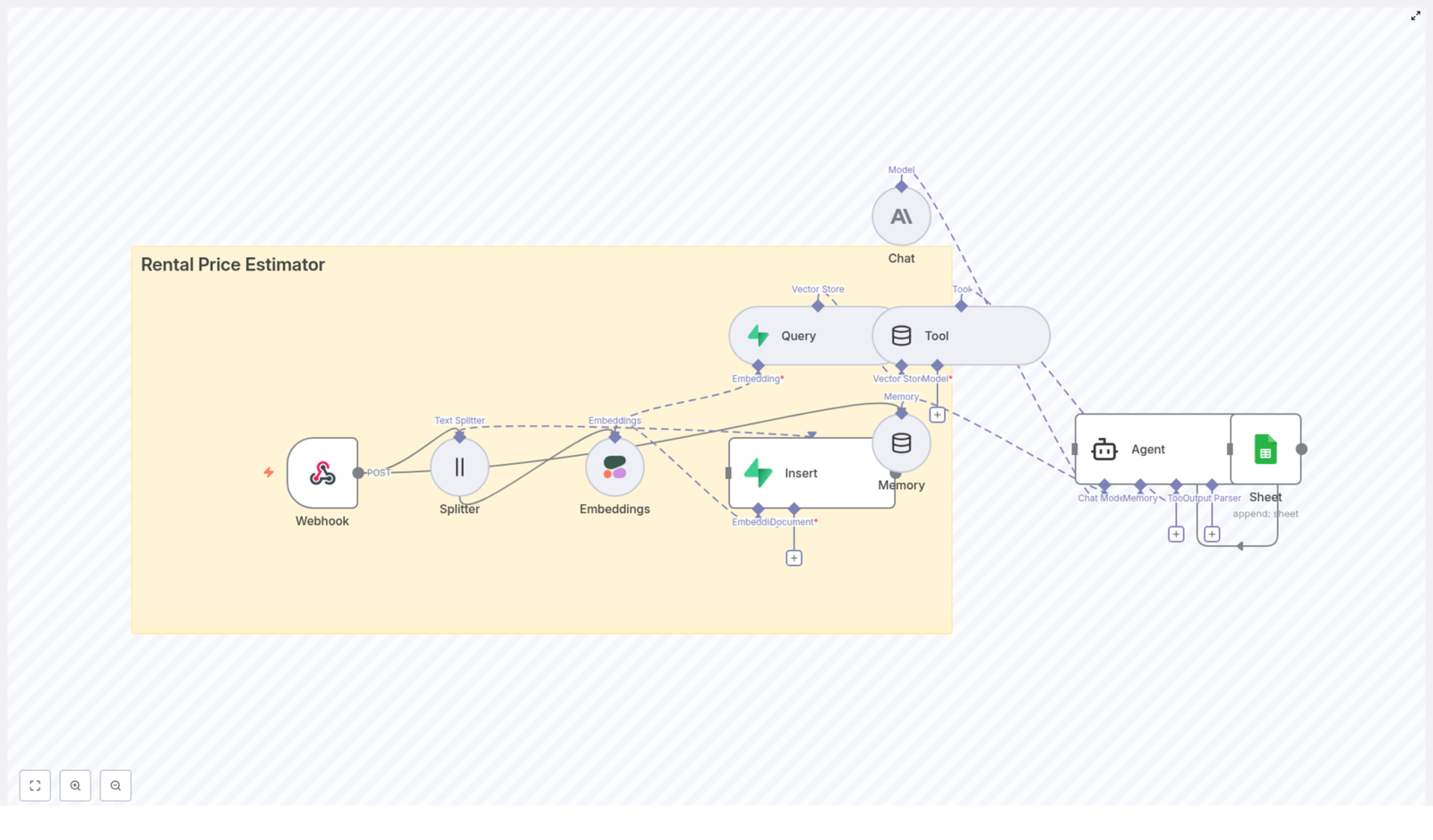
  • Accepts property data through a webhook
  • Splits long descriptions into chunks
  • Generates embeddings with Cohere
  • Stores and queries vectors in Supabase
  • Uses a LangChain agent with Anthropic chat to reason about comps
  • Maintains short-term memory across related queries
  • Logs the final recommendation to Google Sheets

The result: a repeatable, auditable system that turns raw property data into a clear rental price recommendation.


When you would use this workflow

This template is ideal if you:

  • Manage multiple rentals and need consistent pricing suggestions
  • Want to standardize how your team evaluates comps
  • Use or plan to use vector search and LLMs in your pricing process
  • Like the idea of logging every recommendation for later review

Instead of manually hunting for comparables and eyeballing prices, you can send a simple JSON payload to a webhook and let the workflow do the heavy lifting.


Why this architecture works so well

This setup brings together lightweight automation with modern AI building blocks. Here is why it is worth using this specific pattern:

  • Fast ingestion: A webhook receives property data instantly, and a text splitter breaks up long descriptions so they are easier to embed and search.
  • Smart search: Cohere embeddings stored in Supabase power semantic search, so you are not just matching on keywords but on meaning.
  • LLM reasoning: Anthropic (or another LLM) acts as an agent that reads the comparables, adjusts for differences, and recommends a price.
  • Easy logging: Google Sheets acts as a simple analytics and audit layer, so you can track how prices change over time.
  • Room to grow: You can plug in more data sources, analytics, or notifications without rethinking the whole design.

In short, you get a context-aware rental price recommender that is both practical and extensible.


How the workflow is structured

Let us look at the main pieces of the n8n template and what each one does.

Core components

  • Webhook
    Receives property data such as address, bedrooms, bathrooms, square footage, amenities, and market notes.
  • Text Splitter
    Breaks long descriptions into chunks so they can be embedded more effectively. The template uses a chunk size of 400 characters with 40 characters overlap.
  • Embeddings (Cohere)
    Converts each text chunk into a vector representation using Cohere embeddings.
  • Supabase Insert
    Stores vectors in a Supabase vector table named rental_price_estimator along with helpful metadata like address and square footage.
  • Supabase Query
    When you want to estimate a price, this node retrieves the most similar vectors, effectively pulling in relevant comparables and rules.
  • Tool + Agent (LangChain)
    Exposes the vector results to an agent that uses Anthropic chat to synthesize a recommended price, a range, reasoning, and a confidence rating.
  • Memory
    Keeps a short chat-memory window so related questions or follow-ups can reuse context.
  • Google Sheets
    Logs the original input and the final recommendation for auditing, trend analysis, and debugging.

Step 1: Deploy the n8n workflow

First, import the provided template into your n8n instance. Once it is in your workspace, you will need to connect a few services so everything runs smoothly.

Make sure you have valid credentials for:

  • Cohere API key for generating embeddings
  • Supabase URL and service role key for creating and querying the vector index
  • Anthropic (or another LLM provider) API key for the agent or chat node
  • Google Sheets OAuth credentials for appending logs to your spreadsheet

Once those connections are set, the workflow can handle the full loop from input to recommendation.


Step 2: Configure the webhook input

The webhook is your entry point. This is where you send property details for pricing.

Configure the webhook node with:

  • Path: for example, /rental_price_estimator
  • Method: POST

The webhook should accept JSON payloads like this:

{  "address": "123 Main St",  "bedrooms": 2,  "bathrooms": 1,  "sqft": 850,  "description": "Bright top-floor unit near transit; updated kitchen; no elevator",  "market_notes": "recent comps show rising demand in the neighborhood"
}

You can adjust the schema to match your own systems, but keep these fields or equivalents so the agent has enough context to work with.


Step 3: Split text and create embeddings

Property descriptions, inspection notes, or market reports can get long. Instead of embedding one huge block of text, the workflow splits them into smaller pieces for better semantic search.

The default configuration in the template uses:

  • Chunk size: 400 characters
  • Overlap: 40 characters

You can tune these values. For very detailed descriptions or longer documents, you might increase the chunk size or adjust the overlap for more context in each chunk.

After splitting, the Cohere node generates embeddings for each chunk. Use a stable Cohere embedding model so that vectors remain consistent over time, especially if you plan to re-run queries against historical data.


Step 4: Store and query vectors with Supabase

Next, those embeddings are stored in a Supabase vector table. The template expects a table (or index) called rental_price_estimator.

Indexing data

When inserting vectors into Supabase, include useful metadata for each record, such as:

  • Address
  • Number of bedrooms
  • Square footage
  • Date or timestamp
  • A short summary of the listing or notes

This metadata is very handy later when you want to filter comparables by neighborhood, size, or recency.

Querying comparables

When you request a price estimate, the Supabase query node pulls back the most similar vectors. A common pattern is to fetch the top N results, for example the top 5 comparables.

To improve the quality of matches, combine:

  • Semantic distance from the embeddings
  • Metadata filters, such as:
    • Same or nearby neighborhood
    • Square footage within about ±15 percent
    • Recent dates, such as within the last 90 days

This gives the agent a focused set of comparables that are actually relevant to the property you are pricing.


Step 5: Let the agent reason about the price

Once you have a set of comparables, it is time for the LLM to do what it does best: reason over the data and produce a clear recommendation.

The LangChain Agent node receives:

  • The formatted input property details
  • The top vector results from Supabase (comps, rules, notes)

From there, prompt engineering is key. You want the agent to follow a structured thought process so that its output is both useful and consistent.

What your prompt should ask for

In your prompt template, guide the agent to:

  • Compare the input property to the retrieved comparables
  • Adjust for differences in size, condition, and amenities
  • Suggest a rental price range and a single recommended price
  • Explain the reasoning in a short, human-readable way
  • Return a confidence level such as low, medium, or high

Prompt example

Given the input property and the following comparable listings, suggest a fair monthly rental price range and a recommended price. Show your reasoning and confidence.

Input: {address}, {bedrooms}BR, {bathrooms}BA, {sqft} sqft

Comparables:
1) {comp1_summary} - {comp1_rent}
2) {comp2_summary} - {comp2_rent}
...

Adjust for size, condition, and market notes.

You can iterate on this prompt over time to better match your local market rules or business preferences.


Memory, logging, and monitoring

Using memory for context

The workflow includes a short chat-memory window so the agent can maintain context across related queries. This is useful if you run a series of questions about the same property or ask follow-ups on the initial recommendation.

Logging to Google Sheets

For transparency and analysis, the final step is logging. The Google Sheets node records:

  • The original input payload
  • The recommended price and price range
  • The confidence level
  • A timestamp or date

This gives you an easy way to:

  • Audit past recommendations
  • Track model or market drift over time
  • Spot patterns and manually correct outliers

If you prefer more advanced monitoring, you can also send key metrics to a dashboard tool like Grafana.

Sample output format

Here is an example of what the final output from the agent might look like:

{  "recommended_price": 2100,  "price_range": "2000-2200",  "confidence": "high",  "rationale": "Two nearby comparables at similar size are renting for $2,050 and $2,150. Adjusting for updated kitchen adds +$50."
}

This is easy to log, easy to read, and easy to integrate with other systems.


Best practices for accurate rental estimates

To get reliable results, a bit of data hygiene and tuning goes a long way.

  • Normalize your data
    Make sure units are consistent. Use the same floor-area units, bedroom counts, and amenity labels so you are comparing like with like.
  • Favor recent comparables
    Include transaction dates in your metadata and prioritize comps from the last 90 days where possible, unless the market is very thin.
  • Watch for embedding drift
    If you change embedding models in Cohere, plan to reindex critical data so semantic search remains accurate.
  • Use confidence wisely
    When the agent reports low confidence, route those cases to a human for review rather than acting automatically.
  • Validate inputs
    Add basic validation and rate limiting to your webhook to prevent garbage data or abuse from skewing your vector store.

Ideas for extending your rental price estimator

Once the core workflow is running, you can start to get creative. Here are a few directions to explore:

  • Automated market updates
    Ingest market data from CSV files or APIs (for example from an MLS) to keep your Supabase vector store in sync with current conditions.
  • Notifications and alerts
    Connect messaging tools to notify property managers or owners whenever a new recommendation is generated.
  • A/B testing pricing strategies
    Experiment with different prompts or heuristics to optimize for occupancy, revenue, or time on market.
  • REST integration
    Expose a REST endpoint that returns machine-readable JSON with price, range, and rationale. Perfect for integrating with listing sites, CRMs, or internal tools.

Security and compliance considerations

Since you may be dealing with property owner information or sensitive data, it is important to treat security as a first-class concern.

  • Secure all credentials for Cohere, Supabase, Anthropic, and Google Sheets.
  • Use HTTPS for your webhook endpoints.
  • Redact or avoid storing personally identifiable information in long-term logs where it is not strictly needed.
  • For regulated markets, add a manual review queue for:
    • Recommendations above certain thresholds
    • Cases where the agent reports low confidence

This lets you enjoy the benefits of automation while staying compliant and responsible.


Putting it all together: how to get started

So how do you go from reading about this to actually using it in your pricing workflow?

  1. Import the “Rental Price Estimator” n8n template into your instance.
  2. Connect your credentials for Cohere, Supabase, Anthropic, and Google Sheets.
  3. Configure the webhook at a path like /rental_price_estimator.
  4. Send a few test POST requests with sample property data.
  5. Review the results in Google Sheets and compare them to your own market knowledge.
  6. Iterate on:
    • Prompt templates
    • Supabase filters and metadata
    • Chunk sizes and overlap in the text splitter

After a few iterations, you will have a pricing assistant that feels tailored to your market and your way of working.


Ready to try it?

If you are looking to speed up and standardize rental pricing for your portfolio, this n8n template gives you a strong starting point. Import it, connect your tools, and start experimenting with real listings.

Need help adapting the estimator to your specific market rules or integrating it into your CRM or listing pipeline? You can always reach out for a consultation or request a custom workflow build.

Get started now: Import the “Rental Price Estimator” n8n template, fire a few test
Build a Rental Price Estimator with n8n & LangChain

Build a Rental Price Estimator with n8n & LangChain

This guide explains how to design and implement a production-grade rental price estimator using an n8n workflow combined with LangChain components. The solution uses a webhook entry point, text splitting, Cohere embeddings, a Supabase vector store, an Anthropic chat model, conversational memory, and Google Sheets logging.

The architecture is intended for automation professionals and data teams who want a low-code, explainable pipeline for ingesting property listings, enriching them with semantic embeddings, retrieving comparable rentals, and generating defensible pricing recommendations.

Why use this architecture for rental pricing?

Rental pricing is fundamentally a similarity problem. Estimating a fair rent requires:

  • Historical listings and recent market data
  • Semantic understanding of property descriptions
  • Structured comparison of features such as bedrooms, bathrooms, and amenities

Embedding-based similarity search gives the estimator a memory of comparable properties, while structured metadata ensures that results are locally relevant and comparable in size and configuration. n8n acts as the orchestrator that ties together LangChain components, external APIs, and logging in a visual, maintainable workflow.

Core concepts and components

  • n8n workflow as the automation backbone
  • LangChain embeddings for semantic representation of property descriptions
  • Supabase vector store for scalable similarity search
  • Cohere & Anthropic integration for embeddings and LLM-based reasoning
  • Google Sheets as an auditable log and analytics surface

End-to-end workflow overview

The rental price estimator follows a clear sequence from data ingestion to final logging:

  1. Webhook (POST) receives new property data from your frontend or ingestion service.
  2. Text Splitter divides long descriptions into overlapping chunks.
  3. Cohere Embeddings convert each chunk into a numeric vector.
  4. Supabase vector store stores vectors with property metadata under an index such as rental_price_estimator.
  5. Vector Store Query retrieves top-k similar listings when a new estimate is requested.
  6. Tool node exposes the vector store retrieval as a callable tool for the Agent.
  7. Memory node maintains short-term conversational and query context.
  8. Anthropic Chat model synthesizes comparable listings, applies adjustments, and generates a recommended price range.
  9. Google Sheets logging records each estimate for auditability and performance monitoring.

Detailed node-by-node implementation

1. Webhook (POST) – Entry point for property data

The workflow starts with an n8n Webhook node configured to accept POST requests. This node receives the raw property payload from your application or data ingestion pipeline.

Typical fields include:

  • Address and neighborhood or region
  • Number of bedrooms and bathrooms
  • Square footage or floor area
  • Amenities (parking, laundry, outdoor space, etc.)
  • Free-text description of the property
  • Optional fields such as images, building age, or property type

Standardizing these fields at ingestion time simplifies downstream retrieval and reasoning.

2. Text Splitter – Preparing descriptions for embeddings

Long property descriptions need to be broken into smaller segments to work effectively with embedding models. The Text Splitter node handles this step.

Recommended configuration:

  • Chunk size: around 400 characters
  • Chunk overlap: around 40 characters

This configuration keeps each chunk within token limits while preserving important context across chunk boundaries. The result is a list of text segments ready for embedding.

3. Cohere Embeddings – Semantic representation

The Cohere node converts each text chunk into an embedding vector. These vectors capture the semantic meaning of the property description, including style, quality, and amenities, not just keywords.

Key considerations:

  • Select an embeddings model that balances cost and performance for your scale.
  • Ensure consistent dimensionality across all stored vectors.
  • Batch embedding requests when possible to manage API limits and costs.

4. Supabase Vector Store – Ingestion and indexing

Once embeddings are generated, they are inserted into a Supabase vector store table. Each row typically includes:

  • The embedding vector
  • Property ID or unique key
  • Location or neighborhood
  • Current or historical rental price
  • Date listed or time window
  • Structured features such as beds, baths, square footage, and amenities

Use a dedicated index name such as rental_price_estimator so that downstream query nodes can reliably target the correct vector collection.

5. Vector Store Query & Tool Node – Retrieving comparables

When an estimate is requested for a new property, the workflow:

  1. Embeds the new property description using the same Cohere model.
  2. Uses a Vector Store Query node to search the Supabase index for the top-k similar listings.
  3. Wraps this retrieval logic in a Tool node so the Agent can call it as needed.

The Tool node effectively exposes the vector store as a retrieval function inside the LangChain Agent, allowing the LLM to pull in comparable listings dynamically during reasoning.

For best results, combine the similarity search with metadata filters. For example, restrict or boost results by:

  • Neighborhood or micro-market
  • Bedroom count and bathroom count
  • Property type (apartment, townhouse, single-family)

6. Memory (Buffer Window) – Short-term conversational context

The Memory node, typically a buffer window, maintains recent conversation turns and query results. This is useful when:

  • The user asks follow-up questions about the same property.
  • There are clarifications or adjustments requested after the initial estimate.
  • Multiple related properties are being discussed in one session.

By retaining this local context, the Agent can avoid redundant vector store queries and produce more coherent multi-step interactions.

7. Anthropic Chat – Estimation logic and response generation

The Anthropic Chat node hosts the LLM that performs the actual reasoning. It receives:

  • Structured property metadata
  • Tool results containing comparable listings with prices and similarity scores
  • Recent conversation context from the Memory node

You should configure a robust prompt template that instructs the model to:

  • Analyze comparable listings from the vector store.
  • Apply adjustments for size, amenities, building age, and location quality.
  • Produce a recommended monthly rental price range, not a single point estimate.
  • Explain the reasoning and highlight key comparables used in the decision.

8. Agent & Google Sheets – Coordination and logging

The LangChain Agent orchestrates the Tool node (vector store retrieval), Memory node, and Anthropic Chat node. After the Agent produces the final estimate and explanation, n8n appends a log entry to Google Sheets.

Each log entry should include:

  • Timestamp of the request
  • Input property details
  • Suggested rental price or price range
  • Top comparable listings and their prices
  • Model-generated notes or confidence score

This logging layer is essential for audits, error analysis, and iterative tuning of prompts, embeddings, and retrieval strategy.

Practical tips for accurate rental estimates

Data quality and feature engineering

  • Standardize metadata for beds, baths, square footage, and neighborhood tags to ensure consistent retrieval and filtering.
  • Include structured features such as building age, amenity flags (in-unit laundry, parking, outdoor space), and pet policies as metadata fields.
  • Engineer simple heuristics that the Agent can apply, for example, a percentage premium for in-unit laundry or covered parking.

Embedding and retrieval tuning

  • Experiment with chunk size and overlap in the Text Splitter to capture both concise and verbose descriptions.
  • Use metadata boosting to prioritize comparables from the same neighborhood or with similar bedroom count.
  • Adjust top-k and similarity thresholds in the vector store query to balance precision and recall.

Fallback strategies

  • Define thresholds for what constitutes a low-similarity result.
  • When similarity is low, fallback to a rules-based baseline or request additional information from the user.
  • Flag edge cases such as luxury properties or very new builds for manual review or a specialized model.

Security, compliance, and cost management

Production workflows must address security, privacy, and operational costs from the start.

  • API key management: Store Cohere, Anthropic, and Supabase credentials in n8n’s secure credential store. Avoid plaintext, and rotate keys periodically.
  • Rate limits and batching: Batch embedding inserts and vector queries where feasible to reduce per-call overhead and handle rate limits gracefully.
  • Privacy controls: Obfuscate or hash personally identifiable information before persistence to comply with privacy regulations and internal policies.
  • Log retention: Keep only the necessary duration of logs in Google Sheets and archive older entries to secure storage for long-term compliance.

Monitoring and continuous optimization

Once deployed, treat the estimator as a living system that needs measurement and iteration.

  • Accuracy metrics: Track indicators such as mean absolute error (MAE) between estimated and actual achieved rents when ground-truth data is available.
  • Retrieval quality: Monitor similarity scores from the vector store and adjust thresholds or filters when irrelevant comparables appear.
  • Model and embedding costs: Evaluate lower-cost embedding variants or reduce embedding frequency for listings that rarely change.
  • Alerting: Configure n8n error notifications and monitor Cohere and Anthropic API usage to prevent unexpected cost spikes.

Example Agent prompt template

System: You are a rental price estimator. Use the provided comparable listings and property metadata to recommend a rent range.

User: Property: {address}, {beds} beds, {baths} baths, {sqft} sqft, description: {text}.

Tool results: [List of top-k comparables with price and similarity score].

Task: Synthesize a recommended monthly rent range, explain adjustments, and list the top 3 comparables with reasons.

Use this as a baseline, then refine it based on your market, regulatory constraints, and business rules.

Common pitfalls to avoid

  • Relying only on semantic similarity: Always combine embeddings with structured filters such as neighborhood and bedroom count to ensure truly comparable properties.
  • Using stale data: Implement a freshness window so very old listings do not distort current pricing estimates.
  • Ignoring special cases: New developments, ultra-luxury units, or highly unique properties may require separate handling or human review.

Recommended rollout approach

For a controlled deployment, build and validate the pipeline incrementally:

  1. Implement the ingestion path: Webhook → Text Splitter → Embeddings → Supabase insert.
  2. Add the retrieval and reasoning layer: Vector Store Query → Tool → Memory → Anthropic Chat.
  3. Integrate Google Sheets logging for observability and offline analysis.
  4. Run A/B tests comparing automated estimates to human pricing decisions and refine prompts, metadata, and heuristics based on real outcomes.

Next steps and call to action

If you are ready to operationalize a rental price estimator, you can:

  • Deploy this workflow in n8n.
  • Connect your Cohere and Anthropic credentials.
  • Provision a Supabase project with a vector-enabled table for your listings.

If you would like a detailed n8n workflow export (JSON) or prompt templates tailored to your market, you can request a customized configuration for your target city, sample property, and specific business rules such as pet policies or parking adjustments.

Want the JSON export or a tailored prompt? Reply with your target city, a sample property, and any specialized rules you use for pricing (for example, pet policy premiums or parking adjustments).

Automate Gmail Attachments to Google Drive with n8n

Automate Gmail Attachments to Google Drive with n8n (So You Never Manually Download Again)

Picture this…

You sit down with a fresh coffee, open your inbox, and there they are: a pile of emails with attachments that all need to be saved to Google Drive. One by one. Download, upload, repeat. By attachment number three, you are questioning your life choices.

Good news: n8n can do that boring part for you. Automatically. Quietly. Relentlessly. While you do literally anything else.

What this n8n template actually does

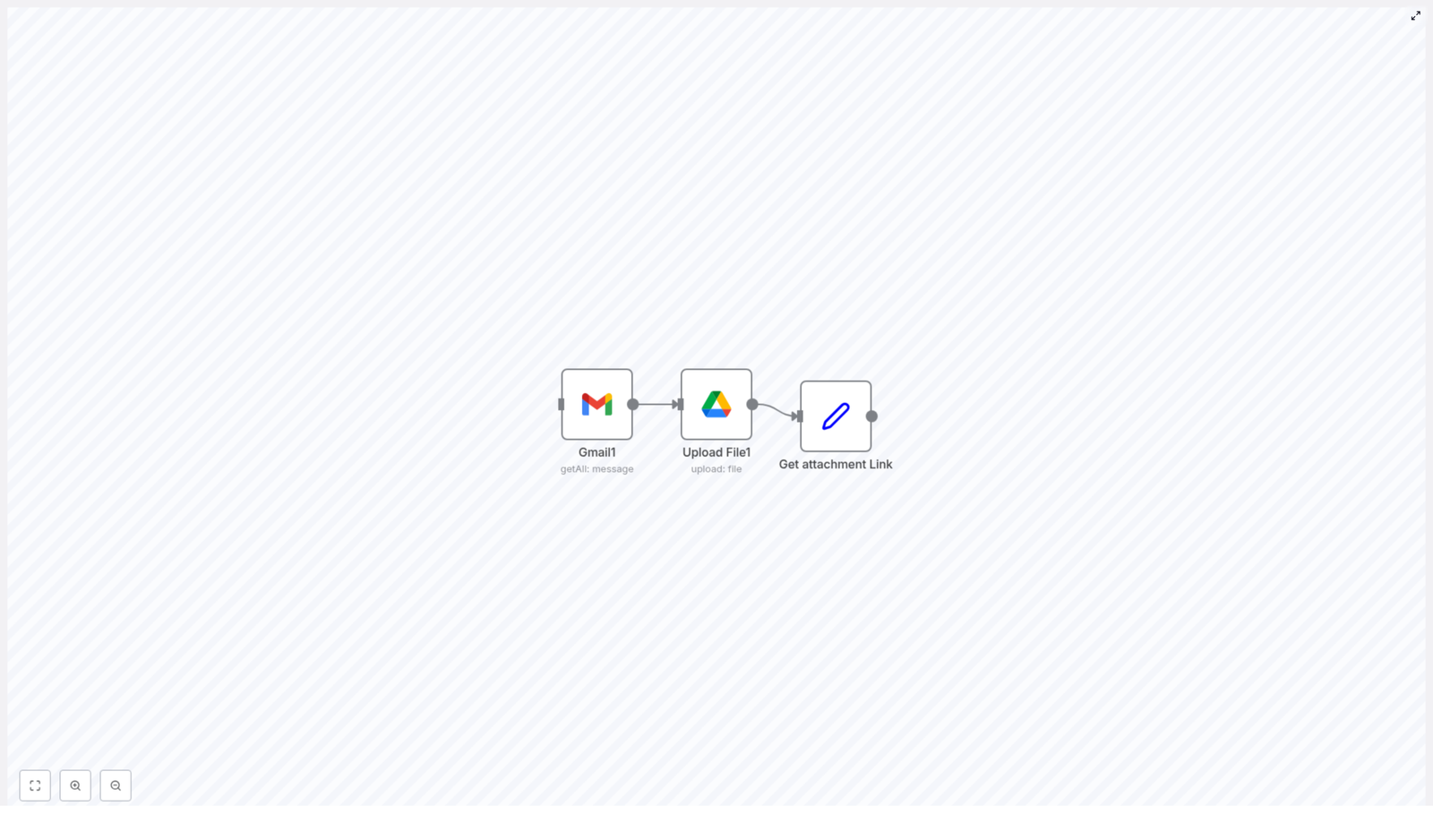
This workflow template is a small but mighty three-node setup that:

  • Grabs emails from Gmail (optionally filtered by label)
  • Pulls out their attachments and uploads them to a specific Google Drive folder
  • Captures a shareable Drive link for each uploaded file so you can use it in the rest of your automations

It uses only three nodes:

  1. Gmail node – gets messages with attachments
  2. Google Drive node – uploads the attachment as a file
  3. Set node – stores the Drive webViewLink so you can pass it onward

Perfect for archiving incoming attachments, saving video files, or building a searchable repository without ever touching the “Download” button again.

Why automate Gmail to Google Drive in the first place?

If you enjoy repetitive mouse clicks, feel free to skip this part. For everyone else, here is what this workflow gives you:

  • Time back – no more opening emails, saving files, and re-uploading them to Drive like it is 2009.
  • Centralized storage – all your attachments land in one Google Drive folder that is easy to share and search.
  • Automation fuel – once the file is in Drive, you can trigger more workflows like notifications, logging to a spreadsheet, or kicking off a review process.

What you need before you start

Before you let n8n take over the attachment drudgery, make sure you have:

  • An n8n instance (cloud or self-hosted)
  • Gmail OAuth2 credentials connected to n8n
  • Google Drive OAuth2 credentials connected to n8n
  • A Google Drive folder ID where attachments should be saved

Quick tour of the workflow

At a high level, the workflow does this:

  1. Gmail node fetches messages using getAll and a specific label filter.
  2. Google Drive node uploads the attachment from the Gmail binary data into your chosen folder.
  3. Set node grabs the webViewLink from the Drive response and stores it in a field you can use later.

That is it. Three nodes, zero manual downloads, and your future self sends you a silent thank you.

Step-by-step: setting up the n8n workflow

1) Configure the Gmail node to fetch attachments

This is where n8n goes into your Gmail and pulls the messages you care about.

In the Gmail node, use these settings:

  • Resource: message
  • Operation: getAll
  • Additional fields:
    • Format: resolved – this tells Gmail to decode attachments so they show up as binary data.
    • Label IDs: add the label or labels that should be used as filters, for example a label you apply to emails with attachments you want to archive.

How attachments appear in n8n

  • With format: resolved, Gmail returns attachments as binary properties like attachment_0, attachment_1, and so on.
  • n8n exposes those in the item’s binary field, which is exactly what the Google Drive node will use for the upload.

Tip for only processing new emails

  • Create a dedicated Gmail label (for example, to-drive), use it as the filter in the Gmail node, and then have another step later that marks or moves messages after processing.
  • This way, the workflow does not keep reprocessing the same emails over and over.

2) Configure the Google Drive node to upload the file

Next up, you tell n8n where to park those attachments in Drive.

Set up the Google Drive node like this:

  • Operation: upload or upload file
  • Name: use an expression so the filename is created dynamically, for example:
    {{$binary.attachment_0.fileName}}
  • Parents: the Google Drive folder ID where files should be stored, for example:
    1I-tBNWFhH2Fwcs...-nXBr
  • Binary Data: true
  • Binary Property Name: attachment_0 (or whichever attachment index you want to upload)
  • Authentication: your configured Google Drive OAuth2 credential
  • Resolve Data: true so the node returns file metadata including webViewLink

Notes and pro tips

  • If emails can have multiple attachments, you can:
    • Split the attachments into separate items and loop over them with a SplitInBatches or Function node.
    • Configure your workflow so the Drive node runs once per attachment, depending on how you structure your items.
  • Make your filename expression a bit smarter to avoid collisions. For example, include the email date or message ID in the name along with the original filename.

3) Use a Set node to capture the Drive link

Once the file is safely parked in Google Drive, the Drive node returns metadata about that file. This includes the magic field you care about: webViewLink.

In the Set node:

  • Create a new string field, for example mp4_attachment.
  • Set its value to an expression that points to the Drive link, such as:
    {{$json["webViewLink"]}}
    or the correct JSON path for your specific Drive node output.
  • Check the output preview to confirm that webViewLink is present and correctly mapped.

Important note about sharing

The webViewLink will let people with existing permission view the file in their browser. It does not automatically make the file public. If you want “anyone with the link” access, you need to adjust permissions after the upload step.

Making the Google Drive file shareable (optional)

If you want to send links to people who are not already in your Drive or do not have access, you will need to tweak permissions a bit.

You have two main options:

  • Use the Google Drive node’s permissions or sharing operation (if available in your n8n version) to add a permission like:
    { type: 'anyone', role: 'reader' }
  • Use an HTTP Request node to call the Google Drive REST API directly and add permissions if your Drive node does not expose that feature.

In both cases, your Google Drive OAuth credential must have permission to change file permissions.

Handling multiple attachments and larger batches

Real-life emails love to come with multiple attachments at once. Here are some common patterns for handling that gracefully:

  • Split attachments into separate items so that each file is handled individually. Upload each one in a loop and collect all the returned links into an array for later use.
  • Use a Function node to dynamically rename and map each binary property so the Google Drive node receives attachments one at a time.
  • Use SplitInBatches when processing a lot of messages to avoid hitting API rate limits and to keep your workflow stable.

Common issues and how to fix them

When something does not work, it is usually one of these usual suspects:

  • Permission errors
    Double check that:
    • Your Gmail OAuth credentials are correctly authorized and include scopes for reading messages and attachments.
    • Your Google Drive OAuth credentials have scopes for uploading files and managing permissions (if you are changing sharing settings).
  • Missing binary attachments
    Make sure:
    • The Gmail node Format is set to resolved.
    • You preview the Gmail node output and confirm binary keys like attachment_0 or attachment_1 exist.
  • Drive link exists but the file is private
    That means the file is uploaded correctly, but permissions are still restricted. Add a permission step in the workflow or adjust the sharing settings of the destination folder in Drive.
  • Very large attachments
    Check Google Drive upload limits and any network timeout constraints. If your n8n setup or Drive integration supports chunked uploads, consider using that for big files.

Security considerations

Automation is great, but security still matters:

  • Be careful about which attachments you automatically store. Sensitive files may need encryption or a restricted Drive folder.
  • Rotate OAuth credentials regularly and keep their scopes limited to what the workflow actually needs.
  • Audit who has access to the destination Drive folder and to any links you generate and share.

Simple troubleshooting checklist

If the workflow misbehaves, walk through this quick checklist:

  1. Open the Gmail node output and confirm that:
    • The message body is there.
    • Binary attachments like attachment_0 appear in the binary tab.
  2. Open the Google Drive node output and check the API response for:
    • id
    • webViewLink
  3. If you need public links and the Drive node does not support permissions, test making the file public via an HTTP Request node using the Drive API.
  4. If an attachment is missing, revisit your Gmail label or search filter and inspect the email’s MIME parts to confirm the attachment is actually there.

What you can build on top of this workflow

Once you have the Drive link, this workflow becomes a launching pad for all kinds of automation:

  • Post the file link directly to Slack or Microsoft Teams channels.
  • Write the file metadata and link to a Google Sheet or Airtable base for tracking and reporting.
  • Send an automated email or webhook containing the saved file link.
  • Trigger downstream processes like video transcoding, content ingestion, or internal review workflows.

From manual downloads to fully automated bliss

This three-node n8n workflow is a simple but powerful building block:

  • Fetch attachments from Gmail
  • Store them in Google Drive
  • Capture shareable links for further automation

Once it is in place, you can stop babysitting your inbox and let n8n quietly move files where they belong.

Next steps: try the template in your n8n instance

Ready to deploy?

Here is how to get this running quickly:

  1. Import the JSON template into your n8n instance.
  2. Connect your Gmail and Google Drive OAuth2 credentials.
  3. Set the target Google Drive folder ID.
  4. Test with an example email that has the label used in your Gmail node filter.

If you want to level it up with multiple attachment handling, Slack notifications, or automatic permission management, feel free to reach out. A few extra nodes can turn this into a fully featured attachment handling system.

Call to action: Try this workflow in your n8n instance and retire the manual download-upload routine. If you need a custom version tailored to your exact use case, contact us for a free consultation and we will help you automate your email attachment process from end to end.

n8n: Save Gmail Attachments to Google Drive

n8n: Save Gmail Attachments to Google Drive

Every inbox holds hidden potential. Buried inside daily emails are contracts, invoices, recordings, and resources that keep your work moving forward. Yet, if you are manually downloading attachments and uploading them to Google Drive, that potential is trapped behind repetitive clicks and constant context switching.

Automation gives you that time back. In this guide, you will turn a small, focused n8n workflow into a powerful stepping stone toward a more streamlined workday. You will learn how to automatically pull attachments from Gmail, place them neatly into a Google Drive folder, and generate shareable links you can use anywhere in your systems.

This is not just about saving a few minutes. It is about building the habit of automating small tasks so you can focus on the work that actually grows your business or career.

From inbox overload to intentional workflow

Think about how often you:

  • Open an email, download an attachment, then upload it to the right Drive folder
  • Forget to move an important file and later scramble to find it
  • Manually copy links to share with teammates or clients

Each of these steps is simple, yet together they drain focus and energy. When you automate them, you create space for deeper work, faster responses, and fewer mistakes.

The workflow in this article turns a messy, manual process into a clear, repeatable system. It reads messages from a specific Gmail label, uploads attachments to a chosen Google Drive folder, and returns a clean, shareable link for every file. Once it is running, your inbox becomes a quiet input channel for your automated file system.

What this n8n workflow helps you achieve

This n8n template focuses on three core actions that, together, create a simple but powerful automation:

  • Read messages from a Gmail label so only tagged or filtered emails are processed
  • Upload attachments to a specified Google Drive folder where your files stay organized and easy to find
  • Return the Drive file webViewLink so you can share or use the file link in any downstream process

Once in place, this workflow becomes a building block. You can plug it into notification systems, reporting flows, or media processing pipelines. It is a compact piece of automation that can grow with your needs.

Mindset: start small, think scalable

It is tempting to wait for the perfect, all-in-one automation before you start. Instead, treat this workflow as a small, practical experiment. You are not just saving attachments. You are learning how to:

  • Connect apps in n8n using OAuth credentials
  • Work with binary data like file attachments
  • Use expressions to name files and extract important fields

Once you are comfortable with this pattern, you can reuse it again and again. The same approach works for invoices, audio files, reports, or any file that lands in your inbox.

What you need before you start

To build and run this Gmail-to-Drive automation, make sure you have:

  • An n8n instance, either cloud or self-hosted
  • Gmail OAuth credentials or a connected Gmail node in n8n
  • Google Drive OAuth credentials or a connected Drive node in n8n
  • A target Google Drive folder ID where files will be uploaded

With these in place, you are ready to translate a manual routine into a repeatable workflow.

The three-node journey: from email to shareable link

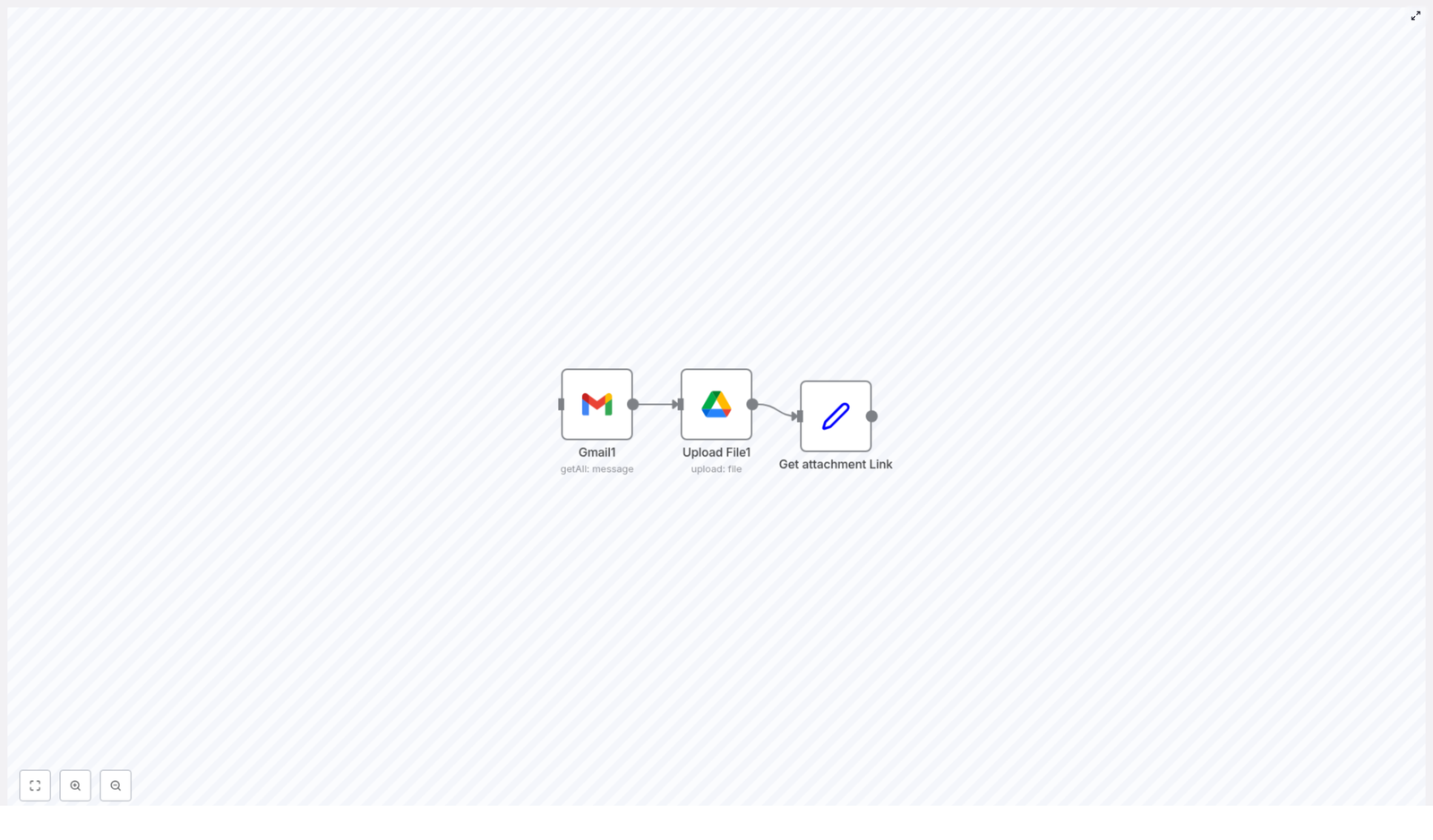
This workflow is intentionally compact. The template uses just three n8n nodes to move from raw email to a clean link:

  1. Gmail (getAll messages) – fetch messages or messages under a specific label
  2. Google Drive (Upload File) – upload the binary attachment into Drive
  3. Set (Get attachment Link) – capture the Drive file link (webViewLink) and format the output

Let us walk through each step so you can both understand and confidently customize it.

Step 1: Configure the Gmail node to fetch messages

Your journey starts with defining which emails should trigger automation. In n8n, add a Gmail node and configure it to retrieve messages, ideally from a specific label you control.

Recommended settings for the Gmail node:

  • Resource: message
  • Operation: getAll
  • Additional Fields:
    • Set format to resolved so attachments are available in binary form
    • Optionally set labelIds to the label you want to process

Using a label gives you control. You can:

  • Create a Gmail filter that automatically labels relevant emails
  • Manually apply the label when you want an email processed

How to get a label ID: You can open Gmail labels via the Gmail API or use the n8n Gmail node to list labels. Once you have the label ID, plug it into the node and your workflow will only touch messages you have clearly marked for automation.

Step 2: Upload attachments to Google Drive

Next, connect the Gmail node to a Google Drive node configured with the Upload operation. This is where your binary email attachments become organized Drive files.

Key settings for the Google Drive Upload node used in the template:

  • Name: {{$binary.attachment_0.fileName}} This uses the original filename from the email attachment.
  • Parents: your Drive folder ID, for example ["1I-tBNWFhH2FwcyiKeBOcGseWktF-nXBr"]
  • binaryData: true
  • binaryPropertyName: attachment_0 This is the default name for the first attachment in n8n.
  • resolveData: true This ensures the node output includes resolved metadata such as webViewLink.
  • authentication: OAuth2 using your Drive OAuth credentials

Handling multiple attachments with confidence

If your emails often contain more than one attachment, you can extend the workflow a bit further. Before the Upload node, add a:

  • SplitInBatches node, or
  • SplitOutItems node

These nodes let you process each attachment item-by-item. n8n will expose attachments as separate items depending on your Gmail node configuration, so splitting them ensures every file is uploaded correctly.

Prevent overwriting by using unique filenames

When similar files arrive regularly, it is easy to accidentally overwrite them. You can avoid this by appending a timestamp or unique ID in the Name expression. For example:

{{$binary.attachment_0.fileName.replace(/\.[^/.]+$/, '') + '_' + Date.now() + '.' + $binary.attachment_0.fileName.split('.').pop()}}

This expression keeps the original base name and extension, and adds a unique timestamp. Your Drive folder stays clean, and no file silently replaces another.

Step 3: Capture the shareable Drive link with a Set node

Once the file is uploaded, the Google Drive node returns useful metadata, including webViewLink. To make that link easy to reuse downstream, add a Set node after the Drive Upload node.

Example configuration in the Set node:

Values -> String -> 
Name: mp4_attachment 
Value: {{$json["webViewLink"]}}

This gives your resulting item a clean field called mp4_attachment that holds the shareable Drive link. You can rename this field to match your own use case, but the idea is the same: extract the value you care about and give it a clear, meaningful name.

Optional enhancements to level up your automation

Once the core workflow is working, you can start shaping it around your specific needs. Here are a few ways to extend it without losing simplicity.

Filter by file type, for example only .mp4 files

If you only want to upload certain file types, add an If node right after the Gmail node. Use it to check the binary file name:

Condition: String -> Expression -> 
{{$binary.attachment_0.fileName.endsWith('.mp4')}}

Only messages whose first attachment ends with .mp4 will pass through to the Drive upload step. This is ideal for workflows that focus on video processing, audio files, or specific document types.

Make uploaded files publicly viewable

By default, files uploaded to Google Drive might be private or limited to your account. If you want to share links externally, you can automatically adjust permissions.

Add a Google Drive node using the Permissions: create operation, or use an HTTP node to call the Drive permissions API. Configure it to set:

  • type: anyone
  • role: reader

Example permission body:

{  "role": "reader",  "type": "anyone"
}

Once permissions are applied, the webViewLink returned by the Upload node will allow anyone with the link to view the file. This is powerful for client access, shared resources, or content pipelines.

Build in error handling and logging

Reliable automation is not just about success paths. It is also about knowing when something fails. To make this workflow more robust, consider:

  • Adding a Catch Error or Error Trigger node to record upload errors
  • Logging file names and message IDs to a Google Sheet or database for auditing and traceability

These small additions give you visibility and confidence as you depend more on automation.

Common pitfalls and how to avoid them

As you experiment and refine the workflow, you might encounter a few common issues. Here is how to troubleshoot them quickly.

  • Missing binary data: Make sure the Gmail node format is set to resolved. Without this, binary attachments will not be available to the Drive node.
  • No webViewLink in the output: Confirm that the Google Drive node has resolveData set to true. Otherwise, the metadata will be minimal and the link may not appear.
  • Permission errors: Check that your Drive OAuth credentials have the correct scopes, such as drive.file or broader, depending on your needs.
  • Very large attachments: Large files can hit Drive API size limits or cause timeouts. Test the workflow with representative files and adjust expectations or architecture if needed.

Useful expression snippets you can reuse

Here are a couple of handy expressions from this workflow that you can copy into other automations as well.

Use the upload filename from the first attachment:

{{$binary.attachment_0.fileName}}

Get the Drive webViewLink in a Set node:

{{$json["webViewLink"]}}

These expressions are small, but once you are comfortable with them, you can start crafting more complex naming schemes and data transformations.

Turning a simple chain into a bigger automation ecosystem

The core chain of Gmail -> Google Drive Upload -> Set is intentionally simple. Yet it can become the backbone of larger, more ambitious workflows. Here are a few ways to extend it as your automation skills grow:

  • Add notifications: Send a Slack message or email whenever a file is uploaded so your team knows new resources are available.
  • Auto-tag Gmail messages: After processing, add or change a label so you do not re-process the same email in future runs.
  • Trigger media or data processing: For example, start a transcoding job when an .mp4 file is uploaded, or trigger a data pipeline when a CSV lands in the folder.

Each enhancement is another step in your automation journey. You are not just building a single workflow. You are building a mindset of delegating repetitive work to systems, so you can focus on strategy, creativity, and connection.

Your next step: experiment, refine, and grow

You now have a clear path from idea to implementation. The next step is to try it for yourself.

Here is a simple way to move forward:

  1. Import the template into your n8n instance.
  2. Connect your Gmail and Google Drive credentials.
  3. Set your target Drive folder ID and optional Gmail label.
  4. Run a test with a few sample emails and attachments.
  5. Adjust filenames, permissions, and filters until the flow feels reliable.

Use this template as your starting point, not your final destination. As you see how much time and mental load it removes, you will naturally spot other areas of your work that are ready for automation.

Call to action: start automating your attachments today

If you are ready to move from manual file handling to a more focused, automated workflow, this n8n template is a practical first step. Import it, run a test, and experience how it feels when your inbox and Drive start working together for you.

If you want a ready-made template or help customizing the workflow for multiple attachments, permission presets, or advanced routing, reach out for support or subscribe to our automation newsletter for more guides and ideas.

OpenSea Marketplace Agent for n8n: Automation Guide

OpenSea Marketplace Agent for n8n: Complete Automation Guide

Integrating the OpenSea API with n8n through the OpenSea Marketplace Agent Tool allows you to automate NFT marketplace intelligence, trading signals, and data pipelines. This reference-style guide explains the workflow architecture, the exact OpenSea endpoints used, node configuration details, and key constraints so you can deploy a reliable, production-ready n8n automation.

1. Conceptual Overview

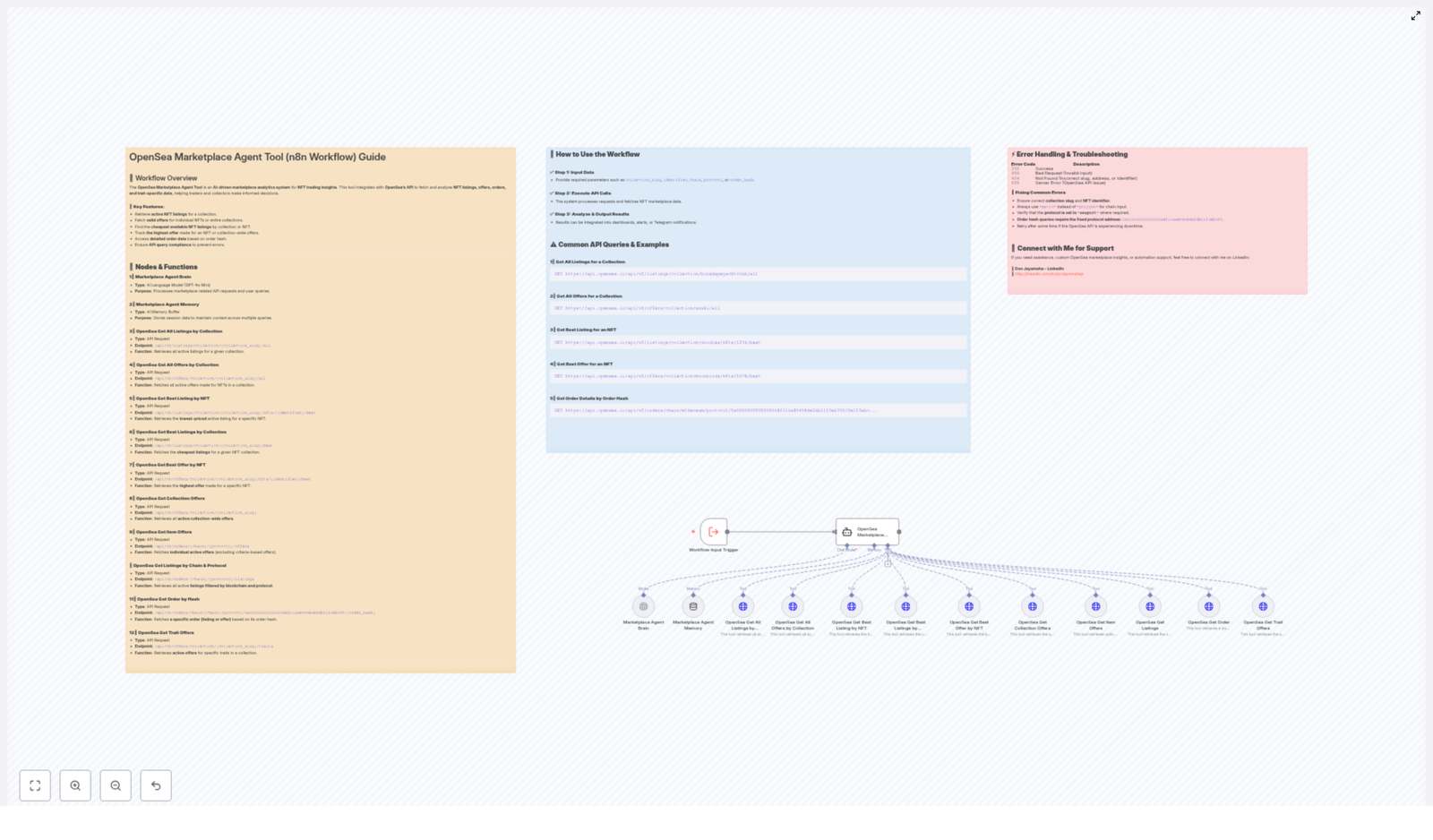
The OpenSea Marketplace Agent for n8n is a workflow that combines an AI-driven agent, persistent memory, and a set of HTTP Request tools mapped to OpenSea v2 API endpoints. The agent interprets natural language queries, selects the correct endpoint, and coordinates multi-step marketplace operations.

1.1 Primary Capabilities

  • Monitor collection-level listings and offers in near real time
  • Identify the best (lowest-priced) listings and best (highest) offers for specific NFTs
  • Trigger automated alerts, dashboards, and trading strategies based on OpenSea data
  • Maintain conversational or workflow context across multiple steps using agent memory

1.2 Typical Users and Scenarios

  • Traders and quants building automated buy/sell signals
  • Analysts aggregating collection and trait-level metrics
  • Developers integrating OpenSea market data into dApps or internal tools

2. Workflow Architecture

The workflow is structured around a central agent that orchestrates requests to several dedicated HTTP tools. A high-level architecture looks like this:

  • Trigger Node Entry point for the workflow. Common triggers:
    • Webhook trigger for external HTTP calls
    • Execute Workflow trigger for internal n8n calls
  • Marketplace Agent Brain An AI/agent node that:
    • Parses user intent from natural language or structured input
    • Selects the appropriate OpenSea HTTP Request tool
    • Maps user-friendly parameters to strict API parameters
  • Marketplace Agent Memory A memory node or set of nodes that:
    • Persist session context across multiple turns
    • Store recent queries, collection slugs, and token identifiers
    • Allow multi-step flows without repeating all parameters
  • HTTP Request Tools Individual HTTP Request nodes, one per OpenSea endpoint, for:
    • Collection listings and offers
    • Best listing / best offer for a specific NFT
    • Best listings across a collection
    • Collection-wide offers
    • Order queries by chain and protocol
    • Order retrieval by hash
    • Trait-specific offers

Each HTTP Request node is configured with OpenSea credentials, the correct HTTP method, and path parameters. The agent brain routes requests to these nodes and aggregates responses as needed.

3. OpenSea API Endpoints Covered

The template exposes a curated set of OpenSea v2 endpoints that cover the most common marketplace operations. All endpoints are called via HTTP GET and expect correctly formatted path and query parameters.

3.1 Collection Listings – All

  • Endpoint: /api/v2/listings/collection/{collection_slug}/all
  • Purpose: Return all active listings for a specific collection.
  • Example use cases:
    • Collection heatmaps and floor tracking
    • Monitoring listing volume or seller behavior

3.2 Collection Offers – All

  • Endpoint: /api/v2/offers/collection/{collection_slug}/all
  • Purpose: Aggregate all active offers for a collection.
  • Example use cases:
    • Measuring demand and liquidity for a collection
    • Informing bidding or accumulation strategies

3.3 Best Listing by NFT

  • Endpoint: /api/v2/listings/collection/{collection_slug}/nfts/{identifier}/best
  • Purpose: Retrieve the cheapest active listing for a specific token.
  • Example use cases:
    • Spotting immediate purchase opportunities
    • Monitoring floor price for individual holdings

3.4 Best Listings by Collection

  • Endpoint: /api/v2/listings/collection/{collection_slug}/best
  • Purpose: Return the lowest-priced listings across a collection.
  • Example use cases:
    • Identifying underpriced NFTs in a collection
    • Building bargain finder dashboards

3.5 Best Offer by NFT

  • Endpoint: /api/v2/offers/collection/{collection_slug}/nfts/{identifier}/best
  • Purpose: Retrieve the highest active offer for a specific token.
  • Example use cases:
    • Evaluating current demand for a token
    • Comparing offers to listing prices for arbitrage

3.6 Collection Offers (Non “all” Variant)

  • Endpoint: /api/v2/offers/collection/{collection_slug}
  • Purpose: Fetch collection-wide offers that may have different filtering or aggregation semantics compared to the /all variant.
  • Example use cases:
    • Detecting large collection-wide offers or buyout thresholds
    • Measuring broad market interest in a collection

3.7 Item Offers & Listings by Chain and Protocol

  • Endpoints:
    • /api/v2/orders/{chain}/{protocol}/offers
    • /api/v2/orders/{chain}/{protocol}/listings
  • Requirement: {protocol} must be seaport.
  • Purpose: Retrieve chain-specific orders and listings with advanced filtering options.
  • Typical query parameters (configured in the n8n HTTP Request node as needed):
    • maker (wallet address)
    • payment_token
    • listed_after
    • token_ids
    • Other OpenSea-supported filters
  • Example use cases:
    • Chain-specific analytics (for example Ethereum vs matic)
    • Filtering by maker or payment token for strategy-specific views

3.8 Get Order by Hash

  • Endpoint: /api/v2/orders/chain/{chain}/protocol/0x0000000000000068f116a894984e2db1123eb395/{order_hash}
  • Protocol address: Fixed to 0x0000000000000068f116a894984e2db1123eb395 for this endpoint.
  • Purpose: Retrieve full details for a single order using its hash.
  • Example use cases:
    • Validating order parameters before execution
    • Tracking the status of a specific order over time

3.9 Trait Offers

  • Endpoint: /api/v2/offers/collection/{collection_slug}/traits
  • Purpose: Query offers scoped to specific traits within a collection.
  • Example use cases:
    • Valuing rare attributes such as Background: Blue
    • Building trait-level rarity and premium analysis

4. n8n Node-by-Node Breakdown

4.1 Trigger Node

  • Type: For example Execute Workflow or Webhook.
  • Role: Accepts input payloads or user messages and forwards them to the agent brain.
  • Configuration notes:
    • Ensure input fields (for example collection_slug, identifier, chain) are mapped consistently.
    • For webhook usage, validate and sanitize incoming parameters before passing to the agent.

4.2 Marketplace Agent Brain Node

  • Type: Agent / AI node (for example OpenAI or similar, depending on your n8n setup).
  • Inputs:
    • Natural language query, for example Find best listing for doodles #1234
    • Optional structured parameters from previous nodes or memory
  • Outputs:
    • Routing decision to the correct HTTP Request tool
    • Normalized parameters (for example mapping doodles to collection_slug, #1234 to identifier=1234)
  • Behavior:
    • Uses agent memory to fill missing parameters when possible.
    • Handles multi-step conversations, for example “Now show me the best offer for the same token”.

4.3 Marketplace Agent Memory Node

  • Type: Memory or data store node supported by your agent framework.
  • Purpose:
    • Persist conversation state, such as last used collection slug or token id.
    • Avoid redundant OpenSea calls for repeated queries within a short time window.

4.4 HTTP Request Nodes (OpenSea Tools)

Each OpenSea endpoint is typically implemented as a dedicated HTTP Request node:

  • Method: GET
  • Base URL: https://api.opensea.io
  • Path: One of the endpoints described in section 3
  • Authentication: HTTP Header Auth using n8n credentials

Example mappings from natural language to HTTP nodes:

GET https://api.opensea.io/api/v2/listings/collection/boredapeyachtclub/all
GET https://api.opensea.io/api/v2/offers/collection/azuki/all
GET https://api.opensea.io/api/v2/listings/collection/doodles/nfts/1234/best
GET https://api.opensea.io/api/v2/orders/chain/ethereum/protocol/0x0000000000000068f116a894984e2db1123eb395/0x123abc...

In the workflow, the agent brain takes an input like Find best listing for doodles #1234, resolves it to:

  • collection_slug = doodles
  • identifier = 1234

and then forwards these values to the /listings/collection/{collection_slug}/nfts/{identifier}/best HTTP Request node as path parameters.

5. Configuration Rules and Constraints

OpenSea endpoints are strict about parameter formats. To avoid errors, follow these rules when configuring your nodes or mapping parameters in the agent:

5.1 Chain Names

  • Use the exact chain identifiers expected by OpenSea.
  • Example: use matic, not polygon.
  • Ensure consistent casing as per OpenSea documentation.

5.2 Protocol Parameter

  • For /api/v2/orders/{chain}/{protocol}/offers and /listings, protocol must be seaport.
  • Do not substitute other protocol names in these endpoints within this template.

5.3 Protocol Address for Order-by-Hash

  • The protocol segment in /api/v2/orders/chain/{chain}/protocol/0x0000000000000068f116a894984e2db1123eb395/{order_hash} is a fixed address.
  • Always use 0x0000000000000068f116a894984e2db1123eb395 as provided.

5.4 Collection Slugs and Token Identifiers

  • {collection_slug} must match the exact slug used by OpenSea.
  • {identifier} should be the token ID as recognized by the collection.
  • Typos or mismatches will typically result in 404 Not Found.

6. Error Handling and Troubleshooting

6.1 Common HTTP Status Codes

  • 200 – Request succeeded and data is returned.
  • 400 – Bad Request, usually due to invalid input or missing required parameters.
  • 404 – Not Found, often caused by:
    • Incorrect collection slug
    • Invalid address or token ID
    • Nonexistent resource
  • 500 – Internal Server Error on OpenSea’s side, often transient.

6.2 Practical Troubleshooting Steps

  • Validate that collection_slug and identifier are spelled correctly and exist on OpenSea.
  • Confirm that the chain parameter is one of the allowed values, for example ethereum, matic, etc.
  • Ensure protocol = seaport is used for the order and listing endpoints where required.
  • For intermittent 5xx responses:
    • Implement retry logic in n8n using a separate workflow or error branch.
    • Prefer exponential backoff rather than immediate retries.

7. Security and Performance Best Practices

7.1 Credentials and API Keys

  • Store OpenSea API keys using n8n HTTP Header Auth credentials.
  • Attach credentials in the HTTP Request nodes rather than hardcoding headers.
  • Avoid logging or storing API keys in plain text within workflow executions.

Deploy InfluxDB with n8n & Docker — PUQ Template

Deploy InfluxDB with n8n & Docker – PUQ Template

This guide explains how to use the PUQ “Docker InfluxDB” n8n workflow template to fully automate the lifecycle of InfluxDB containers using Docker, SSH, and a secured webhook. You will learn how the template works, what each part does, and how to connect it to WHMCS or WISECP for multi-tenant InfluxDB hosting.

What you will learn

By the end of this tutorial-style article, you should be able to:

  • Understand the overall architecture of the PUQ Docker InfluxDB n8n template
  • Configure the webhook and SSH connection used by the workflow
  • Use the template to create, start, stop, suspend, and terminate InfluxDB containers
  • Customize resource limits and storage for each tenant
  • Integrate the workflow with WHMCS or WISECP using simple JSON API requests
  • Apply security and operational best practices for running this automation in production

Why this n8n template is useful

If you host InfluxDB for multiple customers, managing containers manually can quickly become painful. This PUQ template turns those repetitive tasks into a consistent, API-driven process that you can call from your billing system.

With this n8n workflow in place, you can:

  • Receive authenticated API calls from WHMCS, WISECP, or any other system that can send HTTP POST requests
  • Automatically generate Docker Compose files and nginx configuration for each customer
  • Create and mount per-tenant disk images for persistent InfluxDB data
  • Run key management actions like:
    • Start and stop containers
    • Inspect containers, view logs, and collect stats
    • Change passwords and handle ACL-related operations
    • Change package (resources) and handle suspend / unsuspend

In practice, this gives you a production-ready automation layer that connects your billing platform to your Docker infrastructure with minimal custom coding.


Architecture overview

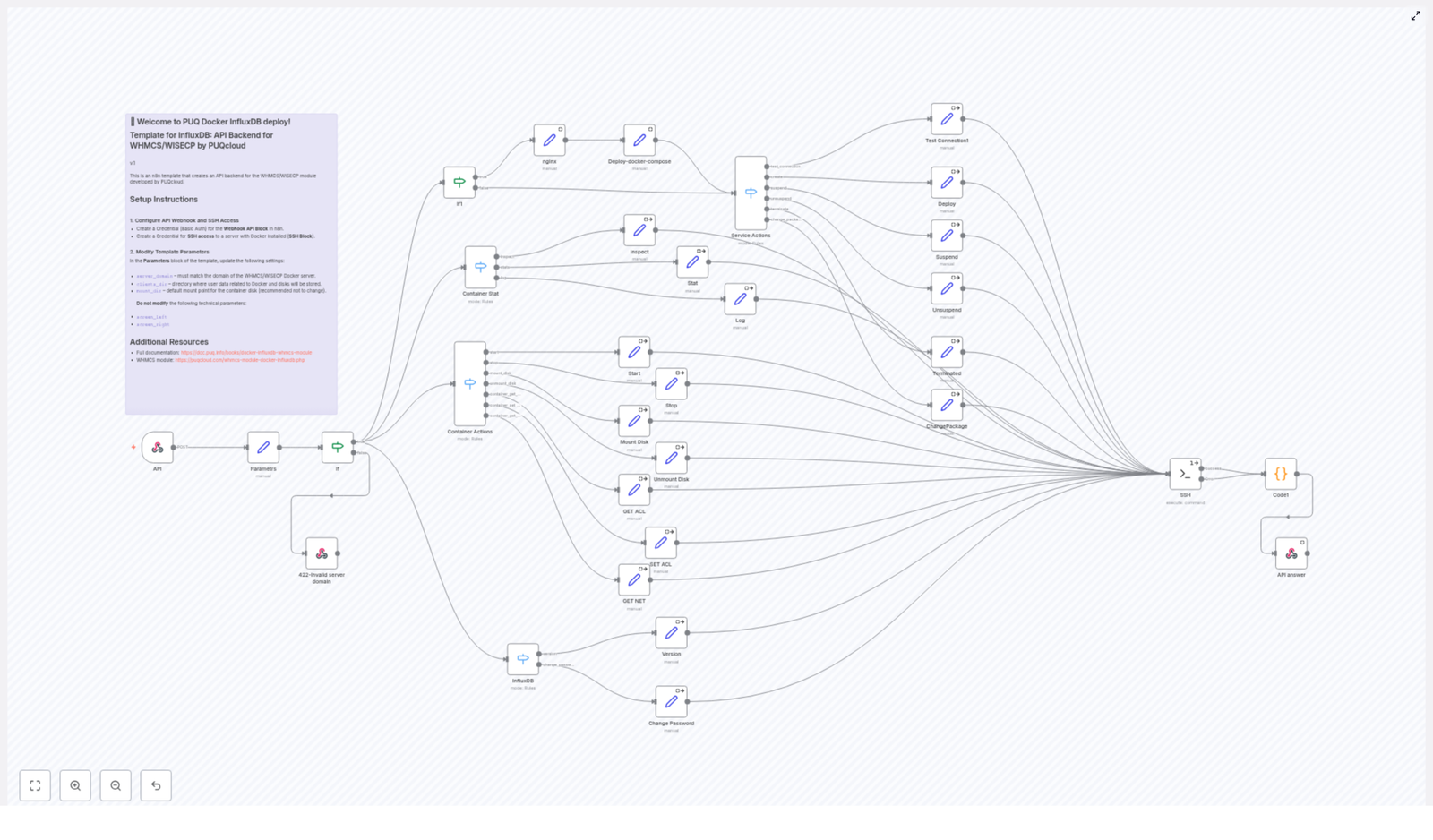
The template is built around three main components that work together:

1. API entry point (Webhook)

A Basic Auth protected n8n webhook receives JSON POST requests. It acts as the public API endpoint that WHMCS or WISECP calls when a customer is created, suspended, unsuspended, or when a service action is triggered.

2. SSH Executor

An n8n SSH credential is used to run bash scripts on your Docker host. These scripts perform the actual system-level work, including:

  • Creating and mounting disk images
  • Running Docker and Docker Compose commands
  • Updating nginx-proxy configuration and reloading nginx

3. Template Logic in n8n

The workflow contains a set of n8n nodes that:

  • Interpret incoming commands from the webhook
  • Generate docker-compose.yml content dynamically
  • Create nginx vhost files for each tenant domain
  • Manage the full lifecycle of each InfluxDB container

Think of the webhook as the “front door,” the SSH executor as the “hands-on operator” on your server, and the n8n logic as the “brain” that decides what to do next.


Prerequisites

Before using the template, make sure the following are in place:

  • An n8n instance where you can:
    • Create a webhook
    • Configure SSH credentials
    • Import and edit the PUQ template
  • A Docker host that has:
    • Docker and Docker Compose v2 or newer
    • An nginx-proxy container
    • A letsencrypt companion container for certificates
  • Basic familiarity with:
    • Docker and Docker Compose
    • nginx and reverse proxy concepts
    • Linux filesystem tools like fallocate, mkfs.ext4, and fstab

Core concepts and key nodes

To understand how the template works, it helps to look at the main nodes and what each is responsible for.

Parameters node

This node centralizes important variables that are reused throughout the workflow. Typical parameters include:

  • server_domain: The main domain of your server
  • clients_dir: Directory where per-client data is stored, for example /opt/docker/clients
  • mount_dir: Mount point for loopback images, for example /mnt

The template also includes screen_left and screen_right values used to safely format docker stats output. These should not be changed, since other nodes rely on them for parsing and presenting container statistics correctly.

API (Webhook) node

The webhook node is the entry point for external systems:

  • It expects a JSON body in the HTTP request
  • It requires HTTP Basic Authentication using an httpBasicAuth credential configured in n8n
  • It reads the command field from the JSON payload and routes the request to the appropriate logic

Internally, the workflow uses this command to decide between two main branches:

  • Container Actions (for lower-level container control)
  • Service Actions (for full lifecycle events like create, suspend, terminate)

Container Actions branch

This branch handles direct operations on an existing container, such as:

  • Start and stop
  • Mount and unmount storage
  • Inspect container details
  • Fetch logs
  • ACL-related operations and similar management tasks

For each action, an n8n node prepares a shell script in a field often named sh. That script is then executed on the Docker host by the SSH node. The scripts include defensive checks, for example verifying that:

  • The container exists
  • The mount point is available
  • Required files or directories are present

Each script returns either a clear success status or a JSON-formatted error explaining what went wrong. This makes it easier for the calling system (like WHMCS) to understand and display meaningful error messages.

Service Actions branch

Service actions are higher-level operations that affect the entire lifecycle of a tenant’s InfluxDB service. These typically include:

  • test_connection – Check that the infrastructure and SSH access work correctly
  • create (deploy) – Provision a new InfluxDB container and its storage
  • suspend – Disable or stop the service without destroying data
  • unsuspend – Reactivate a previously suspended service
  • terminate – Remove the container and associated configuration
  • change_package – Adjust resources like CPU, RAM, or disk allocation

During a create operation, the workflow:

  • Builds a docker-compose manifest using the Deploy-docker-compose node
  • Creates a loopback disk image, formats it as ext4, and mounts it for persistent storage
  • Writes nginx vhost configuration files into a per-client directory so that nginx-proxy can route traffic to the container

Deploy-docker-compose node

This node is responsible for generating the docker-compose.yml file for each InfluxDB tenant. The template:

  • Defines an InfluxDB container with environment variables for:
    • Initial username
    • Initial password
    • Organization
    • Bucket
  • Applies CPU and memory limits according to the API payload (ram, cpu)
  • Mounts directories from the per-tenant image into:
    • /var/lib/influxdb2
    • /etc/influxdb2

Because this node centralizes the docker-compose template, it is also the main place you will modify if you want to extend the workflow to other services later.


Step-by-step: how the workflow runs

1. Billing system sends a request

Your billing system (for example, WHMCS or WISECP) sends an HTTP POST request to the n8n webhook URL, for example:

/webhook/docker-influxdb

The request must:

  • Use Basic Auth with the credentials configured in n8n
  • Include a JSON body with at least a command field

2. Webhook validates and routes the command

The webhook node checks authentication and parses the JSON. Based on the command, it routes the flow:

  • Commands like container_start, container_stop go to the Container Actions branch
  • Commands like create, suspend, terminate go to the Service Actions branch

3. n8n builds the required shell script

For the chosen action, n8n nodes assemble a bash script string that will perform the necessary steps. Examples:

  • For create:
    • Create a disk image with fallocate
    • Format it with mkfs.ext4
    • Update /etc/fstab and run mount -a
    • Write docker-compose.yml and nginx config
    • Run docker compose up -d
  • For container_start:
    • Check that the container and compose file exist
    • Run docker compose start or docker start as appropriate

4. SSH node executes the script on the Docker host

The SSH Executor node connects to your Docker host using the configured n8n SSH credential. It then runs the generated script. The script is designed to:

  • Exit with clear messages
  • Write logs and error information where needed
  • Return structured output that n8n can send back to the caller

5. Workflow returns a structured response

When the script finishes, the workflow returns a JSON response to the original HTTP request. Typically this includes:

  • A status field such as success or error
  • Details about what was done or what failed
  • Any additional data like container stats, logs, or disk usage information

Example API payloads

Create a new InfluxDB tenant

Send a POST request with Basic Auth to your webhook path, for example /webhook/docker-influxdb, with a JSON body like:

{  "command": "create",  "domain": "customer.example.com",  "username": "customer1",  "password": "S3cureP@ss",  "disk": 10,  "ram": 1,  "cpu": 0.5
}

Fields:

  • command: Action to perform, here it is create
  • domain: The customer’s domain that will be used in nginx and docker labels
  • username / password: Initial InfluxDB credentials
  • disk: Disk size in GB for the loopback image
  • ram: Memory limit in GB
  • cpu: CPU limit in cores, for example 0.5 for half a core

Start an existing container

To start a tenant’s container, send:

{  "command": "container_start",  "domain": "customer.example.com"
}

Other commands such as container_stop, suspend or terminate follow the same pattern, with the command field indicating the desired action.


Security considerations

Because this workflow controls containers and runs commands over SSH, security is critical. Keep these points in mind:

  • Protect the webhook:
    • Use strong Basic Auth credentials
    • Limit access to known IP addresses from your billing system if possible
    • Always expose the webhook over HTTPS
  • Limit SSH permissions:
    • Create a dedicated SSH user for n8n on the Docker host
    • Grant only the required permissions
    • Use sudo rules in sudoers to allow specific commands without a password, not full root access
  • Control resource parameters:
    • Validate or cap ram and cpu values from incoming API requests
    • Use sane defaults to avoid noisy neighbor issues
  • Handle credentials securely:
    • Store InfluxDB passwords and other secrets securely
    • Use TLS for the webhook endpoint to protect credentials in transit

Operational best practices

  • Back up tenant data:
    • Per-tenant image files live under clients_dir, for example:
      /opt/docker/clients/customer.example.com/data.img
    • Include these images in your backup strategy
  • Monitor disk usage:
    • Set alerts on the host filesystem where images and mounts are stored
    • Use the template’s built-in commands that report image and mount sizes
  • Consider a jump host:
    • If your Docker hosts are on a private network, run the SSH executor against a jump host that can reach them
  • Test in staging first:
    • Run create and terminate flows in a non-production environment
    • Verify:
      • /etc/fstab entries are correct
      • Mount and unmount operations behave as expected
      • nginx vhosts are created and reloaded successfully

Troubleshooting guide

n8n: RabbitMQ to SMS Alert Workflow

n8n: Receive messages from RabbitMQ and send an SMS alert

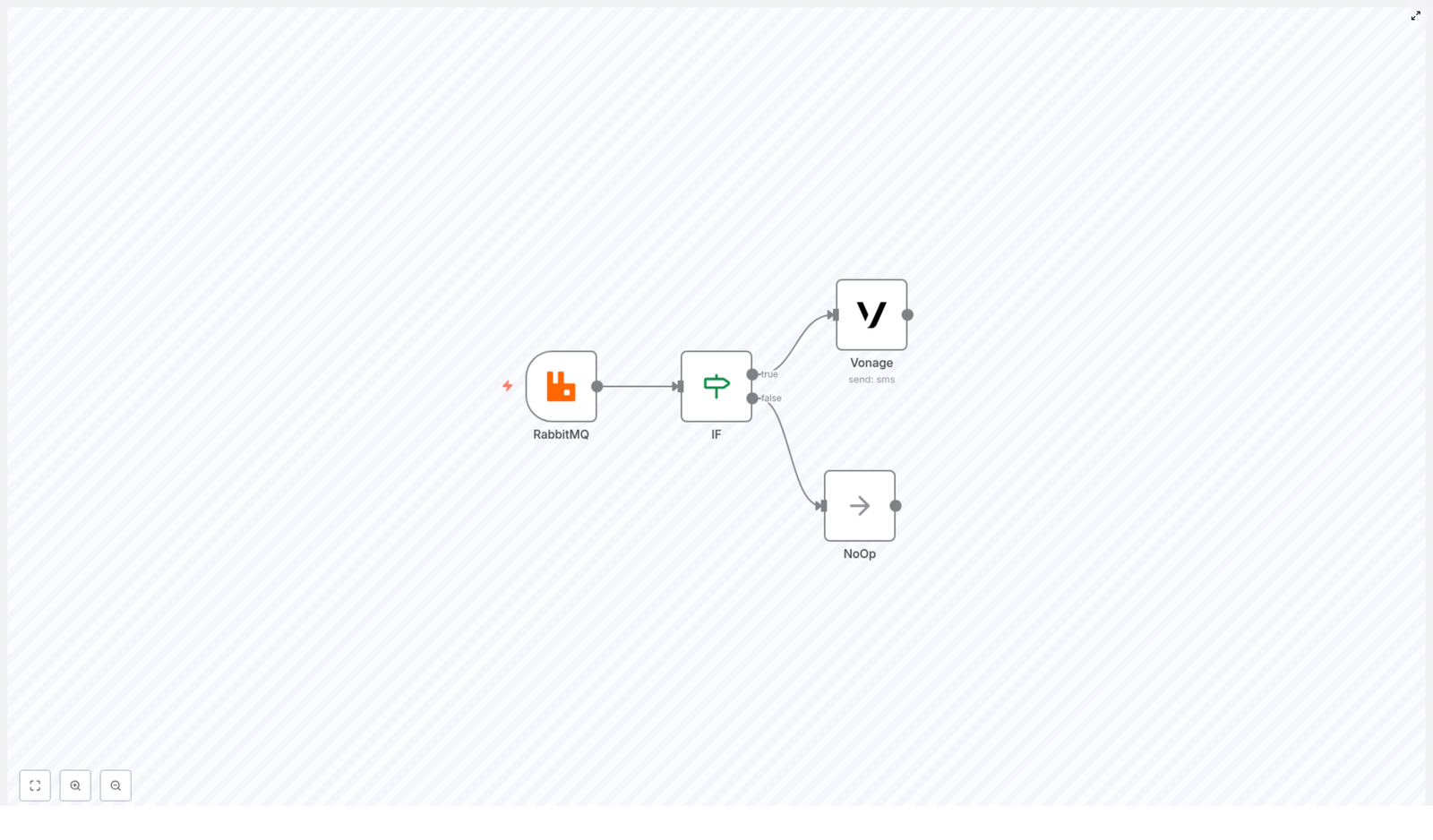
This tutorial walks you through a complete n8n workflow template that listens to a RabbitMQ queue, checks incoming data with an IF node, and sends an SMS alert with Vonage when a threshold is exceeded. The example use case is a temperature alert: if temp > 50, send an SMS, otherwise do nothing.

What you will learn

By the end of this guide, you will be able to:

  • Import and use a ready-made n8n workflow template (Workflow ID: 186).
  • Configure a RabbitMQ Trigger node to consume JSON messages from a queue.
  • Use an IF node in n8n to compare numeric values and branch logic.
  • Send SMS alerts with the Vonage node using dynamic data from your messages.
  • Extend the false branch with your own logic, such as logging or storage.
  • Troubleshoot common issues with RabbitMQ, JSON parsing, and SMS delivery.

Core idea: Event-driven SMS alerts with n8n

n8n is an open source workflow automation tool that connects services through nodes. In this template, you connect:

  • RabbitMQ as a message broker that receives telemetry or event data.
  • n8n as the automation engine that evaluates this data.
  • Vonage as the SMS provider that notifies people in real time.

Your applications publish messages (for example, sensor readings) into a RabbitMQ queue. n8n listens to that queue, checks whether the temperature is above a limit, and if so, triggers a Vonage SMS to alert operators or on-call staff.

How the workflow is structured

At a high level, the template contains four nodes connected in a simple branching flow:

  • RabbitMQ Trigger node – Listens for messages on a queue, for example "temp".
  • IF node – Compares the temperature value in the message with a threshold, such as 50.
  • Vonage (Send SMS) node – Runs on the IF “true” branch to send an SMS alert.
  • NoOp node – Runs on the IF “false” branch and does nothing. It is a placeholder that you can replace with your own logic.

This pattern is easy to adapt to other metrics, such as CPU load, error counts, or stock levels. You only need to change the condition and the message content.

Prerequisites

Before you start, make sure you have:

  • An n8n instance, either self-hosted or on n8n.cloud.
  • An accessible RabbitMQ server that n8n can connect to (correct hostname, port, user, password, and vhost).
  • A Vonage account with SMS capabilities and credentials:
    • API Key
    • API Secret
    • A virtual number or approved sender ID, depending on your region
  • Basic familiarity with:
    • JSON message structure
    • n8n node configuration and expressions

Step 1 – Import the n8n RabbitMQ to SMS template

The workflow is available as a JSON template (Workflow ID: 186). To use it:

  1. Open your n8n editor.
  2. Use the import feature and paste or upload the JSON template for Workflow ID 186.
  3. After import, you should see four nodes:
    • RabbitMQ Trigger
    • IF
    • Vonage
    • NoOp
  4. Do not activate the workflow yet. First, review and update:
    • Credentials for RabbitMQ and Vonage.
    • Queue name in the RabbitMQ Trigger node.
    • Phone numbers in the Vonage node.

Step 2 – Configure the RabbitMQ Trigger node

The RabbitMQ Trigger node is responsible for receiving messages from your queue.

Key configuration options

  • Queue: Set this to the name of your queue, for example temp.
  • Options:
    • onlyContent = true – This tells n8n to treat the message body as the main content and ignore transport metadata in the JSON.
    • jsonParseBody = true – This parses the message body as JSON and converts it into object fields you can access in expressions.

With jsonParseBody enabled, if a message body looks like this:

{  "temp": 72
}

then in n8n you can access the value using:

$node["RabbitMQ"].json["temp"]

If your message structure is nested, for example:

{  "payload": {  "data": {  "temp": 72  }  }
}

you would access it with:

$node["RabbitMQ"].json["payload"].data.temp

Step 3 – Build the condition with the IF node

The IF node decides whether an SMS should be sent. It checks if the temperature is higher than a defined threshold.

Configure the IF node

In the IF node, add a numeric condition:

Conditions -> Number
value1: ={{$node["RabbitMQ"].json["temp"]}}
value2: 50
operation: larger

Important details:

  • Use the expression syntax = {{$node["RabbitMQ"].json["temp"]}} so the IF node reads the numeric value from the RabbitMQ node output.
  • If your data is nested, adjust the path accordingly, for example:
    {{$node["RabbitMQ"].json["payload"].data.temp}}
  • True branch: Runs when temp > 50.
  • False branch: Runs when temp <= 50.

Step 4 – Send alerts with the Vonage SMS node

On the IF node “true” branch, connect the Vonage node to send an SMS when the threshold is exceeded.

Basic Vonage node setup

  • Credentials: Choose your previously configured Vonage API credentials (API key and secret) from the credential store.
  • Recipient: Enter the phone number or numbers to notify. Use E.164 format where possible, for example +15551234567.
  • Message: Use an expression to include the live temperature value:
    Alert! The value of temp is {{$node["RabbitMQ"].json["temp"]}}.

Optional Vonage fields you can configure:

  • From name or number, depending on your region and account settings.
  • Client reference for correlating messages with your internal systems.
  • Callback URLs for delivery receipts and advanced tracking.

Step 5 – Handle non-alert cases with the NoOp node

The NoOp node is connected to the IF “false” branch. By default, it does nothing and simply allows the workflow to end cleanly when the condition is not met.

You can replace the NoOp node with logic that better suits your use case, for example:

  • Write non-critical readings to a database for historical analysis.
  • Forward the message to another RabbitMQ queue for further processing.
  • Log the event to a file, monitoring system, or dashboard metric.

Step 6 – Test the complete workflow

Once all nodes are configured, it is time to verify that everything works as expected.

1. Publish a test message to RabbitMQ

Use your preferred tool such as rabbitmqadmin, the HTTP API, or any AMQP client to publish a JSON message to the temp queue.

Publishing a JSON message to queue 'temp'
{  "temp": 72
}

2. Check the n8n execution

  • Open the n8n editor and make sure the workflow is active.
  • Go to the Executions panel and look for a new run triggered by the RabbitMQ message.
  • Inspect the data on each node:
    • Confirm the RabbitMQ Trigger node shows the JSON payload with the temp value.
    • Check the IF node to see that the condition evaluated to “true” for temp = 72.

3. Verify SMS delivery

  • Ensure the Vonage node executed successfully in the workflow.
  • Check your phone for the SMS alert.
  • Use the Vonage dashboard to inspect delivery status and any provider-level details.

Troubleshooting common issues

Messages do not arrive in n8n

  • Confirm RabbitMQ connection details:
    • Hostname and port.
    • Username, password, and vhost.
  • Check firewall rules to ensure n8n can reach the RabbitMQ server.
  • Verify the queue name in the RabbitMQ Trigger node exactly matches the queue you publish to.

JSON body does not parse correctly

  • Make sure jsonParseBody = true is enabled in the RabbitMQ Trigger node options.
  • Verify that your publisher sends valid JSON and, where relevant, the correct Content-Type header.
  • Inspect the raw message in the node output to confirm the structure.

IF node always evaluates to false

  • Inspect the RabbitMQ node output to see the real value of the field you are comparing.
  • Check that the path in your expression is correct, for example:
    • {{$node["RabbitMQ"].json["temp"]}} for a flat structure.
    • {{$node["RabbitMQ"].json["payload"].data.temp}} for nested data.
  • If the value is a string, convert it to a number:
    • Use a Set node to cast or normalize the value.
    • Or use a Function node with Number() to explicitly convert it.

SMS sending fails

  • Double-check Vonage API credentials in the n8n credential store.
  • Confirm that the sender ID or virtual number is allowed in your target country.
  • Ensure recipient phone numbers are in a valid format, ideally E.164.
  • Inspect the Vonage node output for error messages or codes for more guidance.

Debugging workflow data flow

  • Insert a Set node between RabbitMQ and the IF node to log or reshape values.
  • Use a Function node if you need more complex transformations or validation.
  • Run the workflow in manual mode with test data to watch each node’s output step by step.

Security and reliability best practices

Protecting credentials

  • Always store RabbitMQ and Vonage credentials in n8n’s encrypted credential store.
  • Avoid hard-coding credentials inside workflow JSON, especially if you share templates.

Handling duplicate messages

  • If RabbitMQ publishers might re-send messages, design for idempotency.
  • Use a unique key per event to detect duplicates and avoid sending multiple SMS messages for the same event.
  • Consider storing processed message IDs in a database or cache.

Rate limiting and cost control

  • SMS providers, including Vonage, may apply rate limits and charge per message.
  • Implement throttling or batching if you expect spikes in alerts.
  • Consider grouping events and sending summary messages instead of one SMS per event.

Monitoring and audit

  • Log all alerts to a database or log management system.
  • Use these logs for audits, analytics, or to feed dashboards.
  • Monitor workflow execution failures in n8n to catch issues early.

Ideas for extending the workflow

Once the basic RabbitMQ to SMS workflow is running, you can extend it in several ways.

  • Deduplicate alerts:
    • Add a Redis node or database step to store recent alerts.
    • Skip sending an SMS if a similar alert was already sent within a defined time window.
  • Aggregate notifications:
    • Collect multiple events over N minutes.
    • Send a summary SMS or email instead of one message per event.
  • Route based on severity:
    • Use additional IF or Switch nodes to categorize alerts by severity or sensor type.
    • Send critical alerts to on-call engineers, and minor alerts to a shared channel.
  • Store raw events:
    • Write all incoming RabbitMQ messages to a data lake or time-series database.
    • Build dashboards and visualizations on top of this historical data.

FAQ and quick recap

What does this template do in simple terms?

It listens to a RabbitMQ queue for messages containing a temperature value, checks if the temperature is above a threshold, and sends an SMS via Vonage if the threshold is exceeded. If not, it does nothing or runs whatever logic you put on the false branch.

Which nodes are included in the template?

  • RabbitMQ Trigger
  • IF
  • Vonage (Send SMS)
  • NoOp

Where do I change the threshold?

Update the value2 field in the IF node’s numeric condition. For example, change 50 to any other number that fits your alerting needs.

Where do I change the queue name?

In the RabbitMQ Trigger node configuration, set the Queue field to your desired queue name, such as temp.

How do I customize the SMS message text?

Edit the Message field in the Vonage node. You can use expressions to include dynamic data from the RabbitMQ node, for example:

Alert! Sensor {{ $node["RabbitMQ"].json["sensorId"] }} reported temp {{$node["RabbitMQ"].json["temp"]}}.
	

n8n: Sync Zendesk Tickets to HubSpot (Guide)

n8n: Sync Zendesk Tickets to HubSpot – Step-by-Step Teaching Guide

Connecting Zendesk and HubSpot with n8n lets your support and sales teams share a single, consistent view of customer issues. Instead of manually copying ticket information, you can use an automated workflow that keeps both systems in sync.

This guide walks you through how the provided n8n workflow template works, why it is designed this way, and how each node contributes to syncing Zendesk tickets to HubSpot tickets and contacts.

What you will learn

By the end of this guide, you will understand how to:

  • Configure a scheduled n8n workflow that polls Zendesk every few minutes
  • Use a last-execution timestamp so only updated tickets are processed
  • Fetch and merge Zendesk ticket and requester (user) data
  • Find or create matching HubSpot contacts
  • Create or update HubSpot tickets based on Zendesk tickets
  • Use the external_id field in Zendesk to store HubSpot IDs for future updates
  • Handle common issues like duplicates, failures, and permissions

Key concepts before you start

n8n workflow basics

In n8n, a workflow is a series of nodes connected in a logical sequence. Each node performs an action, such as:

  • Triggering the workflow on a schedule
  • Querying an API like Zendesk or HubSpot
  • Transforming or merging data
  • Making decisions with conditional logic

Zendesk and HubSpot integration concepts

  • Zendesk tickets – Support issues created by customers.
  • Zendesk users (requesters) – The people who submit tickets. They have fields like email, name, and external_id.
  • HubSpot contacts – People in your CRM, usually matched by email.
  • HubSpot tickets – Support or service records in HubSpot, often linked to contacts.
  • external_id – A field in Zendesk used here to store the corresponding HubSpot ID (either contact or ticket). This lets the workflow know whether a record already exists in HubSpot.

Polling and last-execution timestamp

Instead of reacting to events in real time, this workflow uses polling. It checks Zendesk every few minutes and only retrieves tickets that have changed since the last run. To do this, it stores a last execution timestamp in n8n’s static data and uses it in the Zendesk query.

Important keywords for SEO and context

Relevant terms used in this guide: n8n, Zendesk, HubSpot, ticket sync, CRM integration, workflow automation, external_id, polling, last execution timestamp, no-code automation, support ticket integration.


How the overall n8n workflow works

At a high level, the workflow follows this pattern:

  1. Trigger every 5 minutes using a Cron node.
  2. Load or initialize the last execution timestamp.
  3. Query Zendesk for tickets updated since that timestamp.
  4. Fetch the requester (user) data for each ticket.
  5. Simplify and merge ticket and user data into a clean payload.
  6. Decide whether the ticket already exists in HubSpot based on external_id.
  7. If the ticket exists, update the HubSpot ticket.
  8. If it does not exist, create or update a HubSpot contact, then create a HubSpot ticket, and finally update Zendesk with the HubSpot IDs.
  9. Update the stored last execution timestamp so that the next run only processes newer changes.

Next, we will walk through each node and decision in order, like a guided lab.


Step-by-step walkthrough of the workflow

Step 1: Trigger the workflow every 5 minutes (Cron node)

The workflow starts with a Cron node.

  • Purpose: Run the sync periodically without relying on webhooks.
  • Configuration: Set it to execute every 5 minutes.

This schedule provides near real-time synchronization while keeping things simple. If you need faster or instant synchronization, you can later replace or complement this with Zendesk webhooks.

Step 2: Get or initialize the last execution timestamp (Function Item)

Next, a Function Item node reads and sets a global static value that represents the last time the workflow ran.

The logic looks like this:

// Example logic
const staticData = getWorkflowStaticData('global');
if(!staticData.lastExecution){  staticData.lastExecution = new Date().toISOString();
}
item.executionTimeStamp = new Date().toISOString();
item.lastExecution = staticData.lastExecution;
return item;

What this does:

  • If this is the first time the workflow is running, it initializes staticData.lastExecution to the current time.
  • It stores two values on the item:
    • item.lastExecution – the previous run’s timestamp (used in the Zendesk query).
    • item.executionTimeStamp – the current run’s timestamp (used later to update the static data).

This setup ensures that each run knows exactly from which point in time it should fetch updated tickets.

Step 3: Get tickets updated after the last execution (Zendesk node)

Now the workflow queries Zendesk for tickets that were updated after the stored timestamp.

  • Node: Zendesk
  • Operation: Search or list tickets
  • Example query: updated>={{ $json["lastExecution"] }}
  • Order by: updated_at descending

This ensures that:

  • Only tickets changed since the last run are pulled.
  • You minimize API calls and avoid processing the same tickets multiple times.

Step 4: Retrieve requester (user) data for each ticket (Zendesk node)

Each Zendesk ticket has a requester_id that identifies the user who opened the ticket. To properly create or update HubSpot contacts, you need their full user record.

  • Node: Zendesk
  • Operation: Get user by ID
  • Input: requester_id from each ticket

This step enriches each ticket with user data such as:

  • Email address (used to match or create HubSpot contacts)
  • Name
  • User-level external_id if you use it to store HubSpot contact IDs

Step 5: Keep only the data you need (Set node)

At this point, the ticket and user objects can be quite large. To make mapping and debugging easier, you can trim them down with a Set node.

Common fields to keep:

  • Requester data:
    • requester_id
    • external_id (Zendesk user external id, often used to store HubSpot contact ID)
    • email
    • name
  • Ticket data:
    • id (Zendesk ticket ID)
    • raw_subject
    • description
    • external_id (Zendesk ticket external id, used to store HubSpot ticket ID)

By only keeping the necessary properties, you reduce complexity in later mapping steps and make it easier to inspect workflow output.

Step 6: Merge ticket and user data (Merge node)

Now you want each item in the workflow to contain both the ticket details and the requester details. A Merge node is used for this.

  • Node: Merge
  • Mode: mergeByKey
  • Key: A shared key that lets you join ticket and user records (for example, requester_id or another consistent field).

After this step, each item will be a combined object that includes:

  • Ticket fields like subject, description, ticket ID, ticket external_id.
  • Requester fields like email, name, user external_id.

This combined data structure makes it much easier to perform conditional checks and to map fields into HubSpot.

Step 7: Decide if the ticket already exists in HubSpot (If node)

The next step is to determine whether the Zendesk ticket has already been synced to HubSpot.

  • Node: If
  • Condition: Check if the Zendesk ticket’s external_id field is set.

Logic:

  • If the ticket external_id exists: This means the Zendesk ticket already has a HubSpot ticket ID stored. The workflow should update the existing HubSpot ticket.
  • If the ticket external_id is missing: This is a new ticket from HubSpot’s perspective. The workflow needs to:
    1. Create or update a HubSpot contact for the requester.
    2. Create a new HubSpot ticket.
    3. Write the HubSpot ticket ID back to the Zendesk ticket’s external_id.

Path 1: When ticket external_id exists – Update HubSpot ticket

If the If node follows the “true” branch, the workflow assumes that a corresponding HubSpot ticket already exists.

Update existing HubSpot ticket

  • Node: HubSpot (Tickets)
  • Operation: Update ticket
  • Ticket ID: Use the value from the Zendesk ticket’s external_id, which stores the HubSpot ticket ID.

Typical field mappings:

  • Zendesk raw_subject → HubSpot ticket name or subject
  • Zendesk description → HubSpot ticket description

Best practice:

  • Enable continueOnFail so a single failed update does not stop the entire workflow. Instead, you can log the error and move on to the next ticket.

Path 2: When ticket external_id is missing – Create contact and ticket

If the If node follows the “false” branch, the workflow handles a ticket that does not yet exist in HubSpot.

Step 8: Create or update a HubSpot contact

The first task is to make sure the requester exists as a contact in HubSpot.

  • Node: HubSpot (Contacts)
  • Operation: Create or update contact
  • Matching criteria: Usually the email address

The node will either:

  • Find an existing contact with that email and return its ID, or
  • Create a new contact and return the new HubSpot contact ID (often called vid).

This HubSpot contact ID is important because the next steps will associate the new ticket with this contact.

Step 9: Update Zendesk requester with HubSpot contact ID

Once you have the HubSpot contact ID, you can store it in Zendesk so future syncs can match users more easily.

  • Node: Zendesk
  • Operation: Update user (requester)
  • Field to update: User external_id
  • Value: The HubSpot contact ID returned from the previous node

This step ensures that the Zendesk user and the HubSpot contact are linked via a stable, external identifier.

Step 10: Create a new HubSpot ticket and associate it to the contact

Now you can create the actual HubSpot ticket that corresponds to the Zendesk ticket.

  • Node: HubSpot (Tickets)
  • Operation: Create ticket

Typical configuration:

  • Map Zendesk raw_subject to the HubSpot ticket name or subject.
  • Map Zendesk description to the HubSpot ticket description.
  • Associate the ticket with the contact using associatedContactIds and the HubSpot contact ID from Step 8.

After creation, HubSpot returns a new ticket ID. You will use that in the next step.

Step 11: Update the Zendesk ticket with the HubSpot ticket ID

To complete the link between systems, update the original Zendesk ticket.

  • Node: Zendesk
  • Operation: Update ticket
  • Field to update: Ticket external_id
  • Value: The HubSpot ticket ID from the previous node

This creates a bi-directional reference:

  • Zendesk ticket external_id stores the HubSpot ticket ID.
  • Zendesk user external_id can store the HubSpot contact ID (if you choose to use it that way).

On future runs, the If node can now detect that the ticket already exists in HubSpot and will follow the “update” path instead of creating duplicates.

Step 12: Save the new last execution timestamp (Function Item)

At the end of the workflow, you need to update the stored timestamp so that the next run only processes newer changes.

  • Node: Function Item

Expected behavior:

  • The node runs once per workflow execution.
  • It sets staticData.lastExecution to the executionTimeStamp captured at the beginning of the run.

This prevents the workflow from reprocessing the same tickets again on the next cycle.


Best practices for a reliable Zendesk – HubSpot sync in n8n

  • Handle rate limits and errors Use continueOnFail on key nodes like HubSpot update or create nodes. Combine this with logging or notifications so you do not lose visibility into failures.
  • Use stable identifiers Prefer external_id or other unique IDs to link Zendesk and HubSpot records, rather than relying only on names or subjects.
  • Validate email addresses Before creating HubSpot contacts, sanitize and validate email fields to avoid creating duplicates or invalid contacts.
  • Monitor and alert on failures Add a Slack, email, or other notification node to alert your team when the workflow encounters errors. This helps you react quickly if the sync stops working.
  • <

Automate Demio Webinar Registration with Typeform & n8n

Automate Demio Webinar Registration with Typeform & n8n

Picture this: your webinar is in two hours, your Typeform is full of eager signups, and you are still copy-pasting email addresses into Demio like it is 2009. Your coffee is cold, your patience is gone, and one typo away from inviting “jonh.doe@gmial.com” instead of “john.doe@gmail.com”.

Or, you could let n8n quietly handle everything in the background, while you focus on your slides, your pitch, or your snack situation.

This guide walks you through a ready-to-use n8n workflow template that automatically registers Typeform respondents for a Demio webinar the moment they hit submit. Same data, zero manual imports, way fewer sighs.


Why bother automating webinar registration?

If you have ever exported a CSV from Typeform and imported it into Demio, you already know the answer. Manual registration is slow, boring, and surprisingly easy to mess up.

By connecting Typeform to Demio with n8n, you can:

  • Save hours of repetitive copy-paste work
  • Cut down on typos, duplicates, and missing attendees
  • Give people instant confirmation instead of “we’ll add you later” vibes
  • Scale your marketing campaigns without scaling your spreadsheet headaches

In short, the workflow turns “Ugh, I have to process these signups” into “Oh, that just happens now.”


What this n8n workflow template actually does

Under the hood, this is a simple two-node n8n workflow that quietly does a very useful job:

  1. Typeform Trigger node
    This listens for new Typeform submissions via a webhook. Whenever someone completes your form, this node grabs their responses.
  2. Demio node
    This takes the data from Typeform and calls the Demio API to register that person for a specific Demio event.

The flow is straightforward:

Typeform submission → Typeform Trigger fires → n8n sends data to Demio → Demio registers the attendee for your chosen event.

No files to download, no imports to run, no “Oops, I forgot to add yesterday’s signups.”


What you need before you start

Before you hit import on the JSON template, make sure you have:

  • An n8n instance (cloud or self-hosted)
  • A Typeform account with the form you want to use
  • A Demio account with an existing event and its event ID
  • API credentials:
    • Typeform: API token for webhook access
    • Demio: API key or token, depending on the Demio API version you use
  • The n8n workflow template JSON (from the template link above)

Once you have those, you are ready to connect everything and retire your manual registration routine.


Inside the template: key fields to understand

You do not have to be a JSON whisperer to use this template, but it helps to know what the important bits do.

Typeform Trigger node

  • webhookId: Unique ID that n8n uses to map the incoming webhook. You do not usually need to edit this manually.
  • formId (optional): If you set this, the trigger will only fire for that specific Typeform. If you leave it blank, it can listen to any form, which is risky if you use multiple forms.
  • credentials: This links the node to the Typeform credentials you create in n8n.

Demio node

  • operation: register This tells n8n to register an attendee in Demio.
  • eventId: The numeric ID of your Demio event. In the template, it is set to 357191 as an example. You will replace this with your actual event ID.
  • email and firstName: These are mapped from Typeform responses using n8n expressions, for example:
    • {{$json["What's your email address?"]}}
    • {{$json["Let's start with your name."]}}

    You will update these expressions to match your exact question text.

  • credentials: The Demio API credentials you store in n8n.

Once these are correctly wired, n8n moves data from Typeform to Demio automatically every time the form is submitted.


Quick setup guide: from template to working automation

Let us walk through the setup in a clean, no-drama sequence. You can do all of this inside the n8n editor.

Step 1: Import the workflow template into n8n

Open your n8n instance and:

  • Go to the workflow editor
  • Click the Import button
  • Paste the JSON from the template

You should immediately see two nodes connected: Typeform Trigger and Demio. That is your basic automation skeleton.

Step 2: Set up Typeform credentials and webhook

Now connect the Typeform side so n8n can actually receive submissions.

  • In n8n, open Credentials and click Create → choose Typeform.
  • Add your Typeform API token and save.
  • Open the Typeform Trigger node and select the Typeform credential you just created.
  • If you are using one specific form, set the formId in the node so only that form triggers the workflow.
  • If you leave formId blank, any form can fire the webhook, which is usually not ideal if you have multiple forms.
  • Activate or start the workflow. n8n will create a webhook URL and automatically register it with Typeform for you.

At this point, Typeform knows where to send new responses, and n8n is listening.

Step 3: Configure Demio credentials in n8n

Next, connect Demio so n8n is allowed to register attendees on your behalf.

  • In n8n, create new Demio credentials:
    • Use your Demio API key or token, depending on the API type you use.
  • Open the Demio node in the workflow.
  • Select your Demio credential in the credentials section.

Now n8n can talk to Demio securely without exposing tokens in your workflow.

Step 4: Map Typeform answers to Demio fields

This is where you tell n8n which Typeform answer should become which Demio field. The template already includes example expressions, but you will likely need to tweak them.

Example expressions from the template:

  • email: {{$json["What's your email address?"]}}
  • firstName: {{$json["Let's start with your name."]}}

To get this right for your form:

  • Run a test submission in Typeform.
  • Check the sample JSON in n8n from the Typeform Trigger node.
  • Note the exact question text keys that appear in the JSON.
  • Update the expressions in the Demio node to match those keys exactly.

Once mapped correctly, every new respondent will arrive in Demio with the right email and first name, instead of “undefined” or empty fields.

Step 5: Set your real Demio event ID

The template uses a placeholder event ID: 357191. You will replace that with your real event.

  • In Demio, find your event ID:
    • It is usually visible in the event URL or in the event settings.
  • Open the Demio node in n8n.
  • Set the eventId field to your actual numeric ID.

From now on, every Typeform respondent will be registered for that specific Demio webinar.

Step 6: Test the workflow

Time to test that everything works before you trust it with real leads.

  • Submit a test entry in your Typeform.
  • In n8n, check that the Typeform Trigger node shows a successful execution.
  • Look at the Demio node output:
    • If it succeeds, you should see a confirmation payload from Demio.
    • If it fails, n8n will show the response body, which can reveal issues like:
      • Invalid or expired API token
      • Missing required fields
      • Duplicate attendee errors

Once the test passes, you officially never have to manually register attendees for that event again.


Best practices so your automation behaves like a pro

Now that the workflow runs, a few small improvements can make it more robust and less fragile.

  • Clean up email addresses Use a Function node before Demio to normalize email casing and remove sneaky spaces. Less chance of “email not valid” errors.
  • Use a Set node to tidy fields Add a Set node before the Demio node to:
    • Rename fields
    • Provide default values when something is missing
    • Keep only the fields you actually need
  • Handle temporary API issues gracefully Use n8n’s Retry options or error workflows so a short Demio or network hiccup does not permanently lose a registration.
  • Respect GDPR and consent If you operate in regions with privacy regulations:
    • Capture consent in Typeform with a checkbox or explicit question.
    • Include that field in your workflow so you have a record of lawful basis for processing.
  • Prevent duplicate attendees If Demio offers attendee lookup:
    • Call the lookup endpoint before registering.
    • Or handle 409 / duplicate responses gracefully by skipping or updating instead of failing the whole workflow.
  • Log registrations elsewhere Want extra visibility?
    • Add another node after Demio to log successful registrations to Google Sheets, Airtable, or your CRM.

With these tweaks, your automation goes from “works most of the time” to “production ready and boringly reliable”. Which is exactly what you want from automation.


Advanced variations for power users

Once the basic “Typeform to Demio” flow is working, you can start getting fancy.

  • Conditional registration Use a Switch node to only register people who explicitly opt in to the webinar. For example, check if a “Do you want to attend the webinar?” answer is “Yes” before sending them to Demio.
  • Lead enrichment Add an extra HTTP Request node to call a service like Clearbit or your CRM and enrich the lead with company or industry data before registration.
  • Delayed follow ups After a successful Demio registration, trigger:
    • A timed email sequence
    • A marketing automation flow in ActiveCampaign or HubSpot

    using their respective n8n nodes.

Same workflow, more value, without touching your CSV export button ever again.


Troubleshooting: when automation throws a tiny tantrum

If something does not work on the first try, here are common issues and how to fix them:

  • Webhook not triggered
    • Check that the workflow is active in n8n.
    • Verify that Typeform has the webhook registered, or check the Typeform Trigger node log in n8n.
  • Invalid field keys
    • Open a recent execution in n8n and inspect the JSON from the Typeform Trigger node.
    • Update your expressions in the Demio node to match the exact keys shown there.
  • Authentication errors
    • Double check your API tokens for Typeform and Demio.
    • Confirm they have not expired and that they have the required permissions.
  • Duplicate attendee error
    • Use a lookup step before registration if Demio supports it.
    • Or catch the error and handle it with conditional logic, such as skipping or updating the attendee instead of failing the run.

Security and compliance basics

Even when you are just trying to save yourself from spreadsheet duty, it is worth doing things securely.

  • Store all API keys and tokens in n8n credentials, not hard coded in nodes.
  • Avoid logging raw webhook payloads in public or shared logs, especially if they contain personal data.
  • If you handle personal data:
    • Document what you collect, where it flows, and how long you keep it.
    • Make sure your Typeform and Demio settings align with your privacy policy.

Good security means you can enjoy automation without worrying about where your data is wandering off to.


Sample enhancement: clean data with a Function node

Want to tidy up names and emails before sending them to Demio? Drop a Function node between Typeform and Demio and use a small JavaScript snippet like this:

// Example Function node code (n8n)
const email = item.json["What's your email address?"]?.trim().toLowerCase();
const fullName = item.json["Let's start with your name."]?.trim();
return [{ json: { email, firstName: fullName } }];

This normalizes the email and trims the name, so Demio gets clean, predictable data every time.


Wrapping up: one less repetitive task on your plate

Connecting Typeform to Demio with n8n is a simple but powerful upgrade to your webinar workflow. The template already does most of the heavy lifting. You just:

  • Import the JSON into n8n
  • Plug in your Typeform and Demio credentials
  • Map your question fields correctly

Automate Lemlist Replies with n8n, OpenAI & HubSpot

Automate Lemlist Replies with n8n, OpenAI & HubSpot

Every reply to your outreach is a tiny fork in the road. Is it a hot lead, a polite unsubscribe, an out-of-office, or something that needs a human touch? When you are juggling dozens or hundreds of conversations, manually sorting these messages is not just tedious, it quietly drains focus from the work that really grows your business.

This guide is your invitation to step out of that cycle. You will walk through an n8n workflow template that connects Lemlist, OpenAI, HubSpot and Slack, so every inbound reply automatically turns into the right action. Unsubscribe requests are removed, interested leads become deals, out-of-office replies schedule future follow-ups, and everything else gets routed to your team.

Think of this workflow as a foundation. Once it is in place, you can keep building, experimenting and refining until your reply handling is almost entirely self-driving.

The problem: reply chaos and missed opportunities

Manual triage of Lemlist replies might feel manageable at first. You skim your inbox, tag a few leads, copy email addresses into your CRM, and set reminders to follow up. But as campaigns grow, this process becomes fragile.

  • Valuable replies get buried under out-of-office messages.
  • Unsubscribe requests slip through, hurting your sender reputation.
  • Sales reps spend time sorting instead of selling.
  • Response latency increases, and warm leads cool off.

This is not a tooling problem, it is a workflow problem. The good news is that workflows can change. With automation, you can turn reply chaos into a predictable, repeatable system that keeps your pipeline clean and your team focused on the highest leverage tasks.

The mindset shift: from inbox firefighter to system builder

Before we dive into nodes and configuration, it helps to approach this template with the right mindset. You are not just “hooking up a few tools”. You are designing a small but powerful system that:

  • Protects your time by handling repetitive work automatically.
  • Protects your leads by making sure none are forgotten.
  • Scales with you as your outreach volume grows.

n8n gives you the flexibility to start small and improve over time. You do not need a perfect setup on day one. You can begin with this template, observe how it behaves, and then iteratively refine prompts, routing rules and CRM mappings as your needs evolve.

The promise: what this n8n Lemlist reply workflow does for you

This n8n workflow is designed to turn every Lemlist reply into a clear, automated outcome. At a high level, it:

  • Listens for emailsReplied events from Lemlist via webhook.
  • Sends the reply text to OpenAI to classify it into one of four categories:
    • interested
    • Out of Office
    • unsubscribe
    • other
  • Merges the classification with the original Lemlist payload.
  • Uses a Switch node to route each reply to the correct branch.
  • Executes targeted actions in Lemlist, HubSpot and Slack based on the classification.

The result is a repeatable engine: inbound reply in, appropriate action out. You still stay in control, but the heavy lifting happens automatically in the background.

What you need before you start

To follow this journey and deploy the template, make sure you have:

  • An n8n instance (cloud or self-hosted).
  • A Lemlist account and API key.
  • An OpenAI API key (or another compatible LLM endpoint).
  • A HubSpot account with OAuth credentials set up.
  • A Slack workspace and channel, plus either a Slack app token or an incoming webhook.

With these pieces in place, you are ready to connect everything in n8n and let the workflow start saving you time from the moment the first reply arrives.

Step 1: Capture replies from Lemlist in real time

Lemlist – Lead Replied (Trigger)

Your journey starts at the moment a contact hits “Reply”. You capture that moment using the Lemlist trigger node in n8n.

Configure the node to listen to the emailsReplied event and connect it to the webhook URL that n8n provides. In Lemlist, set up the webhook so that every reply sends a payload to n8n. This payload typically includes:

  • leadEmail
  • campaignId
  • text (the reply body)
  • teamId
  • Additional metadata that will be useful downstream

Once this trigger is active, you no longer have to “go check” for replies. n8n listens for you and kicks off the workflow instantly.

Step 2: Let OpenAI classify replies for you

OpenAI (classification)

Instead of manually reading every reply to decide what it means, you can let an LLM do that classification work. In n8n, add an OpenAI node and pass in the cleaned reply text from Lemlist.

Use a completion or chat endpoint with a simple, deterministic prompt. For classification, you want predictable output, not creativity, so keep the configuration tight:

// Example prompt (pseudo)
Categories=["interested","Out of office","unsubscribe","other"]
"""
{{$json["text"].replaceAll(/^\s+|\s+$/g, '').replace(/(\r\n|\n|\r)/gm, "")}}
"""
Category:

Recommended settings:

  • max tokens: small, typically 4 to 8.
  • temperature: 0 for deterministic behavior.

The goal is a clean, single-word response like "interested" or "unsubscribe". This becomes the key that unlocks the rest of your automation.

Step 3: Merge data and route replies with intention

Merge node

After classification, you want all relevant data in one place so you can make routing decisions easily. Use a Merge node to combine:

  • The original Lemlist webhook payload.
  • The classification result from OpenAI.

This gives you a single JSON object that contains both the reply context and the AI-generated category. It keeps the workflow tidy and makes it easy to access fields in later nodes.

Switch node (routing)

Next, add a Switch node that inspects the classification value from the merged data. You can map the classification text to specific outputs, for example:

Rules:
- "Unsubscribe" => output 0
- "Interested" => output 1
- "Out of Office" => output 2
- fallback => output 3 (other)

Each output represents a different path in your workflow. This is where you transform a single category label into tailored actions across Lemlist, HubSpot and Slack.

Step 4: Turn each reply type into meaningful action

Branch 1: Unsubscribe and clean up your campaigns

When a reply is classified as unsubscribe, your workflow should respect that request immediately and keep your campaigns healthy.

  • Use a Lemlist node with the unsubscribe operation.
  • Pass in the leadEmail and campaignId from the webhook payload.

This automatic cleanup protects your sender reputation, keeps your lists accurate and shows respect for your contacts without adding any manual work.

Branch 2: Interested leads become HubSpot deals

When a reply is classified as interested, that is your moment of opportunity. The workflow helps you capitalize on it fast.

  • Send an HTTP POST to the Lemlist “interested” endpoint, or use the Lemlist node if available, to mark the lead as interested directly in Lemlist.
  • In HubSpot, use “Get contact by email” with upsert behavior:
    • Map fields such as email, firstName and lastName.
    • Use the returned contact ID or canonical-vid as the anchor for future actions.
  • Create a HubSpot Deal associated with that contact:
    • Set the stage to the appropriate pipeline step for new interested leads.
    • Include relevant metadata from the Lemlist campaign if helpful.
  • Post a Slack notification to your chosen channel that includes:
    • Key lead details.
    • A direct link to the HubSpot deal so your team can jump in quickly.

With this branch in place, your team stops chasing inbox threads and starts engaging with qualified, ready-to-talk prospects as soon as they raise their hand.

Branch 3: Out-of-office replies become future follow-ups

Out-of-office messages are often ignored, yet they are a clear signal to try again later. You can turn them into structured follow-ups with a small amount of automation.

  • Upsert the contact in HubSpot, again using email and mapping first and last name.
  • Create an engagement (task) in HubSpot, for example:
    • Task subject: OOO - Follow up with [first last].
    • Assign it to the appropriate owner or team.
    • Optionally set a due date based on the OOO message content or your standard cadence.

Instead of disappearing into your inbox, every out-of-office reply becomes a clear reminder to reconnect, helping you maintain momentum without mental overhead.

Branch 4: “Other” replies get human attention via Slack

Not every reply fits neatly into a category. For anything that lands in the other bucket, you can route it to a human for review.

  • Send a Slack message to a dedicated channel for manual triage.
  • Include:
    • A snippet of the reply text.
    • The lead email and campaign information.
    • A link to the Lemlist campaign or report so your team can respond quickly.

This branch keeps your automation safe. Ambiguous or nuanced messages still receive human judgment, while routine patterns are handled automatically.

Designing a reliable classifier: tips that keep your system trustworthy

Write deterministic prompts

For automated routing, clarity is everything. Keep your OpenAI prompt short and unambiguous. Use:

  • Explicit category lists.
  • Temperature 0.
  • Small maxTokens values.

If needed, add a few examples inside the prompt to show the model exactly how to respond. Often, a concise instruction is enough, but you can iterate as you see edge cases.

Reduce false positives with real-world testing

Once your classifier is in place, test it with real replies from your own campaigns, such as:

  • Clear positive responses.
  • Polite declines.
  • Meeting requests.
  • Different styles of out-of-office messages.

If you notice misclassifications, refine your prompt or even introduce a fifth category for ambiguous replies that should always go to manual triage. The goal is not perfection on day one, it is progressive improvement.

Handle rate limits and retries gracefully

As your automation scales, you will hit API limits sooner or later. Plan for that from the start:

  • Respect rate limits for Lemlist, HubSpot and OpenAI.
  • Use n8n retry logic where appropriate.
  • Send errors or repeated failures to a monitoring Slack channel so you can investigate quickly.

This helps your system stay dependable even under heavy load.

Map data carefully in HubSpot

Accurate CRM data is the foundation for meaningful reporting and follow-up. When upserting to HubSpot:

  • Always map email, firstName and lastName where available.
  • Use the returned contact ID or canonical-vid when creating deals and tasks so everything stays linked.

A few extra minutes spent on clean mapping pay off later in smoother reporting and better handoffs between marketing and sales.

Keep credentials secure

Security is part of building a mature automation stack:

  • Store all API keys in n8n credentials, never in plain text inside nodes.
  • Limit HubSpot and Slack app permissions to only what this workflow actually needs.

This reduces risk while still giving you the power to automate at scale.

Testing your workflow: build confidence before going live

Before you trust the workflow with real leads, walk through each branch and validate the behavior.

  • Use Lemlist to send test replies or mock the webhook payload directly in n8n.
  • Confirm that:
    • Unsubscribe replies remove leads from the correct Lemlist campaigns.
    • Interested replies create or update a HubSpot contact, create a Deal and trigger a Slack notification.
    • Out-of-office replies create a HubSpot task associated with the right contact.
    • Other replies appear in your Slack triage channel with enough context to act.

This testing phase is where you fine-tune prompts, mappings and messages so the workflow feels like a natural extension of your existing process.

Scaling and evolving your automation

Once the basics are stable, you can start turning this simple classifier into a richer automation hub for your sales and outreach operations.

  • Add sentiment scoring or intent extraction to enrich HubSpot records.
  • Experiment with a dedicated classification model or fine-tuning for higher accuracy on your specific reply patterns.
  • Feed workflow data into your BI tool to track:
    • Reply-to-deal conversion rates.
    • Automation coverage across campaigns.
    • Time saved or response time improvements.

Every improvement compounds. As your automation grows, your team’s attention shifts more and more from “sorting” to “closing”.

Example n8n error handling pattern

No system is perfect, and that is fine as long as you see the problems. In n8n, you can add a catch node to capture any failed executions.

  • Route failed payloads to:
    • A dedicated Slack channel for quick investigation, or
    • An S3 bucket or similar storage for later review.

This avoids silent failures and gives you a clear path to debug unexpected payloads or edge cases as they appear.

Bringing it all together

Automating Lemlist reply handling with n8n and OpenAI connects outreach, CRM and team communication into one cohesive system. Instead of hoping you will catch every important reply, you create a workflow that makes sure:

  • No lead gets lost.
  • Your Lemlist campaigns stay clean and compliant.
  • Your sales reps spend more time in conversations and less time in spreadsheets and inboxes.

This template is not the final destination, it is a strong starting point. You can adapt it to your stack, add new categories, integrate other CRMs or expand notifications to more channels as your process matures.

Try it now: Deploy the workflow in your n8n instance, connect your Lemlist, OpenAI, HubSpot and Slack accounts, and start routing replies automatically. Treat it as an experiment, observe how it