Deep Research Agent n8n Template Guide
The Deep Research Agent template is a production-ready n8n workflow that combines Telegram automation with AI-powered research using OpenAI and Perplexity Sonar / Sonar Pro. This reference guide explains the workflow architecture, node configuration, data flow, and operational considerations so you can deploy a robust research assistant with minimal trial and error.
1. Overview
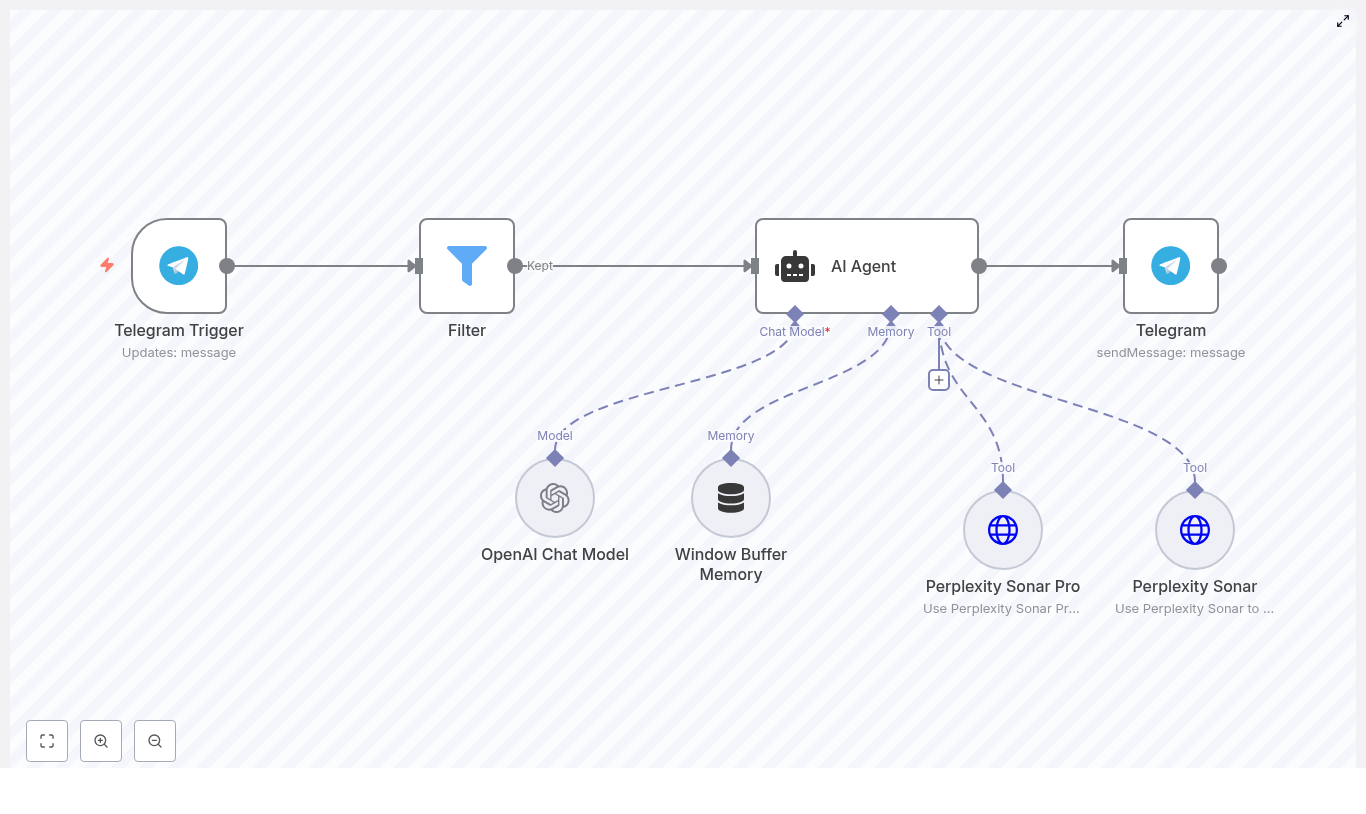
At a high level, the Deep Research Agent template listens for incoming Telegram messages, filters which requests should be processed, then passes valid queries into an AI Agent node that is connected to:
- An OpenAI Chat Model for natural language reasoning and response generation
- A window buffer memory node for short-term conversational context
- Perplexity Sonar and Perplexity Sonar Pro tools for external web research
The AI Agent decides whether to use Sonar or Sonar Pro based on the query characteristics, aggregates and interprets the research results with the LLM, and finally returns a formatted answer to the user via Telegram.
2. Architecture & Data Flow
The workflow is organized as a linear entry pipeline from Telegram into a branching research layer, followed by a unified response stage:
- Telegram Trigger node receives user messages via webhook.
- Filter node applies authorization or message-level rules (for example, allowed chat IDs).
- AI Agent node orchestrates:
- Interaction with the OpenAI Chat Model node.
- Access to Perplexity Sonar and Perplexity Sonar Pro via HTTP-based tools.
- Use of Window Buffer Memory to maintain local context.
- Telegram sendMessage node sends the final response back to the originating chat.
All user-facing interactions begin and end in Telegram, while the AI Agent and research tools operate in the internal n8n execution context.
3. Node-by-Node Breakdown
3.1 Telegram Trigger
The Telegram Trigger node is the entry point for the Deep Research Agent workflow. It listens for new updates from a specific Telegram bot using a webhook.
- Purpose: Capture user queries as soon as they are sent to your bot.
- Key configuration:
- Credentials: Telegram Bot API token created via BotFather.
- Webhook URL: Must match your n8n public URL and be correctly registered in Telegram.
- Update types: Typically configured to receive messages; you can extend to callbacks or other update types if needed.
- Output data:
chat.idfor identifying the conversation.message.textcontaining the user query.- Metadata such as username, message ID, and timestamp.
This node should be the only trigger in the workflow to avoid unexpected parallel executions for the same bot.
3.2 Filter (Authorization / Routing Logic)
The Filter node enforces simple business rules before the query reaches the AI stack. In the template, it primarily controls which Telegram chat IDs are allowed to use the agent.
- Purpose:
- Restrict access to specific users, groups, or channels.
- Optionally route or ignore messages based on content patterns.
- Typical conditions:
- Numeric comparison on
chat.id(for example, equals one or more authorized IDs). - Optional keyword checks in
message.text(for example, only process messages containing a specific prefix or command).
- Numeric comparison on
- Behavior:
- If the filter condition passes, the workflow continues to the AI Agent node.
- If it fails, the execution ends or can be optionally routed to a different branch (for example, a polite denial message).
In the provided template, the default behavior is a numeric filter that allows only predefined chat IDs. This is a simple but effective access control mechanism during early testing.
3.3 AI Agent Node
The AI Agent node is the central orchestrator that connects the language model, memory, and external research tools. It receives the user query and decides how to satisfy it.
- Inputs:
- Text content from the Telegram message.
- Session identifiers (for example,
chat.id) used by the memory node.
- Connected components:
- OpenAI Chat Model for reasoning, summarization, and natural language responses.
- Window Buffer Memory for short-term context.
- Perplexity Sonar and Perplexity Sonar Pro as tools accessible via the Agent.
- Core behavior:
- Analyzes the query to determine whether a fast factual lookup or deeper research is required.
- Invokes Sonar for short, fact-focused queries.
- Invokes Sonar Pro for open-ended, multi-source, or analytical tasks.
- Combines the tool outputs with the LLM to generate a final answer.
The decision logic between Sonar and Sonar Pro can rely on heuristics or classification rules embedded in the Agent configuration. The template encourages a heuristic approach, such as detecting query length or specific research-related keywords.
3.4 OpenAI Chat Model
The OpenAI Chat Model node is the primary LLM used for:
- Natural language understanding of Telegram messages.
- Summarizing and interpreting Perplexity search results.
- Generating structured, user-friendly responses.
- Key configuration:
- Credentials: OpenAI API key.
- Model: A chat-capable model (for example, GPT-style chat model) suitable for multi-turn conversations.
- Prompt / System instructions: Define the role of the agent (for example, “You are a research assistant…”).
- Integration with AI Agent:
- The AI Agent delegates language tasks to this node.
- Tool outputs from Sonar and Sonar Pro are fed into the model as context for summarization and synthesis.
3.5 Window Buffer Memory
The Window Buffer Memory node maintains a short rolling history of the conversation so the AI Agent can handle follow-up questions and maintain continuity.
- Purpose:
- Preserve only the last N exchanges instead of the entire chat history.
- Reduce token usage while keeping enough context for coherent answers.
- Important parameters:
- Session key: Should be set to a stable identifier like
chat.idso each Telegram conversation has its own memory state. - Window size: Typically 5 to 15 messages for general research chat scenarios.
- Session key: Should be set to a stable identifier like
- Data flow:
- The node stores recent messages and responses.
- The AI Agent reads from this memory when constructing prompts for the LLM.
If the session key is misconfigured or missing, the workflow will behave as if there is no memory, and each request will be treated as a standalone query.
3.6 Perplexity Sonar & Sonar Pro
The template uses Perplexity Sonar and Perplexity Sonar Pro as external research tools, integrated via HTTP request nodes and exposed to the AI Agent as tools.
- Sonar:
- Optimized for quick factual answers, definitions, and high-level summaries.
- Best suited for short, specific questions where latency and cost are a priority.
- Sonar Pro:
- Designed for multi-source research, deeper analysis, and structured outputs.
- Ideal for business, academic, or market research queries that require synthesis and citations.
- Key configuration:
- Credentials: HTTP header authentication using your Perplexity API key.
- Endpoints & payload: Configured according to Perplexity Sonar and Sonar Pro API specifications.
- Integration with AI Agent:
- Each HTTP node is registered as a tool that the AI Agent can call programmatically.
- The Agent decides which tool to invoke based on query complexity or heuristics you define.
3.7 Telegram sendMessage
The final node in the workflow sends the AI-generated response back to the user over Telegram.
- Inputs:
chat.idfrom the original Telegram Trigger output.- Response text constructed by the AI Agent and OpenAI Chat Model.
- Optional enhancements:
- Embed links to sources returned by Perplexity.
- Add basic formatting (Markdown or HTML, depending on Telegram settings).
- Include images or quick-reply buttons if your bot permissions and design require it.
4. Step-by-Step Setup
- Create a Telegram bot
Use@BotFatherin Telegram to create a new bot and obtain the bot token. Store this token securely. - Configure Telegram credentials in n8n
In n8n, create Telegram credentials using the bot token, then configure the Telegram Trigger node and set up the webhook so Telegram can reach your n8n instance. - Add OpenAI credentials
Create OpenAI credentials with your API key and link them to the OpenAI Chat Model node. Choose an appropriate chat model and configure basic parameters such as temperature and max tokens. - Set up Perplexity Sonar & Sonar Pro
Create HTTP header authentication credentials for Perplexity. Attach these credentials to the Sonar and Sonar Pro HTTP request nodes and configure the request body and headers according to the Perplexity API. - Adjust Filter logic
Edit the Filter node so it allows the chat IDs or message patterns you want to process. During initial testing, you can limit access to your own chat ID. - Configure Window Buffer Memory
Set the session key to use the Telegramchat.id(or a custom identifier derived from it) so each conversation maintains its own memory window. Adjust the window size according to your use case. - Run tests
Send messages to your Telegram bot and observe the workflow in the n8n execution logs. Confirm that:- The trigger fires correctly.
- The Filter behaves as expected.
- The AI Agent calls Sonar or Sonar Pro appropriately.
- The final response is delivered via the sendMessage node.
5. Configuration Notes & Best Practices
5.1 Routing Between Sonar and Sonar Pro
The effectiveness of the Deep Research Agent depends heavily on how you decide which Perplexity tool to use for each query.
- Use Sonar when:
- The query is short and factual (for example, “What is the market cap of Company X?”).
- The user needs quick definitions or trending summaries.
- Use Sonar Pro when:
- The query implies research, comparison, or multi-source synthesis.
- The user asks for briefs, reports, or structured analysis (for example, “Prepare a 3-paragraph investor brief on fintech trends in LATAM.”).
You can implement simple heuristics inside the AI Agent configuration or with a preceding node, for example:
- Route to Sonar Pro if the query length exceeds a certain number of words.
- Trigger Sonar Pro if the query contains terms like “compare”, “market”, “study”, “analysis”, or “report”.
5.2 Memory Sizing
The window buffer memory should balance context quality with token and cost constraints.
- General guidance:
- 5 to 15 recent messages are usually sufficient for casual research chats.
- Increase the window size if users frequently refer back to earlier parts of the conversation.
- Cost implications:
- Larger windows increase prompt size and OpenAI token usage.
5.3 Rate Limits & Error Handling
Both OpenAI and Perplexity enforce rate limits. To avoid degraded user experience:
- Configure retry logic with exponential backoff on HTTP request nodes where supported.
- Handle error responses from OpenAI and Perplexity gracefully and log them in n8n for diagnostics.
- Send user-friendly fallback messages, for example: “Sorry, I am having trouble reaching my research tools, please try again in a minute.”
For high-traffic use cases, consider adding queueing or throttling mechanisms at the workflow or infrastructure level.
5.4 Privacy & Security
- Avoid storing sensitive user data unless strictly required for your use case.
- If you must persist data, encrypt it at rest and restrict access at the database and n8n levels.
- Keep bot tokens and API keys inside n8n credentials, not hard-coded in nodes.
- Consider redacting or anonymizing personally identifiable information in execution logs.
6. Example Use Cases
6.1 Quick Fact-Checking via Telegram
Example query