How to Generate XML from SQL Data with XSLT in n8n

How to Generate XML from SQL Data with XSLT in n8n

What You Will Learn

In this tutorial you will learn how to build an n8n workflow that:

  • Fetches product data from a MySQL database with an SQL query
  • Transforms the data into structured JSON, then into XML
  • Links the XML to an XSLT stylesheet for visual formatting
  • Serves both the XML and the XSLT through n8n webhooks
  • Handles CORS requirements so modern browsers can load the stylesheet correctly

By the end, you will understand each node in the workflow and how they work together to deliver styled XML over HTTP.

Key Concepts Before You Start

n8n Workflow Basics

n8n lets you connect different services and data sources using nodes. In this workflow you will use:

  • Webhook nodes to receive and respond to HTTP requests
  • MySQL or similar SQL nodes to run queries on your database
  • Set, Concatenate Items, and Convert to XML nodes to shape and transform data
  • Move Binary Data to set the correct MIME type for the XML response

From SQL to XML with XSLT

  • SQL data is tabular, with rows and columns.
  • XML is a markup format that represents data in a tree structure.
  • XSLT is a stylesheet language that lets you transform and style XML for display, for example in a browser.

In this tutorial, you will:

  1. Load product data from SQL.
  2. Convert it to JSON, then to XML.
  3. Attach an XSLT stylesheet reference in the XML declaration.
  4. Serve both XML and XSLT from the same n8n instance to satisfy browser CORS rules.

Step 1 – Trigger the Workflow and Fetch SQL Data

1.1 Set up the Webhook trigger

The workflow starts with a Webhook node that listens for an HTTP GET request. When a client calls this webhook URL, the workflow runs and prepares the XML response.

  • Method: GET
  • Use case: A browser, script, or external system can request your generated XML by calling this webhook URL.

1.2 Query random products from the database

Next, use a node such as Show 16 random products that runs an SQL query on your products table. This node is typically configured as a MySQL node (or another SQL-compatible node) with a query similar to:

  • Select 16 random rows from the products table.

The query returns product records that include key fields such as:

  • code
  • name
  • line
  • scale
  • price

These fields will later be mapped into a consistent JSON structure before converting to XML.


Step 2 – Structure the Data and Convert It to XML

2.1 Normalize the product data with a Set node

After the SQL query, insert a Set node, often named something like Define file structure. This node ensures that each product item has a predictable and clean JSON shape.

In the Set node, you typically:

  • Create fields such as code, name, line, scale, and price.
  • Map each field to the corresponding data from the SQL query result.

The goal is to have a uniform JSON object for each product, which makes the XML conversion step straightforward.

2.2 Combine all products into one array

Next, add a Concatenate Items node. This node aggregates all individual product items into a single JSON array.

This step is important because the Convert to XML node will take this combined JSON array and produce one coherent XML document instead of multiple separate XML fragments.

2.3 Convert JSON to XML

Now use the Convert to XML node to transform the aggregated JSON array into XML.

  • Input: the JSON array from Concatenate Items.
  • Output: an XML string that represents all 16 random products.

In this node, the Headless toggle is enabled. That means the node does not include the standard XML declaration line at the top, such as:

<?xml version="1.0" encoding="UTF-8"?>

You skip this here on purpose because you will add a custom XML declaration later that also includes a link to the XSLT stylesheet.


Step 3 – Add XML Declaration and Link the XSLT Stylesheet

3.1 Create the final XML wrapper

Once you have the raw XML from the Convert to XML node, you use a Create HTML node to construct the final XML output string.

Despite the name, this node can be used to build any text content, including XML. In this node you:

  • Prepend an XML declaration to the converted XML.
  • Insert a processing instruction that points to the XSLT stylesheet.

3.2 Use a dynamic URL for the XSLT template

The XSLT reference in the XML declaration uses the environment variable {{$env.WEBHOOK_URL}}. This allows you to generate a dynamic URL that points to the XSL template served by your own n8n instance.

Your final XML header will look similar to this pattern (simplified):

<?xml version="1.0" encoding="UTF-8"?>
<?xml-stylesheet type="text/xsl" href="<dynamic-n8n-xsl-url>"?>
<products>  ...
</products>

By using {{$env.WEBHOOK_URL}}, the href in the stylesheet instruction always points to the correct n8n webhook URL for the XSLT file, even if your deployment URL changes.


Step 4 – Convert to Binary and Return the XML in the Webhook

4.1 Prepare XML as binary data

Browsers and HTTP clients expect XML to be served with the correct content type. To achieve this, add a Move Binary Data node after Create HTML.

In this node you:

  • Move the XML string into the binary section of the item.
  • Set the MIME type to text/xml.

This ensures that when n8n sends the response, the client recognizes it as XML and can apply the XSLT stylesheet correctly.

4.2 Send the response from the Webhook

Finally, use the Respond to Webhook node to send the XML back to the caller of the initial webhook.

In this node you typically configure:

  • Response body: the binary XML data produced by Move Binary Data.
  • Content-Type header: text/xml.
  • Appropriate CORS headers so that browsers can access the resource from different origins.

With these settings, your workflow now returns a fully styled XML response that a browser can render using the linked XSLT.


Step 5 – Serve the XSLT Template and Handle CORS

5.1 Why CORS matters for XML and XSLT

Modern browsers enforce strict Cross-Origin Resource Sharing (CORS) rules on resources like stylesheets. When your XML document references an XSLT file, the browser checks whether it is allowed to load that stylesheet from the specified origin.

If the XSLT is served from a different domain or without the correct headers, the browser can block it, which prevents your XML from being styled.

5.2 Use a second webhook to serve the XSLT

To avoid CORS issues, this workflow includes a separate webhook whose job is to serve the XSL template from the same n8n instance.

This auxiliary workflow typically:

  1. Receives a request for the XSLT via a webhook URL.
  2. Fetches the XSL template from a remote source, such as a GitHub gist.
  3. Returns the XSLT content through the n8n webhook URL, with appropriate headers.

Because the XSLT is now served from the same origin as the XML (or at least from a controlled n8n endpoint), the browser can safely load it without triggering CORS errors.

This design keeps your XSLT source in GitHub while still complying with browser security policies.


Recap – How the n8n Workflow Fits Together

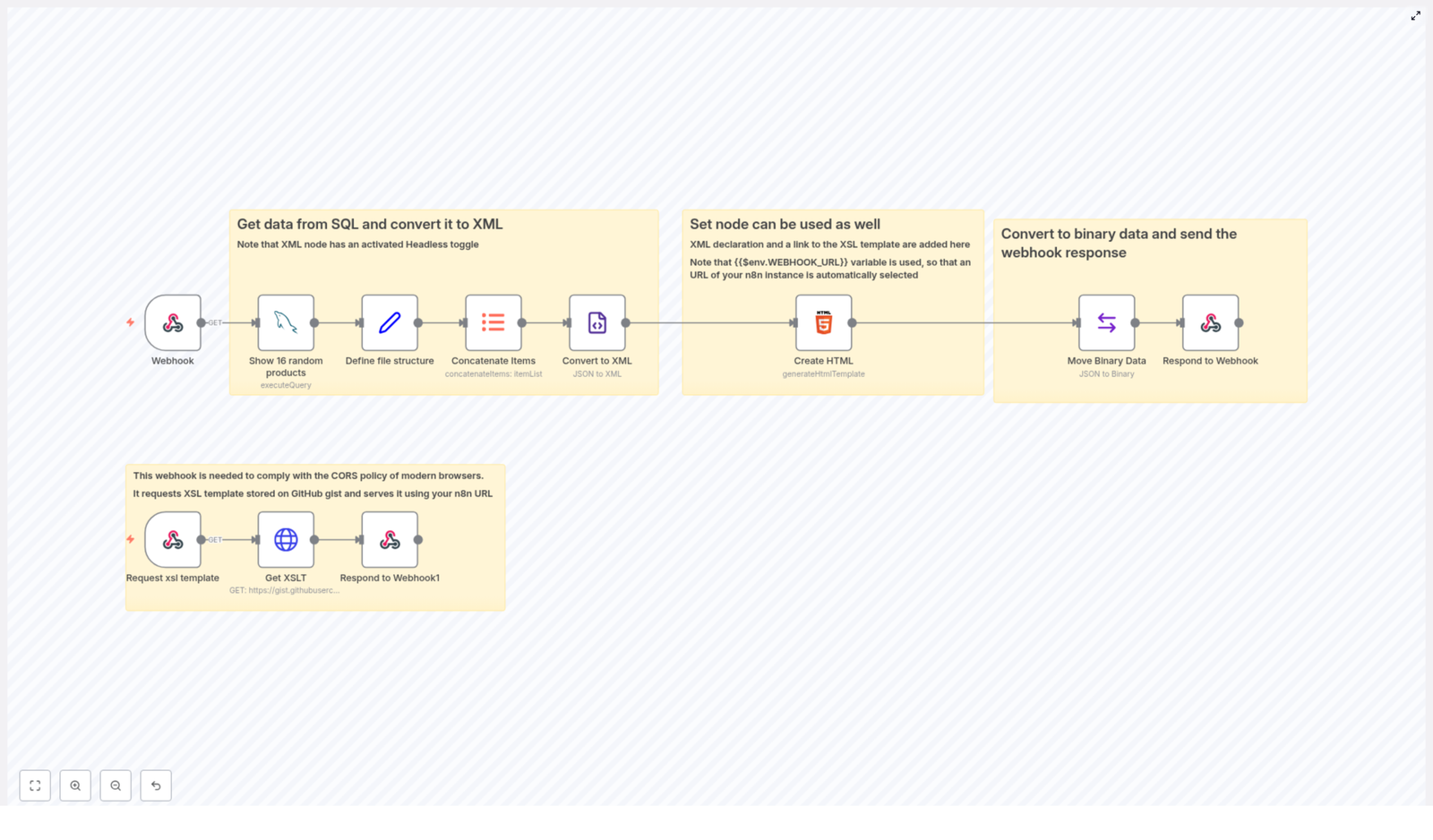
To summarize, the full pipeline looks like this:

  1. Webhook node receives an HTTP GET request to generate XML.
  2. Show 16 random products node runs an SQL query to fetch random product data from the database.
  3. Set node (Define file structure) maps raw SQL fields into a consistent JSON format.
  4. Concatenate Items node aggregates all product items into a single JSON array.
  5. Convert to XML node turns that JSON array into XML, with the Headless option enabled.
  6. Create HTML node builds the final XML string, adding the XML declaration and the XSLT stylesheet reference that uses {{$env.WEBHOOK_URL}}.
  7. Move Binary Data node converts the XML string to binary and sets the MIME type to text/xml.
  8. Respond to Webhook node sends the XML back to the client with correct headers and CORS settings.
  9. A separate webhook workflow fetches the XSL template from a GitHub gist and serves it via n8n to satisfy CORS requirements.

With this pattern you can customize the SQL query, the XML structure, and the XSLT styling to present any database data in a rich, browser-friendly way.


FAQ

Can I change the number of products returned?

Yes. Adjust the SQL query in the Show 16 random products node. For example, change the limit from 16 to any number that fits your use case.

Do I have to use MySQL?

No. You can use any n8n SQL node that connects to your database, as long as it returns product-like records that you can map in the Set node.

Can I reuse this pattern for other data types?

Absolutely. Replace the products table and fields with any other dataset. The key steps – SQL fetch, JSON normalization, XML conversion, and XSLT styling – remain the same.

Why is the XSLT hosted through a webhook instead of directly from GitHub?

Serving the XSLT through n8n lets you control headers and origin, which helps satisfy browser CORS policies. Direct loading from GitHub can result in blocked stylesheets due to stricter cross-origin rules.


Try This n8n XML + XSLT Workflow Yourself

This workflow is a practical example of how n8n can combine SQL data retrieval, XML generation, XSLT styling, and webhook-based delivery into a single automated pipeline.

Implement it in your own n8n instance to:

  • Serve dynamic XML feeds from your database
  • Apply custom XSLT styles for rich visual presentations
  • Experiment with more advanced automation patterns and data formats

For more in-depth automation tutorials and workflow ideas, subscribe to our newsletter or explore additional guides on our blog.
Automate Instagram DM Responses with AI

Automate Instagram DM Responses with AI (So You Can Stop Living in Your Inbox)

Picture this: your Instagram DMs are a full-time job you never applied for

You open Instagram for a “quick check” and suddenly you are 47 messages deep, answering the same questions for the fifth time today. Some DMs are from potential customers, others from loyal followers, and a few are just “hey” with no context at all.

Now you are stuck choosing between two equally terrible options:

  • Manually replying to every single DM until your thumbs give up.
  • Ignoring half of them and pretending “I’ll reply later” is a real strategy.

Both options are a fast track to burnout and missed opportunities.

Here is the unpopular opinion: manually replying to every Instagram DM is not a sign of dedication, it is a growth killer. Your time is better spent creating content, building offers, and, you know, having a life.

The better way: scalable, authentic engagement with AI + n8n

Your audience is not just sending DMs for fun. They reach out for advice, questions, support, or to connect with you personally. Ignoring them, leaving them on read, or hitting them with generic copy-paste replies slowly erodes trust.

On the flip side, fast, personalized, on-brand responses do the exact opposite. They:

  • Make followers feel seen and valued.
  • Turn casual lurkers into loyal fans.
  • Help you build a strong, engaged community at scale.

That is where this n8n workflow template comes in. It acts like your AI Instagram assistant that actually sounds like you, not like a robot who just discovered the concept of “vibes.”

What this n8n Instagram DM automation actually does

This automation connects n8n, ManyChat, and AI to handle your Instagram DMs on autopilot, in your own style. Here is what it is built to do:

  • ✅ Capture every Instagram message in real time through ManyChat.
  • ✅ Learn your tone, voice, and style from your existing content.
  • ✅ Generate human-like, personalized replies powered by advanced AI.
  • ✅ Remember past conversation context for natural, flowing back-and-forth chats.
  • ✅ Send responses straight back to Instagram 24/7, without you lifting a finger.

In other words, you get consistent, on-brand engagement with thousands of followers, without manually typing the same answers all day. No more late-night DM marathons, no more “I’ll reply tomorrow” guilt.

The whole system runs on n8n, quietly doing its thing in the background like a very efficient, never-tired assistant.

Quick overview: how the Instagram DM automation works

Under the hood, the workflow is pretty straightforward, even if the results feel like magic. Here is the high-level flow:

Step 1 – Capture Instagram DMs with ManyChat

First, every time someone sends you a DM on Instagram, ManyChat grabs that message in real time. Instead of those messages getting buried in your inbox, they are passed along to n8n instantly.

Step 2 – Use AI to craft on-brand, personalized replies

Next, n8n routes the message to your AI engine. This AI has been trained on your content so it understands your voice, phrasing, and style. It also has access to conversation history, which means it can:

  • Respond in a way that sounds like you wrote it.
  • Keep context from previous messages so replies feel natural.
  • Avoid awkward, one-size-fits-all answers.

Step 3 – Send the reply back to Instagram automatically

Once the AI response is generated, n8n sends it back through ManyChat to the original Instagram conversation. The follower gets a helpful, relevant message that feels human, and you did not have to pause your day to send it.

This happens 24/7, whether you are sleeping, traveling, or pretending you do not see your screen time report.

Why automation beats manual DM replies (and your sanity agrees)

Let us be honest, manually replying to every DM might feel “personal,” but it is not scalable. Over time it leads to:

  • ❌ Burnout from constantly being “on” in your inbox.
  • ❌ Slower responses that frustrate followers and potential customers.
  • ❌ Inconsistent tone and quality, especially when you are tired or rushed.

With an n8n-powered Instagram DM automation, you get:

  • ✅ Instant replies, even when you are offline.
  • ✅ Personalized, authentic communication that matches your brand voice.
  • ✅ Consistent engagement that builds trust and loyalty.

Instead of choosing between “reply to everyone” and “reply to no one,” you get the best of both worlds: high-quality responses at scale.

The tech stack behind your new AI DM assistant

This workflow is built with a simple but powerful stack that plays nicely together:

  • n8n for automation orchestration and workflow logic.
  • ManyChat to capture Instagram DMs in real time and send replies back.
  • Advanced AI to generate personalized, human-like responses.
  • Context memory so conversations feel continuous and natural, not like the AI forgot everything after one message.

The result is an AI-powered Instagram DM system that runs on autopilot, saves you hours every day, and still feels like you are personally engaging with your audience.

How to get started with the n8n Instagram DM template

You do not need to rebuild this from scratch. The entire setup is available as a ready-to-use n8n template. Here is the simple way to get going:

  1. Open the workflow template using the link below.
  2. Connect your n8n instance, ManyChat account, and AI provider as required.
  3. Configure your prompts, tone, and any rules so the AI replies sound exactly like you.
  4. Turn the workflow on and let it handle incoming DMs automatically.

Once it is live, you can monitor a few conversations, tweak the prompts, and fine-tune the voice until you are happy with how it responds.

Who this Instagram DM automation is perfect for

This workflow is especially helpful if you are:

  • An influencer or creator drowning in DMs from followers who want advice, links, or support.
  • A business using Instagram as a main sales or support channel.
  • A brand that wants to build real community without manually answering every “quick question.”

Influencers and businesses using this kind of AI-powered DM system have already saved hours every single day while building stronger relationships with their audience.

Next step: stop drowning in DMs and start scaling your engagement

If you are ready to step out of your DM inbox and still give your followers the attention they deserve, this n8n workflow template is your shortcut.

Comment “INSTABOT” and I will share the complete n8n system 🔥

Then plug in the template, let AI handle the repetitive stuff, and get back to doing what only you can do.

Automate Stripe Payments to Invoice Email Workflow

Automate Stripe Payments To Invoice Email Workflow

Imagine never sending another manual invoice again

You know that moment when a Stripe payment comes in and you think, “Nice!” followed immediately by “Ugh, now I need to send the invoice”? If you are still copying amounts, formatting invoices, exporting PDFs, and attaching them to emails like it is 2009, this workflow is here to rescue your sanity.

With n8n, Stripe, and Gmail working together, you can automate the entire “payment received – send invoice” process. No more repetitive clicking, no more “Did I forget to send that invoice?”, and definitely no more digging through spreadsheets to find customer details.

In this guide, you will see how an n8n workflow template:

  • Listens to successful Stripe payments
  • Normalizes and cleans up the payment data
  • Generates a professional HTML invoice
  • Emails that invoice as a PDF using Gmail

All on autopilot, while you do literally anything else.

What this n8n workflow actually does

At its core, this is an automated Stripe payments to invoice email workflow. Once a payment succeeds, the workflow kicks in, grabs the payment data, turns it into a nicely formatted invoice, converts that to a PDF, and emails it to your customer using Gmail.

Here is the high-level flow in plain language:

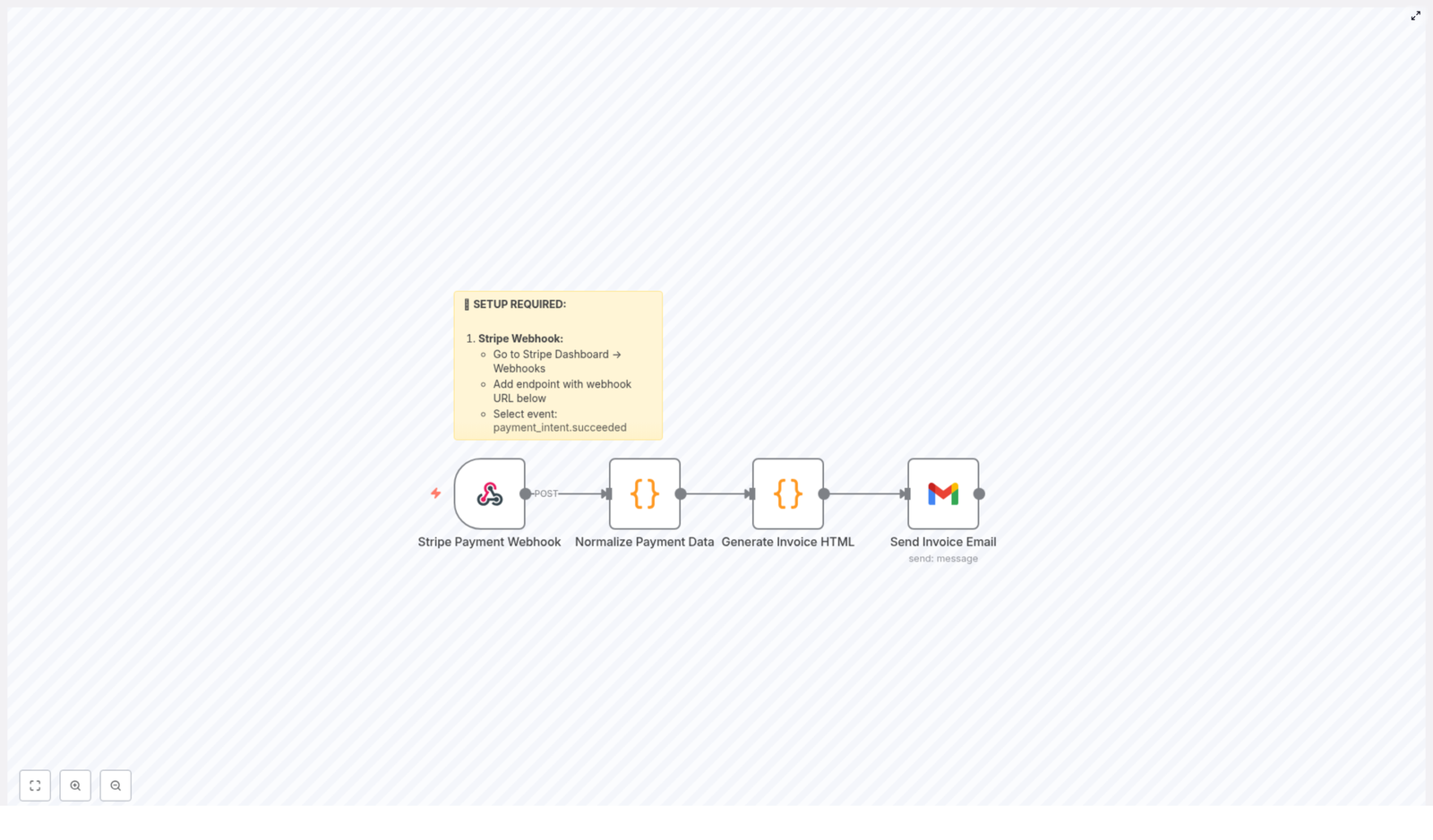
  1. Stripe Payment Webhook – Stripe sends an event to your n8n webhook whenever a payment is successful.
  2. Normalize Payment Data – The messy, nested Stripe payload is cleaned up and transformed into a neat, consistent data structure.
  3. Generate Invoice HTML – That clean data is dropped into an HTML invoice template that looks professional and clearly says “Paid”.
  4. Send Invoice Email via Gmail – The HTML invoice is turned into a PDF and sent as an email attachment to your customer.

The result is a fully automated invoice workflow that makes you look organized without you actually having to be there every time a payment lands.

Step-by-step: from Stripe payment to email inbox

Let us walk through each part of the workflow so you know exactly what is happening behind the scenes.

1. Catch successful payments with a Stripe webhook

First, you need Stripe to tell n8n when money shows up.

In your Stripe dashboard, you set up a webhook that listens for the payment_intent.succeeded event. This is Stripe’s way of saying, “Payment went through, we are good.”

That webhook sends a POST request to your n8n webhook URL, which is the starting point of this workflow. Each time a payment succeeds, n8n receives all the related data automatically, no refreshing dashboards required.

2. Normalize the Stripe payment data so it makes sense

Stripe’s event payload is powerful, but it can also look like a small jungle of nested objects. The workflow includes a normalization step that picks out the useful bits and puts them into a consistent format.

The normalized data usually includes:

  • Payment ID – The unique identifier of the payment.
  • Amount paid – Converted from cents to dollars (or your chosen currency unit) so you do not have to divide by 100 in your head.
  • Currency – So your invoice clearly shows whether it is USD, EUR, etc.
  • Customer email and name – Used for the invoice and for sending the email.
  • Payment date – When the transaction actually happened.
  • Description and invoice number – Helpful for bookkeeping and customer clarity.
  • Status – Confirmed as paid, so the invoice reflects that.

This normalization step is what makes the rest of the workflow smooth. With everything in a predictable structure, generating invoices becomes easy and consistent.

3. Turn that data into a polished HTML invoice

Once the payment data is normalized, it flows into an HTML template node in n8n. This is where the magic of “raw JSON” turning into “actual invoice” happens.

The HTML template is designed to include all the essentials:

  • Your company name and branding details
  • The customer name and contact information
  • The payment amount and currency
  • The payment date, description, and invoice number
  • A clear payment status field marked as “Paid”

The result is a clean, readable invoice layout that looks professional in any inbox. No more last minute “let me just fix this alignment in Word” moments.

4. Email the invoice as a PDF using Gmail

Finally, the workflow converts the HTML invoice into a PDF file and attaches it to an email sent via Gmail.

The Gmail integration in n8n uses OAuth, so your account is connected securely. The workflow sends the invoice to the customer’s email address captured from Stripe, includes a polite thank you message, and confirms that their payment has been received.

This closes the loop on the transaction and gives your customer instant proof of payment without you lifting a finger.

Quick setup checklist

Here is a simplified checklist to get this Stripe to invoice email workflow up and running with n8n:

  • Stripe Webhook:
    • Go to your Stripe Dashboard → Webhooks
    • Add a new endpoint pointing to your n8n webhook URL
    • Subscribe to the payment_intent.succeeded event
  • Gmail Integration:
    • In n8n, connect your Gmail account using OAuth
    • Grant permissions so the workflow can send emails on your behalf
  • Invoice Customization:
    • Edit the HTML invoice template in the workflow
    • Update your company name, branding, and any layout or text you want to change
    • Adjust invoice fields if you want to show extra details like tax info or notes

Why automate Stripe payment invoices with n8n

Besides saving you from repetitive invoice chores, this workflow brings a few very practical benefits:

  • Less manual work, fewer mistakes
    Automated invoicing means no more copying amounts by hand, no wrong decimals, and no forgotten emails.
  • Instant payment confirmation
    Customers get an email with a PDF invoice right after payment, which builds trust and reduces “Can you send me the invoice?” follow ups.
  • Professional looking invoices
    A consistent, branded HTML invoice that converts to PDF makes your business look sharp and organized.
  • Scales with your business
    Whether you have 5 payments a month or 5,000, the workflow handles them the same way, without needing extra hands.

Next steps and ideas for improvement

Once you have this Stripe to Gmail invoice workflow running, you can extend it with more n8n automation, for example:

  • Log each invoice into a Google Sheet or database for reporting
  • Send a copy of the invoice to your internal finance or accounting email
  • Trigger follow up workflows, like adding the customer to a CRM or sending onboarding emails

If you want to go deeper with customization, tweak the HTML invoice template, adjust the email copy, or add more payment details. The core structure remains the same, you just layer on the extras you need.

Ready to stop sending invoices by hand?

If you are tired of repetitive invoicing tasks, this n8n workflow template gives you a simple way to automate the entire process from Stripe payment to invoice email.

Set it up once, customize your invoice, and let automation quietly handle the boring parts while you focus on the work that actually needs a human.

Streamline your payment workflow and delight your customers with automatic invoice emails, without burning time on manual admin.

How to Build a Smart Customer Support with n8n & AI

How a Lean Support Team Built a Smart AI Helpdesk With n8n

The Night Everything Broke

At 11:47 PM on a Tuesday, Lara, a solo customer support lead at a fast-growing SaaS startup, watched her inbox explode.

A new feature had just gone live. Marketing sent a big announcement. Users loved the idea, but they were confused. The same questions kept coming in:

  • “How do I enable the new feature?”
  • “Is this available on my plan?”
  • “Why am I seeing this error message?”

By midnight, live chat was full of nearly identical messages. Lara knew the pattern. She would copy-paste answers from an internal FAQ, tweak them a bit, and try not to miss anything important.

It was repetitive, expensive in time, and completely unsustainable.

Her founders wanted something smarter. They mentioned “AI support” and “automation” in every meeting. Lara had heard of n8n and large language models, but she was not a machine learning engineer. She needed a way to turn their existing FAQs into a smart assistant without building a full AI stack from scratch.

The Discovery: An n8n Template That Could Think

A few days later, while searching for “n8n AI customer support” templates, Lara found a workflow that sounded almost too perfect.

It promised a hybrid approach:

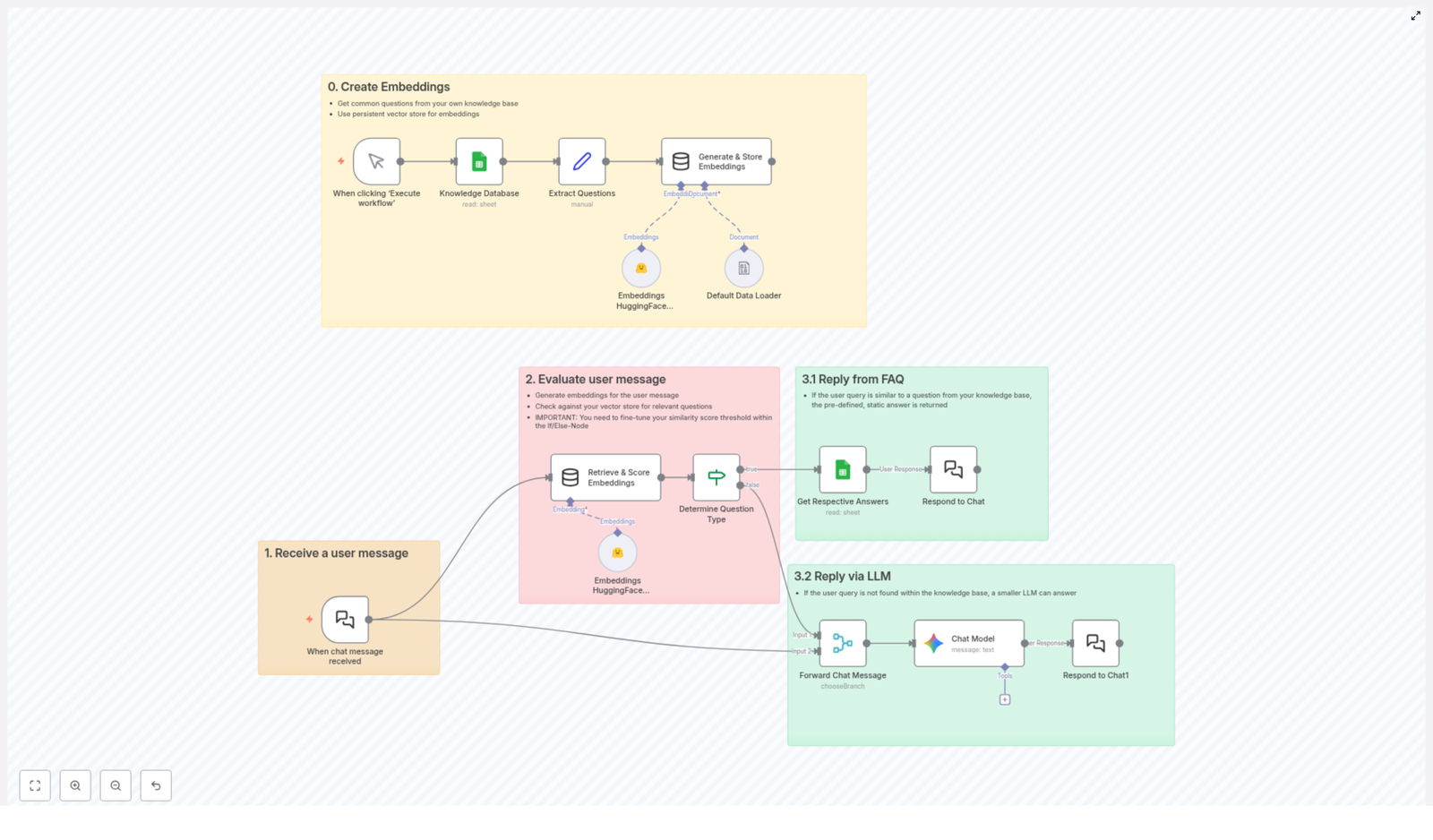
  • Use vector embeddings of existing FAQs as the first line of defense.
  • Fall back to a Large Language Model only when the FAQ could not help.
  • Run everything inside n8n with Google Sheets, HuggingFace, and Google Gemini.

The idea was simple but powerful. Instead of sending every question to an LLM, the workflow would try to match the user message to a known question in their FAQ using embeddings. If a close match was found, it would send the exact answer they had already written. If not, the LLM would step in with a safe, generic, but helpful reply.

For Lara, this meant two things that mattered a lot:

  • She could keep full control over policy and account-specific answers in the FAQ.
  • She could save on LLM costs by only using it when needed.

Act 1 – Turning FAQs Into Something a Machine Can Understand

Lara started with what she already had: a long Google Sheet full of questions and answers the team had curated over months.

The n8n template described this as Step 0, but to Lara it felt like laying the foundation for a new kind of helpdesk.

Step 0: Teaching the Workflow What the FAQ Means

The template guided her to transform the plain text questions into embeddings, which are numerical representations that capture the meaning of each question. That way, when a user later typed “Why am I seeing this red banner?” the system could recognize it as similar to “What does the red error banner mean?” even if the wording was different.

Inside n8n, the workflow did three key things:

  • Data Source: It connected to Google Sheets, which served as the knowledge base holding all the common questions and answers.
  • Process: When Lara manually executed the workflow for the first time, it read every row, extracted the questions, and sent them to HuggingFace inference to generate embeddings.
  • Storage: The embeddings were saved in an in-memory vector store, ready to be searched whenever a user message arrived.

That first manual run felt like the moment the system “learned” the knowledge base. Nothing visible changed on the website yet, but behind the scenes, the FAQ had become searchable by meaning, not just exact text.

Act 2 – The First Real User Message

With the embeddings created, Lara connected the workflow to their chat system. Now, every new message would trigger the n8n flow automatically.

Step 1: Receiving a User Message

In the template, this was the entry point. A chat trigger node captured each incoming message and handed it off to the rest of the workflow.

For Lara, the first live test came from a user asking:

“Can I use the new analytics feature on the basic plan?”

Step 2: Comparing the Question to the Knowledge Base

As soon as the message arrived, n8n converted it into an embedding using HuggingFace, just like it had done for the FAQ questions.

The workflow then compared this new embedding to all existing FAQ embeddings stored in the vector database. It calculated similarity scores for each potential match, typically using cosine similarity or an equivalent metric.

In the middle of the workflow, an If/Else node played the role of gatekeeper:

  • If the highest score was above a configured threshold, for example 0.8, the system would assume it had found a relevant FAQ.
  • If the score fell below that threshold, it would treat the message as something new or less clear, and route it to the LLM instead.

That threshold became a tuning knob for Lara. Higher values meant the system would only answer from the FAQ when it was very confident. Lower values meant more aggressive matching, which could occasionally pick a not-quite-right answer.

Act 3 – When the FAQ Knows the Answer

For that first analytics question, the similarity score came back high. The user message was almost a perfect semantic match to an existing FAQ entry about feature availability by plan.

Step 3.1: Responding Directly From the FAQ

Because the score passed the threshold, the workflow followed the “FAQ path”. It looked up the matched question in Google Sheets, grabbed the predefined answer, and sent it back through the chat node.

From the user’s perspective, it felt like a support agent had immediately typed a clear, correct explanation. From Lara’s perspective, she had not lifted a finger. The workflow had:

  • Recognized the intent of the question.
  • Mapped it to an existing FAQ entry.
  • Delivered a human-written answer that the team had already vetted.

Most importantly, no LLM call was needed. That meant lower cost and no risk of the model inventing policy details.

Act 4 – When the FAQ Does Not Know Enough

A few hours later, a different kind of question came in:

“Can you give me tips to improve my dashboard performance?”

This time, the FAQ did not have a perfect match. There were entries about errors and limits, but nothing that directly answered that open-ended request. The similarity scores came back mediocre.

Step 3.2: Falling Back to a Large Language Model

The If/Else node detected that the best score was below the threshold. Instead of forcing a half-relevant FAQ answer, the workflow followed the fallback path and sent the user message to a Large Language Model, in this template configured as Google Gemini.

Lara had already set a system message when she configured the LLM node. It instructed Gemini to:

  • Avoid answering policy or account-specific questions.
  • Keep responses concise, friendly, and direct.
  • Provide generic, safe guidance when the FAQ did not cover the topic.

The reply that came back was exactly what she hoped for: a short list of practical suggestions about reducing unnecessary widgets, optimizing filters, and checking data refresh intervals. It did not touch pricing or account details, which was crucial for compliance.

Again, n8n sent the response straight through the chat node. The user got help within seconds, and Lara saw the entire path inside the n8n execution log.

Why This Hybrid Support Flow Changed Lara’s Workday

Over the next week, as more users tried the new feature, the workflow handled a growing share of questions automatically. Some were resolved directly from the FAQ, others went to Gemini for generic guidance. The combination started to feel like a real teammate.

Key Benefits Lara Saw in Practice

  • Efficiency: Repeated questions like “How do I enable X” or “What happens if I change Y” were answered instantly from the Google Sheets knowledge base. The system did not call the LLM for those, which saved API usage and reduced costs.
  • Flexibility: The mix of vector search and fallback LLM meant the assistant was both accurate on known FAQs and adaptable for new or unexpected queries.
  • Scalability: Any time the product team added a new feature, Lara just updated the FAQ in Google Sheets and reran the embedding creation step. The workflow always had the latest answers without a complex retraining process.

How Lara Set Everything Up With the n8n Template

If you want to follow the same path, the steps Lara took are straightforward, even if you are not a machine learning expert.

1. Prepare the Knowledge Base

  • Create or clean up your FAQ list in Google Sheets. Use one column for questions and another for answers.

2. Configure the n8n Workflow

  • Import the n8n template that combines embeddings, knowledge base search, and an LLM fallback.
  • Connect your Google Sheets credentials so the workflow can read your FAQ.
  • Add your HuggingFace API details so the workflow can generate embeddings.
  • Connect your Google Gemini (or other LLM) credentials for the fallback responses.

3. Run the Embedding Initialization

  • Execute the workflow manually once to generate embeddings for all FAQ questions.
  • Confirm that the embeddings are stored in the in-memory vector store and that the workflow finishes without errors.

4. Go Live With Real User Messages

  • Enable the chat trigger or webhook that feeds user messages into n8n.
  • Test with a few known FAQ questions to see the “Reply from FAQ” path in action.
  • Try some new or vague questions to verify the “Reply via LLM” fallback.
  • Adjust the similarity threshold if needed to balance precision and coverage.

The Resolution: A Support System That Grows With the Product

A month later, Lara’s late nights became rare. The workflow handled a large share of routine questions. When new topics surfaced, she simply added them to the Google Sheet and reran the embedding step. The assistant grew smarter without becoming more complicated.

In the end, this n8n workflow was not just a clever automation trick. It became the backbone of a smart, AI-driven customer support system that:

  • Combined embeddings and knowledge bases for precise FAQ handling.
  • Used a Large Language Model like Google Gemini only when needed.
  • Stayed transparent, configurable, and cost-effective.

If you are facing the same flood of repeated questions, you do not need to rebuild your stack from scratch. You can start where Lara did, with a simple spreadsheet and an n8n template that ties everything together.

Ready To Build Your Own AI-Powered Support Flow?

Explore the tools that made Lara’s workflow possible:

Get started with n8n | Explore HuggingFace | Discover Google Gemini

Automate Daily Motivational Quotes to Slack with n8n

Automate Daily Motivational Quotes to Slack with n8n: A Story From Burnout to Boosted Morale

The Morning Slump That Wouldn’t Go Away

By 9:30 AM every weekday, Maya could already feel the energy draining from her remote team.

As the marketing lead at a fast-growing startup, she lived inside Slack. It was where campaigns were planned, launches were coordinated, and fires were put out. It was also where she watched her team’s enthusiasm quietly dip as deadlines piled up and messages stacked into long, unread threads.

Maya tried everything. She typed out motivational quotes on Mondays, shared wins on Wednesdays, and dropped inspirational links on Fridays. For a week or two, it worked. People reacted with emojis, replied with their own quotes, and the team felt a bit lighter.

Then her calendar exploded again. Meetings, reports, launches. The quotes stopped. The small ritual that lifted everyone’s mood faded away, simply because she did not have the time or mental space to keep it going manually.

What she really needed was simple:

  • Motivational quotes in Slack every morning, at the same time
  • No manual copy-pasting or searching for quotes
  • A way to customize the channel, timing, and message format

She wanted consistency, engagement, and a bit of personality, without adding another task to her already crowded to-do list.

The Discovery: An n8n Template That Promised to Help

One late evening, while searching for “automate daily motivational quotes in Slack,” Maya stumbled across an n8n workflow template that sounded almost too perfect. It claimed to:

  • Trigger every morning at 8 AM
  • Fetch a random motivational quote from the free ZenQuotes.io API
  • Format the quote into a Slack-ready message
  • Send it directly into a Slack channel of her choice

Maya had heard of n8n before, a visual automation tool that did not require heavy coding. She was not a developer, but she was comfortable dragging nodes around and tweaking simple settings.

“If this actually works,” she thought, “I could stop worrying about remembering quotes and still keep that positive energy flowing every morning.”

Setting the Stage: Preparing Slack for Automation

The next morning, coffee in hand, Maya decided to give it a try.

The template instructions were clear. First, she had to create and connect a Slack app so that n8n could send messages on her behalf. It sounded technical, but the steps were surprisingly straightforward.

Step 1 – Creating the Slack App

Maya went to api.slack.com and created a new Slack app for her workspace. She named it “Daily Motivation Bot” and followed the basic setup instructions.

To let n8n send messages to channels, she needed to add specific OAuth scopes. She made sure to include:

  • chat:write so the app could post messages
  • channels:read so it could see what channels were available

Once the scopes were added, she installed the app to her Slack workspace. A quick confirmation message appeared, and the bot was ready to be used by n8n.

Step 2 – Choosing the Right Slack Channel

The template was configured to send quotes to the #general channel by default. Maya paused for a moment.

“Do I want this to go to everyone,” she wondered, “or just the marketing team?”

She decided to start with a dedicated channel called #daily-motivation. It felt intentional, a place people could visit when they needed a lift.

Inside the n8n workflow, she opened the “Send to Slack” node and simply changed the channel name from #general to #daily-motivation. No code, no complexity, just a simple text change.

The Heart of the Workflow: How the Automation Actually Works

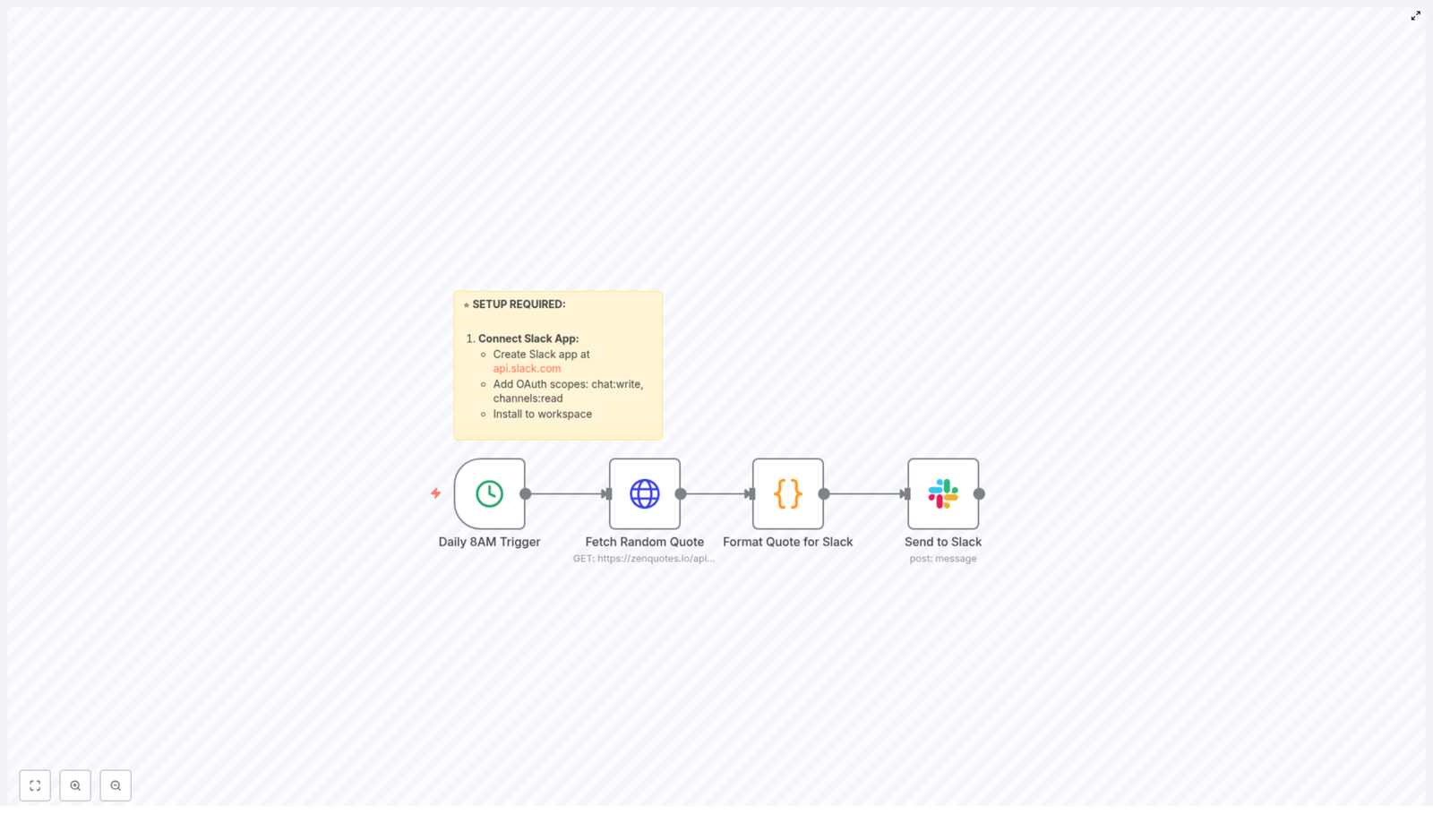
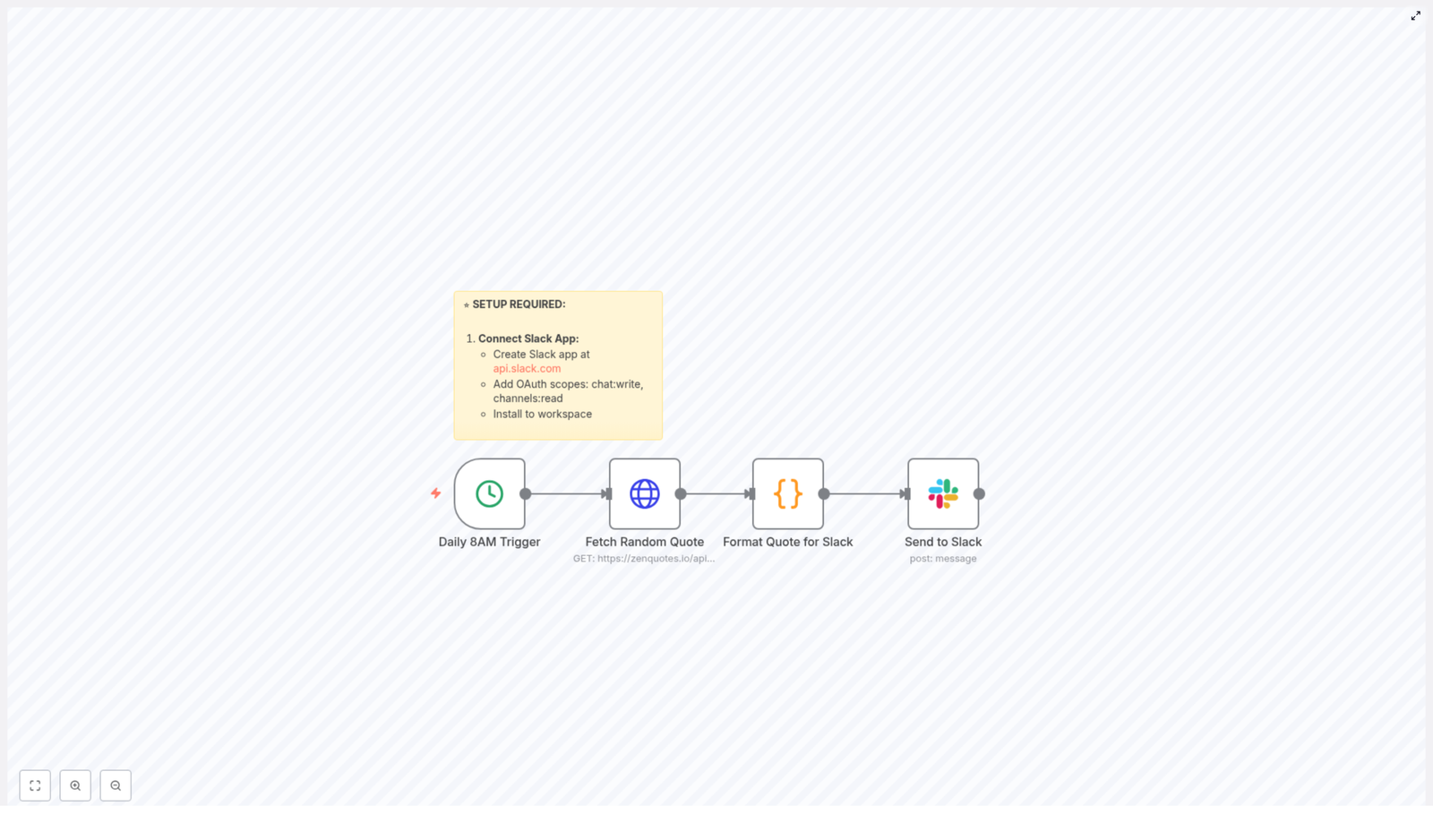
With Slack connected, Maya turned her attention to the automation itself. The workflow in n8n was made of four key parts, each one represented by a node:

  1. A trigger that fired every day at a specific time
  2. A call to the ZenQuotes.io API to fetch a random quote
  3. A code node that formatted the quote for Slack
  4. A Slack node that posted the final message into her chosen channel

Daily 8 AM Trigger: Starting the Ritual

The first node was a simple time-based trigger. It was set to run at 8 AM in the America/New_York timezone.

Maya’s team was spread across multiple regions, so she adjusted the timezone to match where most of her teammates were based. n8n made this easy. She just updated the workflow’s timezone setting, and the daily schedule adjusted automatically.

Every day at 8 AM, this trigger would quietly start the workflow in the background, without anyone having to remember a thing.

Fetching a Random Quote with ZenQuotes.io

The next node called the free ZenQuotes.io API. No API key was required, which was a relief. Maya did not want to manage tokens or secrets for a simple morale boost.

Each time the workflow ran, it requested a random motivational quote. The API responded with text and an author, which the next node would use to build a clean, friendly Slack message.

Formatting the Quote for Slack

This was the part Maya was most curious about. How would the message actually look in Slack?

Inside the “Format Quote for Slack” node, a small piece of JavaScript transformed the raw API response into a polished message. The format looked like this:

🌟 *Daily Motivation* 🌟

"[Quote text]"

- [Author]

The code did more than just insert text. It checked if the API had actually returned a quote. If, for some reason, there was no quote available, the node would fall back to a default motivational message. That meant the channel would never be empty, even on days when the API had issues.

In other words, Maya’s daily ritual was protected against minor technical hiccups.

Sending the Message to Slack

The final node, “Send to Slack,” took the formatted message and posted it into the channel she had chosen. Thanks to the earlier OAuth setup, the workflow could now act like a friendly bot, dropping a fresh quote into #daily-motivation every morning.

Maya ran a quick test. Within a few seconds, her Slack channel lit up with:

🌟 *Daily Motivation* 🌟

"[Inspiring quote text]"

- [Author]

It looked clean, intentional, and exactly like something she would have crafted herself, only now it was fully automated.

The Turning Point: From Manual Effort to Reliable Automation

The real test came the next day. At 8 AM, while Maya was still getting her first coffee, Slack quietly posted a new quote in #daily-motivation. Team members reacted with emojis. Someone replied, “Love this one.” Another person added their own favorite quote in a thread.

By the end of the week, the channel had become a tiny daily touchpoint. No one had to be reminded. No one had to prepare content. The routine was automated, but the impact was very human.

Maya realized that this small automation had solved several problems at once:

  • Consistency – The quotes went out every day, without fail, even when she was busy or away.
  • Engagement – People began checking the channel in the morning, reacting, and sharing their own thoughts.
  • Customization – She could easily change the channel, tweak the message style, or adjust the time if the team’s schedule changed.

Why n8n Was the Right Fit for This Job

As Maya grew more comfortable with n8n, she realized why this tool was such a good match for her daily motivational quotes idea.

  • No coding required – The visual workflow builder let her connect nodes, adjust settings, and test the flow without writing complex code.
  • Free API integration – The ZenQuotes.io API did not require an API key, which made setup fast and frictionless.
  • Flexible scheduling – She could easily change the time, timezone, or frequency as her team’s needs evolved.
  • Easy to customize – She could modify the quote format, add emojis, or even extend the workflow later with additional steps.

What started as a simple motivation bot turned into a gentle example of what automation could do for culture, not just operations.

From One Workflow to a Happier Workspace

Weeks later, the daily quotes had become part of the team’s rhythm. New hires discovered the channel on their first day and often commented on how nice it was to see something uplifting in their feed each morning.

For Maya, the best part was that it all happened in the background. She did not have to remember to post, did not have to search for quotes, and did not have to worry about missing a day. The n8n workflow handled everything.

And because it was built on a visual automation platform, she knew she could expand it later. Maybe she would pull quotes from a spreadsheet, highlight team wins on Fridays, or send different messages to different departments. The foundation was already there.

Bring Daily Motivation to Your Own Slack Workspace

If you are juggling a busy schedule and still want to create a more positive, consistent atmosphere in your Slack workspace, this n8n template gives you a practical starting point.

With just a few steps, you can:

  • Connect a Slack app with the right permissions
  • Use the free ZenQuotes.io API to fetch random motivational quotes
  • Format messages in a Slack-friendly layout
  • Schedule them to appear at the perfect time for your team

Once set up, the workflow quietly runs on its own, delivering a small but meaningful boost to your team’s day.

Ready to Try the n8n Motivational Quote Template?

You do not need to be a developer to bring this to life. You just need a Slack workspace, an n8n instance, and a few minutes to connect the pieces.

Transform your mornings, support your team’s mindset, and let automation handle the repetition so you can focus on the work that truly needs you.

Automate Daily Motivational Quotes to Slack with n8n

Automate Daily Motivational Quotes to Slack with n8n

What You Will Learn

In this tutorial, you will learn how to build an n8n workflow template that automatically sends a daily motivational quote to a Slack channel at 8 AM. By the end, you will know how to:

  • Create and configure a Slack app with the correct permissions
  • Set up a cron trigger in n8n to run every day at a specific time
  • Use the ZenQuotes API to fetch a random motivational quote
  • Format the quote in a Code node so it looks great in Slack
  • Send the formatted message to a Slack channel using OAuth 2.0
  • Customize the channel, message style, and time settings

This guide is ideal if you want to keep your team engaged and motivated using n8n automation and Slack.

Concept Overview: How the n8n Workflow Works

Before we dive into the steps, it helps to understand the overall flow. The workflow is made up of four key nodes that work together:

  1. Daily 8 AM Trigger (Cron node)
    Starts the workflow automatically every day at 8 AM.
  2. Fetch Random Quote (HTTP Request or similar)
    Calls the free ZenQuotes API to get a motivational quote and its author.
  3. Format Quote for Slack (Code node)
    Takes the raw quote data and turns it into a nicely formatted Slack message.
  4. Send to Slack (Slack node)
    Uses your Slack app OAuth token to post the formatted message into a specific Slack channel.

Once activated, this workflow runs on its own. Every morning at 8 AM, your team receives a fresh motivational quote in Slack without any manual effort.

Prerequisite: Create and Configure Your Slack App

1. Create a Slack App

To let n8n post messages into Slack, you first need a Slack app with the right permissions:

  1. Go to api.slack.com.
  2. Create a new app for your workspace.
  3. Open the app settings and navigate to the OAuth & Permissions section.

2. Add Required OAuth Scopes

Under Scopes, add the following Bot Token Scopes so the app can read channels and post messages:

  • chat:write – allows the app to send messages to channels
  • channels:read – allows the app to access channel information

These scopes are essential for the n8n Slack node to work correctly.

3. Install the App to Your Workspace

After adding the scopes:

  • Click Install App to Workspace from the app settings.
  • Authorize the app for your Slack workspace.
  • Copy the Bot User OAuth Token (this will be used later inside n8n as your Slack credentials).

Building the n8n Workflow Step by Step

Step 1: Create the Daily 8 AM Trigger

In n8n, the workflow starts with a Cron node that runs on a schedule.

  1. Add a new Cron node to your workflow.
  2. Set it to trigger Once per day.
  3. Configure the time to 8:00 AM in your desired timezone.

This node ensures your automation runs automatically at 8 AM every day. If you are in a different region, you can adjust the timezone in the n8n settings so the trigger fires at the correct local time.

Step 2: Fetch a Random Motivational Quote

Next, you need a node that calls the ZenQuotes API to get a quote.

  1. Add an HTTP Request or a similar node that can call an external API.
  2. Set the URL to the ZenQuotes endpoint that returns a random quote (for example from zenquotes.io documentation).
  3. Use the GET method.

The ZenQuotes API used in this workflow is free and does not require an API key, which makes it very quick to set up. The response typically includes the quote text and the author, which you will use in the next step.

Step 3: Format the Quote for Slack Using a Code Node

The raw API response is not yet in a friendly Slack format. To improve readability and engagement, you can use a Code node to build a custom message string.

  1. Add a Code node after the quote-fetching node.
  2. In the Code node, access the quote text and author from the previous node’s output.
  3. Create a formatted message, for example:
    ""Quote text here" - Author"

You can also customize this message further. For example, you might:

  • Add emojis to make the message more fun
  • Include a username-style prefix, like “Daily Motivation”
  • Use Slack formatting, such as bold or italics, to highlight parts of the message

The Code node gives you full control over how your team sees the quote in Slack.

Step 4: Send the Formatted Message to Slack

Now that the quote is formatted, the final step is to post it into a Slack channel.

  1. Add a Slack node and connect it after the Code node.
  2. Configure the node to Send a message.
  3. Use your Slack app’s OAuth 2.0 token as the credentials.
  4. Set the Channel field to the channel where you want the quote to appear, for example #general or any custom channel.
  5. Map the text field to the formatted message coming from the Code node.

You can change the channel at any time by updating the channel parameter in this Slack node. This makes it easy to move your daily quotes into a different team channel if needed.

Customizing and Improving Your Automation

Choose the Right Slack Channel

In the Send to Slack node, you can:

  • Post to a public channel like #team-updates or #random
  • Target a private channel if your Slack app has access
  • Adjust the channel name whenever your team structure changes

Adjust the Message Style

The Code node is where you can experiment with different message formats. For example:

  • Prepend a title like "Your daily motivation:"
  • Add emojis such as :sunrise: or :sparkles:
  • Use line breaks to separate the quote and the author

These small tweaks help the quote stand out in busy Slack channels.

Configure Timezone and Scheduling

If you are not in the America/New_York timezone, you can:

  • Open your n8n instance settings and change the default timezone
  • Revisit the Cron node and confirm the 8 AM setting matches your local time

This ensures your team receives the quote at the right time of day, wherever they are.

Add Logging or Error Handling

To make the workflow more robust, you can:

  • Add logging nodes to record when messages are sent
  • Include error handling nodes so you are notified if the ZenQuotes API fails or if Slack returns an error

These additions are optional, but they are useful if you rely on this automation for daily engagement.

Running and Activating the Workflow

Once all four nodes are configured:

  1. Save your workflow in n8n.
  2. Test it manually once to confirm:
    • The quote is fetched correctly from ZenQuotes
    • The message is formatted the way you expect
    • The Slack node posts to the correct channel
  3. Click Activate to turn on the workflow.

From now on, every day at 8 AM, n8n will automatically:

  1. Trigger the workflow
  2. Fetch a new motivational quote
  3. Format it for Slack
  4. Post it into your chosen channel

This creates a simple but powerful routine that encourages positivity and motivation in your workspace.

Quick FAQ and Recap

Do I need an API key for ZenQuotes?

No. The workflow uses the free ZenQuotes API, which does not require an API key. That makes setup fast and beginner friendly.

Can I change the time from 8 AM to something else?

Yes. Open the Cron node in n8n and adjust the schedule. You can choose any time of day, or even different days of the week if you prefer.

What if my team is in a different timezone?

Update the timezone in your n8n settings to match your region, then confirm the Cron node time. This ensures your “8 AM” really matches your local 8 AM.

Can I customize the quote message further?

Absolutely. Use the Code node to change wording, add emojis, adjust formatting, or include additional context. You have full control over the final Slack message.

Is this workflow free to run?

Yes. It uses:

  • The free ZenQuotes API without an API key
  • Your existing Slack workspace
  • n8n, which can be self-hosted or run on a plan of your choice

Conclusion

Automating daily motivational quotes in Slack with n8n is a simple way to keep your team energized and connected. With a small number of nodes and a free quote API, you get a workflow that is:

  • Easy to set up – only four main nodes
  • Free to start – no API key required for ZenQuotes
  • Highly customizable – adjust channels, timing, and formatting to fit your team

Set up this n8n workflow template today and bring a daily boost of positivity to your Slack workspace.

Have questions or want to tweak the automation for your own use case? Share your ideas or ask for help in the comments.

How to Push Files to GitHub with n8n Automation

How to Push Files to GitHub with n8n Automation (So You Can Stop Doing It Manually)

Imagine Never Typing git push Again…

You just updated a tiny line in your README.md. Again. You open the terminal, again. You type git add, git commit, git push, again. At this point you are less a developer and more a professional button pusher.

Good news: n8n can do that part for you.

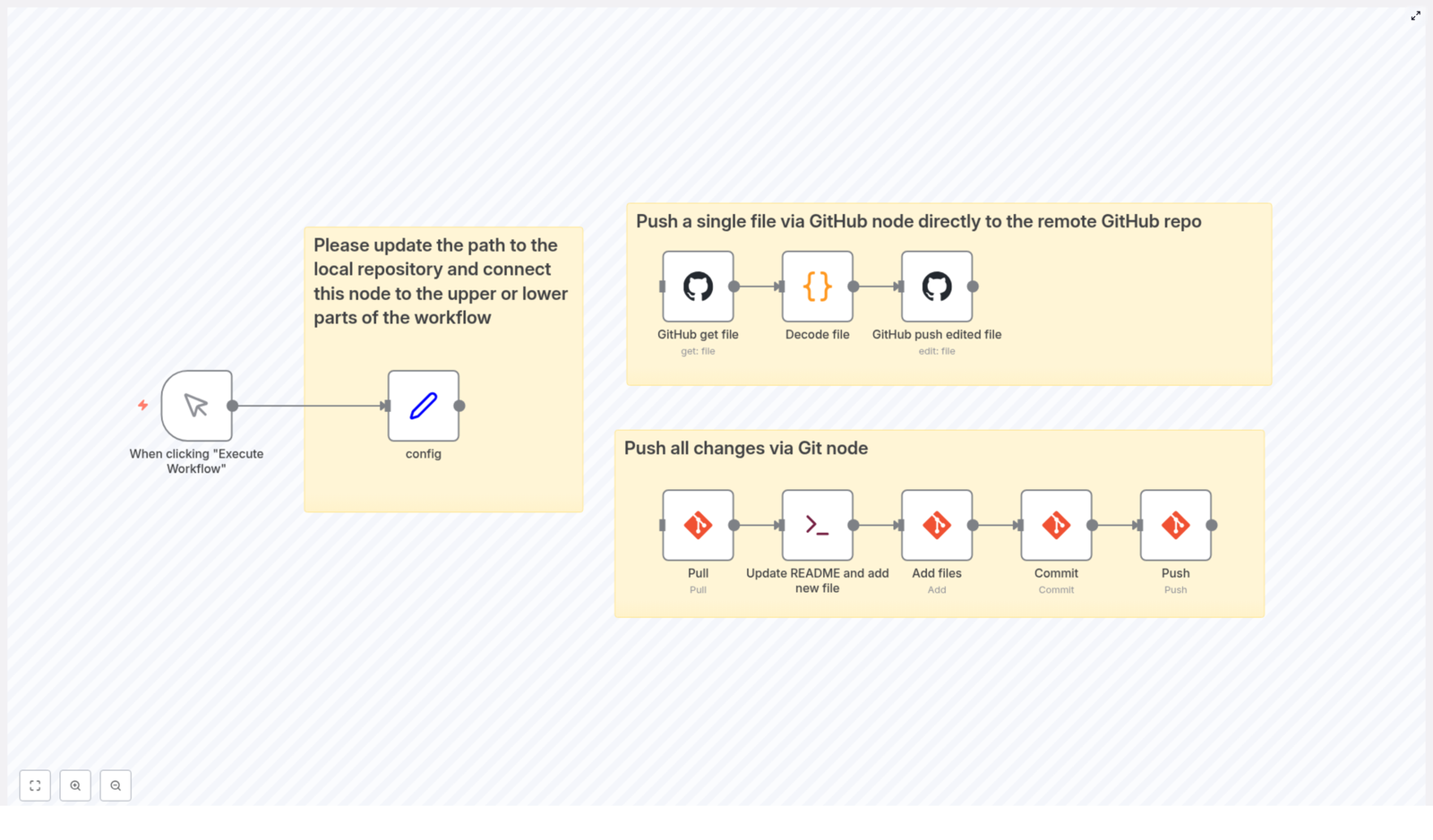
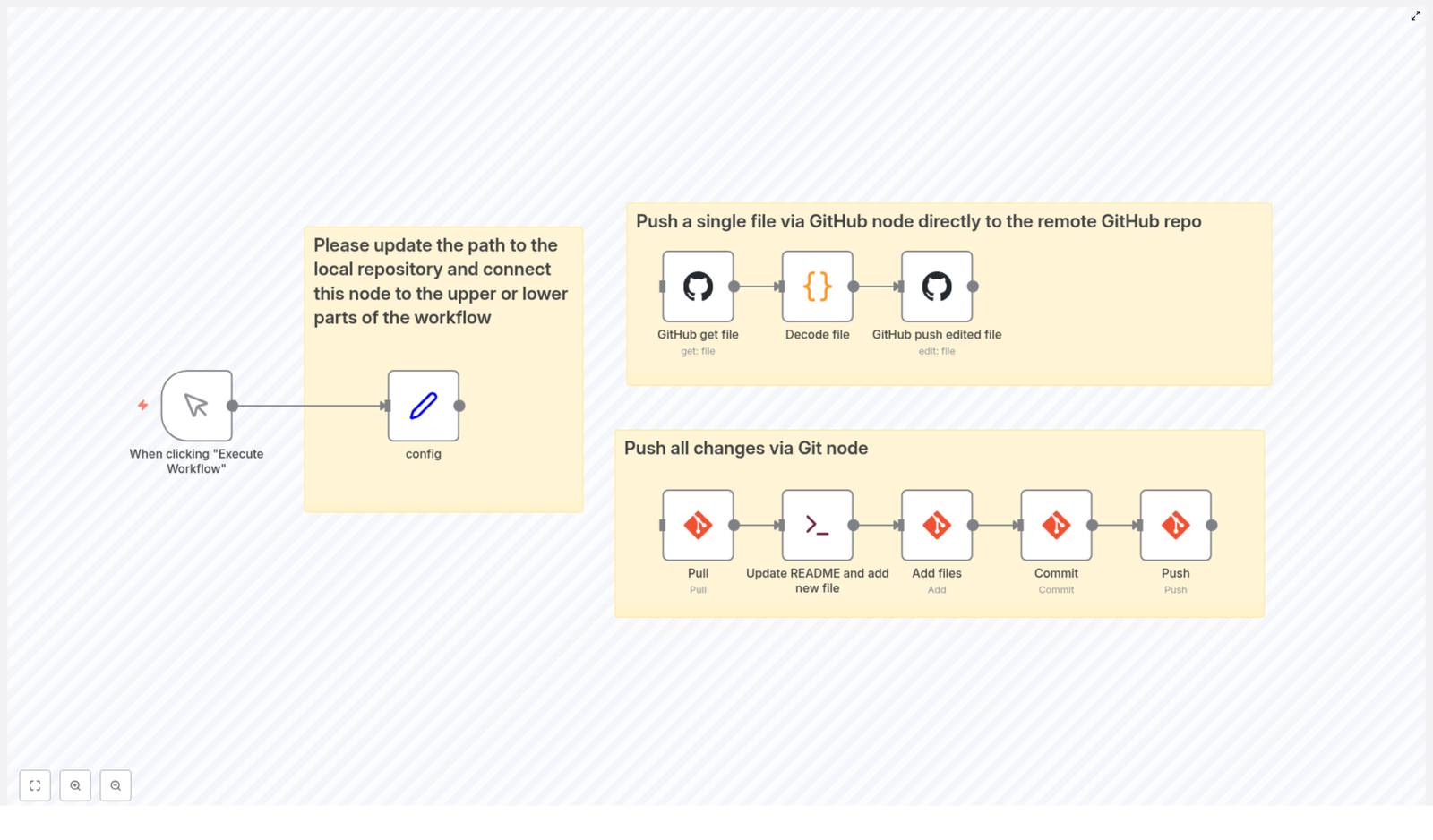
In this guide, you will see how to use an n8n workflow template to push changes to GitHub automatically. The workflow covers two flavors of automation:

  • Quickly updating a single file in a GitHub repo using the GitHub node
  • Pushing full Git commits using Git commands from a local repository

Same Git results, far fewer repetitive keystrokes, and way less chance of accidentally committing debug-final-FINAL-v3.js.

What This n8n GitHub Workflow Actually Does

The template gives you two automation paths inside n8n:

  • Single file push with the GitHub node
    Perfect when you just want to tweak one file, like README.md, directly in the remote repository using the GitHub API.
  • Full repo push using Git nodes
    Ideal when you have a local Git repository and want to automate the whole flow: pull, modify files, add, commit, and push.

You can use either approach on its own or combine them as part of a larger n8n automation. For example, you might update documentation after a form submission, or generate timestamped files as part of a nightly job.

Before You Start: What You Need

To keep everything running smoothly, make sure you have these basics in place:

  • Git and GitHub knowledge You should already know what a repository, commit, and push are. No need to be a Git wizard, just the usual everyday Git survival skills.
  • n8n installed The workflow runs inside the n8n automation platform, so have your n8n instance up and running.
  • GitHub OAuth2 authentication Set up OAuth2 credentials in n8n so it can talk to your GitHub account securely.
  • A local Git repository For the Git-command-based part, you need a repo cloned locally on the machine where n8n is running.

Option 1 – Push a Single File Using the GitHub Node

If you are mostly updating one file repeatedly, this is your new best friend. No local repo required, no Git commands, just straight API magic via n8n.

How the Single File Flow Works

The workflow uses three main steps to update a specific file in your GitHub repository, like README.md:

  1. GitHub – get file The workflow first retrieves the existing file from your repository. GitHub sends the file content back as base64, because of course it does.
  2. Decode file The next node decodes the base64 content into plain text so it is actually readable and editable inside the workflow.
  3. GitHub – push edited file After you modify the content (for example, appending text or replacing sections), this node sends the updated version back to GitHub with a commit message. The file in the remote repository is updated directly.

This method is ideal for:

  • Auto-updating documentation files
  • Injecting timestamps or status updates into a single file
  • Quick edits without touching a local clone at all

Think of it as a surgical update to one file, instead of wheeling in the entire Git toolbox.

Option 2 – Push All Changes Using Git Nodes

Sometimes you need more power. Maybe you are changing multiple files, generating new ones, or keeping a local repo in sync. In that case, let the Git nodes do the heavy lifting right from your n8n workflow.

What the Full Git Workflow Does

This part of the template automates the classic Git flow:

  1. Pull The workflow starts by pulling the latest changes from the remote repository into your local clone. That way you are not committing on top of an outdated state.
  2. Update README and add new file Using shell commands, n8n appends fresh information to README.md and creates a new file with a timestamp in its name. This is handy for logs, snapshots, or daily generated content.
  3. Add files A Git node stages all modified and newly created files using git add. No more forgetting that one tiny file and wondering why your change is missing.
  4. Commit Another Git node commits the staged changes with a clear, informative message. You can customize the message so future-you actually understands what happened.
  5. Push Finally, the workflow pushes the commit back to the remote GitHub repository. Your changes are now live, and you did not manually type a single Git command during the process.

This approach gives you full control over repository changes from within n8n, while still following a standard Git workflow behind the scenes.

Key Configuration: Point n8n at the Right Repo

There is one critical detail that makes everything work correctly.

Important: In the workflow there is a config node that holds the path to your local Git repository. Update that path so it matches the actual location of your repo on the machine where n8n is running.

Once you set the correct path and connect this node to the relevant Git and shell nodes, your pulls, adds, commits, and pushes will run in the right directory instead of some mysterious default folder.

Step-by-Step: Getting the Template Running

Here is a simplified setup guide to get you from “interesting idea” to “fully automated Git pushes”:

  1. Open your n8n instance and import the GitHub push workflow template from the link below.
  2. Configure your GitHub OAuth2 credentials in n8n and select them in the GitHub nodes.
  3. Update the local repository path in the config node so it matches your cloned repo.
  4. Review the nodes:
    • Single file flow: GitHub get file, decode file, GitHub push edited file
    • Full Git flow: pull, shell commands to edit files, Git add, commit, push
  5. Run the workflow once manually and check:
    • Did the target file update correctly?
    • Did the new timestamped file appear in your repo?
    • Did the commit show up in GitHub with the expected message?
  6. Once it behaves as expected, schedule it or trigger it from other workflows or events.

Why Bother Automating GitHub With n8n?

Aside from reducing your daily quota of “did I already push that?” moments, there are some solid benefits:

  • Save time on routine updates Let n8n handle repetitive file edits and commits so you can focus on actual development instead of ritual Git ceremonies.
  • Reduce human error Automated workflows are less likely to forget a file, mistype a command, or push to the wrong branch.
  • Integrate with other systems n8n connects GitHub with APIs, databases, CRMs, and more, so your repository can react automatically to events across your stack.
  • Easy to extend Start with this template, then add conditions, notifications, or extra steps as your automation needs grow.

Next Steps: Make Git Push Itself

Using n8n to automate pushing files to GitHub is a simple upgrade that can make your workflow smoother and more reliable. Whether you are just tweaking a single file through the GitHub node or running full Git pull-add-commit-push cycles, this template gives you a solid starting point.

Import the workflow into your n8n instance, plug in your GitHub credentials, adjust the local repo path, and let automation take over the boring parts.

Got questions, ideas, or clever use cases? Drop a comment or visit the n8n community forum to get help and share what you build.

Automate GitHub with n8n: Push Files & Updates Easily

Automate GitHub with n8n: Push Files & Updates Easily

From Manual Git Pushes To A Smoother, Automated Flow

If you work with GitHub regularly, you know how quickly small tasks add up. Editing a single file, committing changes, pushing updates, keeping everything in sync – it can quietly consume a surprising amount of your time and attention.

What if those repetitive GitHub updates could run in the background while you focus on higher value work? That is exactly where n8n comes in. With the right workflow, you can turn manual Git operations into a simple, repeatable automation that keeps your repository fresh without constant hands-on effort.

This article walks you through an n8n workflow template that does just that. You will see how to:

  • Update a single file directly in your GitHub repo using native GitHub nodes
  • Push all local changes, including new files and edits, using Git commands inside n8n

Think of this template as a stepping stone. It is a practical starting point that you can customize, extend, and connect to other automations as your workflows evolve.

Shifting Your Mindset: From Reactive To Proactive Automation

Before we dive into the technical steps, it helps to see this workflow as more than just a convenience. Automating GitHub updates is a mindset shift. Instead of reacting to every small change, you design a system that takes care of them for you.

With n8n, you are not just saving a few clicks. You are:

  • Reducing context switching between coding, documentation, and Git operations
  • Creating consistent, reliable update routines that do not depend on memory or mood
  • Building a foundation you can plug into CI, reporting, documentation, or release workflows later

Once you have one reliable automation in place, it becomes easier to imagine and build the next one. This GitHub workflow can be that first tangible win that gets you thinking in systems instead of single actions.

How The n8n GitHub Automation Workflow Works

The workflow starts with a manual trigger, then branches into two paths. Each path solves a different kind of update:

  • Path 1 – Update a single file (for example, README.md) directly on GitHub using the GitHub API
  • Path 2 – Pull, stage, commit, and push all local changes using Git commands inside n8n

You can use one path or both, depending on what fits your current process. Over time, you can extend these branches or connect them to other triggers like webhooks, schedules, or form submissions.

Path 1: Update A Single File With GitHub Nodes

This branch is ideal when you want to automate small, focused updates to a specific file. For example, you might keep your README.md in sync with a changelog, a report, or a status update generated elsewhere.

Here is how this part of the workflow is structured:

1. GitHub get file

The workflow uses the GitHub get file node to retrieve the target file from your remote repository. In this example, that file is README.md.

GitHub returns the file content in base64 format, so the next steps focus on making it readable and editable.

2. Decode file

The Decode file node converts the base64-encoded file content into human readable text. Once decoded, you can modify the content however you want inside the workflow. For instance, you might:

  • Append an update note or timestamp
  • Insert generated metrics or summary text
  • Replace specific sections programmatically

3. GitHub push edited file

After adjusting the content, the GitHub push edited file node sends the updated README.md back to your GitHub repository using the GitHub API.

The result is a clean, direct file update with no manual Git commands. You simply trigger the workflow and let n8n handle the API interaction for you.

Path 2: Push All Changes Using Git Commands In n8n

Sometimes you need more than a single file update. Maybe you have created new files, modified several existing ones, or made a series of local changes you want to push in one go. This second branch of the workflow uses Git command nodes to manage the full cycle.

Here is how it unfolds:

1. Pull the latest changes

The workflow starts with a Pull step that syncs your local repository with the remote one. This ensures you are working on top of the latest version and helps avoid conflicts.

2. Update README and add new file

Next, a shell command node runs custom commands in your local environment. In this template, it:

  • Appends an update timestamp to README.md
  • Creates a new file whose name is based on a unique timestamp

This is where the workflow starts to feel powerful. With simple shell commands, you can generate logs, reports, snapshots, or any other files you want to track in Git, all orchestrated by n8n.

3. Add files

The Add files step stages both the updated and newly created files in your local Git repository. It is the automated equivalent of running git add for the relevant paths.

4. Commit changes

The workflow then uses a Commit node to create a local commit with a clear, descriptive message. Consistent automated commits can become a valuable history of your generated updates, reports, or documentation.

5. Push to remote

Finally, the Push node sends the committed changes to your remote GitHub repository. With this, your local updates are fully synchronized, and the entire sequence has run from inside n8n.

Essential Configuration: Connecting n8n To Your GitHub Workflow

For this template to work smoothly, a few configuration details are important. Once you set them up, the workflow becomes a reliable part of your daily toolkit.

Set the correct local repository path

In the config node used by the Git command nodes, make sure you:

  • Update the path to your local Git repository so n8n knows exactly where to run Git commands

This local path is what allows the workflow to pull, add, commit, and push files from the right project directory.

Authentication and credentials

The workflow uses two types of authentication:

  • OAuth2 token for GitHub API calls in the GitHub nodes, which handle single file operations like getting and pushing README.md
  • Git credentials for the Git command nodes, which may be a username and password or a token, depending on your Git setup

Once these are configured, you can trigger the workflow with confidence, knowing that every step has the right access to complete successfully.

Why This n8n GitHub Template Is A Powerful Starting Point

This workflow is more than a convenience script. It is a small, repeatable system that:

  • Automates repetitive GitHub tasks so you can focus on creative and strategic work
  • Handles both precise single file edits and broader bulk changes in one place
  • Can be triggered manually today, then integrated into larger n8n automations tomorrow

You can connect it to scheduled triggers, form submissions, deployment processes, or internal tools. Over time, your GitHub repository becomes part of a larger automated ecosystem instead of a separate, manual chore.

Your Next Step: Experiment, Extend, And Make It Yours

The real value of this n8n workflow template appears when you start adapting it to your own needs. You might:

  • Change which file is updated via the GitHub node
  • Adjust the shell commands to generate custom reports or documentation
  • Trigger the workflow from other automations, not just manual execution

Each small improvement brings you closer to a workflow where GitHub updates happen reliably, with less effort and more consistency. You are not just automating tasks, you are designing a smoother way of working.

If you are ready to simplify your GitHub maintenance, save time, and build momentum with automation, try replicating this workflow in your n8n instance today. Use it as a base, then iterate as you learn what works best for you and your team.

For more ideas on integrating GitHub with n8n and other automation tools, explore our blog for in-depth guides or subscribe to our newsletter to keep growing your automation skills.

Comprehensive SEO Keyword Research Guide

Comprehensive SEO Keyword Research Guide

The Real Problem: Drowning In SEO Data, Starving For Clarity

Most marketers and website owners know they should do keyword research, yet the process often feels messy and overwhelming. You jump between tools, export spreadsheets, copy and paste data, and try to make sense of search volume, CPC, competition, SERP features, and trends. Hours go by, and you still do not have a clear, confident strategy.

This is where many people stop. Not because they lack ambition, but because the workflow is too manual, too fragmented, and too time consuming.

The good news is that it does not have to stay this way. With the right mindset and an automated workflow, keyword research can shift from a draining chore into a powerful engine that consistently feeds your SEO strategy with fresh, actionable insights.

Shifting Your Mindset: From Manual Grind To Automated Growth

Keyword research is not just a checklist item. It is the foundation of every successful SEO campaign, guiding your content, your offers, and your long term growth. When you treat it as a strategic, automated system instead of a one off task, everything changes.

Imagine opening a Google Sheet and instantly seeing:

  • Up to date search volumes, CPC, and competition levels
  • Relevant keyword suggestions and related terms that reveal new opportunities
  • Insights from SERP features like featured snippets, local packs, and People Also Ask
  • Trends over time that show where interest is growing or fading

No more scattered tabs or outdated exports. Just a single, living overview of keyword potential that updates through automation. That is the kind of system that frees you to focus on strategy, content, and growth.

Why Keyword Research Still Matters So Much

Even in a fast changing search landscape, keyword research remains the backbone of effective SEO. At its core, it is about understanding how real people search, what they want, and how you can meet that intent better than anyone else.

When you research keywords with the right data, you can:

  • Discover what your target audience is actively searching for
  • Match your content to search intent, not just isolated phrases
  • Identify realistic opportunities based on competition and SERP layout
  • Plan content that supports both short term wins and long term authority

To do this well, you need to look at several key metrics together, not in isolation.

Key Keyword Metrics That Power Smarter Decisions

Effective keyword research is about reading the story behind the numbers. The main data points you will work with include:

  • Search Volume: The average number of searches per month for a keyword. This shows demand and helps you gauge interest, but should always be weighed against intent and competition.
  • CPC (Cost Per Click): A signal from paid advertisers. Higher CPC often points to strong commercial value, which can guide both SEO and PPC priorities.
  • Competition Level: Often labeled as low, medium, or high. This helps you understand how difficult it may be to rank and where quick wins might exist.

When these metrics are automatically collected and processed inside a workflow, they stop being random numbers and start becoming clear direction for your SEO strategy.

Bringing Automation Into Your Keyword Research

Modern SEO teams no longer rely only on manual checks. They build automated workflows that gather, enrich, and organize keyword data so they can spend their time on analysis and execution.

With automation, you can:

  • Pull live keyword metrics from APIs at regular intervals
  • Store and update data in Google Sheets for easy collaboration
  • Use code nodes to calculate averages, normalize values, and extract useful fields
  • Merge data from multiple sources into a single, reliable overview

This is where an n8n workflow template becomes your ally. Instead of starting from scratch, you can use a ready made structure and adapt it to your needs.

Meet Your New Ally: An n8n Workflow Template For SEO Keyword Research

Think of the template as a launchpad. It does not replace your strategic thinking, it amplifies it. By plugging into APIs, Google Sheets, and code nodes, this n8n workflow handles the repetitive work of gathering and processing keyword data so you can focus on what really matters.

At a high level, the template is designed to:

  • Automate keyword data collection into Google Sheets
  • Fetch key metrics like search volume, CPC, and competition
  • Retrieve SERP features, related keywords, and suggestions
  • Process and consolidate all of this into a comprehensive overview

Instead of manually stitching everything together, you get a structured, repeatable process that you can run on demand or on a schedule.

Core Building Blocks Of The Automated Workflow

1. Google Sheets Automation For Real Time Collaboration

Google Sheets acts as your shared dashboard. The workflow writes keyword data directly into your sheet so your team can:

  • Review fresh metrics without logging into multiple tools
  • Filter and sort by volume, CPC, competition, or SERP features
  • Comment, prioritize, and plan content in one place

Because the process is automated, you reduce the risk of human error and avoid repetitive copy paste work.

2. API Integrations For Live Keyword Insights

APIs are where the workflow pulls in the real power. Through integrations, the template can fetch:

  • Live search volume for each keyword
  • Keyword suggestions and related terms that expand your list
  • Information on SERP features such as featured snippets and local packs
  • Additional data like backlink profiles of top ranking domains for deeper competitive insight

This gives you a dynamic, data rich view of each keyword, instead of static snapshots.

3. Code Nodes To Process And Enrich Data

Code nodes inside the n8n workflow handle the logic that turns raw data into insights. For example, you can:

  • Compute average CPC across multiple results
  • Standardize competition levels into clear categories
  • Extract and structure snippet data from SERPs
  • Merge multiple datasets into a single, clean record per keyword

These small automated calculations save you hours while making your keyword research more consistent and reliable.

Reading The SERP: Insights From Features That Shape Strategy

Not all search results pages are created equal. Two keywords with similar volume can have very different opportunities depending on what appears on the SERP.

The workflow helps you account for features like:

  • Featured snippets: These quick answer boxes sit at the top of the results and offer prime visibility. Knowing which keywords trigger snippets helps you craft content that can win them.
  • Local packs: For local SEO, these map based results are critical. If your keywords trigger local packs, you will know you need to optimize your local presence as part of your strategy.
  • People Also Ask (PAA): These questions reveal what users are curious about around your topic. They are a goldmine for FAQ sections, supporting articles, and content expansion.

By automatically capturing this information, the workflow helps you see beyond volume and understand the real shape of the opportunity.

Expanding Your Reach With Suggestions And Related Keywords

Great SEO strategies rarely rely on a handful of head terms. They grow by covering an entire topic in depth, supported by related and long tail keywords that capture specific needs and questions.

The template supports this by pulling in:

  • Keyword suggestions: Programmatically generated ideas that branch out from your main terms and reveal content gaps you might have missed.
  • Related keywords: Variations and semantically connected terms that help you build topical authority and capture secondary traffic.

With automation, you can expand your list quickly while still keeping everything organized and purposeful.

Tracking Trends And Competitors Over Time

Search behavior is not static. Interests rise and fall, new topics emerge, and competition shifts. Your workflow should reflect that reality.

By monitoring:

  • Monthly and yearly search volume trends to spot seasonality and emerging topics
  • Backlink profiles of top ranking domains to gauge the difficulty of competing

you get a more realistic view of what it will take to rank and when it is worth investing in a particular keyword cluster.

Automating this tracking means you can revisit your keyword landscape regularly without restarting from zero each time.

Creating A Single, Comprehensive Keyword Overview

The real power of this n8n template shows when you bring everything together. Instead of juggling separate reports, the workflow merges data from:

  • Organic search results
  • Featured snippets and other SERP features
  • Backlink data for top domains
  • Local finder and local pack results
  • Keyword suggestions and related terms

The result is a clear, consolidated overview of each keyword’s potential and challenges. You can instantly see which terms are high value, which are realistic, and which require a stronger link building or content approach.

Actionable Tips To Get The Most From The Workflow

  • Schedule the automation to run regularly so your keyword insights stay fresh and your strategy can adjust dynamically.
  • Look beyond high volume. Combine search volume with intent, competition, and SERP features to prioritize smarter.
  • Use backlink and local results data to understand the full competitive landscape, not just what appears on the surface.

From Data To Growth: Using This Template As Your Next Step Forward

SEO keyword research is not a one time project. It is an ongoing journey of discovery, testing, and refinement. When you combine structured data sourcing with automation and thoughtful interpretation, you give yourself a real advantage.

This n8n workflow template is not the final destination. It is a powerful starting point that you can:

  • Customize with your own APIs, filters, and logic
  • Extend to cover more markets, languages, or product lines
  • Connect to other automations for content planning, reporting, or outreach

Each improvement you make compounds over time, freeing more of your energy for strategic work and creative problem solving.

Take The Next Step: Automate Your Keyword Research Today

If you are ready to move from scattered manual tasks to a focused, automated keyword research system, this is your moment. By integrating advanced keyword research automation workflows, you can transform your SEO from reactive to intentional and your campaigns from guesswork to data driven impact.

Start with this template, experiment with it, refine it, and let it become the backbone of a more efficient, more insightful SEO process.

Comprehensive Guide to Advanced SEO Keyword Research

Comprehensive Guide to Advanced SEO Keyword Research

This guide explains an advanced, automation-ready workflow for SEO keyword research that you can implement and adapt in tools like n8n or similar automation platforms. It focuses on how to systematically collect, enrich, and analyze keyword data using APIs, structured processing steps, and repeatable logic. The goal is to move from initial seed keywords to a consolidated dataset that covers keyword ideas, search volume trends, SERP features, local results, and backlink insights.

1. Workflow Overview

The advanced SEO keyword research workflow is designed as a multi-step pipeline that starts with basic keyword inputs and ends with a structured report suitable for strategic decision-making. At a high level, the workflow:

  • Ingests one or more seed keywords or existing keyword lists
  • Expands those seeds into related keywords and keyword ideas using external APIs
  • Retrieves search volume, CPC, and competition metrics for each keyword
  • Analyzes SERP features such as featured snippets, People Also Ask, and rich media
  • Extracts organic and local search results for both global and local SEO insights
  • Collects backlink data for top-ranking domains to inform link-building strategies
  • Integrates all collected data into a single, structured report for analysis

Each phase can be implemented as a separate segment of an automation workflow. Data typically flows from one segment to the next in a tabular or JSON format, which is then aggregated at the end into a final report.

2. Architecture and Data Flow

The architecture of this keyword research process can be viewed as a sequence of distinct stages. While the original content does not specify concrete n8n nodes, the logic maps cleanly to common node types such as HTTP Request, Function (for transformation), and data aggregation nodes.

2.1 High-Level Stages

  1. Input & Seed Collection – Load seed keywords from existing datasets or manual input.
  2. Keyword Expansion – Query APIs for related keywords and keyword ideas.
  3. Search Volume & Competition Analysis – Request metrics like search volume, CPC, and competition level.
  4. SERP Feature Analysis – Inspect SERPs for special features that influence click-through rate.
  5. Organic & Local Results Analysis – Parse organic rankings and local pack results.
  6. Backlink Insights – Analyze backlink profiles of high-ranking domains.
  7. Data Integration & Reporting – Merge all intermediate outputs into a single structured report.

Each stage operates on the output of the previous one. For example, the keyword expansion stage outputs a list of candidate keywords, which then becomes the input for the search volume and competition stage.

2.2 API Integration Layer

The workflow relies on HTTP-based APIs to retrieve keyword data, search metrics, SERP information, and backlink details. Typical characteristics of this layer:

  • Use of HTTP Request-style operations to call external keyword research and SEO APIs
  • JSON response parsing to extract relevant fields such as keyword text, volume, CPC, SERP features, and URLs
  • Filtering and normalization of API output into a consistent internal structure for downstream processing

In practice, each API endpoint is treated as a separate step. Authentication and query parameters must be configured per provider, but the general pattern remains the same across the workflow.

3. Node-by-Node / Step-by-Step Logic

The following sections describe the functional steps of the workflow in detail, mirroring how you might implement them in an automation platform. Each step corresponds to one or more nodes or actions.

3.1 Step 1 – Gathering Initial Keywords

The workflow begins by collecting seed keywords. These can originate from:

  • Existing datasets such as analytics exports, ad campaigns, or prior keyword lists
  • Manual input where you define a set of core topics or primary keywords

In an automation context, you might:

  • Load a CSV or database table of existing keywords as the initial input
  • Use a manual trigger or a simple input node to define a few seed terms

These seed keywords act as the foundation for all subsequent expansion and analysis. Ensuring they are clean, de-duplicated, and relevant will improve the quality of results downstream.

3.2 Step 2 – Expanding Keywords with Related Terms and Ideas

Once you have seed keywords, the next step is to broaden your keyword universe by querying external APIs for related keywords and keyword ideas.

3.2.1 Related Keywords

Related keywords are semantically connected terms that users often search along with or instead of your main keywords. In this step:

  • Each seed keyword is sent to an API endpoint that returns related queries
  • The response is parsed to extract terms that share topical relevance or user intent
  • Duplicate or irrelevant terms can be filtered out based on thresholds or rules

3.2.2 Keyword Ideas

Keyword ideas extend beyond direct variations and include new concepts generated from popular searches and query patterns. The workflow:

  • Calls API endpoints that provide keyword suggestions and ideas for each seed keyword
  • Aggregates ideas that show promising search interest or align with your content strategy
  • Normalizes the resulting list into a single dataset of candidate keywords

3.2.3 Tools and Techniques for Expansion

The integration layer uses HTTP requests to interact with external providers. Typical operations include:

  • Sending GET or POST requests with the seed keyword as a query parameter
  • Parsing JSON responses to extract fields like keyword, suggestion, or related_term
  • Saving the extracted results into a structured format, for example a table or JSON array, for subsequent analysis

At this stage, it is important to maintain a unified schema for all keywords, regardless of their origin (seed, related, or idea). This simplifies later aggregation and reporting.

3.3 Step 3 – Analyzing Search Volume Trends and Competition

With an expanded keyword list in place, the workflow proceeds to retrieve quantitative metrics that help prioritize which terms to target. The main metrics are:

  • Search Volume Trends – Monthly search volume data that reveals seasonality, long-term growth, or decline
  • Average CPC (Cost Per Click) – Typical cost in paid campaigns, which signals commercial intent and value
  • Competition Levels – An index or score indicating how difficult it is to rank for the keyword

Implementation details typically include:

  • For each keyword, calling an API endpoint that returns volume, CPC, and competition
  • Aggregating monthly volumes to detect trends, such as rising or highly seasonal queries
  • Storing these metrics alongside the keyword text for later filtering and ranking

Edge case handling at this step often involves:

  • Dealing with missing or zero-volume keywords by excluding them or flagging them as low priority
  • Normalizing competition metrics when different providers use different scales

3.4 Step 4 – SERP Feature Detection and Analysis

Modern search results are not limited to simple blue links. This step inspects SERPs for each keyword to identify special features that influence click-through rate and content strategy.

The workflow focuses on detecting:

  • Featured Snippets – Position-zero results that summarize answers directly on the SERP
  • People Also Ask (PAA) – Question boxes that reveal related user questions and subtopics
  • Rich Media – Presence of videos, images, or shopping ads that signal visual or transactional intent

Typical operations include:

  • Querying a SERP or SEO API for each keyword
  • Inspecting the returned SERP structure for flags or objects that represent snippets, PAA, video carousels, image packs, or shopping blocks
  • Recording which SERP features are present for each keyword

This information helps you decide how to optimize content. For example, if a keyword consistently triggers featured snippets, you may prioritize structured, concise answers. If video results dominate, video content might be necessary to compete.

3.5 Step 5 – Organic and Local Results Analysis

Beyond SERP features, the workflow also gathers detailed information about organic rankings and local results. This is essential for both global SEO and local SEO strategies.

3.5.1 Organic Results

The workflow retrieves and analyzes standard organic search results for each keyword:

  • Extracts top-ranking domains and their URLs
  • Captures content snippets or meta descriptions
  • Identifies the types of pages that rank (blogs, product pages, category pages, etc.)

This provides insight into the current competitive landscape and the content formats that perform well for the keyword.

3.5.2 Local Pack and Local SEO Data

For location-specific or local-intent keywords, the workflow inspects local pack results. It may collect:

  • Local business names and domains appearing in the local pack
  • Location-related details that can guide local SEO optimization

This information is useful when planning local landing pages, Google Business Profiles, or geographically targeted content.

3.6 Step 6 – Backlink Insights

Backlinks remain a core ranking factor. To understand why certain domains rank well, the workflow includes a backlink analysis stage.

In this step, the automation:

  • Identifies top domains associated with your target keywords from the organic results
  • Queries backlink or SEO APIs for those domains
  • Collects backlink-related metrics that indicate domain authority and link-building potential

The resulting backlink insights can help you:

  • Estimate the link profile strength required to compete for specific keywords
  • Discover potential outreach or partnership opportunities for link acquisition

3.7 Step 7 – Data Integration and Report Creation

The final stage merges all collected data into a comprehensive report. At this point, each keyword may have associated:

  • Average search volume and search volume trends
  • Average CPC and competition metrics
  • Detected SERP features, including featured snippets and PAA
  • Organic ranking domains and content snippets
  • Local business data for local-intent keywords
  • Backlink metrics for top-ranking domains
  • Lists of suggested or related keywords with aggregated competition values

Typical integration operations include:

  • Joining datasets by keyword or domain as the key
  • Calculating averages or summary statistics, such as average CPC per keyword group
  • Exporting the final report in a structured format, such as CSV, spreadsheet, or database table

The report then becomes a central reference for content planning, PPC campaigns, and broader SEO strategy.

4. Configuration Notes and Practical Considerations

Although the original description is tool-agnostic, the following notes help when configuring this process in an automation platform or similar environment.

4.1 API Credentials and Access

  • Set up API keys or OAuth credentials for each SEO or keyword research provider you use.
  • Store credentials securely and reference them in your HTTP request configuration to avoid exposing secrets in plain text.
  • Monitor rate limits and usage quotas. If you process large keyword lists, you may need batching or throttling.

4.2 Parameters and Query Construction

  • Ensure each HTTP request includes required query parameters such as keyword, language, location, or device type, depending on the API.
  • Use consistent locale and search engine parameters so that results are comparable across keywords.
  • For trend analysis, request time-series data where available, not just a single aggregate volume figure.

4.3 Data Cleaning and Error Handling

Robust workflows must handle imperfect data and occasional API errors:

  • Implement basic retry logic for transient HTTP errors or timeouts.
  • Skip or flag keywords when the API returns incomplete or invalid data rather than failing the entire run.
  • Normalize inconsistent fields, such as competition metrics that use different scales across providers.
  • De-duplicate keywords that appear from multiple sources (seed, related, ideas) before final aggregation.

4.4 Performance and Scaling

  • Batch keyword requests where the API supports it to reduce the number of calls.
  • Paginate through large SERP or backlink datasets when only a subset is needed for decision-making.
  • Consider running the workflow in scheduled batches (for example, weekly) to keep data current without overloading APIs.

5. Advanced Customization Possibilities

The described workflow is modular, so you can adapt or extend it based on your SEO strategy and technical requirements.

5.1 Custom Prioritization Rules

  • Introduce scoring formulas that combine search volume, CPC, and competition to rank keywords by opportunity.
  • Apply filters to focus only on keywords that meet minimum thresholds for volume or commercial value.

5.2 Content Mapping and Clustering

  • Group related keywords into clusters that map to single pages or topic hubs.
  • Use SERP and PAA data to build content outlines that cover primary and secondary queries.

5.3 Local vs Global Strategy Splits

  • Separate reports for globally relevant keywords and location-specific keywords using local pack data.
  • Adjust keyword selection or content strategy depending on whether local businesses dominate the SERP.

5.4 Backlink Strategy Integration

  • Use backlink metrics to segment keywords into those requiring strong link-building efforts and those achievable with on-page optimization alone.
  • Feed top referring domains into outreach or CRM workflows for link-building campaigns.

6. Conclusion

A structured, automation-friendly workflow for advanced SEO keyword research allows you to move far beyond simple keyword lists. By integrating keyword expansion, search volume trends, SERP feature detection, organic and local result analysis, and backlink insights into a single process, you gain a comprehensive view of your search landscape.

With a robust, repeatable workflow that pulls from multiple data sources and consolidates everything into a unified report, you can make more informed decisions about which keywords to target, what content to create, and where to invest in link-building or local SEO.

Ready to enhance your SEO strategy? Start applying a fully integrated keyword research workflow today to support smarter content planning and stronger search performance.