


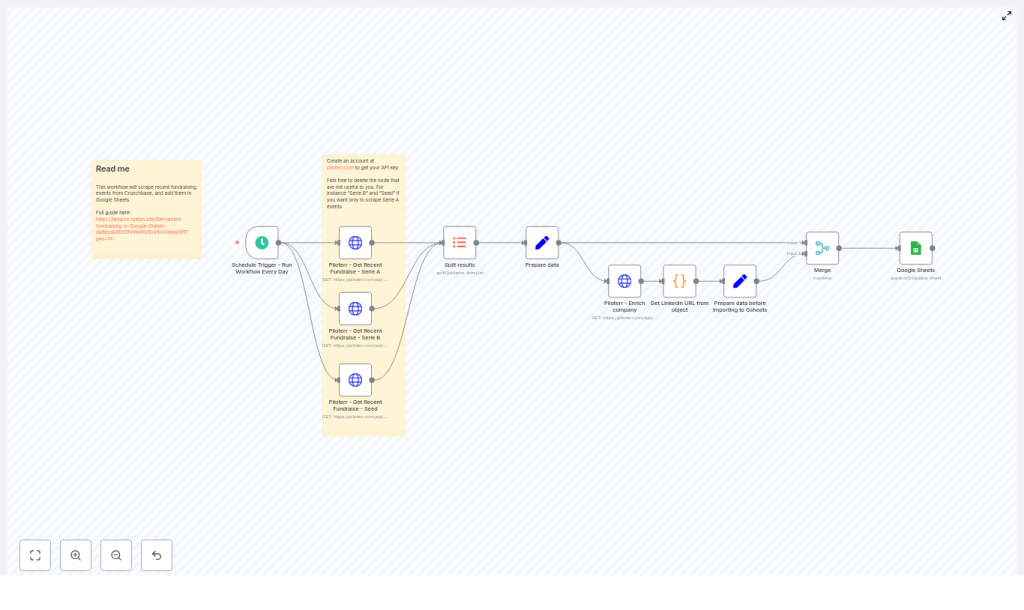
Automate Crunchbase Fundraises to Google Sheets with n8n and Piloterr
Imagine waking up, opening a single Google Sheet, and instantly seeing every new Seed, Series A, and Series B round from the last day, complete with company details, LinkedIn links, traffic estimates, and more. No more manual Crunchbase searches, no more copy-paste marathons.
That is exactly what this n8n workflow template does for you. It connects Crunchbase data via the Piloterr API, enriches each company, then neatly logs everything into Google Sheets on a schedule you set. In this guide, we will walk through what the template does, why it is useful, and how to get it running step by step.
Why use this n8n workflow template?
If you work in VC, sales, or market research, you probably spend a lot of time trying to answer questions like:
- Which companies raised funding in the last 24 hours?
- Where can I find their website, LinkedIn, and basic company stats?
- How do I keep a clean, always-updated list for my team?
Instead of manually digging through Crunchbase, this workflow automates the whole process. It pulls fresh fundraising data every day, enriches each company, and updates a structured Google Sheet that you can filter, pivot, or connect to other tools.
So if you want a living, breathing dealflow or prospecting sheet that updates itself, this template is built for you.
What the workflow actually does
Here is the high-level flow, without getting too technical yet:
- Starts on a schedule using an n8n Schedule Trigger (for example, every morning at 08:00).
- Calls the Piloterr API, which wraps Crunchbase data, to fetch recent Seed, Series A, and Series B funding rounds.
- Splits the API response so each funding event becomes its own item in the workflow.
- Pulls out key funding details like round type, amount, date, and Crunchbase permalinks.
- Enriches each company via another Piloterr endpoint to get website, LinkedIn, traffic, employees, locations, and total funding.
- Extracts the LinkedIn URL from the enrichment response using a small Code node.
- Normalizes and prepares all those fields for a Google Sheet (domain, country, founded date, etc.).
- Merges everything together and sends it to Google Sheets using appendOrUpdate so you avoid duplicates.
The result is a clean, always-updated spreadsheet of recent fundraises that you can use for deal sourcing, outbound, or analysis.
When this template is a perfect fit
- VC funds that want a daily feed of new rounds and potential co-investors in a simple spreadsheet.
- Sales teams who use “recently funded” as a strong buying signal and want a prospect list ready every morning.
- Market intelligence / strategy teams tracking trends in startup funding and growth across regions or sectors.
If any of these sound like you, this workflow can quietly run in the background and keep your data fresh without you lifting a finger.
What you need before you start
Before importing or configuring the n8n template, make sure you have:
- n8n set up, either cloud or self-hosted, with access to create and run workflows.
- Piloterr account and API key, since Piloterr provides the Crunchbase funding and company data.
- Google account plus a target Google Sheet that already has a header row. The column names should match the fields you plan to map from n8n.
- Basic comfort with common n8n nodes: HTTP Request, Set, Code, Merge, and Google Sheets.
Once those are ready, you can plug in your credentials and get the workflow running in just a few steps.
Deep dive: how each n8n node works together
1. Schedule Trigger – your daily starter
The workflow begins with a Schedule Trigger node. In the example template, it is configured to run once a day at 08:00, but you can easily change that:
- Daily at a specific time
- Hourly
- Weekly, or any custom cron expression
This is what keeps your Google Sheet updated without you having to remember to run anything manually.
2. Piloterr – Get recent fundraises (three HTTP Request nodes)
Next, the workflow talks to Piloterr’s Crunchbase funding endpoint using three separate HTTP Request nodes, one for each investment type:
seedseries_aseries_b
Each node calls:
https://piloterr.com/api/v2/crunchbase/funding_roundswith query parameters such as:
investment_type(seed, series_a, or series_b)days_since_announcement=1to grab the last day’s events
You authenticate using your Piloterr HTTP header credential, which stores your API key securely inside n8n.
3. Split results into individual funding events
The Piloterr API returns arrays of funding rounds. To work with each event separately, the template uses an ItemLists / Split Results node:
fieldToSplitOutis set toresults
This expands the array so each funding round becomes a single item in the workflow, which makes it easy to enrich and map downstream.
4. First Set node – extract key funding fields
After splitting, a Set node pulls out the important pieces of each funding event and gives them clean field names. For example:
typefrominvestment_typemoney_raisedfrommoney_raised.value_usdorvalue_usdannounced_oncompany_namefromfunded_organization_identifier.valuelinkas the company Crunchbase permalinkevent_linkas the funding round permalink
This step is all about normalizing the raw API response into something that is easier to reuse later.
5. Piloterr company enrichment with batching
Now that you know which companies raised money, it is time to enrich them. The workflow uses another HTTP Request node that calls Piloterr’s company info endpoint, for each company:
https://piloterr.com/api/v2/crunchbase/company/info?query=https://www.crunchbase.com/organization/{{ $json["link"] }}To stay within rate limits and still move quickly, the node is configured with batching, typically with a batch size of 3. This means n8n processes three companies at a time.
The enrichment response includes helpful fields such as:
- Company website URL
- Semrush traffic metrics
- Total funding raised
- Employee count
- Locations (often as an array)
- Founded date
- Social networks (including LinkedIn)
6. Code node – extract the LinkedIn URL
The social networks come back as an array of objects. To grab just the LinkedIn profile URL, the workflow uses a simple Code node with JavaScript. Conceptually, it does something like this:
// pseudo-code used in the workflow
let linkedinObject = $json.social_networks.find(e => e.name === 'linkedin');
$input.item.json.linkedin_url = linkedinObject ? linkedinObject.url : null;
return $input.item;
If LinkedIn is missing, it safely sets linkedin_url to null so the workflow does not break.
7. Second Set node – prepare data for Google Sheets
Before sending anything to Google Sheets, another Set node cleans and reshapes the data so it fits nicely into your spreadsheet columns. Typical transformations include:
- Extracting the domain from the website URL
- Selecting the most recent Semrush visits metric
- Formatting the founded date into a consistent format
- Picking a main country from the locations array
- Ensuring numeric fields and dates are ready for filtering and charts in Sheets
This step is where you shape the data exactly how you want to see it in your Google Sheet.
8. Merge node and Google Sheets (appendOrUpdate)
Finally, the workflow uses a Merge node to combine:
- The original funding data (round type, amount, date, event link)
- The enriched company data (website, LinkedIn, traffic, employees, etc.)
That merged item then goes into the Google Sheets node. The node is configured with:
- Mode: appendOrUpdate
- A unique matching column, for example
event_link
Using appendOrUpdate means:
- If a row with the same
event_linkalready exists, it gets updated. - If it does not exist, a new row is appended.
This keeps your sheet clean and avoids duplicate rows for the same funding round.
Step-by-step: setting up the workflow in n8n
Here is how to recreate or adjust the template inside your own n8n instance.
- Create the workflow and set the schedule
Start a new workflow in n8n and add a Schedule Trigger. Configure it to run daily at your preferred time, or use a custom interval if you want more frequent updates. - Add three HTTP Request nodes for fundraises
For each investment type (seed,series_a,series_b):- Use an HTTP Request node pointing to
https://piloterr.com/api/v2/crunchbase/funding_rounds. - Add query parameters like:
days_since_announcement=1investment_typeset to the specific type
- Select your Piloterr HTTP Header credential for authentication.
- Use an HTTP Request node pointing to
- Split the API results
Add an ItemLists / Split results node and set:fieldToSplitOut = results
This will turn each funding event into its own item.
- Extract core funding fields
Add a Set node to map and rename fields such as:investment_typemoney_raised.value_usdannounced_onfunded_organization_identifier.valueas company name- Company and event permalinks for
linkandevent_link
- Enrich companies with Piloterr
Add another HTTP Request node for the company info endpoint:- URL pattern:
https://piloterr.com/api/v2/crunchbase/company/info?query=https://www.crunchbase.com/organization/{{ $json["link"] }} - Enable batching and set a batch size, for example 3, to respect rate limits.
- URL pattern:
- Use a Code node to grab LinkedIn
Insert a Code node that:- Looks through
social_networksfor the object wherename === 'linkedin'. - Sets
linkedin_urlif found, ornullif not.
- Looks through
- Prepare fields for Google Sheets
Add another Set node to:- Extract the domain from the website URL.
- Pick the right Semrush traffic metric.
- Map total funding, employee count, and country.
- Format the founded date and any other fields you want in your sheet.
- Merge and send to Google Sheets
Use a Merge node to combine funding and enrichment data, then connect it to a Google Sheets node:- Map each field to a column in your sheet.
- Choose appendOrUpdate as the operation.
- Set a unique matching column, such as
event_link, to handle deduplication.
- Test the workflow
Run the workflow manually from the trigger:- Check each node’s output in n8n to confirm data looks right.
- Verify that rows appear correctly in your Google Sheet.
- Adjust field mappings or formats if needed.
Tips, best practices, and common issues
A few small tweaks can make this workflow more robust and scalable.
- Handle rate limits gracefully
If Piloterr or Crunchbase rate limits kick in:- Lower the batch size in the enrichment node.
- Optionally insert a short delay node between batches.
- Error handling strategy
You can set HTTP nodes tocontinueOnFailif you are fine with partial data, but for more control:- Add a Function or Code node to retry failed requests.
- Log or alert on failures so you know when something goes wrong.
- Prevent duplicates
Always use a unique identifier in appendOrUpdate, typically the event permalink:- Map that to a dedicated
event_linkcolumn in Sheets. - Use it as the matching column in the Google Sheets node.
- Map that to a dedicated
-
