


Automate Crypto Price Updates with n8n & Airtable
Imagine opening your crypto portfolio and seeing everything already up to date, every hour, without lifting a finger. No more copy-pasting prices, no more half-finished spreadsheets, no more wondering whether your numbers are still accurate.
This guide shows you how to turn that idea into reality using an n8n workflow template that connects CoinGecko and Airtable. You will learn how to automatically refresh token prices every hour, update each holding in your Airtable portfolio, and log a running history of your total portfolio value. Along the way, you will see how one simple automation can free your time, reduce errors, and become a stepping stone toward a more focused and automated workday.
The problem: manual tracking slows you down
Keeping a crypto portfolio current by hand might work for a while. Then reality hits:
- You spend time checking prices instead of making decisions.
- Numbers go out of date quickly, especially in volatile markets.
- Manual updates invite typos, broken formulas, and missing records.
As your portfolio grows, so does the overhead. The more you track, the more you have to maintain. Eventually, the admin work starts to overshadow the insights you were chasing in the first place.
The shift in mindset: from busywork to leverage
Automation is not just about saving a few clicks. It is about shifting your energy from repetitive, low-value tasks to higher-level thinking and strategy. When your portfolio updates itself:
- You gain accurate, up-to-date portfolio values without constant checking.
- You build historical snapshots for analytics and long-term insight.
- You reclaim time and focus for deeper work, not data maintenance.
This n8n workflow is a concrete, practical way to start that shift. It is simple enough to understand and customize, yet powerful enough to meaningfully reduce your daily friction. Think of it as your first or next automation building block, one that can evolve with your portfolio and your skills.
The journey: from idea to working n8n workflow
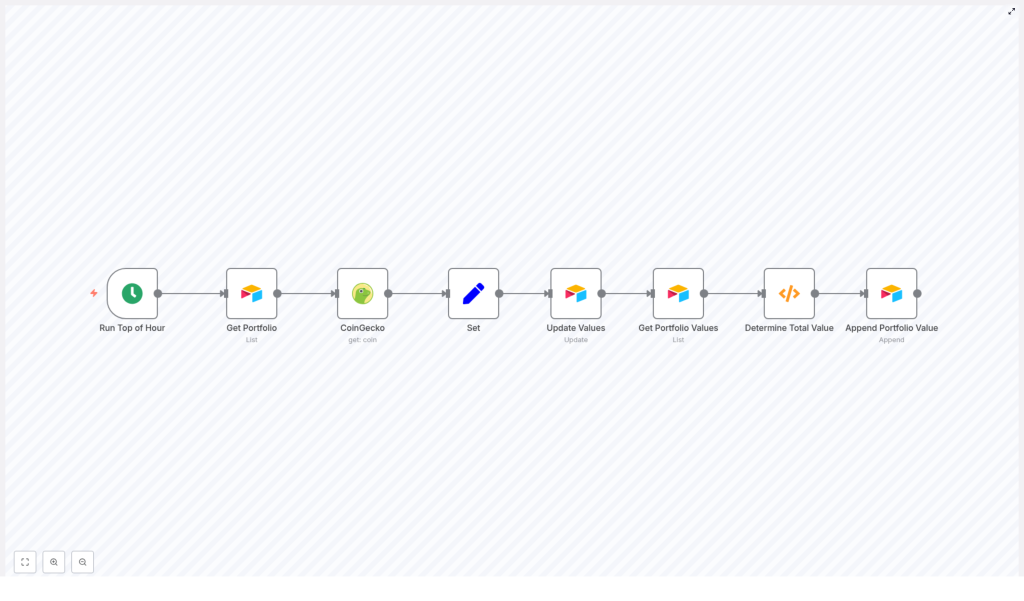
The template follows a clear, left-to-right flow in n8n. Every node has a specific role, and together they create a reliable system that runs in the background:
- Cron – triggers the workflow every hour.
- Get Portfolio (Airtable – List) – reads your holdings from Airtable.
- CoinGecko (get coin) – fetches the latest price for each coin.
- Set – formats the data to match Airtable fields.
- SplitInBatches (optional) – processes updates in small batches to respect rate limits.
- Update Values (Airtable – Update) – writes the current price back to each portfolio record.
- Get Portfolio Values (Airtable – List) – collects all Present Value fields.
- Determine Total Value (Function) – calculates the total portfolio value.
- Append Portfolio Value (Airtable – Append) – logs that total into a history table.
Once you activate this workflow, n8n becomes your quiet assistant. Every hour, it reads, updates, calculates, and logs your portfolio, so you can simply open Airtable and see a clean, current picture of your holdings.
Step 1: schedule your automation with Cron
Cron – run at the top of the hour
The Cron node is your starting point. It defines how often your portfolio is refreshed.
- Set it to
everyHouror use a custom schedule that fits your needs. - Top of the hour is a good default, but you can slow it down to reduce API usage or speed it up if you need more frequent updates.
Once this is in place, you no longer have to remember to check or refresh prices. n8n will do it for you on autopilot.
Step 2: read your holdings from Airtable
Get Portfolio – Airtable (List)
Next, the workflow needs to know what you hold. The Get Portfolio node reads your records from Airtable.
- Table:
Portfolio - Make sure you fetch the essential fields, such as:
SymbolQuantityPresent Value(if you store it)id(Airtable record id)
- Example
additionalOptions:fields: ["Symbol","Quantity","Present Value"] - Ensure your Airtable credential in n8n has read permissions for this base and table.
This node gives the workflow a clear snapshot of your current portfolio, record by record.
Step 3: fetch live prices from CoinGecko
CoinGecko – get (coin)
Now it is time to bring in live market data. The CoinGecko node looks up the latest price for each coin.
- Use the get (coin) operation.
- Set options:
market_data = truelocalization = false
One important detail: CoinGecko expects a coin id, not a ticker symbol.
- Example coin id:
bitcoin - Example ticker symbol:
BTC
If your Airtable table only stores symbols like BTC or ETH, you have two good options:
- Add a CoinGecko Id column in your
Portfoliotable and use that directly in the CoinGecko node. - Call CoinGecko’s
/coins/listonce, create a mapping from symbol to id in a Function node, and store that mapping in Airtable or as a local lookup.
Getting this mapping right up front prevents frustrating failed lookups later and makes your workflow smoother and more robust.
Step 4: prepare data for Airtable updates
Set node – format the fields you need
After CoinGecko returns the price data, the Set node shapes it into the exact format Airtable expects. This is where you define which values will be written back.
For example, in the Set node you can configure:
<!-- In Set node values -->
Present Price = {{$json["market_data"]["current_price"]["usd"]}}
Id = {{$node["Get Portfolio"].json["id"]}}
Two key points here:
- Present Price pulls the latest USD price from CoinGecko.
- Id keeps the Airtable record
idso the next node can update the existing record instead of creating a new one.
This small step is what connects live data to your existing Airtable structure in a clean, controlled way.
Step 5: respect rate limits with SplitInBatches
SplitInBatches – optional but highly recommended
If your portfolio is small, you might not hit any limits. As it grows, rate limits become more important. Airtable enforces API limits, and sending too many updates at once can cause failures.
The SplitInBatches node helps by breaking the updates into smaller chunks:
- Place it between the Set node and the Update Values node.
- Choose a batch size, for example 5.
This simple throttling step makes your workflow more reliable and scalable, so you can keep expanding your portfolio without worrying about silent failures.
Step 6: write updated prices back to Airtable
Update Values – Airtable (Update)
Now the workflow has everything it needs to refresh your portfolio records. The Update Values node pushes the new price into Airtable.
- Operation:
update - Record ID: use the id from the Set or SplitInBatches node, for example:
{{$node["SplitInBatches"].json["id"]}}or{{$json["Id"]}}depending on your exact flow.
- Fields to update:
Present Pricewith the value from CoinGecko.- Optionally recalculate
Present Valueif you storeQuantityseparately.
At this point, each row in your Airtable portfolio table reflects the latest price, updated automatically on your schedule.
Step 7: gather values for a portfolio total
Get Portfolio Values – Airtable (List)
Once all records have been updated, the workflow moves into “summary” mode. The Get Portfolio Values node reads the Present Value field across all portfolio records.
- Target the same
Portfoliotable. - Request at least the
Present Valuefield.
This gives the next node everything it needs to calculate your total portfolio value in one place.
Step 8: calculate your total portfolio value
Determine Total Value – Function node
The Determine Total Value node uses a Function to sum all of the Present Value entries and output a single total. This becomes your hourly snapshot.
Use this safe, resilient function code:
// Function node code to sum Present Value
let totalValues = 0;
for (const item of items) {  const v = Number(item.json.fields?.['Present Value'] || 0);  if (!Number.isNaN(v)) totalValues += v;
}
return [{ json: { 'Portfolio Value (US$)': totalValues } }];
This code:
- Handles missing or malformed values gracefully.
- Prevents the entire workflow from breaking due to one bad record.
- Outputs a single item with
Portfolio Value (US$)ready to be appended to your history table.
Step 9: build a history of your portfolio value
Append Portfolio Value – Airtable (Append)
Finally, the workflow records your total value at that specific moment. Over time, this becomes a powerful dataset for tracking performance and spotting trends.
- Table:
Portfolio Value - Operation: append a new record using the output from the Function node.
Each run of the workflow adds a new row. Later, you can graph this in Airtable, connect it to visualization tools, or export it for deeper analysis.
Handling coin id vs ticker symbol correctly
One of the most common stumbling blocks is mixing up symbols and ids. CoinGecko requires a coin id, while many portfolios are built around ticker symbols.
To keep your n8n automation reliable:
- Prefer an explicit CoinGecko Id column in your Airtable
Portfoliotable and use that value in the CoinGecko node. - Alternatively, at the start of the workflow:
- Call CoinGecko’s
/coins/listendpoint once. - Convert symbols to ids via a Function node.
- Cache that mapping in Airtable or a variable so you do not have to look it up every time.
- Call CoinGecko’s
Getting this mapping right turns a fragile integration into a dependable tool you can build on.
Staying within rate limits and handling errors gracefully
As you automate more, stability matters. A few best practices will keep this workflow running smoothly over the long term.
Rate limits & retries
- Use SplitInBatches to throttle Airtable updates into small groups.
- Add If nodes or try/catch logic around CoinGecko calls to handle missing or unsupported coins.
- Use n8n workflow settings to enable retries on failure, or track a manual retry counter in a Set node if you want more control.
Troubleshooting tips
- No price returned: check that you are passing the correct CoinGecko id, not just the symbol.
- Update errors: verify that the Airtable record id is passed correctly and that your Airtable API key or credentials are valid.
- Unexpected totals: confirm that
Present Valueis numeric and that the Function node is using the right field name.
Security and cost awareness
Good automation also respects security and cost.
- Store API keys in n8n credentials, not hardcoded in nodes or code.
- CoinGecko’s free endpoints are generous, but it is still wise to:
- Cache data where possible.
- Avoid overly frequent calls if you do not need them.
- Monitor Airtable usage if you scale this up, since heavy API usage can count toward plan limits.
These small habits keep your workflow safe and sustainable as you expand it.
Ideas to extend and personalize your workflow
Once this core automation is running, you have a strong foundation. From here, you can start to shape it around your own goals and style of working.
- Add a Slack, Email, or webhook node to notify you when your portfolio value changes by a certain percentage.
- Fetch more market metrics from CoinGecko, such as:
- 24 hour price change
- Market cap
- Volume or other analytics fields
- Visualize your
Portfolio Valuehistory in:- Google Sheets
- Looker Studio (formerly Data Studio)
- Or any BI tool that can connect to Airtable or CSV exports
Each small improvement turns your workflow into more than a tracker. It becomes a live, evolving dashboard of your crypto journey.
Pre-flight checklist before you hit “Activate”
Before you let the Cron node run on its own, walk through this quick checklist:
- Confirm Airtable table and field names:
Portfoliotable with fields likePresent Price,Present Value,Symbol,CoinGecko Id.Portfolio Valuetable for your history log.
- Verify that n8n has working Airtable credentials configured.
- Decide whether you need SplitInBatches based on portfolio size and API usage.
- Test the

This guide is spot on for anyone managing crypto portfolios manually. The Cron trigger and the use of Airtable for data storage really simplifies things. Do you have any tips for making sure the workflow runs smoothly when dealing with larger portfolios?