


Automate E-commerce Post-Purchase Support with SMS Alerts
What You Will Learn
In this guide, you will learn how to use an n8n workflow template to automate your e-commerce post-purchase support process. By the end, you will understand how to:
- Trigger an automation whenever a customer replies to a post-purchase follow-up email.
- Automatically extract customer and order details from the reply.
- Create a structured support ticket in Zendesk.
- Prepare and send an urgent SMS alert to your support team using Twilio.
- Improve response times, centralize communication, and keep your SLAs on track.
Why Automate Post-Purchase Support?
After a customer completes a purchase, your follow-up communication is critical. Customers may reply with questions about delivery, returns, product usage, or billing. If these replies are missed or delayed, it can quickly impact customer satisfaction.
With an n8n automation workflow, you can:
- Capture every reply from your post-purchase campaigns.
- Turn those replies into actionable Zendesk tickets.
- Alert your support team by SMS when urgent attention is needed.
This creates a reliable, scalable system where no customer query is overlooked.
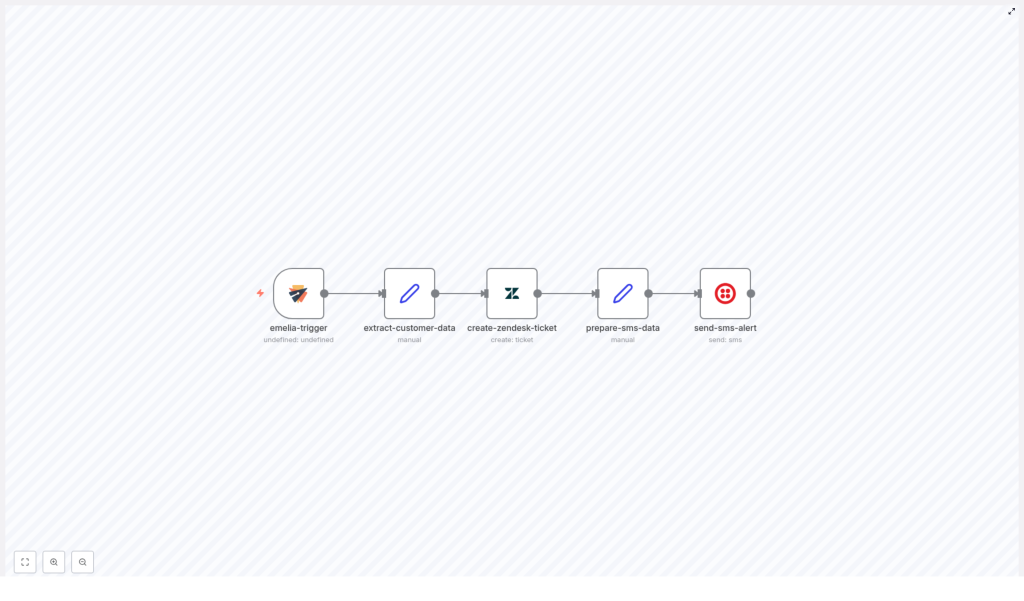
Overview of the n8n Workflow
The workflow connects four key elements:
- Emelia campaigns for post-purchase follow-up emails.
- An n8n trigger that listens for customer replies.
- Zendesk for ticket creation and tracking.
- Twilio for sending SMS alerts to your support team.
At a high level, the automation works like this:
- A customer replies to a post-purchase follow-up email.
- n8n captures the reply and extracts customer and order information.
- A new support ticket is created in Zendesk with full context.
- The workflow formats the key ticket details for SMS.
- An urgent SMS is sent to the support team, including a direct link to the Zendesk ticket.
Key Concepts Before You Start
Emelia Trigger in n8n
The emelia-trigger node listens for customer replies to your Emelia campaigns. In this workflow, it is configured to react specifically to replies from post-purchase follow-up campaigns. This ensures the automation only runs when a customer responds to those targeted emails.
Data Extraction for Contextual Support
Good support relies on context. The workflow includes a node that pulls structured data from the customer reply and related records, such as:
- Customer full name
- Email address
- Company name
- Order ID
- Purchase date
- Product name
This data is then passed into Zendesk so your agents see everything they need in one place.
Zendesk Ticket Creation
The create-zendesk-ticket node uses the extracted information to automatically open a new ticket. The ticket includes:
- A clear subject line that identifies the customer and order.
- A detailed description with order details and the customer reply.
- Tags, priority, and routing to the correct support group.
- Custom fields for better categorization and reporting.
SMS Alerts via Twilio
Once the ticket is created, the workflow prepares a concise summary of the most important details, such as:
- Zendesk ticket ID
- Customer name
- Order ID
This summary is used by the send-sms-alert node, which sends a real-time SMS notification to your support team’s phone number using Twilio. The SMS includes a direct link to the Zendesk ticket so the team can respond quickly.
Step-by-Step: How the n8n Workflow Template Works
Step 1 – Capture Customer Replies with the Emelia Trigger
The workflow starts with the emelia-trigger node.
- It listens for incoming replies from customers who received your post-purchase follow-up email.
- Whenever a reply is detected, the node passes the message content and metadata into the next step in n8n.
This ensures that every customer response is automatically captured and processed without manual checking of inboxes.
Step 2 – Extract Customer and Order Data
Next, the workflow moves to the extract-customer-data node.
This node gathers all the crucial information needed for support, for example:
- Customer identity: full name, email address, and company.
- Order details: order ID, purchase date, and product name.
By structuring this data, the workflow makes it easy to populate the Zendesk ticket fields and provide agents with immediate context.
Step 3 – Automatically Create a Zendesk Ticket
With the customer and order data ready, the workflow triggers the create-zendesk-ticket node.
This node:
- Creates a new ticket in Zendesk using the extracted customer information.
- Builds a clear subject line that includes the customer name and order reference.
- Generates a detailed description that combines:
- Order information (order ID, purchase date, product name).
- The content of the customer’s reply.
- Sets the ticket priority to urgent so it stands out in the queue.
- Routes the ticket to the correct support group and applies relevant tags and custom fields for efficient handling.
The result is a fully prepared ticket that your support team can act on immediately, without any manual data entry.
Step 4 – Prepare Data for the SMS Notification
After the Zendesk ticket is created, the workflow uses the prepare-sms-data node.
This node formats the key details your team needs to see in an SMS, such as:
- New ticket ID from Zendesk.
- Customer name.
- Order ID or reference.
By preparing this data first, the SMS message stays short, clear, and immediately actionable.
Step 5 – Send an SMS Alert to the Support Team
Finally, the send-sms-alert node sends a real-time text message using Twilio.
The SMS typically includes:
- The customer’s name and order reference.
- The Zendesk ticket ID.
- A direct link to open the ticket in Zendesk.
This alert goes to your support team’s designated phone number, helping them quickly identify urgent post-purchase issues and respond without delay.
Benefits of This n8n Automation Workflow
- Improved Response Times
Automated triggers and SMS alerts ensure your support team is notified as soon as a customer replies, which reduces waiting time and increases customer satisfaction. - Centralized Ticket Management
Integration with Zendesk means all customer replies are converted into tickets and stored in a single, organized system that is easy to track and manage. - Contextual and Personalized Support
Detailed extraction of customer and order information gives agents the full context they need, allowing them to provide informed, personalized responses rather than asking the customer to repeat details. - Better SLA Compliance
Marking tickets as urgent and sending SMS escalation alerts helps your team meet service level agreements and maintain consistent response quality.
Quick Recap
To summarize, this n8n workflow template helps you:
- Listen for post-purchase email replies with the emelia-trigger node.
- Extract key customer and order details using extract-customer-data.
- Create a fully detailed, urgent Zendesk ticket via create-zendesk-ticket.
- Format ticket and customer information for SMS in prepare-sms-data.
- Send an urgent SMS alert to your support team using send-sms-alert with Twilio.
With this setup, you automate the entire path from customer reply to agent notification, which significantly improves the reliability and speed of your post-purchase support.
FAQ
Do I need to know how to code to use this workflow?
No. The workflow is built as an n8n template, so you primarily configure nodes, connect your Emelia, Zendesk, and Twilio accounts, and adjust fields as needed. Most of the logic is already set up for you.
Can I customize the SMS content?
Yes. In the prepare-sms-data and send-sms-alert nodes, you can edit the message format, include additional fields, or change the tone of the alert while still keeping the core details like ticket ID and order ID.
What if I want different priorities for different types of replies?
You can extend the workflow by adding conditions in n8n. For example, you could check for certain keywords in the customer reply and adjust the Zendesk ticket priority or tags accordingly.
Is this workflow scalable?
Yes. The workflow is designed to handle replies at scale. As your number of post-purchase campaigns and customers grows, the automation continues to process each reply and create tickets consistently.
Get Started With the Template
Implementing this end-to-end post-purchase support automation can significantly improve your customer service efficiency and satisfaction. If you want to streamline your e-commerce support workflows with reliable automation and real-time alerts, this n8n workflow template is a powerful starting point.
Ready to automate your post-purchase support? Contact us today to get started and plug this template into your n8n setup.
