


Automate Viral X Tweets with n8n & GPT-4
Imagine waking up to fresh, on-brand tweets going out while you sleep, without you scrambling for ideas or staring at a blinking cursor. That is exactly what this n8n workflow template helps you do.
In this guide, we will walk through how to use n8n and GPT-4 to automatically generate and post tweets to X (formerly Twitter), keep them within the 280-character limit, schedule them in a natural way, and even ping your team in Slack when something goes live. We will also talk about prompt design, safety, and a few smart upgrades you can add later.
What this n8n workflow actually does
Let us start with the big picture. This template is built to:
- Generate tweet ideas using GPT-4 based on your niche and style
- Check that each tweet fits within X’s 280-character limit
- Post the tweet to X using your account and API credentials
- Send a Slack notification so your team knows what went out and when
- Run automatically on a schedule, with timing that looks human rather than robotic
Under the hood, the workflow uses a handful of well-chosen n8n nodes that play nicely together. You get automation without losing control over your brand voice.
Why bother automating tweets at all?
If you are already posting manually, you might wonder: do I really need automation?
Here is where it helps:
- Consistency without burnout – Staying active on X is easier when you are not constantly chasing ideas or reminders.
- Scale your content – With GPT-4 handling first drafts, you can test more ideas, hooks, and angles without extra effort.
- Better experiments – You can tweak prompts, compare performance, and refine what “viral” looks like for your audience.
- Natural cadence – With smart scheduling, you avoid spammy posting patterns while still showing up regularly.
So instead of spending energy on “What do I tweet today?”, you can focus on strategy and analysis.
High-level workflow overview
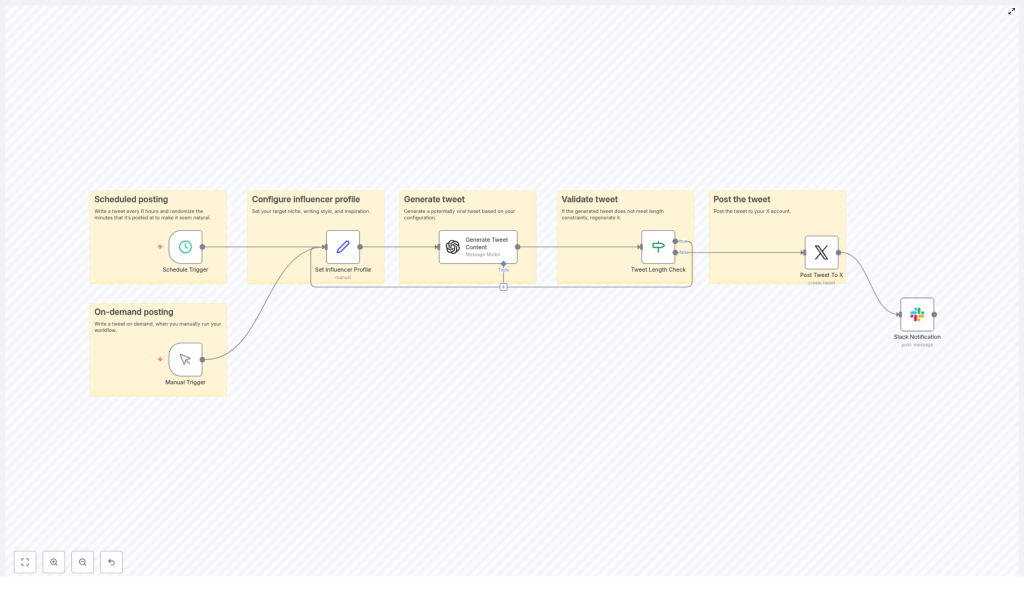
Here is the core flow of the template, from start to finish:
- Schedule Trigger – Runs every 6 hours with a randomized minute for natural timing.
- Manual Trigger – Lets you run the workflow on demand for testing or one-off tweets.
- Set Influencer Profile – Stores your niche, style, and inspiration to guide GPT-4.
- Generate Tweet Content – Calls GPT-4 to create a single tweet.
- Tweet Length Check – Confirms the tweet is within 280 characters.
- Post Tweet to X – Publishes the tweet using the X API.
- Slack Notification – Sends a message to your team with the tweet details.
Now let us unpack each part so you can customize it confidently.
Scheduling tweets so they look human
Schedule Trigger node
The Schedule Trigger is what keeps your account active without you lifting a finger.
In this template, it is set to run every 6 hours. To avoid a “bot-like” pattern, you randomize the minute field so tweets do not always drop at something obvious like 12:00 or 18:00.
Use this expression in the minute field:
={{ Math.floor(Math.random() * 60) }}This simple trick makes your posting times feel more organic and can help you avoid potential downranking from overly predictable behavior.
Manual Trigger for testing
Alongside the schedule, there is a Manual Trigger node. This is perfect when you are:
- Testing a new prompt
- Debugging the workflow
- Manually reviewing tweets before you let the schedule run on its own
Think of it as your “preview and refine” button.
Teaching GPT-4 to tweet like your brand
Set Influencer Profile node
Before GPT-4 writes anything, you tell it who it is “pretending” to be. That happens in the Set node, where you define variables such as:
- niche – The main topic or space you operate in
- style – The tone or voice you want (e.g. “very personal”)
- inspiration – Books, creators, or strategies that shape the style
Example values used in this template:
- Niche: Modern Stoicism
- Style: Very personal
- Inspiration: Books and influencer strategies like “Contagious” and “How to Win Friends and Influence People”
These values are passed into the AI prompt so your tweets feel consistent, not random.
Generate Tweet Content with GPT-4
Next comes the OpenAI node, where GPT-4 (or GPT-4-turbo) generates the actual tweet text.
Key configuration points:
- Model selection – Choose GPT-4 or GPT-4-turbo, depending on your access and cost preferences.
- Output format – Make sure the response is in a format your workflow expects, such as plain text or structured JSON.
- Clear instructions – Tell the model to keep the tweet under 280 characters and output only the tweet, nothing extra.
- Dynamic variables – Inject
niche,style, and other fields from the Set node into the prompt.
Here is an example of system instructions used in the workflow:
=You are a successful modern Twitter influencer. Your tweets always go viral.
=You have a specific writing style: {{ $json.style }}
=You have a very specific niche: {{ $json.niche }}
=Answer with the viral tweet and nothing else. Keep the tweet within 280 characters.
This keeps GPT-4 focused: it writes a single, punchy tweet tailored to your brand, not a long essay or list of ideas.
Keeping tweets within 280 characters
Tweet Length Check (If node)
Even if you tell GPT-4 to stay under 280 characters, it can occasionally get wordy. To avoid errors with the X API, you add a simple length check using an If node.
In n8n, you can use an expression like:
={{ $json.message.content.tweet.length }} <= 280If the condition is true, the workflow continues and posts the tweet. If it is false, you can handle it by regenerating the tweet or routing it for manual review, depending on how strict you want to be.
This small safeguard saves you from failed API calls and keeps everything compliant with X’s character limit.
Publishing to X with the Twitter/X node
Post Tweet to X
Once the tweet passes the length check, the Twitter/X node publishes it to your account using OAuth2 credentials.
When you configure this node, keep these best practices in mind:
- Rate limits – Respect X’s API rate limits and handle error responses gracefully.
- Retries – Consider adding retry logic or a fallback path if posting fails temporarily.
- Media support – If you plan to add images or threads later, you will need extra steps to handle media uploads before posting.
At this stage, your automation is already powerful: you are generating, validating, and posting tweets without manual work.
Keeping your team in the loop with Slack
Slack Notification node
After a tweet goes live, the workflow sends a Slack message so your team can see exactly what was posted and when.
Typical Slack notification content might include:
- The tweet text
- A timestamp
- Optionally, a link to the tweet
This makes it easy to:
- Monitor automated content in real time
- Jump in quickly if something needs to be edited, deleted, or replied to
- Share wins internally when a tweet starts taking off
Designing prompts that actually feel “viral”
The quality of your tweets depends heavily on your prompt, not just the model. A few small changes can have a big impact.
Prompt design tips for viral-style tweets
- Be specific – Spell out the format you want, for example: “1 short insight + 1 memorable line + 1 hashtag.”
- Use examples – Feed in one or two of your top-performing tweets as style references.
- Limit the output – Explicitly say “Return only the tweet text” and remind it to respect the 280-character limit.
- Encourage emotion and shareability – Ask for rhetorical questions, strong hooks, or short personal anecdotes. If it fits your brand, you can also ask for emojis or a specific type of call to action.
Over time, you can keep tuning the prompt as you learn what resonates most with your audience.
Testing, tuning, and tracking performance
Even with automation, this is not a “set it and forget it” situation. You will get better results if you treat it like an experiment.
How to iterate on your workflow
- A/B test prompts – Clone the OpenAI node, tweak the instructions, and use a branching node to split traffic between variations.
- Watch your metrics – Track impressions, engagement, replies, and link clicks on X.
- Feed winners back into the system – Take your best tweets and include them as style examples in the prompt so GPT-4 learns what “good” looks like for you.
The more you iterate, the more your automated tweets will start to feel like your best manual ones.
Staying ethical and compliant
Automated content can be powerful, but it also comes with responsibility. You want growth, not trouble.
Ethics, safety, and platform rules
- Avoid impersonating real people or making misleading or false claims.
- Follow X’s developer policies, terms of service, and respect all rate limits.
- Use human review at the start, especially for sensitive topics or regulated industries.
Keeping a human in the loop during early stages helps you refine tone, avoid risky content, and maintain a consistent brand voice.
Advanced upgrades for your n8n X automation
Once the core workflow is stable and you are happy with the outputs, you can start layering on more advanced features.
Ideas for enhancements
- Sentiment or toxicity checks – Run the tweet through a moderation or sentiment node before posting.
- Automatic images – Add AI image generation and attach media to tweets for more visual impact.
- Engagement-based follow-ups – Trigger actions like auto-liking, replying, or posting a follow-up thread when a tweet crosses a certain engagement threshold.
- Data logging – Store tweet content and performance metrics in Google Sheets or a database for deeper analysis later.
These additions can turn a simple posting bot into a smarter, feedback-driven content system.
Step-by-step setup checklist
Ready to put this into action? Here is a compact checklist you can follow:
- Install n8n and set up credentials for:
- OpenAI (for GPT-4)
- X/Twitter API
- Slack
- Import the workflow template or recreate the nodes:
- Schedule Trigger
- Manual Trigger
- Set (Influencer Profile)
- OpenAI (GPT-4)
- If (Tweet Length Check)
- Twitter/X
- Slack
- Fill in the Set node with your own niche, style, and inspiration values.
- Customize the OpenAI prompt and choose your preferred GPT-4 model.
- Use the Manual Trigger to test outputs, refine prompts, and confirm that tweets are safe, on-brand, and under 280 characters.
- Once you are happy with the results, enable the Schedule Trigger and monitor logs and Slack notifications for the first few days.
Wrapping up: Your viral tweet machine, on autopilot
With n8n and GPT-4 working together, you can keep your X account active, consistent, and on-brand without babysitting every single post. You set the rules, define the voice, and let the workflow handle the repetitive parts.
Start small, keep a human eye on things while you fine-tune, and use analytics to guide improvements. Over time, this setup can become a reliable engine for testing ideas and growing your audience.
Call to action: Import the template into your n8n instance, plug in your OpenAI and X credentials, and run it manually to preview a few tweet outputs. When you are happy with them, turn on the schedule and let it run.
If you would like a bit more help, I can also:
- Refine a prompt tailored to your specific niche
- Help you turn the workflow JSON into a clean, downloadable n8n import file
- Suggest key KPIs to track and a sample Google Sheet structure for logging performance
Reply with your niche and goals, and I will put together a ready-to-use prompt and configuration you can drop straight into this workflow.
