


How One Automation Failure Pushed Alex To Back Up n8n Workflows To Gitea
Alex stared at the n8n dashboard, heart sinking. A production workflow that handled hundreds of customer records had vanished after a misconfigured update. No JSON export, no backup, no Git history. Just an empty space where a mission-critical workflow used to be.
Like many developers and automation builders, Alex always meant to set up a proper backup strategy “later.” Now, with stakeholders asking what went wrong, “later” had arrived.
This is the story of how Alex discovered an automated n8n workflow template that backs up every workflow to a Gitea repository, keeps a versioned history, and only commits when something actually changes. By the end, Alex had a safe, auditable backup system that quietly ran in the background, and never had to fear losing another workflow again.
The Problem: Fragile Automations Without a Safety Net
Alex was responsible for maintaining dozens of n8n workflows. Some synced data between tools, others triggered customer notifications, and a few glued together critical backend processes. Everything worked, until it did not.
One day, a small change to the n8n instance caused a workflow to corrupt and disappear. Alex had no recent export and no Git history to roll back to. Rebuilding from memory took hours, and Alex knew this was a warning shot.
Alex wrote down the real pain points:
- No versioned, auditable history of workflow changes.
- No easy way to recover lost or corrupted workflows.
- Backups were ad hoc, manual exports that never happened on time.
- No integration with the team’s Git-based backup strategy.
Alex needed an automated way to back up every n8n workflow into Git, preferably into the team’s self-hosted Gitea instance. It had to be scheduled, reliable, and smart enough not to spam the repo with useless commits.
The Discovery: An n8n Template That Talks To Gitea
After some searching, Alex found exactly what was needed: an n8n workflow template built to back up workflows into a Gitea repository through the Gitea API. No extra scripts, no external cron jobs, just n8n talking directly to Gitea.
The template promised to:
- Export all workflows from the n8n instance.
- Check if each workflow already exists as a JSON file in Gitea.
- Pretty-print and Base64-encode the JSON content.
- Compare with the existing file in Gitea to detect changes.
- Create or update files only when something actually changed.
- Run automatically on a schedule.
It sounded perfect. But Alex knew that templates only help if they are configured correctly. So the real journey started: wiring up n8n, Gitea, and the template into a smooth, automated backup pipeline.
Rising Action: Wiring Up Gitea And n8n
Step 1 – Preparing Gitea: The Backup Home
First, Alex needed a place to store the backups. That meant setting up a dedicated repository in Gitea.
- Alex created a repository named
workflowsin Gitea. - Under Settings → Applications, Alex generated a Personal Access Token.
- The token was granted repository read and write permissions, but nothing more, to keep the blast radius small.
Inside n8n, Alex added a new HTTP header credential for Gitea that looked like this:
- Header name:
Authorization - Header value:
Bearer YOUR_PERSONAL_ACCESS_TOKEN
Alex double checked that there was a space after Bearer. Missing that space is a classic cause of 401 errors.
Step 2 – Setting Global Repo Details In n8n
The template included a Globals node, which acts as a small configuration hub. Instead of hardcoding URLs and repo names in multiple places, Alex could define them once.
In the Globals node, Alex filled in:
repo.url– for examplehttps://git.example.com, the Gitea base URL.repo.owner– the user or organization that owns the repo.repo.name– in this caseworkflows.
With this, any node that needed to call Gitea could reuse these values. Less duplication, fewer mistakes.
Step 3 – Giving n8n Permission To Read Its Own Workflows
The whole point of this template was to export workflows from n8n itself. That required an authenticated n8n API node.
Alex configured the n8n API node with the appropriate authentication:
- Either an API token or Basic Auth.
- Enough permission to list and export all workflow objects.
Once configured, the node could fetch all workflows from the instance. The template would then iterate over each one and back it up to Gitea.
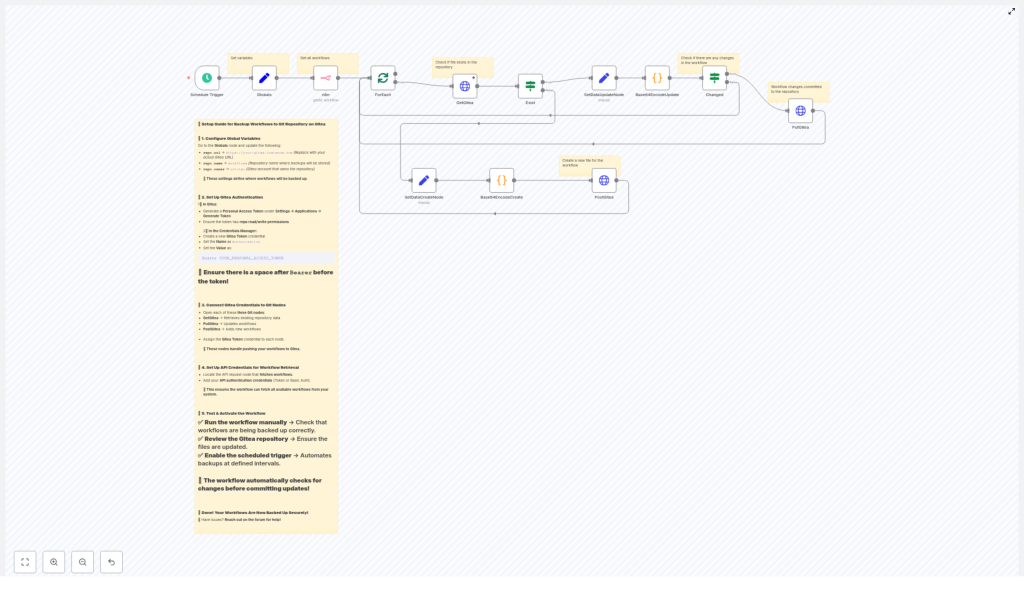
The Engine: How The Workflow Template Actually Works
Curious about what was happening under the hood, Alex walked through the main nodes in the template. Understanding the flow would make troubleshooting and tweaking much easier.
Controlling Time: The Schedule Trigger
At the top of the workflow sat the Schedule Trigger node. It controlled how often backups would run.
Alex set it to run every 45 minutes, but any interval could work, from hourly to once a day, depending on how frequently workflows change.
Fetching Workflows: The n8n API Node
Next, the n8n (API) node pulled in all workflows from the n8n instance. It returned a list of workflow objects, each containing the JSON definition that needed to be backed up.
Scaling Safely: ForEach And splitInBatches
Since Alex’s instance had a growing number of workflows, processing them all at once could lead to memory spikes or API throttling. The template solved this by using a combination of ForEach and splitInBatches nodes.
These nodes:
- Iterate over each workflow item individually or in small batches.
- Prevent overloading the system with too many operations at once.
This design choice meant the template would scale gracefully as the number of workflows grew.
Talking To Gitea: Get, Post, And Put
For each workflow, the template needed to know whether a corresponding JSON file already existed in Gitea. That is where the Gitea API nodes came in.
- GetGitea used an HTTP GET to check for an existing file:
GET /api/v1/repos/{owner}/{repo}/contents/{path}If the file existed, Gitea returned its metadata and Base64-encoded content. If it did not, the API responded with a 404, which the workflow treated as a signal to create a new file.
- PostGitea created new files:
POST /api/v1/repos/{owner}/{repo}/contents/{path}- PutGitea updated existing files:
PUT /api/v1/repos/{owner}/{repo}/contents/{path}These nodes all hit the same Gitea REST API, but with different HTTP methods. The workflow passed parameters like:
content– Base64-encoded JSON.message– the commit message.branch– usuallymainor a dedicated backup branch.sha– required for updates, taken from the GET response.
The Smart Part: Change Detection With Base64
Alex did not want a new commit every time the schedule ran if nothing had changed. That would clutter the Git history and make it harder to spot real changes.
The template solved this with a simple but effective approach:
- First, it pretty-printed the workflow JSON to keep formatting consistent.
- Then it used Base64EncodeCreate and Base64EncodeUpdate nodes to encode the JSON into Base64, which is what Gitea expects.
- Next, the Changed IF node compared the encoded content from n8n with the encoded content returned from Gitea.
- If the values matched, the workflow skipped any update. No commit was made.
- If the values differed, the workflow sent a PUT request using PutGitea, including the current file
shato update the file. - If the file did not exist at all (404 from GetGitea), the workflow used PostGitea to create it.
This logic meant that the repo only recorded meaningful changes, keeping history clean and storage efficient.
The Turning Point: First Successful Backup Run
After wiring everything up, Alex was both excited and nervous. It was time to test.
Template Bodies For Gitea Requests
Alex inspected the request bodies used to create and update files, to be sure nothing was missing.
For new files, the template used a body like this:
{  "content": "BASE64_ENCODED_CONTENT",  "message": "Add workflow: My Workflow",  "branch": "main"
}
For updates, the body included the existing sha so Gitea knew which version to update:
{  "content": "BASE64_ENCODED_CONTENT",  "sha": "EXISTING_FILE_SHA",  "message": "Update workflow: My Workflow",  "branch": "main"
}
Everything looked correct. Alex hit the manual run button in n8n.
After a few seconds, the Gitea repo started to fill with JSON files, one per workflow. Commit messages showed which workflows were added. On the next manual run, no new commits appeared, confirming that the change detection logic was working perfectly.
For the first time, Alex had a reliable, automated backup of every n8n workflow, safely versioned in Git.
Refining The Setup: Best Practices Alex Adopted
Once the basic backup pipeline was running, Alex started to refine it using some best practices.
- Dedicated token – Alex used a dedicated Personal Access Token with minimal permissions, restricted to the backup repository where possible.
- Informative commit messages – The commit messages were updated to include timestamps, workflow IDs, and sometimes the author, making the Git history more useful.
- Separate backup branch – To keep production branches clean, Alex configured the workflow to commit to a dedicated backup branch.
- Secret storage – Tokens were stored as n8n credentials, never hardcoded in nodes or visible in logs.
- Error handling and retries – Alex added basic error handling and backoff in case of API rate limits or transient network issues.
- Large instances – With many workflows, splitInBatches ensured that backups stayed stable and did not cause spikes.
- Testing before scheduling – Alex always ran the workflow manually and inspected the Gitea repo before enabling the schedule trigger.
When Things Go Wrong: Troubleshooting Lessons
Not everything worked perfectly on the first try. Alex hit a few common issues that are worth knowing about.
- 401 Unauthorized – The culprit was usually the
Authorizationheader. Either the token was wrong, or there was no space afterBearer. Fixing the header and verifying token permissions solved it. - 404 Not Found from GetGitea – At first this looked like an error, but it was actually expected for new workflows. The template treated 404 as a signal that the file did not exist yet and should be created.
- Encoding mismatches – If the workflow kept committing on every run, it often meant the JSON was not consistently pretty-printed before encoding. Once Alex ensured that formatting was stable, comparisons became reliable.
- Missing SHA on PUT – Gitea requires the correct
shavalue when updating a file. If PUT failed, it usually meant the workflow was not passing theshafrom the GET response correctly. Fixing that field resolved the issue.
Security Considerations Alex Did Not Ignore
Because this setup involves tokens and repository access, Alex took security seriously:
- Tokens were stored in n8n credentials, never in plain text fields.
- Logs were checked to ensure no tokens were accidentally printed.
- Tokens were rotated periodically as part of regular security hygiene.
- Scopes and repository access were kept as narrow as possible.
This way, even if something went wrong, the potential damage was limited.
The Resolution: Peace Of Mind With Automated n8n Backups
Weeks after setting up the backup workflow, another teammate accidentally broke a production workflow. This time, Alex did not panic.
Instead, Alex opened the Gitea repository, browsed to the correct JSON file, and restored the previous version. Within minutes, the workflow was back in n8n, running as if nothing had happened.
The automated backup template had quietly done its job, exporting workflows, encoding them, checking for changes, and only committing when something was different. The Git history told a clear story of how workflows evolved over time.
Alex also started to build on top of this foundation:
- Adding commit metadata such as timestamps or “exported by” information to messages.
- Pushing backups to a secondary remote or mirror for extra redundancy.
- Using notification nodes like Slack or Email to alert the team when new backups or updates were created.
To keep environments clean, Alex followed one last pro tip: maintain a separate backup repository for each environment (dev, stage, prod) so workflow changes can be tracked independently.
Your Turn: Put A Safety Net Under Your n8n Workflows
If you are where Alex once was, relying on manual exports or no backups at all, you do not have to stay there.
With this n8n template, you can:
- Automatically back up all n8n workflows to a Gitea repository.
- Use the Gitea API to create and update JSON files on a schedule.
- Keep a clean, versioned history of your automations.
- Recover quickly when something breaks or disappears.
All it takes is importing the template, configuring your Gitea credentials and repository details, running a manual test, and then enabling the schedule.
If you run into questions, share your setup on the n8n community forum or talk to your platform admin. There is no need to wait for a painful incident before putting a safety net under your automations.
