How to Chat with Google News Using SerpApi & OpenAI

How to Chat with Google News Using SerpApi & OpenAI

From Information Overload to Focused Insight

It is easier than ever to drown in news. Headlines, alerts, and feeds constantly compete for your attention, and staying informed can start to feel like a full-time job. If you are building a business, growing a project, or simply trying to protect your focus, manually scanning news sites is a huge time cost.

What if you could flip that around and let automation do the heavy lifting for you? Imagine asking a simple question, then receiving a clear, structured summary of the latest Google News results, grouped into topics and enriched with key links. No more endless scrolling, no more “I will read this later” tabs.

This is exactly what this n8n workflow template helps you achieve. By connecting SerpApi and OpenAI inside n8n, you can turn a stream of raw news into focused insight that supports better decisions and frees your time for higher-value work.

Adopting an Automation-First Mindset

Before we dive into the steps, it helps to shift how you think about your daily tasks. Any repetitive action you take to “check what is new” is a candidate for automation. When you automate that kind of routine work, you:

  • Protect your attention for strategy, creativity, and deep work
  • Stay consistently informed without manual effort
  • Build reusable systems that grow with your business or projects

This Google News chat workflow is not just a one-off trick. It is a starting point, a template you can adapt, extend, and connect to other tools. As you walk through the setup, keep asking yourself: “Where else could I apply this approach?”

What This n8n Workflow Actually Does

At its core, the workflow turns a simple chat-style question into a curated overview of the latest news. Here is what happens behind the scenes:

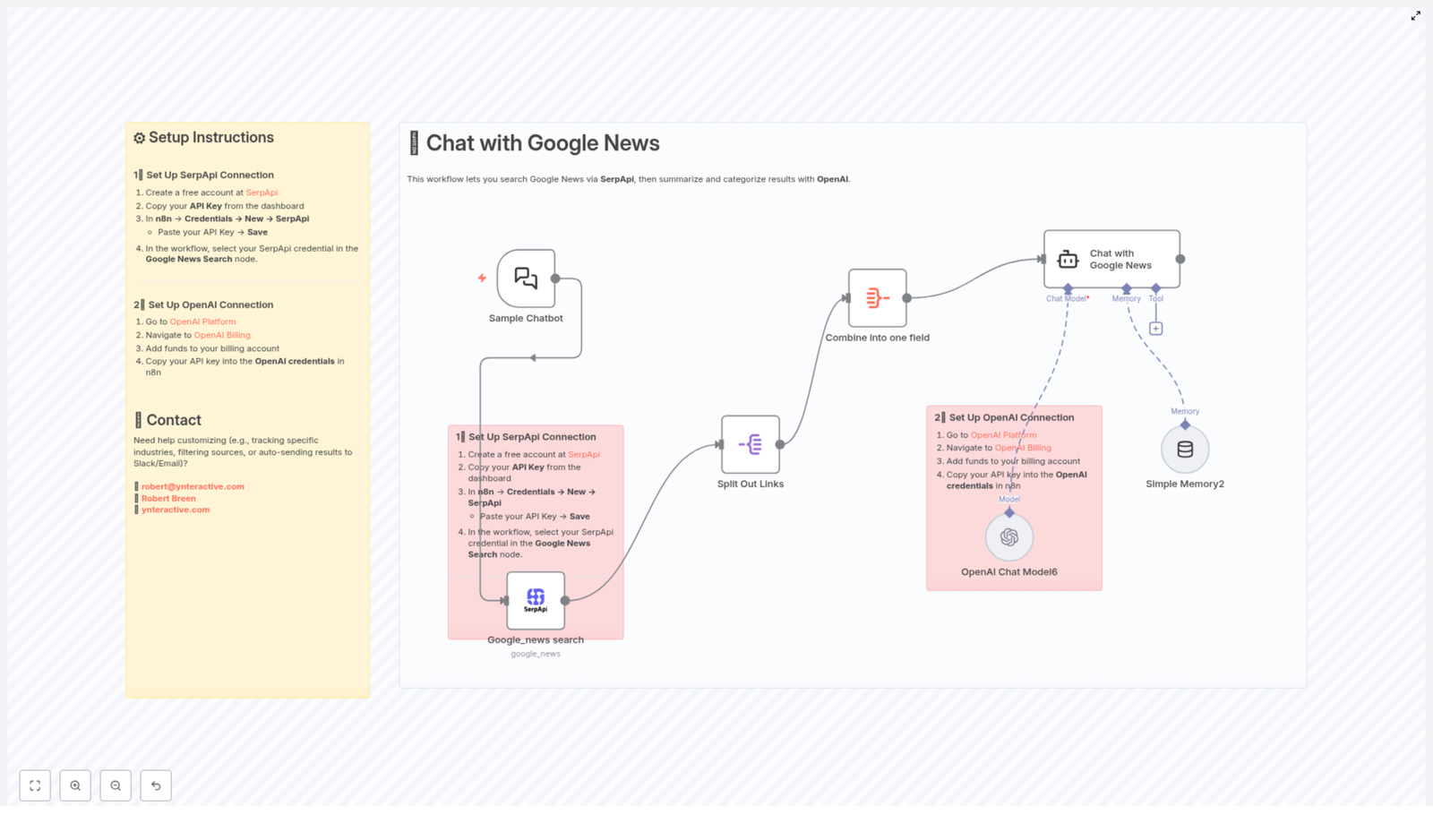
  • Sample Chatbot Trigger – You start the workflow with a user query, just like asking a chatbot a question.
  • Google News Search via SerpApi – SerpApi queries Google News for your topic and returns structured results.
  • Split Out Links – Each news result is separated so it can be processed individually.
  • Combine Into One Field – All titles and links are merged into a single field that is easy for OpenAI to process.
  • Chat with Google News (Using OpenAI) – OpenAI receives the combined data, then summarizes and categorizes the news into topics, including key article links.
  • Simple Memory – A lightweight memory layer keeps session context so your “conversation” with the news feels more natural.

The result is a conversational experience: you ask, “What is happening in AI regulation today?” and the workflow returns structured insights instead of a chaotic list of headlines.

Key Building Blocks: SerpApi and OpenAI

SerpApi: Your Reliable Window Into Google News

SerpApi is an API that lets you access search engine data, including Google News, in a structured format. Instead of manually browsing Google News, you can programmatically request:

  • Latest articles related to a specific topic
  • Headlines, URLs, and metadata in a consistent structure
  • Filtered results for particular industries or sources

In this workflow, SerpApi is the engine that fetches the raw news data that OpenAI will later transform.

OpenAI: Turning Raw Headlines Into Insight

OpenAI provides advanced language models, such as GPT, that can understand and generate natural language. When paired with SerpApi, OpenAI becomes your intelligent editor. It:

  • Summarizes multiple articles into concise, readable overviews
  • Groups related stories into categories or themes
  • Returns structured text with links to the original sources

This combination means you no longer just “see” the news. You get a guided explanation of what matters and why, in a format that supports quick decisions.

Setting Up the Workflow in n8n

You do not need to be a full-time developer to put this to work. With n8n, you connect the pieces visually and configure a few credentials. Once it is running, it will keep working in the background while you focus on more meaningful tasks.

Step 1 – Connect SerpApi to n8n

  1. Create a free account at SerpApi.
  2. From your SerpApi dashboard, copy your API key.
  3. In n8n, open Credentials > New > SerpApi.
  4. Paste your SerpApi API key and save the credential.
  5. In the workflow, open the Google News Search node and select the SerpApi credential you just created.

With this in place, your workflow can now request live Google News data on demand.

Step 2 – Connect OpenAI to n8n

  1. Visit the OpenAI Platform and log in.
  2. Go to OpenAI Billing and make sure you have funds available in your account.
  3. Create or copy your OpenAI API key.
  4. In n8n, open Credentials and create a new OpenAI credential.
  5. Paste your API key, save, and then select this credential in the OpenAI node used for the “Chat with Google News” step.

Now your workflow has both the data source (SerpApi) and the intelligence layer (OpenAI) ready to work together.

How the Workflow Runs, Step by Step

Once your connections are configured, the workflow comes to life. Here is what happens when you send a query to the chatbot trigger:

  1. You ask a question in the Sample Chatbot Trigger, such as “What is new in renewable energy?”
  2. SerpApi searches Google News for that topic and returns a set of relevant articles.
  3. The workflow splits the results in the “Split Out Links” node so each article can be handled separately.
  4. All titles and links are combined into a single field in the “Combine Into One Field” node. This creates a compact input for OpenAI.
  5. OpenAI processes the combined data in the “Chat with Google News” step. It:
    • Categorizes the news into five groups or topics
    • Summarizes the key points from each group
    • Returns structured text with relevant URLs for deeper reading
  6. Simple Memory tracks context so follow-up questions feel more natural within the same session.

From your perspective, it feels like chatting with a well-informed assistant that has just read the latest Google News for you and distilled it into what you actually need to know.

Turning a Template Into Your Own Automation System

This n8n template is a powerful starting point, but it is also an invitation to experiment. As you get comfortable with it, you can adapt it to match your goals, workflows, and tools.

Customization Ideas

  • Adjust categories and depth
    Modify the prompts in the OpenAI node to change how the news is grouped or how detailed the summaries should be. You can increase or decrease the number of categories or ask for specific angles, such as risks, opportunities, or market impact.
  • Control how much news you process
    Update the SerpApi node parameters to change how many results you fetch. You can focus on a small, curated set of articles or broaden the scope for more comprehensive overviews.
  • Filter by industry or source
    Use SerpApi filters to target certain industries, locations, or news sources. This is especially powerful if you monitor niche markets or competitors.
  • Send insights where you work
    Connect additional n8n nodes to deliver the summarized news to Slack, email, Notion, or other platforms. For example, you could:
    • Receive a daily Slack message with categorized news on your key topics
    • Send a weekly email digest to your team
    • Log summaries in a knowledge base for future reference

Each small improvement you make turns this template into a tailored system that fits the way you and your team actually work.

Why This Workflow Is a Stepping Stone, Not a Finish Line

Automating your news consumption is more than a convenience. It is a concrete example of how you can reclaim time and mental energy with n8n, SerpApi, and OpenAI. Once you see how easily this template transforms scattered information into structured insight, you will likely spot other opportunities:

  • Monitoring competitors or trends across multiple topics
  • Feeding summarized news into dashboards or reports
  • Combining this workflow with others for research, content creation, or decision support

Use this template as your proof of concept. Let it show you what is possible when you treat automation as a partner, not a luxury. Then keep iterating.

Need Help Extending or Customizing It?

If you want to push this workflow further, integrate it with other tools, or tailor it for a specific use case, you do not have to figure it out alone. You can reach out for support or collaboration:

Start Your Automation Journey Today

This workflow combines the reach of Google News with the intelligence of OpenAI, all orchestrated by n8n, to give you a smarter way to stay informed. Instead of chasing information, you design a system that brings the right insights to you, in a format that respects your time and attention.

Set up the template, run your first query, and experience what it feels like to chat with the news instead of scrolling through it. Then keep building from there, one automation at a time.

Ready to turn information overload into clarity and focus? Start setting up your Google News chat workflow today and let automation handle the updates while you focus on what truly moves you forward.
Onfleet to Discord Integration: Automate Task Start Notifications

Onfleet to Discord Integration: Automate Task Start Notifications with n8n

Overview

For operations and logistics teams, timely communication is critical. When a delivery task begins, stakeholders need to know immediately, without relying on manual updates or fragmented channels. This is where workflow automation with n8n becomes highly effective.

This article describes how to integrate Onfleet with Discord using an n8n workflow template. The workflow listens for taskStarted events in Onfleet and automatically sends structured notifications to a designated Discord channel. The result is a reliable, real-time notification pipeline that supports better coordination, faster response times, and centralized communication.

Use Case: Real-Time Task Start Notifications

The primary objective of this workflow is to notify your team in Discord as soon as an Onfleet delivery task moves into the “started” state. Typical scenarios include:

  • Dispatch teams monitoring live delivery operations
  • Customer support teams that need context when customers inquire about order status
  • Operations managers tracking driver performance and route execution

By automating these updates with n8n, you remove manual steps, reduce the risk of missed messages, and keep everyone aligned on task progress in real time.

Workflow Architecture in n8n

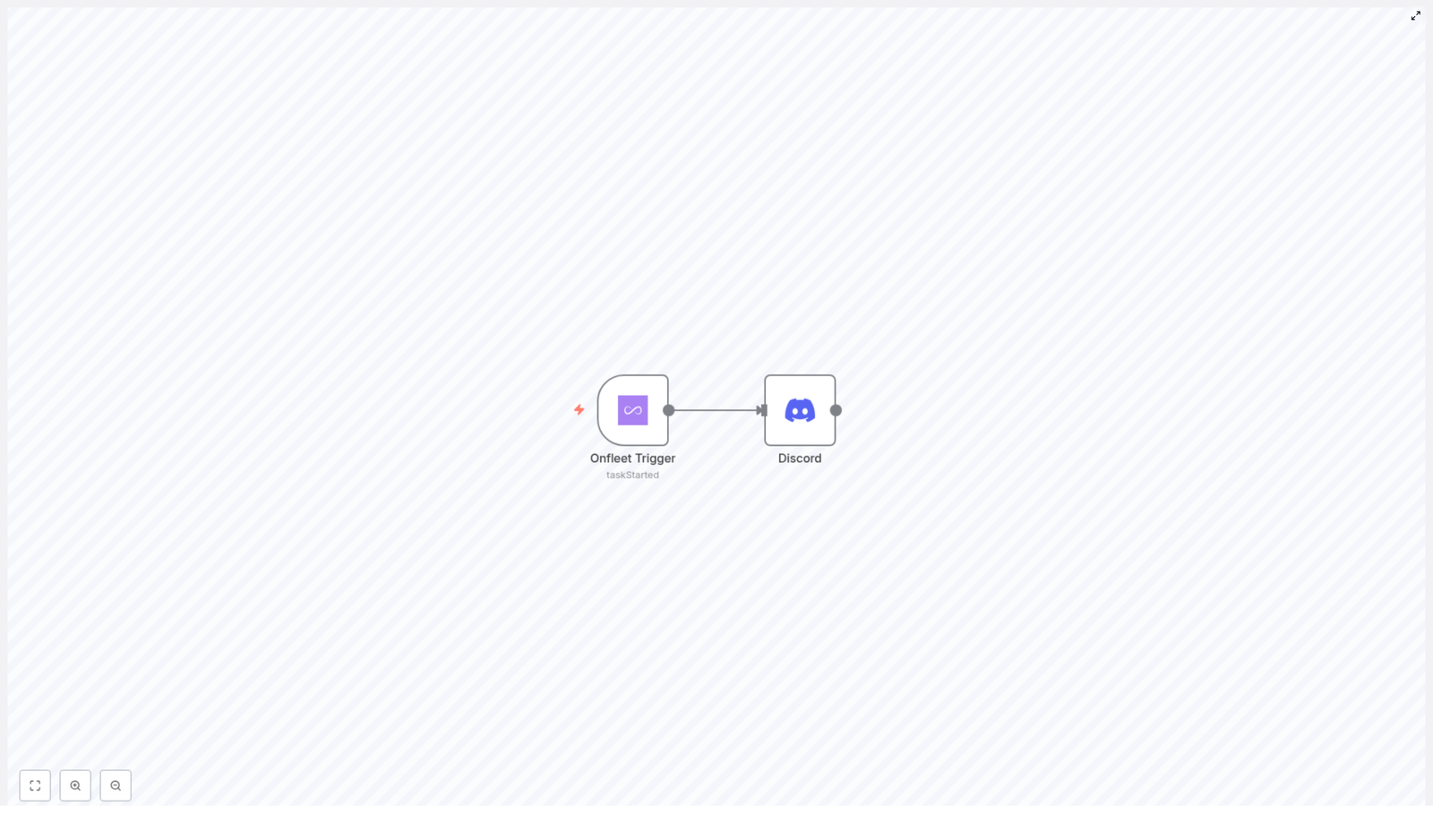
The integration is intentionally minimalistic and robust. It relies on two core n8n nodes connected in a simple event-driven pattern:

Onfleet Trigger Node

  • Type: Trigger node
  • Purpose: Subscribes to Onfleet webhooks and listens for specific task events
  • Configured Event: taskStarted

When Onfleet emits a taskStarted event, this node receives the payload and passes the event data into the workflow.

Discord Node

  • Type: Action node
  • Purpose: Posts a formatted message to a specified Discord channel
  • Trigger: Executes whenever the Onfleet Trigger node outputs a new event

The Discord node consumes the data from Onfleet, applies your defined message template, and publishes the notification to your channel of choice.

Implementation Guide: Building the Workflow

The following steps describe how to configure this automation in n8n from start to finish. The process assumes you already have n8n running and have access to both Onfleet and Discord credentials.

1. Create a New Workflow in n8n

Begin by opening your n8n instance and creating a new, empty workflow:

  • From the n8n dashboard, select the option to create a new workflow.
  • Assign a clear, descriptive name such as Onfleet Task Started to Discord to simplify future maintenance.

2. Configure the Onfleet Trigger Node

Next, add the event source that will listen for task updates from Onfleet.

  • Drag the Onfleet Trigger node onto the canvas.
  • Open the node settings and set Trigger On to taskStarted.
  • Under credentials, configure and select your Onfleet API credentials so that n8n can authenticate against your Onfleet account.

Once configured, this node will subscribe to the taskStarted event. Every time a delivery task moves into the started state, Onfleet will send the relevant event payload into n8n through this trigger.

3. Add and Set Up the Discord Node

After the trigger is in place, configure the action that will send the notification to Discord.

  • Drag a Discord node onto the workflow canvas.
  • Connect the output of the Onfleet Trigger node to the input of the Discord node to define the data flow.
  • In the Discord node configuration:
    • Provide your Discord bot token and select or enter the target channel ID where notifications should be posted.
    • Define the message content or template that will be sent when a task starts. You can reference fields from the Onfleet payload to include details such as task ID, assigned driver, or start time, depending on your Onfleet configuration and data model.

Using a structured message template is considered a best practice, as it ensures consistency and makes it easier for teams to quickly parse relevant information inside Discord.

4. Validate Connections and Activate the Workflow

Before enabling the automation, verify that the nodes are correctly wired and authenticated.

  • Confirm that the Onfleet Trigger node output is connected to the Discord node input.
  • Ensure that both Onfleet and Discord credentials are valid and tested inside n8n.

Once the configuration is complete:

  • Save the workflow.
  • Switch the workflow status to Active so that it starts listening for live taskStarted events.

From this point onward, any new Onfleet task that transitions to the started state will automatically generate a corresponding notification in your specified Discord channel.

Automation Best Practices for This Integration

To maximize reliability and maintainability of this n8n workflow, consider the following best practices:

  • Use clear naming conventions for both nodes and the workflow itself to simplify troubleshooting and onboarding of new team members.
  • Template your messages so that they include only essential operational details and are easily scannable in high-traffic channels.
  • Test with a staging channel in Discord before routing events into a production or team-wide channel.
  • Monitor initial runs to ensure that the trigger fires as expected and that no authentication or permission issues exist with Onfleet or Discord.

Key Benefits of Using n8n for Onfleet to Discord Notifications

Implementing this workflow template offers several operational advantages:

  • Real-time operational visibility – Teams receive immediate Discord notifications whenever a task starts in Onfleet, enabling faster decision making and incident response.
  • Centralized communication – Delivery task updates are consolidated in the same Discord channels where your teams already collaborate, reducing context switching and fragmented tools.
  • No-code automation – n8n provides a visual, low-friction interface, allowing operations and automation professionals to configure and adjust workflows without custom code.
  • Scalability and extensibility – The simple two-node pattern can be extended with additional nodes, such as logging, conditional routing, or notifications to other systems, as your automation strategy matures.

Conclusion

Integrating Onfleet with Discord through n8n is a straightforward yet powerful way to improve operational communication. By listening for taskStarted events and sending structured Discord notifications automatically, your teams gain real-time visibility into delivery activities with minimal manual effort.

For organizations focused on efficiency and reliable communication, this workflow template is a practical starting point that can be extended into a broader automation ecosystem.

Ready to automate your task start notifications with n8n, Onfleet, and Discord? Deploy this workflow and streamline your operational communications today.

Automate Daily Weather Updates via Telegram

Automate Daily Weather Updates via Telegram with n8n

Overview

This reference guide documents an n8n workflow template that automates daily weather notifications using the
OpenWeatherMap API and Telegram. The workflow supports both scheduled updates
(for example, every morning at 8:00 AM) and on-demand requests submitted through a form. It is designed for users
who are already familiar with n8n concepts such as triggers, nodes, credentials, and data mapping.

The automation retrieves current weather data for a specified city and country, transforms the raw API response into
a human-readable summary, converts sunrise and sunset timestamps to IST (Asia/Kolkata), and finally sends the
formatted report to a Telegram chat via a bot.

Workflow Architecture

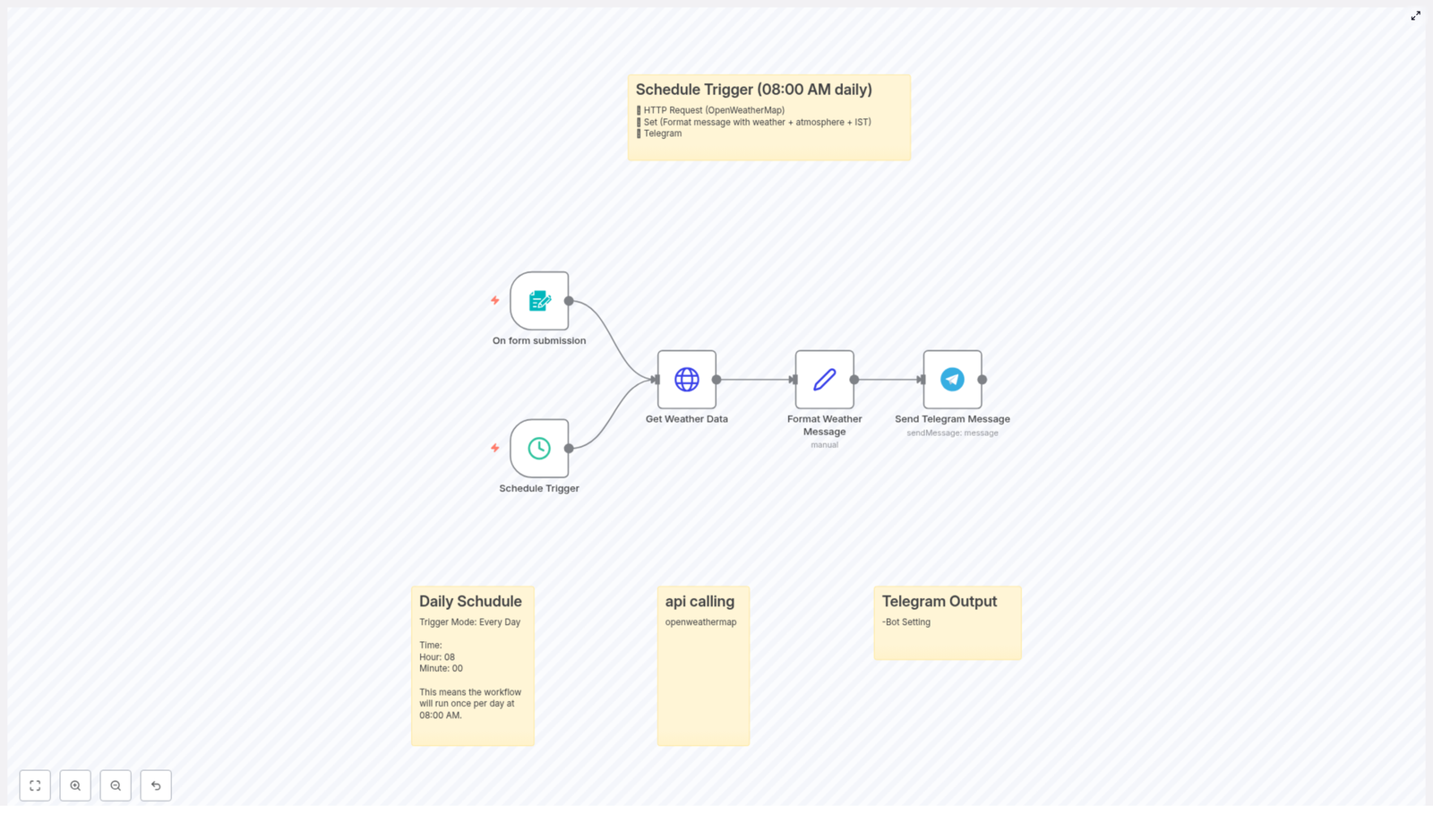
At a high level, the workflow consists of the following components:

  • Schedule Trigger – Executes automatically at a fixed time (for example 8:00 AM) to send daily weather updates.
  • Form Trigger – Accepts on-demand requests where users specify city and country parameters.
  • HTTP Request Node – Calls the OpenWeatherMap /data/2.5/weather endpoint to fetch current conditions.
  • Set Node – Extracts and formats key fields from the API response, including time conversion to IST.
  • Telegram Node – Sends the final formatted message to a chosen Telegram chat using the Telegram Bot API.

Both trigger paths (scheduled and form-based) converge into the same data retrieval and messaging logic, which keeps
the configuration consistent and easier to maintain.

Data Flow

  1. Trigger
    • Either a scheduled execution at 8:00 AM or a form submission initializes the workflow.
    • The trigger provides or resolves the city and country values.
  2. HTTP Request to OpenWeatherMap
    • The workflow builds the API URL using the city and country from the trigger and an API key stored in credentials or variables.
    • The HTTP Request node fetches the current weather data in metric units.
  3. Data Transformation
    • The Set node reads the JSON response and extracts temperature, humidity, wind speed, pressure, description, and sunrise/sunset.
    • UNIX timestamps for sunrise and sunset are converted to the IST timezone.
    • A formatted multi-line text message is constructed for Telegram.
  4. Telegram Delivery
    • The Telegram node uses bot credentials and a target chat ID to send the message to your Telegram client.

Node-by-Node Breakdown

1. Schedule Trigger Node

The Schedule Trigger node is responsible for the recurring, automated weather update. Typical configuration:

  • Mode: Every Day
  • Time: 08:00 (8:00 AM local server time)

The schedule trigger does not inherently provide city and country values, so these are usually:

  • Hard-coded in a downstream node (for example, a Set node before the HTTP Request), or
  • Configured via environment variables or default parameters that the HTTP Request node uses.

2. Form Trigger Node

The Form Trigger node enables on-demand weather checks. A user submits a form specifying:

  • city – The target city (for example, Mumbai).
  • country – The two-letter country code (for example, IN).

These values are then passed as input fields into the workflow. The HTTP Request node later uses these fields to build
the query string. This path is typically configured in parallel with the schedule trigger so that both triggers can
reuse the same HTTP and formatting logic.

3. HTTP Request Node – OpenWeatherMap API

The HTTP Request node calls the OpenWeatherMap Current Weather Data endpoint. The base URL pattern is:

https://api.openweathermap.org/data/2.5/weather?q={city},{country}&APPID=your_api_key&units=metric

Key configuration aspects:

  • HTTP Method: GET
  • URL: Uses expressions to inject city and country from the trigger input.
  • API Key:
    • Replace your_api_key with a valid OpenWeatherMap API key.
    • For security, store the key in n8n credentials or environment variables, then reference it in the URL or query parameters.
  • Units: metric for temperature in Celsius and wind speed in m/s.

The response is a JSON object that includes:

  • weather[0].description – Textual description (for example, clear sky).
  • main.temp – Temperature in Celsius.
  • main.humidity – Humidity percentage.
  • wind.speed – Wind speed in meters per second.
  • main.pressure – Atmospheric pressure in hPa.
  • sys.sunrise and sys.sunset – UNIX timestamps (UTC).

HTTP Error Handling (Conceptual)

If the city or country is invalid, the OpenWeatherMap API can return error codes such as:

  • 404 – City not found.
  • 401 – Invalid or missing API key.

The basic template focuses on the successful path. In a production environment you can add:

  • Additional nodes after the HTTP Request to check statusCode and handle errors.
  • Alternative Telegram messages that inform the user of invalid input or configuration issues.

4. Set Node – Data Extraction and Formatting

The Set node processes the raw OpenWeatherMap response and builds a user-friendly message. It typically:

  • Extracts:
    • Weather condition from weather[0].description.
    • Temperature from main.temp.
    • Humidity from main.humidity.
    • Wind speed from wind.speed.
    • Pressure from main.pressure.
    • Sunrise and sunset from sys.sunrise and sys.sunset.
  • Converts sunrise and sunset from UNIX timestamps to human-readable IST time.
  • Builds a multi-line string that will be sent to Telegram.

The formatted message typically follows a structure similar to:

📅 Tuesday, 27 June 2024
🌤 Weather in Mumbai, IN:
Condition: Clear sky
Temperature: 30°C
💧 Humidity: 65%
🌬 Wind Speed: 5 m/s
🔼 Pressure: 1015 hPa
🌅 Sunrise: 06:10 AM
🌇 Sunset: 07:30 PM

Within n8n, this is usually achieved with expressions in the Set node that:

  • Reference the date to generate the header line with the current day and date.
  • Access the city and country values that were originally supplied.
  • Format numbers and timestamps for readability.

Timezone Conversion to IST

OpenWeatherMap returns sunrise and sunset in UTC as UNIX timestamps. The workflow:

  • Converts these timestamps to the Asia/Kolkata timezone (IST).
  • Formats them in a 12-hour clock representation, for example 06:10 AM.

The exact conversion logic is implemented via n8n expressions or JavaScript-like functions in the Set node, using the
timestamp fields from the HTTP response as input.

5. Telegram Node – Message Delivery

The final step uses the Telegram node, which integrates with the Telegram Bot API to send the prepared
message to a specific chat.

  • Bot Token: Generated by @BotFather in Telegram and stored as n8n credentials.
  • Chat ID: The numeric identifier of the target chat or channel where you want to receive updates.
  • Message Text: Mapped from the formatted field created by the Set node.

Once configured, every run of the workflow results in a new message in your Telegram chat. You can receive these
notifications on mobile, desktop, or web, depending on where you are logged in.

Configuration Notes

OpenWeatherMap API Key

  • Sign up at OpenWeatherMap API to obtain a free API key.
  • Insert this key into the API URL in the HTTP Request node by replacing your_api_key.
  • For better security, store the key in n8n credentials or environment variables instead of hard-coding it.

Telegram Bot and Chat ID

  • Create a bot using @BotFather in Telegram and obtain the bot token.
  • Add the bot to the target chat or channel if required.
  • Retrieve your chat ID (for example, using a helper bot or by logging updates) and configure it in the Telegram node.

Trigger Behavior

  • Scheduled updates:
    • Ensure the Schedule Trigger is set to your preferred time, such as 8:00 AM.
    • Define default city and country values used when no user input is present.
  • On-demand requests:
    • Confirm that the Form Trigger exposes city and country fields.
    • Validate user input where possible to reduce API errors.

Advanced Customization Ideas

The base workflow is intentionally simple but can be extended in multiple ways while keeping the same core structure.

  • Additional weather parameters Include more fields available from OpenWeatherMap, such as:
    • Feels-like temperature (main.feels_like).
    • Cloudiness (clouds.all).
    • Visibility (visibility).
  • Different trigger times Modify the Schedule Trigger to send updates multiple times per day or at different times for different locations.
  • Multiple recipients or groups Configure multiple Telegram nodes or dynamic chat IDs if you want to send the same weather update to several channels.
  • Input validation and error messages Add conditional logic after the HTTP Request to send an alternative Telegram message when the API returns an error.

Practical Usage

Once this n8n workflow is configured, you receive:

  • A daily, scheduled snapshot of the current weather at a fixed time.
  • Instant on-demand weather reports whenever a user submits the form with a city and country.

This combination of timed and on-demand triggers makes the automation flexible enough for everyday personal use or
for internal team notifications.

Get the Template

You can import and adapt this n8n workflow template directly:

Conclusion

By connecting n8n, OpenWeatherMap, and Telegram, you can automate daily weather updates with minimal manual effort.
The workflow combines a Schedule Trigger for predictable daily notifications with a Form Trigger for ad-hoc queries,
then uses an HTTP Request node, a Set node, and a Telegram node to fetch, format, and deliver the data. Once deployed,
you always have up-to-date weather information available directly in your Telegram chat.

Ultimate Guide to DIGIPIN Generation & Decoding

Ultimate Guide to DIGIPIN Generation & Decoding – Told Through an n8n Story

A Delivery That Almost Failed

On a humid afternoon in Delhi, Priya, a product manager at a growing logistics startup, watched yet another support ticket pop up on her screen.

“Package delayed. Address not found. Please help.”

It was the same story every day. Messy addresses, confusing landmarks, and drivers calling customers several times just to find the right building. Her company had recently expanded its service to smaller towns and semi-urban areas across India, and the problem was getting worse.

Priya knew the coordinates for each delivery were accurate somewhere in their database. Latitude and longitude were being captured from app check-ins and GPS. But they were nearly impossible to share with customers and delivery partners in a way that was simple and human friendly.

She needed something compact, precise, and easy to integrate into their existing tech stack. That is when she stumbled upon India Post’s geolocation system: DIGIPIN, and an n8n workflow template that promised to generate and decode DIGIPINs on the fly.

The Discovery: What Is DIGIPIN Really Solving?

As Priya dug into the documentation, she realized DIGIPIN was exactly the kind of tool her team needed.

DIGIPIN is India Post’s innovative geolocation code system. Instead of long decimal coordinates, it encodes precise latitude and longitude into a compact 10-character alphanumeric code, such as 32C-849-5CJ6. That short code can be shared in a message, printed on a label, or used in a check-in system while still pointing to a highly accurate spot on the map.

She started mapping the potential impact on their operations:

  • Last-mile delivery – Drivers could receive a simple DIGIPIN along with the address, making it easier to confirm the exact drop-off point.
  • Check-in systems – Field agents at events or service locations could check in with a DIGIPIN instead of typing or copying long coordinates.
  • Digital address verification – Her team could validate user-submitted locations with a standard code, improving data quality.
  • Location sharing – Customers could share where they are without exposing raw coordinates in every interaction.

Now the question was not why DIGIPIN, but how to implement it quickly, reliably, and in a way her developers would actually like.

The Technical Rabbit Hole: How DIGIPIN Works

Priya’s lead developer, Arjun, took over the technical investigation. He wanted to be sure this was not just another black-box API that would lock them in or break when rate limits were hit.

He discovered that DIGIPIN uses a simple but clever geometric approach. It starts with a fixed bounding box that roughly covers India, then repeatedly subdivides that box into a grid.

The Core Idea

The DIGIPIN system works by subdividing a fixed geographic bounding box into a 4×4 grid, over and over, across 10 levels. At each level, the latitude and longitude fall into one of the 16 smaller grid cells. Each cell maps to a specific character in a predefined alphanumeric grid. That character is appended to the DIGIPIN code.

To keep the code readable, hyphens are inserted after the 3rd and 6th characters. So you end up with a format like XXX-XXX-XXXX, where each character refines the location further.

The Character Grid

Arjun found the grid used to map cell positions to characters:

[  ['F', 'C', '9', '8'],  ['J', '3', '2', '7'],  ['K', '4', '5', '6'],  ['L', 'M', 'P', 'T']
]

Every character of a DIGIPIN comes from this grid, based on which cell the coordinates land in at each subdivision step.

How a DIGIPIN Is Generated

To make sure he understood it correctly, Arjun walked Priya through the generation process on a whiteboard:

  1. Start with a bounding box for latitude from 2.5 to 38.5 and longitude from 63.5 to 99.5.
  2. Split this box into 16 smaller grids (4 rows x 4 columns).
  3. Find which grid cell contains the target latitude and longitude.
  4. Look up the corresponding character from the grid and append it to the DIGIPIN string.
  5. Update the bounding box to just that cell, and repeat the process 10 times.
  6. After generating 10 characters, insert hyphens after the 3rd and 6th characters to get the final DIGIPIN format.

Each step zooms in further, shrinking the bounding box and increasing the precision of the location encoded in the final code.

How a DIGIPIN Is Decoded

Decoding, Arjun explained, is essentially the same logic in reverse.

  1. Strip out the hyphens and validate that the DIGIPIN has the correct length.
  2. For each character, locate it in the predefined 4×4 grid.
  3. Based on its row and column, shrink the current bounding box to the corresponding grid cell.
  4. After processing all 10 characters, compute the center of the final, smallest bounding box.
  5. That center point is the approximate latitude and longitude encoded in the DIGIPIN.

It was elegant, deterministic, and did not require any external service. All Arjun needed was a place to host the logic and expose it as simple webhooks.

The Turning Point: Finding the n8n DIGIPIN Workflow

Priya had already standardized many of their internal processes using n8n, a popular workflow automation tool. So when she found an n8n workflow template for DIGIPIN generation and decoding, it felt like the missing puzzle piece.

Instead of building a custom microservice from scratch, Arjun could drop in a ready-made workflow, adjust a few details, and plug it into their existing systems.

What the n8n Workflow Includes

The workflow was designed to handle both DIGIPIN generation and DIGIPIN decoding using JavaScript inside n8n function nodes. The key components were:

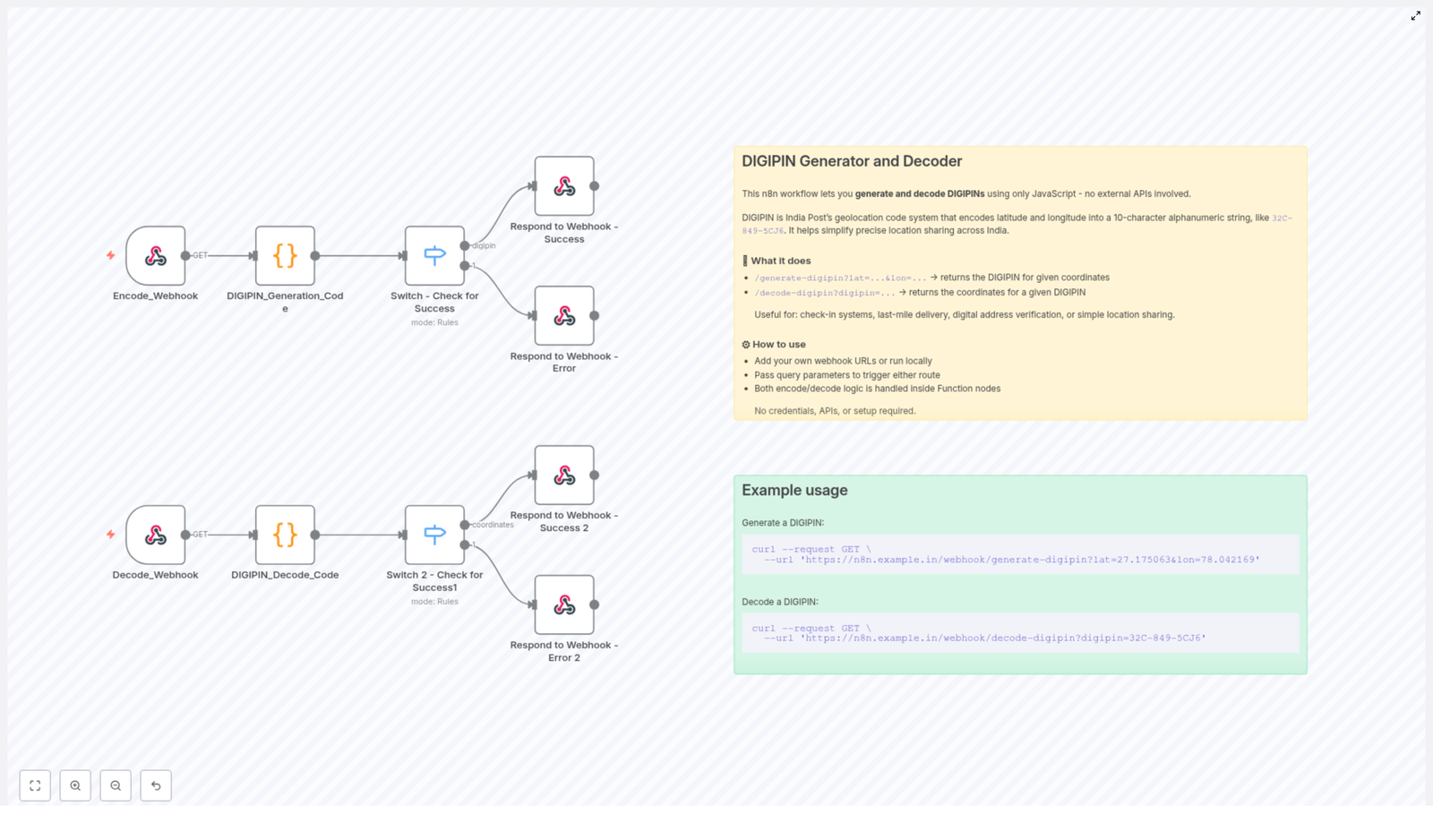
  • Encode_Webhook node that accepts lat and lon as query parameters and triggers DIGIPIN generation.
  • DIGIPIN_Generation_Code function node, which implements the encoding logic based on the bounding box and 4×4 grid.
  • Switch - Check for Success node that decides whether to send a success or error response after generation.
  • Decode_Webhook node that receives a digipin query parameter for decoding.
  • DIGIPIN_Decode_Code function node that performs the reverse logic to get latitude and longitude.
  • Switch 2 - Check for Success1 node that routes decoding results to success or error handlers.
  • Dedicated Webhook Success and Error response nodes that format everything as clean JSON API responses.

With this structure, Priya’s team could treat DIGIPIN like a simple internal API, without spinning up a separate backend service.

Putting It To Work: Real Requests, Real Results

To convince the rest of the team, Arjun ran a live demo in their next standup. He opened his terminal and called the n8n instance where he had imported and configured the DIGIPIN workflow.

Generating a DIGIPIN from Coordinates

He started by showing how to generate a DIGIPIN for a known landmark. Using curl, he hit the encode webhook:

curl --request GET \  --url 'https://n8n.example.in/webhook/generate-digipin?lat=27.175063&lon=78.042169'

The response came back as JSON, with a clean DIGIPIN string representing those coordinates. No extra tooling, no external API keys, just their n8n instance doing the work.

Decoding a DIGIPIN Back to Latitude & Longitude

Next, he reversed the process. He took a sample DIGIPIN and passed it to the decode webhook:

curl --request GET \  --url 'https://n8n.example.in/webhook/decode-digipin?digipin=32C-849-5CJ6'

Again, the workflow replied with JSON, this time returning the approximate latitude and longitude encoded in the DIGIPIN.

For the operations team, this meant they could now accept DIGIPINs from customers, decode them on their own infrastructure, and match them with delivery zones or service areas.

Why This n8n DIGIPIN Workflow Changed Their Game

As the weeks passed, Priya started to notice fewer support tickets about “address not found” and more positive feedback from drivers who liked the clarity of having a DIGIPIN in their delivery details.

Looking back, she realized the n8n workflow offered several practical advantages that made adoption painless.

Key Benefits for Teams Using n8n

  • No external dependencies – All encoding and decoding runs inside JavaScript function nodes within n8n. There are no external APIs to call, which means no additional latency, no API keys, and stronger privacy by keeping location logic in-house.
  • Easy to customize – If India Post updates the DIGIPIN specification, Arjun can adjust the bounding box or character grid directly in the function code. No need to wait for a third-party library update.
  • Production ready – The workflow includes robust error handling and clear webhook responses, so it can be dropped into existing apps, internal tools, or partner integrations without major refactoring.

Most importantly, it aligned perfectly with how Priya’s team already worked. They could maintain the logic visually in n8n, version it, and integrate it with other automations like notifications, analytics, or customer support flows.

From Pain Point to Playbook

What started as a recurring headache with failed deliveries turned into a reusable playbook for precise location handling inside their organization. DIGIPIN became more than a code; it became a shared language between operations, engineering, and drivers.

For Priya, the journey was clear:

  1. Recognize that raw latitude and longitude are not user friendly.
  2. Adopt DIGIPIN as a compact, human shareable geolocation standard.
  3. Use the n8n DIGIPIN workflow to generate and decode codes safely within their own infrastructure.
  4. Integrate it into delivery flows, check-in systems, and address verification processes.

Start Your Own DIGIPIN Story

If you are building anything that touches location sharing, address verification, or last-mile delivery in India, you can follow the same path:

  • Import the DIGIPIN workflow template into your n8n instance.
  • Use the provided Encode_Webhook and Decode_Webhook endpoints to test generation and decoding.
  • Connect those endpoints to your apps, CRMs, delivery tools, or internal dashboards.

Ready to integrate precise geolocation into your product without building everything from scratch? Try this n8n DIGIPIN workflow today. Start with the sample curl commands, then adapt the workflow to your own business rules and data flows.

If this story resonates with the challenges your team faces, share it with your developers or operations leads. It might be the missing link in your location automation stack.

Automate Delivery Tasks from Airtable to Onfleet

Automate Delivery Tasks from Airtable to Onfleet

Overview

For operations and logistics teams, manually creating delivery tasks from spreadsheet-style data is a recurring source of delays and inconsistencies. By connecting Airtable as a structured data source with Onfleet as the delivery management platform, you can implement a reliable, repeatable automation that eliminates manual task entry and keeps dispatch workflows synchronized.

This article explains how to use an n8n workflow template to automatically create Onfleet delivery tasks from Airtable records. It covers the core use case, the role of each node, configuration best practices, and how to deploy the automation in a production environment.

Use Case: From Structured Data to Live Delivery Tasks

Many teams maintain order, customer, or delivery data in Airtable. At the same time, Onfleet is used as the operational backbone for dispatching and tracking those deliveries. Bridging the two systems with n8n ensures that whenever key delivery details are added or updated in Airtable, corresponding tasks are generated in Onfleet with no human intervention.

In this workflow:

  • Airtable acts as the source of truth for delivery data.
  • n8n monitors Airtable for new or updated records that are ready to be dispatched.
  • Onfleet receives fully populated tasks that include destination, recipient, notes, and time windows.

Key Components in the n8n Workflow

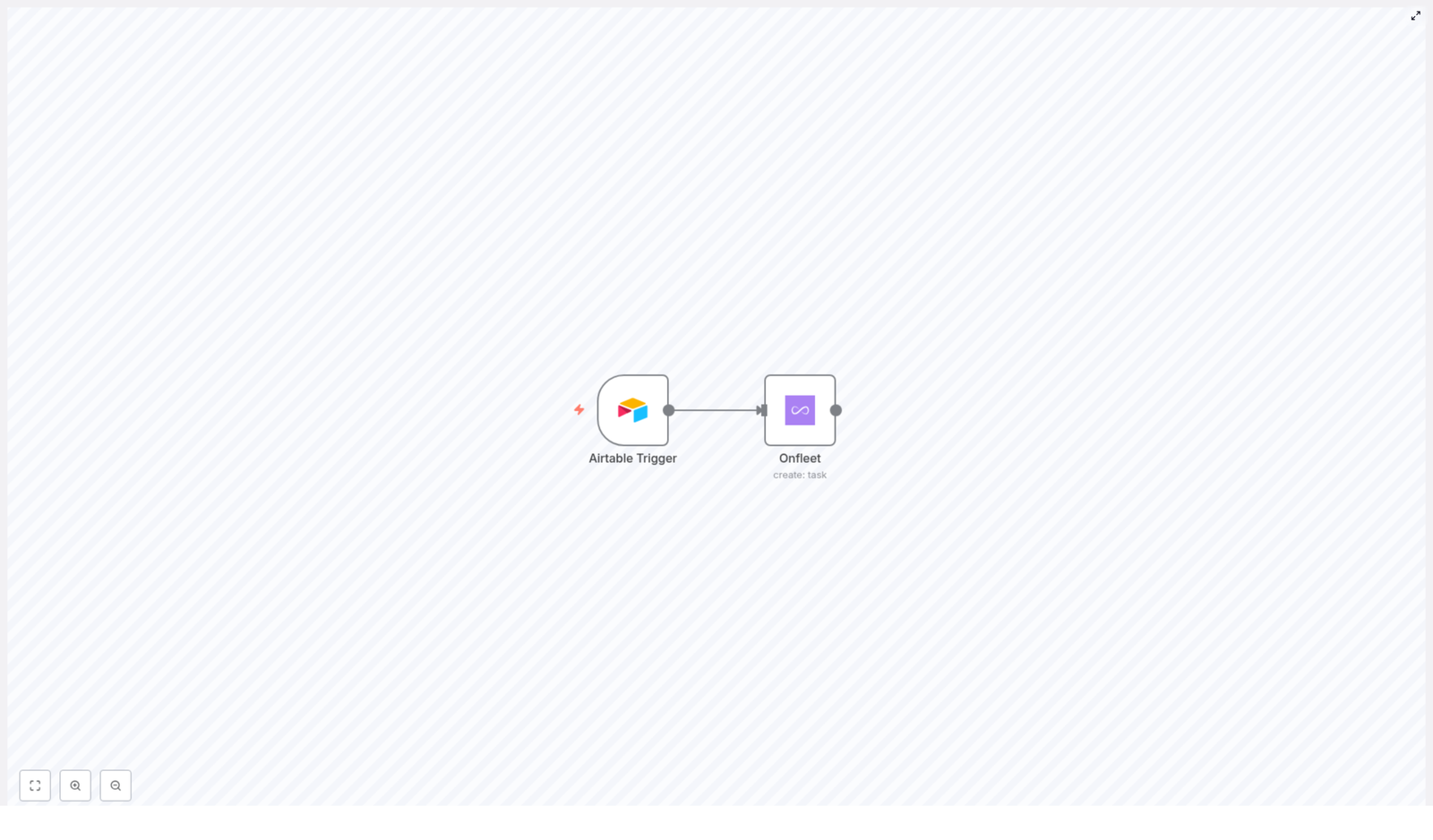
Airtable Trigger Node

The Airtable Trigger node is responsible for detecting changes in your Airtable base. It polls your data at a defined interval and emits new items into the workflow when the configured conditions are met.

In this template, the Airtable Trigger is configured to:

  • Poll every 10 minutes for new or updated records.
  • Watch for changes specifically in the Address_Line1 field.
  • Use Airtable API credentials stored securely in n8n to access the selected base and table.

By targeting Address_Line1 as the monitored field, the workflow focuses on records where delivery-relevant address information has been added or modified, which is typically a reliable indicator that a new task should be created or updated downstream.

Onfleet Node

The Onfleet node consumes the data coming from Airtable and uses Onfleet’s task creation API to create delivery tasks. The node configuration maps Airtable fields to Onfleet task attributes to ensure each task is complete and operationally usable without manual editing.

The workflow template maps the following key properties:

  • Destination Address
    Constructed from multiple Airtable fields:
    • Address_Line1
    • City/Town
    • State/Province
    • Country
    • Postal_Code

    These fields are combined into a full address string that Onfleet can use to geocode the destination.

  • Notes
    Additional task instructions are taken from the Task_Details fields. When these are stored as array elements in Airtable, the node aggregates them into a concise notes field that is visible to drivers and dispatchers.
  • Recipient Details
    Recipient information is mapped from:
    • Recipient_Name
    • Recipient_Notes
    • Recipient_Phone, formatted with a +1 country code prefix

    Normalizing the phone number format improves deliverability and consistency across tasks.

  • Timing and Service Window
    The workflow uses:
    • completeAfter
    • completeBefore

    to define the time window in which the task should be completed. These values are passed directly to Onfleet, enabling time-based routing and SLA compliance.

How the Workflow Operates End-to-End

  1. Airtable polling
    Every 10 minutes, the Airtable Trigger checks the configured base and table for records where Address_Line1 has been added or changed since the last run.
  2. Record retrieval
    Matching records are emitted into the workflow, each containing all relevant fields such as address components, recipient information, task details, and timing fields.
  3. Data mapping and transformation
    The Onfleet node receives the Airtable data and composes the required payload:
    • Concatenates address fields into a single destination string.
    • Aggregates Task_Details into a readable notes field.
    • Formats the recipient phone number with the +1 prefix.
    • Assigns completeAfter and completeBefore as the task’s time window.
  4. Task creation in Onfleet
    Using your Onfleet API key, the node calls the Onfleet task creation API and creates a new delivery task for each qualifying Airtable record.

Implementation Guide

1. Prepare Your Airtable Base

Ensure that the Airtable base and table you plan to use contain at least the following fields:

  • Address_Line1
  • City/Town
  • State/Province
  • Country
  • Postal_Code
  • Task_Details
  • Recipient_Name
  • Recipient_Notes
  • Recipient_Phone
  • completeAfter
  • completeBefore

Consistent field naming and data types are important for stable automation. Where possible, standardize formats for dates, times, and phone numbers to reduce edge cases.

2. Configure the Airtable Trigger Node in n8n

  • Open the n8n workflow template and locate the Airtable Trigger node.
  • Authenticate using your Airtable API credentials stored in n8n credentials.
  • Select the correct base and table.
  • Set the polling interval to 10 minutes or adjust as needed for your operational cadence.
  • Specify Address_Line1 as the field to monitor for new or updated records.

3. Set Up the Onfleet Node

  • Add or configure the Onfleet node with your Onfleet API key, stored in n8n credentials.
  • Choose the operation to create a task.
  • Map Airtable fields to Onfleet task properties:
    • Destination address from the address-related fields.
    • Notes from Task_Details.
    • Recipient name, notes, and phone from the corresponding Airtable fields, including the +1 prefix for the phone number.
    • Time window using completeAfter and completeBefore.

4. Test and Validate

  • Create or update a record in Airtable with all required fields populated.
  • Allow the Airtable Trigger to run or execute the workflow manually for testing.
  • Verify that a new task appears in Onfleet with the correct address, recipient details, notes, and time window.
  • Iterate on field mappings or formatting as needed based on test results.

Automation Best Practices and Benefits

Operational Benefits

  • Time savings
    Removing manual task creation frees dispatchers and coordinators to focus on exception handling and customer communication instead of repetitive data entry.
  • Improved accuracy
    Directly pulling data from Airtable into Onfleet reduces the risk of transcription errors, missing fields, and inconsistent addresses.
  • Scalability
    As order volumes grow, the workflow can be scaled by adjusting the polling interval or extending the schema with additional task fields, without increasing headcount.

Implementation Best Practices

  • Use n8n credentials for Airtable and Onfleet to avoid hardcoding sensitive information.
  • Standardize address and phone formats in Airtable to minimize failed geocoding or communication issues.
  • Start with a staging or test base and Onfleet sandbox (if available) before moving to production data.
  • Monitor workflow executions in n8n to quickly identify and resolve mapping or data quality issues.

Get Started with the Template

If you are aiming to streamline your delivery operations and remove manual steps between Airtable and Onfleet, this n8n workflow template provides a robust starting point. With a few configuration steps and careful field mapping, you can move from static records to live, trackable delivery tasks in minutes.

Weekly Shopping List & Shopper Update Workflow

Weekly Shopping List & Shopper Update Workflow

From Repeating Tasks To Reliable Automation

Every week, the same routine shows up on your to-do list: prepare a shopping list, send it out, follow up on changes, update shopper details, and make sure everything is correct. It is simple work, but it steals time and focus you could spend on strategy, growth, or simply taking a break.

This is where automation with n8n becomes a powerful ally. Instead of chasing the same tasks every Friday, you can let a workflow handle them for you, consistently and accurately. The Weekly Shopping List & Shopper Update Workflow is not just a small optimization. It can be your first step toward a more automated, focused way of working.

In this article, you will walk through the journey from manual process to a fully automated system that sends weekly shopping lists, displays shopper information in an online form, and updates shopper records with a confirmation page. You will see how each node in n8n plays its part, and how this template can become the starting point for even more powerful automation in your life or business.

Reimagining Your Weekly Shopping Process

Before diving into the technical steps, pause for a moment and imagine this scenario:

  • Your shopping list is sent automatically every Friday, without you touching a thing.
  • Shopper details are always up to date, because people can easily review and update their information online.
  • Everyone receives clear confirmation when their details change, so there is no confusion or guesswork.

This is exactly what this n8n workflow template offers. It combines scheduling, data retrieval, email sending, and form-based updates into one coherent flow. You set it up once, then let it run in the background while you focus on higher-value work.

The Workflow At A Glance

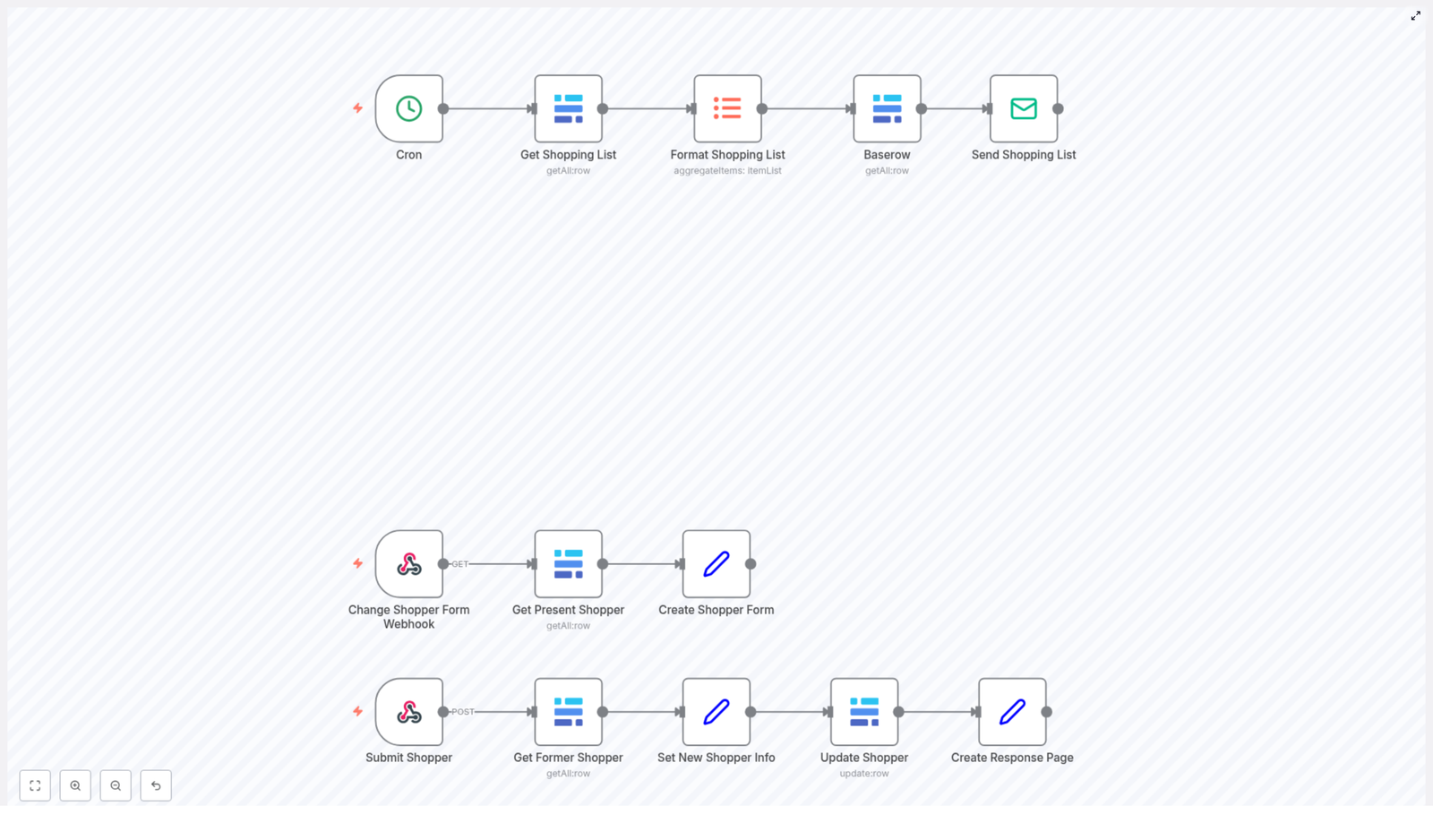
The template is built around three connected areas, each covering a key part of the process:

  1. Weekly Shopping List Dispatch – automatically sends an email with the latest shopping list.
  2. Shopper Information Display Form – shows current shopper details in an online form for review or editing.
  3. Shopper Information Update and Confirmation – updates the database with new details and confirms the change.

Let us walk through these steps as a journey from automation trigger to final confirmation.

Step 1: Let n8n Handle Your Weekly Shopping List Dispatch

The journey begins with consistency. Instead of remembering every Friday to send a list, you let a Cron node do the remembering for you.

Automated Friday Trigger

The workflow starts with a Cron node that triggers the process every Friday. This scheduled trigger ensures your shopping list workflow runs on time, every time, without manual effort.

Fetching And Formatting The Shopping List

Once triggered, the workflow uses the Get Shopping List node to fetch all current shopping list items from your database. This is the raw data that powers the rest of the flow.

Next, the Format Shopping List node aggregates and refines these items into a single, consolidated list. This step makes the data easy to read and ready to be shared, which is essential for a clear, professional shopping email.

Enriching With Shopper Details And Sending The Email

After the list is formatted, a Baserow node retrieves the relevant shopper details from your database. By combining the shopping list with accurate shopper information, the workflow personalizes the communication and keeps everything in sync.

Finally, the Send Shopping List node sends the email to the shopper. The result is a fully automated weekly shopping list dispatch that happens without you lifting a finger. You gain back time, reduce the chance of mistakes, and build a more reliable routine for your shoppers.

Step 2: Empower Shoppers With An Online Information Form

Automation is not only about sending data out. It is also about making it easy for people to update and correct their own information. That is where the shopper information display form comes in.

Starting With A Webhook

The Change Shopper Form Webhook node listens for a GET request. When someone visits the form URL, this webhook triggers the retrieval of the current shopper’s information.

Generating A Pre-Filled HTML Form

Once the webhook is triggered, the Create Shopper Form node builds an HTML form that is already filled with the existing shopper details. This means shoppers do not have to type everything from scratch. They can simply review, adjust what is outdated, and submit the changes.

This small convenience has a big impact. It reduces friction, encourages accurate data, and gives shoppers a sense of control over their own information.

Step 3: Update Shopper Information And Confirm The Change

The final part of the journey is about trust. When someone updates their details, they want to know the change has been applied correctly. The workflow handles this entire process from submission to confirmation.

Receiving Updated Shopper Details

When the shopper submits the form, the Submit Shopper webhook receives a POST request with the updated information. This triggers the second half of the workflow.

Applying The Changes In The Database

The workflow first fetches the previous shopper data, which can be useful for comparison or logging. It then sets the new shopper information based on the submitted form fields.

Using the Update Shopper node, the workflow writes these new details into the database. This step ensures that your records are always current and that the shopper information stays in sync with reality.

Creating A Clear Confirmation Page

To close the loop, the Create Response Page node generates an HTML confirmation page. This page confirms that the shopper details have been updated successfully.

This final confirmation builds confidence and reduces follow-up questions. Shoppers know their changes have been received and applied, and you know your system is accurate.

Why This n8n Workflow Template Matters

Behind the individual nodes and steps, there is a bigger story. By implementing this workflow, you are not just automating a weekly task. You are building a more resilient and scalable system for your work.

Key Benefits You Gain

  • Automated weekly shopping list distribution via email, triggered by a reliable schedule.
  • Simple online editing of shopper information through a pre-filled HTML form.
  • Consistent, accurate data thanks to the use of the Update Shopper node and direct database updates.
  • Instant confirmation for users after updating their details, providing clarity and trust.

A Stepping Stone To Broader Automation

This template is a great starting point for anyone looking to automate with n8n. Once it is running, you can build on it in many directions, for example:

  • Add notifications to your internal team whenever shopper details change.
  • Include logging or analytics nodes to track updates over time.

Each improvement turns a simple weekly shopping list workflow into a more powerful automation system tailored to your needs.

Adopt An Automation Mindset

Every repetitive process you automate frees up mental space and time. This workflow shows how a practical use case, like managing a weekly shopping list and shopper updates, can be transformed into a smooth, dependable automation.

As you implement this template, consider it a mindset shift. Instead of asking, “How do I get this done every week?” you start asking, “How can I design this so it runs itself?” That shift is where long-term productivity and growth begin.

Get Started With The Weekly Shopping List & Shopper Update Template

You already have the building blocks. This n8n template ties them together into a complete journey from scheduled email to updated shopper records and confirmation.

Use it as it is to streamline your shopping management process, or customize it to match your branding, your shopper needs, and your internal systems. Adjust the form design, extend the email content, or connect new tools as you grow more comfortable with n8n.

The important step is to start. Once this workflow is in place, you will see how much more you can automate and how much time you can reclaim.

Automate RSS Feed Posts to Slack Daily

Automate RSS Feed Posts to Slack Daily with n8n

Overview

This workflow template automates the daily delivery of RSS feed updates into a Slack channel using n8n. It is designed for teams that want a consistent, scheduled digest of new content without manual checks or copy-paste work.

At a high level, the automation:

  • Runs every morning at a fixed time using a Cron trigger
  • Calculates the date for “yesterday” with a Date/Time node
  • Fetches entries from an RSS feed URL
  • Filters items to only those published after the calculated date
  • Builds a formatted message from the filtered items
  • Posts that message into a specific Slack channel

The template uses only standard n8n nodes and a single Slack credential, which makes it easy to adapt, extend, or integrate into existing automations.

Workflow Architecture

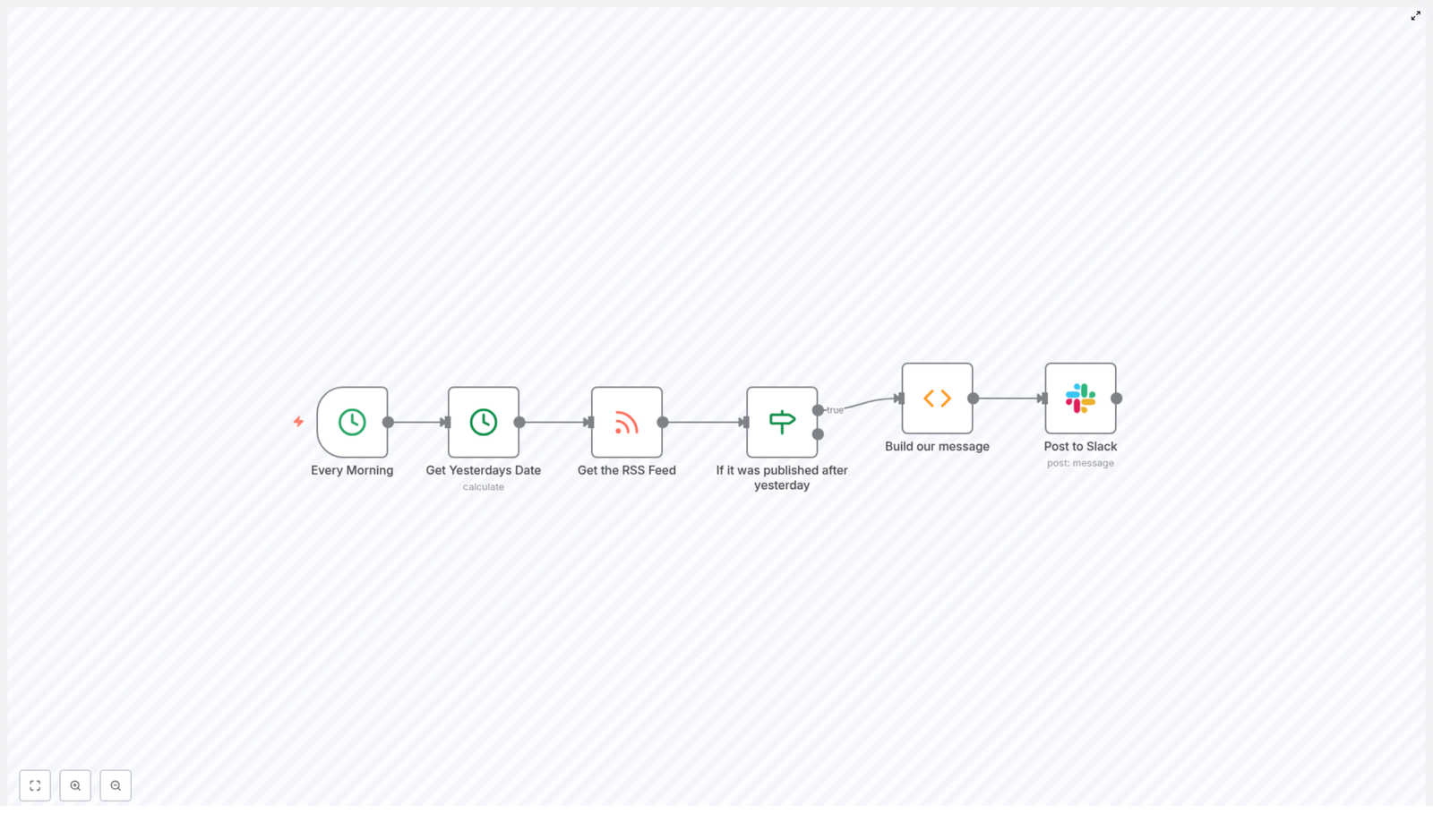
The workflow is linear and deterministic, which makes it straightforward to debug and customize. The node sequence is:

  1. Cron – time-based trigger at 8:00 AM daily
  2. Date & Time – compute yesterday’s date
  3. RSS Feed Read – fetch RSS items from the configured URL
  4. If – filter items based on publication date
  5. Function – assemble a single formatted Slack message
  6. Slack – send the compiled message to a Slack channel

Data flows from left to right. Each item in the RSS feed is evaluated independently by the If node, then the Function node aggregates the filtered items into one message payload for Slack.

Node-by-Node Breakdown

1. Cron Node – Daily Trigger

The workflow starts with a Cron node configured to execute at 08:00 every day. This ensures that your Slack channel receives the RSS summary at a consistent time each morning.

  • Trigger type: Time-based schedule
  • Frequency: Daily
  • Time: 8:00 AM (server time or n8n instance time zone)

If your team operates in multiple time zones, you may want to adjust the Cron schedule to match the primary audience’s morning hours. The Cron node does not require external credentials and is purely configuration-based.

2. Date & Time Node – Calculate Yesterday’s Date

Next, a Date & Time node computes the date for “yesterday” by subtracting one day from the current execution time. This value is used as a reference to filter RSS items.

  • Operation: Manipulate date & time
  • Input: Current date/time at workflow execution
  • Transformation: Subtract 1 day

The resulting timestamp is stored in the node’s output data. Downstream nodes, especially the If node, reference this value when comparing against each RSS item’s publication date. This keeps the workflow dynamic so it always considers “yesterday” relative to the current run.

3. RSS Feed Read Node – Fetch RSS Items

The RSS Feed Read node retrieves entries from a specified RSS feed URL. In the example configuration, the URL is:

https://n8n.io/blog/rss

Key characteristics:

  • Node type: RSS Feed Read
  • Input: RSS feed URL
  • Output: One item per RSS entry, including fields such as title, link, description, and publication date

This node does not require authentication for publicly accessible feeds. For private feeds, you would adjust the URL and any required headers or parameters accordingly, but the core logic of the template remains the same.

4. If Node – Filter Items Published After Yesterday

The If node acts as a filter to ensure that only items published after the calculated “yesterday” date continue through the workflow.

  • Condition type: Compare each item’s publication date to the reference date from the Date & Time node
  • True branch: Items with a publication date newer than yesterday
  • False branch: Items that are older or equal to the cutoff date

The node evaluates each RSS item individually. Only the items on the true path are passed to the next node for message construction. Items on the false path are effectively discarded for the purpose of this daily summary.

If the feed does not provide a standard publication date field or uses a different field name, you would adjust the If node’s condition to match the actual property containing the date. The template assumes a typical RSS structure where a publication date is available.

5. Function Node – Build the Slack Message

The Function node converts the filtered RSS items into a single formatted message string that is suitable for posting to Slack.

Typical structure of the generated message:

  • Each item is converted into a line with a clickable title that links to the original post
  • A short description or summary may be included under or next to each title
  • Items are concatenated into one text block so Slack receives a compact digest

Internally, the Function node:

  • Iterates over all incoming items from the If node’s true branch
  • Extracts fields such as title, link, and description
  • Builds a formatted string using Slack-friendly formatting (for example, linked titles)
  • Outputs a single item containing the final message text

This aggregation step is important because it prevents the Slack channel from being flooded with one message per RSS item. Instead, the team receives a single digest that is easy to scan.

6. Slack Node – Post to Slack Channel

The final step uses the Slack node to send the compiled message to a predefined Slack channel, such as:

#news

Key configuration aspects:

  • Credentials: Slack API credentials configured in n8n
  • Operation: Send message
  • Channel: Target channel name or ID (for example, #news)
  • Message text: The formatted string produced by the Function node

Once the node executes successfully, team members in that channel receive an immediate notification with the daily RSS summary. If your Slack workspace uses different channels for different topics, you can duplicate or parameterize this node to route content to multiple destinations.

Configuration Notes

RSS Feed URL

The template uses https://n8n.io/blog/rss as an example source. You can replace this with any valid RSS feed URL that your team wants to monitor. Ensure that the feed:

  • Is reachable from your n8n instance
  • Provides a publication date field for each entry

Slack Credentials and Permissions

The Slack node requires:

  • A configured Slack credential in n8n with permission to post messages
  • Access to the specific channel where messages will be posted

If messages fail to send, verify that the Slack app or token used has the appropriate scopes and that the bot is invited to the target channel.

Time Zone and Scheduling

The Cron node uses the time zone of the n8n instance or the configuration in the node itself. If your team operates in a different time zone than the server, confirm that 8:00 AM in the workflow matches the intended local time. Adjust the Cron schedule accordingly if needed.

Handling Days with No New Posts

If the RSS feed has no items published after yesterday’s date, the If node will pass no items to the Function node. In this case, the Function node may produce an empty message or no output, depending on the implementation. You can extend the Function node logic to:

  • Skip sending a message entirely when there are no new items
  • Send a fallback message such as “No new posts in the last day”

Benefits of Automating RSS to Slack with n8n

  • Time-saving: Eliminates manual checking of RSS feeds and manual posting to Slack.
  • Consistency: Ensures updates arrive at the same time every day without relying on individual habits.
  • Improved communication: Keeps your team aligned with the latest content and updates in a channel they already use.

Because this workflow is built with standard n8n nodes, it is easy to maintain, audit, and modify as your needs evolve.

Advanced Customization Options

While the template focuses on a simple daily digest, you can extend it in several ways:

  • Multiple feeds: Add additional RSS Feed Read nodes and merge their results before the If node.
  • Channel routing: Use additional If nodes or Switch nodes to route different feeds to different Slack channels.
  • Custom formatting: Adjust the Function node to include tags, authors, or categories in the Slack message.
  • Alternative notification platforms: Replace or complement the Slack node with other nodes such as email, Microsoft Teams, or other chat tools while keeping the same core logic.

All these variations build on the same foundational pattern of scheduled triggers, date filtering, RSS retrieval, and message construction.

Implementing the Workflow in n8n

To get started, combine the following n8n nodes in your editor:

  • Cron
  • Date & Time
  • RSS Feed Read
  • If
  • Function
  • Slack

Configure each node as described above, test the workflow with a manual execution, then activate it so it runs automatically every morning. The same structure can be reused for different RSS sources or for other notification systems with minimal changes.

Get the Ready-Made Template

If you prefer to start from a preconfigured setup rather than building the workflow from scratch, you can use the existing n8n template and customize it to your feeds and Slack channels.

Automate GDPR Data Deletion with Slack and n8n

Automate GDPR Data Deletion with Slack and n8n

From Manual Requests to Confident Automation

GDPR data deletion requests can feel like a constant interruption. A message arrives, someone has to check it, route it to the right tools, confirm the deletion, then document everything for audits. It is repetitive, high stakes, and easy to get wrong when you are juggling other priorities.

Yet this is also a powerful opportunity. Every repetitive compliance task is a signal that something can be automated, streamlined, and transformed. With the right workflow, you can turn a stressful obligation into a smooth, reliable system that protects your users and frees up your time.

This is where n8n, Slack, and a focused automation mindset come together. In this article, you will walk through a ready-to-use n8n workflow template that lets your team trigger GDPR data deletion directly from Slack, automatically validate the request, run deletion across multiple platforms, and log everything in Airtable for full transparency.

Think of this template as a starting point, not a limit. It is a practical example of what is possible when you decide to automate more of your work and reclaim your focus for higher value tasks.

Shifting Your Mindset: From One-Off Tasks to Scalable Systems

Before diving into the technical steps, it helps to reframe how you think about processes like GDPR data deletion:

  • You do not just want to handle the next request, you want a repeatable system.
  • You do not want your team to memorize steps, you want automation to enforce them.
  • You do not want to worry about what you might have missed, you want clear logs and proof.

n8n gives you the building blocks to create that kind of system. Slack becomes your friendly front door, Airtable your audit trail, and this workflow template the connective tissue that keeps everything running smoothly.

Once you see how this GDPR deletion flow works, you can reuse the same pattern for other internal operations, from account cleanups to subscription changes. This is not just a single automation, it is a stepping stone to a more automated, focused way of working.

The Big Picture: How the n8n GDPR Deletion Template Works

At a high level, this n8n workflow does four important things whenever someone uses a Slack slash command:

  1. Receives and validates the request from Slack so only trusted calls are processed.
  2. Parses and checks the command and email address to ensure the input is valid.
  3. Executes GDPR data deletion across multiple platforms in a controlled sequence.
  4. Logs and reports the result back to Slack and to Airtable for auditing.

Everything is orchestrated by n8n, using nodes for Slack, Airtable, and internal logic. You gain a simple, human friendly trigger in Slack, backed by a robust, automated backbone that quietly does the heavy lifting.

Step-by-Step Journey Through the Workflow

Let us walk through the core steps of the template, so you can understand how it works and imagine how you might extend it for your own stack.

1. Receiving and Authenticating the Slack Command

Your journey begins when someone in your team types a Slack slash command. That message is the spark that triggers the whole automation.

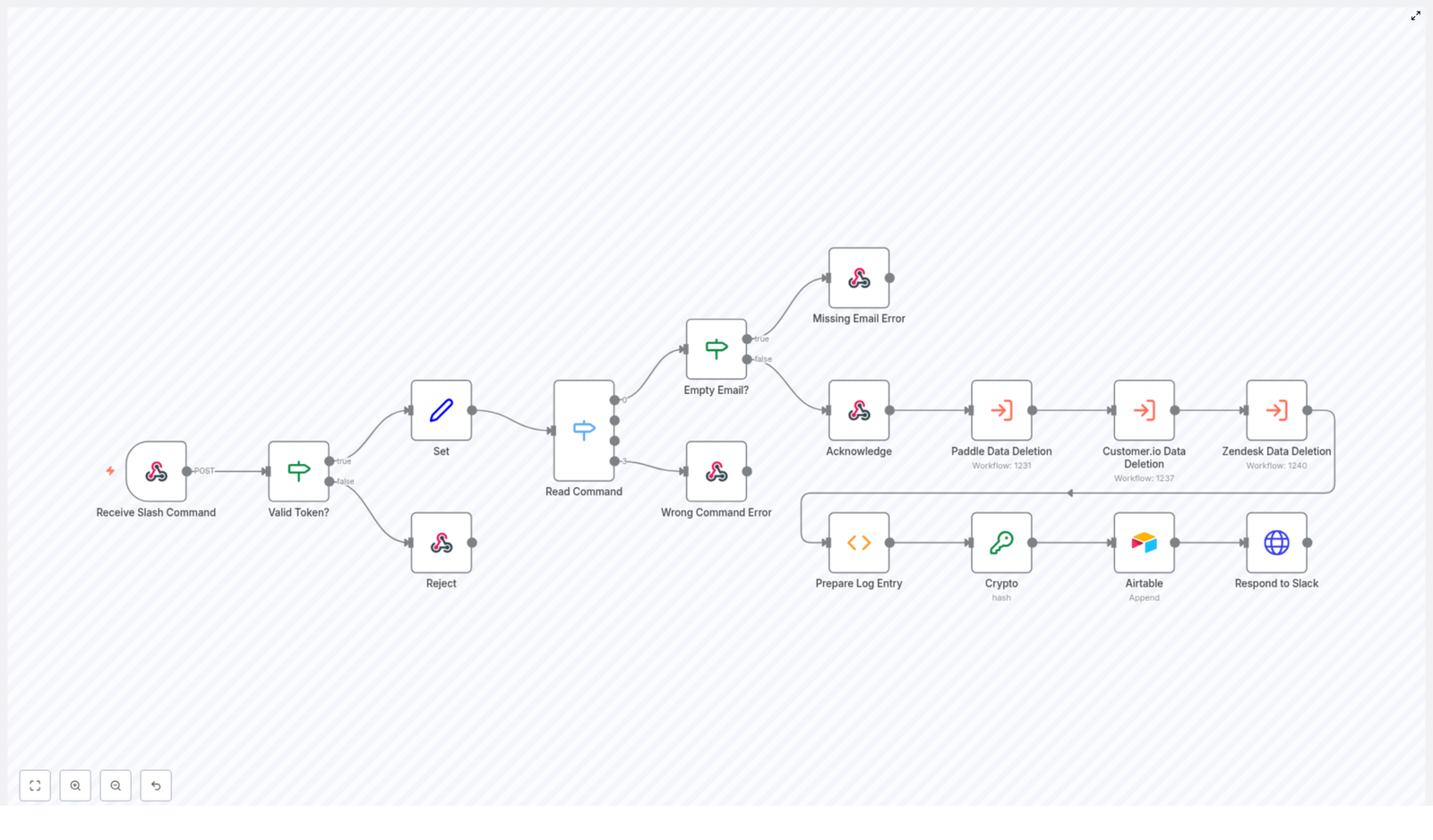
  • Receive Slash Command (Webhook node)
    This node listens for incoming POST requests from Slack. It is configured as a webhook endpoint that Slack calls whenever the slash command is used. This is how your n8n workflow gets the data that was typed in Slack.
  • Valid Token? (validation node)
    Once the command arrives, the workflow checks the security token that Slack sends with the request. The Valid Token? node compares it against a predefined value that you configure in n8n. Only if the token matches does the workflow continue.
  • Reject (error handling node)
    If the token is invalid, the Reject node stops the process and rejects the request. This protects your deletion workflows from unauthorized or spoofed calls and reinforces a security-first mindset in your automations.

2. Parsing the Command and Email Address

Once the request is authenticated, the workflow needs to understand what the user actually wants to do.

The Set node takes the raw text from the Slack command and splits it into two key pieces:

  • The operation keyword, which is expected to be “delete” for this workflow.
  • The email address of the user whose data should be deleted.

This simple parsing step is powerful. It turns an unstructured text message into structured data that n8n can reliably work with and validate.

3. Validating the Operation Command

Now that the operation keyword and email are extracted, the workflow checks if the command itself is valid.

  • Read Command (Switch node)
    The Read Command switch node looks at the operation keyword and confirms that it matches the expected value, typically “delete”. This ensures that only supported commands are processed.
  • Wrong Command Error (response node)
    If the command is not recognized, the Wrong Command Error node sends a clear, friendly response back to Slack. This message explains that the command is not valid and helps guide the user toward the correct usage.

This kind of validation not only prevents mistakes, it also makes your automation feel more supportive and user friendly.

4. Ensuring the Email Address Is Present

Next, the workflow confirms that an email address was provided. After all, GDPR data deletion without a target user would not make sense.

  • Empty Email? (condition node)
    The Empty Email? node checks whether the email field is present and not empty.
  • Missing Email Error (response node)
    If the email is missing, the Missing Email Error node responds in Slack with a helpful message that explains how to use the command correctly, including the need to provide an email address.

By catching this early, your workflow avoids wasted processing time and keeps expectations clear for your team.

5. Acknowledging the Request and Continuing in the Background

Once the token, command, and email all pass validation, the workflow is ready to move forward with the actual deletion process.

The Acknowledge node sends an immediate response back to Slack, letting the user know that their GDPR deletion request has been received and is being processed.

This is an important user experience detail. Instead of waiting in silence, your colleagues see quick confirmation and can move on with their work while n8n quietly continues the rest of the steps in the background.

6. Executing GDPR Data Deletion Across Platforms

With a valid request in hand, the workflow now executes the real heart of the automation: deleting user data across multiple tools.

The template triggers three separate data deletion workflows in series:

  • Paddle Data Deletion
    Handles removal of user data from the Paddle platform. This might include customer records, billing information, or other Paddle specific data associated with the email.
  • Customer.io Data Deletion
    Manages deletion of user information stored in Customer.io, such as profiles, events, or communication history that must be removed for GDPR compliance.
  • Zendesk Data Deletion
    Processes the deletion of user data from Zendesk, including tickets, contact records, or related support data tied to the user.

Running these workflows in series gives you predictable, traceable execution. It also makes the system highly extensible. As your stack grows, you can add more deletion workflows for other platforms that hold user data, following the same pattern.

7. Preparing and Logging the Deletion Result

Automation is not complete without visibility. After all deletion workflows have run, the template prepares a detailed log entry so you can track what happened.

  • Prepare Log Entry (aggregation node)
    This node collects the success status from each individual deletion workflow, compiles them into a summary, and adds a timestamp. The result is a clear, structured record of the entire process for that request.
  • Crypto (SHA256 hash)
    Before logging, the Crypto node computes a SHA256 hash of the email address. This adds an extra layer of anonymization for the stored log, while still allowing you to correlate entries if needed through the hash value.
  • Airtable (logging node)
    Finally, the Airtable node appends the log entry to an Airtable base. This creates a central, searchable audit trail that you can reference for internal reviews, compliance checks, or external audits.

With this in place, you are no longer hunting through scattered messages or manual notes. Your GDPR deletion history is organized, timestamped, and easy to share with stakeholders.

8. Sending a Completion Update Back to Slack

The last step closes the loop with the person who initiated the request.

The Respond to Slack node sends a follow-up message to Slack once the GDPR data deletion process is complete. This message includes:

  • The overall status of the deletion process.
  • Relevant details about the outcome.
  • A link to the Airtable log entry, so you or your team can review the full record if needed.

This final notification builds trust and transparency. Your colleagues see not only that the request was accepted, but that it was completed, documented, and handled with care.

Why This n8n Workflow Template Matters

This GDPR deletion template is more than a technical convenience. It embodies a set of best practices that support both compliance and growth.

  • Security
    Token validation ensures that only authorized Slack commands can trigger data deletion. This protects sensitive operations and reinforces good security hygiene in your automation stack.
  • User-Friendly Experience
    Clear responses for missing emails or incorrect commands mean fewer frustrations and support questions. People can learn how to use the slash command directly from the feedback they receive.
  • Compliance and Transparency
    Automated GDPR data deletion with audit logging in Airtable gives you confidence that requests are handled consistently and that you have proof of action when you need it.
  • Extensibility and Growth
    The workflow is designed to be extended. You can plug in additional deletion workflows for other tools, adapt the command format, or enrich the Airtable logs as your processes mature.

Most importantly, it shows how one well designed automation can remove friction from your day, reduce risk, and free you to focus on more strategic work.

Using This Template as a Launchpad for More Automation

Once you have this GDPR deletion flow running, you will likely spot other areas where a Slack command plus n8n could simplify your operations:

  • Triggering account cleanups across multiple systems.
  • Starting onboarding or offboarding workflows from a single command.
  • Logging key operational events to Airtable or other databases for reporting.

Each automation you build strengthens your internal systems and helps your team rely less on memory and manual checklists. Over time, you move from reactive firefighting to proactive, scalable processes.

Use this template as a reference, experiment with variations, and keep iterating. The more you build, the more natural automation will feel in your day-to-day work.

Take the Next Step: Implement and Customize the Template

By connecting Slack, n8n, Airtable, and your data platforms, you can transform a complex GDPR data deletion process into a streamlined, reliable workflow. You gain:

  • Fast, consistent responses to data deletion requests.
  • Reduced manual workload for your team.
  • Stronger compliance and clearer documentation.

If you are ready to bring this into your own environment, start by importing the template, wiring it to your Slack workspace, and configuring your Paddle, Customer.io, Zendesk, and Airtable connections. From there, keep refining and expanding it as your needs grow.

If you want help implementing this n8n workflow or tailoring it to your unique stack, you can reach out for expert guidance and explore more automation templates that build on the same principles.

WP Category Toolkit: Automate WordPress Category Mapping

WP Category Toolkit: A Story Of Saving A Struggling WordPress Workflow

Meet Alex, The Overwhelmed WordPress Marketer

Alex managed content for a fast-growing tech blog on WordPress. New posts were going live every day, sometimes every hour. The articles were great, but there was one problem that never went away.

Categories.

Every time a writer submitted a post, Alex had to manually decide which WordPress categories to apply. Was this “Tech Tips” or “Tech Fact”? Did it belong in “Artificial Intelligence (AI)” or just “Technology”? And if Alex picked the wrong category ID in the backend, the post would land in the wrong archive page, the wrong RSS feed, and sometimes disappear from the homepage completely.

It was repetitive, easy to mess up, and every mistake meant revisiting the post, digging through the category list, and fixing IDs one by one. As the site grew, so did the list of categories and the chance of human error.

Alex knew this was not a creative problem. It was a workflow problem. Something that automation should solve.

The Search For A Smarter WordPress Category Workflow

One late evening, after correcting yet another batch of miscategorized posts, Alex started searching for a way to automate category mapping. The wish list was clear:

  • Automatically pull all categories from WordPress
  • Use AI to understand which categories a post should belong to
  • Return the exact WordPress category IDs, not just names
  • Integrate cleanly into an existing n8n automation setup

That search led Alex to a workflow template built for n8n: the WP Category Toolkit. It promised automated category retrieval, AI-powered mapping, and direct integration with the WordPress REST API.

It sounded like exactly what Alex needed. The only question was: would it actually work in a real content pipeline?

Inside The Toolkit: How The n8n Workflow Really Works

Before trusting it with production posts, Alex decided to walk through how the WP Category Toolkit operates under the hood. The workflow followed a clear, automated sequence inside n8n, combining WordPress API calls with AI logic.

The Starting Point: Kicking Off The Workflow

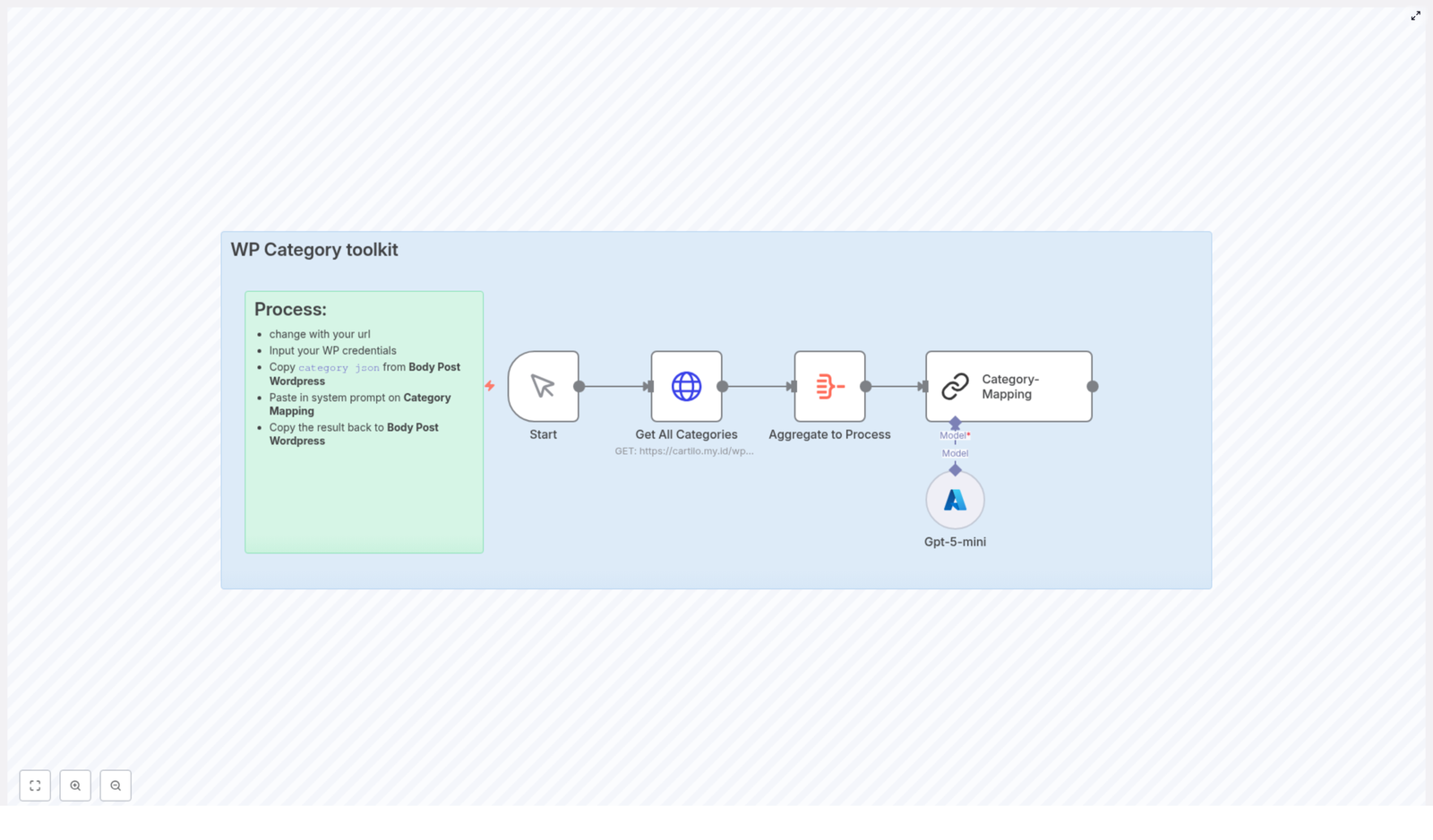
In n8n, the toolkit begins with a simple trigger. Alex clicked the Start node. That single action set everything in motion. The workflow was now ready to talk to WordPress, fetch categories, and prepare them for AI mapping.

Step One: Retrieving All WordPress Categories

The first technical move was to pull in the existing taxonomy from WordPress. The workflow sent a GET request to the site’s REST API:

/wp-json/wp/v2/categories?per_page=100

Using Alex’s WordPress credentials, n8n authenticated and fetched up to 100 categories at a time. That meant every existing category, along with its ID, slug, and other data, was now available inside the workflow.

Step Two: Aggregating Category Data For AI

Raw API data is not always friendly to work with. So the next part of the toolkit aggregated the category data and shaped it into a clean, easy-to-use structure. Instead of scattered responses, Alex now had a consolidated list of categories that the AI could understand in a single glance.

The Turning Point: AI-Powered Category Mapping With GPT-5 Mini

This was the moment Alex had been waiting for. The toolkit used GPT-5 Mini, an AI language model, to make sense of category decisions that used to be made manually.

Here is what happened inside that AI step:

  • The AI received the full list of current WordPress categories and their IDs
  • It also received the category choices or descriptions for a specific post
  • Based on predefined mapping rules, the AI returned the correct WordPress category IDs

Instead of Alex scrolling through the WordPress admin, guessing and double-checking, GPT-5 Mini handled the mapping logic. The AI respected the custom rules Alex defined, so the final output matched the site’s taxonomy exactly.

Custom Rules, Real Categories: How Alex Shaped The Mapping Logic

The real power of the WP Category Toolkit was not just in automation, but in control. Alex could define which human-readable category names should map to which WordPress category IDs.

For the tech blog, that looked something like this:

  • Technology mapped to category ID 3
  • Artificial Intelligence (AI) mapped to category ID 4
  • Tech Fact mapped to category ID 7
  • Tech History mapped to category ID 8
  • Tech Tips mapped to category ID 9
  • Default mapped to category ID 1

These mappings did not live deep in code. They were maintained inside the AI prompt that guided GPT-5 Mini. If the site taxonomy evolved, Alex could simply adjust the prompt and update the mapping rules, without rewriting the workflow.

That flexibility meant the toolkit could grow alongside the blog, not lock it into a fixed structure.

Putting It Into Practice: How Alex Used The Toolkit Step By Step

Once Alex understood the logic, it was time to connect the toolkit to the live WordPress site. The process turned out to be straightforward inside n8n.

1. Replacing The WordPress URLs

First, Alex updated the category retrieval endpoint so it pointed to the correct WordPress installation. Anywhere the workflow referenced the API, the base URL was changed to match the blog’s domain.

2. Adding Secure WordPress Credentials

Next, Alex configured WordPress API credentials inside n8n. With authentication in place, the workflow could securely send the GET request to:

/wp-json/wp/v2/categories?per_page=100

This ensured that only authorized calls were made and that the toolkit had access to all the necessary category data.

3. Running The Workflow And Capturing Category JSON

With URLs and credentials ready, Alex ran the workflow. n8n pulled in the categories and produced a structured category json output in the WordPress post body data.

Alex copied this category json, which represented the post’s category selection data that would be used for AI mapping.

4. Feeding The JSON Into The AI Mapping Prompt

The next move was to paste that category json into the system prompt area that guided GPT-5 Mini inside the workflow. This is where the AI combined:

  • The current WordPress categories and their IDs
  • The category JSON from the post
  • The custom mapping rules Alex had defined

From that, the AI returned a clean set of correct WordPress category IDs for the post.

5. Sending The AI-Mapped Categories Back To WordPress

Finally, Alex took the AI-mapped category JSON and inserted it back into the WordPress post body. Now, when the post was created or updated, the correct category IDs were already in place.

No more guessing, no more scrolling through long lists of categories, and no more misfiled posts hiding in the wrong archive.

The Results: From Manual Chaos To Automated Clarity

Within a few days of using the WP Category Toolkit, the difference in Alex’s workflow was obvious.

  • Automation: Manual category assignment dropped dramatically. The n8n workflow and AI handled the bulk of the work, leaving Alex to focus on strategy and content quality.
  • Accuracy: Category mappings became consistent and reliable. GPT-5 Mini followed the defined rules, which meant fewer mistakes and cleaner site structure.
  • Flexibility: As the blog introduced new sections and topics, Alex could simply update the AI prompt and mapping rules, instead of rebuilding the workflow.
  • Integration: The toolkit fit neatly into the existing n8n automation stack, working directly with the WordPress REST API and the site’s authentication setup.

What used to be a tedious, error-prone step in the publishing process turned into a smooth, almost invisible part of the pipeline.

Why This Matters For Any WordPress Site Using n8n

Alex’s story is not unique. Any marketer, founder, or developer running a content-heavy WordPress site faces the same challenge: keep categories organized, accurate, and consistent as the site grows.

The WP Category Toolkit gives you a practical way to:

  • Automate category retrieval from WordPress
  • Use AI to map human-friendly category choices to exact WordPress IDs
  • Maintain a flexible, editable mapping logic using prompts
  • Integrate everything into a reusable n8n workflow template

Instead of treating categories as a small, annoying detail, you can turn them into a stable part of a larger automation strategy.

Ready For Your Own Workflow Transformation?

If you see yourself in Alex’s story, the next step is simple. You can plug the same toolkit into your own n8n setup and adapt it to your WordPress site.

  1. Update the API URLs so they match your WordPress installation
  2. Configure your WordPress credentials securely inside n8n
  3. Run the workflow and copy the category json output
  4. Paste that JSON into the AI mapping prompt to let GPT-5 Mini return the correct IDs
  5. Send the mapped category JSON back into your WordPress post body

From there, you can refine your category-to-ID mapping rules as your content strategy evolves.

Try the WP Category Toolkit today and experience how a single n8n workflow can transform your WordPress category management from a daily chore into a reliable, intelligent system.

Monetize Cross-Chain Token Swaps with 1Shot Gas Station

Monetize Cross-Chain Token Swaps With 1Shot Gas Station: Turn Complexity Into Passive Revenue

From Manual Swaps To Scalable Systems

If you work with DeFi, cross-chain activity, or dApps, you probably feel it already: the more chains you touch, the more time you spend on repetitive tasks. Managing gas across dozens of networks, handling stablecoin payments, and orchestrating complex swaps can quietly eat your focus and limit how far you can scale.

Instead of spending your energy on manual coordination, you can let an automated system do the heavy lifting. That is where the 1Shot Gas Station n8n workflow template comes in. It turns the complexity of cross-chain token swaps into a streamlined, monetizable service that runs in the background while you focus on building, shipping, and growing.

In this article, you will walk through a journey: from the problem of fragmented gas and cross-chain swaps, to a new mindset around automation, and finally to a practical, ready-to-use n8n workflow that uses Li.Fi and the x402 payment protocol to monetize gasless swaps across up to 100 EVM-compatible blockchains.

Shifting Your Mindset: Automation As A Growth Lever

Automation is not just about saving a few minutes. It is about building systems that work for you, 24/7, with consistent rules and predictable outcomes. When you automate cross-chain swaps and gas payments, you are not only saving time, you are also creating:

  • New revenue streams from monetized swaps and fees
  • Better user experiences through gasless, low-friction flows
  • More mental space to focus on product, strategy, and growth

The 1Shot Gas Station workflow is a powerful example of this mindset. It is a template you can plug into your n8n instance, customize to your own token configurations and chains, then extend over time as your needs evolve. Think of it as a starting point for your own automated, cross-chain gas station and revenue engine.

What The 1Shot Gas Station Workflow Actually Does

At its core, the 1Shot Gas Station workflow lets you monetize swaps from ERC-20 tokens to native gas tokens across up to 100 EVM-compatible blockchains, using the Li.Fi protocol and the x402 payment protocol.

Users can swap EIP-3009 compatible tokens for native gas tokens, even across different chains, without paying gas directly themselves. The workflow verifies an off-chain payment authorization, fetches an optimal route via Li.Fi, simulates the transaction with the 1Shot API, and then submits it if everything checks out.

The result is a gasless, monetizable, cross-chain swap experience that you can offer to your users or integrate into your own dApp, all orchestrated by n8n.

How The Workflow Flows: From Request To Revenue

The n8n workflow is built from several components that work together to keep everything secure, fast, and reliable. Here is how the flow unfolds end to end:

  • Webhook Trigger – Receives an incoming POST request with swap parameters and a special x402 payment header.
  • Payment Token Configs – Uses your predefined list of supported tokens, chains, and contract details to validate and process payments.
  • Validation & Verification – Checks the POST body and x-payment header for authenticity, correctness, and compliance.
  • Li.Fi Quote Fetching – Calls the Li.Fi API to obtain a swap route, quote, and call data for the transaction.
  • Simulation & Submission – Uses the 1Shot API to simulate the transaction, verify payment, then submit it to the blockchain if valid.
  • Structured Responses – Returns clear success or error responses for missing parameters, validation issues, payment failures, and more.

Each of these parts is already wired together in the template. Your role is to configure the details, understand how they interact, and then adapt the workflow to your own business logic.

Step 1: Accepting x402 Payments For Gasless Swaps

To make gasless cross-chain swaps possible, the workflow uses the x402 payment protocol. This protocol enables least-friction stablecoin payments with off-chain authorizations. The user signs an authorization off-chain, and a smart contract later verifies and settles the payment on-chain.

In the workflow, this happens via a required x-payment HTTP header. That header must contain a base64-encoded JSON payload with the authorization details, such as:

  • Addresses involved in the payment
  • Signature of the off-chain authorization
  • Authorized amount
  • Validity window
  • Nonce and other metadata

The workflow decodes this payload and splits the signature into its r, s, and v components, which are required for Ethereum-compatible processing. This step is crucial for ensuring that the payment is legitimate, properly signed, and ready to be used for settlement.

Step 2: Defining Your Payment Token Configurations

Next comes one of the most empowering parts of the template: you choose which tokens and chains you want to support. This is handled by the Payment Token Configs section of the workflow.

For each supported payment token, you define:

  • ERC-20 token address
  • EVM chain ID
  • Token name and version
  • Maximum allowed or required payment amount
  • Contract method ID that calls the specific on-chain settlement function

This modular setup lets you start small with a few core chains and tokens, then gradually expand as your users and use cases grow. You are not locked into a fixed configuration. You can treat this as a living list that evolves with your business.

Step 3: Fetching Optimized Swap Routes From Li.Fi

Once the workflow has a valid payment authorization and knows which token and chain are involved, it reaches out to the Li.Fi API to find a suitable swap route.

It calls the endpoint:

https://li.quest/v1/quote

This endpoint returns:

  • Swap routes across supported bridges and DEXes
  • A quote for the transaction
  • The call data needed by the Li.Fi Diamond Proxy contract to execute the swap

To use this reliably in production, you will want a Li.Fi API key so you can avoid strict rate limits and control your traffic. The workflow allows you to pass parameters such as:

  • Slippage tolerance
  • Allowed or preferred bridges
  • Integrator fees and monetization settings

This is where you can tune your monetization strategy and user experience, adjusting how aggressive or conservative you want your routing to be.

Step 4: Simulating & Submitting With The 1Shot API

Before anything touches the blockchain, the workflow takes a safety-first step. It uses the 1Shot API to simulate the swap with the chosen route and payment details.

During this simulation phase, the workflow checks:

  • Whether the transaction is structured correctly
  • Whether the payment authorization aligns with the expected parameters
  • Whether the swap is likely to succeed on-chain

If the simulation passes, the workflow proceeds to submit the transaction to the appropriate blockchain network. If not, it returns a clear error response so you or your users can act accordingly.

This simulation step is what turns the workflow into a trustworthy system you can rely on. It reduces the risk of failed transactions, unexpected behavior, and wasted gas.

Putting It All Together: Example cURL Request

Once your workflow is live, you can test it quickly with a simple cURL command. This is a great way to validate your configuration and see the full flow in action.

Send a POST request to your webhook URL with a correctly formatted x-payment header and a JSON body like this:

curl -X POST \  <your-webhook-url> \  -H "x-payment: YOUR-BASE64-ENCODED-PAYMENT-PAYLOAD" \  -H "User-Agent: CustomUserAgent/1.0" \  -H "Accept: application/json" \  -H "Content-Type: application/json" \  -d '{  "fromChain": "8453",  "fromToken": "0x833589fCD6eDb6E08f4c7C32D4f71b54bdA02913",  "fromAmount": "100000000",  "fromAddress": "0x55680c6b69d598c0b42f93cd53dff3d20e069b5b",  "toChain": "43114"  }'

This request represents a swap from a specific ERC-20 token on chain ID 8453 to a native token on chain ID 43114. The workflow will handle validation, routing, simulation, and submission automatically.

Configuring Your Payment Tokens In Detail

To unlock the full potential of the template, you need to configure your Payment Token Configs correctly. These configs are essential for both verification and settlement.

For each token, you will specify:

  1. Token address – The ERC-20 contract address.
  2. EVM chain ID – The chain where this token lives.
  3. x402 network name – For example, base, avalanche, arbitrum, or linea.
  4. Token name and version – Human-readable identifiers used in the x402 context.
  5. Contract method ID – Typically for the function callDiamondWithEIP3009SignatureToNative, which is used to settle payments and perform the swap to native tokens.

Once this is in place, the workflow can match incoming requests to the right token configuration, verify the payment authorization, and then execute the settlement correctly on-chain.

Why This Workflow Is A Powerful Template To Build On

The 1Shot Gas Station workflow is more than a one-off script. It is a reusable, extensible automation template that you can keep improving over time. Here is what makes it so valuable:

  • Robust & scalable – Designed to handle cross-chain swaps across up to 100 EVM-compatible blockchains.
  • Standards based – Uses the x402 protocol and the Li.Fi aggregator API, which means strong compatibility and a smoother user experience.
  • Monetization ready – Built around the idea of turning gas and swaps into a revenue stream instead of a cost center.
  • n8n powered – Fully visual and editable, so you can add logging, alerts, custom business rules, or integrations with your existing stack.

As you grow more comfortable with this workflow, you can branch out: add analytics, integrate with your CRM, send notifications to Slack or Telegram, or chain it with other automations in your n8n environment.

Your Next Step: Experiment, Adapt, Grow

You now have a clear picture of what the 1Shot Gas Station workflow does and how it works internally. The next step is to make it your own.

Here is a simple path to get started:

  1. Import the template into n8n and connect it to your environment.
  2. Configure your payment tokens with the correct addresses, chain IDs, and method IDs.
  3. Add your Li.Fi API key and tune your routing and fee parameters.
  4. Test with the cURL example and inspect responses for validation and simulation details.
  5. Iterate by adding more tokens, chains, and business logic as your needs expand.

Every iteration turns your workflow into a stronger asset, one that keeps saving you time and generating value long after you set it up.

Conclusion: Turn Your Cross-Chain Flows Into An Automated Gas Station

The 1Shot Gas Station workflow gives you a practical way to transform cross-chain complexity into a smooth, monetized, and largely hands-off system. With x402 for gasless stablecoin payments, Li.Fi for intelligent routing, and n8n as your automation backbone, you can create a gas station that works across many chains and grows with your project.

Ready to start? Configure your tokens, plug in the template, and begin monetizing your decentralized app’s token swaps with far less manual work and far more control.

For deeper technical details and related tutorials, explore the resources linked in the workflow notes and keep iterating on your automation stack.