Automate Nextcloud Deck Cards from Email with n8n

Automate Nextcloud Deck Cards from Email with n8n: A Story of One Overwhelmed Inbox

The Day Lena Hit Her Breaking Point

Lena stared at her inbox, again. She was a project manager at a small remote-first company, and every task, request, and idea seemed to arrive the same way – buried inside long email threads.

Colleagues would send feature requests, bug reports, and meeting follow-ups, all of which were supposed to end up as cards in their Nextcloud Deck board. In reality, many of them stayed right where they landed: in Lena’s inbox, slowly sinking into the depths of “unread” and “starred”.

Her routine looked like this:

  • Open email
  • Copy the subject into Nextcloud Deck as a card title
  • Strip out messy HTML and formatting from the email body
  • Paste, clean, adjust, save
  • Repeat dozens of times per day

It was slow, repetitive, and fragile. If she got busy, tasks were forgotten. If she missed a day, the backlog exploded. She knew there had to be a smarter way to get emails into Nextcloud Deck as structured cards without doing everything by hand.

That was the day she decided to automate it.

Discovering n8n and a Simple Idea

Lena had heard of n8n before, a powerful workflow automation tool that could connect different apps and services. One evening, while searching for “automate Nextcloud Deck from email”, she stumbled across an n8n workflow template designed for exactly her situation.

The idea was surprisingly simple:

  • Let n8n read incoming emails from her mailbox
  • Clean up the email content so it was readable
  • Automatically create a new card in her chosen Nextcloud Deck board and stack

If it worked, every relevant email could quietly turn into a structured task card. No more copying, no more pasting, no more losing tasks in the inbox abyss.

Planning the Automation: Three Nodes, One Goal

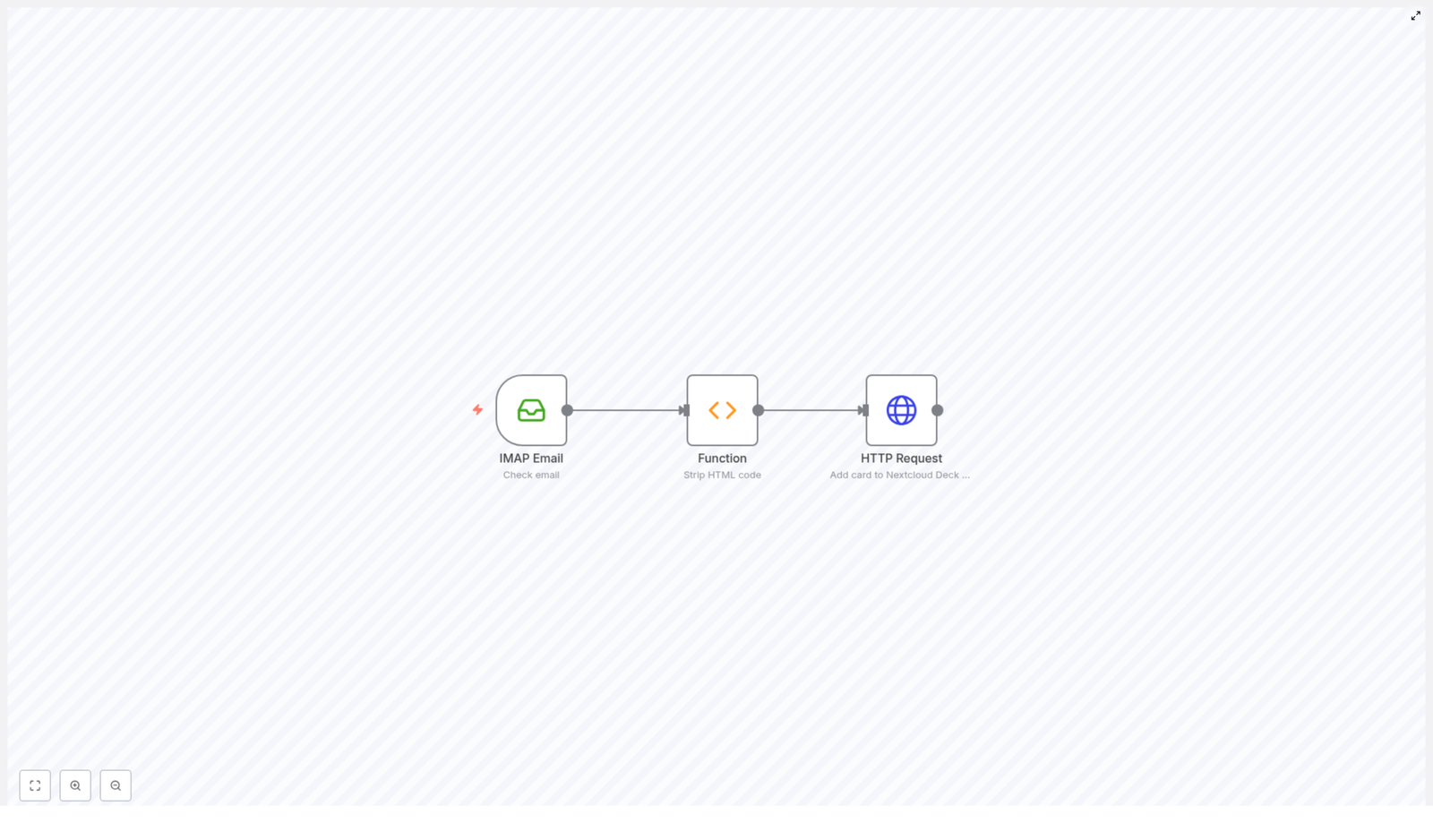
The template she found was built around three main n8n nodes. Lena liked that it was minimal but powerful:

  • IMAP Email node to fetch incoming emails
  • Function node to strip HTML code and clean up the email body
  • HTTP Request node to send the cleaned data as a new card to Nextcloud Deck

On paper it looked straightforward. In practice, this was the turning point for her workflow.

Rising Action: Connecting the Inbox with the IMAP Email Node

Lena started by setting up the first part of the automation: getting n8n to read her emails.

In the IMAP Email node, she configured her email server details so the workflow could securely log in and monitor her inbox. She added:

  • Her email credentials
  • The mailbox folder she wanted to watch
  • Search criteria so only specific emails would be processed, for example, unread emails or those matching a certain filter

She liked that the IMAP node could run regularly and continuously. Once configured, it would quietly fetch new messages on a schedule, handing them off to the next node without her lifting a finger.

The Messy Middle: Cleaning Up HTML with the Function Node

When she first tested the workflow, Lena saw the raw email content flowing through n8n. It was not pretty. HTML tags, line breaks in strange places, escaped quotes – not something she wanted to see pasted into a Nextcloud card.

This was where the Function node came in. The template already contained the logic she needed, and reading through it, she understood its purpose clearly.

The node looped through each incoming email and checked whether the email had HTML content. If it did, the script:

  • Replaced <br> tags with newline characters
  • Removed all remaining HTML tags
  • Stripped unnecessary double quotes

If the email was plain text instead of HTML, the node simply cleaned up line breaks and quotes to keep the content tidy.

// Loop over all incoming emails
for (item of items) {  if (item.json.textHtml) {  // Replace <br> tags with newline, remove HTML tags, and unnecessary characters  item.json.body = item.json.textHtml  .replace(/<br(\s*?\/?)>/g, "\n")  .replace(/(<([^>]+)>)/g, "")  .replace(/\"/g, "");  } else {  // If no HTML, just clean up the plain text  item.json.body = item.json.textPlain  .replace(/\"/g, "")  .replace(/\n/g, "\n")  .replace(/\r/g, "");  }
}

return items;

For Lena, this was the moment where the chaos of email formatting turned into something usable. The “body” field coming out of the Function node was clean, readable text, perfect for a Nextcloud Deck card description.

The Turning Point: Sending Cards to Nextcloud Deck

Now came the crucial step. Emails were being read, content was being cleaned, but nothing had reached Nextcloud Deck yet. The final piece of the puzzle was the HTTP Request node.

Lena configured it to talk directly to her Nextcloud instance:

  • She set the request method to POST
  • She entered her Nextcloud URL and credentials
  • She used the correct API endpoint for creating cards in a specific board and stack:
/index.php/apps/deck/api/v1.0/boards/YOUR-BOARD-ID/stacks/YOUR-STACK-ID/cards

She carefully replaced YOUR-BOARD-ID and YOUR-STACK-ID with the actual IDs from her own Nextcloud Deck setup.

Next, she added the required headers so the request would be accepted properly by Nextcloud:

  • OCS-APIRequest: true
  • Content-Type: application/json

Finally, she mapped the email data into the JSON body of the request:

  • The card title came from the email subject
  • The card description came from the cleaned body field produced by the Function node

In one last test run, she watched the workflow execute: IMAP fetched the email, the Function cleaned it, and the HTTP Request fired. A second later, she refreshed her Nextcloud Deck board.

There it was. A brand new card, created from the email she had just sent herself, with a neat title and a clean description.

Resolution: From Inbox Chaos to Automated Clarity

Within a day, Lena had refined her filters and rules. Only specific emails were turned into cards, and they all landed in the correct stack of her chosen board. Her workflow had changed.

Instead of:

  • Manually copying email content into Nextcloud Deck
  • Cleaning up HTML by hand
  • Worrying that tasks would be forgotten in her inbox

She now had:

  • An automated n8n workflow reading her mailbox via IMAP
  • A Function node that reliably stripped HTML and formatting noise
  • An HTTP Request node that turned each relevant email into a structured Nextcloud Deck card

Her board stayed up to date without constant manual effort. Tasks were captured faster, and her team could rely on Nextcloud Deck as the single source of truth for ongoing work.

The best part was that the system was flexible. If she needed to change the board, stack, or filters, she could adjust the template in n8n instead of rewriting everything from scratch.

Why This n8n Template Matters for Your Workflow

If you find yourself in a situation like Lena’s, where email is your primary source of incoming tasks, this n8n workflow template can quietly transform the way you work with Nextcloud Deck.

With a single automation, you can:

  • Keep your Nextcloud Deck board automatically updated with new cards
  • Convert messy HTML emails into clean, readable task descriptions
  • Reduce manual copying and pasting from your inbox
  • Ensure important requests do not get lost in email threads

Just remember to replace placeholder values in the HTTP Request node with your actual Nextcloud instance URL, board ID, stack ID, and credentials, and to configure the IMAP node with your own email account details.

Start Your Own Automation Story

You do not need to rebuild this from the ground up. The template Lena used is available and ready to adapt to your setup.

If you are ready to turn your inbox into a reliable task source for Nextcloud Deck, set up this n8n automation and let it handle the repetitive work for you.
How to Build a Simple HTML Response Webhook with n8n

How to Build a Simple HTML Response Webhook with n8n

From Manual Busywork to Automated Momentum

If you have ever copied data between tools, refreshed dashboards, or hacked together quick landing pages just to test an idea, you already know how much time small tasks can steal from your day. The more your work grows, the more these little jobs pile up, and the harder it becomes to focus on what truly matters.

Automation can change that. With n8n, you can turn simple ideas into working systems that run for you in the background. One of the easiest and most powerful entry points into this world is the webhook.

In this guide, you will walk through a small but mighty example: a simple HTML response webhook in n8n that returns a Bootstrap 5 styled page. It is a basic workflow, yet it can be the first step toward building richer, automated experiences for your users, your team, or your own experiments.

Reframing Webhooks: A Doorway Into Your Automated Workflow

Before diving into the template, it helps to see webhooks not just as technical endpoints, but as gateways. Every time another service calls your webhook, it is essentially asking n8n: “What should we do next?”

What Is a Webhook in Simple Terms?

A webhook is an HTTP endpoint that other applications can send data to in real time. When that data arrives, it triggers an automated workflow. That workflow might:

  • Send notifications or alerts
  • Process form submissions
  • Store or transform data
  • Return a custom response, such as an HTML page

n8n provides dedicated Webhook nodes that are easy to configure and flexible enough for complex automations. In this tutorial, you will use a webhook not only to receive a request, but also to send back a fully formatted HTML response.

Imagining the Possibilities Before You Build

This specific template returns a simple “Hello, world!” page styled with Bootstrap 5. On the surface, that might sound small. In practice, it gives you a reusable pattern you can expand in many directions:

  • Quickly prototype lightweight web pages powered by n8n
  • Display confirmation messages after form submissions
  • Return status pages or results based on workflow logic
  • Integrate with APIs and databases to present live data

Think of this as your starting block. Once you understand how to return HTML from a webhook, you can iterate, experiment, and grow your automation stack with confidence.

The Simple n8n Webhook Workflow That Powers It All

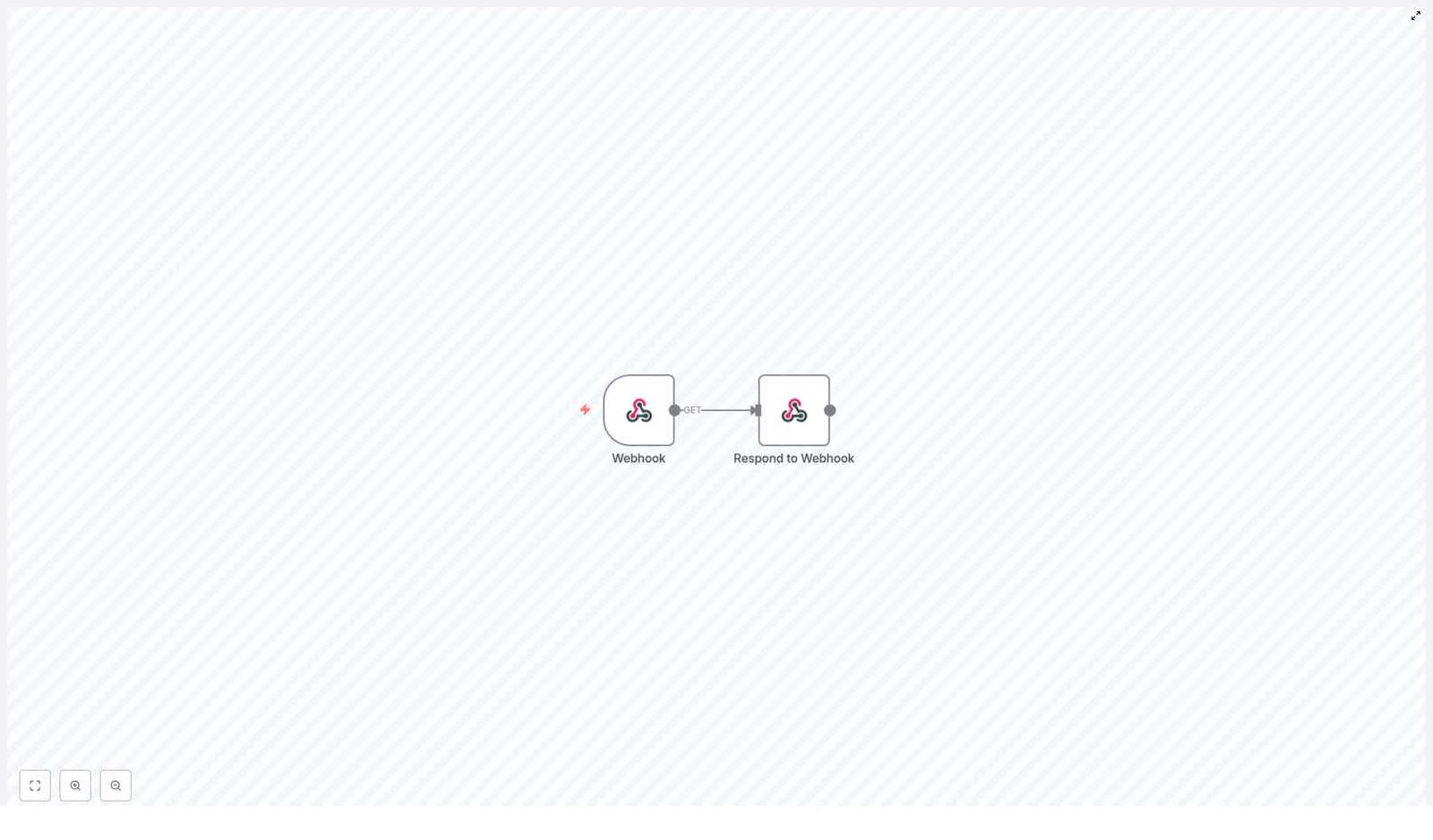
This workflow is intentionally minimal so you can understand every step and adapt it to your own needs. It uses just two core nodes:

  • Webhook Node – Listens for incoming HTTP requests at the path /my-form. It can handle different HTTP methods such as GET and POST, but in this example you will trigger it with a GET request.
  • Respond to Webhook Node – Sends the response back to the caller. In this template, it returns an HTML page styled with Bootstrap 5.

How the Workflow Flows

Here is the journey a request takes through your n8n workflow:

  • A client sends a GET request to your webhook URL at the path /my-form.
  • The Webhook node receives this request and triggers the workflow execution.
  • The workflow passes control to the Respond to Webhook node.
  • The Respond to Webhook node sets the HTTP header Content-Type to text/html; charset=UTF-8 so the browser knows it is receiving an HTML page.
  • Finally, it sends back a complete HTML document that includes Bootstrap 5 CSS and JS via CDN, and displays a friendly “Hello, world!” heading.

With just these two nodes, you have created a live, responsive endpoint that behaves like a tiny web app.

Inside the HTML Response: Your First Bootstrap-Powered Page in n8n

The HTML returned by the Respond to Webhook node uses Bootstrap’s standard starter template. This means you are not only serving a basic page, you are also setting yourself up to quickly build more polished interfaces.

Key Elements of the Sample HTML

The generated HTML includes:

  • <!doctype html> to declare HTML5
  • <html lang="en"> with appropriate meta tags for charset and responsive design, so your page looks good on mobile and desktop
  • A Bootstrap CSS link loaded from the jsDelivr CDN, giving you immediate access to Bootstrap’s styling system
  • A <title> tag that controls what appears in the browser tab
  • A simple <h1> heading that prints “Hello, world!” as the main message on the page
  • Bootstrap’s JavaScript bundle included at the bottom of the document to support interactive components if you add them later

Even though the output is minimal, it is structured like a real, modern web page. You can now customize it with forms, layouts, buttons, and dynamic content driven entirely by your n8n workflow.

Deploying and Testing Your Webhook in n8n

Once your workflow is configured, it is time to see it in action. This is where your idea moves from theory to reality.

Step-by-Step Deployment

  1. Deploy the workflow in your n8n environment so that it is active and ready to receive requests.
  2. Ensure your n8n instance is accessible via a public URL or a tunneling service, especially if you want external services or users to reach the webhook.
  3. Send a GET request to:
    https://your-n8n-domain.com/webhook/my-form
  4. Open that URL in your browser, or call it with a tool like curl or Postman, and you will see the Bootstrap-styled HTML page with the “Hello, world!” heading as the response.

With that, you have successfully created and tested a working HTML response webhook in n8n. You have proved the concept, and now you can build on it.

Taking It Further: Customization Ideas to Grow Your Automation

The power of this template lies in how easily you can extend it. Once you are comfortable with the basics, you can transform this simple page into a dynamic, data-driven experience.

Ways to Enhance the HTML Response

  • Use dynamic content based on query parameters or payload data, such as personalizing messages or showing different content for different users.
  • Add custom styles or JS libraries to create richer user interfaces and interactive elements.
  • Display form submission results or status messages that reflect what your workflow has processed.
  • Connect to databases or APIs so your page can respond with live data, analytics, or real-time updates.

Each improvement you make is another step toward a more automated, focused, and scalable workflow. Your n8n instance becomes not just a background tool, but a visible part of your product or internal systems.

Why This Simple Template Matters for Your Automation Journey

It is easy to underestimate small building blocks, yet they are often what unlock bigger changes. By learning how to:

  • Receive data with a Webhook node
  • Return structured HTML with a Respond to Webhook node
  • Leverage Bootstrap 5 for quick, responsive design

you gain a reusable pattern that can support many use cases. You can prototype web apps, handle form submissions, or serve lightweight web pages directly from your automated n8n workflows.

This is the kind of skill that compounds over time. Each new webhook, each refined HTML response, and each integration with another service adds up to a more automated and resilient system that frees you to focus on higher-value work.

Your Next Step: Experiment, Adapt, and Build

You now have a clear path from idea to implementation with a working HTML response webhook in n8n. The next move is yours.

Start by using this template as it is, then gradually adapt it to your own needs. Try different HTML layouts, inject dynamic data, and connect it with other parts of your automation stack. Each experiment will sharpen your skills and open new possibilities for how you work.

Let this simple workflow be your launchpad into deeper automation and more focused, meaningful work.

Build a URL Shortener with n8n and Airtable

Build a URL Shortener with n8n and Airtable

Why Build Your Own URL Shortener?

If you share links a lot, you already know the pain of long, messy URLs. They look ugly, they are hard to paste in chats or slides, and tracking clicks can be a headache. That is where a simple URL shortener comes in handy.

Instead of relying only on third-party tools like bit.ly, you can actually build your own lightweight URL shortener with n8n and Airtable. It is surprisingly straightforward, and you get full control over:

  • How your short links look
  • What data you store about them
  • How you track and visualize clicks

In this guide, we will walk through an n8n workflow template that turns your Airtable base into a mini link management system. It creates short URLs, saves them with metadata, tracks every click, and even gives you a simple dashboard for analytics.

What This n8n + Airtable URL Shortener Actually Does

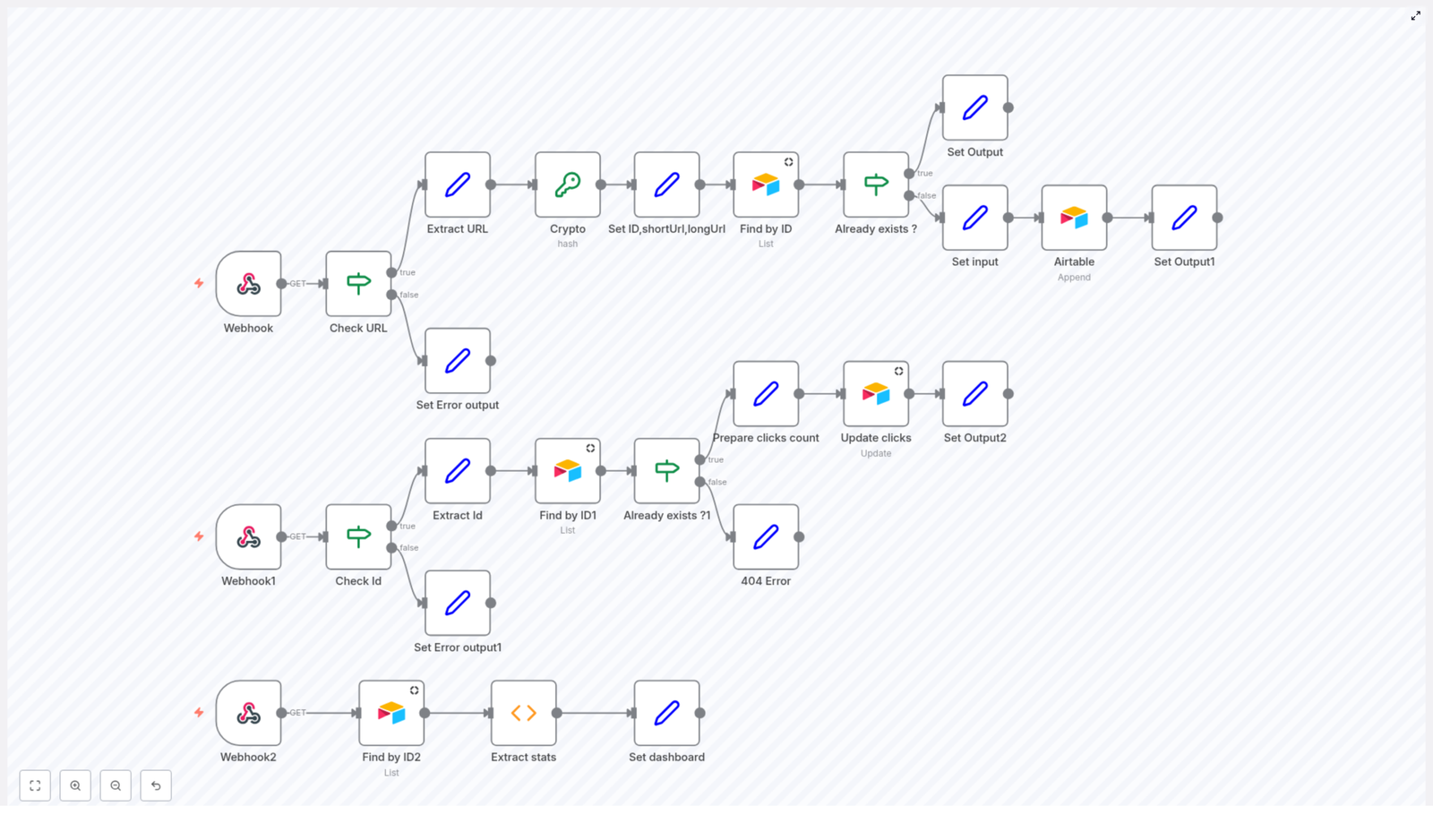
Let us start with the big picture. The workflow is built around three webhook endpoints, each handling a different part of the job:

  • Create short URLs from long ones, store them in Airtable, and return a clean short link.
  • Redirect users from the short URL to the original URL while tracking clicks.
  • Show a dashboard with stats like total links, total clicks, and unique hosts.

Think of it as your own tiny link shortener service, powered by n8n automation and Airtable integration.

When Should You Use This Workflow?

This template is great if you:

  • Share links in newsletters, social posts, or internal docs and want basic analytics
  • Already use Airtable and like keeping data in one place
  • Want a simple, self-hosted alternative to public URL shorteners
  • Are exploring n8n automation and want a practical, real-world project

If you have ever wondered, “Can I just spin up my own shortener without writing a full app?”, this workflow is exactly that.

How the Workflow Is Structured

The n8n template is split into three main flows, each triggered by a different webhook:

  1. URL Shortening Flow – handles new URLs and generates short IDs.
  2. Redirection and Click Tracking Flow – redirects and logs clicks.
  3. Dashboard Flow – pulls stats and renders a simple HTML dashboard.

Let us walk through each one in a friendly, step-by-step way.

1. URL Shortening Flow

This is the part you will hit when you want to turn a long URL into a short one. It is triggered by a webhook endpoint and then runs through several nodes.

Step-by-step breakdown

  • Webhook Node
    The flow starts with a webhook that accepts a GET request. It expects a query parameter called url, which is the long URL you want to shorten.
    Example: /sh?url=https://example.com/very/long/link
  • Check URL
    Next, the workflow checks whether the url parameter is actually present. If it is missing, the workflow returns a friendly error message instead of trying to process an empty value.
  • Extract URL
    Once validation passes, the long URL is extracted from the query string so the rest of the flow can work with it cleanly.
  • Crypto Hash
    To generate a consistent and unique identifier, the workflow uses a Crypto node with the SHA256 algorithm. It hashes the original long URL so that the same URL will always produce the same hash.
  • Set Short ID
    From that long SHA256 hash, the workflow takes the first 6 characters and uses that as the short ID. This short ID is combined with your base URL to form the full short URL.
    In this step, the flow also prepares fields like:
    • id – the 6-character short identifier
    • longUrl – the original URL
    • shortUrl – the final short link format
  • Find in Airtable
    Before creating a new record, the workflow checks Airtable to see if that short ID already exists. This prevents duplicate entries if the same long URL is shortened multiple times.
  • Already Exists?
    If Airtable returns a match, the workflow simply responds with the existing short URL. No new record is added, and you get a stable, repeatable short link for the same long URL.
  • Append New Record
    If no existing record is found, the workflow:
    • Sets the initial clicks count to 0
    • Saves the id, longUrl, shortUrl, and host (the domain part)
    • Appends a new row in your Airtable base
  • Response
    Finally, the workflow returns a response with the generated short URL so you can use it in your app, emails, or anywhere else.

2. Redirection and Click Tracking Flow

Now that you can generate short links, you need a way to handle what happens when someone actually clicks one. That is where the redirect flow comes in.

How the redirect logic works

  • Webhook for Redirect
    This flow is triggered by a different webhook endpoint, which expects an id query parameter.
    Example: /go?id=abc123
    Here, abc123 is the short ID created earlier.
  • Find by ID in Airtable
    The workflow looks up the record in Airtable where the id matches the one from the query. If it finds a match, it pulls out the stored longUrl and related details.
  • Exists Check
    If a record exists for that ID, the flow continues. If not, the workflow returns a 404-style response that indicates the short link was not found.
  • Update Click Count
    For valid IDs, the workflow increments the clicks field by 1 in Airtable. This is your basic click tracking logic, so every visit is recorded.
  • Redirect Response
    Instead of directly sending an HTTP redirect, the workflow returns a small HTML page that includes JavaScript. That JavaScript automatically redirects the user to the original longUrl.
    The result is seamless for the user, while still giving you full control over tracking.

3. Dashboard Flow

Click tracking is useful, but it is even better when you can see everything at a glance. The dashboard flow turns your Airtable data into a simple HTML analytics view.

What the dashboard shows

  • Webhook for Dashboard
    This third webhook does not need any query parameters. You just hit the endpoint directly, like /dashboard.
  • Retrieve All Records
    The workflow fetches all records from your Airtable base that store the links and their stats.
  • Extract Stats Function
    A function node then processes those records to calculate:
    • Total number of shortened links
    • Total clicks across all links
    • Number of unique hosts (domains)
  • Set Dashboard
    Finally, the flow builds an HTML dashboard with some basic styling. It displays your aggregate stats in a clean layout that you can open in a browser.
    You can treat it as a starting point and customize the HTML or styling to match your own branding.

How to Set Everything Up

Ready to try it out? Here is how to get the URL shortener workflow running with n8n and Airtable.

1. Prepare your Airtable base

Create a new Airtable base with these columns:

  • id – short identifier (6-character code)
  • longUrl – the original full URL
  • shortUrl – the generated short link
  • clicks – number of times the link has been used
  • host – the host/domain extracted from the long URL

2. Get your Airtable credentials

  • Find or generate your Airtable API key
  • Locate your Airtable base ID

You will need both to connect n8n to Airtable.

3. Configure Airtable nodes in n8n

In the n8n workflow, update the Airtable nodes with your:

  • API key
  • Base ID
  • Table name that holds your URL records

4. Deploy the webhooks

Set up and deploy the workflow with three webhook endpoints, for example:

  • /sh – for URL creation and shortening
  • /go – for redirection and click tracking
  • /dashboard – for the analytics dashboard

5. Test your URL shortener

  • Send a long URL to the /sh endpoint as a query parameter, like:
    /sh?url=https://example.com/my/long/link
  • Take the short URL returned by the workflow.
  • Open the short URL using the redirect endpoint, for example:
    /go?id=yourShortId
  • Visit /dashboard to see your total links, clicks, and hosts.

Why This Workflow Makes Your Life Easier

Instead of juggling multiple tools, you get:

  • Centralized data in Airtable, with all URLs and stats in one place
  • Automation with n8n, so the whole process runs hands-free
  • Customizable logic, since you can tweak nodes, add filters, or extend the dashboard
  • Simple click tracking that you can later connect to other workflows or reports

Want to add tagging, user ownership, or advanced analytics later? You already have the foundation in place.

SEO Keywords

URL shortener, click tracking, Airtable integration, n8n automation, URL hash generation, dashboard analytics, link redirection service

Ready To Try It?

If you have been looking for a practical n8n automation project, this is a great one to start with. You will end up with your own URL shortener, click tracking, and a simple analytics dashboard, all powered by n8n and Airtable.

Spin it up, experiment with the workflow, and then customize it to match how you actually use links in your day-to-day work.

How to Retrieve Paginated Data from HubSpot API with n8n

How One Marketer Stopped Losing HubSpot Contacts With a Simple n8n Workflow

The Night Emma Realized Her Reports Were Lying

Emma stared at her dashboard, confused. HubSpot said there were more than 50,000 contacts in their CRM, yet her weekly report exported only 9,800. Again.

She was the marketing operations lead at a fast-growing SaaS company. Every Monday she pulled contact data from HubSpot into their analytics stack, then built performance reports for the leadership team. Except lately, the numbers were not adding up. Campaigns that should have been winning looked flat, and churn analysis kept missing entire segments of customers.

After a few hours of digging, Emma spotted the problem. Her integration was only pulling the first “page” of results from the HubSpot API. Everything after that was quietly ignored.

She was bumping into a classic issue with large datasets in HubSpot: pagination.

When “Just One API Call” Is Not Enough

Emma had always assumed that calling the HubSpot API once would return everything she needed. Instead, she learned that HubSpot returns data in chunks called pages. Each response includes a subset of the total results, plus information about where to find the next chunk.

In other words:

  • Each API call returns one page of contacts.
  • The response includes a paging object if more data exists.
  • Inside that object is a next.link URL that points to the next page.
  • You must keep requesting new pages until there is no paging object left.

Her current setup was only grabbing the first page and stopping. Thousands of contacts were never making it into her reports.

Emma needed a way to automatically loop through every page of HubSpot’s paginated API until all contacts were retrieved, without writing a full application from scratch.

Discovering an n8n Template That Could Save the Day

Emma had experimented with n8n before and liked how it let her build automations visually. While searching for “HubSpot pagination n8n” she came across a workflow template designed specifically to retrieve all paginated contacts from HubSpot’s API.

The promise was simple: plug in your HubSpot API key, hit execute, and let n8n do the heavy lifting of looping through every page while respecting rate limits. No more half-complete exports, no more manual stitching in spreadsheets.

Curious and a little desperate, she decided to try it.

Setting the Stage: How the Workflow Is Structured

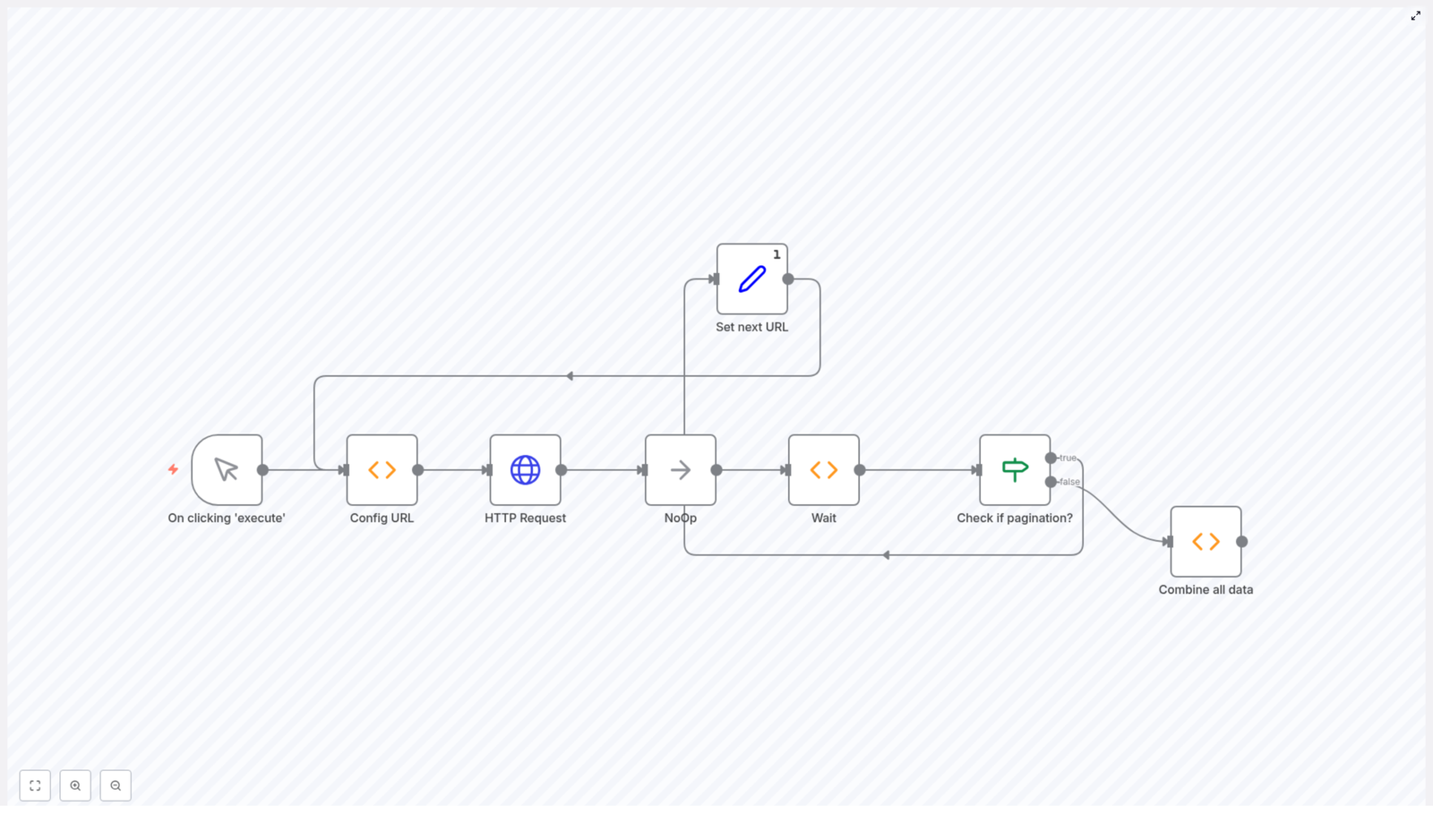
Instead of a long list of disconnected nodes, the workflow told a story of its own. It started, looped, waited, checked for more data, and then wrapped everything into one clean dataset. Emma could see the logic right on the n8n canvas:

  • Trigger – She would start the workflow manually by clicking “Execute”.
  • Config URL – This node defined the URL for the next HubSpot API call, starting with the first 100 contacts.
  • HTTP Request – The node that actually called the HubSpot CRM API with her API key and a limit parameter.
  • NoOp – A simple placeholder node to keep the execution flow organized.
  • Wait – A pause of 5 seconds between requests to avoid hitting HubSpot’s rate limits.
  • Check if Pagination? – A decision point that looked at the response to see if a paging object existed.
  • Set next URL – If more data existed, this node grabbed the next page URL from the response.
  • Loop – The workflow then cycled back to the Config URL node and repeated the process.
  • Combine all data – Once no more pages were left, this node merged all the results into a single dataset.

It was exactly what Emma needed: a reusable n8n workflow that handled HubSpot API pagination without her writing a full custom script.

The Turning Point: Teaching n8n Where to Look Next

The magic of the template lived in a few small but powerful snippets. As Emma clicked into each node, she realized she was not just using a black box. She could actually understand how the workflow handled pagination.

The Config URL Node – Deciding the Next Request

The first key piece was the Config URL node. This node used JavaScript to decide what URL the next HTTP Request should call:

let next = 'https://api.hubapi.com/crm/v3/objects/contacts';

if (items[0].json.next) {  next = items[0].json.next;
}

return [  { json: { next: next } }
];

On the very first run, there was no “next” value yet, so the node defaulted to HubSpot’s base contacts endpoint. After the first API call completed, the workflow would supply the next page URL to this node, and the logic would pass that URL forward instead.

In effect, this tiny script turned the workflow into a loop that could keep following the trail of next-page links until the data ran out.

Respecting HubSpot Rate Limits With a Simple Wait

Emma had been burned before by hitting API rate limits. The template handled this gracefully with a Wait node that paused between calls:

return new Promise((resolve) => {  setTimeout(() => {  resolve([{ json: {} }]);  }, 5000);
});

Every time the workflow finished a request, it waited 5 seconds before making the next one. That gave HubSpot enough breathing room, and it gave Emma peace of mind that she was not going to throttle their account.

Knowing When to Stop: The Pagination Check

The next crucial question was: how does the workflow know when it has reached the end?

The Check if Pagination? node looked directly at the HTTP Request response to see if HubSpot had returned a paging object:

{{$node["HTTP Request"].json["paging"] ? true : false}}

If the paging property existed, the workflow knew there was another page to fetch. If it did not, that meant the last page had been reached and the loop could end.

Following the Trail: Setting the Next URL

When more data was available, the Set next URL node pulled out the link for the next page:

{{$node["HTTP Request"].json["paging"]["next"]["link"]}}

This link was then fed back into the Config URL node, and the cycle continued. From Emma’s perspective, it felt like watching a crawler move through HubSpot’s entire contacts collection, one page at a time, without missing a single record.

Bringing It All Together: Combining Every Page

Finally, Emma opened the Combine all data node. This was where all the scattered pages of results were merged into one unified list:

const allData = [];
let counter = 0;
do {  try {  const items = $items("HTTP Request", 0, counter).map(item => item.json.results);  const pageItems = items[0].map(item => ({ json: item }));  allData.push(...pageItems);  } catch (error) {  return allData;  }  counter++;
} while(true);

The node looped through every execution of the HTTP Request node, extracted the results array, and pushed each contact into allData. If anything unexpected happened, it simply returned what it had collected so far instead of breaking the workflow.

By the time this node finished, Emma had a complete, combined dataset of all contacts from every page the HubSpot API had served.

Emma’s First Run: From Anxiety to Full Data Confidence

With the logic clear in her mind, Emma connected her HubSpot credentials and adjusted one final detail in the HTTP Request node: the API key.

  1. She replaced <YOUR_API_KEY> with her real HubSpot API key in the HTTP Request node.
  2. She saved the workflow and clicked the Execute button.
  3. She watched n8n step through each node, waiting 5 seconds between calls as the pages stacked up.
  4. When the workflow reached the Combine all data node, she opened the output and saw thousands upon thousands of contacts.

This time, the numbers in her report finally matched what HubSpot showed in the UI. No more missing contacts, no more misleading performance metrics.

From One Use Case to a Reusable Automation Pattern

Once Emma had her contacts flowing correctly, she realized this was more than a one-off fix. She had just learned a reusable pattern for handling any paginated HubSpot API in n8n.

With a few tweaks, she could:

  • Change the initial URL in the Config URL node to point at other HubSpot objects, such as deals or companies.
  • Adjust the limit parameter in the HTTP Request node if she wanted more or fewer records per page.
  • Send the combined data directly into a data warehouse, BI tool, or email platform.

The workflow gave her a flexible template that could be extended across her entire marketing stack.

Polishing the Workflow: Emma’s Next Improvements

After a few successful runs, Emma started thinking about how to harden and scale this automation. She made a short checklist for future improvements:

  • Handle API errors gracefully by adding error handling and retry logic around the HTTP Request node.
  • Tune the wait time based on her HubSpot plan and actual rate limits, so she did not wait longer than necessary.
  • Use environment variables in n8n to store her HubSpot API key securely instead of pasting it directly into the node.
  • Extend to more endpoints by adjusting the initial URL to fetch other HubSpot objects beyond contacts.

Each of these changes would make the workflow even more robust and production ready, but the core pagination logic was already working reliably.

What This n8n Template Really Gave Her

On the surface, the workflow helped Emma retrieve paginated data from the HubSpot API. Underneath, it solved a deeper problem: trust in her data.

By using a code-light n8n template to handle pagination, she:

  • Eliminated silent data gaps that were skewing her reports.
  • Automated a task that would have taken hours to script and maintain by hand.
  • Created a repeatable pattern for any future HubSpot integrations.

Her weekly reporting ritual went from stressful to straightforward. Instead of wondering what she was missing, she could focus on interpreting results and recommending strategy.

Try the Same Workflow in Your Own Stack

If you are dealing with large HubSpot datasets and partial exports, you do not need to build a complex integration from scratch. This n8n workflow template already handles pagination, looping, and rate limiting for you. All you need to do is plug in your API key, run the workflow, and connect the output to the rest of your tools.

Use it to simplify your HubSpot data syncs, strengthen your analytics, and free yourself from manual export headaches.

Mastering Bubble Integration with n8n

Mastering Bubble Integration with n8n

Why Connect Bubble and n8n in the First Place?

If you are building apps in Bubble and juggling data by hand, you are probably doing more clicking than you need to. Bubble gives you a visual way to build web apps without code. n8n adds the missing piece: flexible automation that connects your tools and handles repetitive work for you.

Put them together and you get a simple, powerful setup: n8n can create, update, and retrieve data from your Bubble app automatically. No more manually editing entries in the Bubble editor or wiring up complex backends just to keep your data in sync.

In this guide, we will walk through a real n8n workflow template that talks to Bubble. It creates a record, updates it, then fetches it again so you can see the full data lifecycle in action.

What This n8n – Bubble Workflow Actually Does

Let us start with the big picture. This template shows you how to:

  • Create a new Bubble object of type Doc
  • Update that same object with new data
  • Retrieve the object again using its unique Bubble id

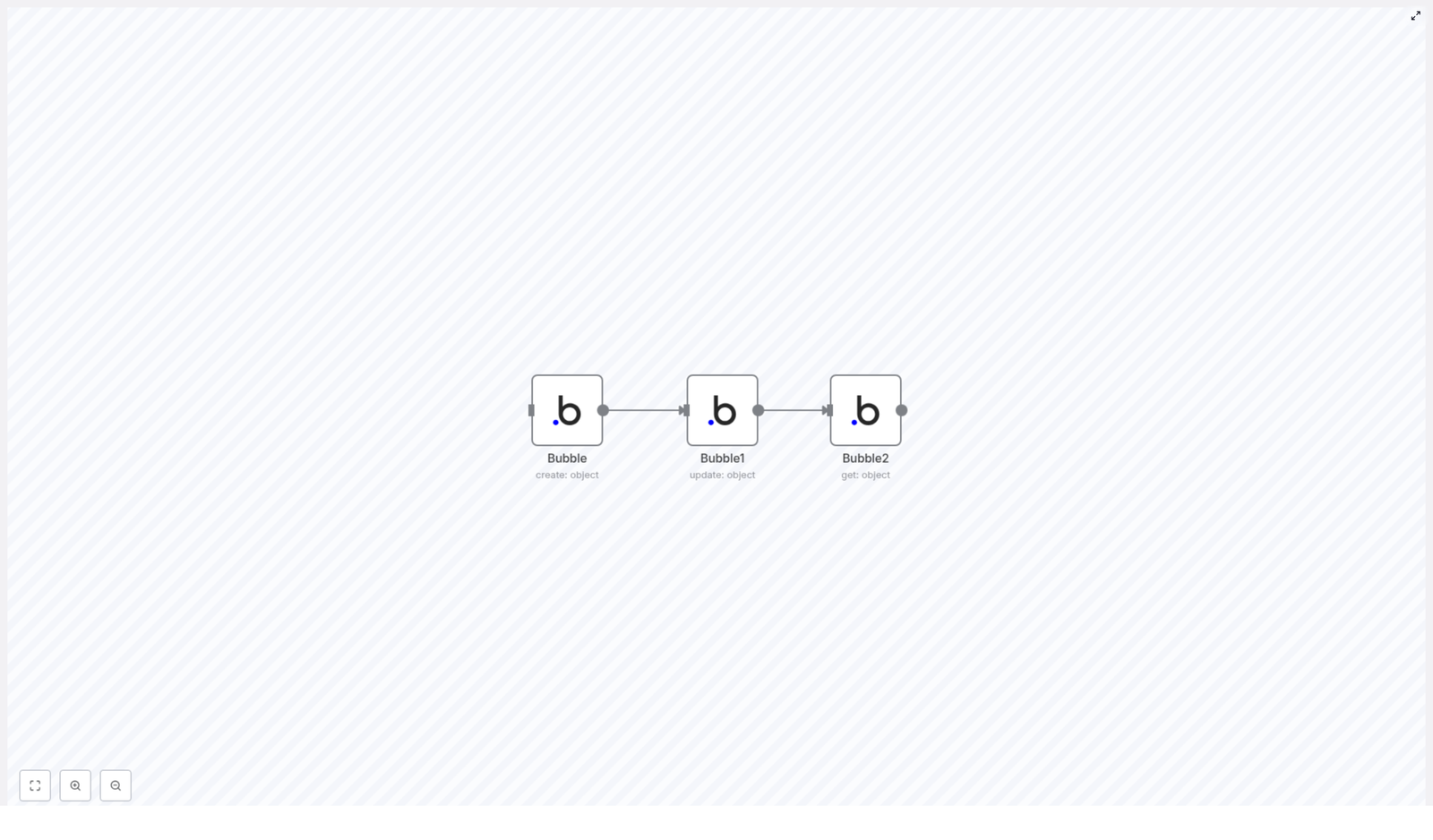
All of this happens through three Bubble nodes inside n8n. Think of it like a mini CRUD demo focused on Create, Update, and Read. Once you understand this pattern, you can easily expand it to more complex workflows, more properties, or different data types in Bubble.

When Should You Use This Template?

This workflow template is perfect if you:

  • Are building a Bubble app and want to automate data operations
  • Need a clear example of how n8n interacts with Bubble objects
  • Want to test Bubble’s API integration without writing code
  • Plan to scale up to more advanced automations later

Maybe you want to sync user data from another tool into Bubble, or update records after a form submission, or just make sure your data is always fresh. This template gives you a simple, concrete starting point for that.

Step-by-Step: How the Bubble Workflow Runs in n8n

Let us walk through each node in the workflow so you can see exactly what is happening under the hood.

1. Creating a Bubble Object (Bubble node)

The first step is handled by a node named Bubble. This node is configured to create a new object of type Doc in your Bubble database.

Here is what it does:

  • Uses the Bubble integration in n8n
  • Targets the object type Doc
  • Sets the property key Name to the value Bubble

Once this node runs, Bubble creates a new entry in your database and returns the unique id of that object. That id is important, because it is what the next nodes use to know exactly which record to work with.

2. Updating the Same Object (Bubble1 node)

Next, the workflow moves to a second node, called Bubble1. This node is responsible for updating the object that was just created.

Here is the idea:

  • It takes the id output from the first Bubble node
  • Uses that id to target the exact same Doc object
  • Changes the Name property from Bubble to Bubble node

This is your example of programmatic updates in Bubble via n8n. Instead of manually editing the entry in the Bubble editor, n8n handles it for you in a repeatable way.

3. Retrieving the Updated Object (Bubble2 node)

The final step uses a third node, named Bubble2, to fetch the current state of that same object from Bubble.

Here is what this node does:

  • Receives the object id that originated in the first node
  • Calls Bubble to retrieve the object using that id
  • Returns the latest data, including the updated Name value

This is where you can confirm that the update worked. You now have the object as it currently exists in Bubble, ready to be logged, passed to another tool, or used in later steps in your n8n workflow.

How Data Flows Through the n8n – Bubble Workflow

To really understand this template, it helps to see how the data moves from one node to the next. The magic is in how the id is passed through the chain.

The sequence looks like this:

  • The Bubble node creates a new Doc object and outputs its unique id.
  • The Bubble1 node takes that id, tells Bubble which object to update, and changes the Name property.
  • The Bubble2 node uses the same id to retrieve the updated object and returns the current data.

So the whole workflow is basically a conversation with Bubble about a single object: create it, tweak it, then ask for its latest version. Once you are comfortable with this pattern, you can plug in more fields, add branching logic, or connect other services in n8n to build richer automations.

Why This Bubble – n8n Workflow Makes Your Life Easier

You might be wondering, is it really worth setting up an automation for something this simple? Here is why this pattern is so useful in real projects.

  • Automation of CRUD operations
    No more manual create, update, and fetch steps in Bubble for routine tasks. n8n handles the CRUD flow automatically so your Bubble data stays in sync with everything else you are using.
  • More efficient data lifecycle
    Creating, updating, and retrieving objects all live in a single workflow. You can see the entire data lifecycle in one place, which makes debugging and scaling a lot easier.
  • Scales with your app
    This is just the starting point. You can extend the same structure to:
    • Work with multiple object types, not just Doc
    • Handle more properties on each object
    • Integrate other tools like CRMs, forms, or messaging apps

    Since n8n is highly extendable, you can keep layering on more logic without rewriting the basics.

Putting It All Together

By connecting Bubble and n8n in this simple three-node sequence, you unlock a reliable pattern for managing your Bubble data through automation. You are not just running a demo, you are learning a reusable approach you can apply across your entire app.

Whether your Bubble project is a small side app or a more complex product, this workflow helps you:

  • Control data programmatically instead of manually
  • Reduce errors from manual edits
  • Save time as your app and data grow

Ready to Try the Bubble – n8n Template?

If you want to see this in action without setting everything up from scratch, you can jump straight into the template. Load it into n8n, connect your Bubble credentials, and experiment with creating, updating, and retrieving your own data.

Once you have it running, try tweaking the object type, adding more fields, or chaining the workflow to other automations. That is where the real power of no-code plus automation starts to show.

SEO Template for SERP Analysis with Serper & Crawl4AI

Introduction

This n8n workflow template provides an end-to-end, automated framework for SERP (Search Engine Results Page) analysis using the Serper API and Crawl4AI. It is designed for SEO teams and automation professionals who require structured, repeatable, and scalable keyword and competitor analysis. By orchestrating SERP collection, enrichment, and content analysis in a single workflow, it supports data-driven keyword strategy, content planning, and competitive benchmarking.

The automation captures both desktop and mobile SERP data, extracts FAQs and related searches, crawls top-ranking pages, and applies OpenAI-based analysis to surface actionable SEO insights. All results are written directly into a Google Spreadsheet, enabling downstream reporting, analysis, and collaboration.

Use Case and Objectives

This template is optimized for advanced SEO research where manual SERP inspection is no longer scalable. Typical objectives include:

  • Understanding how a focus keyword performs across devices and markets.
  • Identifying user intent via FAQs and related search queries.
  • Analyzing competitor content structure, topics, and n-gram patterns.
  • Building a prioritized backlog of focus and long-tail keywords.
  • Centralizing all SERP and content insights in Google Sheets for ongoing analysis.

By leveraging n8n as the orchestration layer, this workflow minimizes manual effort and ensures consistent methodology across campaigns and markets.

High-Level Workflow Architecture

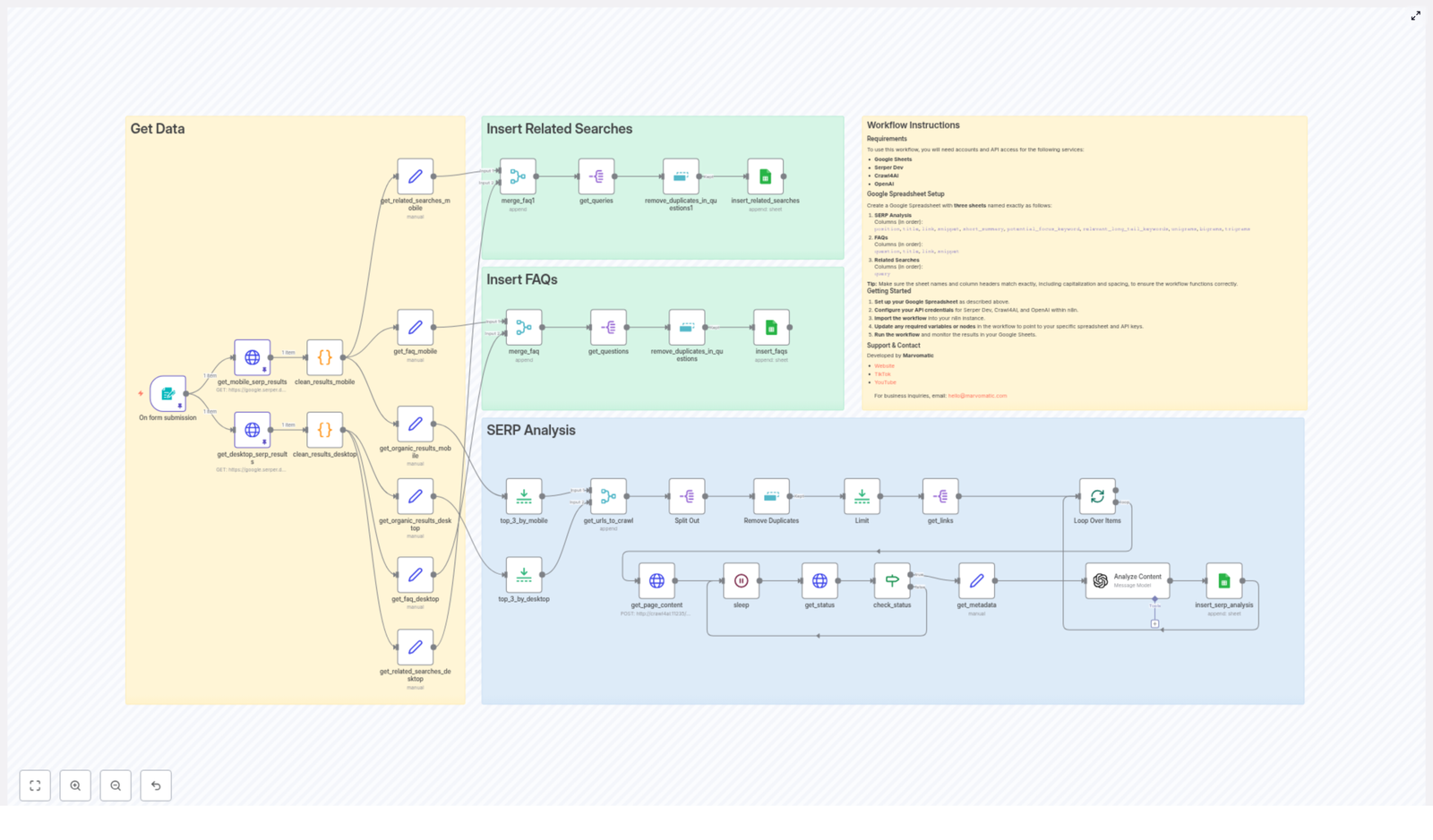
The workflow is organized into three logical stages, each composed of dedicated nodes and integrations:

  • 1. Data Acquisition (Get Data) – Triggered by a form submission, retrieves SERP results from Serper for a specified focus keyword and country, for both desktop and mobile, and normalizes the output.
  • 2. Query Enrichment (Related Searches & FAQs) – Extracts and deduplicates related searches and frequently asked questions from the SERP payload, then stores them in separate Google Sheets tabs.
  • 3. SERP Content Analysis – Selects the top organic results, deduplicates URLs, crawls them with Crawl4AI, and processes the content with OpenAI (GPT-4o-mini) to generate structured SEO insights that are appended to a dedicated SERP Analysis sheet.

Key Capabilities and Automation Benefits

  • Multi-device SERP coverage – The workflow calls Serper for both desktop and mobile SERPs, which is critical for understanding device-specific ranking differences and user behavior.
  • Automated noise reduction – Unwanted URLs such as YouTube or other irrelevant domains can be filtered out early in the pipeline, keeping the analysis focused on relevant organic competitors.
  • FAQ and related search mining – The template systematically surfaces FAQs and related queries from the SERP data, then removes duplicates to avoid redundancy and maintain clean datasets.
  • Advanced content intelligence – By integrating Crawl4AI and OpenAI, the workflow can summarize pages, propose potential focus keywords, identify relevant long-tail keywords, and run n-gram analysis (unigrams, bigrams, trigrams) on competitor content.
  • Google Sheets as a data hub – All outputs are written into structured Google Sheets tabs, making it easy to share insights with stakeholders, connect BI tools, or feed other automations.
  • Configurable and extensible design – Parameters such as country, keyword input, and SERP filters can be adapted to different SEO projects, and additional nodes can be added for custom reporting or enrichment.

Core Components and Integrations

Form Trigger and Input Capture

The workflow begins when a user submits a form with two critical inputs:

  • Focus Keyword – The primary search term to analyze.
  • Country – The target market for localized SERP data.

This trigger ensures that each workflow execution is tied to a specific keyword-country pair, which is essential for reproducible SEO experiments and reporting.

Serper API for SERP Data

Once triggered, the workflow uses the Serper API to retrieve Google SERP results for both desktop and mobile. The nodes handling this step:

  • Call Serper with the focus keyword and selected country.
  • Collect SERP results for each device type.
  • Perform initial cleaning and filtering, including removal of unwanted domains such as YouTube, to keep the dataset aligned with your SEO objectives.

Extraction of Related Searches and FAQs

From the Serper response, the workflow extracts:

  • Related Searches – Alternative queries and variations that users commonly search in relation to the focus keyword.
  • FAQs – Frequently asked questions, often surfaced in People Also Ask or similar SERP features.

To adhere to data quality best practices, the workflow:

  • Normalizes and deduplicates related search queries.
  • Deduplicates FAQ entries based on question content and associated SERP metadata.
  • Appends the cleaned data directly into the appropriate Google Sheets tabs.

Crawl4AI for Content Retrieval

For the SERP Analysis stage, the workflow focuses on top organic results:

  • Identifies and limits the number of URLs to analyze, ensuring performance and cost control.
  • Deduplicates URLs across desktop and mobile results.
  • Uses Crawl4AI to crawl each selected URL, retrieving page content and key metadata required for downstream NLP processing.

OpenAI (GPT-4o-mini) for Content Analysis

After content retrieval, the workflow passes the crawled data to OpenAI (GPT-4o-mini). The model is used to generate structured SEO insights for each URL, including:

  • Short summary of the page content.
  • Potential focus keyword inferred from the page’s main topic and structure.
  • Relevant long-tail keywords that align with user intent and semantic variations.
  • N-gram analysis (unigrams, bigrams, trigrams) to identify recurring terms and phrase patterns in competitor content.

The results are formatted to match the target Google Sheet schema and then appended to the SERP Analysis sheet.

Google Sheets Data Model

For the workflow to function correctly, the Google Spreadsheet must be configured with specific sheets and column names. Create a single Google Spreadsheet that includes the following tabs and columns exactly as defined.

SERP Analysis Sheet

Sheet name: SERP Analysis

Columns:

  • position
  • title
  • link
  • snippet
  • short_summary
  • potential_focus_keyword
  • relevant_long_tail_keywords
  • unigrams
  • bigrams
  • trigrams

FAQs Sheet

Sheet name: FAQs

Columns:

  • question
  • title
  • link
  • snippet

Related Searches Sheet

Sheet name: Related Searches

Columns:

  • query

Implementation Steps in n8n

To deploy and operate this template effectively, follow these steps within your n8n instance.

  1. Configure credentials
    Set up the necessary credentials in n8n:
    • Google Sheets credentials for read/write access to your spreadsheet.
    • Serper Dev API key for SERP data retrieval.
    • Crawl4AI credentials for page crawling.
    • OpenAI credentials for GPT-4o-mini content analysis.
  2. Import and activate the workflow
    Import the provided workflow template into your n8n instance, verify all node connections, and activate it so it can respond to form submissions or your chosen trigger.
  3. Prepare the Google Spreadsheet
    Create the spreadsheet with the three sheets: SERP Analysis, FAQs, and Related Searches, ensuring all column names match the specification above.
  4. Submit keyword and country
    Use the configured form or trigger node to submit your focus keyword and target country. This will initiate the full SERP collection and analysis pipeline.
  5. Monitor and iterate
    Observe the Google Sheets tabs as data is populated. Use the results to refine your keyword strategy, adjust filters, or extend the workflow with additional analytics or reporting nodes.

Best Practices for Using This Template

  • Start with a limited set of keywords to validate your configuration and data quality before scaling.
  • Regularly review the domain filters used for SERP cleaning to ensure you are excluding only truly irrelevant sources.
  • Use the n-gram outputs to inform content briefs, on-page optimization, and internal linking strategies.
  • Leverage the FAQs and related searches sheets to build FAQ sections, supporting articles, and topical clusters.
  • Version control your Google Spreadsheet or periodically archive results to maintain historical visibility into SERP changes.

Call to Action

If you are looking to operationalize SERP analysis and scale your SEO research, this n8n template offers a robust starting point. By combining Serper, Crawl4AI, OpenAI, and Google Sheets in a single automated workflow, it provides a repeatable framework for extracting competitive insights and optimizing your content strategy.

Deploy the workflow, adapt it to your specific SEO processes, and integrate it with your broader automation stack to maximize impact.

Support & Contact

This workflow has been developed by Marvomatic.

For business inquiries or custom automation and SEO consulting, contact: hello@marvomatic.com

How to Set up Realtime Two-Way Sync Between Notion and Todoist

How to Set Up Realtime Two-Way Sync Between Notion and Todoist

Why Bother Syncing Notion and Todoist?

You know that feeling when you tick something off in Todoist, then later realize the task is still sitting there in your Notion database, untouched? Or you update a due date in Notion and forget to change it in Todoist? That constant back-and-forth can get old fast.

This n8n workflow template solves exactly that problem. It keeps your Notion databases and Todoist projects in sync, in realtime, in both directions. Update a task in one place, and the other follows along automatically. No more double entry, no more “which one is the truth?” confusion.

In this guide, we will walk through what this Notion-Todoist realtime sync template actually does, when you should use it, and how to set it up in n8n without losing your mind in the process.

What This Notion – Todoist Sync Workflow Actually Does

At its core, this workflow acts as a translator and traffic controller between Notion and Todoist. It watches both sides, keeps them aligned, and avoids the usual sync nightmares like infinite loops or conflicting updates.

Main Features at a Glance

  • Fetches projects and sections from Todoist so you can choose what to sync
  • Retrieves databases and pages from Notion for mapping to those projects
  • Maps task properties between Notion and Todoist, including status, priority, and due dates
  • Handles task creation, updates, completion, and deletion on both sides
  • Uses Redis for caching and locking so you do not end up with endless update loops
  • Supports webhooks for realtime updates instead of relying only on polling
  • Generates a summary report after each sync and sends it as an email (optional but super handy)

When Should You Use This Template?

This workflow is ideal if:

  • You plan and track work in Notion databases but prefer Todoist for daily task execution
  • You want a trusted “single source of truth” but still need both tools for different workflows
  • You are tired of manually copying tasks between Notion and Todoist
  • You need realtime or near-realtime updates, not just a nightly batch sync

If that sounds like your current setup, this template can quietly take over the boring syncing work in the background so you can focus on your actual tasks.

What You Need Before You Start

1. Tools and Accounts Required

Here is the basic checklist:

  • Notion: A workspace with at least one database that holds your tasks. The database needs specific properties, for example:
    • Name (task title)
    • Status (for mapping to Todoist sections)
    • Priority
    • Due date
    • Focus checkbox (optional workflow logic)
    • Todoist ID (used to link each Notion task to the corresponding Todoist task)
  • Todoist: A project with sections that match your Notion Status options. For example, if Notion has “To Do”, “Doing”, “Done”, you should have similar sections in Todoist.
  • Redis: A cloud or self-hosted Redis instance. This is used for caching and locking so that the workflow can prevent race conditions and infinite update loops.
  • n8n.io: An n8n instance where you can import and run this workflow template.

2. Credentials You Need to Configure in n8n

Inside n8n, you will set up credentials for:

  • Notion API access so the workflow can read and update your databases
  • Todoist REST and Sync API using OAuth for secure access to your tasks
  • Redis connection details for cache and lock handling
  • Gmail or SMTP (optional) if you want email notifications with sync summaries

How the Workflow Is Structured

The template is not just a single flat flow. It is made up of several logical parts that each handle a specific piece of the sync puzzle.

1. Setup Helpers

These are your “get everything ready” tools inside the template:

  • Notion-Todoist Sync Setup Helper: This helper guides you through generating a configuration JSON that defines how your Notion databases map to your Todoist projects and sections. Once generated, that JSON is used by the workflow to understand what goes where.
  • Todoist Webhook Setup Helper: Handles the OAuth authorization with Todoist and activates the webhook. This is what lets Todoist push realtime updates to n8n whenever tasks change.

2. Data Retrieval from Both Apps

Before anything can sync, the workflow needs to know what exists in each tool.

  • Get Projects: Pulls in your Todoist projects so you can decide which ones should be linked to Notion.
  • Get Sections: Fetches Todoist sections from the chosen project. These are mapped to Notion Status values so both sides agree on what “To Do”, “In Progress”, or “Done” mean.
  • Get Notion Databases: Lists available Notion databases so you can pick the one that holds your tasks.

3. Mapping Tasks Between Notion and Todoist

This is where the magic happens. The workflow converts data from one format to the other so each side understands it correctly.

  • Map Notion to Todoist: Takes a Notion task and transforms it into the structure Todoist expects. This includes:
    • Translating Notion Status to the correct Todoist section
    • Mapping Notion Priority to Todoist priority levels
    • Handling due dates so deadlines stay aligned
    • Passing through the Todoist ID when it exists
  • Map Todoist to Notion: Does the reverse. It reads Todoist task data and converts it to Notion properties. It also deals with edge cases, like completed tasks, missing fields, or subtle differences in how each platform represents status and dates.

4. Sync Handlers: Keeping Everything in Step

Once mapping is in place, the workflow uses different flows to decide what to do with each task.

  • Tasks only in Notion: If a task exists in Notion but not in Todoist, the workflow creates or updates it in Todoist.
  • Tasks only in Todoist: If a task appears in Todoist but is missing in Notion, it gets created or updated in the Notion database.
  • Tasks modified in either system: When a task is changed in one tool, that change is propagated to the other. This covers updates to things like title, status, priority, or due date.
  • Deletion and completion events: If a task is completed or deleted in one system, the workflow marks or removes it appropriately in the other so you do not end up with ghost tasks.

5. Concurrency Control with Redis Locks

Here is where Redis comes in. Without some form of locking, a change in Notion could trigger an update in Todoist, which then triggers another update back to Notion, and so on. That is the infinite loop problem.

The workflow uses Redis to set locks and flags that control when updates are allowed to propagate:

  • Locks when updating Todoist task IDs so they are not overwritten unexpectedly
  • Locks when modifying Notion pages to avoid two flows editing the same page at once
  • Flags that indicate when a task is in the middle of being created or updated, so duplicate operations are skipped

This keeps things stable even when many changes happen quickly.

6. Error Handling and Retry Logic

APIs are not always perfect. Sometimes requests fail temporarily or rate limits kick in. The workflow is built with robust retries so that transient issues do not break your sync.

It uses:

  • Retry limits to avoid endless attempts
  • Wait times before retrying API calls
  • Graceful handling of temporary failures so you can keep working while the workflow recovers

7. Reporting and Email Notifications

After each sync run, the workflow gathers all the changes it has made and builds a clear HTML summary. This summary can be emailed to you using Gmail or another SMTP provider.

The report typically includes:

  • Tasks created or updated in Notion
  • Tasks created or updated in Todoist
  • Completion or deletion events processed

This is incredibly useful for monitoring and auditing what is going on behind the scenes.

How to Set Up the Realtime Two-Way Sync in n8n

Let us walk through the setup from start to finish so you can get the workflow running smoothly.

  1. Clone the workflow template into your n8n instance.
    Import or clone the provided Notion-Todoist realtime sync template so it appears in your n8n workflows list.
  2. Configure all required credentials and environment variables.
    In n8n, set up:
    • Notion API credentials
    • Todoist REST and Sync API credentials using OAuth
    • Redis connection details
    • Gmail or SMTP credentials if you want email reporting
  3. Run the “Notion-Todoist Sync Setup Helper”.
    This helper will:
    • Guide you through selecting the Notion database and Todoist project
    • Help you define how statuses and properties map between the two
    • Generate a configuration JSON that the rest of the workflow uses

    After that, update all Globals nodes with this config so the entire workflow is aligned.

  4. Set up the Todoist Developer App and webhook.
    In Todoist:
    • Create or configure your Todoist Developer App
    • Use the Todoist Webhook Setup Helper inside n8n to complete OAuth and activate the webhook

    This lets Todoist notify n8n whenever tasks are created, updated, completed, or deleted.

  5. Configure the Notion webhook or automation trigger.
    Set up a Notion Automation or a webhook emulator that calls your n8n webhook whenever a relevant page (task) changes. This keeps Notion updates flowing into the sync.
  6. Run the initial full sync.
    Use the Full Sync workflow to perform the first complete synchronization between Notion and Todoist. This step ensures that existing tasks on both sides are aligned before you rely on realtime updates.
  7. Activate all workflows and set your schedule.
    Once the full sync looks good:
    • Activate the realtime workflows that listen to webhooks
    • Optionally schedule periodic sync checks for extra safety
    • Confirm that new changes in either Notion or Todoist show up correctly on the other side

Best Practices for a Smooth Notion – Todoist Sync

To keep things running cleanly, a few habits go a long way:

  • Keep naming consistent. Make sure your Notion Status options match the Todoist sections you are mapping to. Consistent names reduce confusion and mapping errors.
  • Use Redis or a similar cache reliably. Do not skip the Redis setup. It is what keeps concurrency under control and prevents infinite loops when updates bounce between both tools.
  • Maintain your priority and status mappings. If you change your Notion database structure or Todoist project setup, update your mappings in the config JSON so the workflow stays accurate.
  • Review the email reports regularly. Use the HTML summary emails for monitoring and debugging. If something looks off, the report often gives you the first clue about what changed and where.

Why This Template Makes Your Life Easier

Once this workflow is in place, you can treat Notion and Todoist as one connected system instead of two separate islands. Plan and document in Notion, manage your daily to-dos in Todoist, and let n8n quietly keep everything in sync.

No more manual copying, no more wondering which app has the latest version of a task, and no more surprise duplicates. Just a smooth, realtime two-way sync powered by webhooks, APIs, and smart cache control.

Get Started with the Notion – Todoist Realtime Sync

Ready to unify your task management setup?

Clone this workflow into your n8n instance, hook it up to your Notion and Todoist accounts, and let the automation handle the rest. You will get a powerful, reliable, out-of-the-box synchronization system that fits right into your existing tools.

Need a hand? If you want help with onboarding or need customizations for your particular workflow, you can reach out for more detailed guidance or tailored changes.

How to Look Up a Person Using Their Email in Clearbit

How to Look Up a Person Using Their Email in Clearbit with n8n

Overview

This guide explains how to use an n8n workflow template to perform a Clearbit Person Enrichment lookup using only an email address. The workflow is intentionally minimal and is triggered manually from the n8n editor, making it ideal as a reference implementation or starting point for more advanced automation.

You will learn how the workflow is structured, how data flows between nodes, how to configure the Clearbit node with your API key, and how to execute the enrichment request to retrieve a detailed person profile that can include name, location, job title, company, and other available attributes.

Workflow Architecture

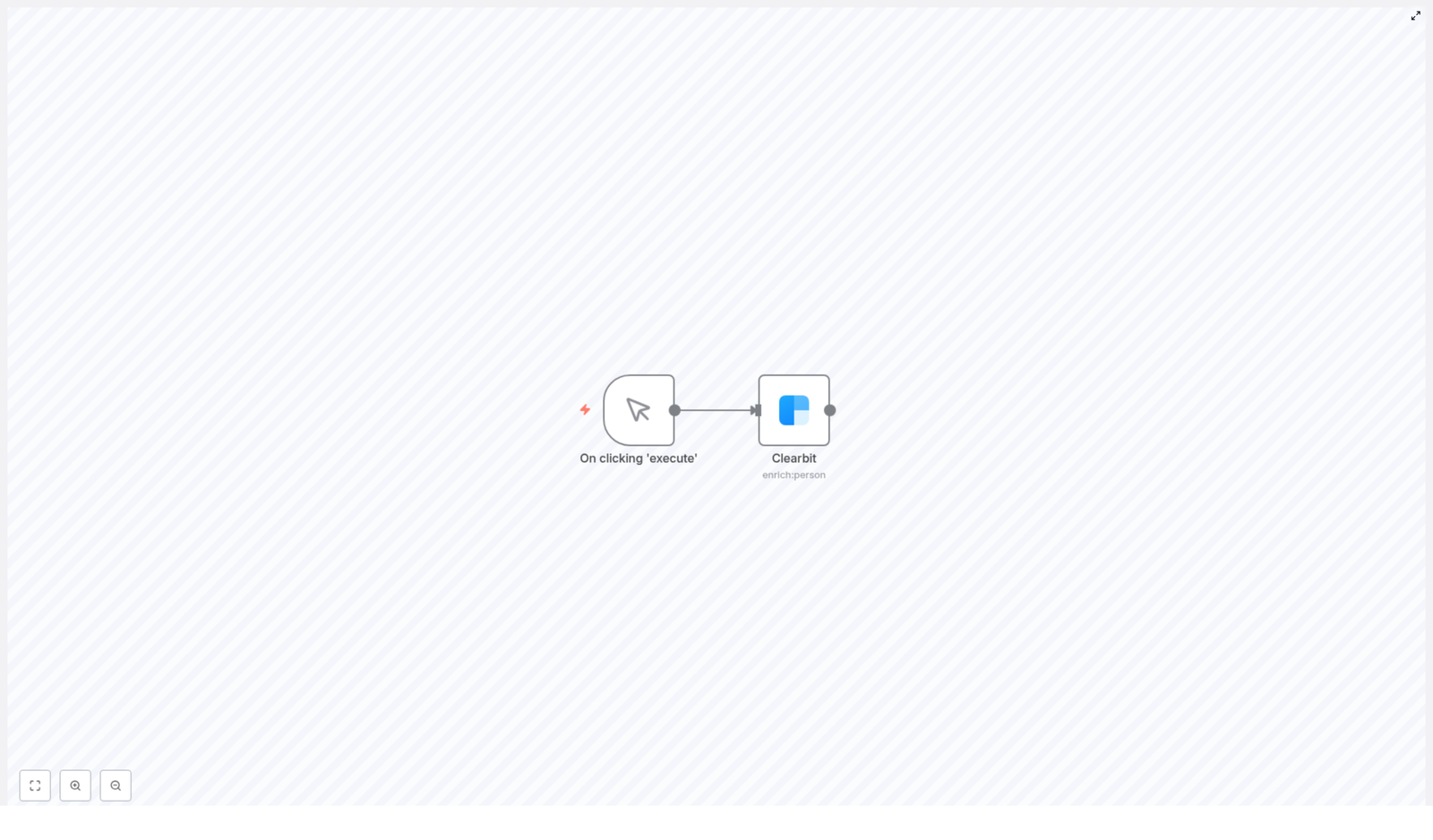
The workflow consists of two nodes connected in a simple linear sequence:

  • Manual Trigger node – Initiates the workflow execution when you click Execute Workflow in the n8n editor.
  • Clearbit node – Calls the Clearbit Person Enrichment API with the specified email address and returns the enriched person data.

There are no branches, conditionals, or additional processing nodes in this template. It is designed to demonstrate a direct integration between n8n and Clearbit using a single email input.

Node-by-Node Breakdown

1. Manual Trigger Node

The Manual Trigger node is used as the entry point for this workflow. It is best suited for:

  • Testing the Clearbit integration interactively in the n8n editor.
  • Running ad-hoc person lookups without any external trigger.

Key characteristics:

  • Trigger type: Manual.
  • Activation: The workflow runs only when you click Execute Workflow in the UI.
  • Input data: This template does not require or expect any incoming data payload to the Manual Trigger node.

The Manual Trigger node passes an empty or default data structure to the next node. All relevant parameters for the Clearbit request are configured directly on the Clearbit node itself.

2. Clearbit Node (Person Enrichment)

The Clearbit node is connected directly to the Manual Trigger node. It is configured to call the Clearbit Person Enrichment API using a specified email address.

Core Configuration

Within the Clearbit node settings, you must configure the following:

  • Resource: Set the resource field to Person. This selects the Clearbit Person Enrichment endpoint rather than any company or other enrichment resources.
  • Email: In the email field, enter the email address you want to look up. In this template, the email is entered as a static value in the node configuration rather than being mapped from previous nodes.
  • Credentials: Attach your Clearbit API key credential. Make sure your API key is valid and has permission to use the Person Enrichment API.

Expected Output

When successfully executed, the Clearbit node returns an enriched person profile associated with the email address, if Clearbit has data for that email. The returned JSON can include, for example:

  • Full name and given/family name details.
  • Location data such as city, state, and country.
  • Job title and role information.
  • Associated company details where available.
  • Additional profile attributes that Clearbit exposes for that person.

The exact fields and depth of enrichment depend on the data Clearbit has for the given email address.

Data Flow and Execution Sequence

  1. You open the workflow in the n8n editor.
  2. You click Execute Workflow to manually start the run.
  3. The Manual Trigger node fires and hands control to the Clearbit node.
  4. The Clearbit node sends an HTTP request to the Clearbit Person Enrichment API using:
    • The configured Person resource.
    • The email address entered in the node settings.
    • The Clearbit API key from the attached credentials.
  5. Clearbit processes the request and returns the enriched person profile as JSON.
  6. The Clearbit node outputs this data, which you can inspect in the n8n execution view or extend with subsequent nodes in your own workflows.

Configuration Notes

Clearbit Credentials

  • Ensure you have created a Clearbit API key and added it to n8n as a credential.
  • When selecting credentials in the Clearbit node, verify that the correct key is attached and that it is active.
  • If the key is missing or invalid, the node will fail and the workflow execution will stop at the Clearbit node.

Email Address Input

  • In this template, the email address is hard-coded in the Clearbit node configuration.
  • For testing, you can manually change this email in the node before executing the workflow.
  • To support dynamic or multiple emails, you can later replace this static value with expressions or upstream data, but that is outside the scope of this basic template.

API Response and Edge Cases

While the template focuses on the happy path, it is useful to be aware of several common scenarios:

  • No match found: If Clearbit has no data for the email, the response may be empty or minimal. The node still completes execution, but the returned profile will not contain rich attributes.
  • Rate limits or quota issues: If your Clearbit account hits a limit, the node may return an error from the API. In this template, such errors are not handled by additional nodes and will surface in the execution log.
  • Invalid or malformed email: Supplying an invalid email format can result in an error or no enrichment, depending on how Clearbit validates the input.

Using the Template in n8n

This workflow template is designed as a quick starting point for integrating Clearbit with n8n for person enrichment. It is particularly useful for:

  • Running manual, on-demand person lookups for testing or research.
  • Validating your Clearbit credentials and API connectivity inside n8n.
  • Serving as a base for more complex enrichment workflows that add storage, filtering, or downstream automation.

Benefits of Clearbit Person Enrichment in n8n

  • Time-saving automation: Replace manual person lookups with a single workflow execution that calls the Clearbit Person Enrichment API.
  • Accurate, up-to-date data: Use Clearbit as a reliable source for enriched profile information tied to an email address.
  • Seamless integration: The dedicated Clearbit node in n8n simplifies configuration, credential management, and API interaction.

Advanced Customization Ideas

Once you are comfortable with this basic template, you can extend the workflow in several ways:

  • Replace the Manual Trigger node with triggers such as Webhook, Form submissions, or CRM events to enrich contacts automatically.
  • Chain additional nodes to store the Clearbit response in databases, CRMs, or spreadsheets.
  • Add conditional logic to handle cases where no enrichment data is returned or where specific fields are missing.

While these enhancements are not part of the core template described here, the simple structure of this workflow makes it easy to adapt and integrate into broader n8n automation setups.

Getting Started

Load the template in your n8n instance, configure your Clearbit credentials and target email, then execute the workflow manually. You will immediately see how n8n and Clearbit work together to return enriched person data using only an email address.

Automate Bitwarden Group & Member Management with n8n

Automate Bitwarden Group & Member Management with n8n

From Manual Chaos to Confident Control

If you have ever spent too long adding people to Bitwarden groups, double checking who has access to what, or worrying that you might have missed a user, you are not alone. Manual group and member management can quietly drain your time and energy, especially as your team or client base grows.

The good news is that this is exactly the kind of repetitive, rules-based work that automation handles beautifully. With the right workflow in n8n, you can turn a tedious checklist into a reliable system that runs for you in the background, every time, without fail.

This Bitwarden + n8n workflow template shows you how to do just that. It automatically creates a group, fetches all members, assigns them to the group, and then verifies that everything is set up correctly. What used to be a manual routine becomes a repeatable, auditable process that supports your security standards and frees you to focus on higher-value work.

Shifting Your Mindset: Automation as a Growth Tool

Before we look at the concrete steps, it is worth pausing for a mindset shift. Automation is not only about saving a few minutes here and there. It is about building systems that support your growth, protect your time, and reduce the mental load of remembering every small task.

By automating Bitwarden group and member management with n8n, you are:

  • Protecting your organization with consistent, repeatable security processes
  • Creating more space for strategic work instead of reactive admin tasks
  • Building a foundation that you can extend with more advanced automations later

Think of this workflow template as a starting point. Once you experience how it feels to have one piece of your access management handled automatically, it becomes easier and more exciting to automate the next piece, and the next.

What This n8n Workflow for Bitwarden Actually Does

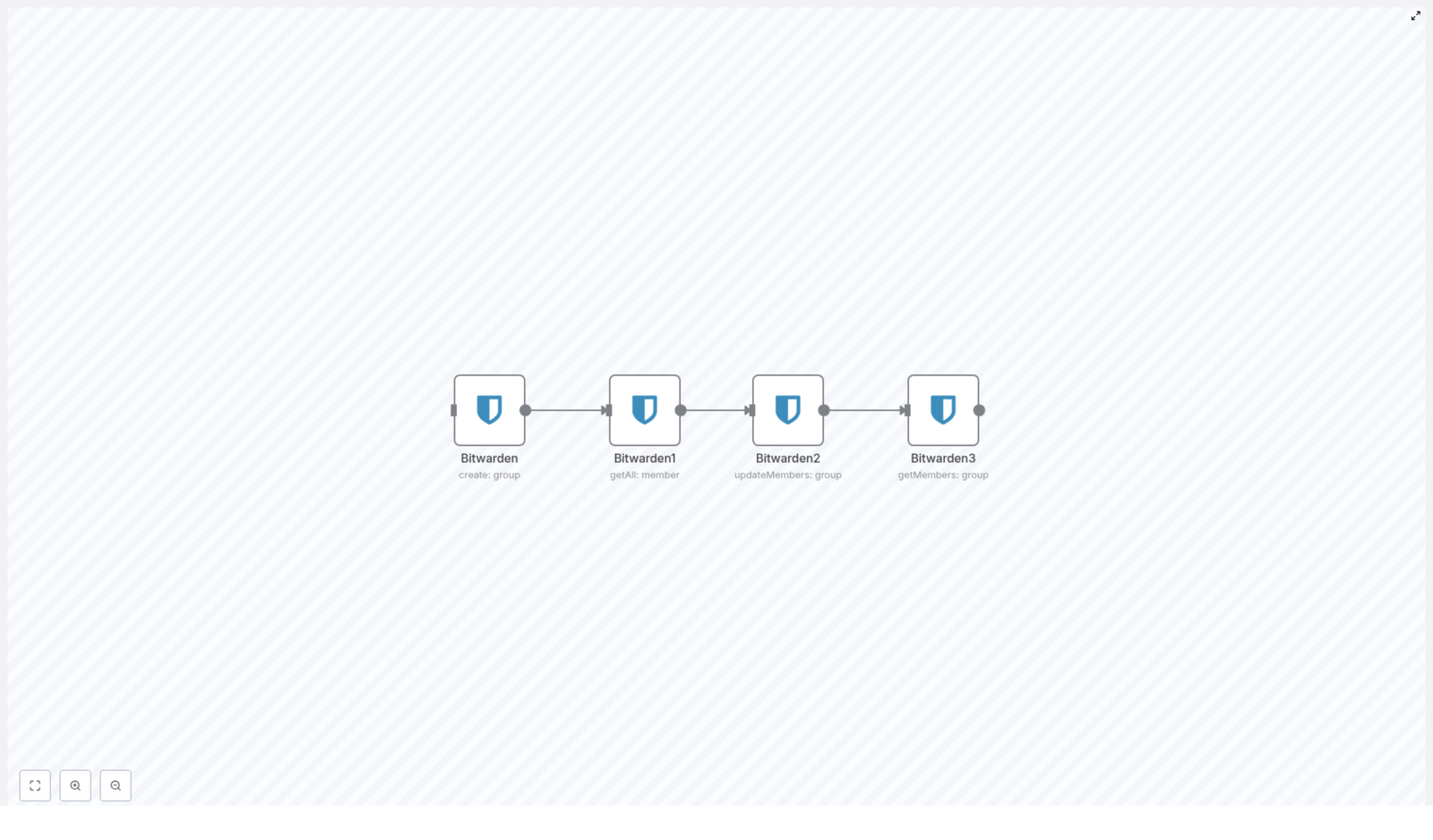
This template walks through a complete mini lifecycle for Bitwarden group management. In a single automated flow, n8n will:

  • Create a Bitwarden group so you have a dedicated place to manage access
  • Fetch all members from your Bitwarden instance in one step
  • Update group members by assigning all fetched users to the new group
  • Verify group membership to confirm that everyone was added correctly

The workflow uses Bitwarden nodes in n8n with specific operations and parameters, so you get a clear, reliable process that you can run again and again or integrate into larger automations.

Step-by-Step: Your Journey Through the Workflow

Let us walk through each part of the workflow as if you were following the path of a new automated process coming to life. Each node plays a specific role, and together they form a simple but powerful system.

1. Create the Bitwarden Group

Everything starts with a group. The first node in this n8n workflow uses the group resource with the create operation to set up a new Bitwarden group. This is the anchor for everything that follows, because the group ID that is generated here is used later when you assign members.

In practical terms, this node:

  • Calls the Bitwarden API via n8n
  • Creates a new group with your chosen configuration
  • Outputs the group ID that downstream nodes will reference dynamically

With this in place, you are no longer manually creating groups and copying IDs. n8n takes care of it for you, every time the workflow runs.

2. Retrieve All Bitwarden Members

Next, the workflow gathers everyone who should be considered for membership. The second node uses the member resource with the getAll operation to fetch every member from your Bitwarden instance.

The key configuration detail here is the returnAll parameter, which is set to true. This ensures that:

  • You do not miss any users due to pagination or limits
  • The workflow has a complete, current list of all available members
  • You can trust that your group assignments are comprehensive

Instead of manually exporting lists or cross checking user records, you let the API and n8n handle it in one clean step.

3. Update Group Members Automatically

Now the real power of automation shows up. The third node takes the group you created and the members you fetched, and brings them together. It updates the members of the group by assigning all fetched users to that group.

Technically, this node:

  • Uses the group ID from the first node’s output
  • Uses the member IDs from the second node’s list
  • Performs an update so that all those members are now part of the newly created group

Because the IDs are passed dynamically between nodes, you do not have to handle any copy and paste or manual mapping. The workflow connects the dots for you, which reduces the risk of human error and makes the process far more scalable.

4. Confirm Group Membership for Peace of Mind

No automation is complete without validation. The final node in this workflow verifies that everything worked as expected. It fetches the current members of the group so you can confirm that your update succeeded.

This step:

  • Calls Bitwarden again to retrieve the group’s member list
  • Provides a clear checkpoint for auditing and logging
  • Gives you a reliable place to plug in further automation, such as notifications or reports

With this final confirmation in place, the workflow does not just act blindly. It checks its own work, which is exactly what you want in a security-related process.

Why Automating Bitwarden Group Management Matters

It is easy to underestimate how much time small security tasks consume. Adding one user here, updating one group there, and suddenly you have spent an hour on something that could have been handled in seconds.

By automating Bitwarden group and member management with n8n, you:

  • Save time by replacing repetitive manual steps with a single workflow run
  • Reduce errors that come from copying IDs or forgetting to add someone
  • Improve consistency so your security policies are applied in the same way every time
  • Gain visibility with clear, auditable steps and verification built into the process

Over time, this consistency builds trust in your systems. Your team knows that group assignments are handled correctly, and you know that you are not relying on memory or last minute fixes to keep access secure.

Using This Template as a Stepping Stone

This workflow template is intentionally focused and simple, which makes it a perfect starting point for your broader automation journey with n8n. Once you have it running, you can start asking new questions:

  • What if new users triggered this workflow automatically when they are created?
  • What if you synced specific groups based on roles, departments, or tags?
  • What if you added notifications in Slack or email whenever a group is updated?

n8n gives you the flexibility to experiment. You can clone this template, adjust nodes, add conditions, or connect additional apps. Each improvement builds on the same core idea: let your tools handle the routine work, so you can focus on decisions and strategy.

Get Started: Put Your Bitwarden Management on Autopilot

You do not need to overhaul your entire infrastructure to feel the benefits of automation. Starting with a focused workflow like this one is often the most sustainable approach. It is small enough to implement quickly, yet impactful enough to change how you experience your day-to-day work.

Here is a simple way to move forward:

  1. Open n8n and import this Bitwarden group management workflow template
  2. Connect your Bitwarden credentials in the relevant nodes
  3. Review the operations and parameters so you understand each step
  4. Run the workflow, verify the results, and then schedule or trigger it as needed

As you gain confidence, start experimenting. Adjust which members are assigned, connect other tools, or extend the verification step with logging and alerts. Each iteration brings you closer to a fully automated, focused workflow that supports your business and your peace of mind.

Take the Next Step in Your Automation Journey

If you are ready to streamline Bitwarden user and group management, this n8n workflow template is an excellent place to begin. Use it to build a more secure, more efficient foundation for your organization, and let it inspire further automation across your stack.

Keep exploring, keep refining, and let automation become a partner in your growth, not just a technical add-on.

For more detailed guides, workflow ideas, and support as you expand your automation toolkit, subscribe to our blog and stay updated with the latest n8n workflows and templates.

Automate Multi-Level Blog Content Creation for WordPress

Automate Multi-Level Blog Content Creation for WordPress

Publishing high quality blog posts on a regular schedule is challenging on its own. It becomes even harder when you want the same article to be easy to understand for very different reading levels, such as Grade 2, Grade 5, and Grade 9.

This n8n workflow template solves that problem by using AI to generate one core article, then automatically rewriting it for multiple reading levels, backing it up, creating a featured image, and sending everything to WordPress. You end up with a structured, SEO friendly post that is ready to publish, along with clear notifications about what happened in the workflow.

What You Will Learn

By the end of this guide, you will understand:

  • How the n8n workflow generates a base blog post from a topic you provide
  • How that post is rewritten into Grade 2, Grade 5, and Grade 9 reading levels
  • How the workflow backs up your content to Google Drive
  • How it integrates with WordPress to create a draft post
  • How featured images are created with Pollinations.ai and attached to WordPress
  • How Telegram notifications keep you informed about successes and errors
  • Which API credentials and settings you need to customize for your own use

Key Concepts Before You Start

n8n Workflow Template

An n8n workflow is a series of connected nodes that pass data from one step to the next. This template is designed specifically for:

  • Blog content automation
  • Multi level reading adaptations
  • WordPress publishing

Multi-Level Reading Content

The same topic is expressed in three different ways so it fits a wider audience:

  • Grade 9 – more complex language, metaphors, and nuance for high school readers
  • Grade 5 – simpler vocabulary, light humor, and relatable examples for middle school
  • Grade 2 – very clear, short sentences with simple metaphors for young readers

This is especially useful for educational blogs, news explainers, and any site that wants to be inclusive for different reading abilities.

Services Used in the Workflow

  • OpenAI or similar AI model for generating and rewriting text
  • Google Drive for automatic content backup
  • WordPress for creating draft posts and storing images
  • Pollinations.ai for generating featured images
  • Telegram for instant notifications about workflow results

How the Workflow Works: Step by Step

Step 1 – Trigger the Workflow With a Topic

The process begins with a manual trigger node in n8n. You start the workflow and provide a blog topic or a short description of what you want the article to cover. This gives you control over when content is created and what it should focus on.

Example: You might enter a topic like, “How to save energy at home” or “Basics of photosynthesis for kids.” The rest of the workflow uses this input as the foundation for all generated content.

Step 2 – Generate the Core Blog Post

Next, the workflow passes your topic to an AI node (for example, OpenAI) that:

  • Creates a full blog article based on your topic
  • Includes HTML formatting suitable for WordPress, such as headings, paragraphs, and lists
  • Outputs a structured piece of content that can be reused in later steps

After the AI has generated the article, another node validates and splits the content into two key parts:

  • Title – the main heading of your blog post
  • Body – the full HTML formatted article

This separation is important because WordPress expects a title field and a content field when creating a post. By preparing both early in the workflow, you avoid issues later in the publishing step.

Step 3 – Create Multi-Level Reading Versions

With the base article ready, the workflow now focuses on accessibility and audience fit. It sends the original content to AI nodes that rewrite the article at different reading levels.

The workflow automatically produces three versions:

  • Grade 9 version
    Uses more advanced vocabulary, longer sentences, and may include metaphors or more detailed explanations. This is ideal for high school readers or adult audiences who prefer richer language.
  • Grade 5 version
    Uses shorter sentences, simpler words, and light humor or relatable examples that resonate with middle school readers.
  • Grade 2 version
    Focuses on very clear, direct language with simple metaphors. Sentences are short and easy to follow, making it suitable for young readers or early learners.

All three versions are based on the same original article, so the core information remains consistent, while the language and style adapt to each group. This step is the heart of the multi-level content strategy.

Step 4 – Back Up Content to Google Drive

Before anything is sent to WordPress, the workflow creates a backup copy of your work in Google Drive. This usually includes:

  • The original AI generated article
  • The Grade 9, Grade 5, and Grade 2 versions
  • Associated metadata, such as the topic or timestamp

Saving to Google Drive gives you:

  • A secure archive of all drafts
  • A simple way to review or edit content manually later
  • An audit trail for what was generated and when

If something goes wrong with WordPress or you want to revise a post in the future, you can return to these backups without having to regenerate the content.

Step 5 – Create the WordPress Draft Post

Once the content is backed up, the workflow connects to your WordPress site using the WordPress API. A dedicated node handles this integration and uses the split title and body fields.

Typically, the workflow:

  • Uses the Grade 9 version as the main article body for the WordPress draft
  • Sets the post title from the generated title field
  • Creates the post as a draft, not immediately published, so you can review it

You can later decide whether to publish only the Grade 9 version or to also add the Grade 5 and Grade 2 versions as separate posts, sections, or downloadable resources. The template focuses on ensuring at least one high quality draft is automatically created in WordPress.

Step 6 – Generate and Attach a Featured Image

Visuals are important for engagement and SEO, so the workflow includes an image automation step using Pollinations.ai.

In this part of the workflow:

  • The topic or a short description of the post is used to generate a relevant image
  • Pollinations.ai returns a vibrant, topic-matched image
  • The image is then uploaded to the WordPress media library
  • The uploaded image is set as the featured image for the draft post

This means every draft created by the workflow already includes a featured image, saving you the time of searching for or designing one manually.

Step 7 – Receive Notifications via Telegram

To keep you informed about automation results, the workflow ends with a notification system using Telegram.

There are typically two types of messages:

  • Success notifications – Sent when a blog post is generated, backed up, and created in WordPress without issues. The message can include the post title or link.
  • Error notifications – Sent when any step fails, such as a problem with an API, a content generation error, or a WordPress connection issue.

This immediate feedback allows you to:

  • Know when new drafts are ready to review
  • React quickly if something breaks in the workflow
  • Monitor your content pipeline without logging into n8n every time

Setting Up and Customizing the Workflow

Required API Credentials

To get the template running in your own n8n instance, you need to configure credentials for:

  • WordPress – API access to create posts and upload media
  • OpenAI (or equivalent) – for generating and rewriting content
  • Google Drive – to store your content backups
  • Telegram – to send you notifications about workflow status

Each of these is set up inside n8n as a credential resource, then linked to the appropriate nodes in the template.

Customizing Content Style and Prompts

The template is flexible so you can adapt it to your brand or educational goals. You can:

  • Adjust the main content prompt to change the tone, structure, or length of the base article
  • Modify the Grade 9, Grade 5, and Grade 2 prompts to refine how each reading level should sound
  • Specify SEO elements such as keyword usage or meta description hints in the prompts
  • Change the image prompt sent to Pollinations.ai to match your visual style

With small tweaks, you can turn the same workflow into a system that writes in your unique voice while still handling the technical automation.

Who This Workflow Is Best For

This n8n template is especially useful for:

  • Bloggers who want to keep a consistent publishing schedule without writing every word manually
  • Educators who need the same concept explained to different age groups
  • Publishers who want accessible versions of their content for readers with different literacy levels
  • Content teams that need reliable backups, structured workflows, and clear notifications

By automatically creating versions for multiple reading levels, you make your WordPress site more inclusive and engaging, and you increase the chances that every visitor finds content they can understand comfortably.

Recap: What This n8n Template Delivers

  • Starts with a manual topic input so you control the subject
  • Uses AI to generate a structured, HTML ready blog article
  • Splits the result into title and body for WordPress compatibility
  • Rewrites the article into Grade 9, Grade 5, and Grade 2 reading levels
  • Backs up all content to Google Drive for safety and future editing
  • Creates a WordPress draft post using the Grade 9 version
  • Generates a featured image with Pollinations.ai and attaches it to the post
  • Sends Telegram notifications on success or error

Automating these steps saves you time, reduces manual work, and helps you maintain a steady flow of accessible content that serves diverse audiences.

FAQ

Can I change which reading level is posted to WordPress?

Yes. In n8n you can adjust the node that sends content to WordPress so it uses the Grade 5 or Grade 2 version instead of Grade 9, or even combine multiple versions in one post.

Do I have to use all three reading levels?

No. You can disable or remove nodes for any level you do not need. The workflow will still function with fewer versions.

What happens if an API fails during the workflow?

If an error occurs, the workflow sends a Telegram notification so you can investigate. Because content is backed up to Google Drive before publishing, you usually will not lose generated text.

Can I edit the drafts before publishing?

Yes. The workflow creates draft posts in WordPress, not published posts. You can review, edit, and optimize them manually before making them live.

If you want to streamline your WordPress content strategy and serve readers at every level, this n8n workflow template gives you a complete, automated system from idea to draft post.