


CSV Attachment to Airtable: n8n RAG Workflow
Ever opened yet another CSV report and thought, “Cool, can someone else deal with this?” If your life involves downloading CSVs, copy-pasting into spreadsheets, doing the same filters and summaries, and then telling your team what you just did, this workflow is your new favorite coworker.
This n8n template takes CSV attachments, turns them into searchable vectorized data, runs a RAG workflow for context-aware summaries, logs everything in Google Sheets, and pings your team on Slack if something breaks. In other words, it handles the boring parts so you can stop being a human CSV parser.
What this n8n CSV-to-Airtable workflow actually does
At a high level, this workflow automates the journey from “raw CSV attachment” to “searchable, summarized, logged, and notified.” It is ideal if you regularly receive CSV reports, exports, or data dumps via HTTP or email and you want:
- Automated CSV ingestion without manual downloads
- Semantic search and retrieval using vector embeddings
- Context-aware summaries powered by a RAG agent
- Logging in Google Sheets so non-technical teammates can see what is going on
- Slack alerts when things break so you are not silently losing data
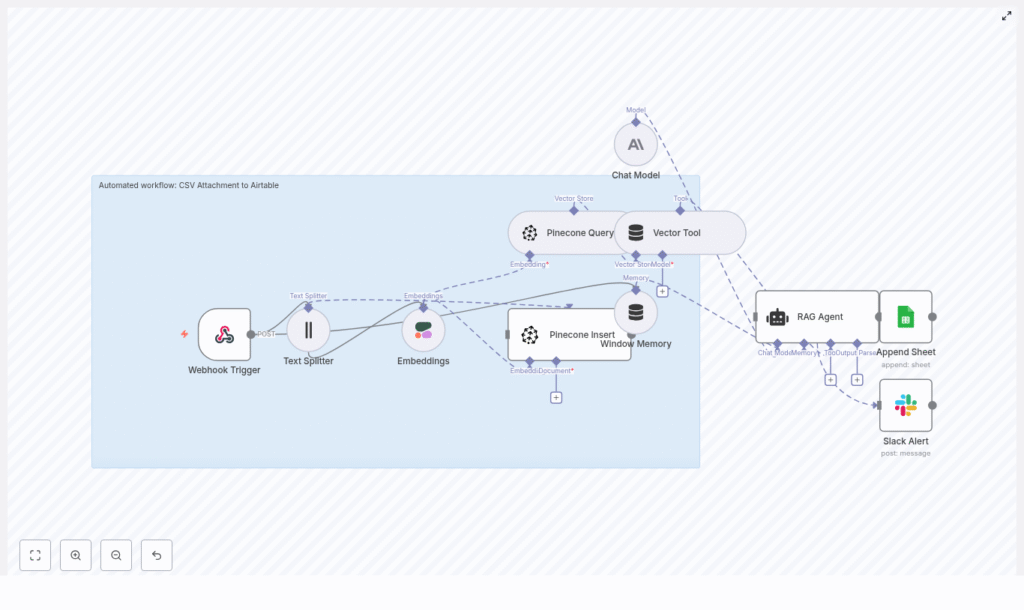
Here is the full cast of characters in this template:
- Webhook Trigger – Receives the CSV via HTTP POST
- Text Splitter – Breaks your CSV content into smaller chunks
- Cohere Embeddings – Turns those chunks into vectors
- Pinecone – Stores and retrieves the embeddings
- Vector Tool + RAG Agent (Anthropic) – Uses the vectors to answer questions and summarize
- Google Sheets – Logs results in a “Log” sheet
- Slack – Sends alerts if something fails
You get a reusable, low-code n8n automation that plugs into your existing stack, saves time, and reduces the number of times you say “I’ll just quickly do it by hand.”
How the workflow flows: from CSV to vectors to summaries
1. Webhook Trigger – your CSV entry gate
The workflow starts with an n8n Webhook Trigger that listens for POST requests at a path like /csv-attachment-to-airtable. This is where your CSV file or CSV link arrives.
You can send data from an email parser, another app, or any tool that can POST to a URL. Just make sure you:
- Use authentication or signed payloads
- Restrict who can hit the webhook endpoint
- Avoid letting random strangers upload mystery CSVs into your system
2. Text Splitter – breaking the CSV into bite-sized pieces
Large CSV files are not fun to handle as one giant blob of text. The Text Splitter node slices the CSV content into smaller chunks, for example:
chunkSize = 400chunkOverlap = 40
This keeps each chunk small enough for embedding models and RAG operations, while preserving enough overlap so the context does not get lost between splits.
3. Cohere Embeddings – turning text into vectors
Each chunk is sent to a Cohere embedding model, such as embed-english-v3.0. Cohere returns a vector for each chunk, which is later stored in Pinecone.
To keep things efficient and cost-friendly:
- Batch multiple chunks in a single embeddings request
- Watch your rate limits so you do not get throttled mid-ingestion
- Confirm that the payload format matches what the Cohere node expects
4. Pinecone Insert – parking embeddings for later retrieval
Those fresh embeddings are then inserted into a Pinecone index. In the template, the default index name is csv_attachment_to_airtable, but you can change it if needed.
Alongside each vector, the workflow stores useful metadata, for example:
- Original filename
- Row range or offset
- Source URL or attachment reference
This metadata makes it much easier to trace where a specific piece of context came from when you later query the index.
5. Pinecone Query and Vector Tool – finding the right chunks
When a query comes in, the Pinecone Query node fetches the nearest neighbor vectors. These are the chunks most relevant to the question or task.
The Vector Tool wraps those Pinecone results so the RAG Agent can use them as contextual tools. This gives your language model real data to work with, instead of asking it to “just guess nicely.”
6. Window Memory and RAG Agent (Anthropic) – brains with context
The Window Memory node keeps a rolling context of the recent conversation or tasks. This is particularly useful if you are running multiple queries or iterative analyses on the same CSV.
The RAG Agent uses an Anthropic chat model as the core language model. It combines:
- The retrieved vectors from Pinecone
- The system instructions you define
- Any recent memory from the Window Memory node
Configure the system message to match your use case, for example:
You are an assistant for CSV Attachment to Airtable. Summarize CSV contents and highlight key insights.
The result is a summary or actionable output that is grounded in the CSV data, not just generic text.
7. Append Sheet (Google Sheets) – logging what happened
Once the RAG Agent has done its job, the workflow uses the Append Sheet node to write a new row to a Google Sheets “Log” sheet.
You can map columns to include:
- Summary or key findings
- Processing status
- Source filename
- Ingestion timestamp
- Links to the original attachment or source
This gives you an auditable history of what was ingested and how it was summarized, in a place your team already knows how to use.
8. Slack Alert on error – when things go sideways
If something fails, the workflow triggers a dedicated Slack Alert node in an onError branch. It sends a message to a channel like #alerts with:
- The error message
- Relevant context from the failed run
So instead of silently losing data, your team gets a clear “hey, something broke” notification and can fix it quickly.
Quick setup guide: from zero to working template
- Get n8n running
Install n8n locally or use n8n.cloud, then import the template JSON file into your instance. - Add all required credentials
In n8n, configure:- Cohere API key
- Pinecone API key and environment
- Anthropic API key
- Google Sheets OAuth2 credentials
- Slack token with permission to post to your chosen channel
- Set up your Pinecone index
Create or reuse a Pinecone index namedcsv_attachment_to_airtable, or update the Pinecone nodes in the workflow to match your own index name. Make sure the index dimensions match the embedding model output. - Secure the webhook
Use a secret header, IP allowlist, or other security controls so only trusted sources can send CSVs.
If your CSVs arrive by email, connect a mail parser or automation tool that forwards attachments to the webhook via POST. - Tune the Text Splitter
Adjust the chunking settings to match your data:- Increase
chunkSizefor dense, table-like CSVs - Decrease it for CSVs with long narrative text fields
- Increase
- Run an end-to-end test
Use a small CSV sample and confirm:- Chunks are created and sent to Cohere
- Embeddings are inserted into Pinecone
- The RAG Agent returns a sensible summary
- A new row appears in your Google Sheet
- No Slack errors, or if there are, they are descriptive
Why this workflow is worth your time
Key benefits
- Automated CSV ingestion and vectorization for semantic search and retrieval, so you can ask questions about your CSVs instead of scrolling through them.
- Fast, context-aware answers using Pinecone plus a RAG agent, ideal for summaries, insights, and follow-up questions.
- Low-code orchestration with n8n, which makes the workflow portable, customizable, and easy to extend.
- Built-in logging and notifications with Google Sheets and Slack, so you keep visibility into what has been processed and what has failed.
Best practices and optimization tips
To keep your setup efficient, affordable, and maintainable, consider the following:
- Enrich Pinecone metadata
Include fields like filename, row offset, and column hints. This improves retrieval relevance and lets you trace exactly where a piece of information came from. - Batch operations
Batch embedding requests and Pinecone inserts to reduce API calls, lower cost, and improve throughput. - Control storage growth
Use TTL or periodic pruning of old vectors if you are dealing with short-lived or ephemeral data, so Pinecone costs do not creep up silently. - Use typed columns in Google Sheets
Define consistent types for timestamps, status values, and URLs. This makes filtering, reporting, and downstream automation much easier. - Add retries with backoff
Configure graceful retries and exponential backoff for calls to Cohere and Pinecone, so temporary network or rate limit issues do not break the whole pipeline.
Troubleshooting: when the robots misbehave
If something is not working as expected, start with these common issues:
- No embeddings inserted
Check that:- Your Cohere API key is valid
- You are not hitting rate limits
- Chunk sizes and payload formats match what the embeddings node expects
- Pinecone errors
Verify:- The index name matches exactly
- The environment is correct
- The vector dimension matches the Cohere embedding model output
- Webhook not triggering
Make sure:- The webhook URL path in your external tool matches the n8n Webhook node
- The workflow is active and n8n is running
- RAG outputs are low quality
Improve:- The system message with more domain-specific instructions
- The number of retrieved contexts from Pinecone
- The quality and structure of the input CSV, if possible
Security and cost considerations
Even though automation is fun, you still want to keep things safe and sane:
- Protect your API keys and never expose them in client-side code or public repos.
- Restrict webhook access to trusted IPs, services, or signed requests.
- Monitor usage for Cohere, Pinecone, and Anthropic so you understand your monthly cost profile.
- Handle sensitive data carefully. For sensitive CSVs, consider encrypting certain metadata and limiting how long vectors are retained.
Extending the template: beyond Airtable and CSVs
This n8n template is intentionally modular, so you can remix it as your stack evolves:
- Swap Cohere embeddings for OpenAI or another provider if your preferences change.
- Replace the Anthropic model with a different LLM that you prefer.
- Change the final destination from Google Sheets to Airtable, or use the Airtable API directly for richer record management.
Because the template already stores detailed metadata in Pinecone, connecting Airtable as the final home for full records is straightforward. You can keep the same vector store and simply adjust the “logging” layer to target Airtable instead of or in addition to Google Sheets.
Wrapping up: from manual CSV grind to automated RAG magic
The CSV Attachment to Airtable n8n workflow turns repetitive CSV handling into a smooth, automated pipeline. It ingests CSV attachments, splits and embeds the content, stores vectors in Pinecone, runs a RAG agent for context-aware summaries, logs results in Google Sheets, and alerts your team in Slack if anything fails.
If you are tired of manually wrestling CSV files, this template gives you a reusable, low-code solution you can adapt to many different use cases.
Ready to try it? Import the template into n8n, plug in your API keys, send a sample CSV through the webhook, and watch the workflow do the tedious parts for you. If this kind of automation saves you time, keep an eye out for more templates and walkthroughs, or reach out if you need a custom integration.
Call to action: Try this n8n template today, automate CSV ingestion, enable semantic search over your data, and keep your team in the loop with Google Sheets logs and Slack alerts.
