


Sync Jira Issues to Notion with n8n
On a rainy Tuesday afternoon, Alex stared at two browser tabs that had become the bane of their workday: Jira and Notion. As a product manager in a fast-moving SaaS startup, Alex was supposed to keep everyone aligned – engineers in Jira, leadership and stakeholders in Notion. In reality, Alex was stuck in copy paste purgatory.
Every new Jira issue meant another Notion card to create. Every status change meant another manual update. When something was deleted in Jira, it quietly lingered in Notion, making roadmaps and status boards confusing and unreliable. The more the team grew, the more chaotic it became.
One missed update led to a painful board review where a stakeholder asked about a “critical bug” that had been resolved days ago. The Jira ticket was closed, but the Notion board still showed it as “In progress.” That was the moment Alex decided this had to be automated.
The problem Alex needed to solve
Alex’s team used Jira as the canonical source of truth for issues, bugs, and feature work. Notion, on the other hand, was their shared brain – documentation, cross functional status boards, and executive summaries all lived there.
But manually syncing Jira issues into Notion meant:
- Duplicated effort every time a new issue was created
- Missed updates when statuses changed and no one had time to reflect it in Notion
- Stale, misleading information in stakeholder dashboards
- Confusion over which tool was the “real” source of truth
Alex did not want to replace Jira with Notion. They wanted Jira to stay the issue tracker, while Notion became a reliable, always up to date overview. What Alex needed was a way to keep Notion in sync with Jira automatically, without living in two tabs all day.
Discovering an n8n template that could help
While exploring automation options, Alex came across n8n, an open source workflow automation tool. Even better, there was a ready made n8n workflow template specifically designed to sync Jira issues to a Notion database.
This template promised to:
- Create a Notion database page when a Jira issue is created
- Update the corresponding Notion page when the Jira issue is updated
- Archive the Notion page when the Jira issue is deleted
In other words, exactly what Alex needed. The tension shifted from “How do I do this at all?” to “Can I actually get this working without spending days wiring APIs together?”
How the automation works behind the scenes
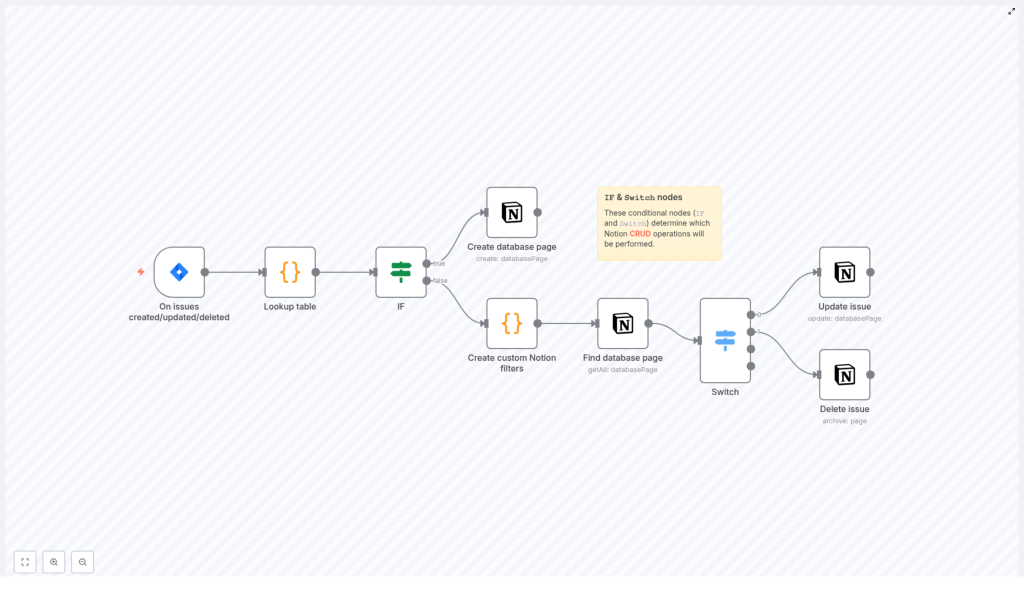
Before turning it on, Alex wanted to understand how the template actually operated. That is where the n8n node sequence came into focus. The workflow followed a clear, logical pipeline:
- Jira Trigger receives webhook events when issues are created, updated, or deleted
- Lookup table (Code) converts Jira status names into the exact select labels used in Notion
- IF node checks if the event is a new issue or an update/delete
- Create database page builds a new Notion page for new Jira issues
- Create custom Notion filters (Code) generates a JSON filter to find the correct Notion page by Issue ID
- Find database page queries Notion for the matching page
- Switch node routes the flow based on the specific Jira event type
- Update issue or Delete issue updates or archives the Notion page
It was not magic. It was a series of clear steps that mirrored the life cycle of a Jira issue and translated it into Notion.
Rising action: setting up Jira, Notion, and n8n
To give this automation a fair shot, Alex blocked off an afternoon and started from the ground up.
Designing the Notion database as a mirror of Jira
First, Alex created a Notion database that would act as the synced overview of Jira issues. Following the template’s recommendations, the database included these properties:
- Title – the issue summary
- Issue Key – the Jira key, for example PROJ-123
- Issue ID – the numeric Jira ID used for lookups
- Link – a URL pointing directly to the Jira issue
- Status – a select field with values matching the Jira workflow
Alex knew that these fields would become the backbone of the sync. If they were clean and consistent, everything else would be easier.
Importing the n8n workflow template
Next, Alex logged into their n8n instance and imported the provided workflow template. The skeleton was already there. All that remained was to connect Jira, Notion, and the template’s logic.
Inside n8n, Alex configured credentials:
- Jira Cloud API credentials using their email and API token
- A Notion integration token with access to the new database
Then they set the Notion database ID inside the Notion nodes and updated the Link property format to match their Jira site URL.
The turning point: wiring Jira to trigger n8n
The real pivot moment came when Alex configured Jira to talk to n8n. If that connection worked, the rest of the workflow would fall into place.
1. Jira Trigger – listening for issue events
In their Jira Cloud instance, Alex created a webhook and pointed it to the n8n webhook URL provided by the Jira Trigger node.
They selected the following events:
jira:issue_createdjira:issue_updatedjira:issue_deleted
This meant that every time someone on the team created, updated, or deleted an issue, Jira would send a payload to n8n, and the workflow would start its work.
2. Lookup table – translating statuses into Notion language
Next, Alex opened the Lookup table (Code) node. This was where Jira’s status labels would be translated into the exact select values used in Notion. The code looked something like this:
var lookup = {  "To Do": "To do",  "In Progress": "In progress",  "Done": "Done"
};

var issue_status = item.json.issue.fields.status.name;
// map to Notion select value
Alex adjusted the mapping to match their team’s specific Jira workflow and the Status options in the Notion database. They knew from experience that mismatched labels could cause subtle bugs, so they double checked casing and spelling.
3. IF node – deciding when to create a page
The IF node became the workflow’s first decision point. It checked whether the incoming event was jira:issue_created. If it was, the workflow would branch directly to creating a new Notion page. If not, it would prepare to find and update an existing one.
Alex liked the clarity of this logic. New issues took one path, updates and deletions took another.
4. Creating the Notion page for new issues
For new issues, the Create database page node handled the heavy lifting. Alex mapped each field from the Jira payload to the appropriate Notion property, using n8n expressions like:
Title: {{$node["On issues created/updated/deleted"].json["issue"]["fields"]["summary"]}}
Issue Key: {{$node["On issues created/updated/deleted"].json["issue"]["key"]}}
Issue ID: {{parseInt($node["On issues created/updated/deleted"].json["issue"]["id"])}}
Link: =https://your-domain.atlassian.net/browse/{{$node["On issues created/updated/deleted"].json["issue"]["key"]}}
Status: ={{$node["Lookup table"].json["Status ID"]}}
They replaced your-domain with their real Jira domain and ensured the Status property pointed to the value produced by the Lookup table node.
Keeping everything in sync when issues change
Creating pages was only half the battle. Alex needed updates and deletions in Jira to be mirrored reliably in Notion.
5. Building custom Notion filters
For updates and deletions, the workflow had to find the correct Notion page first. The Create custom Notion filters (Code) node generated a JSON filter that searched for the page where Issue ID matched the Jira issue ID.
This node produced a filterJson object that the next node would use to query Notion. It meant Alex did not have to rely on brittle title matching or manual lookups. The numeric Issue ID became the reliable link between both systems.
6. Finding the database page in Notion
The Find database page node used the Notion API to search the database with the generated filter. When it found a match, it returned the full page object, including the Notion page ID that would be needed for updates or archiving.
Alex ran a test update in Jira and watched in n8n’s execution preview as the correct Notion page was identified and passed along the workflow.
7. Switch node – update vs archive
Now the workflow needed to decide whether to update an existing page or archive it. The Switch node examined the webhookEvent value and routed the data accordingly:
- If the event was
jira:issue_updated, it flowed to Update issue - If the event was
jira:issue_deleted, it flowed to Delete issue
This small branching step was the key to mirroring Jira’s life cycle accurately in Notion.
8. Updating and archiving Notion pages
Finally, the workflow reached its last actions:
- Update issue refreshed the Notion page with the latest Title, Status, and any other mapped properties Alex had configured
- Delete issue archived the Notion page to reflect the deletion in Jira
Alex chose to archive rather than permanently delete pages in Notion. That way, they could keep a clean board while still preserving a historical record in the background.
Setup checklist Alex followed
Looking back, Alex realized the process was much more manageable when broken into concrete steps. Here is the sequence they used to get from chaos to automation:
- Create a Notion database with properties:
- Title
- Issue Key (text or rich_text)
- Issue ID (number)
- Link (url)
- Status (select)
- Import the provided n8n workflow/template into their n8n instance
- Configure credentials:
- Jira Cloud API credentials (email and API token)
- Notion integration token with access to the target database
- Update the Lookup table mapping to match Jira statuses and Notion select options exactly
- Set the Notion database ID in all Notion nodes and adjust the Link URL to their Jira site
- Enable the workflow in n8n and configure the Jira webhook to point to the n8n webhook URL
Once all of this was in place, Alex hit “Enable” on the workflow and created a test issue in Jira. Seconds later, a new page appeared in Notion, populated with the correct summary, key, link, and status. For the first time in months, Alex felt ahead of the work instead of chasing it.
When things go wrong: how Alex debugged early issues
Not everything worked perfectly on the first try. A few hiccups gave Alex the chance to understand the workflow more deeply and refine it.
- Empty results from Find database page
At first, some updates did not find a matching Notion page. Alex discovered the Issue ID stored in Notion was not being treated as a number. After ensuring the property type was numeric and checking thefilterJsonoutput in n8n’s execution preview, the problem disappeared. - Status mismatch
When a status change in Jira failed to update correctly in Notion, Alex traced it back to the Lookup table node. A single capitalization difference in the Notion select options was enough to break the mapping. Once the labels matched exactly, Status updates flowed smoothly. - Permissions
On another occasion, Notion pages simply would not update. The cause was access related: the Notion integration had not been granted explicit access to the database. After adding the integration and confirming the Jira API token and webhook were configured for the right site, the workflow stabilized. - Rate limits and bursts of activity
During a large import of issues into Jira, Alex noticed a flood of webhooks hitting n8n. To avoid hitting limits, they considered batching or queuing updates and made a note to extend the workflow with debouncing logic if the team scaled further.
Taking the workflow further with enhancements
Once the core sync was reliable, Alex started to see new possibilities. The template was a starting point, not a ceiling.
- Mapping more fields
By adding properties like Assignee, Priority, or Due date to the Notion database, Alex could extend the Create and Update nodes to sync those fields too. This turned the Notion board into a richer, more informative view for stakeholders. - Including recent comments
For critical issues, Alex wanted key comments to be visible in Notion. They added an extra step to fetch issue comments from Jira and append them to a Notion rich_text property or a sub page. - Exploring two way sync
The idea of updating Jira from Notion was tempting. With a Notion webhook and Jira API node, a two way sync was possible. Alex knew to be careful here and considered using a flag or tag to prevent update loops where Jira and Notion would keep overwriting each other. - Handling attachments
For design heavy tasks, Alex experimented with downloading attachments from Jira and uploading them into Notion as files or links, making the Notion overview even more complete.
Security and good practices Alex followed
As the workflow became part of the team’s daily operations, Alex made sure it was secure and maintainable.
- All credentials were stored in the n8n credentials store, not hard coded in nodes
- The Notion integration was limited to only the databases required for this sync
- API tokens were scheduled for regular rotation
- Webhook endpoints were reviewed periodically to ensure there was no unauthorized access
This gave Alex confidence that the automation was not just convenient, but also safe.
Example upgrade: syncing comments into Notion
One of Alex’s favorite improvements came when they added comment syncing. After an issue update, a Code node compared the last synced comment timestamp with the current list of comments in Jira. Any new comments were appended to a Comments property or directly into the Notion page content.
By keeping the comment sync idempotent, Alex avoided duplicates even when the workflow retried or processed multiple events quickly.
Resolution: from copy paste chaos to a single source of truth
Weeks later, during another stakeholder review, Alex noticed something different. Questions about issue status were answered in seconds. The Notion board reflected reality, not a snapshot from three days ago. Jira remained the engineering team’s primary tool, while Notion finally became the trusted, always current overview.
This n8n workflow had quietly become part of the team’s infrastructure. With a few property mappings and authentication tweaks, it kept Jira issues mirrored in Notion, centralizing summaries, statuses, and links. The hours Alex once spent manually syncing data were now invested in strategy and planning instead.
Call to action: If you see yourself in Alex’s story, you can follow the same path. Import the template into your n8n instance, connect your Jira and Notion accounts, adjust the mappings, and enable the workflow to start syncing. If
